
Appearance
Leave Management: how it works and how to set it up
Leave Management answers four questions every company has to answer: how much leave does each person get, who may take it and when, who approves it, and what does unused leave cost or become. This guide explains how the module works from start to finish, then how to set it up, then how each person uses it day to day.
1. What Leave Management does for your business
- Gives every person a balance for each kind of leave, built up by accrual and carry forward and reduced by leave taken.
- Applies your leave policy automatically: notice periods, limits, blackout dates, documents, service periods. A request that breaks a rule is stopped, or flagged, with your own words.
- Routes approval to the manager and, for longer leave, to HR, with reminders and an optional automatic decision when nobody answers.
- Keeps the books honest. Every change to a balance is a line in a ledger, so you can always see why a balance is what it is, reverse a mistake, and value unused leave for finance.
- Keeps other modules in step: the shift roster shows approved leave as leave, overtime taken as time off becomes leave, and holidays follow each person's country.
2. How leave works, end to end
2.1 The yearly cycle
- A leave year starts. Each person gets a balance for each leave type for the year. The year is the calendar year, a financial year, a custom start date or the person's joining year, as set in HCM Settings.
- The balance builds up. The opening balance and carry forward from last year are there on day one; accrual adds entitlement as the year goes on (monthly or yearly).
- People apply, managers and HR decide, and the balance falls as leave is approved.
- The year ends. HR previews and posts the carry forward: what is carried is the closing balance up to the cap in your policy. Leave above the cap is not carried.
- Reports and liability. Throughout the year the dashboard, the outlook and the liability figure tell HR and finance what the leave is worth.
2.2 What is in a balance
For each person, each leave type and each leave year there is one balance with these parts:
| Part | Meaning |
|---|---|
| Opening balance | What the person starts the year with (for example a balance brought from your old system). |
| Accrued | Entitlement earned so far this year. |
| Carry forward | Leave brought in from last year. |
| Adjusted | Manual corrections (always with a reason). |
| Used | Leave taken (approved). |
| Encashed | Leave paid out instead of taken. |
| Expired | Leave that lapsed, such as carried leave past its expiry. |
| Pending | Leave requested and waiting for a decision. |
The system works out two numbers from these, and it recalculates them every time a line is added to the ledger:
Available balance = opening + accrued + carry forward + adjusted − used − encashed − expired
Projected balance = available balance − pending
A balance is flagged Low below 2 days and Negative below 0. Entitlement total (opening + accrued + carry forward) is the figure the used percentage is measured against.
2.3 How a request is counted
When someone chooses dates, the system calculates the days. You never type a number of days.
- Weekends are not counted, unless your HCM Settings say weekends count.
- Public and company holidays in the person's own holiday calendar are not counted, unless your settings say holidays count. A half-day holiday counts as half a day off.
- Optional holidays (a festival the person may choose to take) are not skipped automatically; a request for a single optional holiday uses the person's yearly optional-holiday quota (2 unless you set another number).
- A half day can be chosen for a one-day request (first half or second half) and counts as 0.5.
Example: Priya asks for Monday to Friday, and Wednesday is a public holiday in her calendar. The request is 4 days.
2.4 The life of a request
| Status | What it means |
|---|---|
| Draft | Saved but not sent. Nothing is reserved. |
| Pending manager | Sent. The days are reserved as pending. The manager decides. |
| Pending HR | Approved by the manager; HR must also approve. Only requests of more than 3 days need this second step. |
| Approved | Decided. The days move from pending to used, and the shift roster shows the person on leave. |
| Rejected | Declined. The pending days go back to the balance. |
| Cancelled | Withdrawn by the person or HR. Pending days are released; leave that was already approved is reversed in the ledger. |
When the request is submitted, the system checks, in this order:
- If your settings require a supporting document, one must be attached.
- Every blocking rule (section 2.6). A warning rule lets the request through but shows the message.
- The request must be for more than zero days.
- The dates must not overlap another open request of the same person.
- There must be enough free balance (available minus pending), unless your settings allow a negative balance.
Each approval step is due 2 days after it reaches the approver. If a leave rule says so, a request nobody has decided is approved or rejected automatically after a number of days (section 2.6).
2.5 Accrual: how entitlement is earned
An accrual run adds entitlement to balances as a ledger line. You choose the period, preview what each person would receive, then post. A posted run can be reversed. Running it twice for the same period does nothing the second time.
- Monthly accrual adds one twelfth of the yearly entitlement for each month. The month in which someone joins is prorated by the share of the month they were employed.
- Yearly accrual adds the whole yearly entitlement at once. For someone joining mid-year it is prorated by the whole months remaining: a person who joins on 1 July on a 24-day policy gets 24 × 6 ÷ 12 = 12 days.
- A policy can also accrue by hours worked: the hours a person worked in the period are turned into leave at the rate the policy sets.
- Your HCM Settings can switch proration off for new joiners, and pause accrual while a person is on unpaid leave.
Which entitlement a person gets comes from the active leave policy that applies to them (section 4).
2.6 The rules that decide what a request may do
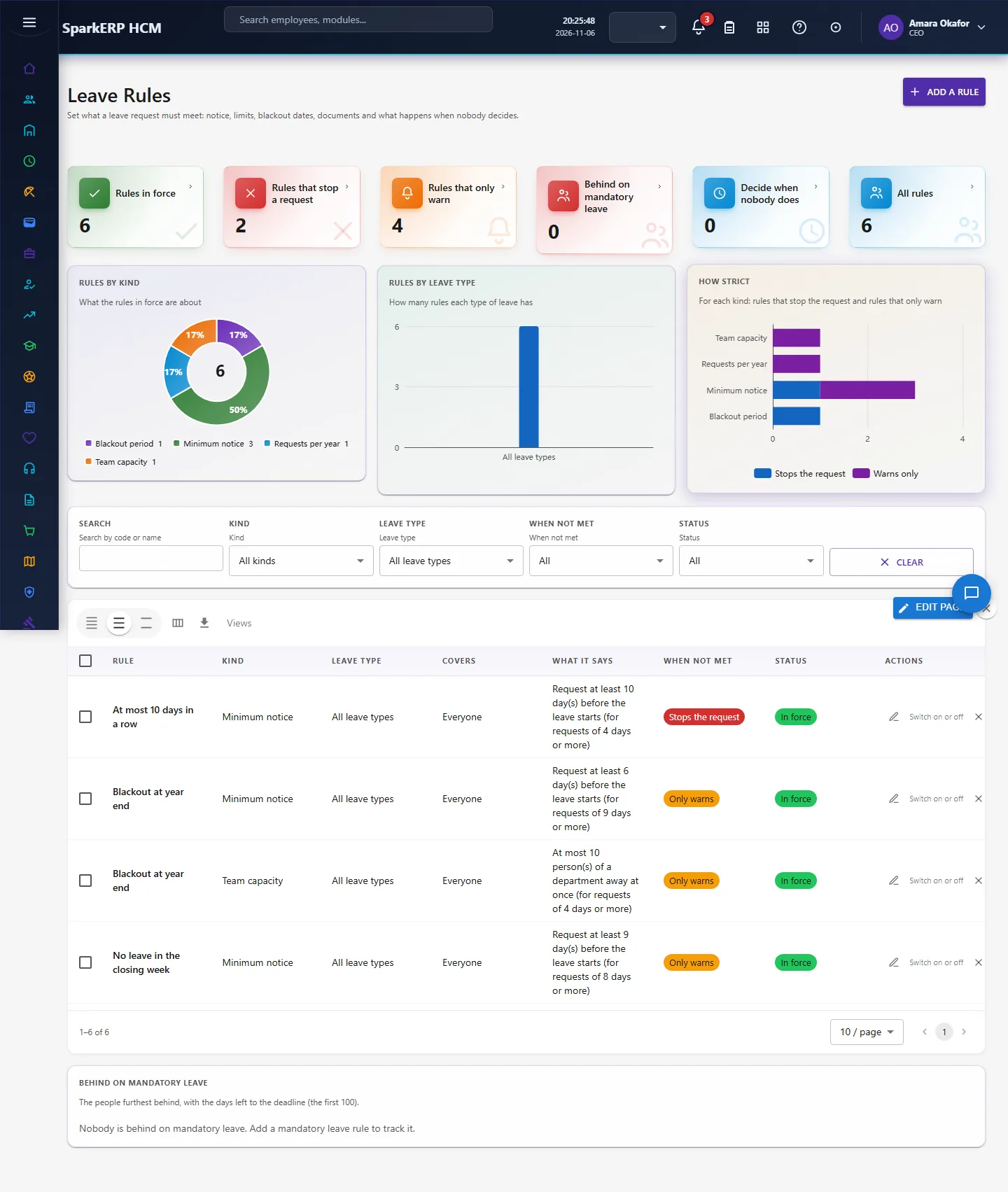
Leave rules are the way you write your leave policy so the system applies it every time. Each rule has a scope (a leave type, an employment type, a gender, an organisation or a department; empty means everyone), a threshold (it applies from this many days up), a message the person reads, and a severity: Block (the request is refused) or Warn (it goes ahead with a notice).
| Rule | What it enforces |
|---|---|
| Minimum notice days | The leave must be requested this many days before it starts. |
| Maximum consecutive days | One request can be at most this long. |
| Minimum consecutive days | One request must be at least this long. |
| Blackout period | No leave between two dates (for example a year-end close). |
| Allowed period | Leave can only be taken between two dates. |
| Document required | At least this many supporting documents must be attached. |
| Reason required | The person must write a reason. |
| Minimum service days | Leave opens after this many days of service. |
| Maximum backdated days | How far in the past a request may start (0 means it cannot start in the past). |
| Maximum requests per year | At most this many requests of this leave type in a year. |
| Maximum concurrent absent | No more than this many people of the same department away at the same time. |
| Minimum hours worked | Leave needs this many hours worked in the last months (from attendance). |
| Roster lock days | Leave this close to its start needs the manager's agreement because the roster is already published. |
| Sandwich | Leave on both sides of a weekend counts the weekend too, so choose other dates or ask HR. |
Some rule kinds are not checked when a person applies; they work elsewhere: the automatic decision after N days pending, cancellation notice, mandatory leave (at least so many days a year, or one block of so many days, by a deadline), and the year-end automatic carry forward and accrual.
2.7 Carry forward
At the year end HR runs Carry Forward: preview, post, and reverse if needed. The amount carried for each person is the closing balance, limited to the maximum days of the policy. Carried leave can be given an expiry (a number of months, from the policy or from HCM Settings); the expiry date is recorded with the carry forward. The carry-forward type in HCM Settings is one of: none, simple, expiry or capped (capped uses the maximum days you set there as well as the policy's).
2.8 Encashment: paying for unused leave
A person asks to be paid for some of their available leave on My Leave Encashment. The screen shows the daily rate and the gross amount before they submit.
- Encashment must be switched on in the leave policy, and the request must respect the policy's minimum balance (default 5 days), the maximum days per request (default 10), and a minimum service if the policy sets one.
- Daily rate = the person's base salary ÷ the salary divisor of the policy (30 unless set), or a fixed rate if the policy uses one. Amount = daily rate × days.
- The request goes to the manager and then to HR (HR approval is required unless the policy says otherwise). When it is approved, the days leave the balance as encashed.
Encashment needs the person's active compensation record to work out the rate.
2.9 Leave in other modules
- Shift roster. When leave is approved, the person's rostered shifts on those days become Leave entries so the manager sees the gap; when approved leave is cancelled they become shifts again.
- Comp off. Overtime approved as time off instead of pay is credited to a Comp Off leave type: 8 hours of overtime is one day, valid for 90 days, then it expires.
- Attendance. HCM Settings has an attendance-integration switch for leave; when it is on, leave and attendance share the same view of who is away. Each leave type also carries a paid flag that marks it as paid or unpaid leave.
- Leave liability. Finance can value unused leave: each person's available days times their daily pay (the latest payroll gross, annualised, divided by the working days in a year you set in Leave Settings, 260 to start).
3. Who does what
| Role | What they do |
|---|---|
| Employee | Applies for leave on My Leave Requests, sees balances on My Leave Balance and the summary on My Leave, asks for encashment on My Leave Encashment. |
| Manager | Approves on Team Leave, sees who is off on the calendar, reads the weeks ahead on Leave Outlook and Risk. May apply on behalf of the team if your settings allow it. |
| HR / leave administrator | Sets up types, policies and rules; runs accrual and carry forward; adjusts balances; handles encashment; reads reports. |
| Finance | Reads the leave liability on Leave Balance and the unused-leave bands on Leave Outlook and Risk. |
Changing leave rules needs the LeaveRule.Manage permission; the application administrator always has it. The analytics pages need the Report view permission.
3a. What each role sees, screen by screen
The icon rail down the left side of the HCM window is the same for everyone. What differs is the screens each role works in and the figures and buttons on them. These are the screens, taken as a real employee, a manager and an HR administrator of the demo company.
The employee
The employee works on two screens.
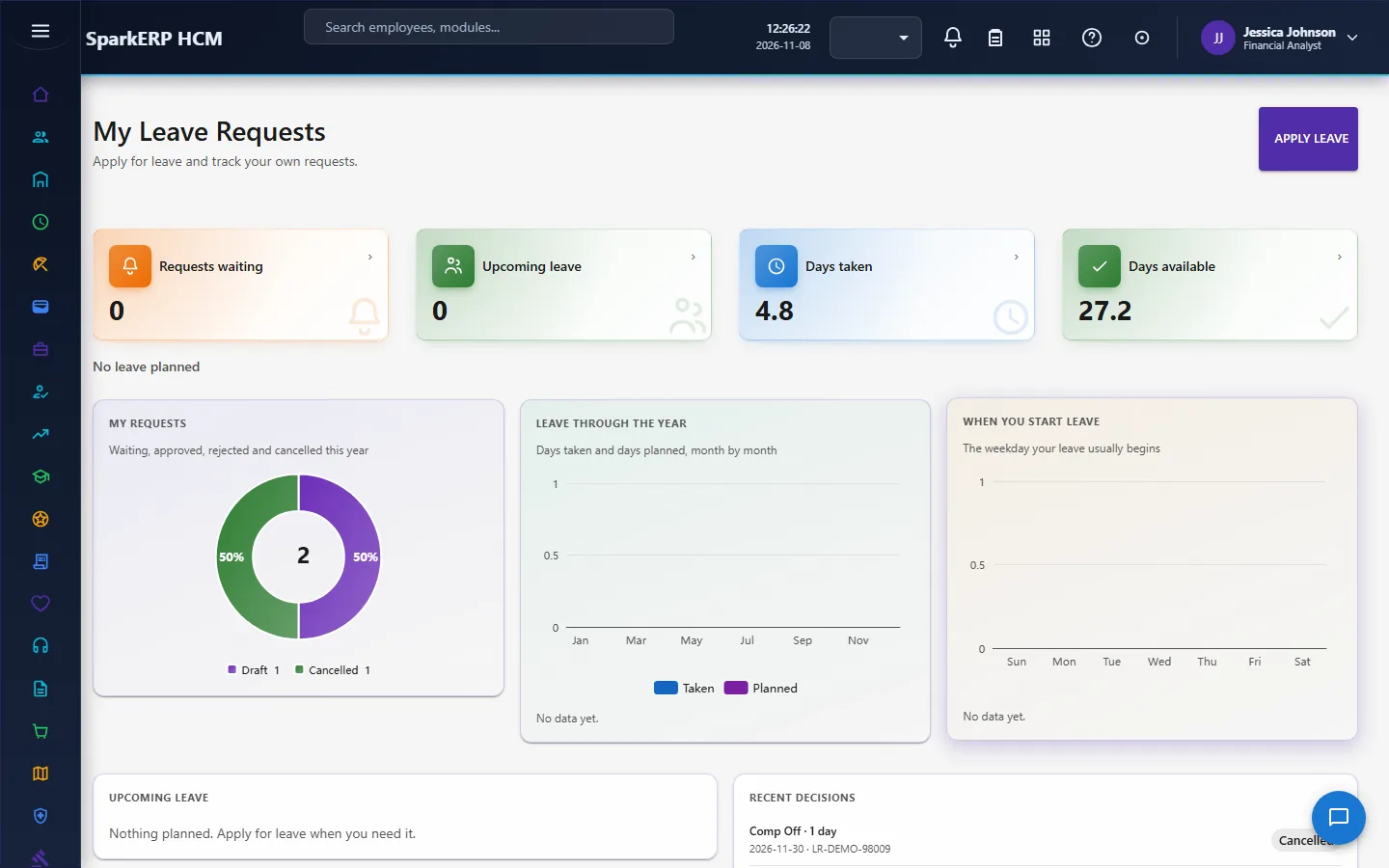
My Leave Requests. The first thing on the page is the Apply leave button. Under it four tiles answer the questions people ask most: how many requests are waiting, what leave is upcoming, days taken this year and days available. Below are a chart of your requests by status (waiting, approved, rejected, cancelled), your leave month by month (taken and planned), the weekday your leave usually begins, Upcoming leave, and Recent decisions with the request number and what was decided.
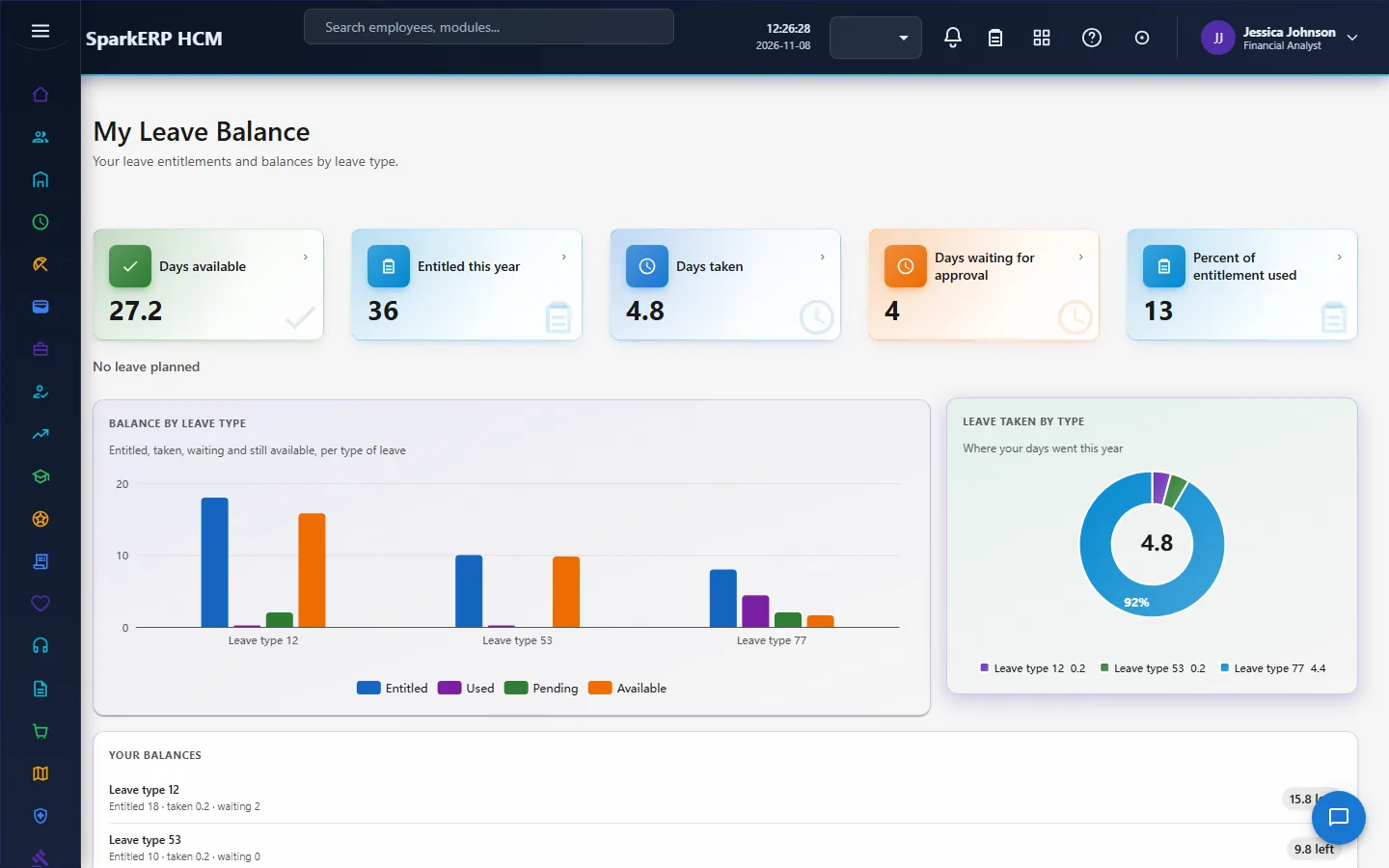
My Leave Balance. Your entitlement for the year, days taken, days waiting for approval and the percentage of the entitlement used, then the balance for each leave type.
What the employee can do: apply, save a draft, submit, cancel a request of their own, and ask for encashment. They cannot decide anyone's request.
The manager
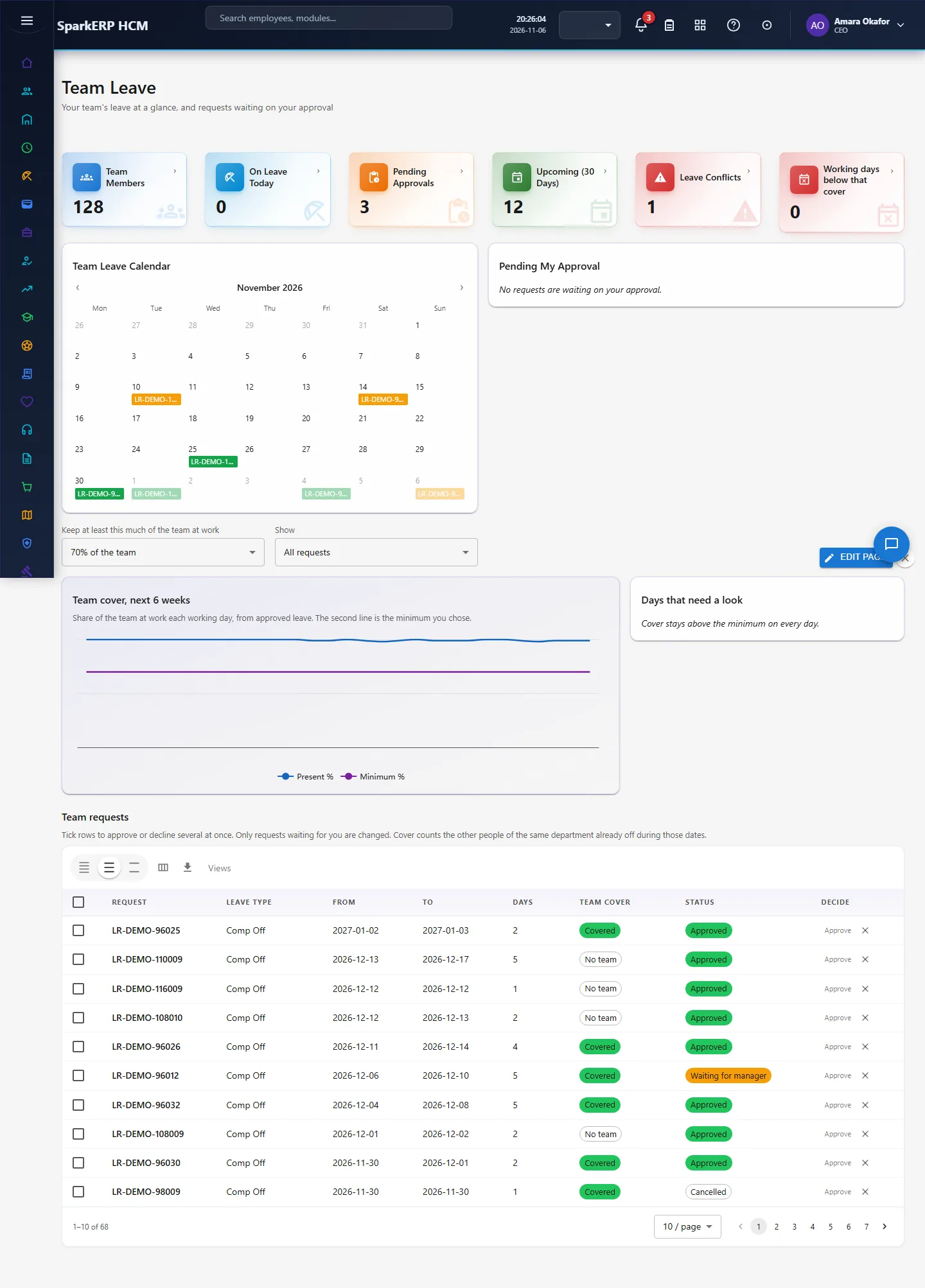
Team Leave. Tiles for team members, on leave today, pending approvals, upcoming (30 days), leave conflicts and working days below that cover. A Team Leave Calendar shows who is away on which day, and Pending My Approval lists the requests waiting for the manager's decision. The cover setting ("keep at least this much of the team at work", 70% here) is what the leave conflicts and below that cover tiles measure against.
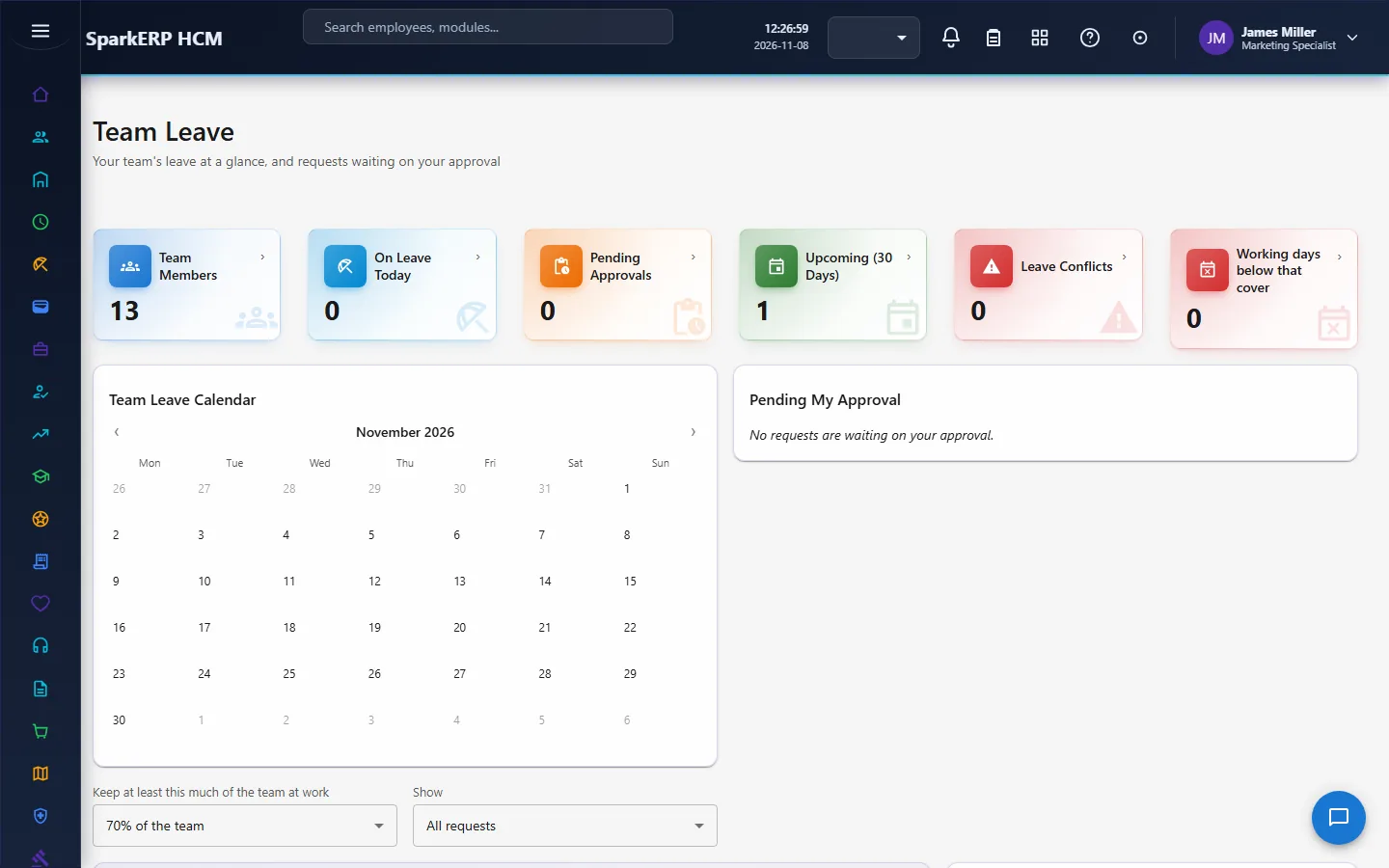
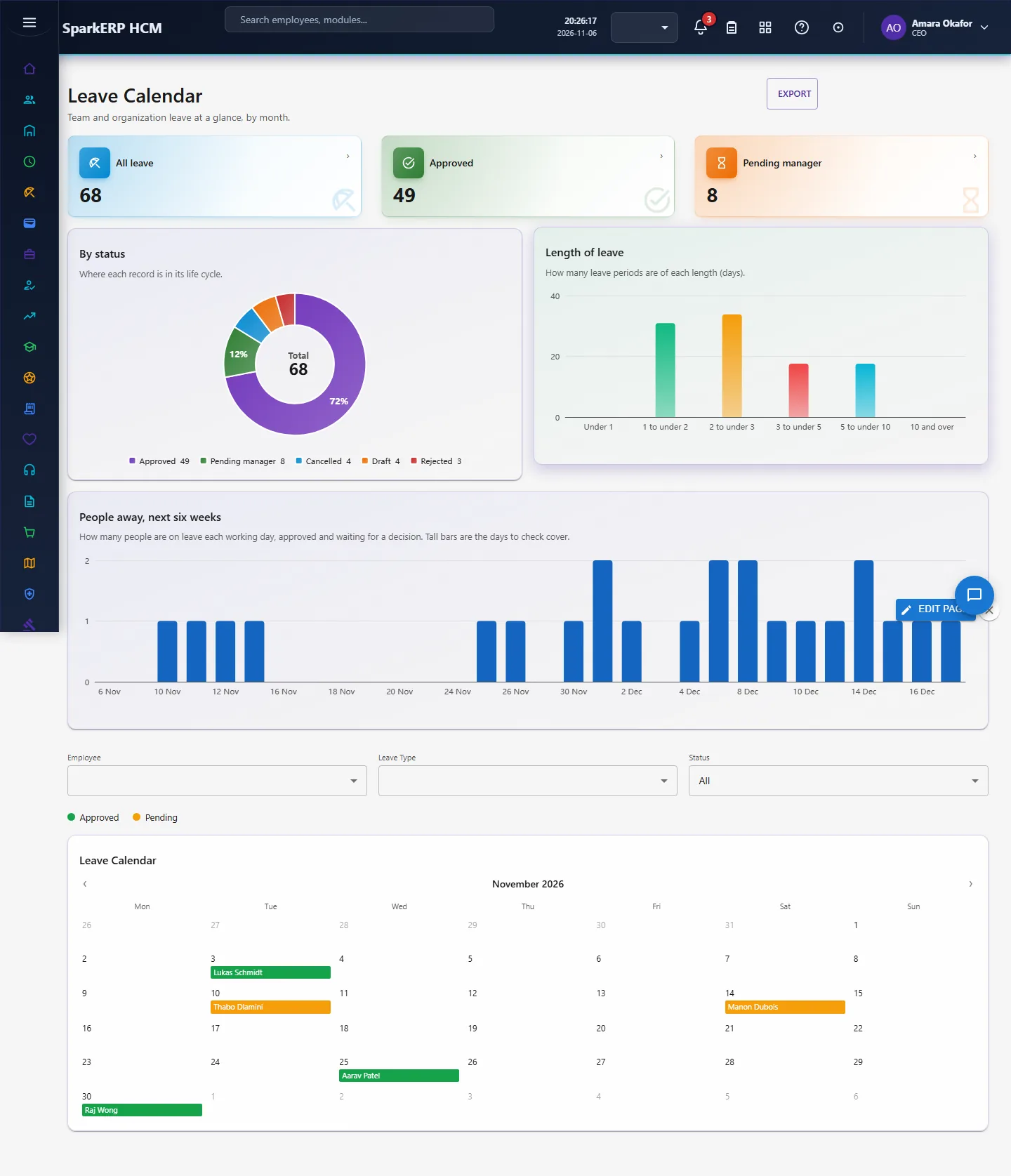
Leave Calendar. The leave of the people the manager can see, by month, with a status chart (approved, pending manager, cancelled, draft, rejected).
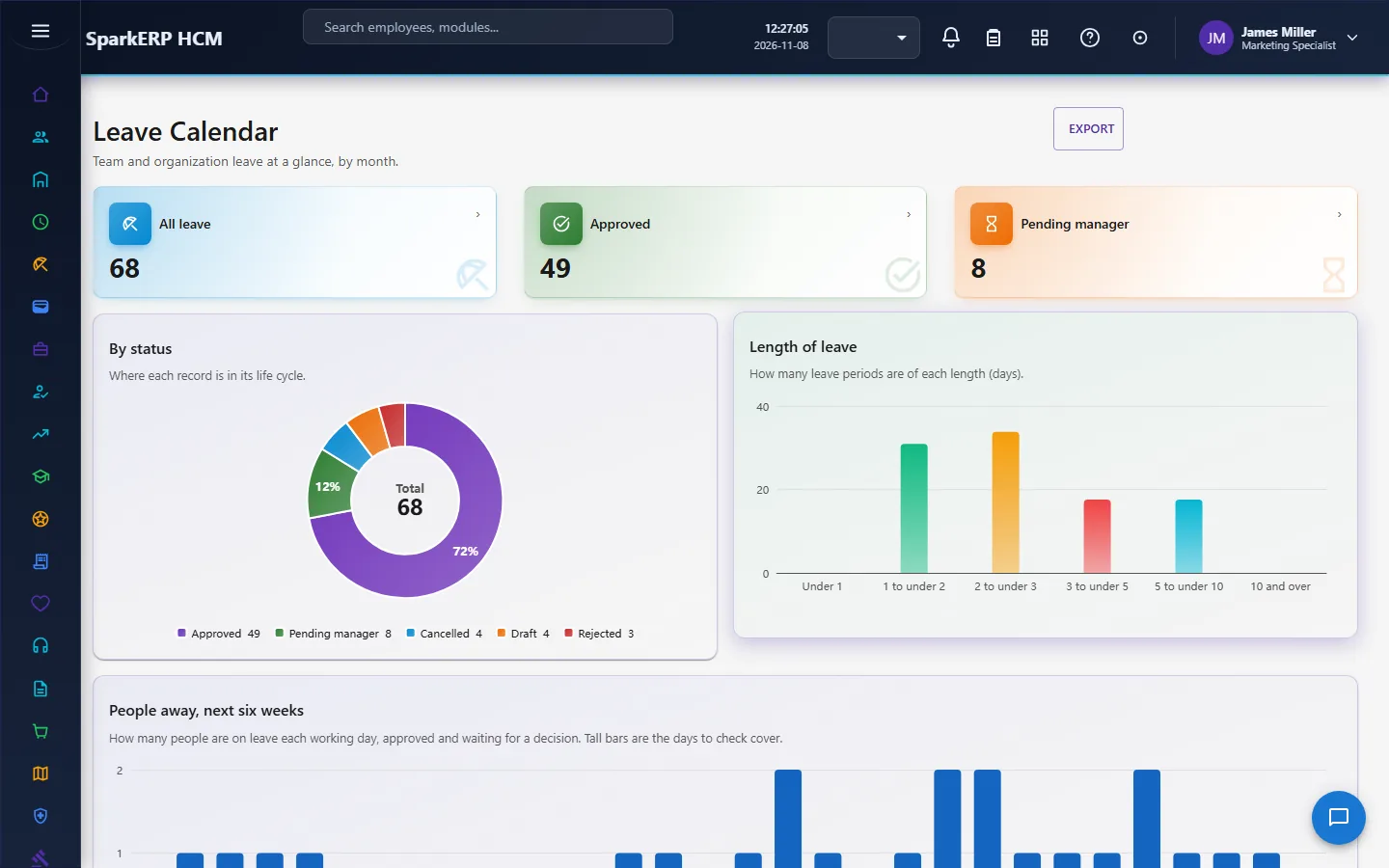
What the manager can do: approve or reject the requests of their team, and read the team's balances and conflicts before deciding.
The HR administrator
The administrator works on the setup and the whole-company screens.
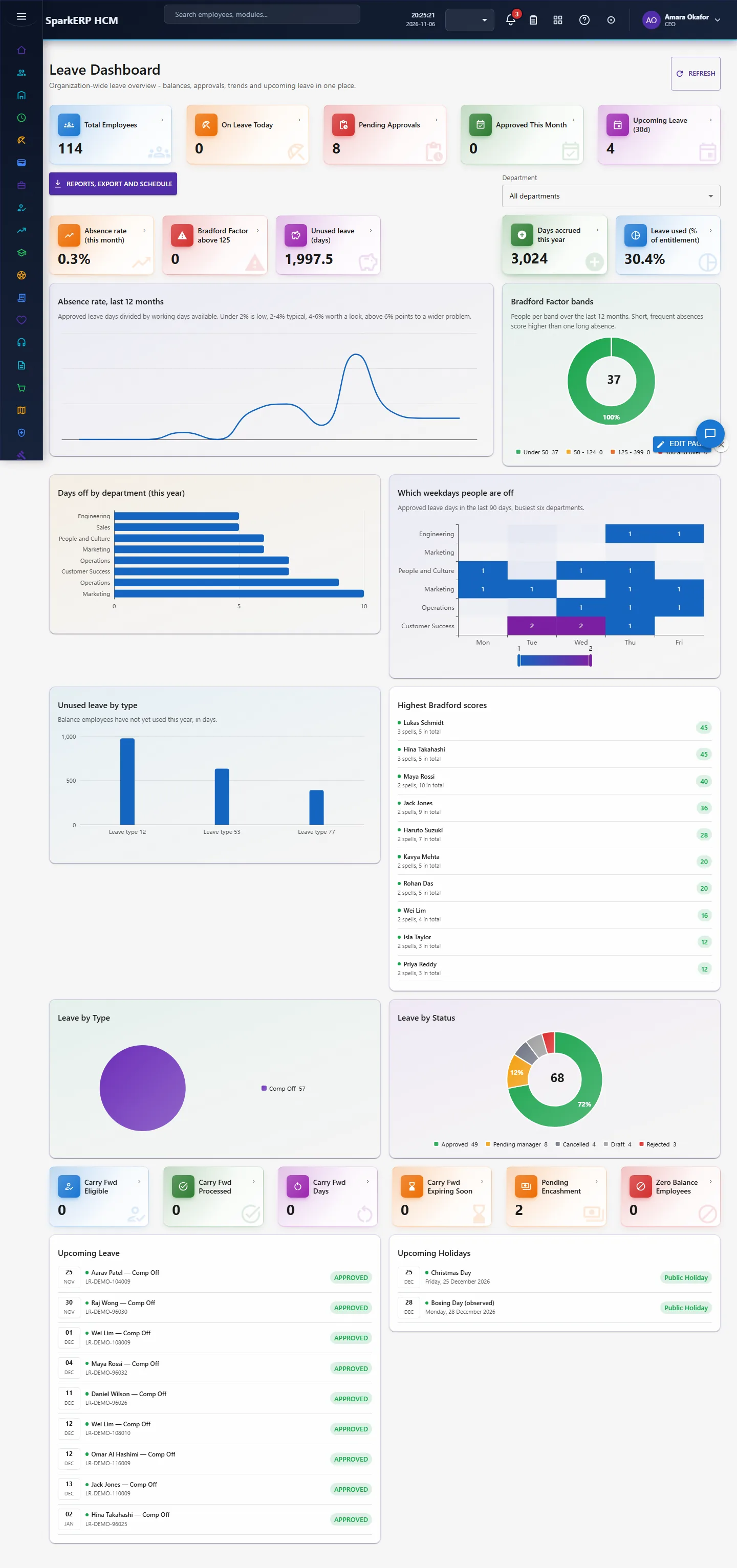
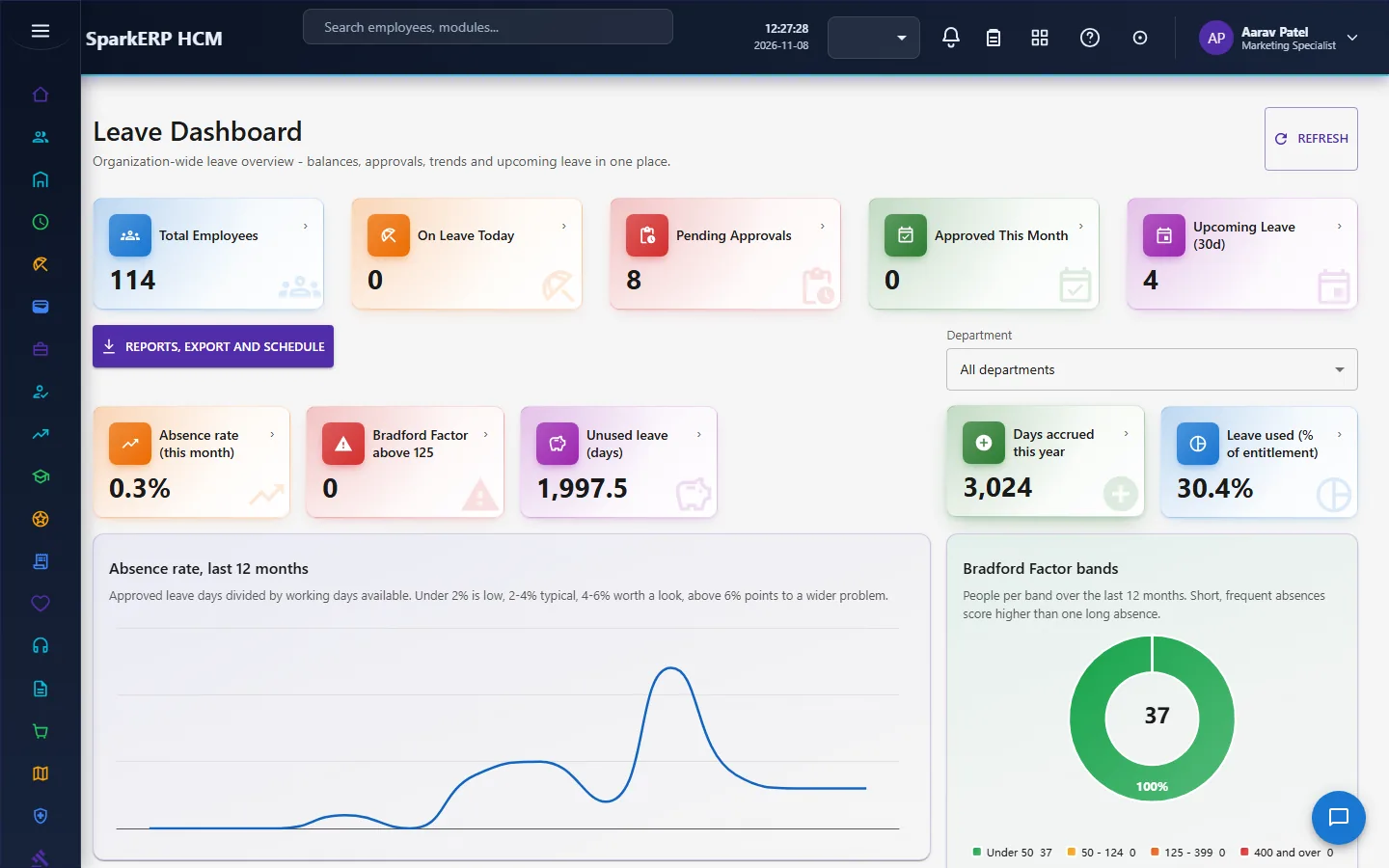
Leave Dashboard. Company-wide tiles (total employees, on leave today, pending approvals, approved this month, upcoming leave), balances, approvals and trends.
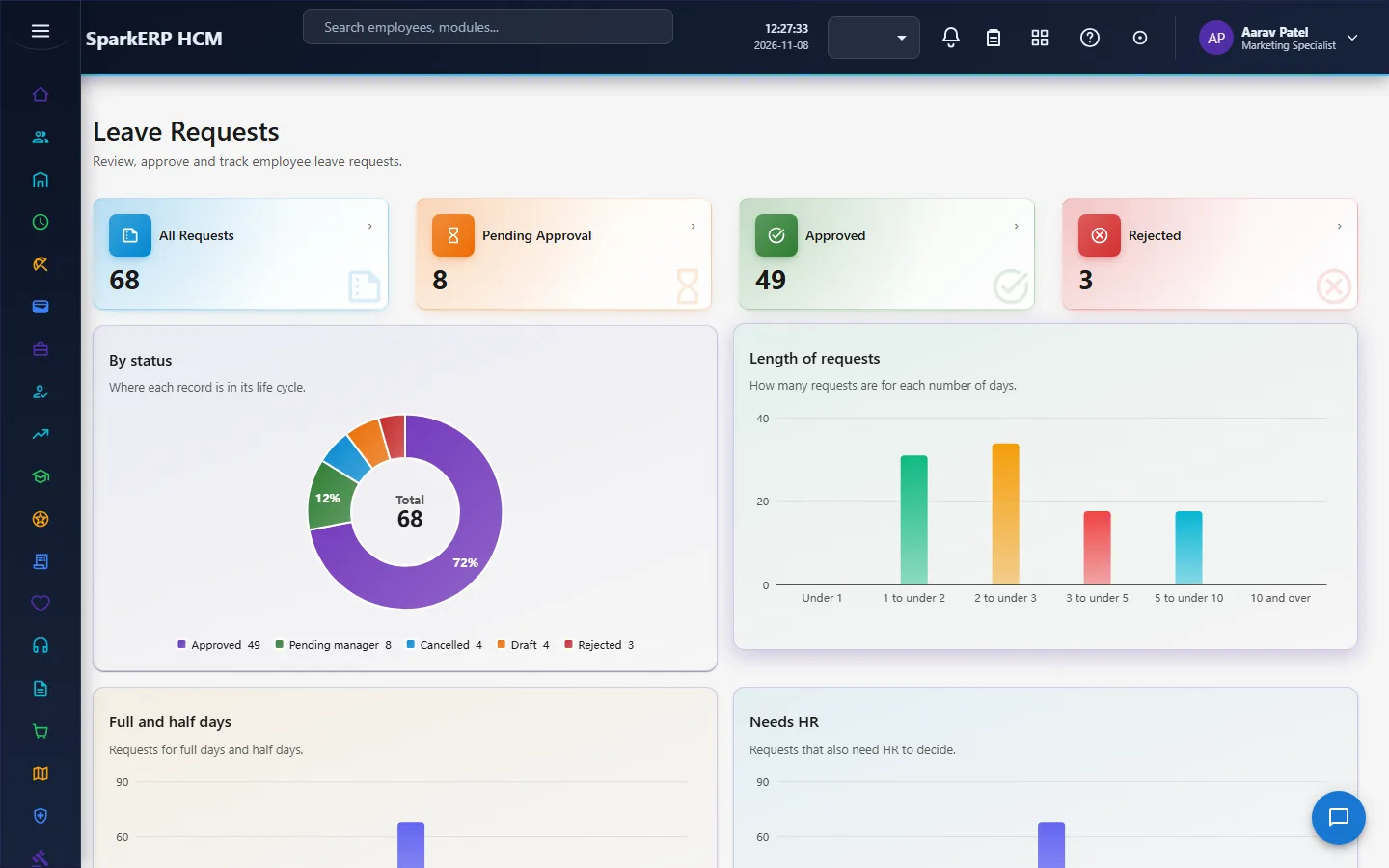
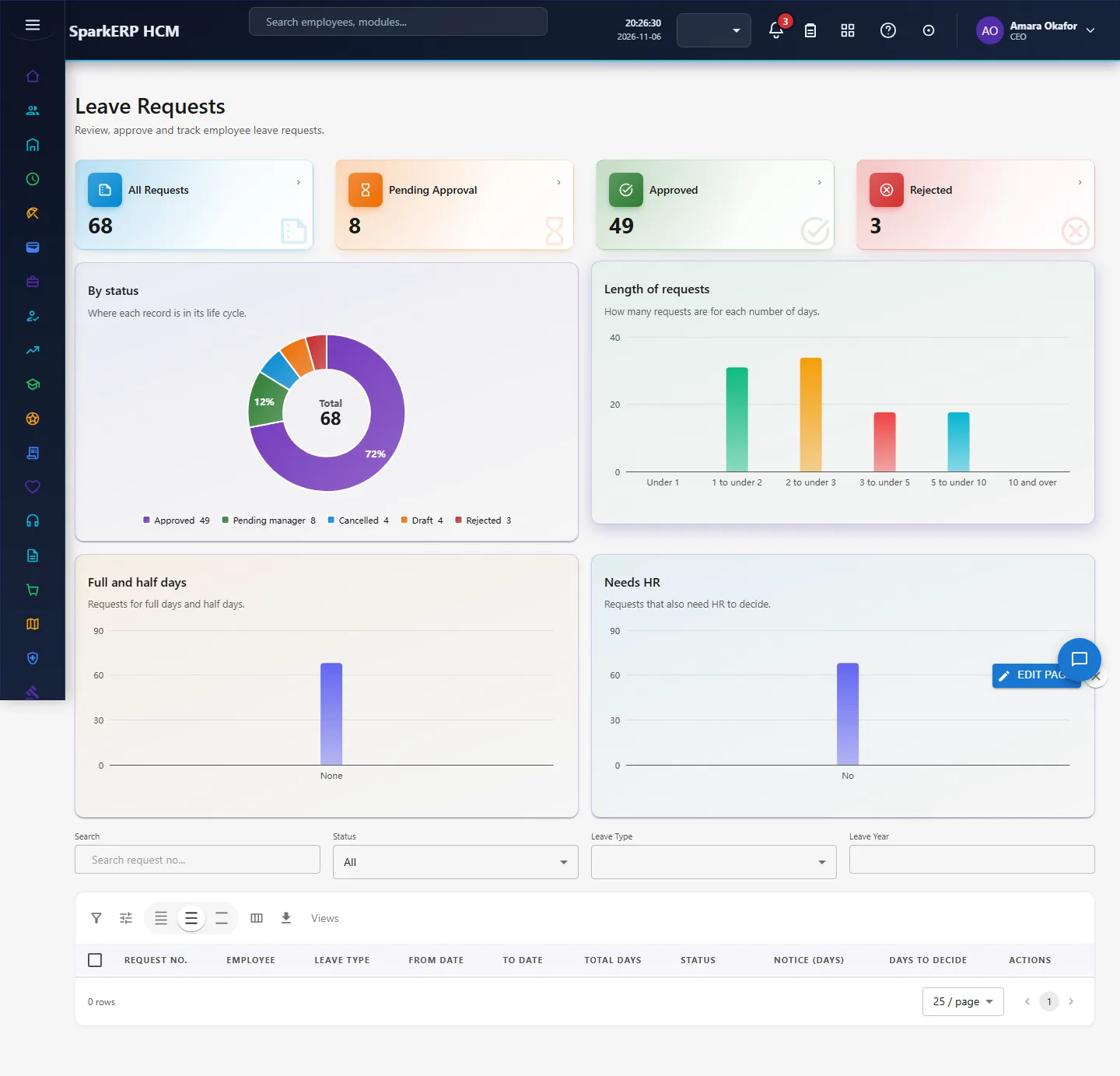
Leave Requests. Every request in the company with counts by status, to work the queue and see what is stuck.
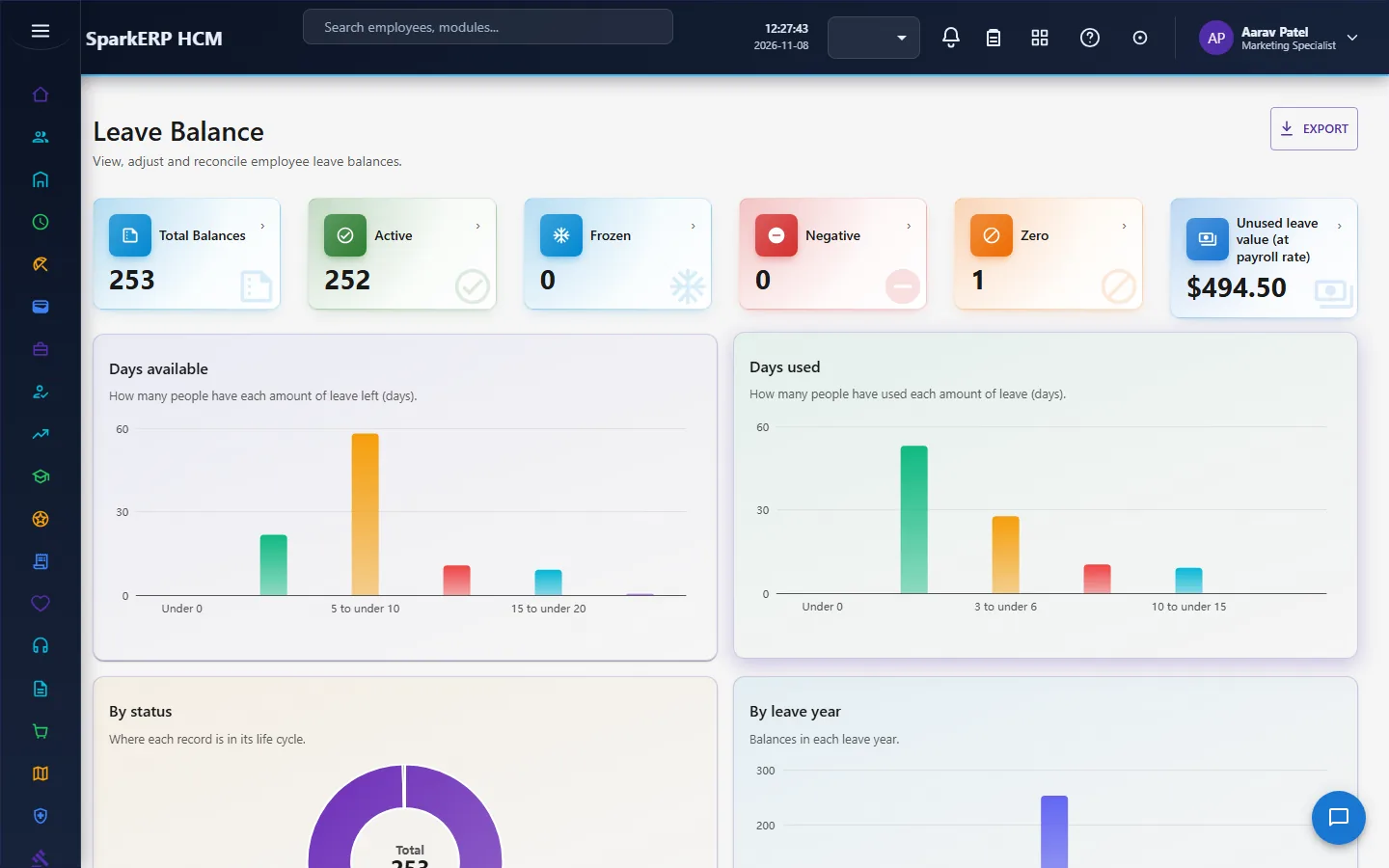
Leave Balance. Every employee's balance with the ledger, adjustments and the value of unused leave.
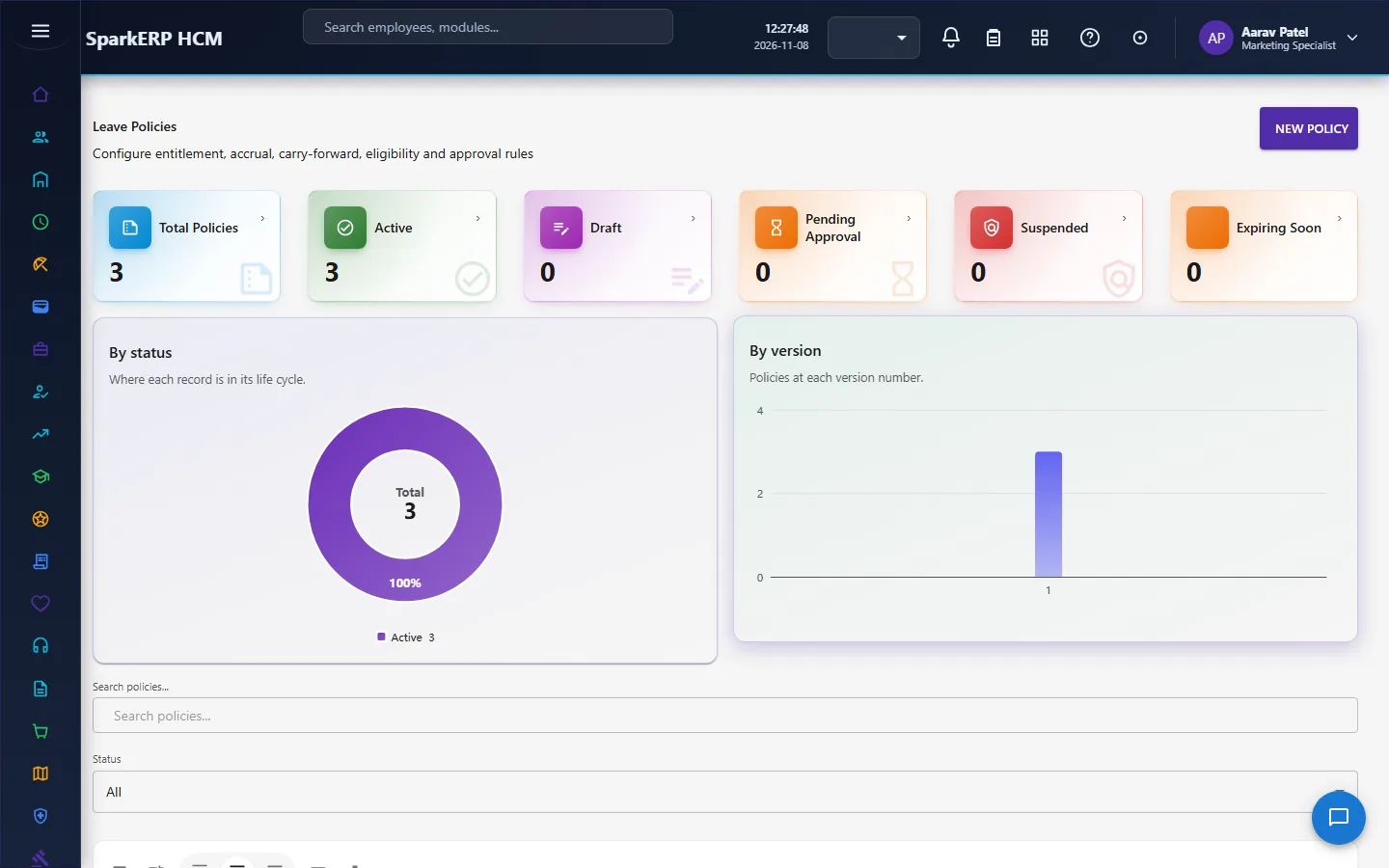
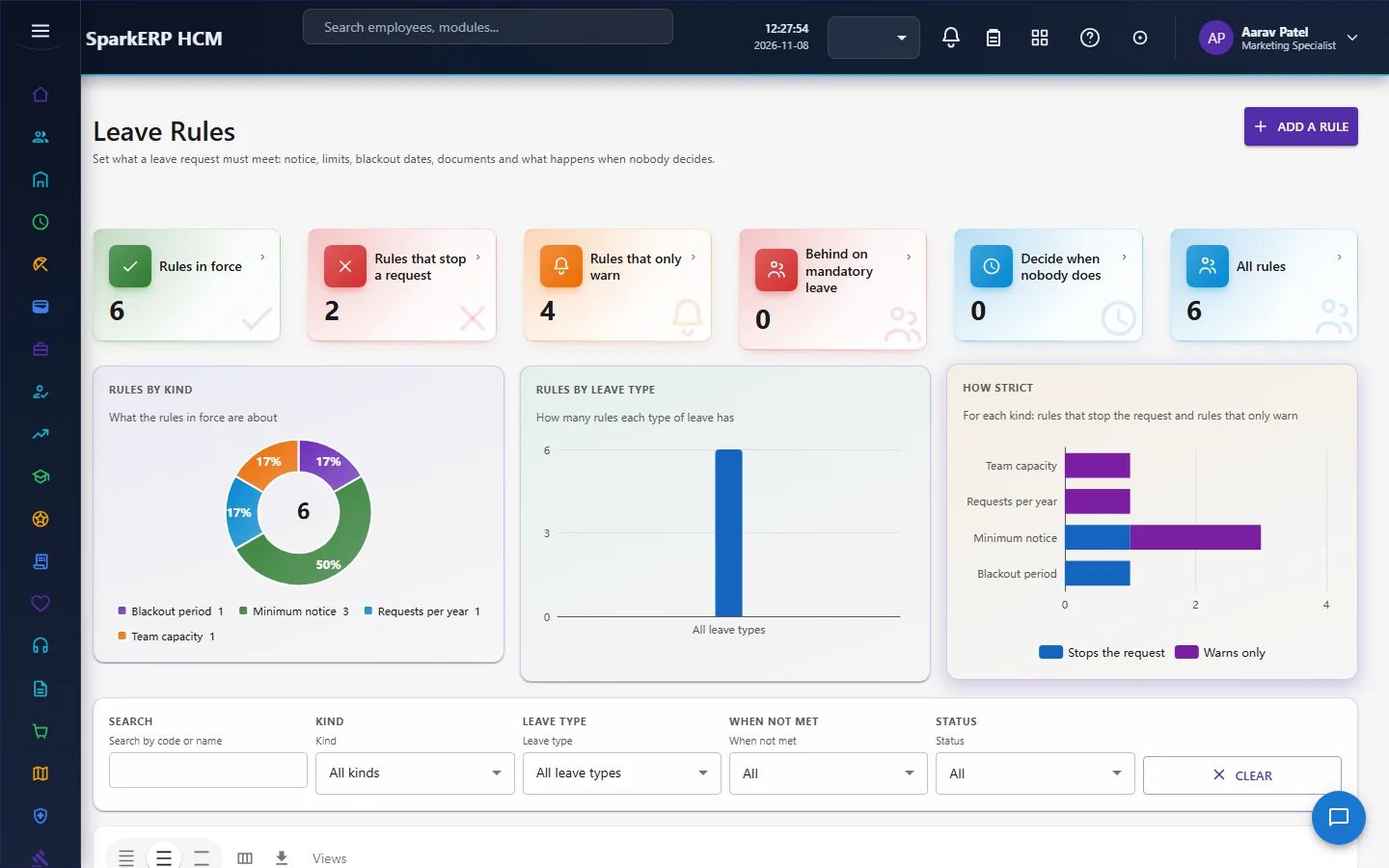
Leave Policies and Leave Rules. Where the entitlement and the rules of section 2.6 are written. The Rules page counts the rules in force, how many stop a request and how many only warn, and who is behind on mandatory leave.
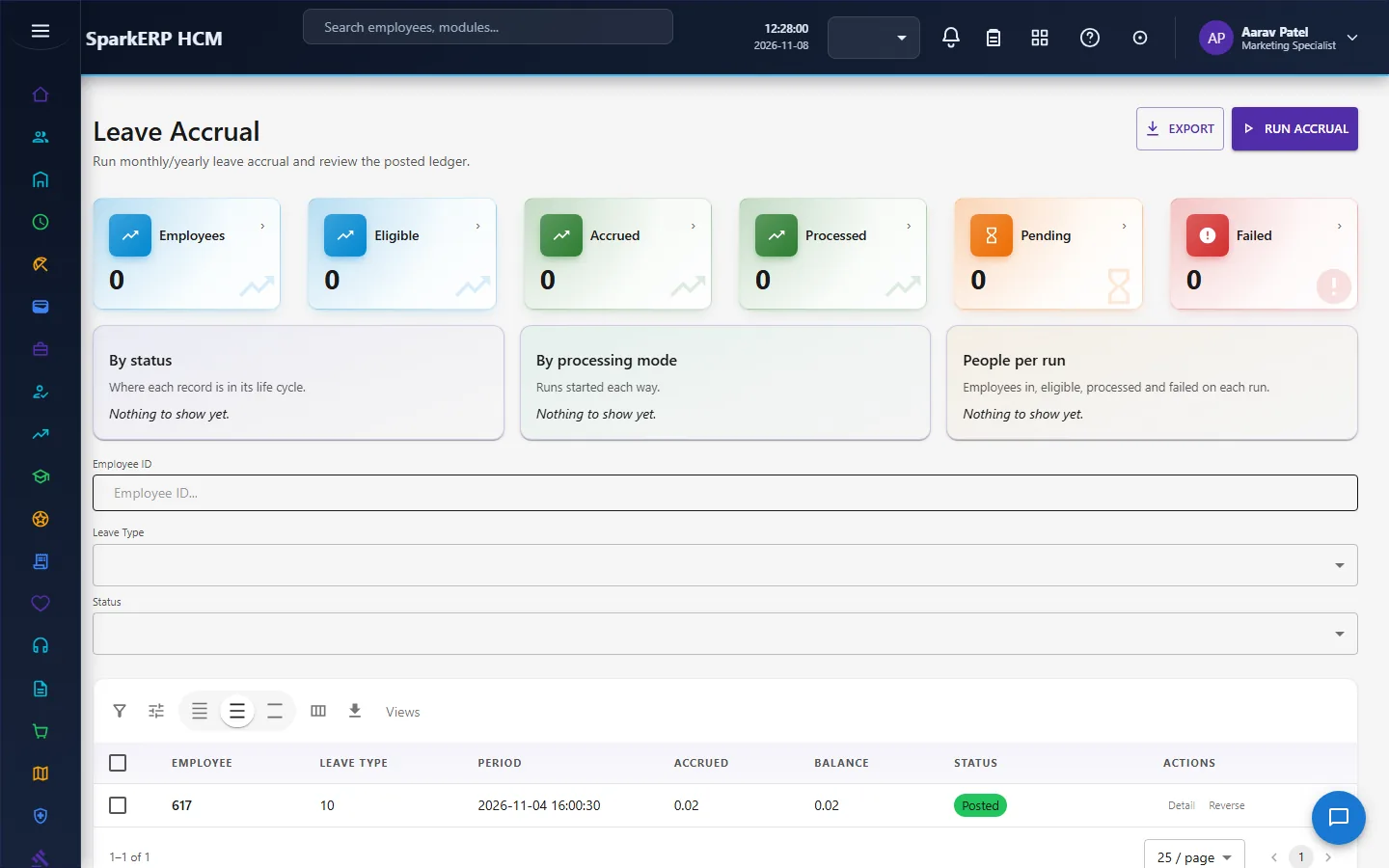
Leave Accrual. The Run accrual button, the counts of employees processed, pending and failed, and the posted ledger.
What the HR administrator can do: everything above, plus carry forward, encashment, balance adjustments and the reports.
4. Decide before you set up
- Which leave types? Annual, sick, casual, maternity, unpaid, comp off. Decide for each: paid or unpaid?
- How is entitlement given? Monthly or yearly, and how many days. Does it differ by employment type, grade, location or group? Each different answer is a policy.
- What is your leave year? Calendar, financial or from joining date.
- Carry forward: none, all, capped, or capped with expiry? What happens to leave above the cap: lost or paid out?
- Do weekends and public holidays count as leave days? Most companies say no.
- Which rules protect the business? Notice, maximum length, blackout periods, documents for sick leave, concurrent absence per department.
- Who approves? The manager, and HR for longer leave: 3 days or less go to the manager alone.
- Do you allow a negative balance, half days, backdated and future leave? Set the limits.
- Is leave encashed? If so, on which types and at what rate.
5. Set up step by step
Do these once, in this order. Each step links to its how-to article.
Leave settings (HCM Settings, Leave). The tenant-wide switches. The ones the module reads are:
Setting What it does Leave management enabled Switches the whole module on or off. Leave year type, start month and day Calendar year, financial year, custom date or joining year. Allow negative balance Lets a request go through when the balance is not enough. Allow backdated leave, backdated limit; allow future leave, future limit How far back and ahead leave can be requested. Require leave reason; require attachment A reason and a supporting document are needed to submit. Allow half day Lets people request half days. Weekend treatment; holiday treatment Whether weekends and public holidays count as leave days (default: exclude). Accrual enabled; proration; new joiner prorate; pause accrual during unpaid leave How and when entitlement is earned. Carry forward enabled, type (none, simple, expiry, capped), maximum days, expiry in months What is carried to next year. Encashment enabled; maximum days; request deadline (days before year end) Whether and how much can be paid out. Managers can apply on behalf of their team Lets a manager raise a request for a team member. Notifications; attendance integration Whether leave sends notices and talks to attendance. Leave types: Create a leave type. Give each a code, a name, a category, the paid flag and the status.
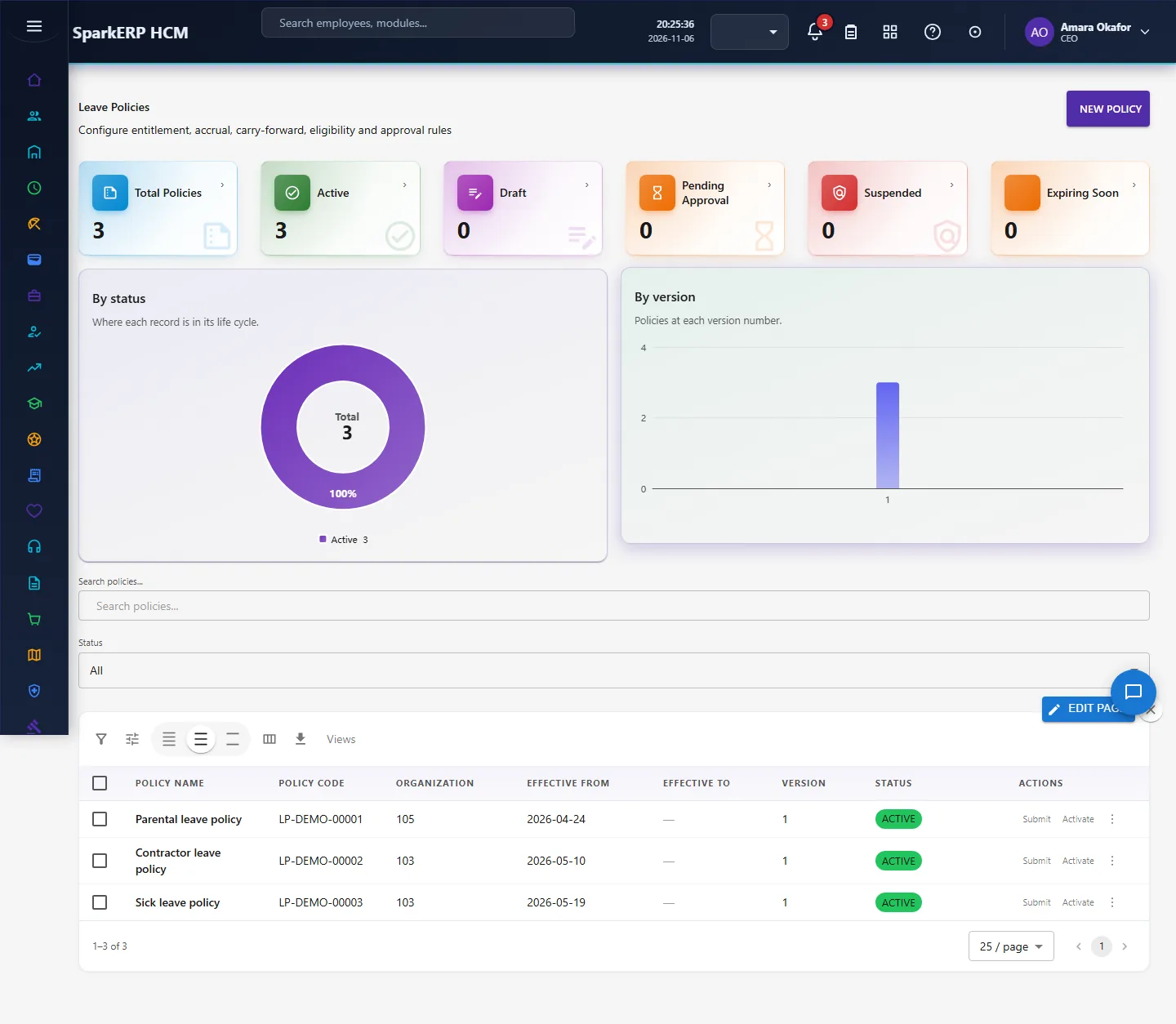
Leave policies: Create a policy. For each leave type set the entitlement, accrual, carry forward with its limit and expiry, encashment, eligibility and approval, and scope the policy to the group it covers. A policy has an effective from date and a status; only active policies apply.
Leave rules: the rules in section 2.6, one row each, with scope, threshold, severity and message.
Holiday calendar: public holidays from the country pack are not counted as leave days. Check each location has the right country.
Opening balances: if you are moving from another system, give each person their starting balance with Adjust Balance (with a reason) before the first accrual, so the ledger shows where it came from.
First accrual: run Leave Accrual once for the period you start in: preview, check a few people, post.
Test with one person: apply, approve and cancel a request, and watch the balance and ledger.
6. Daily use
6.1 An employee applies for leave
- Open My Leave Requests and choose Apply for leave.
- The form shows the balance of every leave type as soon as it opens, then the balance of the chosen type and what is left after the request. The calculated days appear when you pick dates. Rule messages appear as you fill in the form; a document upload says when a document is required.
- Submit. A request that breaks a blocking rule is refused in the rule's own words; a warning lets it through. A request for more than 3 days goes to the manager and then HR.
- To withdraw, open the request and cancel it.

6.2 A manager decides
- Open Team Leave: team members, who is on leave today, pending approvals, upcoming leave and the team's balances.
- Approve or reject from Pending My Approval. The Leave Calendar shows who is off on each day, so you can see the effect before you decide.
6.3 HR works the requests and balances
- Leave Requests lists every request, checked against the real balance. Leave Balance shows every employee's balance with its ledger, any adjustments and the estimated money value of unused leave.
- To correct a balance use Adjust Balance with a reason; it goes through approval when your settings ask for it.
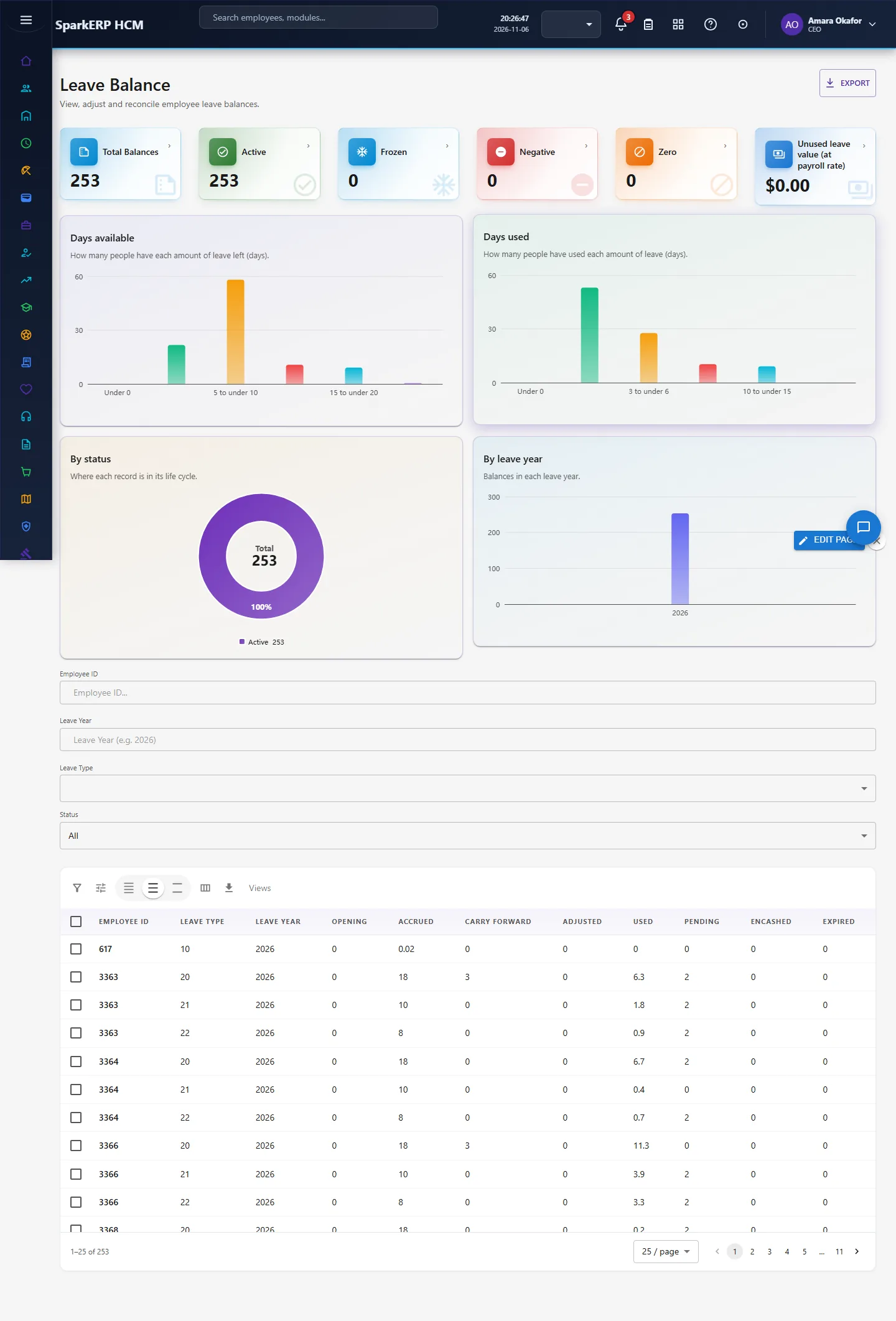
6.4 Accrual and carry forward
- Leave Accrual: choose the period, preview what each person would receive, then post. Reverse undoes a posted run.
- Carry Forward: at the year end preview what is carried (with the policy's limit and expiry), post it, reverse it if needed.
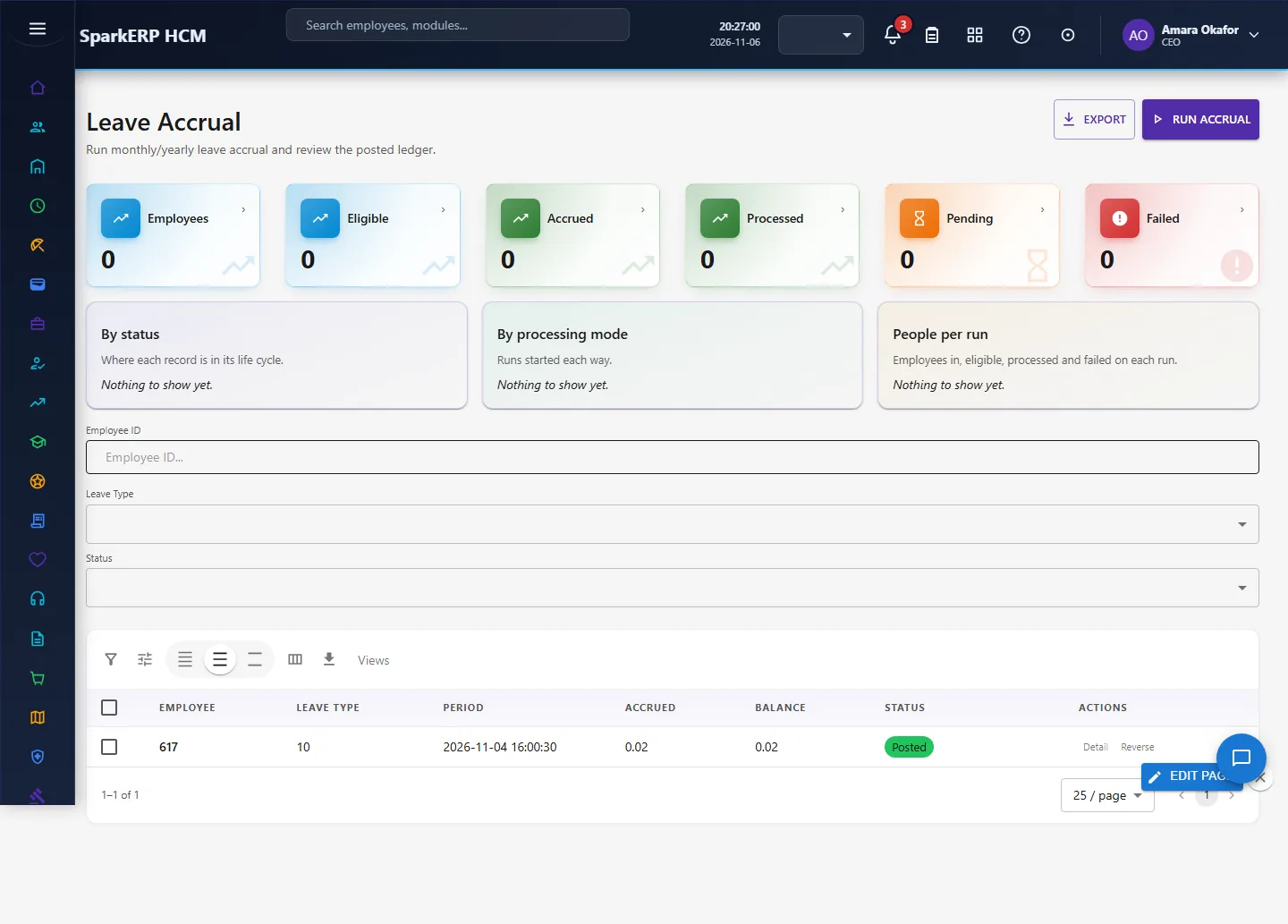
6.5 Encashment
An employee opens My Leave Encashment, picks the leave type and days and sees the daily rate and gross amount before submitting. HR works the requests on Leave Encashment.
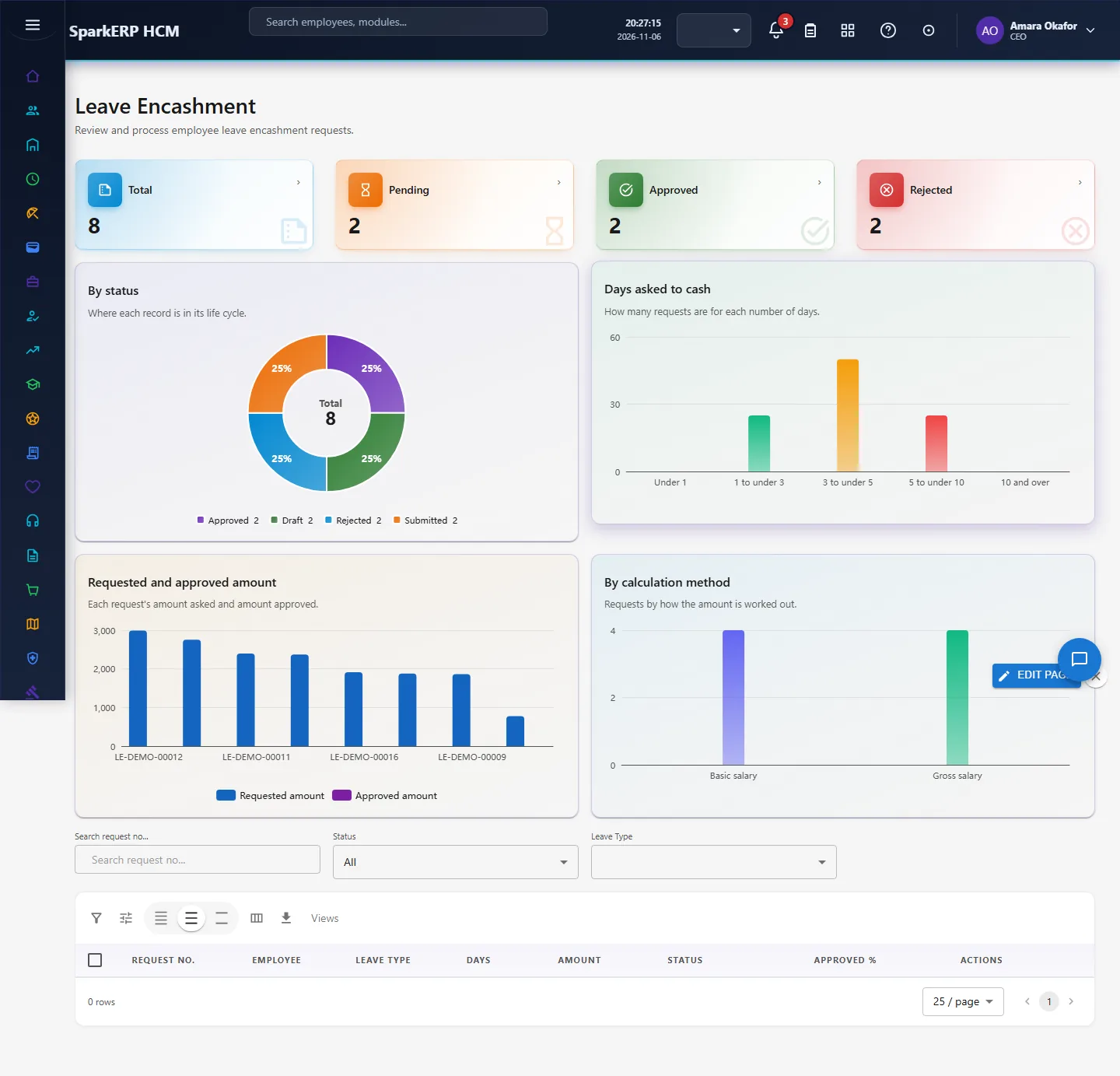
7. A calendar of recurring work
| When | What HR does |
|---|---|
| Every month | Run and post Leave Accrual (if you accrue monthly). Review Pending My Approval and requests waiting too long. |
| Before a busy period | Add a blackout rule and read Leave Outlook and Risk for the weeks ahead. |
| Quarterly | Read the leave liability and the unused-leave bands with finance. |
| Before year end | Remind people with large balances; check mandatory leave shortfalls; decide the carry-forward cap. |
| At year end | Preview and post Carry Forward; run encashment for the leave you pay out. |
| New year | Check the new year's balances were created; post the first accrual. |
8. Reports and figures
| Figure or screen | What it shows and how to use it |
|---|---|
| Leave Dashboard | Organisation-wide KPIs, balances, approvals, trends and upcoming leave. |
| Leave Reports | Six report types: Leave Summary, Balance, Requests, Carry Forward, Leave Encashment, Leave Accrual (read-only). |
| Leave Outlook and Risk | Entitlement used, leave per week for the next 8 weeks against a typical week, busiest weekdays and months, used and available by type, unused-leave bands and the people with many unused days and no leave for 120 days. See Leave Outlook and Risk. |
| Leave liability (on Leave Balance) | Each person's available days times their daily pay. |
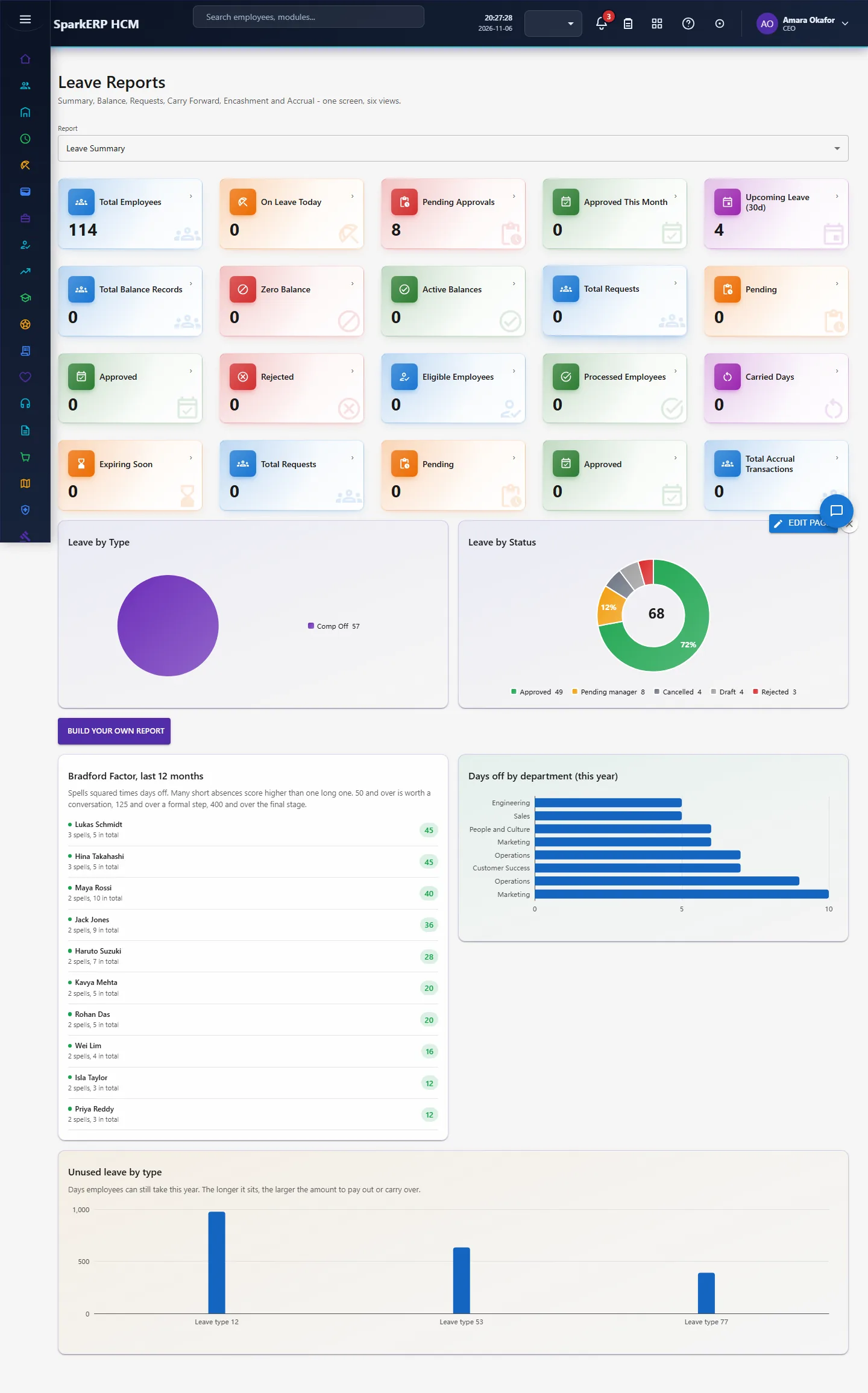
The grids offer search, paging, column choice and export. On a phone, tiles and charts stack one per row and dialogs fit the screen.
9. Limits you should know about
- A person can create, submit and cancel only their own requests unless they hold the leave administrator permission.
- Accrual, carry forward, automatic decision and reminders can be run again safely; a second run does nothing.
- Accrual is monthly or yearly. Daily, quarterly and other schedules are not available; a method that is not recognised is treated as monthly. Proration covers a new joiner in the first period, not leavers or a change of policy.
- The leave liability needs payroll results or a base salary; allowances, overtime and statutory add-ons are not added.
- Encashment cannot take its rate from payroll calculation yet; use basic salary, gross salary (which currently uses the same base figure) or a fixed rate.
- The Leave Calendar is a month view only.
- Leave Outlook shows leave already booked against a typical week; it is not a statistical forecast.
10. Troubleshooting
| Symptom | Cause and fix |
|---|---|
| A request is refused with a rule message | A blocking rule applies. Change the dates, add the document, or ask HR to change the rule. |
| "Insufficient leave balance" | Free balance (available minus pending) is below the days asked. Check pending requests, or ask HR to adjust, or allow a negative balance in settings. |
| "Overlaps with existing leave request" | The dates overlap another open request of the same person. |
| The days are not what I expected | Weekends and public holidays are skipped. Check the holiday calendar of the person's location and the weekend and holiday settings. |
| The balance does not move after approval | The request is not yet approved (check Team Leave), or the balance is frozen. |
| Accrual gives nothing | The policy has no accrual set, accrual is switched off, or the period was already posted (use Reverse to redo it). |
| A public holiday counts as leave | The holiday is not in the calendar of the employee's country pack, or holidays are set to count. |
| Encashment shows no eligible days | The policy does not allow encashment, or the balance is below the policy minimum. |
| Encashment cannot be priced | The person has no active compensation record. |
| "Report.View is required" | The login lacks the Report view permission. |