
Appearance
Organization: how it works and how to set it up
Organization answers the questions a company asks about its own shape: which legal entities do we operate through, how are we divided into business units, divisions and departments, where do people work, who pays for what, what jobs, levels and grades exist, and who agreed when the structure changed. Every other module reads this structure: an employee belongs to a department, a position sits in a unit, and a payroll run is scoped by it. This guide explains how the module works from start to finish, then how to set it up, then what each person sees. Every screen has its own page in the Organization section; this guide is the one to read first.
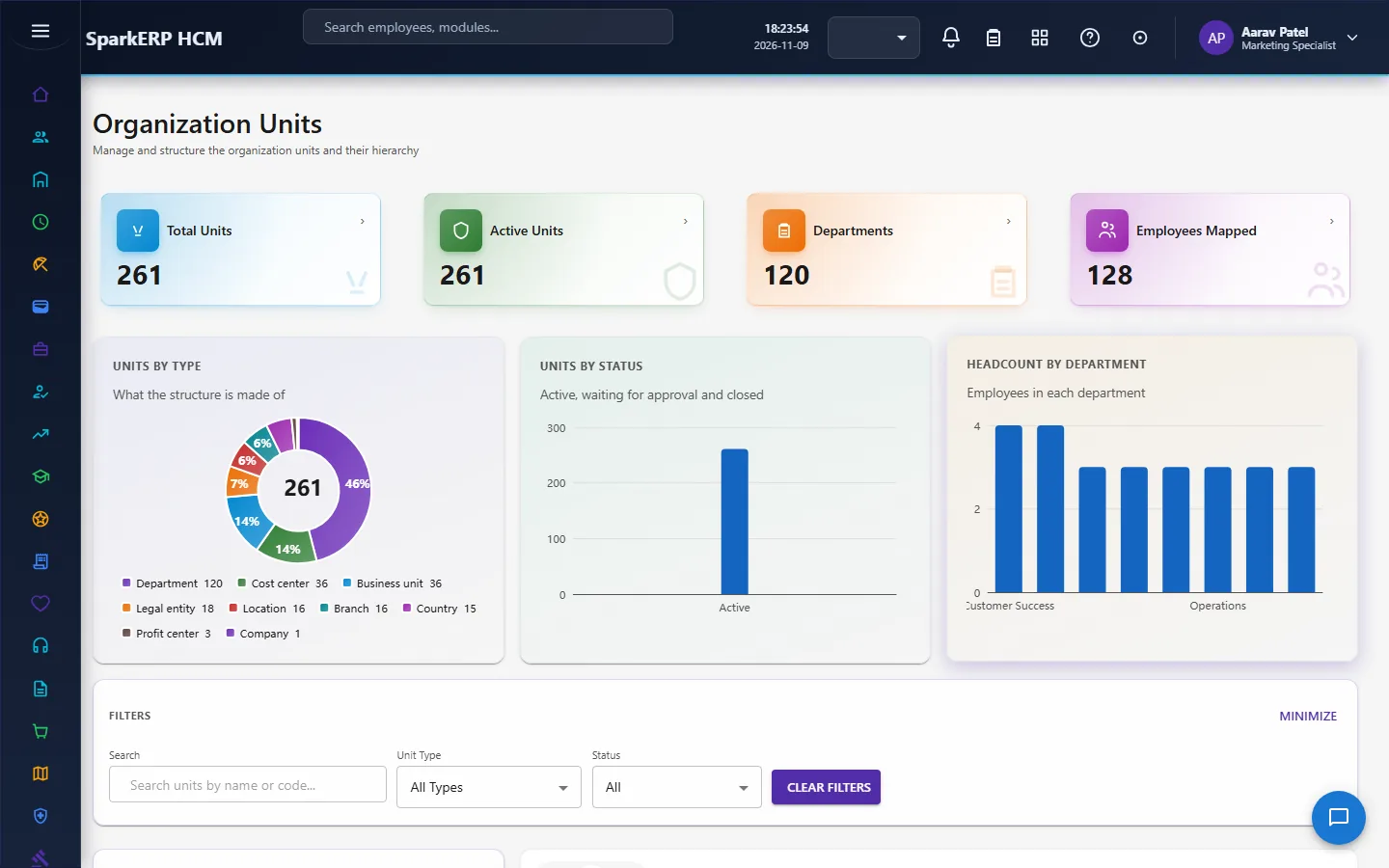
1. What Organization does for your business
- Models the legal structure: legal entities, with their registrations, bank accounts, documents and legal profile, and the organizations that belong to them.
- Models the operating structure as one tree of organization units: business units, divisions, departments, teams, branches and locations.
- Models the money structure: cost centers (with a yearly budget and an allocation of people) and profit centers.
- Models the job structure: job families, job classifications, levels, grades (with pay bands) and designations.
- Puts a person between a structural change and the record. A change that reshapes the structure is a request that is approved before it is applied.
- Shows what a unit contains and what depends on it, before anyone closes or moves it.
What it does not do: it does not hold the people (Core HR does) and it does not set pay (Payroll and Compensation do). It holds the structure those modules point at.
2. How the organization works, end to end
2.1 One tree of units
Most of the operating structure is one tree of organization units, told apart by a type: business unit, division, department, team, branch, location, legal entity and so on. A unit has a parent, so a department sits in a division, in a business unit, in a legal entity. A legal entity is a unit of type legal entity; organizations point at their legal entity. One tree means one set of rules for creating, changing, moving, merging, splitting and closing, whatever the type.
2.2 How structural changes are approved
Changing what a unit is, or where it sits, is gated: the change becomes a change request and is applied only when approved. A change to a name or a description alone is direct. The approval steps:
| Change | Steps |
|---|---|
| Create, deactivate a unit, structural change to a unit or team | One step, decided by the Organization Administrator. |
| Reparent, restructure, merge or split a unit | HR, then finance (Organization Administrator or Finance Approver). |
| Cost center budget | HR, then finance. |
| Job classification create, change or deactivate | One step, Organization Administrator. |
| Job classification salary change | HR, then finance. |
| Job level create, change or deactivate | One step, when the tenant switches approval on (it is off by default). |
| Organization create, update, deactivate | One step, Organization Administrator. |
Each step is a task due within three days. A change with an effective date in the future waits as approved, and a daily job applies it when the date arrives.
A single change request can touch many units at once: a merge or a split moves the units, and for those the people and positions in them, in one approved step.
2.3 Merging and splitting
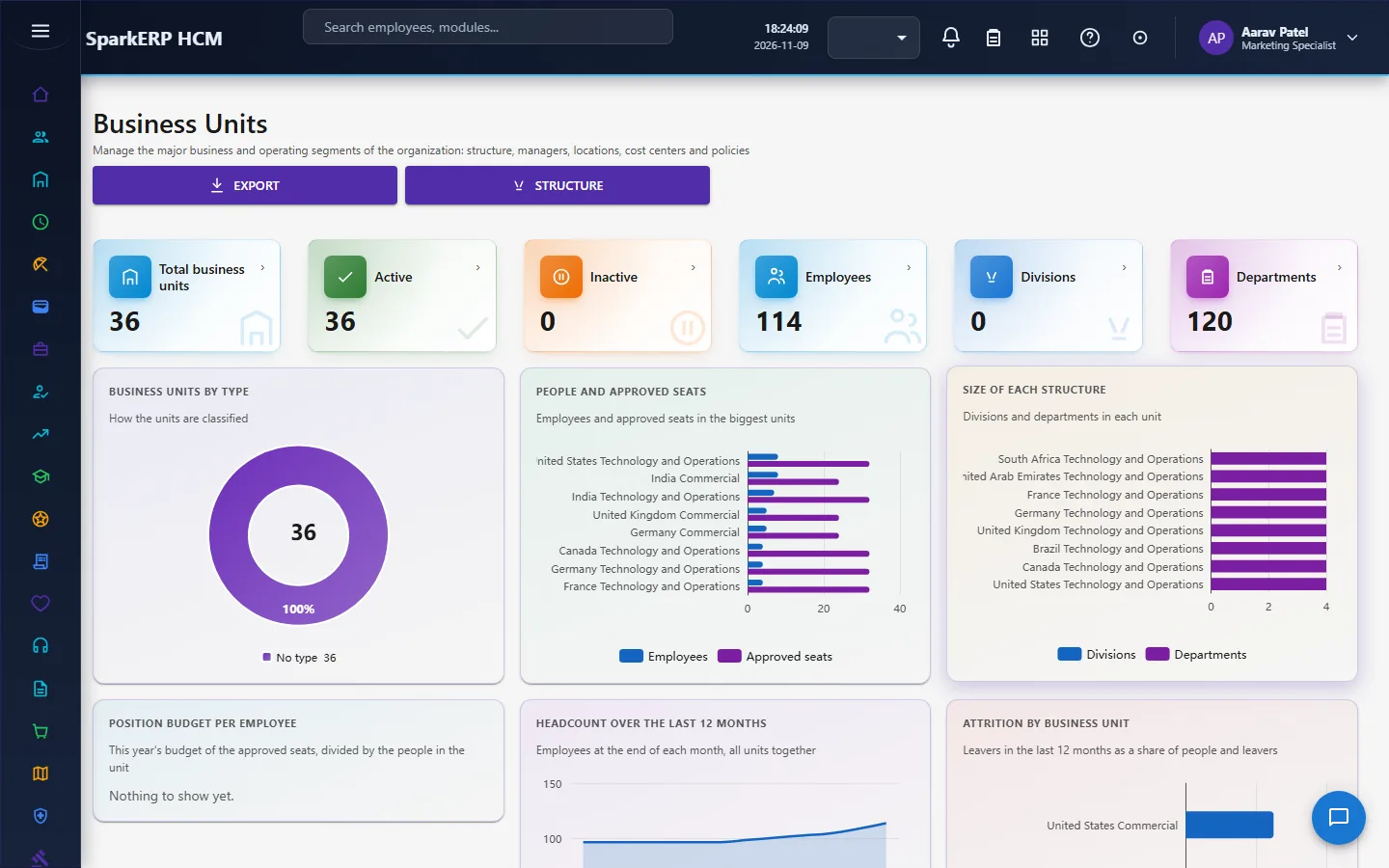
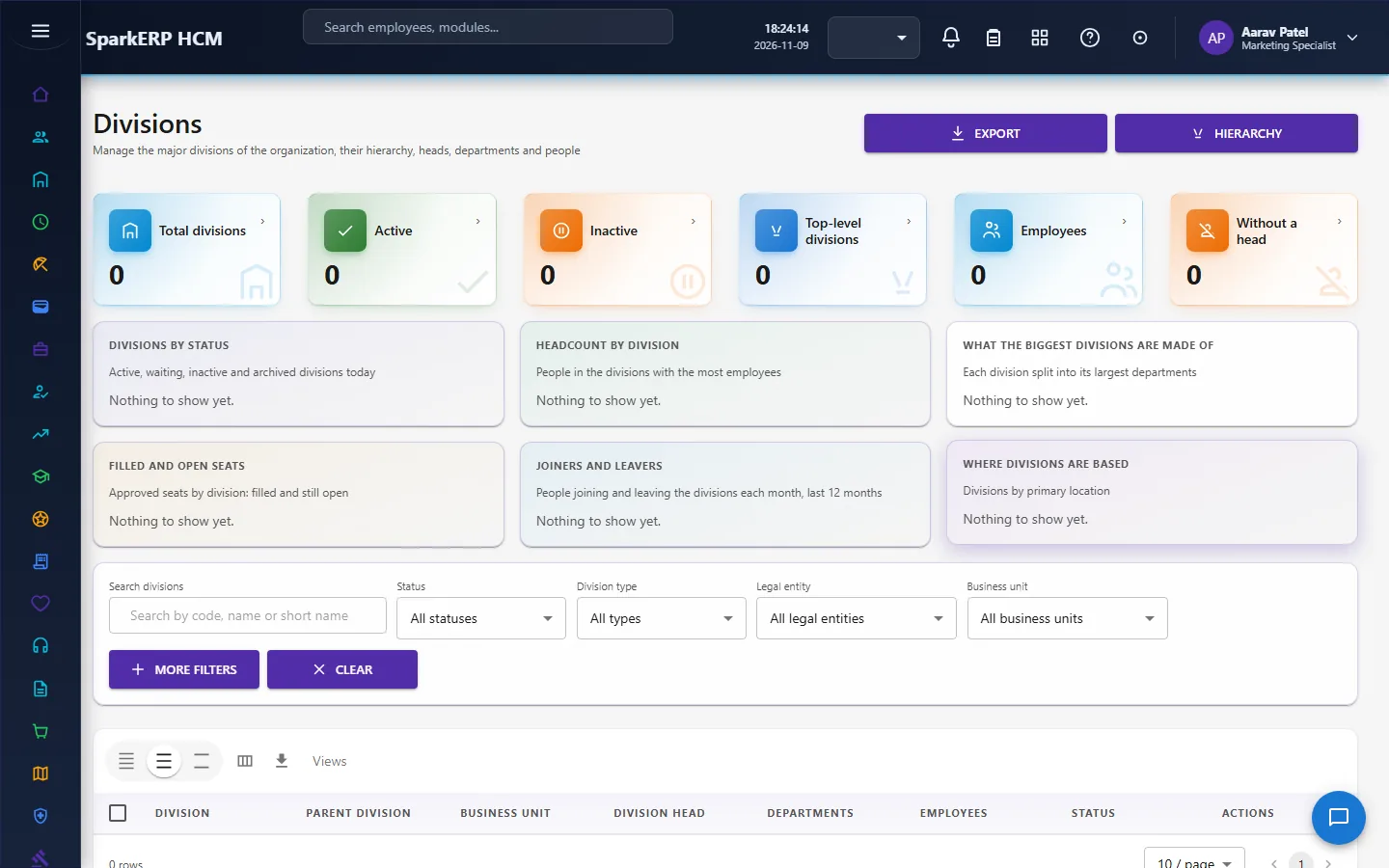
When a business unit is merged or split and the change is approved, the divisions that belong to it, the units and departments directly under it, its cost centers and its locations move to the new owner in one go. A division's sub-divisions follow because they carry the same business unit. The old unit is closed with a closure record and nothing is deleted, so the history stays.
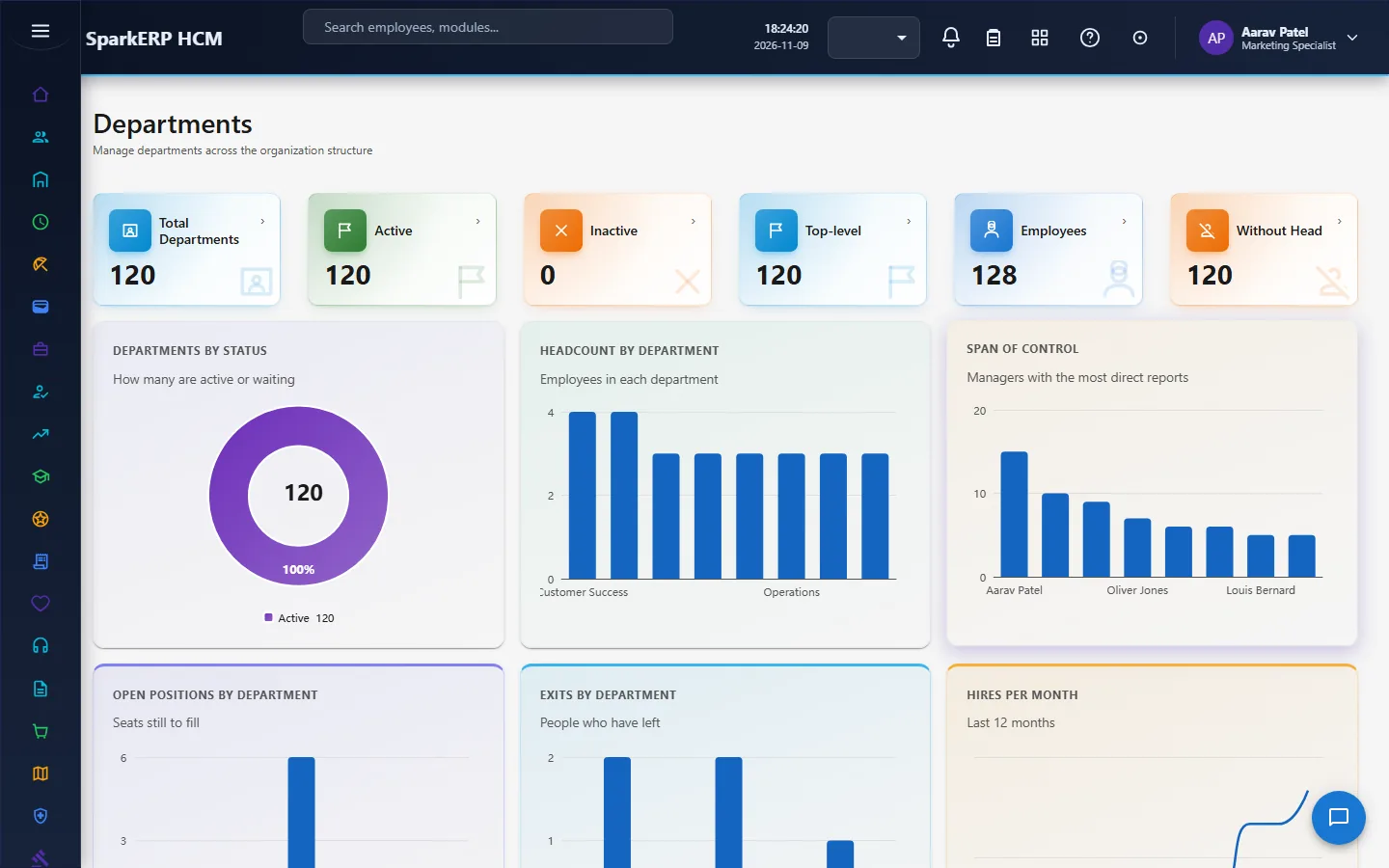
2.4 Departments
A department has a place (its division, business unit and legal entity), positions, a management history, and an impact analysis of moving it. What stops a department from being closed is shown before you try. Counts of people and positions are read for the department being shown, never by scanning all employees.
2.5 Locations
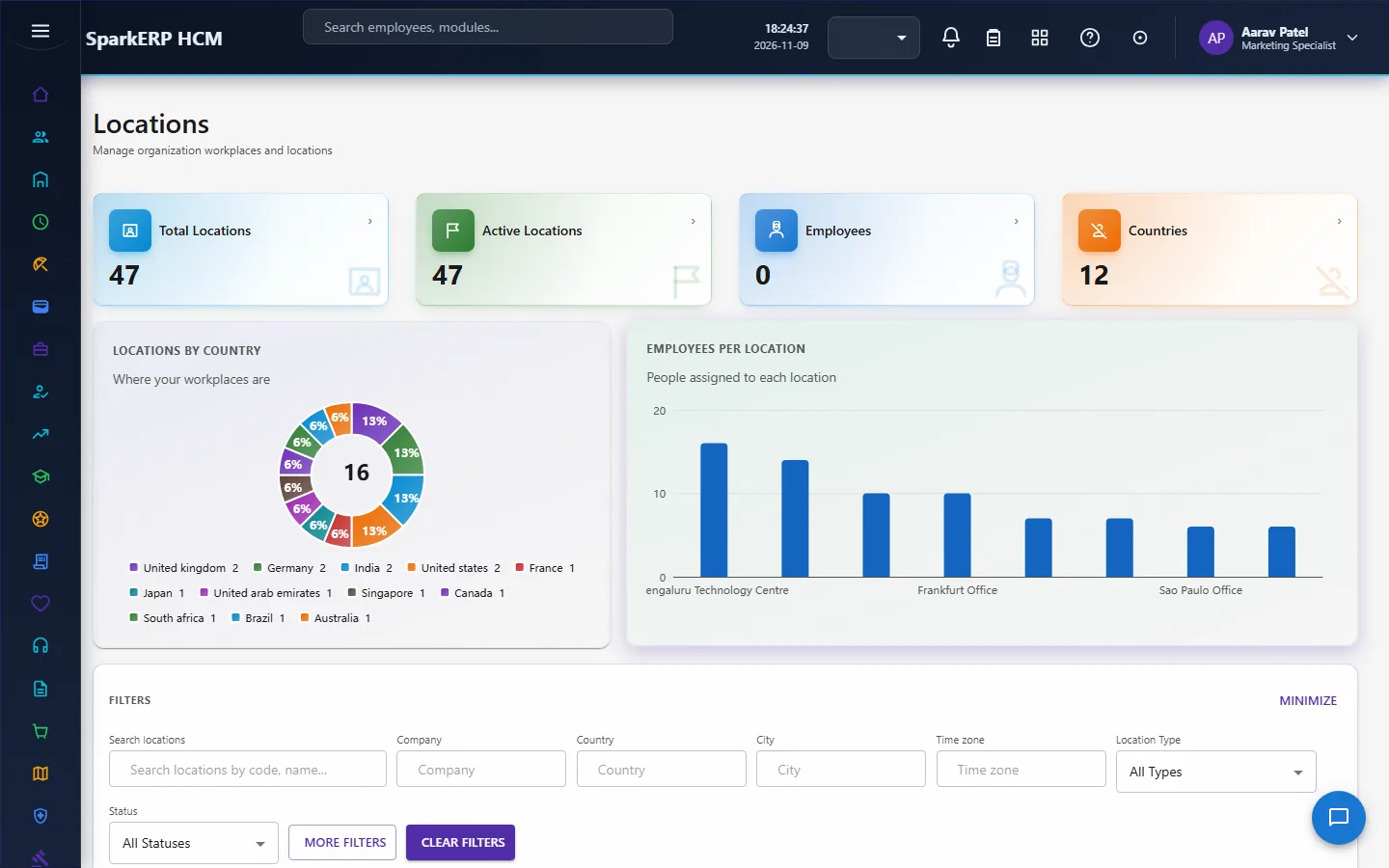
A location has a full postal address, geofences, and the employees who work there. Each employee has one primary location at a time and any number of secondary ones. Geofences are used by Time & Attendance to check a clock-in.
2.6 Cost centers and profit centers
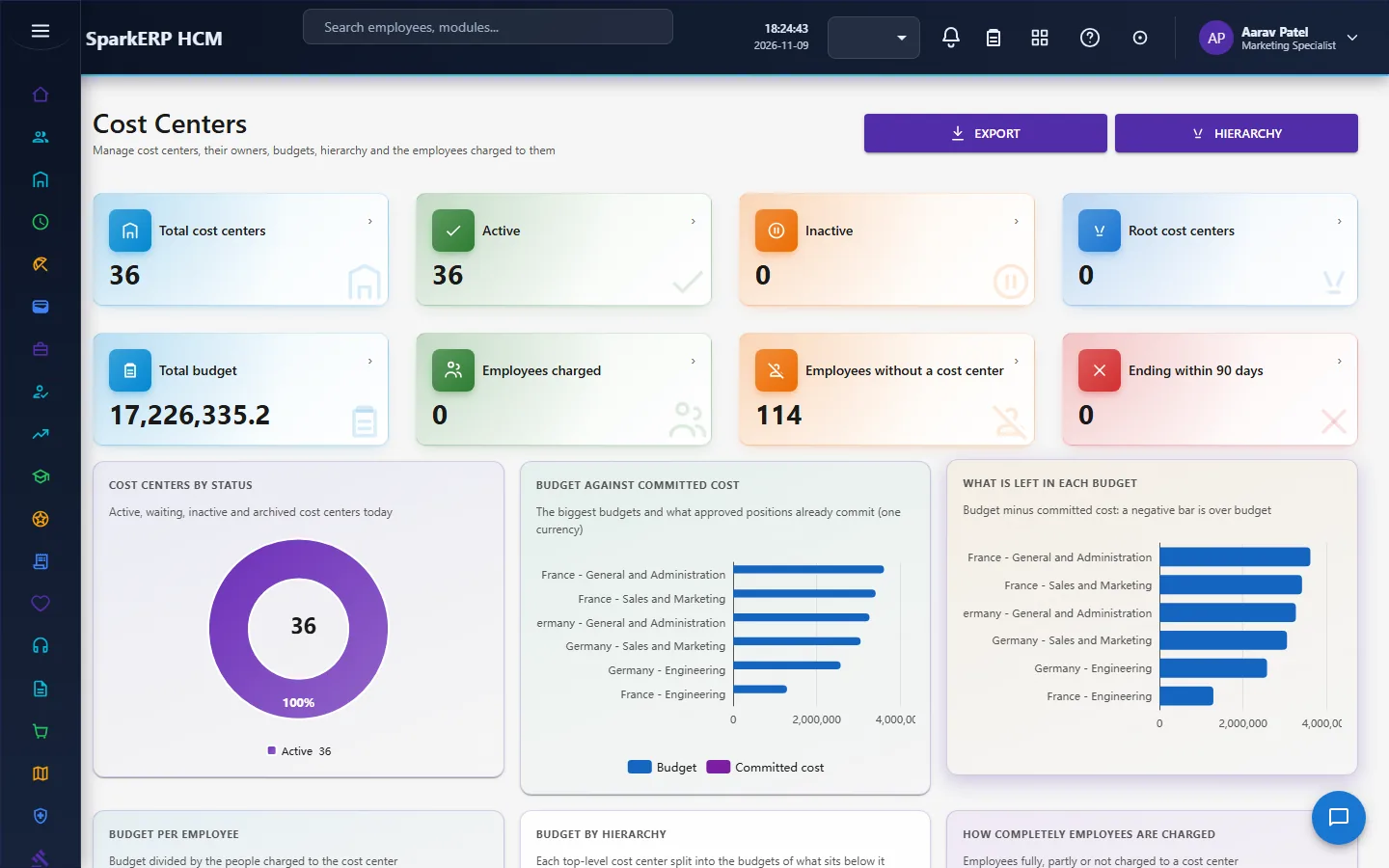
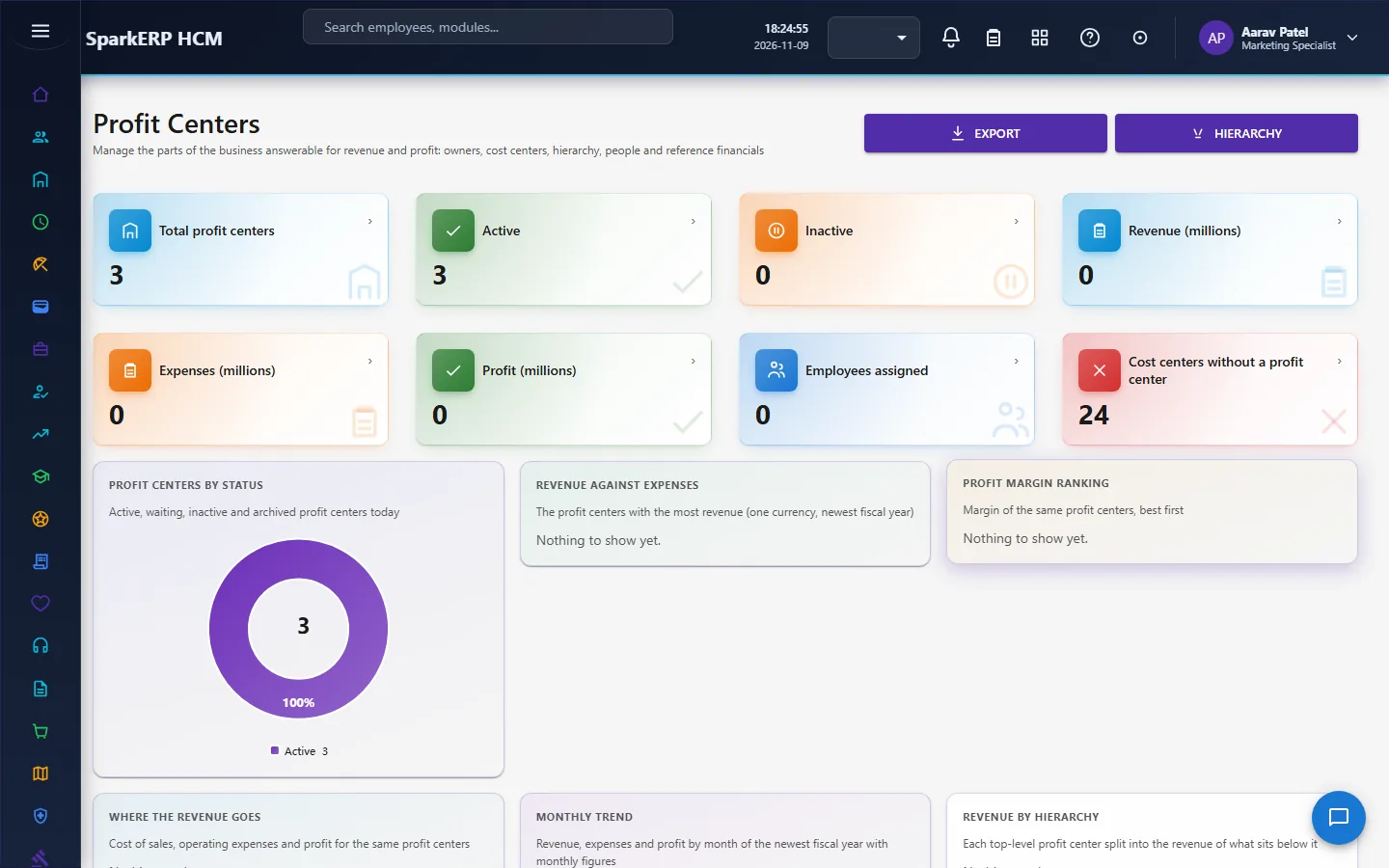
A cost center has a yearly budget, whose approval is routed through the platform's workflow by amount, and the percentage allocation of employees across cost centers. Profit centers group results. Budget and allocation are written by the module only, so the rules hold whichever screen is used.
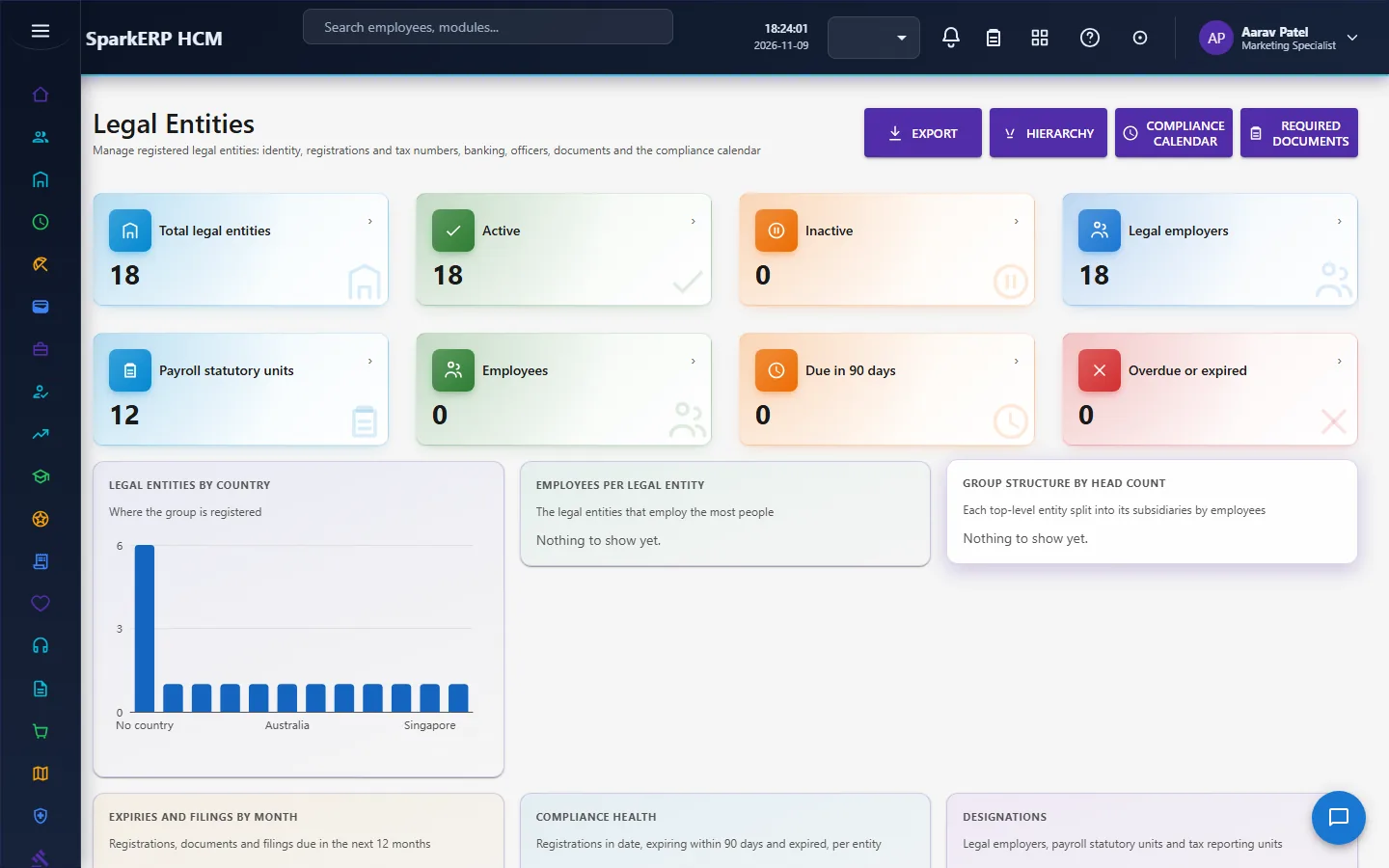
2.7 Legal entities
A legal entity carries its registrations, bank accounts, documents and legal profile. The module monitors registration expiry and sends reminders (a daily job). Before an entity is closed, a closure check says what still depends on it.
2.8 Job architecture
Job structure is a family of related masters:
- Job families and job classifications group jobs.
- Job levels order seniority, in a track and a framework, with dates.
- Job grades carry pay ranges (an effective-dated band for each grade), show the employees on a grade with their compa-ratio (pay against the middle of the band), and the grade's place on the career ladder.
- Designations are job titles with a parent. A designation can never be its own parent and a cycle is refused. A designation still used by an open position cannot be deactivated.
Adding a new kind of classification is a registry entry, not new code. Each item has a detail view showing what it contains and what uses it: its jobs, positions, children and what closing it would affect.
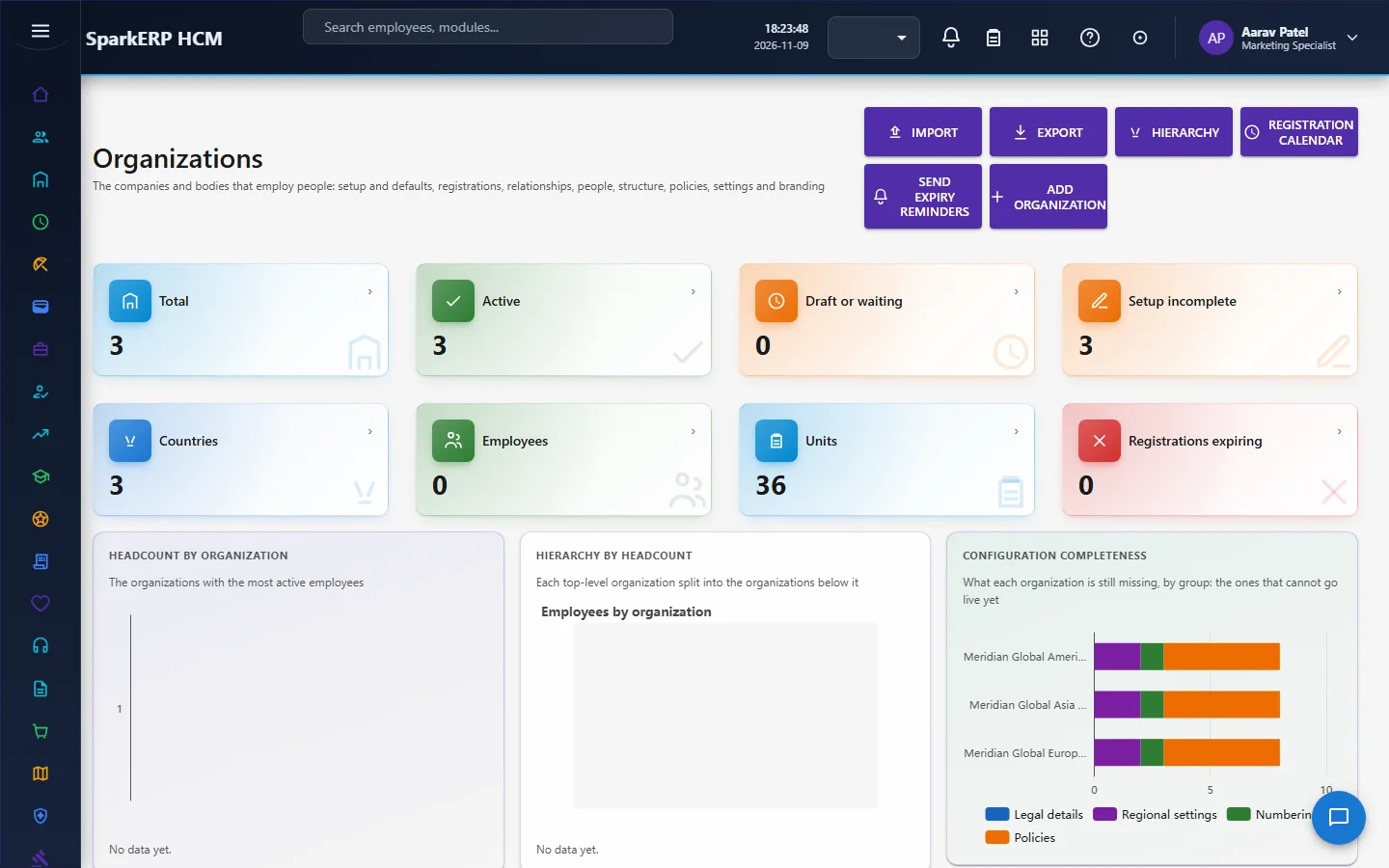
2.9 Organizations
An organization is a legal or operating organization, with addresses and contacts. They can be imported in bulk: each row is processed on its own, so a bad row fails alone and the others are created, and the result shows the totals and a per-row error report. Each imported row goes through the same approval as a row created by hand.
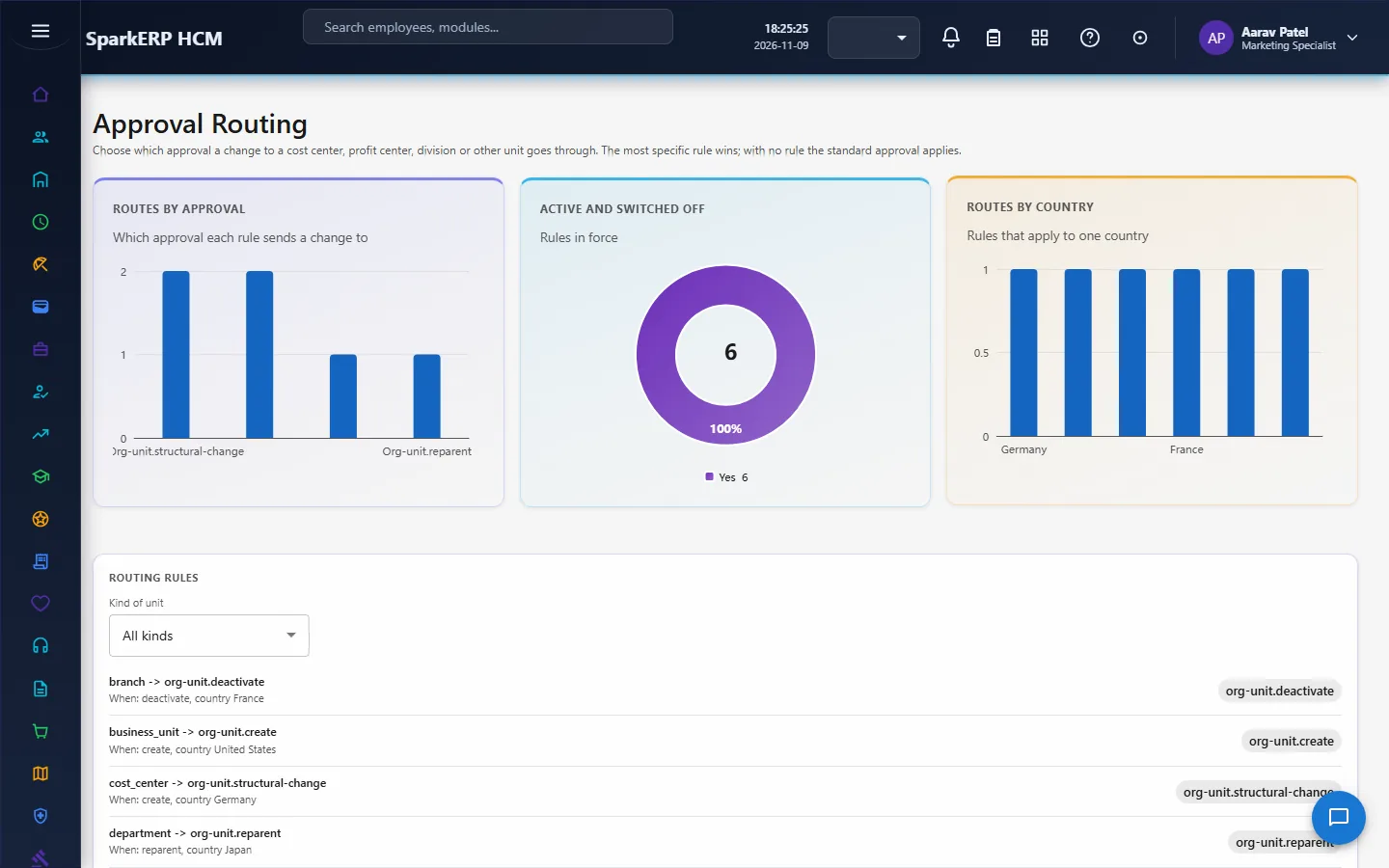
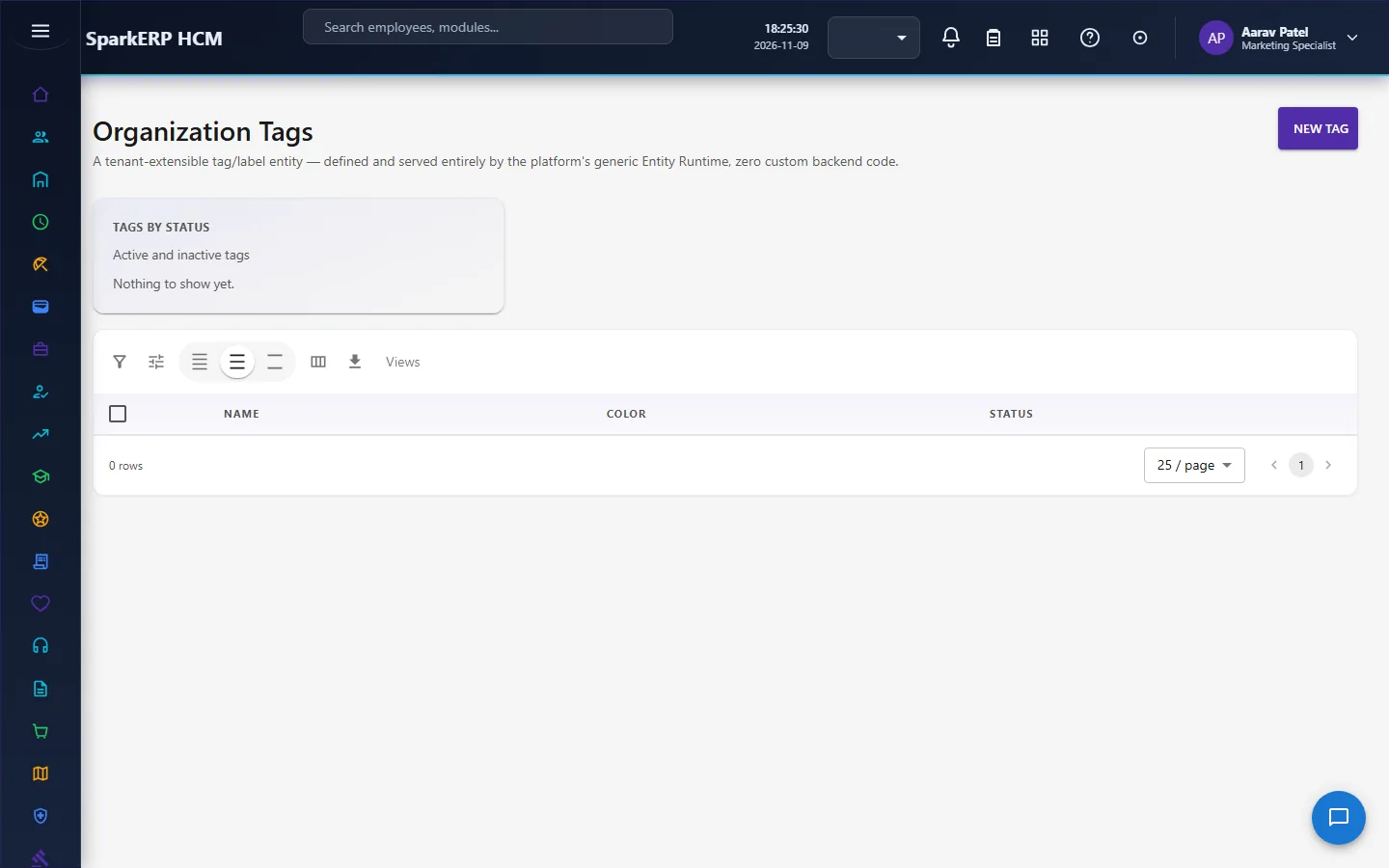
2.10 Approval routes, tags and insights
Approval routes define who approves what for the module. Organization tags label units. The pages show charts: a composition donut and comparison bars. They are kept cheap on large tenants: each chart reads the big tables with one indexed grouping and keeps only the top rows, names are looked up afterwards for those rows only, each query has a time limit, a chart that cannot be computed in time is left out, and the result is cached for a short time.
3. Who does what
| Role | What they do |
|---|---|
| Organization Administrator | Creates and maintains units, legal entities, organizations and the job architecture; decides the single-step and HR steps. |
| Finance Approver | Decides the finance step of a restructure, a merge, a split, a cost center budget and a salary change. |
| HR roles | Read the structure; the Employee Information and HR roles read the organization they need. |
| Everyone | Reads the organization they work in (the org chart, the unit names) through other modules. |
3a. What each role sees, screen by screen
The employee
An employee does not use the Organization administration screens. They see the structure through the Org Chart in Core HR.

The HR administrator
Organizations and Org Units hold the tree.
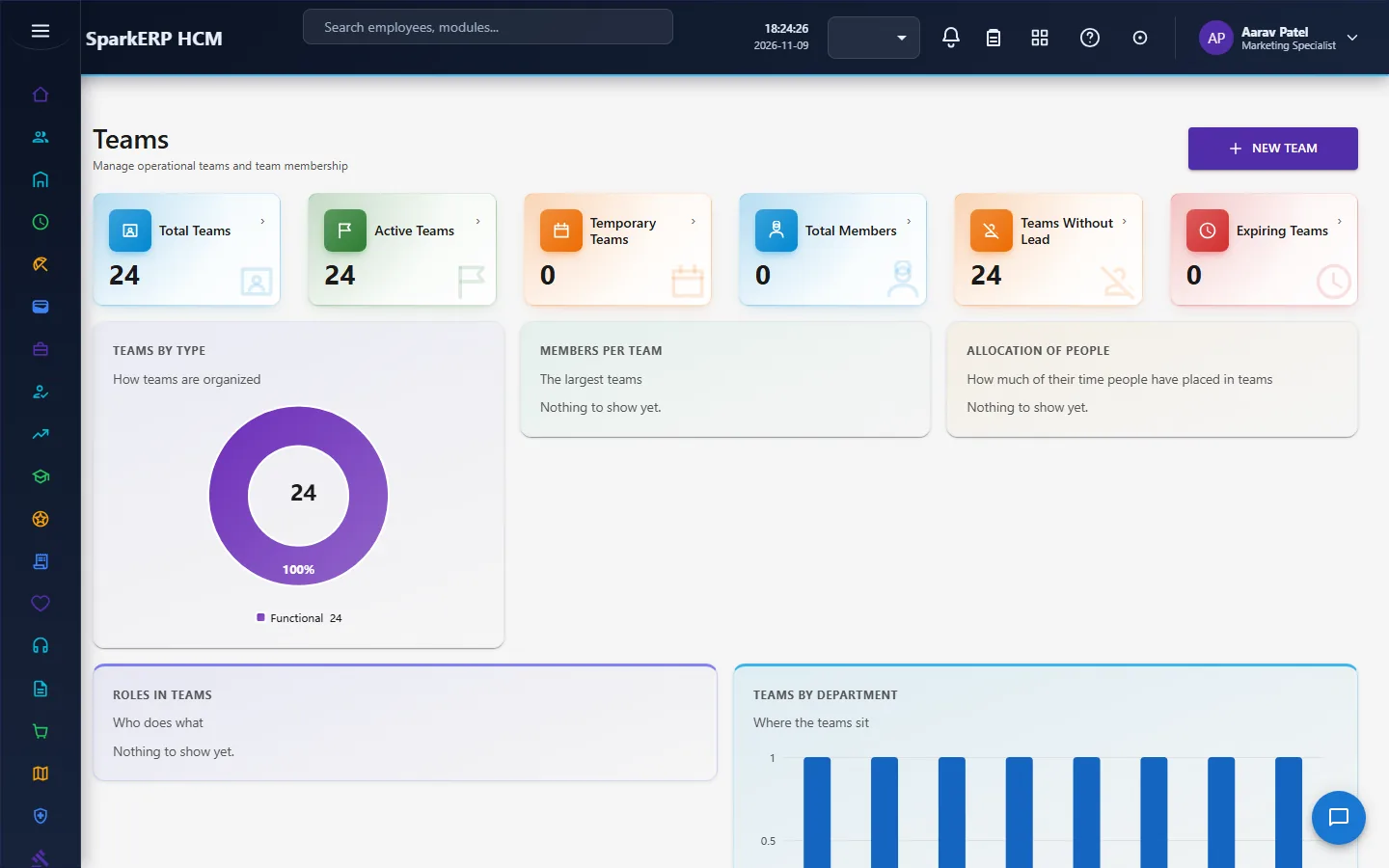
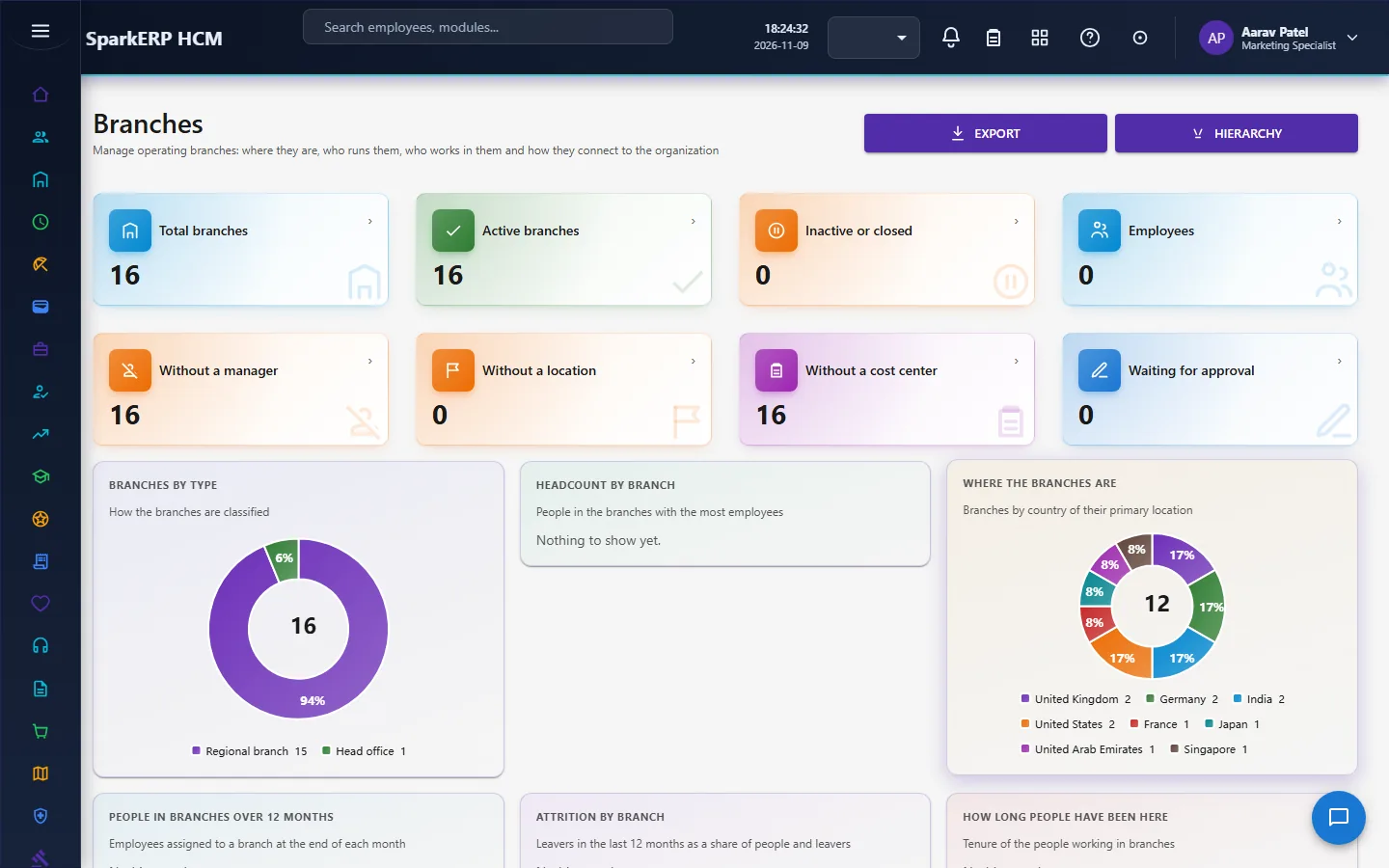
Legal Entities, Business Units, Divisions, Departments, Teams, Branches and Locations are the parts of the tree.
Cost Centers and Profit Centers are the money structure.
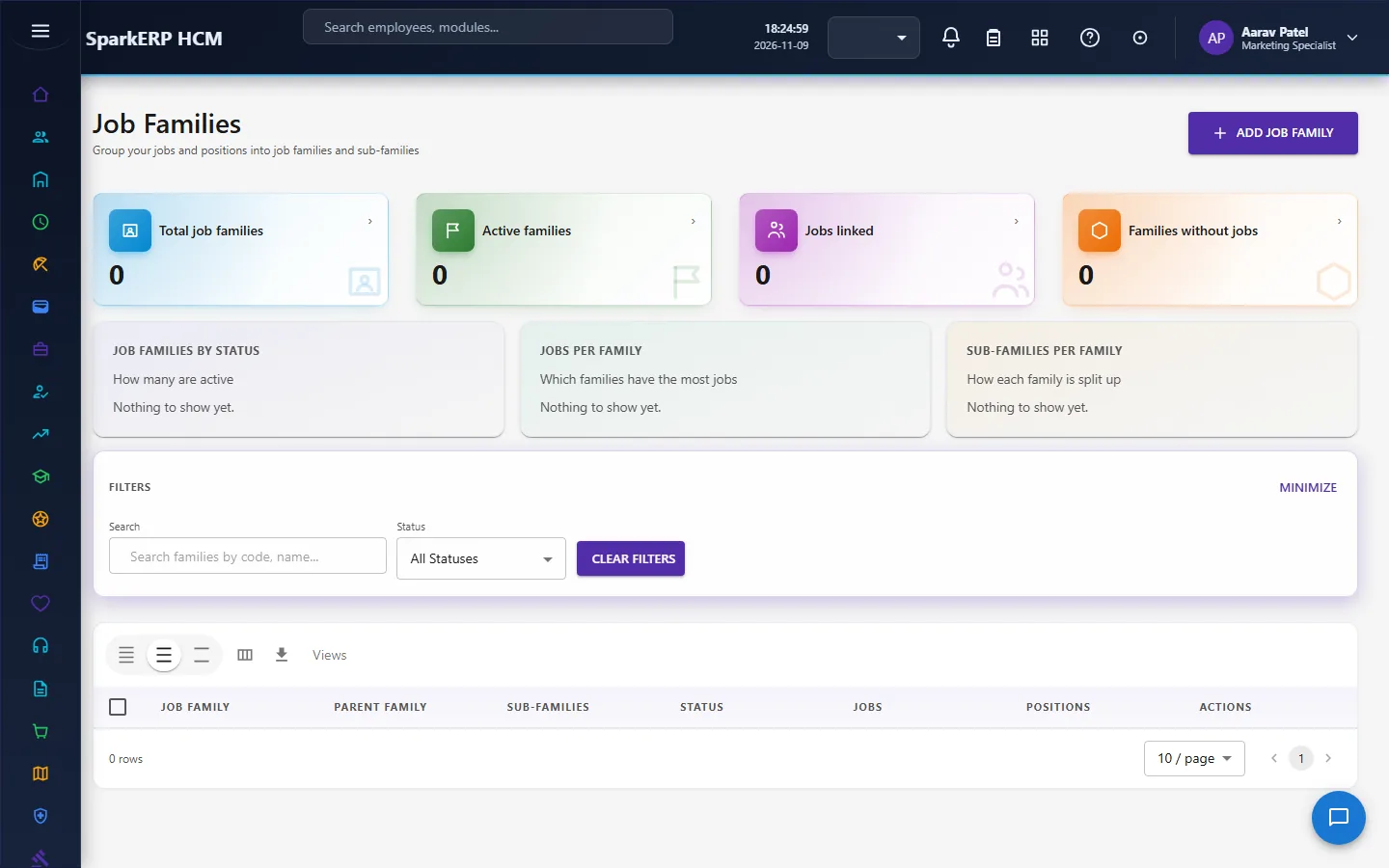
Job Families, Job Classifications, Job Levels, Job Grades and Designations are the job structure.
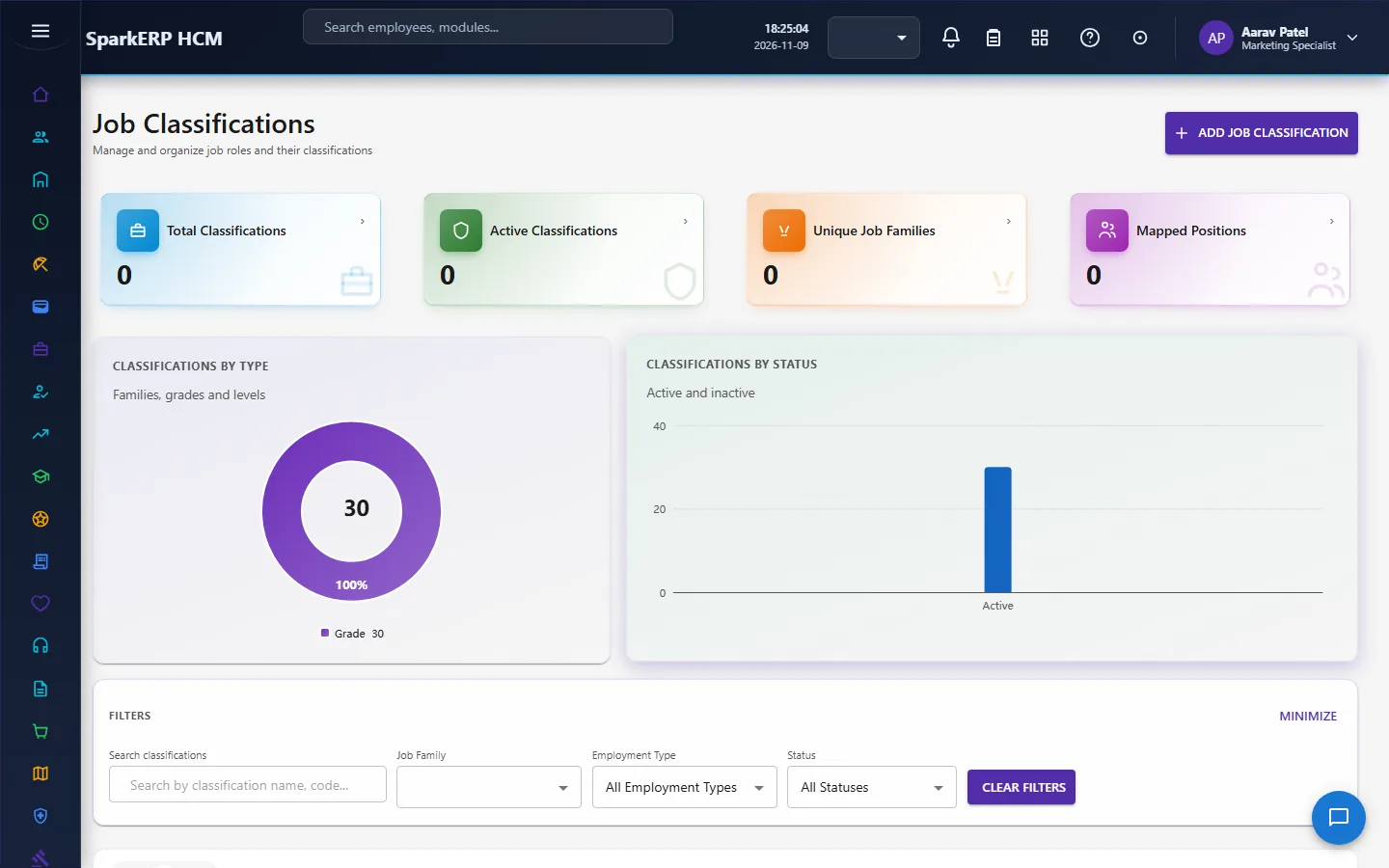
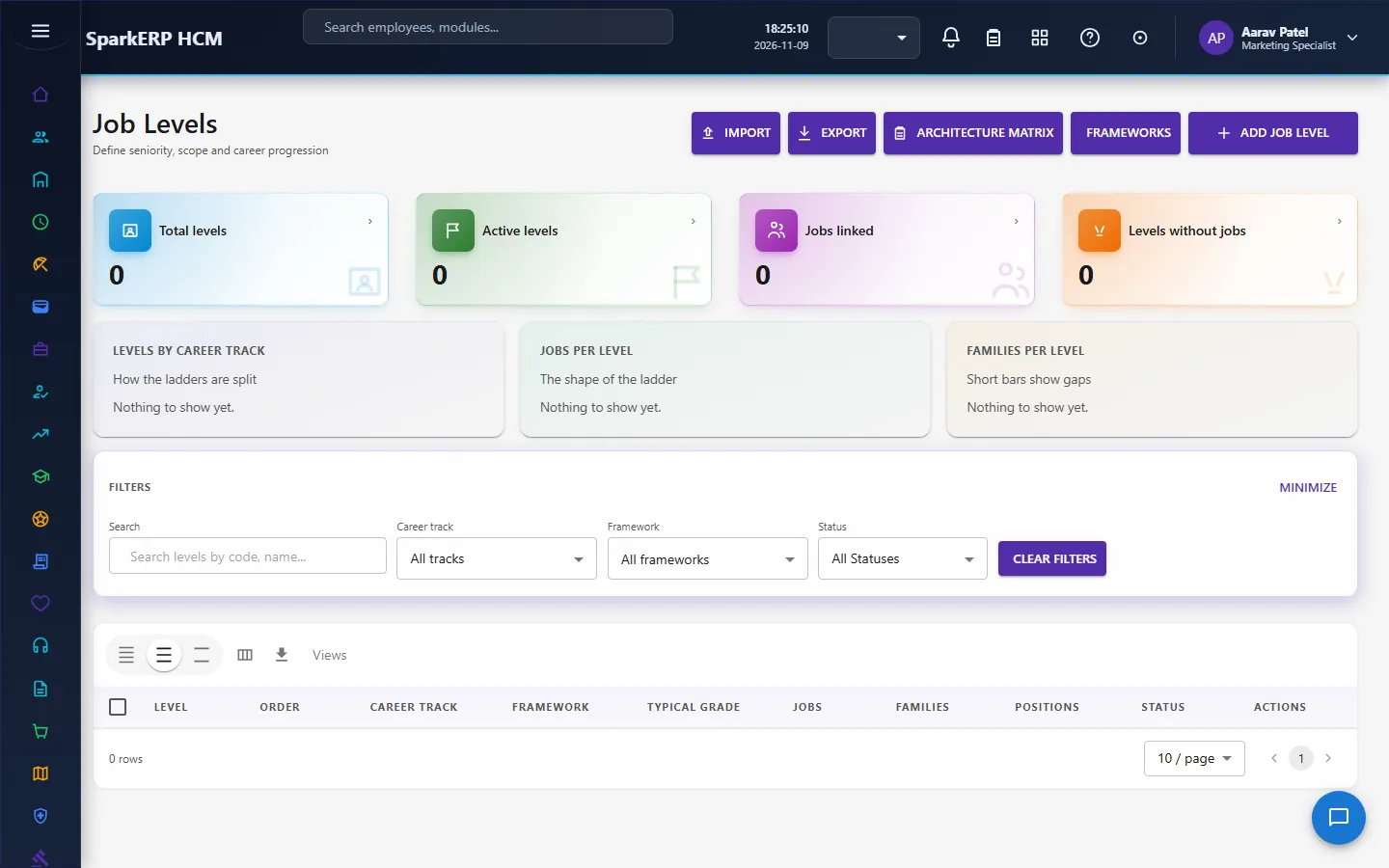
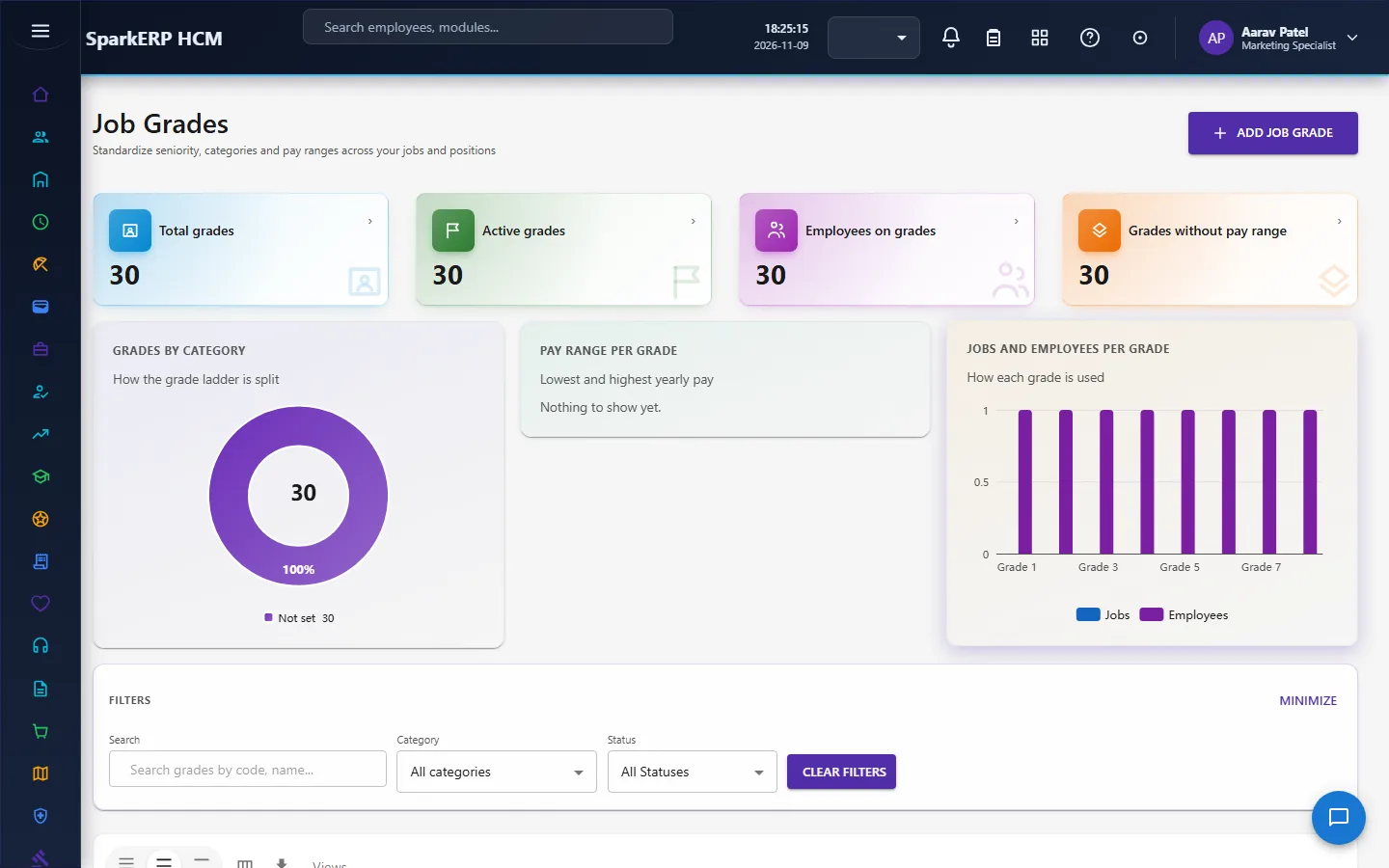
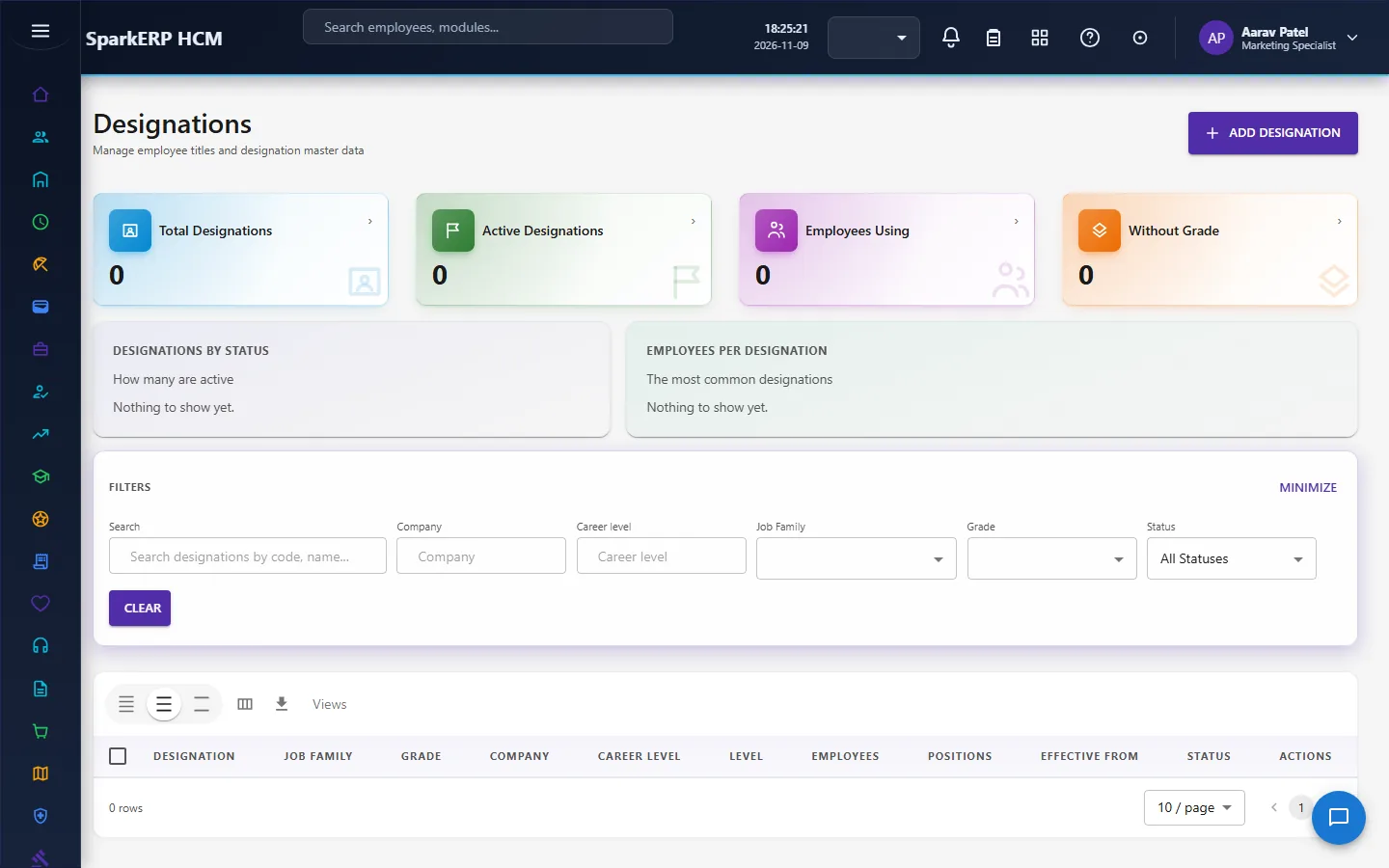
Approval Routes and Organization Tags complete it.
4. Decide before you set up
| Decision | What to think about |
|---|---|
| Legal entities | The legal structure you report on and pay through. |
| The unit hierarchy | Which types you use (business unit, division, department, team, branch) and how deep. |
| Cost centers | How you budget and charge people. |
| Locations | One primary location per person; geofences for the clock-in. |
| Job architecture | Families, levels, grades and designations, and whether job levels need approval. |
| Approvers | Who holds the Organization Administrator and Finance Approver roles. |
| Effective dates | Changes with a future date wait for a daily job. |
5. Set up step by step
- Legal entities with their registrations, bank accounts and documents.
- Organizations (import them in bulk if you have many).
- The tree. Create business units, divisions, departments, teams and branches under their parents.
- Locations with addresses and geofences.
- Cost centers with their yearly budget and the allocation of people.
- Job architecture. Families, classifications, levels, grades with pay bands, and designations.
- Roles. Give the Organization Administrator and Finance Approver roles.
- Approval routes and tags.
- Trial. In a trial tenant generate the Organization demo pack and look at a department's impact before you close one.
6. Daily use
6.1 A new department
- Create it under its division or business unit.
- The approval runs; the unit appears when applied.
6.2 A restructure
- Choose reparent, merge or split and say what moves and from which date.
- HR and then finance decide. People and positions move with the unit.
- With a future date, the change applies on that date.
6.3 Closing a unit
- Open the unit and read what stops it from being closed and its impact.
- Move or end what depends on it, then deactivate it (one approval step).
7. A calendar of recurring work
| When | What |
|---|---|
| Daily | Due changes are applied; registration reminders. |
| Before a budget year | Enter or approve cost center budgets. |
| Quarterly | Review legal entity registrations that expire. |
| Yearly | Review grades and pay bands. |
8. Reports and figures
Each page shows a composition donut and comparison bars (people, positions or headcount by unit). A detail view shows what a unit contains. Lists can be exported.
9. Limits you should know about
- A structural change is approved before it applies; a plain edit of a gated field is refused.
- Job level approval is off by default. Switch it on in the tenant settings if you need it.
- A designation or unit that is in use cannot be closed until what depends on it is moved.
- A chart that cannot be computed in time is left out on very large tenants.
- A movement of a person does not apply a location, business unit or cost center to the employee record in Core HR.
10. Troubleshooting
| Symptom | Cause and fix |
|---|---|
| A unit change did not apply | It is waiting for approval, or it has a future effective date and the daily job has not run yet. |
| A unit cannot be closed | The department page lists what stops it: people, positions, children. |
| A designation cannot be deactivated | An open position still uses it. |
| A bulk import row failed | The error report names the row and the reason; the other rows were created. |
| A chart is missing | It took too long to compute on a large tenant; reload later. |
| An employee cannot open a screen | It is an administration screen. |