
Appearance
Expenses & Reimbursements (HCM): from setup to daily use
Expenses takes money an employee spent for the company from a receipt to a payment. An employee builds a claim from expense lines, each line is checked against the active policy as it is entered, a manager and then finance approve it, and finance marks it paid. Advances (cash given before spending) are settled against the claims that use them.

1. Who uses it
| Role | What they do |
|---|---|
| Employee | Creates claims with expense lines and receipts, follows them on My Expenses, requests advances. |
| Manager | Approves the claims of their team (Team Expenses, Approvals). |
| Finance | Gives the second approval, marks claims ready for payment and paid, settles advances, reads the reports. |
| Administrator | Sets up categories and policies. |
2. Before you start
- Installed plugins.
hcm-expenses(claims, policies, categories, advances). It needs HCM Foundation and is the free tier. - Employees, managers and departments must exist in Core HR: a claim names the employee and the approver chain follows the manager.
- Trial data. In a trial tenant, generate the Expenses pack in Demo Data: claims in every state, lines, mileage, per diem, policies and advances.
3. Set up
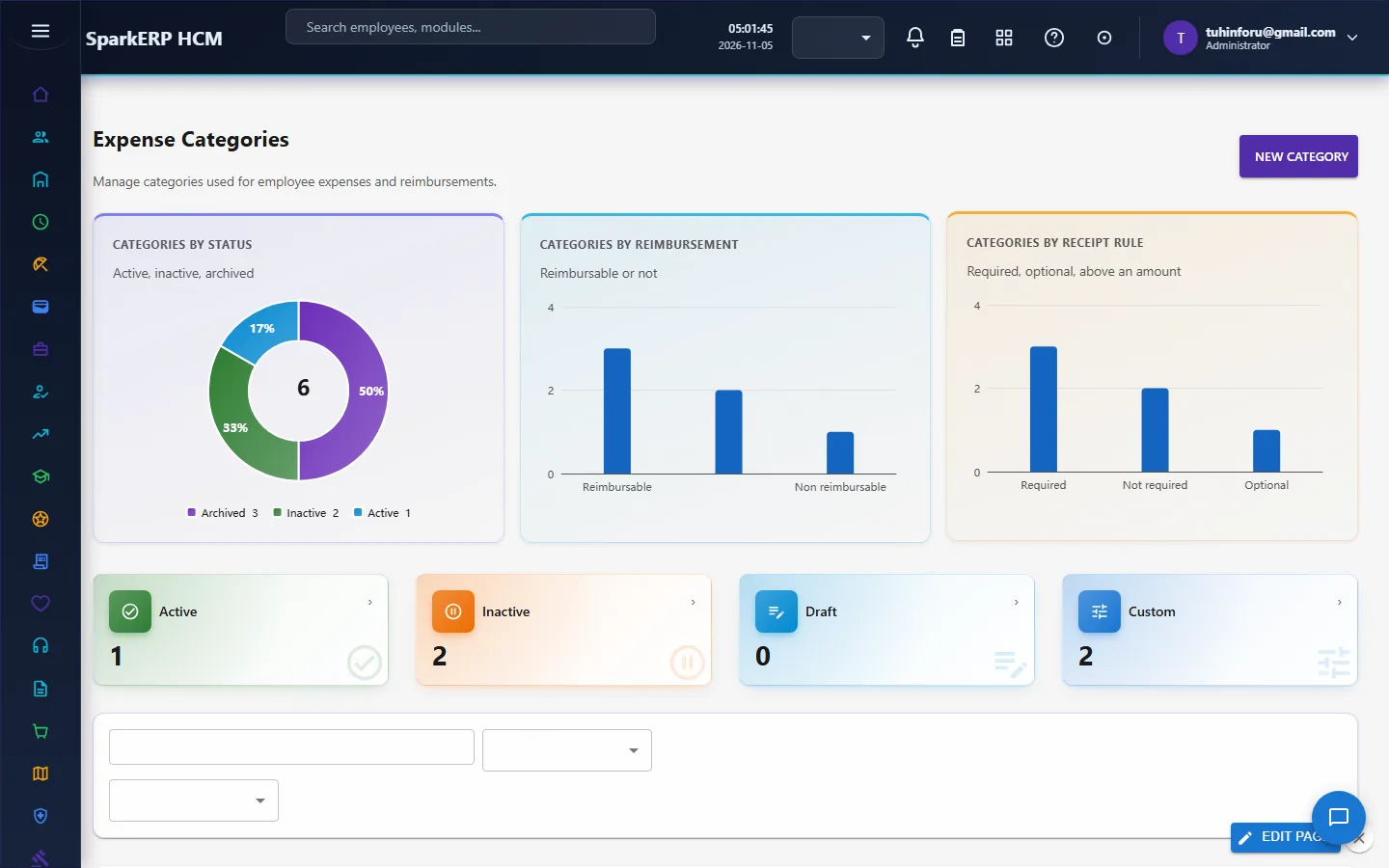
Expense categories. Open Expense Categories. Each category has a name and code, a type, a general-ledger account, tax treatment, a receipt mode and the receipt threshold (the amount above which a receipt is mandatory), and whether a cost centre is required. New categories start inactive: activate them once configured.
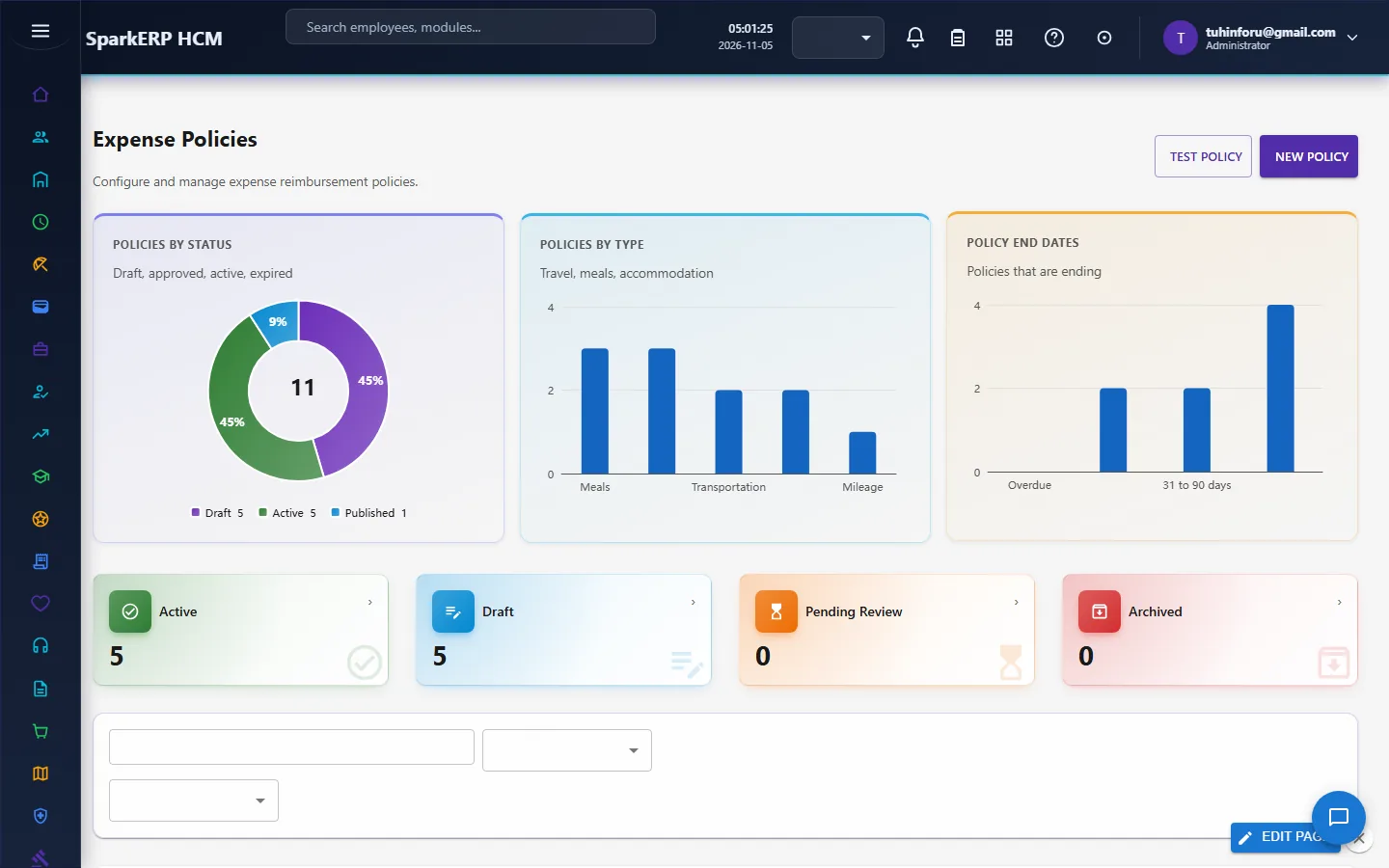
Expense policies. Open Expense Policies. A policy has a priority (the highest wins when several apply), a currency, category rules, effective dates and whether a manager may override. A policy goes Draft, Pending Review, then Active; once published it is not edited in place, Create New Version starts a new one, so every claim knows which version it was checked against.
4. Daily use
4.1 Make a claim
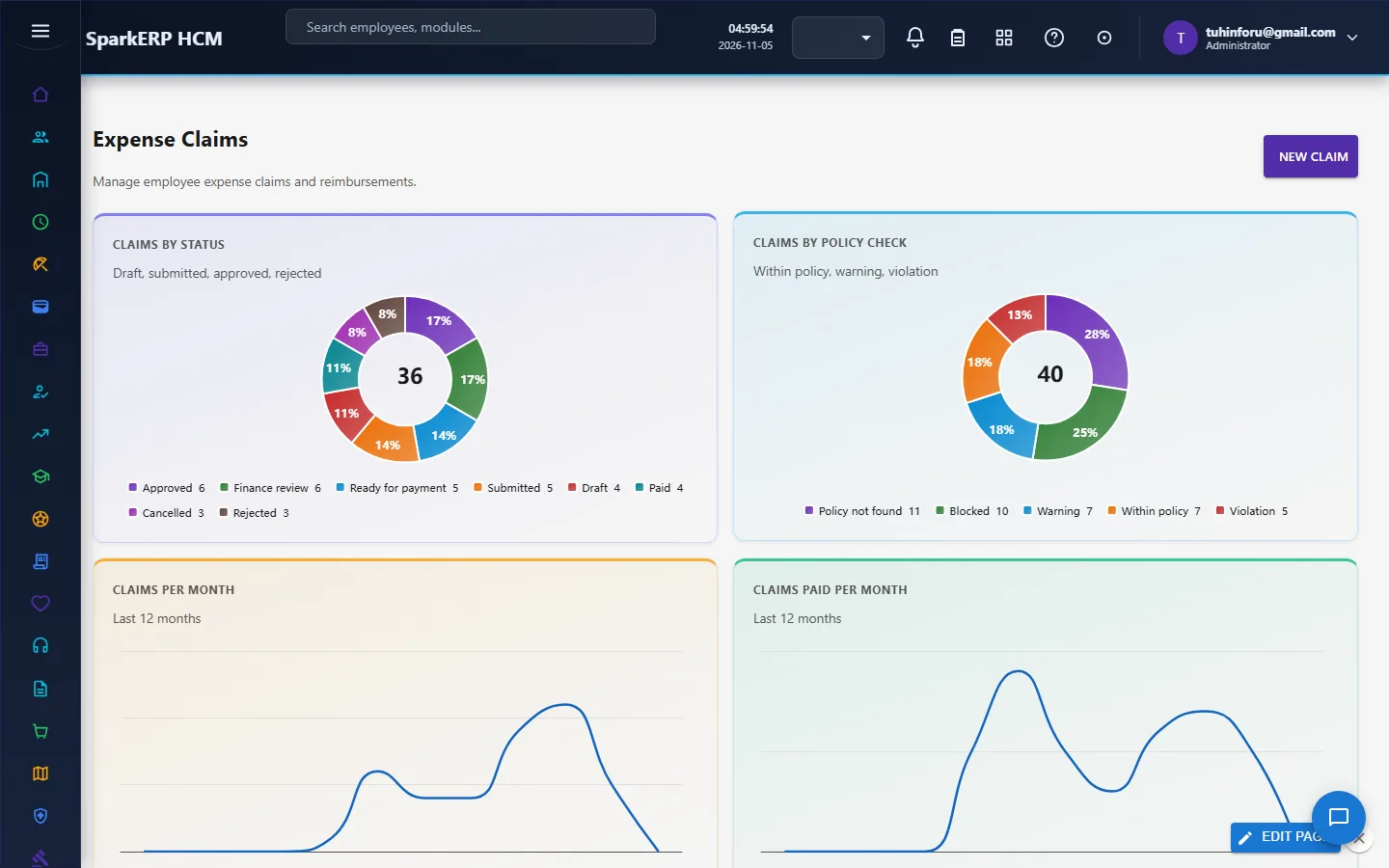
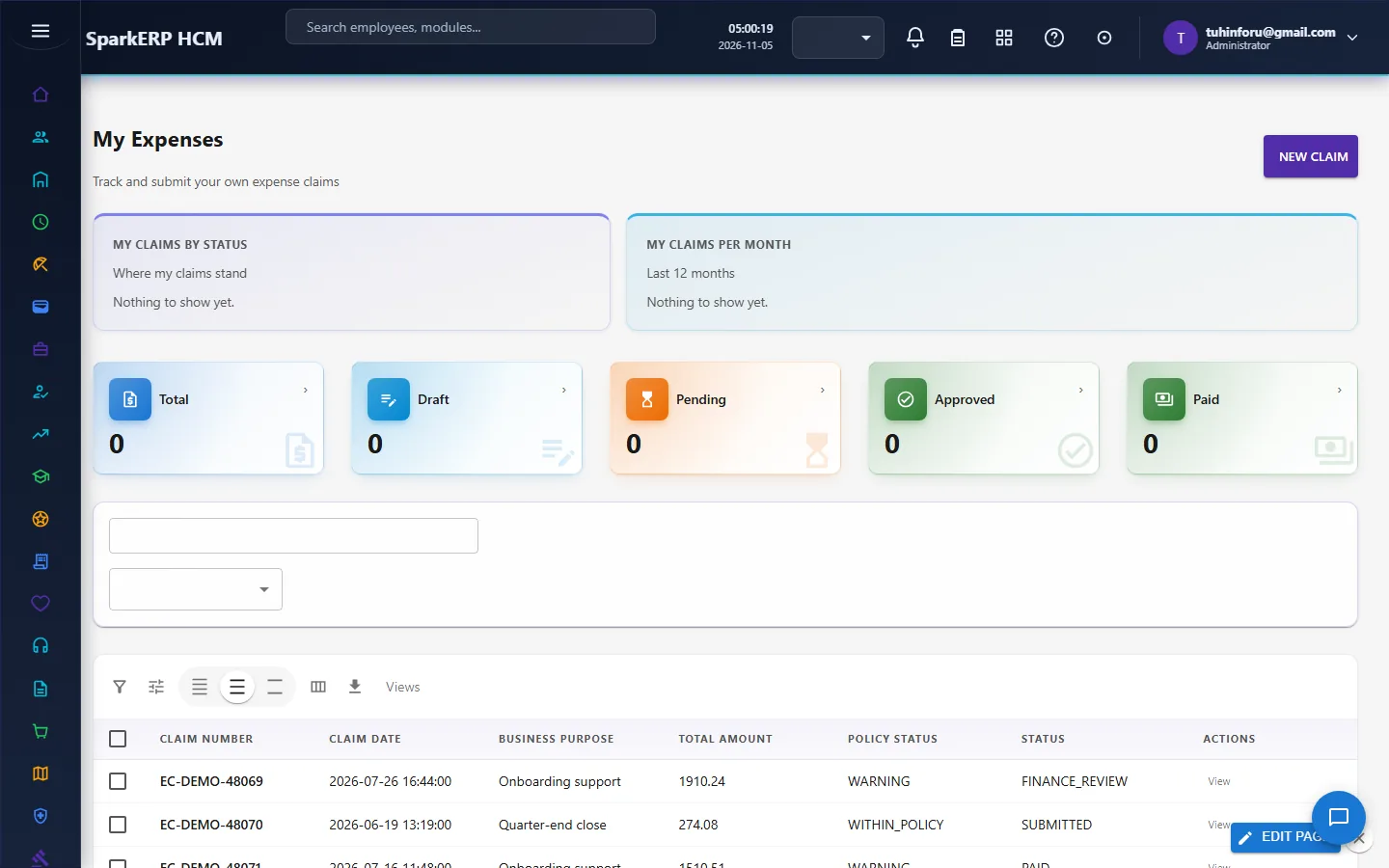
Choose Expense Claims (or My Expenses for your own): add the date, business purpose, cost centre and project, then an expense item for each line and attach the receipt. The total is worked out for you, and each line shows its policy status (within policy, warning, violation or blocked) as you enter it, not after you submit.
4.2 Approve
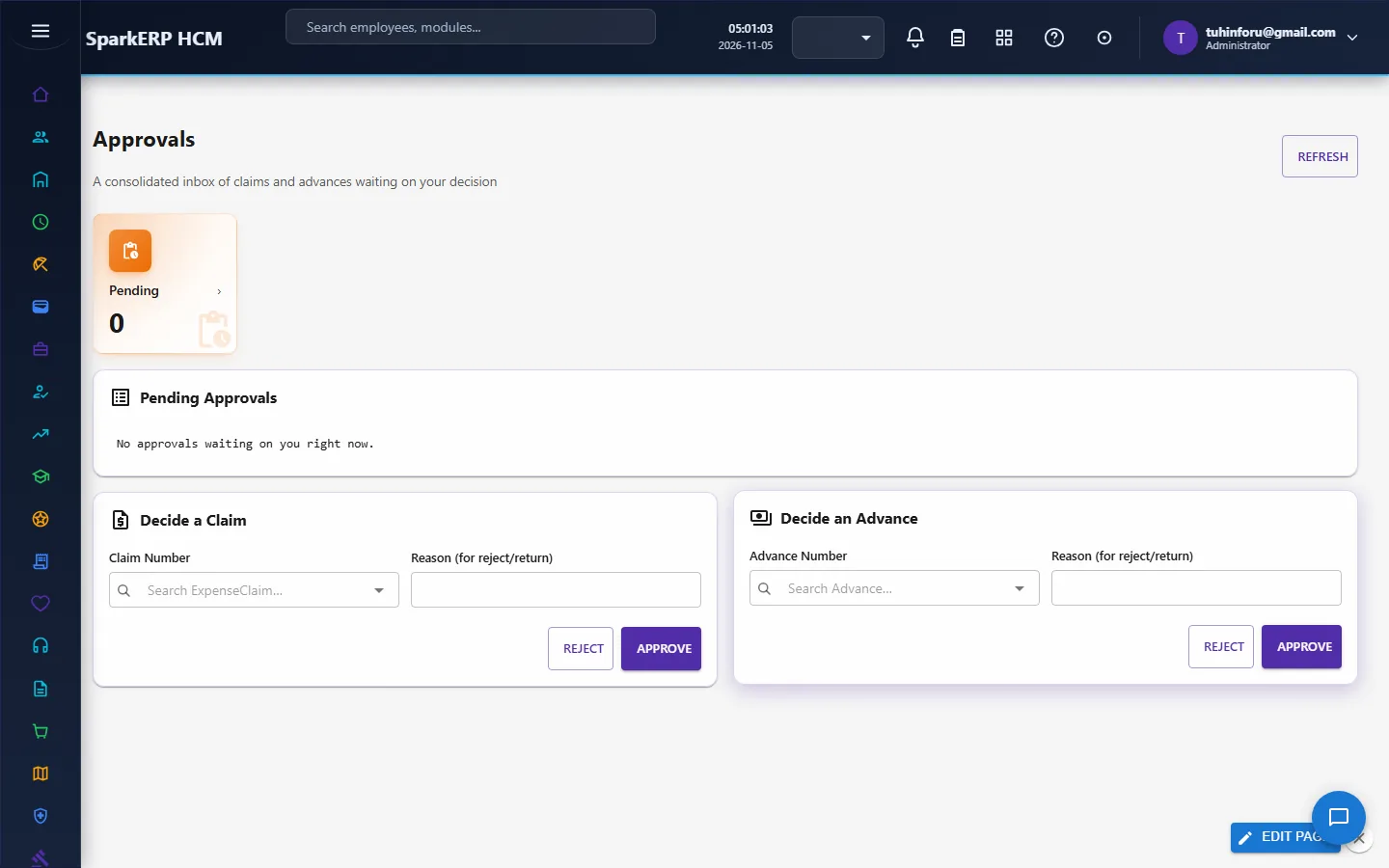
Managers open Team Expenses or Approvals, a single inbox of claims and advances waiting for them. A claim needs Approve (Manager) and then Approve (Finance). A reviewer can Reject (with a reason) or Return to employee to fix and resubmit.
4.3 Pay
Finance chooses Mark ready for payment and then Mark paid with a payment reference.
4.4 Advances
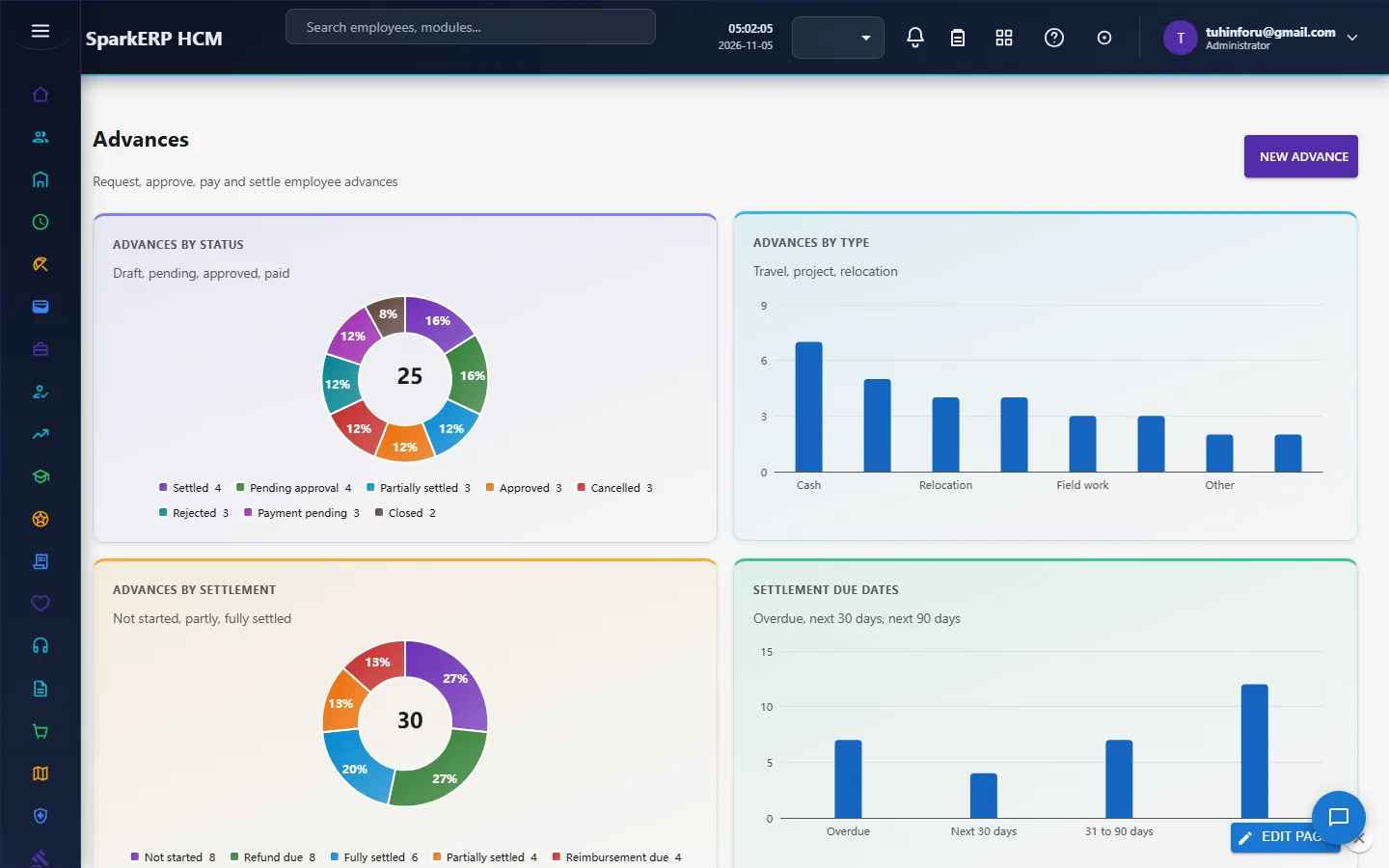
Advances records cash given before spending. Settle advance matches some or all of an advance to a real claim number, so it is reconciled against what was spent and not just ticked off.
4.5 Foreign-currency lines
A claim has one currency (the organisation's base currency unless you choose another), but each expense line can be in its own currency: enter the amount and currency exactly as on the receipt. The line is converted to the claim's currency at the exchange rate valid on the date of the expense (not the date you submit), using the shared Exchange Rates that finance keeps. The line keeps its own amount, the rate, the rate's date and its source, and the claim total, the receipt limit and the policy check all use the converted amount. If there is no rate for that currency and date, the line is refused with a sentence telling you to ask finance to add one; you may instead type the rate from your card statement, which is recorded as a manual rate.
4.6 Read a receipt
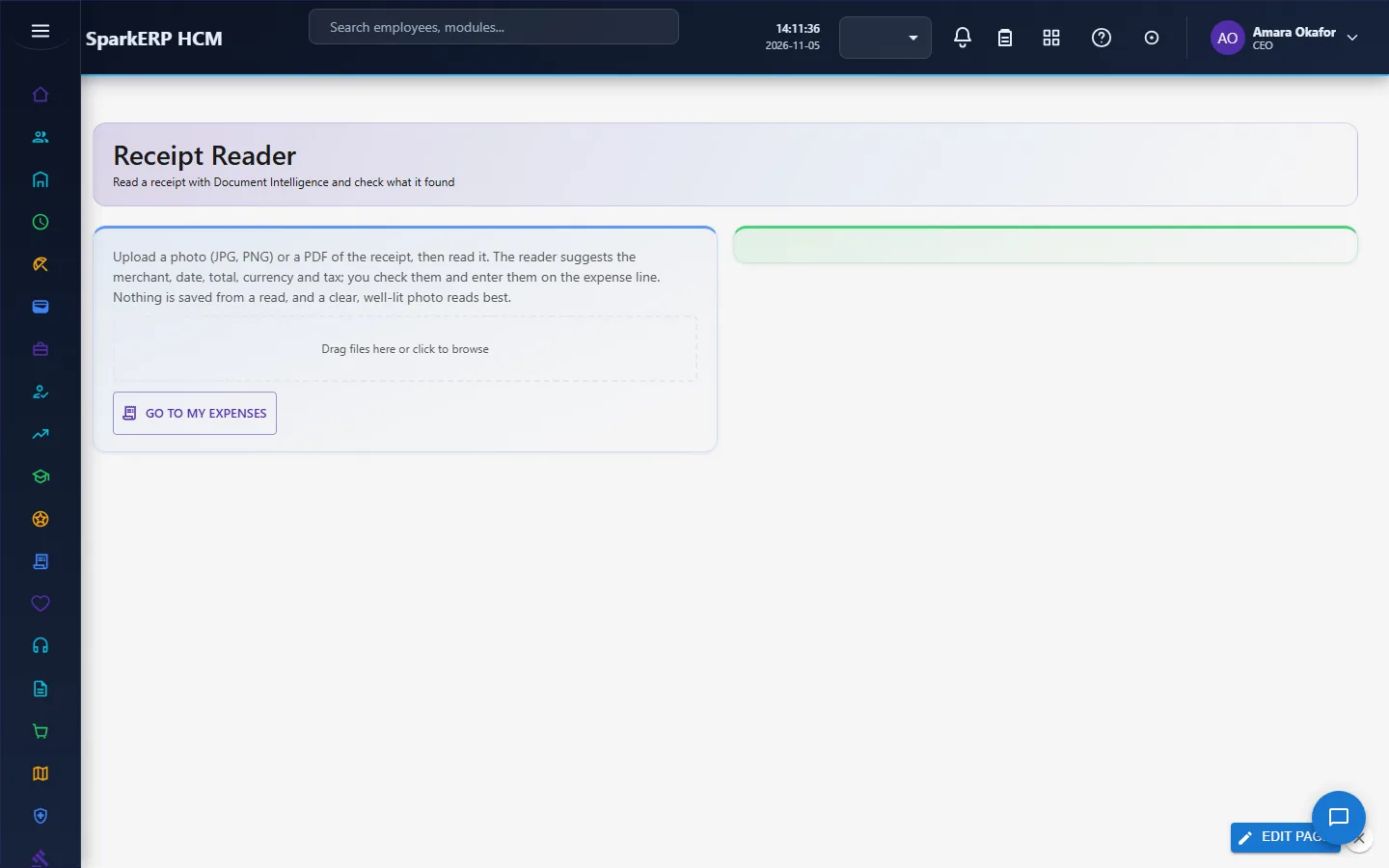
Receipt Reader takes a photo (JPG, PNG) or a PDF of a receipt and suggests the merchant, date, total, currency, tax and receipt number. It uses the platform's Document Intelligence, so it needs an AI provider set up by an administrator (and your login needs Document Intelligence access). It never saves anything: you check the values and enter them on the expense line. When a value was hard to read or the figures do not add up, it says so and asks you to check before using it.
4.7 Match company card transactions (finance)
Card Transactions lists what the company card provider reported. An administrator chooses Import a statement and pastes one transaction per line: date, merchant, amount, currency, card (last 4), employee code, reference. The same import can come from an Integration Designer flow that calls the card provider and sends its rows to the Expenses card-feed import; the provider is configured as data, never in the product. A line with a reference already imported is skipped, so loading a statement twice is safe, and Undo the last import removes a whole import while none of its rows has been matched.
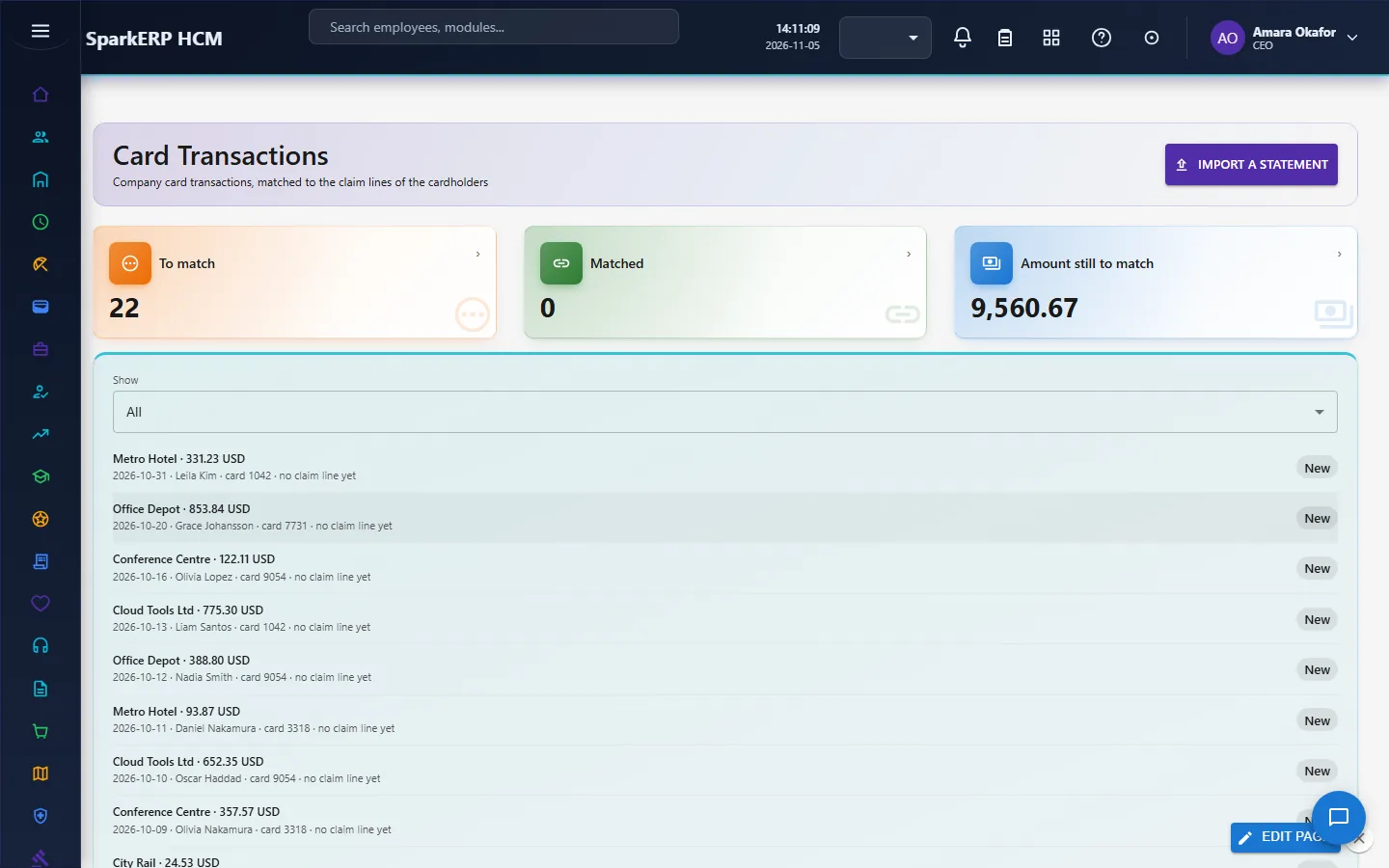
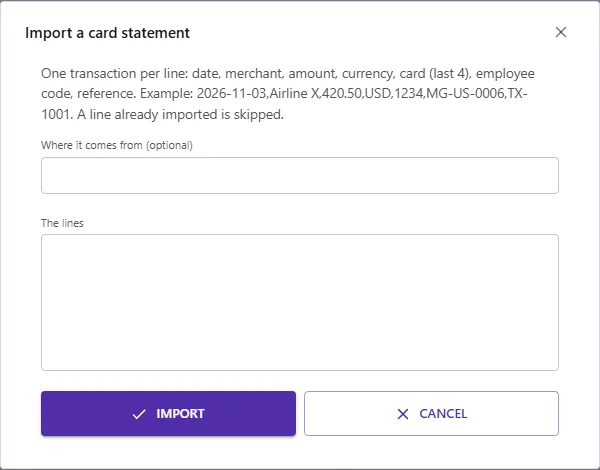
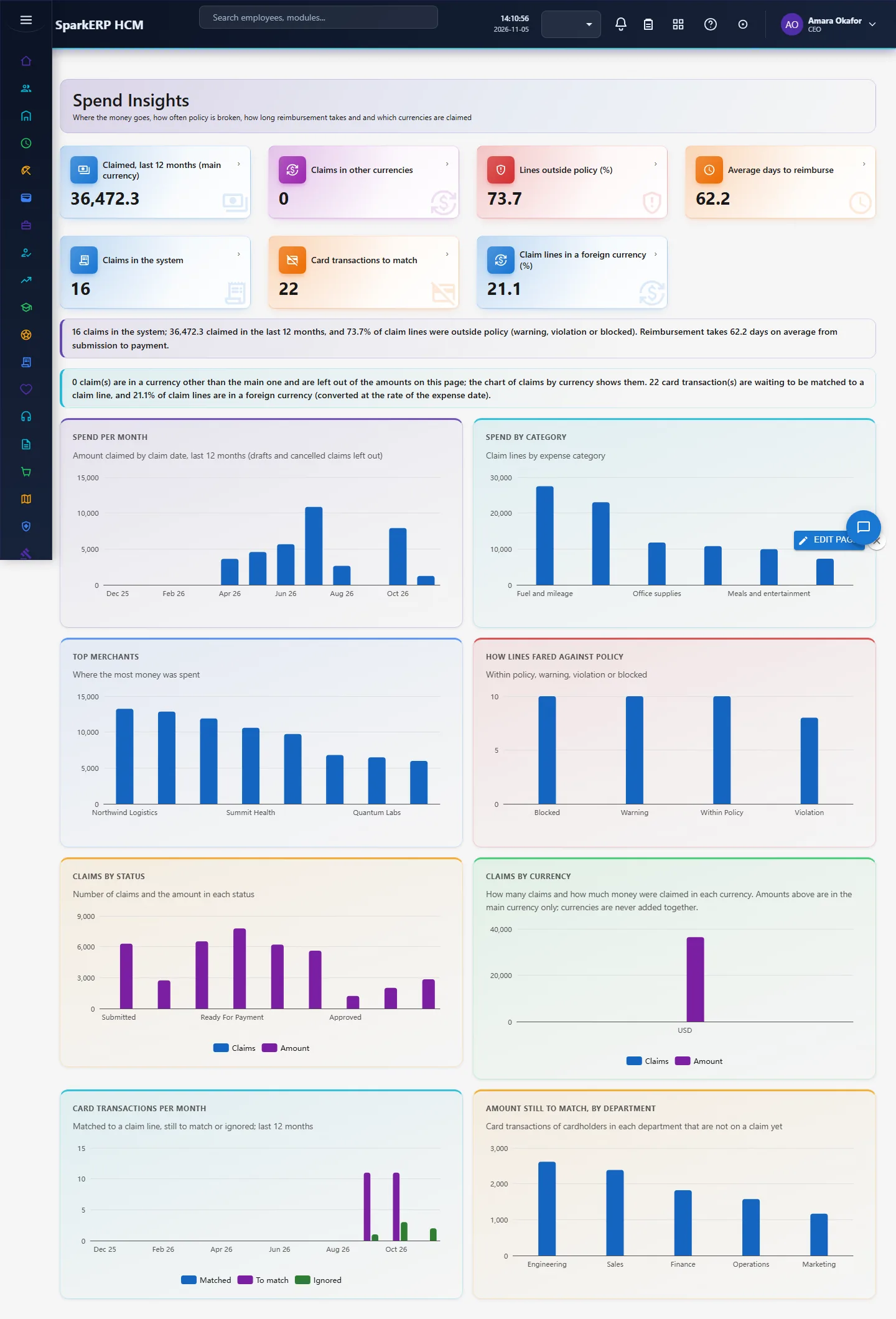
Match now (it also runs after every import) links a transaction to a claim line of the same employee when the amount and currency are exactly equal, the dates are within 3 days, the line was paid by card, and exactly one line is clearly the best (a similar merchant name decides between two). Anything else stays New with a note, so a person decides; Ignore the selected transaction removes one that is not an expense. Spend Insights shows the transactions per month (matched, to match, ignored), the amount still to match by department and how many lines are in a foreign currency.
5. Charts and reports
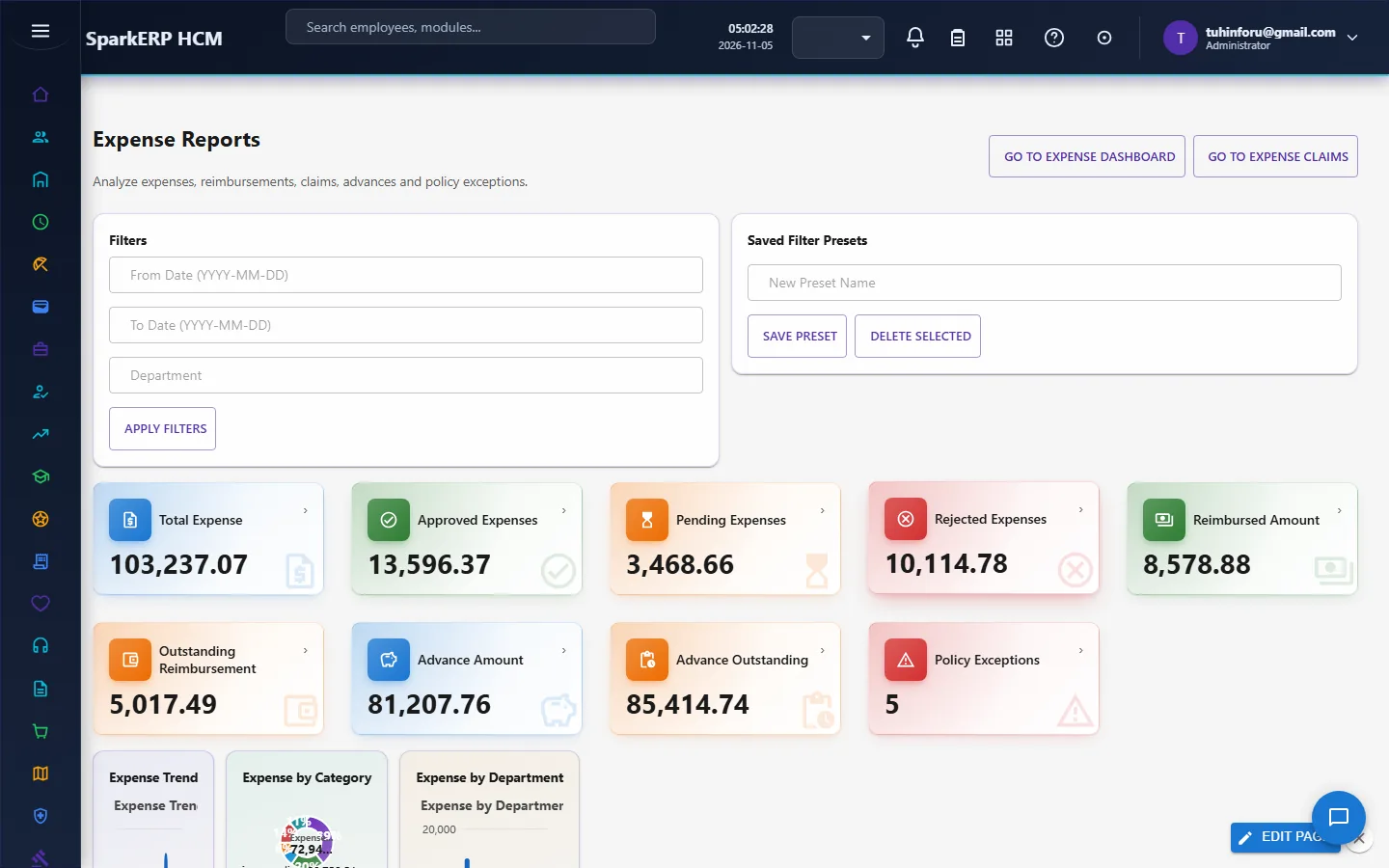
The Expense Dashboard counts claims by state. Expense Reports adds the money views: total, approved, pending and rejected expense, reimbursed and outstanding amounts, advances, and policy exceptions.
Spend Insights answers the questions finance asks next: spend per month, spend by category, top merchants, how lines fared against policy, claims by status with their amounts, and claims by currency. The tiles show the amount claimed in the last 12 months in the main currency (the one with most money claimed), how many claims are in other currencies, the share of lines outside policy and the average days from submission to payment (claims paid before they were submitted are left out of that average).
6. On a phone or tablet
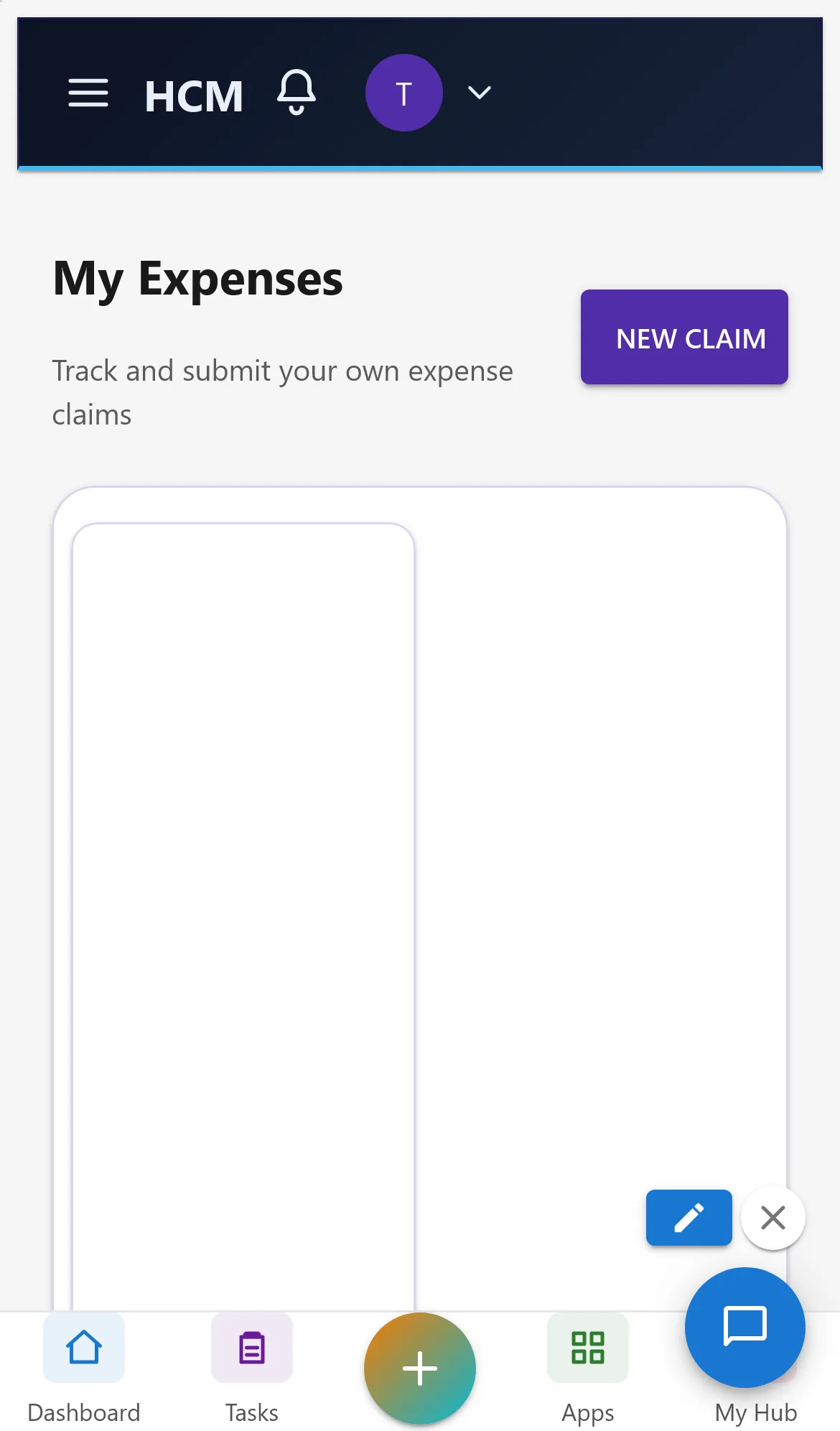
Every Expenses screen works on a phone: tiles and charts stack one per row, lists scroll inside their card and dialogs fit the screen. Employees can follow their claims from the phone; entering a new claim on a phone has not been tested for this guide.
7. Rules and limits
- A claim is checked against the policy that was active when the line was entered; a later policy version does not change an old claim.
- Policy results on lines, not on claims, drive the "outside policy" share in Spend Insights.
- Not built yet: converting an amount for a cash advance in a foreign currency (advances are still in one currency); a tolerance on the card match for tips or rounding (today the amount must be exactly equal); matching a card transaction to a line by hand; receipt reading of several receipts in one file; keeping a record of every receipt read (nothing is stored, so there is no "read automatically" rate yet). The receipt reader and a live card provider need setup by an administrator: an AI provider, and an Integration Designer flow that calls the provider and posts to the card-feed import (the
dummy-servicesmodule stands in locally withGET /cardfeed/transactions). - Currencies are never added together on the insight page. A line in a foreign currency is converted to the claim's currency when it is entered; Spend Insights adds up only the main currency of the claim and says how many claims are in other currencies; the chart of claims by currency shows them. Amounts are plain numbers without a currency symbol, and the page is in English only.
- Colours follow the theme. Tiles and charts take their accent colours from the platform theme colours (primary, info, warning, success, error, secondary). The platform has no light/dark switch yet, so only the light theme was checked.
- Card transactions belong to Employee Services and are not read by Expenses.
8. Troubleshooting
| Symptom | Cause and fix |
|---|---|
| A line shows no policy status | No policy is Active for that category. Publish one in Expense Policies. |
| A category is missing when adding a line | It is still inactive. Activate it in Expense Categories. |
| Spend Insights says "Report.View is required" | The login lacks the Report view permission; ask an administrator. |
| Average days to reimburse looks too short | Only claims paid on or after the day they were submitted count; check the paid and submitted dates. |
| "There is no exchange rate from X to Y" | Finance has not entered that rate for the expense date. Ask them to add it under Exchange Rates, or type the rate from your card statement. |
| "Receipt reading needs an AI provider" | No AI provider is set up for the organisation. Ask an administrator, or enter the receipt by hand. |
| A card transaction stays New | No claim line of that cardholder has the same amount and currency within 3 days, or two lines fit equally well (the note says which). Add the line, or ignore the transaction. |
| "The last import cannot be undone" | Some of its transactions were matched or ignored already. |
| A claim cannot be marked paid | It has not had both approvals yet. |