
Appearance
Compensation: how it works and how to set it up
Compensation answers the questions a company asks when it decides what to pay and how to change it: how much money is there for pay increases this year, where does each person sit in their pay range and against the market, how big an increase is proposed and does it stay inside the rules, who agreed, and what do bonuses, incentives, equity, allowances and benefits cost. This guide explains how the module works from start to finish, then how to set it up, then what each person sees. Every screen has its own page in the Compensation section; this guide is the one to read first.
1. What Compensation does for your business
- Runs a pay cycle with a budget: the money set aside for a year's increases, what has been planned and what has been approved, and whether either is over budget.
- Plans increases person by person (salary planning, salary reviews and merit increases) with the new salary and the new compa-ratio worked out by the platform.
- Keeps increases inside rules. The limits (the largest increase, the pay range and the market range) are set once in settings, and every proposal is checked against them.
- Compares pay with the market. Market rates by job give a 25th, 50th and 75th percentile.
- Tests what-ifs. A scenario applies an assumed increase to the cycle and shows whether it fits the budget.
- Manages variable pay. Bonus plans, incentive plans and equity grants, with their budgets and lifecycles.
- Records allowances and benefit enrolments with their costs.
What it does not do: it does not pay anyone and it does not change a person's pay record. There is no automatic hand-off: after a result is finalized, HR enters the new pay on the person's compensation record in Payroll. It does not decide who deserves an increase; that is a manager's and HR's judgement, and the checks make that judgement visible.
2. How compensation works, end to end
2.1 The path of one pay cycle
- A cycle is created: its code, name, type, fiscal year, currency, dates, owner and budget.
- The cycle is activated. A cycle becomes open only through its activation workflow.
- Increases are planned for each person, in salary planning, salary reviews and merit increases, each checked against the rules.
- Each proposal is approved, by the manager step and then the administrator step, and later finalized.
- Scenarios are run in parallel to see whether an assumed increase fits the budget.
- The cycle is closed through its closure workflow.
- After finalization, HR records the new pay on the person's compensation record in Payroll. Compensation does not do that step for you.
2.2 The cycle and its budget
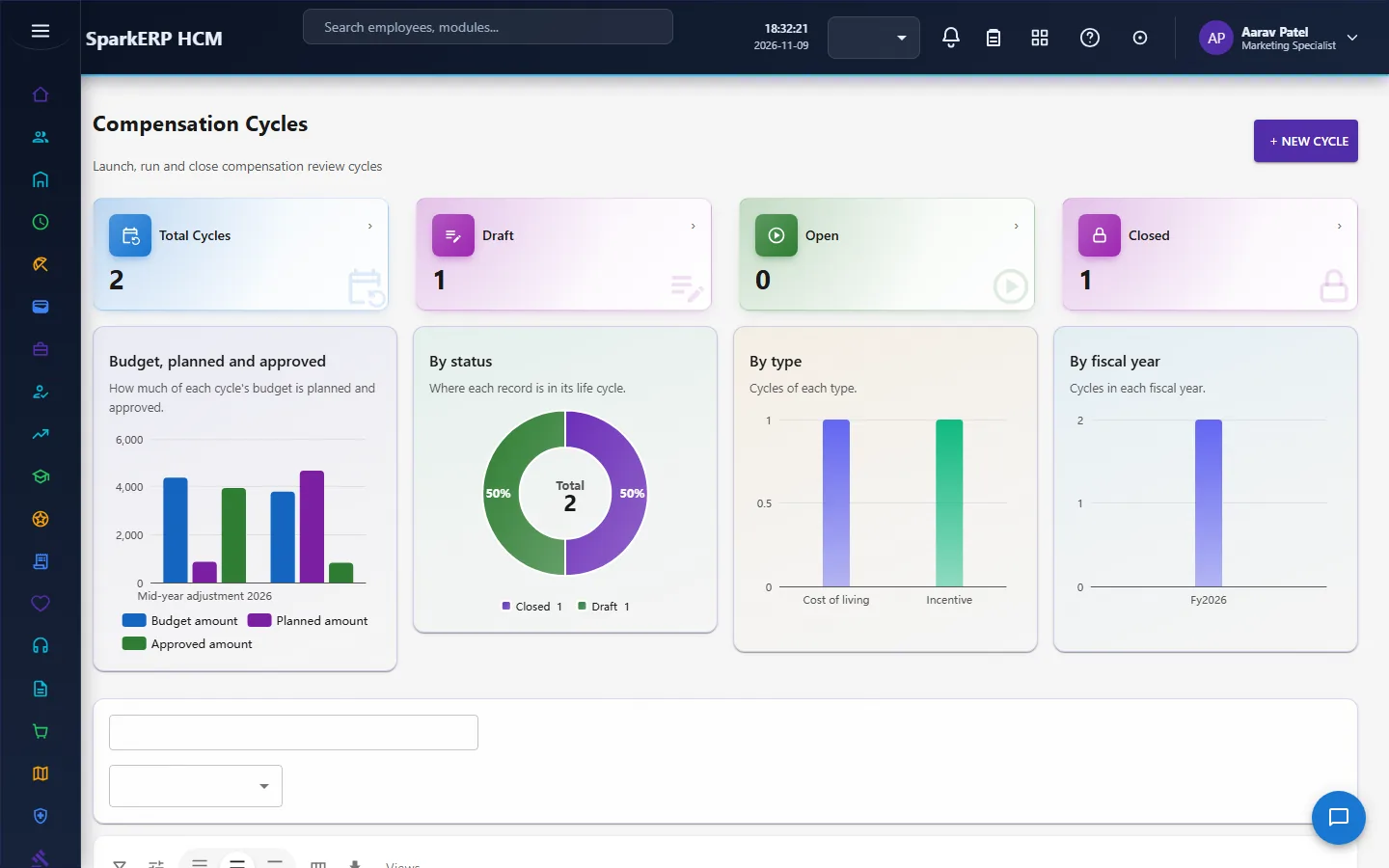
A cycle tracks its budget, the planned amount, the approved amount and the number of eligible employees. The platform works out the share of the budget used and flags the cycle over budget when the planned amount is above it, and approved over budget when the approved amount is. A cycle moves through draft and ready to open, and then closed. It can reach open only from ready through its activation workflow, and closed only from open through its closure workflow. A plain edit of the status is refused.
2.3 How the numbers are worked out
The platform works these out itself, so they cannot be typed in and cannot drift:
- Proposed salary = current salary × (1 + the percentage ÷ 100). This applies to a salary review (the recommended percentage), a salary planning entry (the final increase percent) and a merit increase (the approved percentage).
- Compa-ratio = the new salary ÷ the middle of the salary range × 100. A compa-ratio of 100 means the person is paid exactly the middle of their pay range. The middle of the range is a figure entered on each proposal (the Salary Range Mid field); it is not read from the job grade.
- Market ratio = pay as a share of the market midpoint.
- A lump sum leaves the base salary and the compa-ratio unchanged.
The numbers are recalculated whenever the current salary or the percentage changes, for example when a manager revises the increase.
2.4 The rules every proposal is checked against
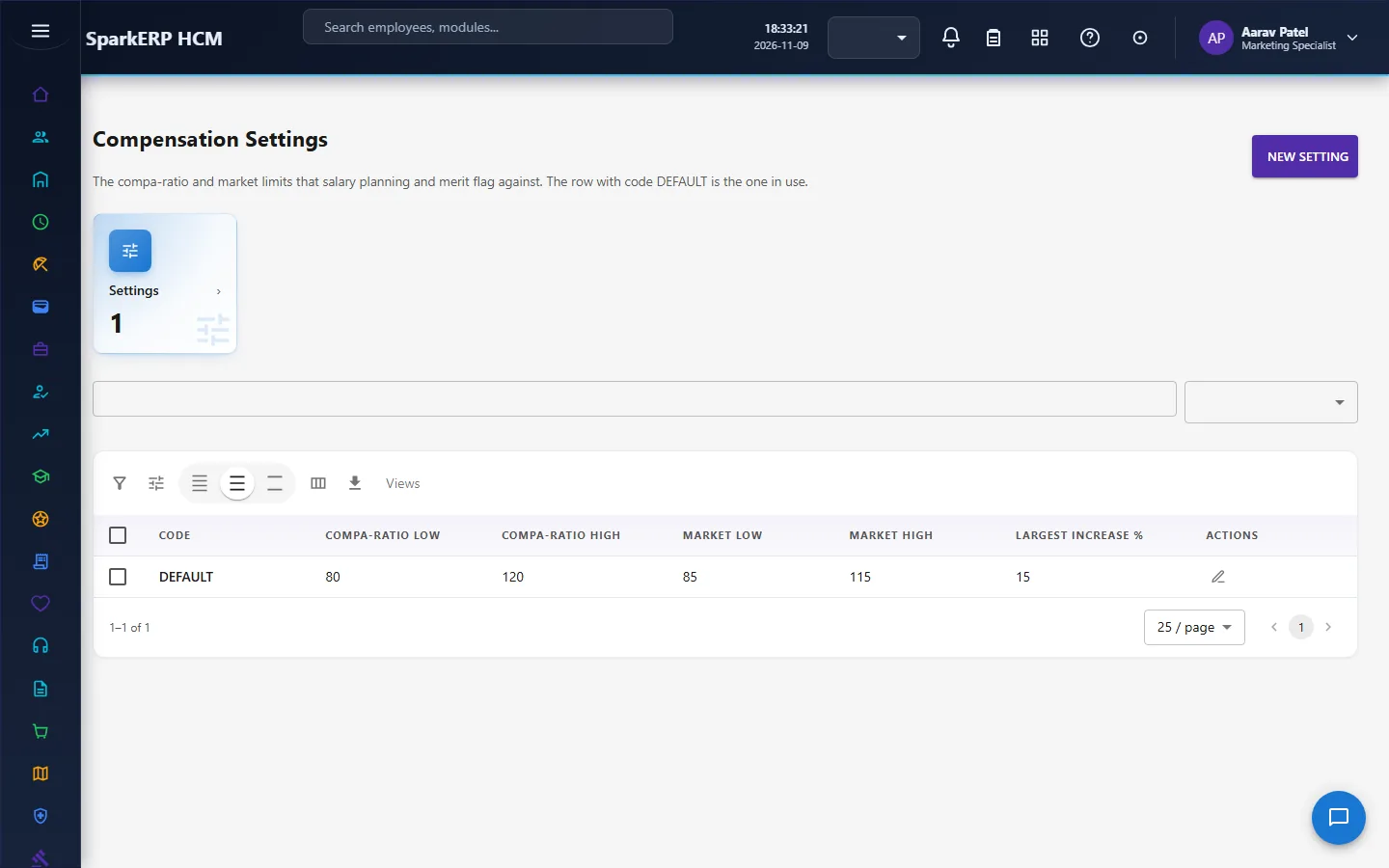
The limits live in Compensation Settings: the lowest and highest compa-ratio allowed after an increase, the lowest and highest market ratio, and the largest increase percent. When no value is set, a starting default is used. Every proposal is checked, and the page shows the result:
- Increase above the maximum: flagged when the increase is above the largest allowed.
- Compa-ratio after the increase: below, inside or above the allowed range.
- Market position: below, at or above the market limits.
- Above the matrix: a merit increase above the matrix recommendation is flagged, and it needs a written justification.
These flags inform the approver. They do not by themselves stop a proposal; the approvers decide.
2.5 Salary planning, salary review and merit increase
These are three views of the same job, proposing a new pay for a person in a cycle:
- Salary planning is the manager's plan for the team in the cycle, one entry per person, with the current salary, the final increase percent, the new salary and the new compa-ratio.
- Salary review is the review of one person: the review type, the recommended percentage, the performance rating, the manager's and HR's comments, and a justification.
- Merit increase is the merit-based increase, with the matrix recommendation and the manager's percentage.
Each follows the same path: the manager or HR submits it, it is approved (manager step, then administrator step), and then finalized. It can reach approved only through its approval workflow from submitted, and finalized only through its finalization workflow from approved. Each task is due within three days.
2.6 Market rates and scenarios
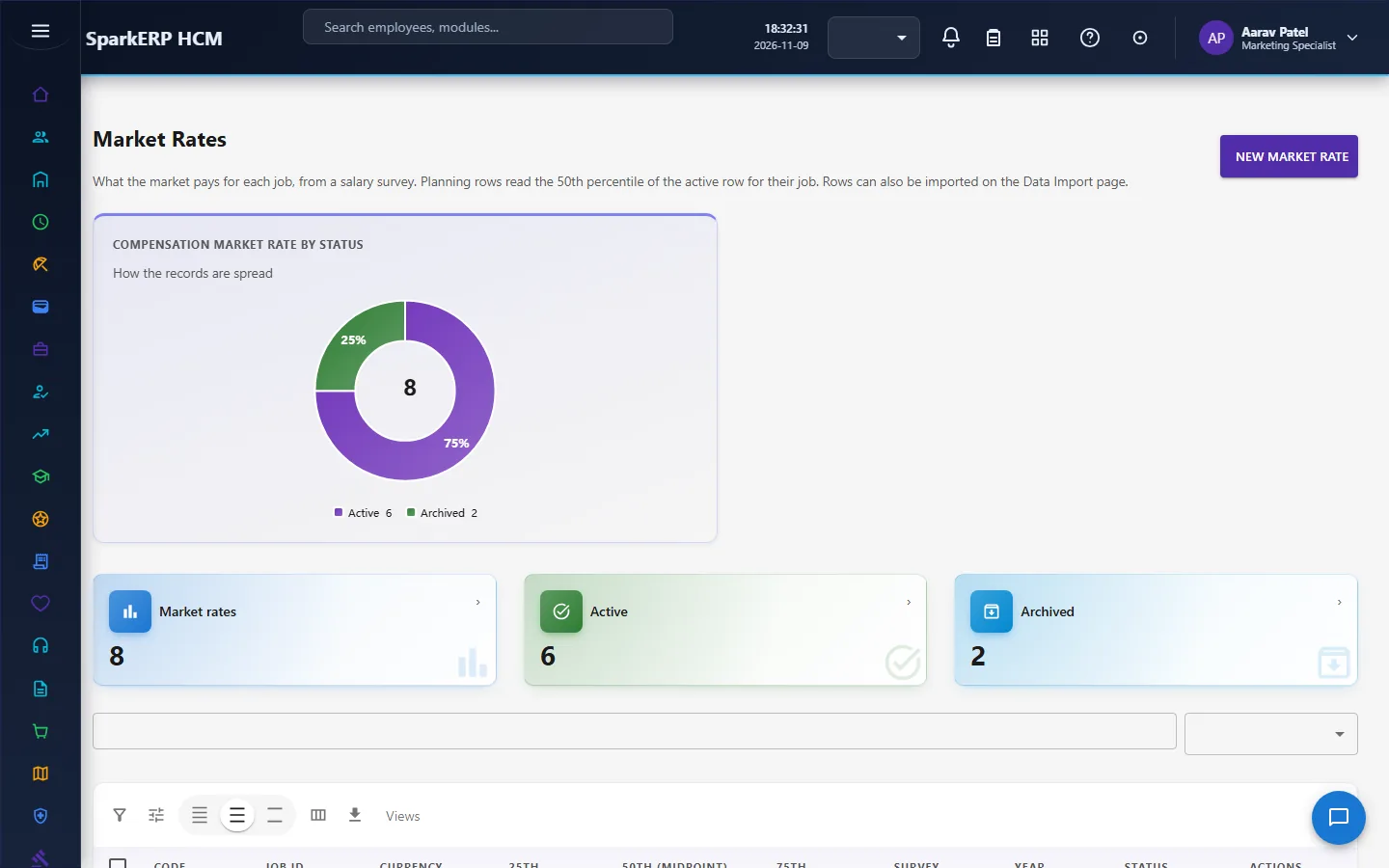
Market rates hold a 25th, 50th and 75th percentile for a job classification, with the currency, the survey source and the survey year. They give the market midpoint the market ratio is measured against.
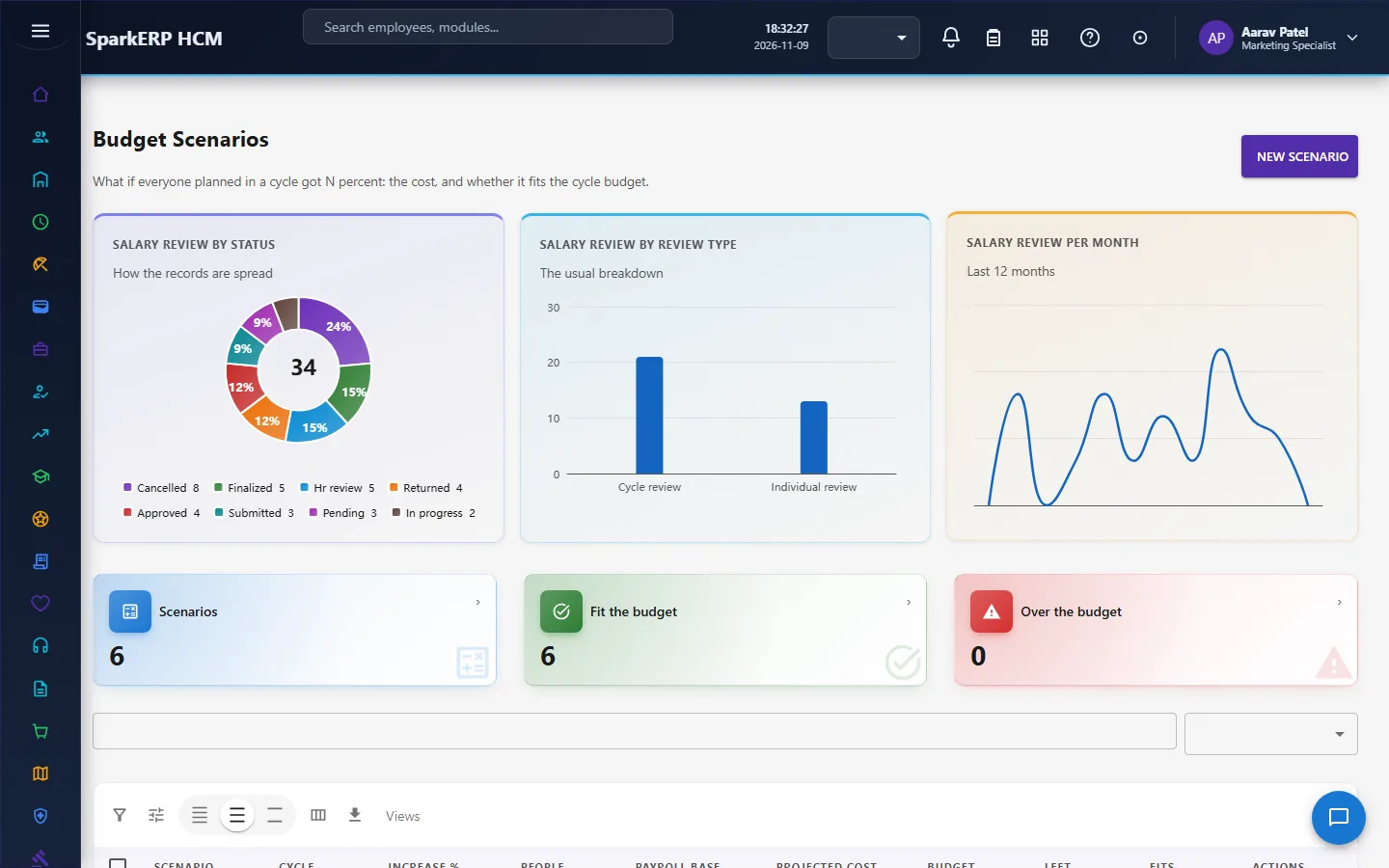
A scenario takes a cycle and an assumed increase percent. It reads the cycle's payroll base, headcount and budget, works out what the increase would cost and the budget left or short, and says whether it fits the budget (it does not fit when the cost is above the budget).
2.7 Bonus plans and incentive plans
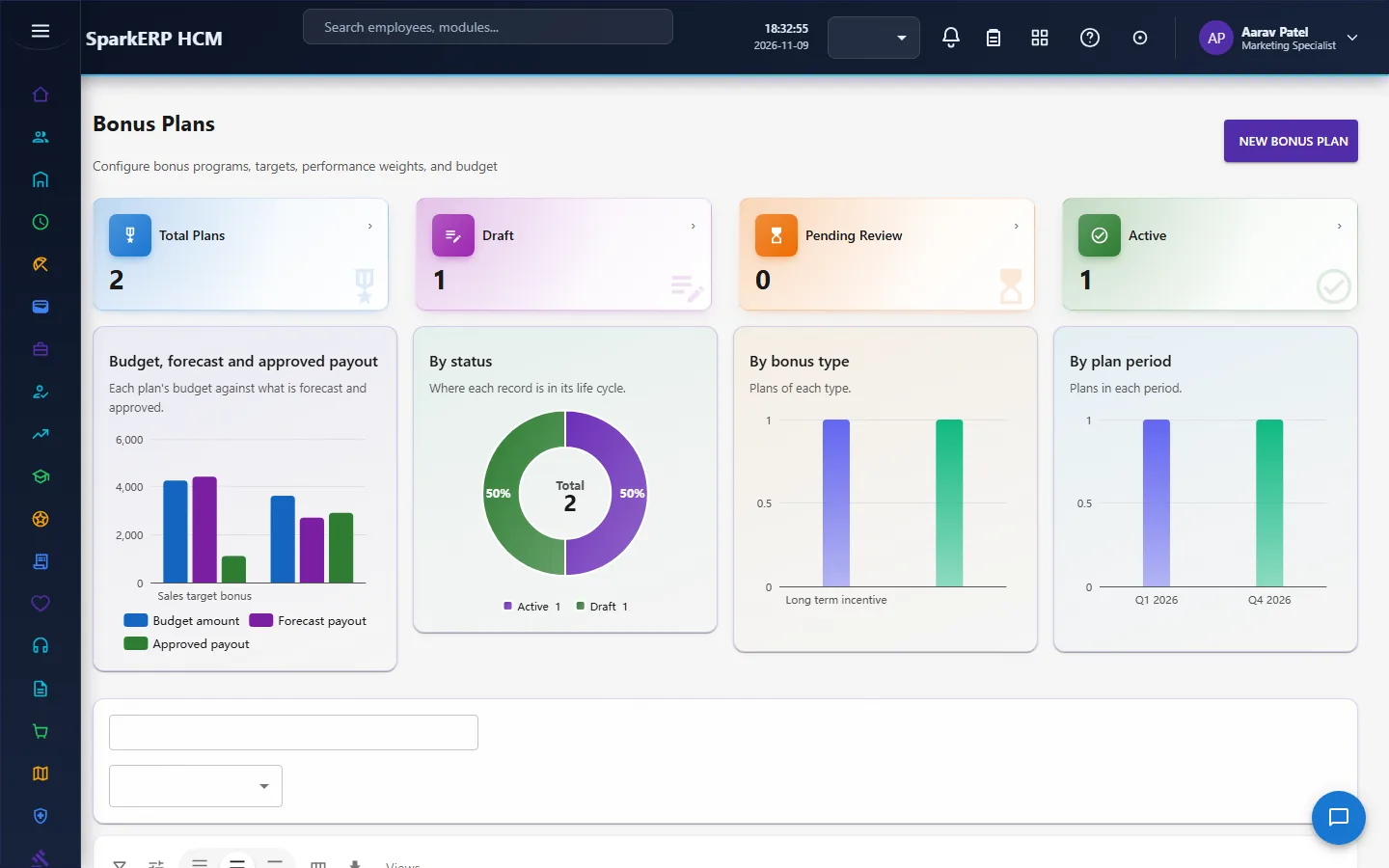
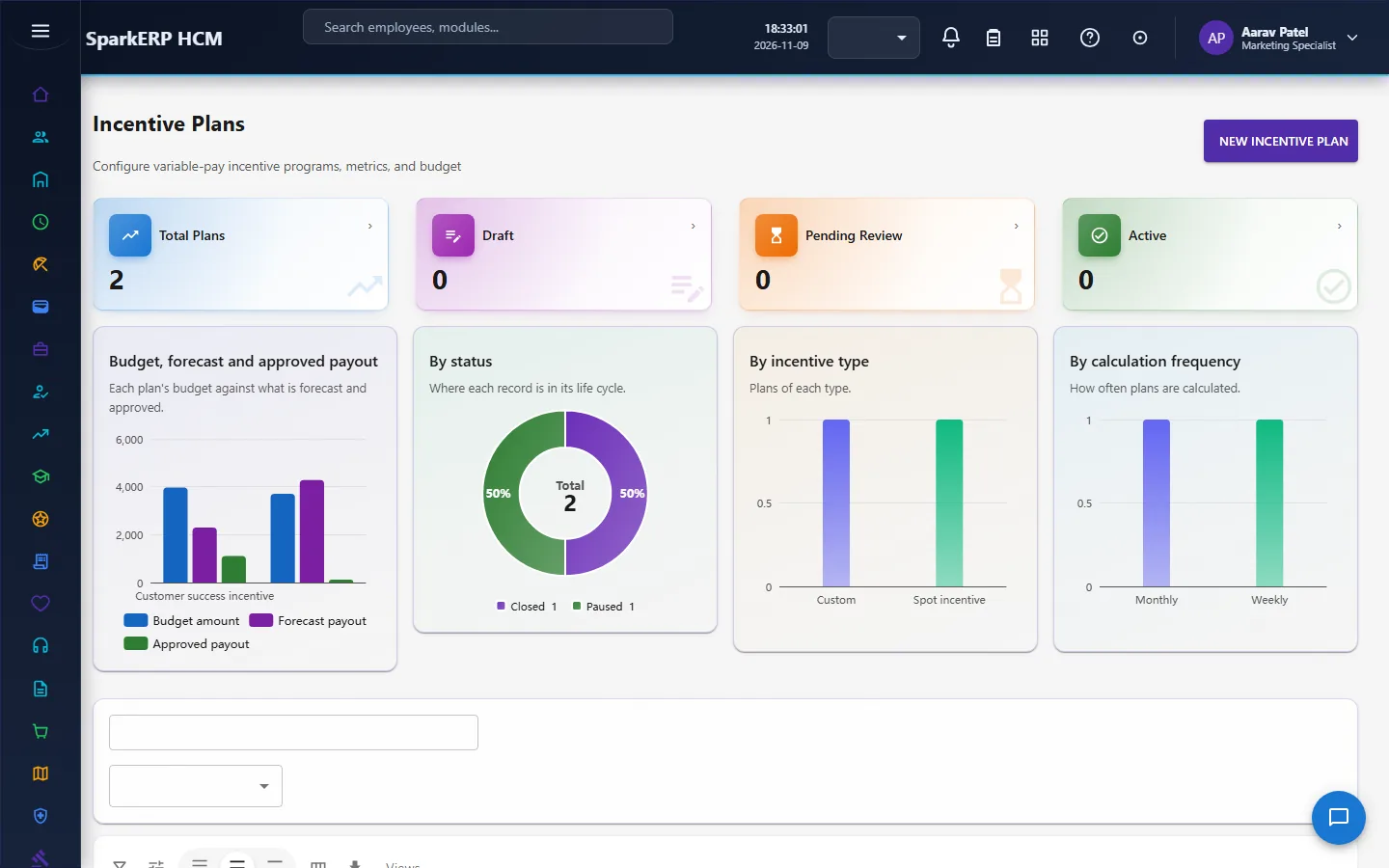
A bonus plan has a type and period, effective dates, a payout date, an owner, a target (a type and a percentage), a minimum and maximum payout, and weights for the company, the individual and the team. A bonus plan cannot be activated unless the weights add up to exactly 100. The platform works out the total weight and the budget remaining (the budget less the approved payout, never below zero), and flags a plan whose forecast payout is above its budget. An incentive plan is the same shape with up to three metrics and their weights, which must also add up to 100 before activation.
Both go through an activation workflow (manager, then administrator) and a closure workflow. A plan can reach active only through activation.
2.8 Equity grants
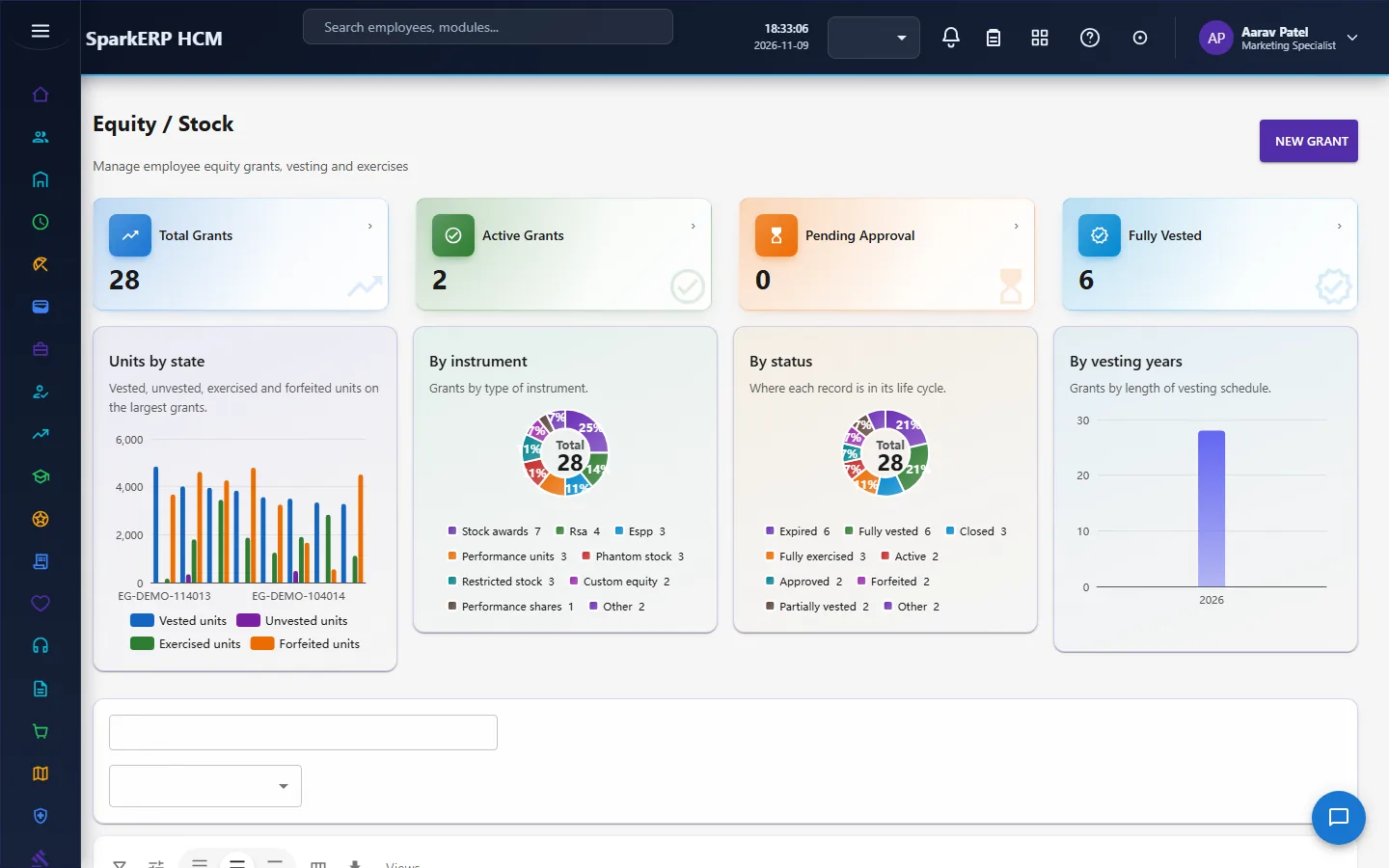
An equity grant records the instrument, the grant date, the units granted, the grant price, the exercise price and the fair value per unit, the vesting start, the vesting years, the cliff in months, and the expiration date. The platform works out the grant value (units × grant price), the estimated value (units × fair value), the unvested units (granted less vested) and the exercisable units (vested less exercised), and recalculates them whenever the vested or exercised units move.
A grant has a lifecycle: approved, active, partially vested, fully vested, partially exercised, fully exercised, forfeited and expired. Each step can happen only through its own workflow: active only from approved (activation); partially or fully vested only from active or partially vested (vesting); partially or fully exercised only from vested states (exercise); forfeited or expired only from a still-active state. A plain edit is refused.
2.9 Allowances and benefits
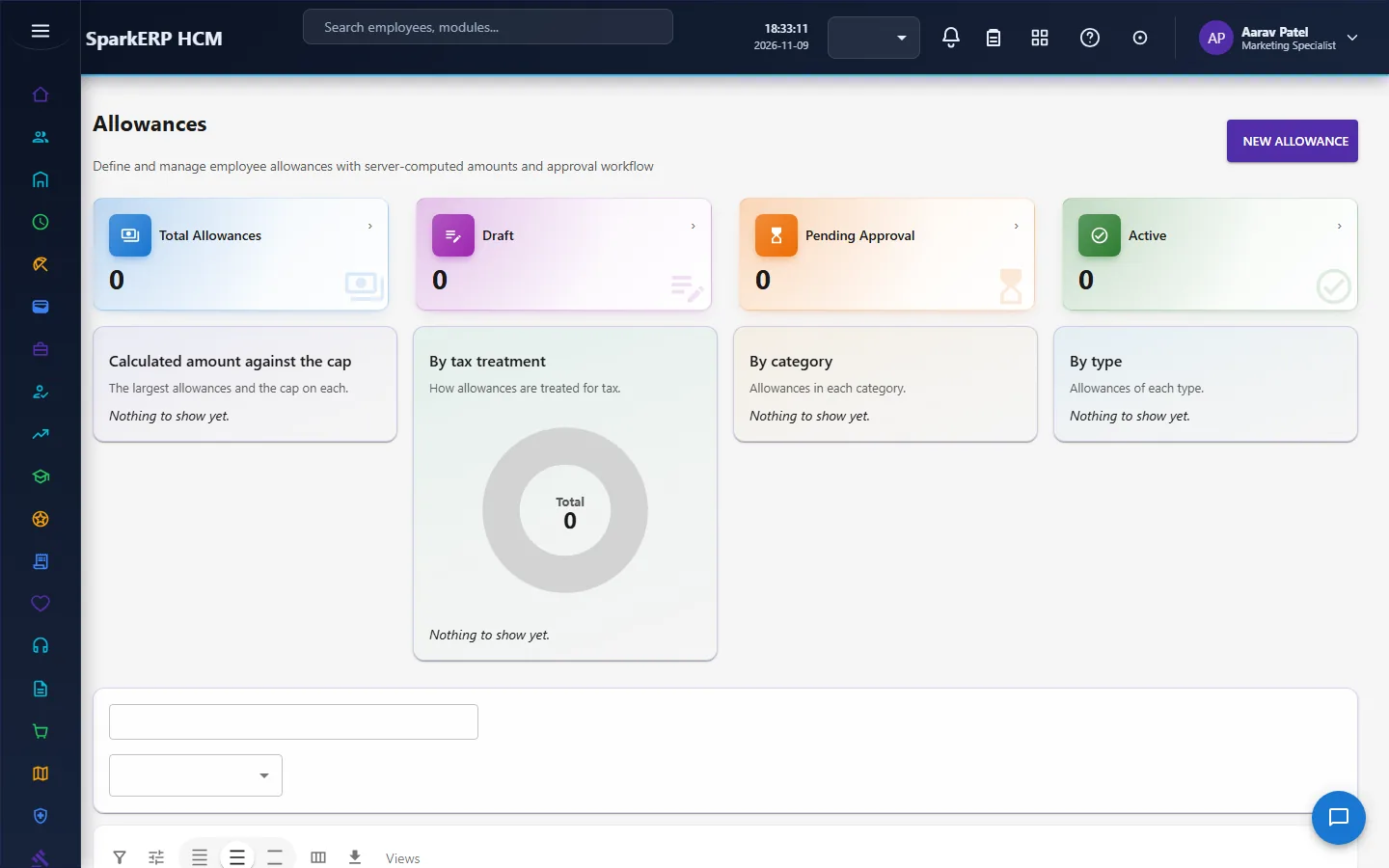
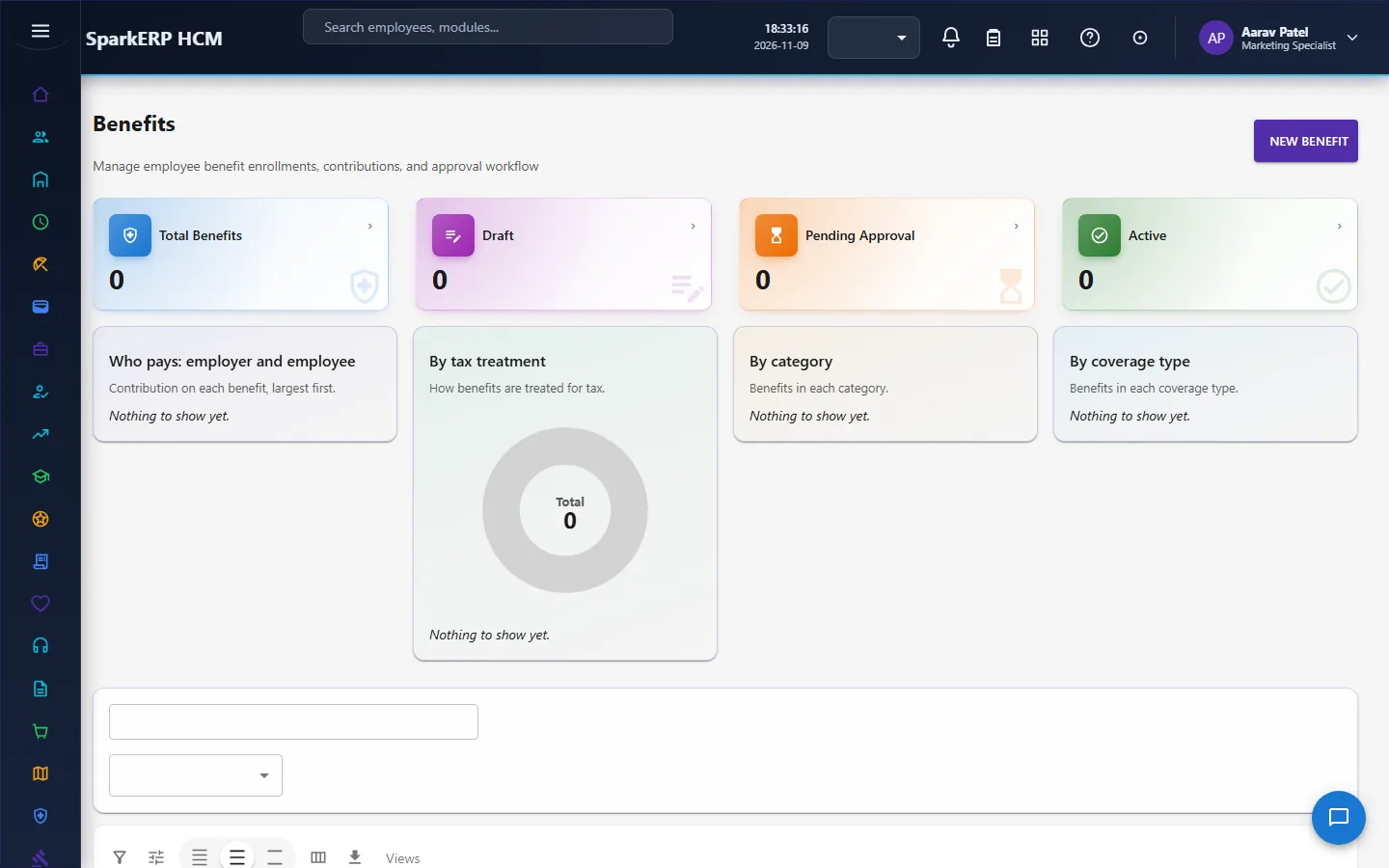
An allowance is a recurring payment, with a fixed amount or a percentage of the base salary; the calculated amount is worked out by the platform from the method. An allowance is approved (manager, then administrator) and then activated. A benefit enrolment works out the employer and employee contributions as the premium times each percentage, and the total cost as their sum, and goes through approval and then enrolment. (The Benefits module holds the full benefits administration; this is the compensation view of it.)
3. Who does what
| Role | What they do |
|---|---|
| Compensation Administrator | Sets up cycles, plans, market rates and settings; decides the administrator steps; finalizes; activates and closes. |
| Compensation Manager | Decides the manager steps of proposals and plans; plans increases for their area. |
| HR roles and the analytics viewer | Read the dashboard and reports. |
| Tenant Owner | Can decide every step. |
| Employee | Has no Compensation screens. Their own pay is on their payslip and in My Tax. |
Compensation screens are open to the compensation roles, HR, the Benefits roles and the analytics viewer. A line manager works from their approvals.
3a. What each role sees, screen by screen
The employee
An employee has no Compensation screens.

The manager
A line manager who holds no compensation role gets no page on the planning screens. A person who holds the Compensation Manager role sees Salary Planning and Merit Increase and decides the manager step of proposals.


The HR and compensation administrator
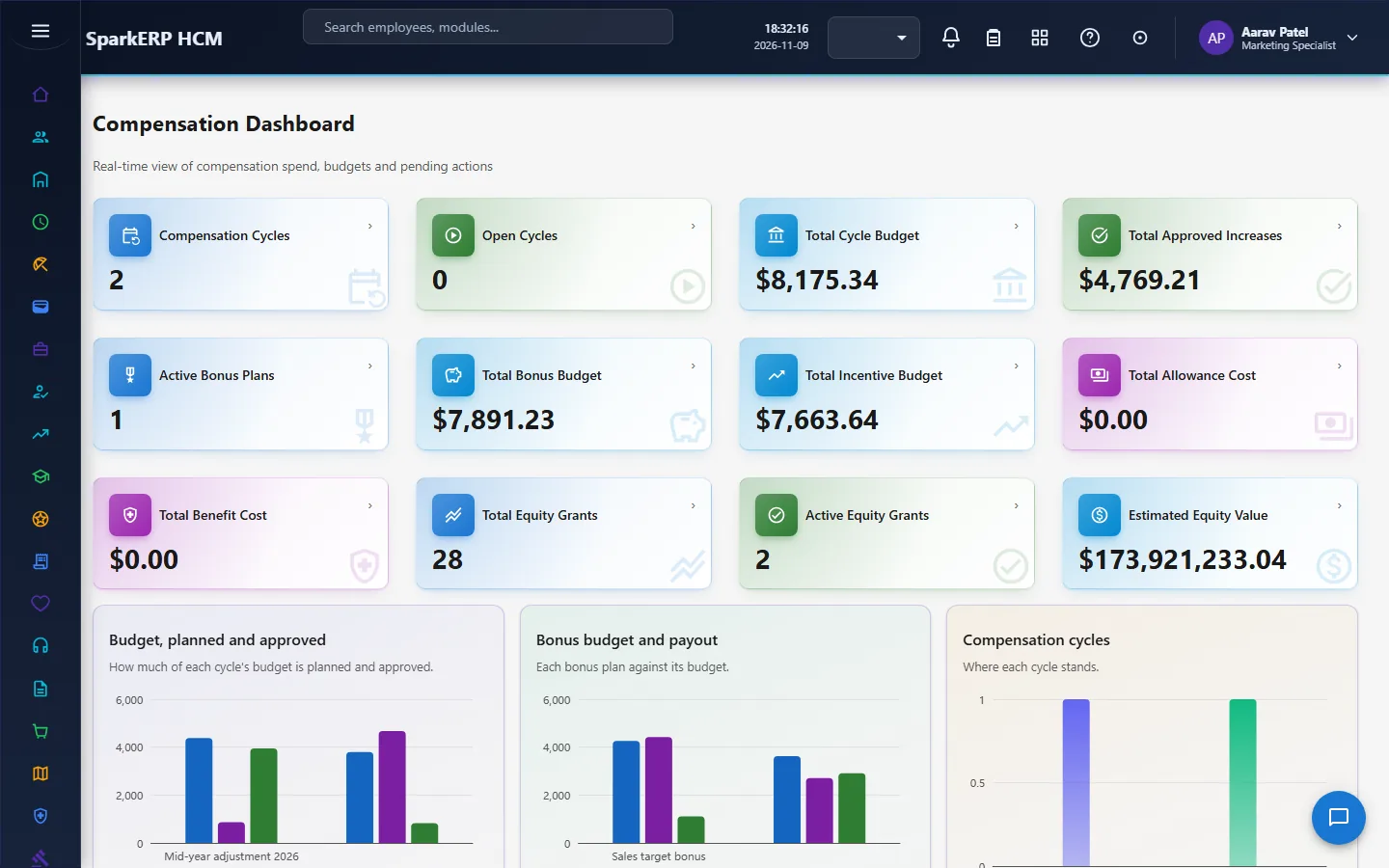
The Compensation Dashboard shows the cycle, the budget used and what is waiting. Compensation Cycles and Compensation Scenarios hold the cycle and the what-ifs.
Market Rates give the reference.
Salary Planning, Salary Review and Merit Increase hold the proposals.
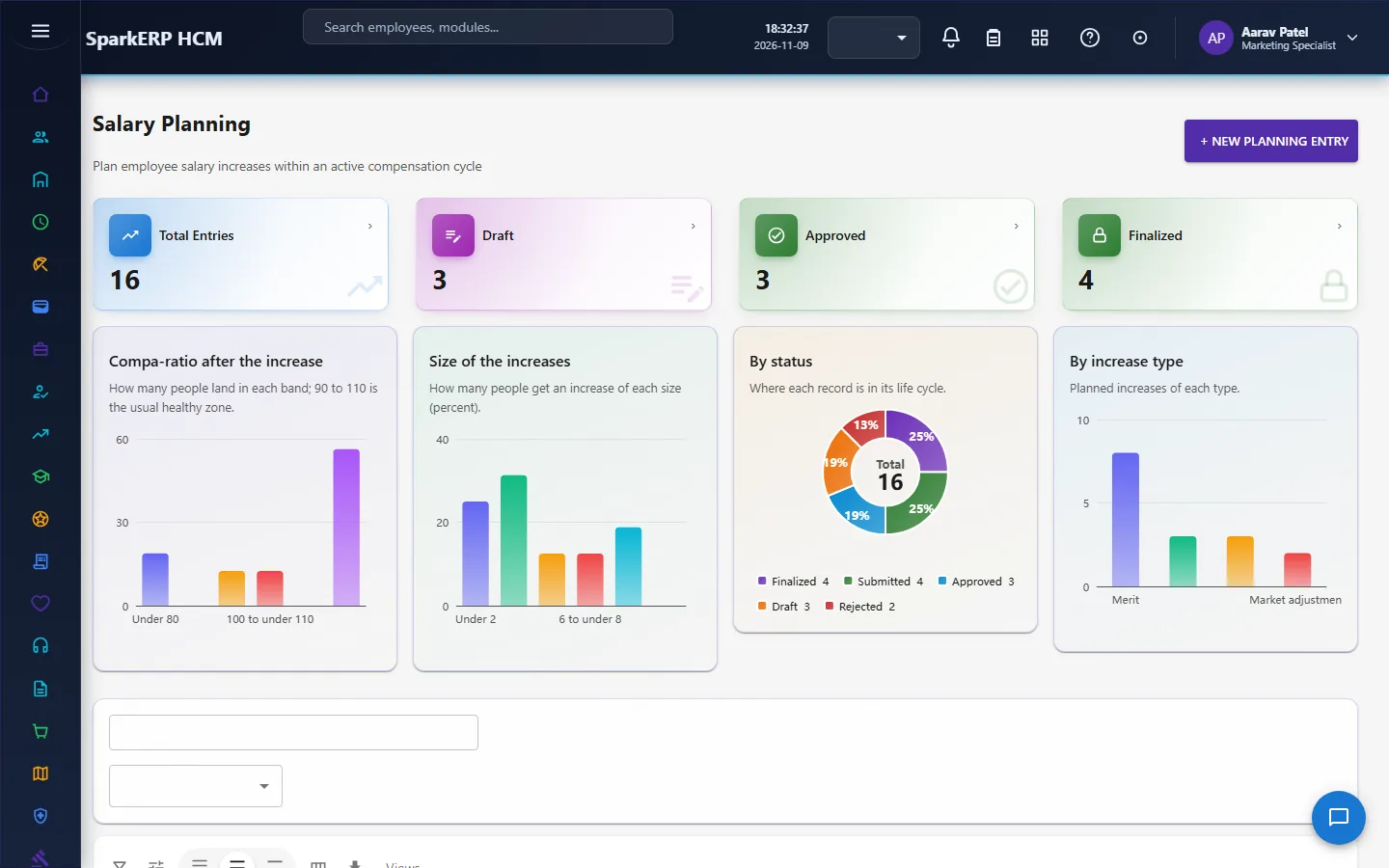
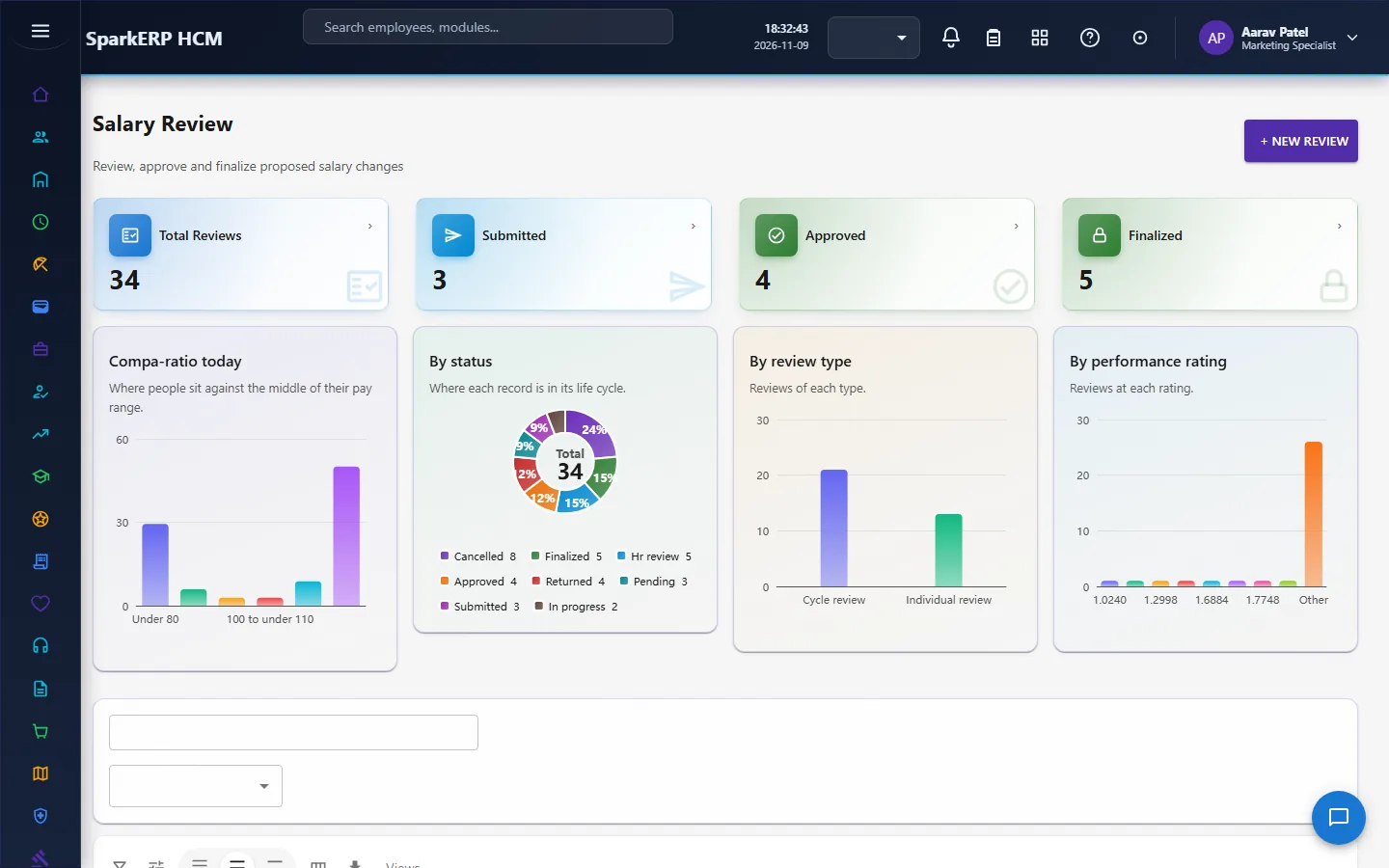
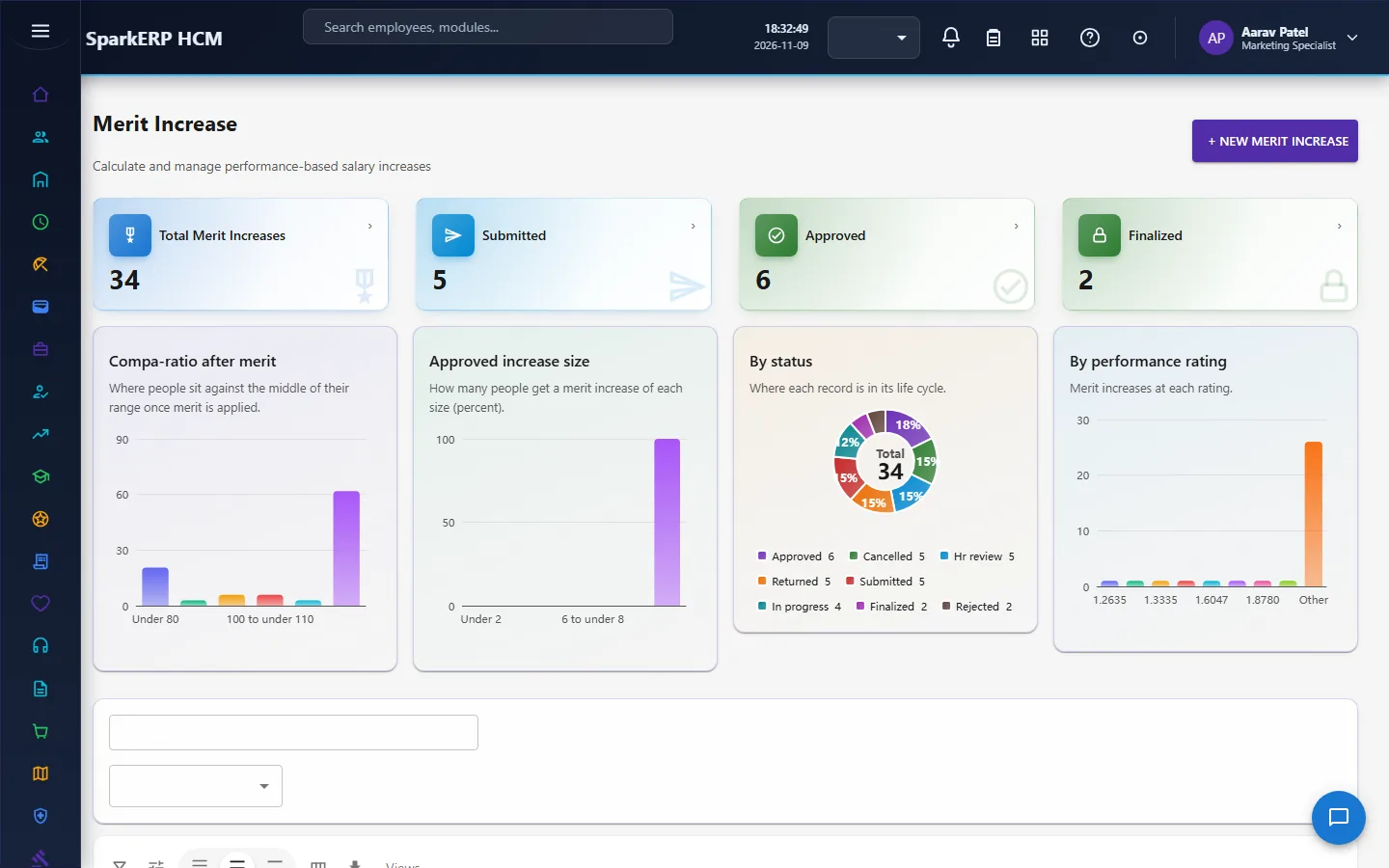
Bonus Plans, Incentive Plans, Equity & Stock, Allowances and Benefits hold variable pay and extras.
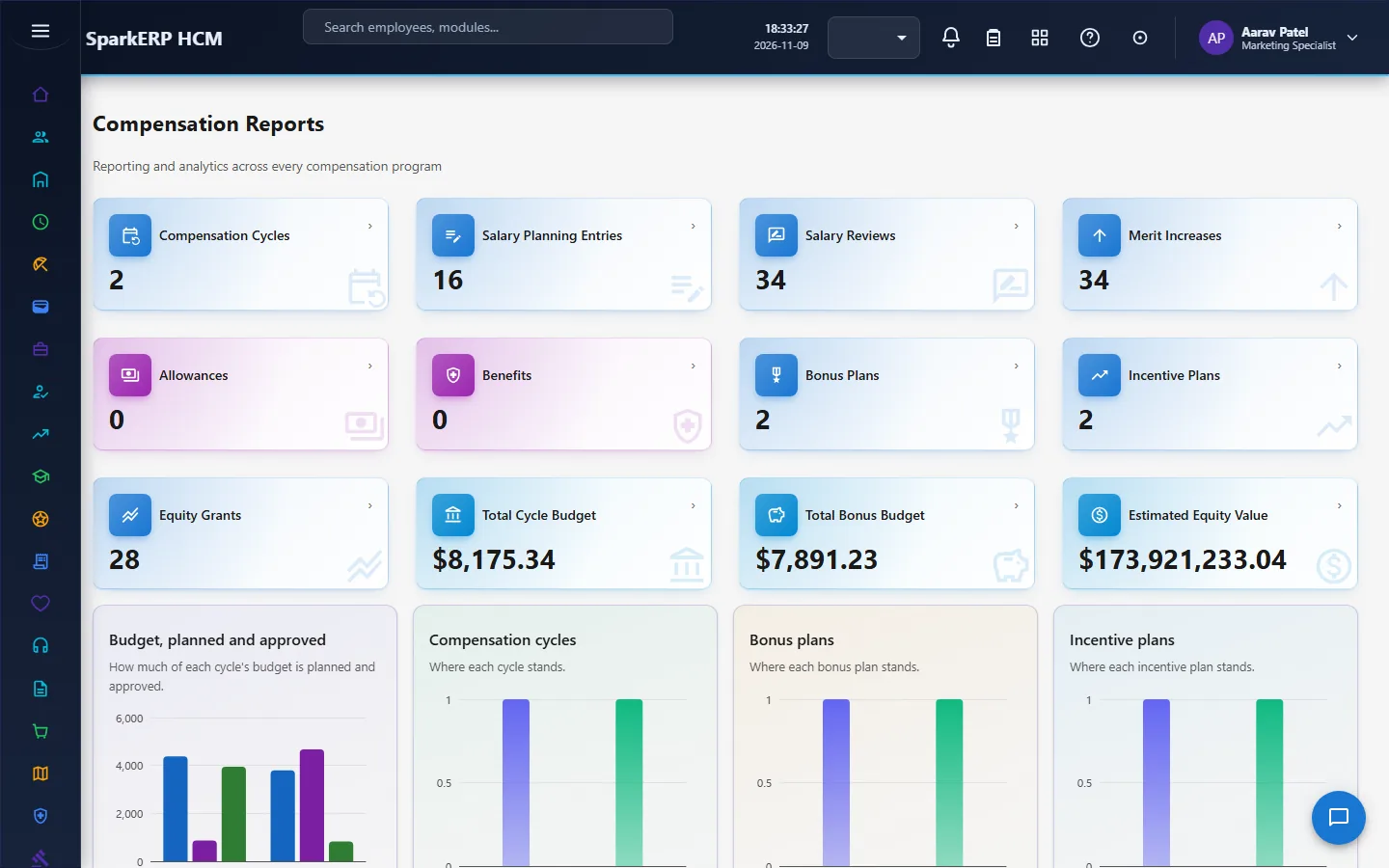
Compensation Settings and Compensation Reports close the loop.
4. Decide before you set up
| Decision | What to think about |
|---|---|
| The cycle and its budget | The fiscal year, the dates, the currency and the money set aside. |
| The limits | The largest increase percent, and the lowest and highest compa-ratio and market ratio you will accept. |
| The market data | Which survey you trust, for which jobs, and its year. |
| Who approves | Who holds the Compensation Manager and Compensation Administrator roles. |
| Variable pay | Whether you use bonus plans, incentive plans and equity, and their weights. |
| Pay range middles | The compa-ratio needs the middle of the salary range, which is entered on each proposal. Decide where your people will get it from (your grade bands) and who enters it. |
5. Set up step by step
- Pay range middles. Have the middle of each salary range ready (your grade bands in Organization show them), because each proposal needs it entered for the compa-ratio to be worked out.
- Compensation Settings. Set the compa-ratio and market-ratio limits and the largest increase percent.
- Market rates. Enter the percentiles for the jobs you benchmark.
- Roles. Give the Compensation Administrator and Compensation Manager roles.
- A cycle. Create it with its budget and dates, and activate it.
- Scenarios. Test an assumed increase against the cycle budget.
- Variable pay. Create the bonus plans, incentive plans and equity grants you use; check the weights add up to 100.
- Trial. In a trial tenant generate the Compensation demo pack and follow one merit increase from submitted to finalized.
6. Daily use
6.1 Planning a cycle
- Create the cycle with its budget; test a scenario to see if an assumed increase fits.
- Activate the cycle once it is ready.
6.2 Proposing an increase
- Open Salary Planning (or a review or merit increase) and choose the person.
- Enter the percentage; read the new salary, the new compa-ratio and the flags.
- Add a justification where the flags ask for one. Submit.
6.3 Approving and finalizing
- The manager step, then the administrator step, decide.
- After approval the proposal is finalized; the cycle's approved amount and budget used update.
- Watch for approved over budget.
6.4 Variable pay
- Check a plan's weights add up to 100 before you activate it.
- Watch the forecast payout against the budget.
- Record vesting, exercise, forfeiture and expiry of equity through their steps.
7. A calendar of recurring work
| When | What |
|---|---|
| Before a cycle | Set the budget, the limits and the market data. |
| During a cycle | Proposals, approvals, scenarios; watch budget used. |
| End of a cycle | Finalize, close, hand to Payroll. |
| Quarterly | Bonus and incentive forecast against budget; vesting dates. |
| Yearly | Refresh market rates and review the limits. |
8. Reports and figures
The Compensation Dashboard and Compensation Reports show the budget used, the proposals by status and the compa-ratio and market position of pay. Lists can be exported.
9. Limits you should know about
- Compensation does not change pay by itself. After a result is finalized, the new pay is entered on the person's compensation record in Payroll.
- The checks flag; people decide. A flagged proposal can still be approved by the approvers.
- Compa-ratio needs a salary range middle entered on the proposal. Without it the ratio is empty.
- A bonus or incentive plan with weights not equal to 100 cannot be activated.
- Statuses move only through their workflows. A plain edit is refused.
- Market rates are only as good as the survey you enter.
10. Troubleshooting
| Symptom | Cause and fix |
|---|---|
| The compa-ratio is empty | The Salary Range Mid was not entered on the proposal. |
| A cycle cannot be opened by editing it | It opens only through its activation workflow, from ready. |
| A plan cannot be activated | Its weights do not add up to 100. |
| A proposal is flagged | It is above the largest increase, outside the compa-ratio or market range, or above the matrix without a justification. |
| A cycle shows over budget | The planned amount is above the budget; lower proposals or raise the budget. |
| A scenario does not fit | Its cost is above the cycle budget. |
| An equity status cannot be changed | Each step has its own workflow; use it. |
| An employee cannot open a screen | Compensation screens are for the compensation roles and HR. |