
Appearance
Recruitment (HCM): from setup to daily use
Recruitment runs hiring from the approved need to the signed offer: a requisition is approved, a job opening is published, candidates apply, applications move through screening, interviews and assessments, and an accepted offer becomes a hire. Every step is a record, so the dashboard, the pipeline and the reports all read the same data.
1. Who uses it
| Role | What they do |
|---|---|
| Recruiter | Publishes openings, manages candidates and applications, schedules interviews, prepares offers. |
| Hiring manager | Raises requisitions, reviews candidates, gives interview feedback, approves offers. |
| Interviewer | Sees the interviews assigned to them and fills the scorecard. |
| HR head / finance | Approves requisitions and offers, reads the dashboard and reports. |
| Candidate | Applies through the careers page. |
2. Before you start
- Installed plugins.
hcm-recruitment(needs HCM Foundation). It is the free tier, so no licence feature has to be granted. - Access. A tenant administrator sees everything. Other people need the Recruitment permissions of their role; the reports need the Report view permission.
- Departments and positions must exist in Core HR, because a requisition names them.
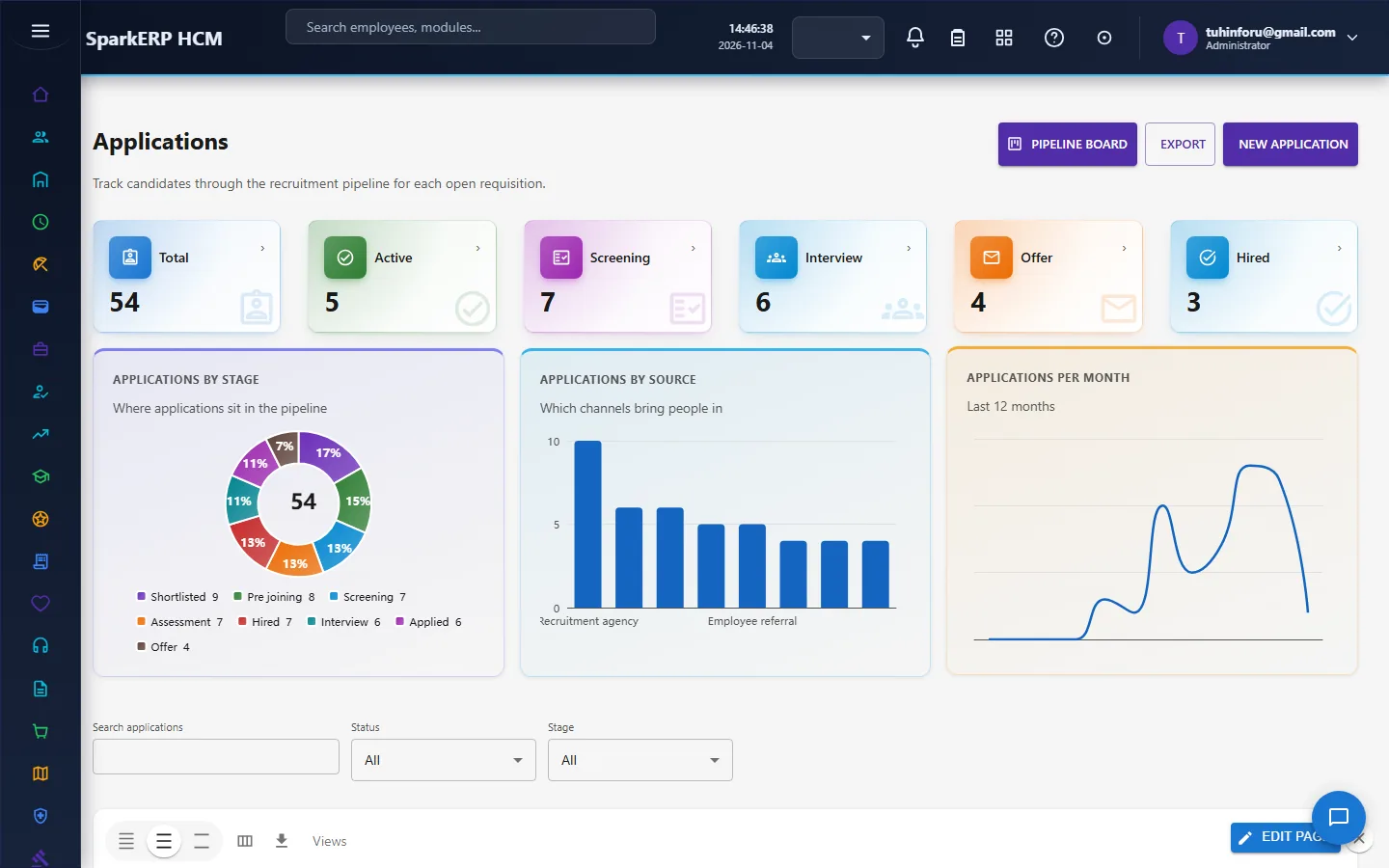
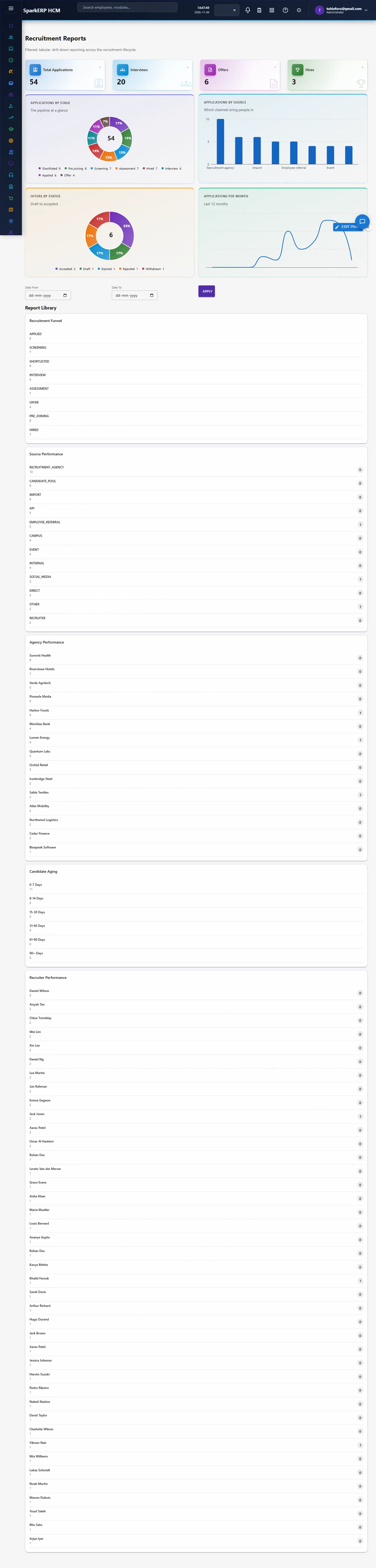
- Trial data. In a trial tenant, generate the Recruitment pack in Demo Data: requisitions, openings, 54 applications across every stage, interviews, offers and sources.
3. Set up
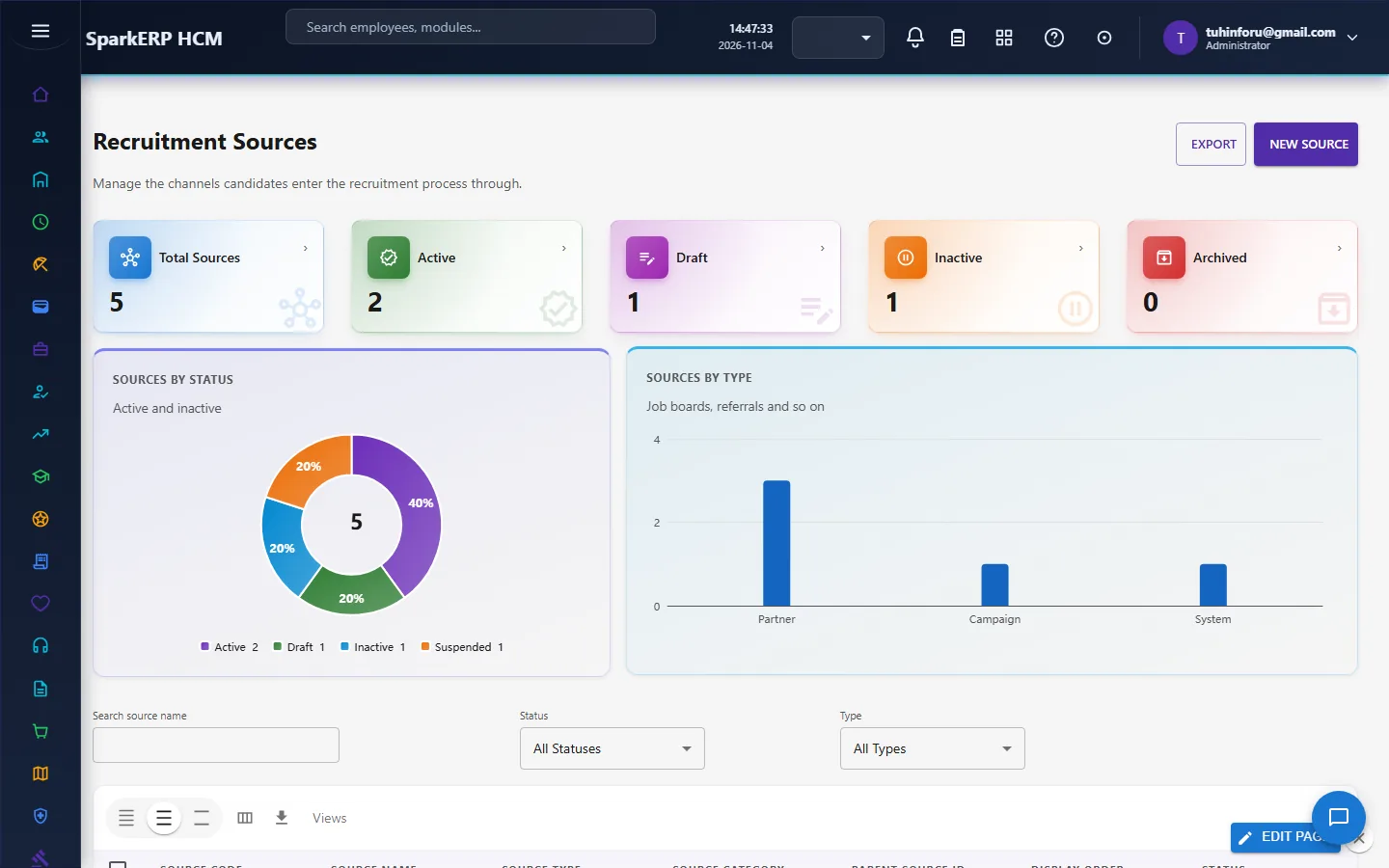
Recruitment sources and agencies. Register where candidates come from (Recruitment Sources) and the agencies you work with (Recruitment Agencies), so hires can be traced to a source.
Settings. In Recruitment Settings choose the defaults (stages, approval rules, notifications).
Careers page. Publish the careers page so candidates can apply to open jobs.
4. Daily use
4.1 Requisition and opening
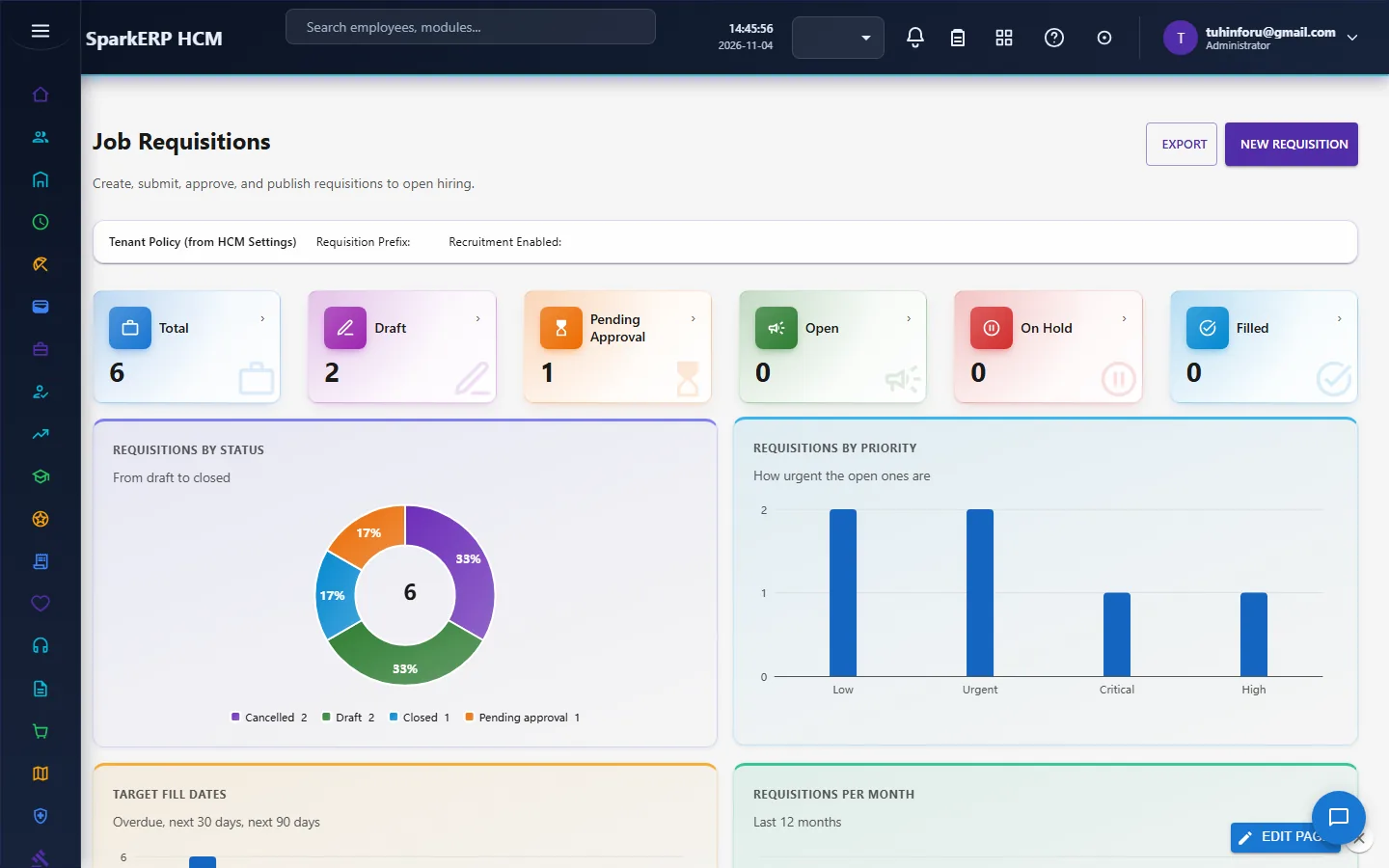
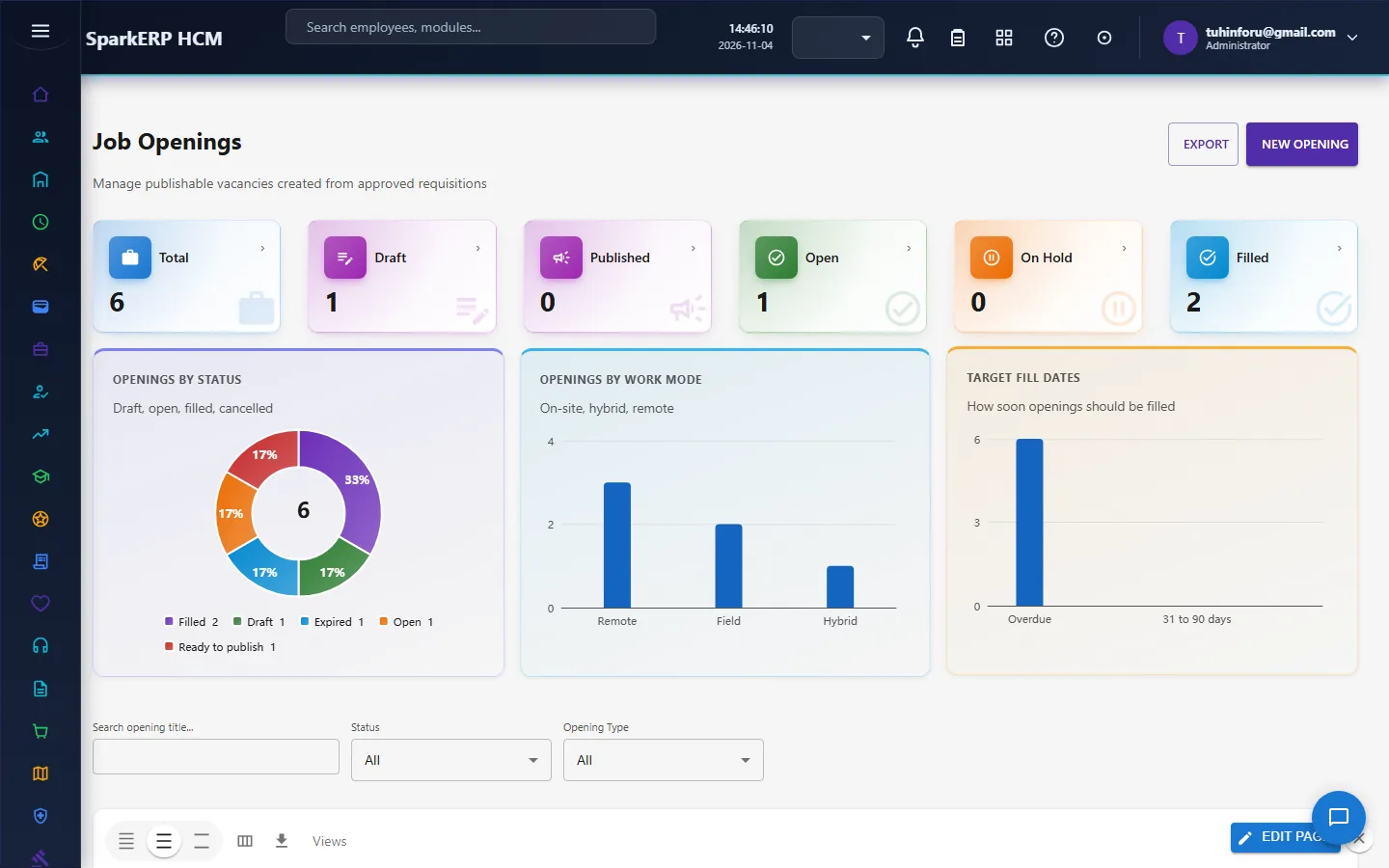
A hiring manager raises a Job Requisition (role, department, number of openings, budget, target dates). Once approved, a recruiter publishes it as a Job Opening.
4.2 Candidates and applications
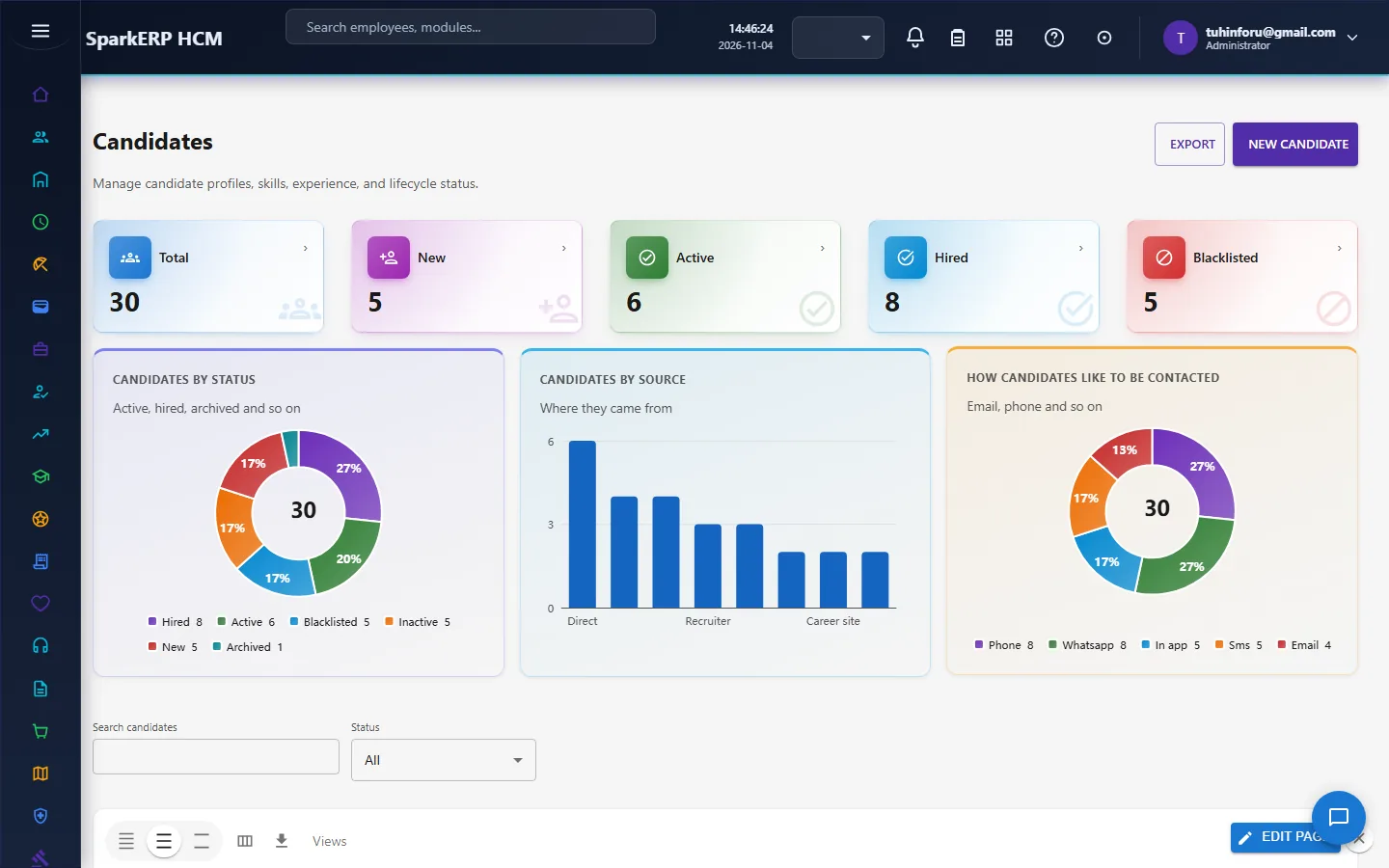
Candidates holds the people; Applications holds each person's application to one opening, with its stage, source, screening result and recruiter. One candidate can apply many times.
4.3 Move people through the pipeline
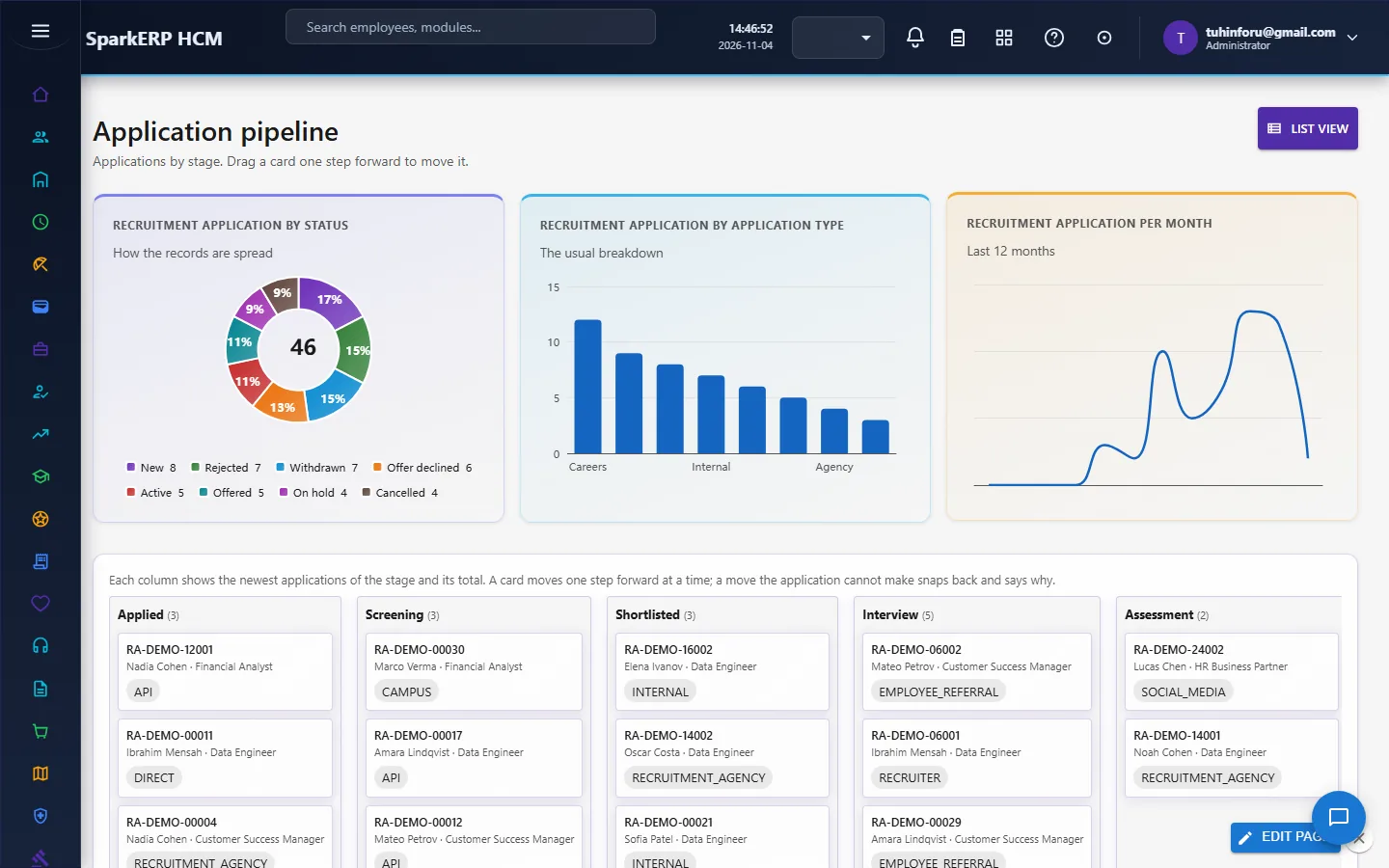
Application Pipeline shows applications as a board by stage: Applied, Screening, Shortlisted, Interview, Assessment, Offer, Pre-joining, Hired. Move a card to move the application; every move is kept in the stage history.
4.4 Interviews and offers
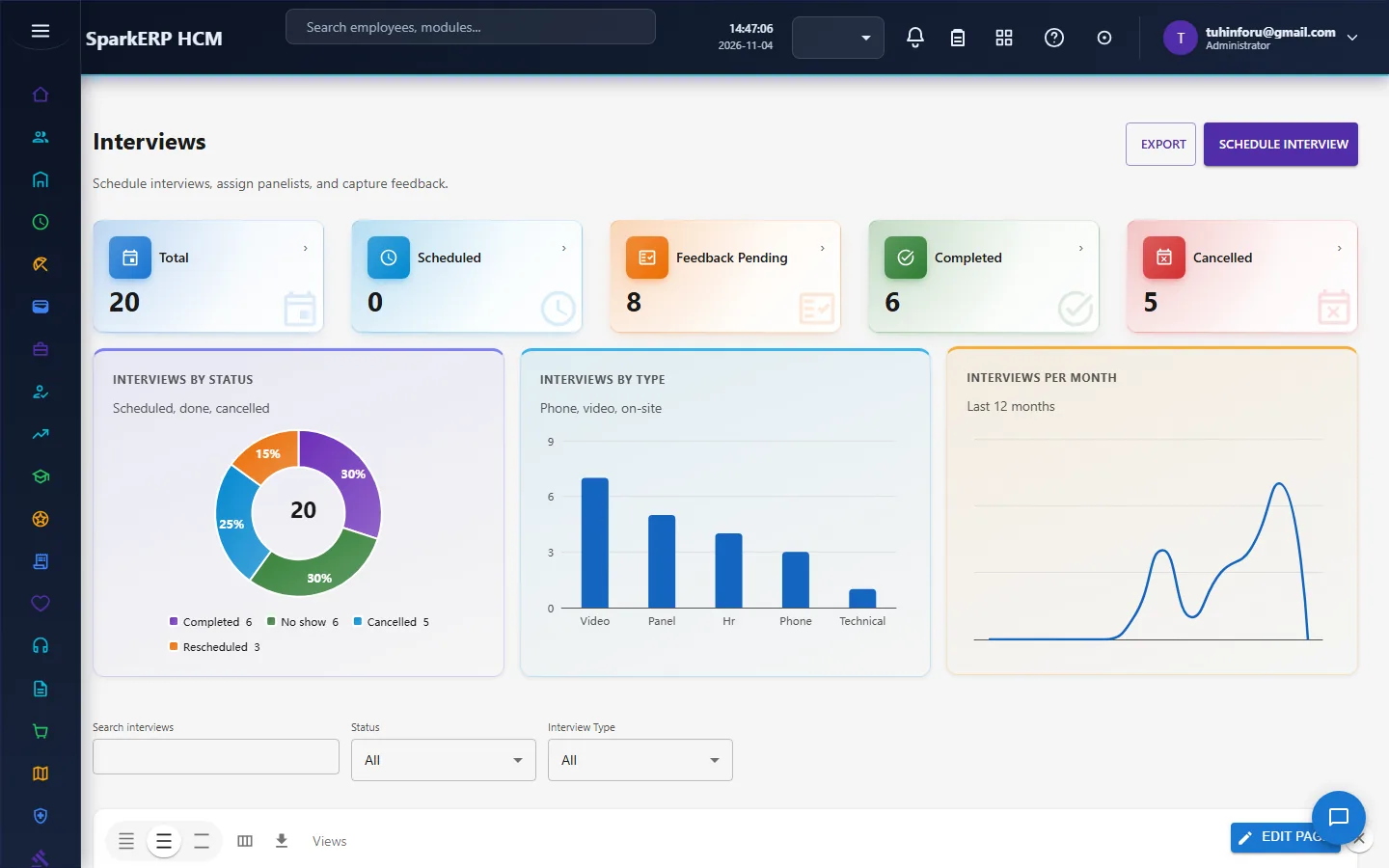
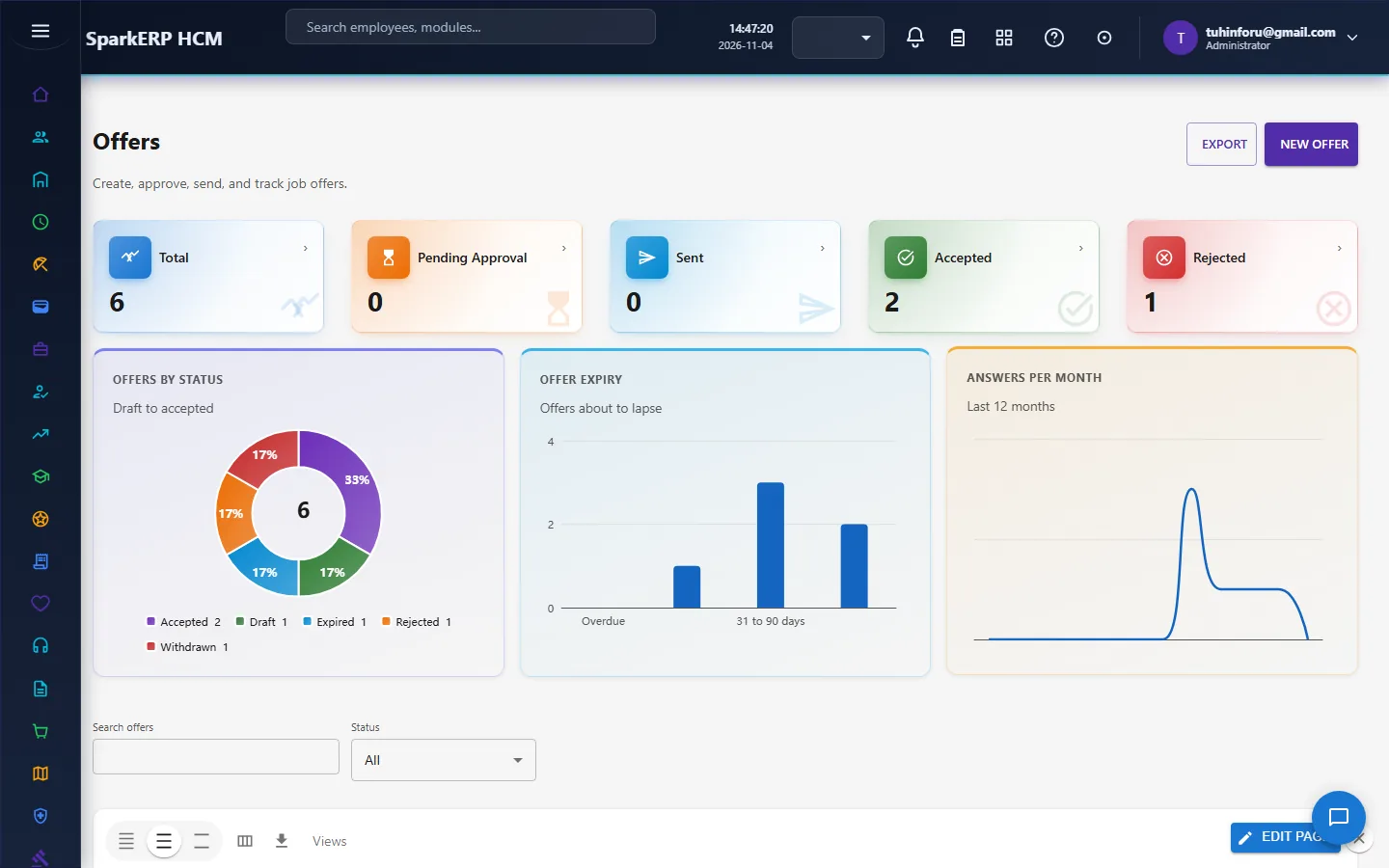
Schedule interviews on Interviews (panels and scorecards are on their own pages) and prepare an offer on Offers: compensation, joining date, expiry. Offers go through Offer Approvals; the candidate then accepts, rejects, or lets it expire, or the recruiter withdraws it.
5. Charts and reports
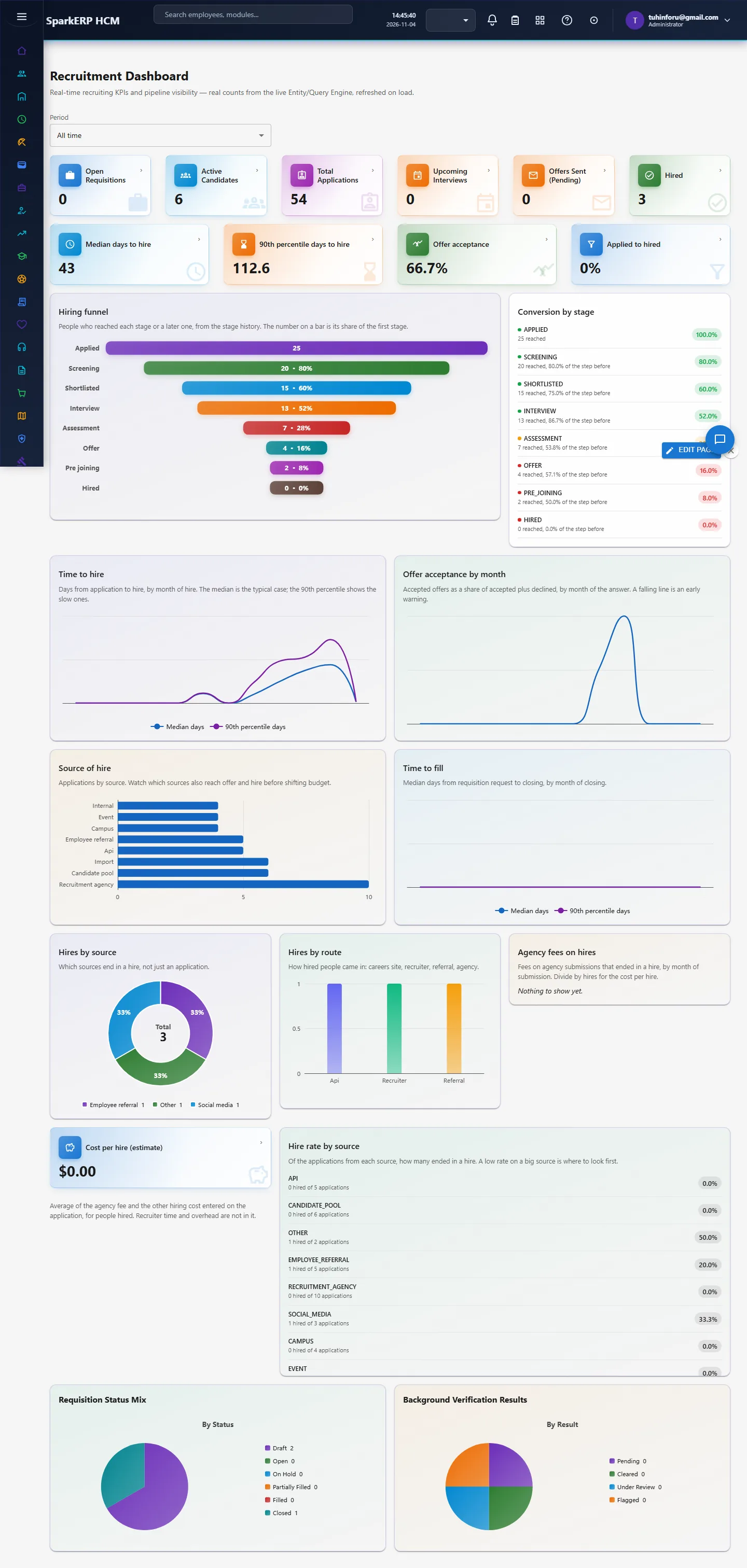
The Recruitment Dashboard shows open requisitions, applications, upcoming interviews, offers, hires, median and 90th percentile days to hire, offer acceptance (accepted over accepted plus rejected), the hiring funnel with conversion between stages, source of hire, time to fill and cost per hire.
Recruitment Reports adds funnel, source, agency, candidate ageing and recruiter tables.
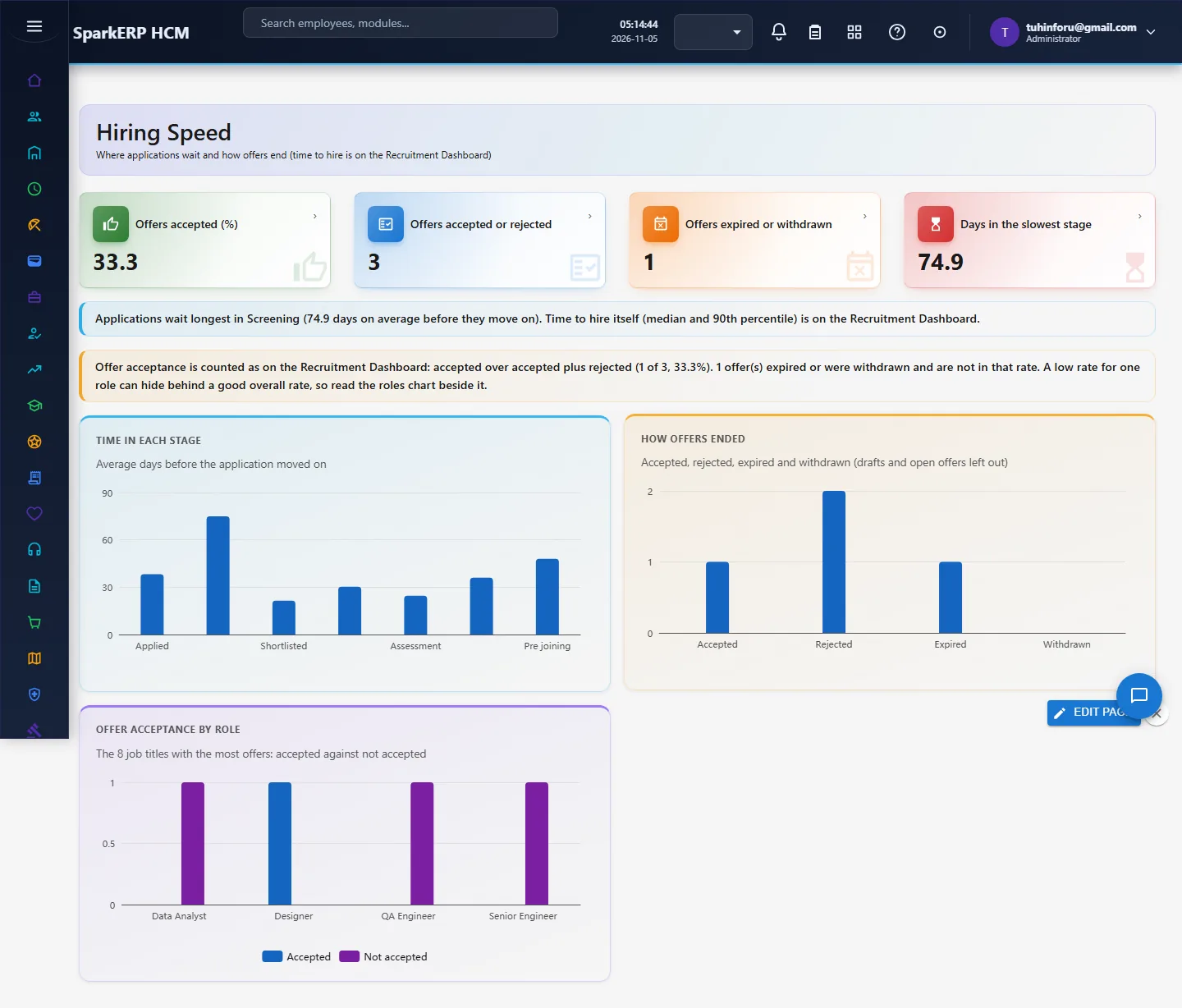
Hiring Speed (new) adds what the dashboard does not: how many days applications spend in each stage, how offers ended (accepted, rejected, expired, withdrawn) and acceptance by role, because an overall rate can hide a weak rate for one role.
6. On a phone or tablet
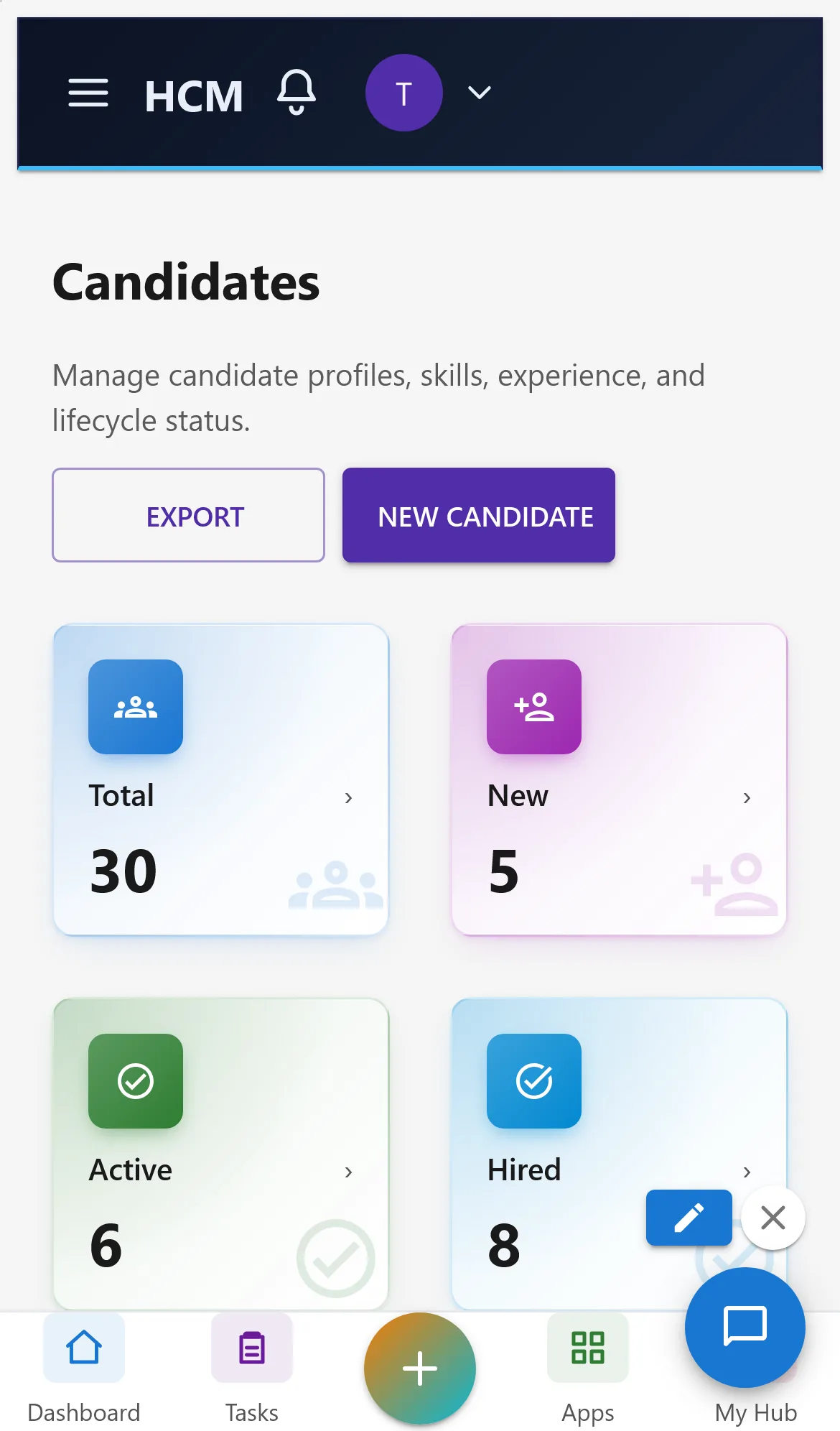
All Recruitment screens open on a phone: tiles and charts stack one per row and lists scroll inside their card.
7. Rules and limits
- Time to hire is measured from the day the person applied to the day they accepted the offer; some tools start at requisition approval, so compare figures only within one tool.
- Offer acceptance excludes expired and withdrawn offers; Hiring Speed shows those separately.
- Automated CV screening and the full cost per hire are in Recruitment: automated CV screening and cost per hire. Not built yet: a requisition-to-offer time (time to fill is on the dashboard).
- Demo data has few accepted offers (2), so the rates move a lot with one offer.
8. Troubleshooting
| Symptom | Cause and fix |
|---|---|
| A report says "Report.View is required" | The login lacks the Report view permission; ask an administrator. |
| Charts say "Nothing to show yet" | No applications or offers yet. Generate the demo pack or enter data. |
| An application cannot move to Hired | The offer is not accepted yet. |
| Hiring Speed and the dashboard show different acceptance | They should match since version 1.20.51; update the plugin. |