
Appearance
A tour of Studio
What you're doing
Learning where things are, so the rest of the guide reads easily.
The launcher and Home
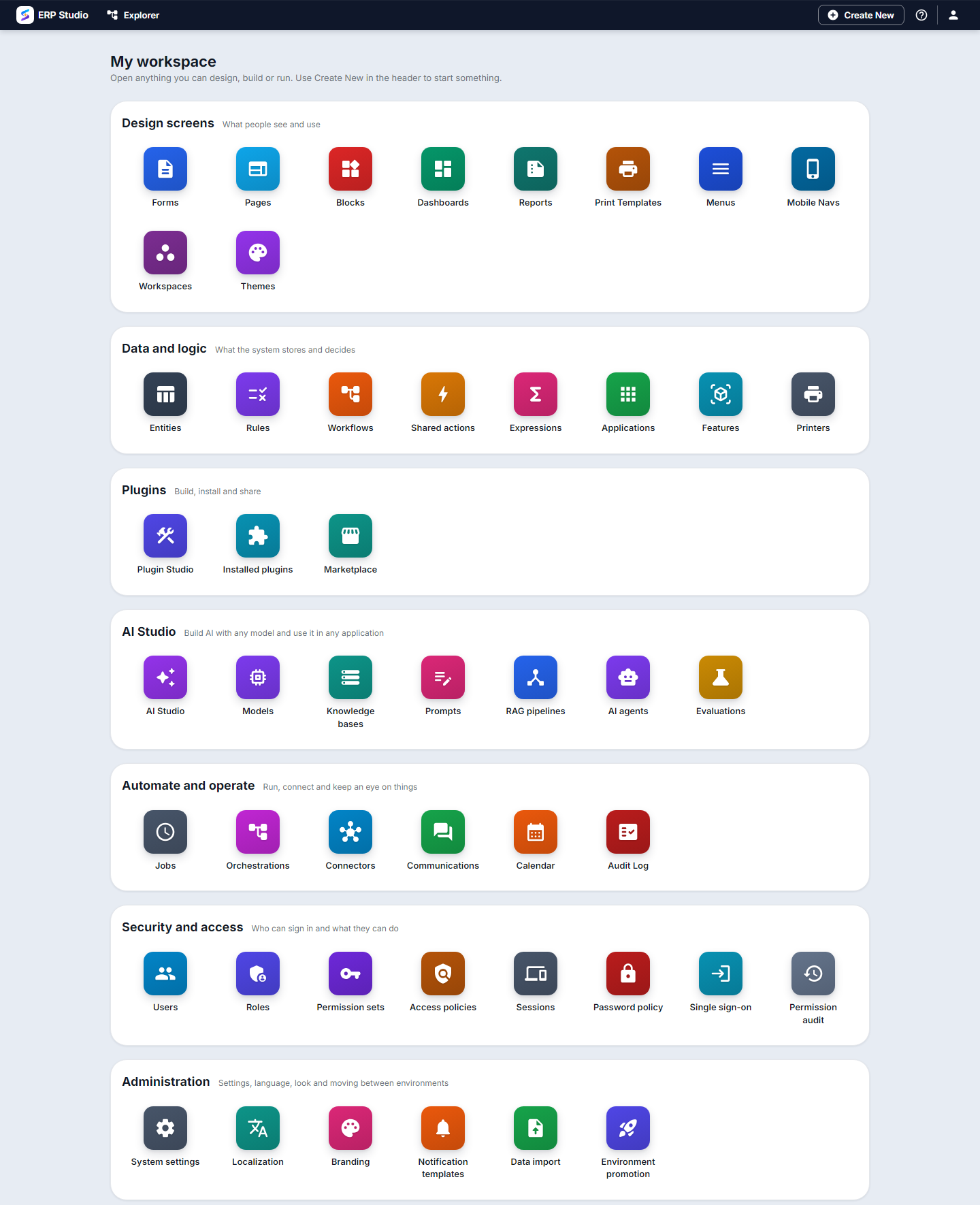
Open Open ERP Studio from the launcher. Home ("My workspace") is one place to reach everything in Studio, grouped by what you are doing:
| Group | What is in it |
|---|---|
| Design screens | Forms, Pages, Blocks, Dashboards, Reports, Print Templates, Menus, Mobile Navs, Workspaces, Themes |
| Data and logic | Entities, Rules, Workflows, Shared actions, Expressions, Applications, Features, Printers |
| Plugins | Plugin Studio, Installed plugins, Marketplace |
| AI Studio | AI Studio home, Models, Knowledge bases, Prompts, RAG pipelines, AI agents, Evaluations |
| Automate and operate | Jobs, Integration Flows, Connectors, Communications, Calendar, Audit Log |
| Security and access | Users, Roles, Permission sets, Access policies, Sessions, Password policy, Single sign-on, Permission audit |
| Administration | System settings, Localization, Branding, Notification templates, Data import, Environment promotion |
It deliberately shows no counts, so it opens instantly.
The Explorer tree has the same areas, including an AI Studio branch whose leaves each open their real screen. See AI Studio.
The header
- Show Explorer (left): toggles the Explorer tree.
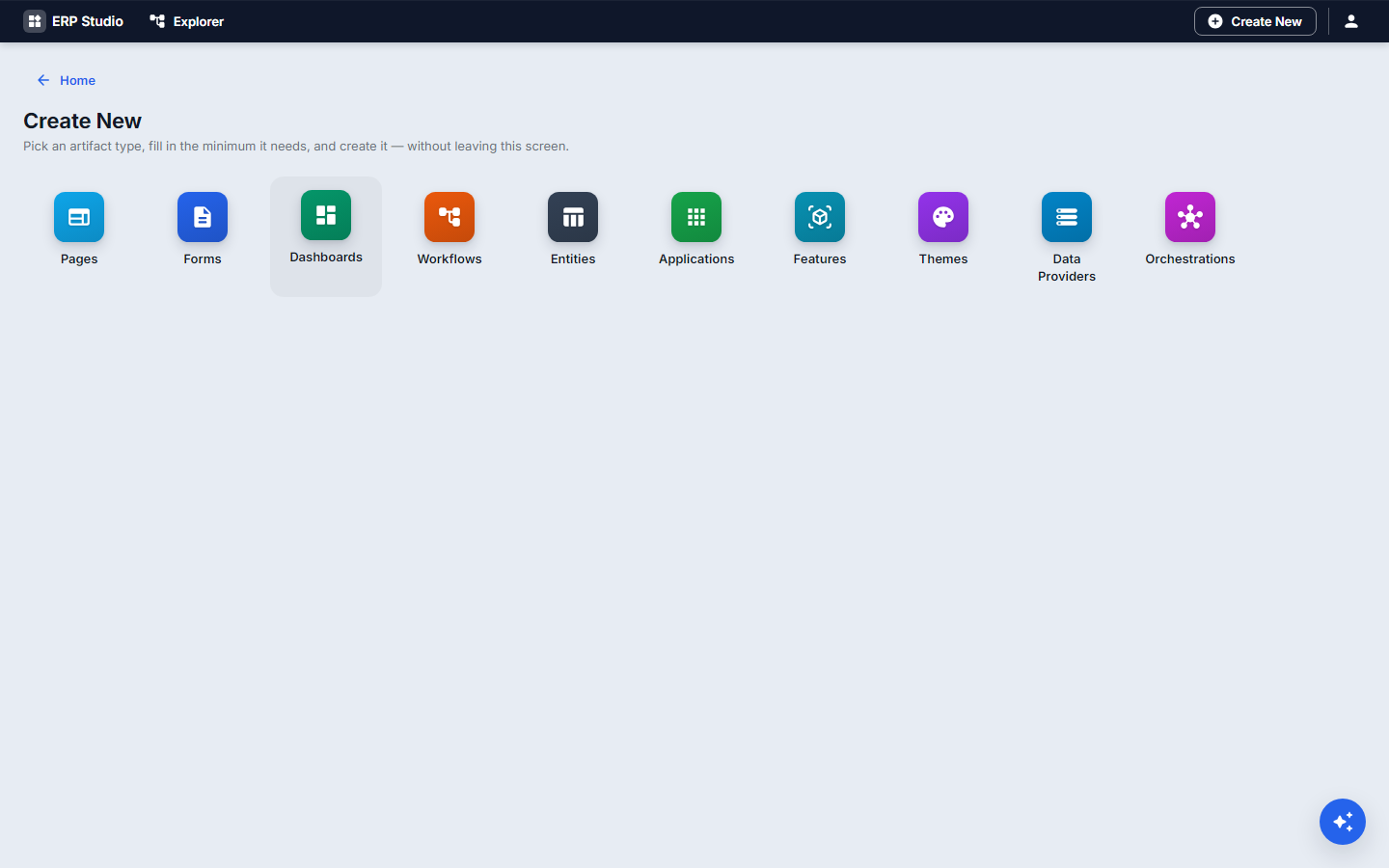
- Create new: one menu for everything you can make, including a Plugin (opens the creation wizard in a dialog).
- The AI assistant launcher (bottom right): see The AI assistant.
Lists
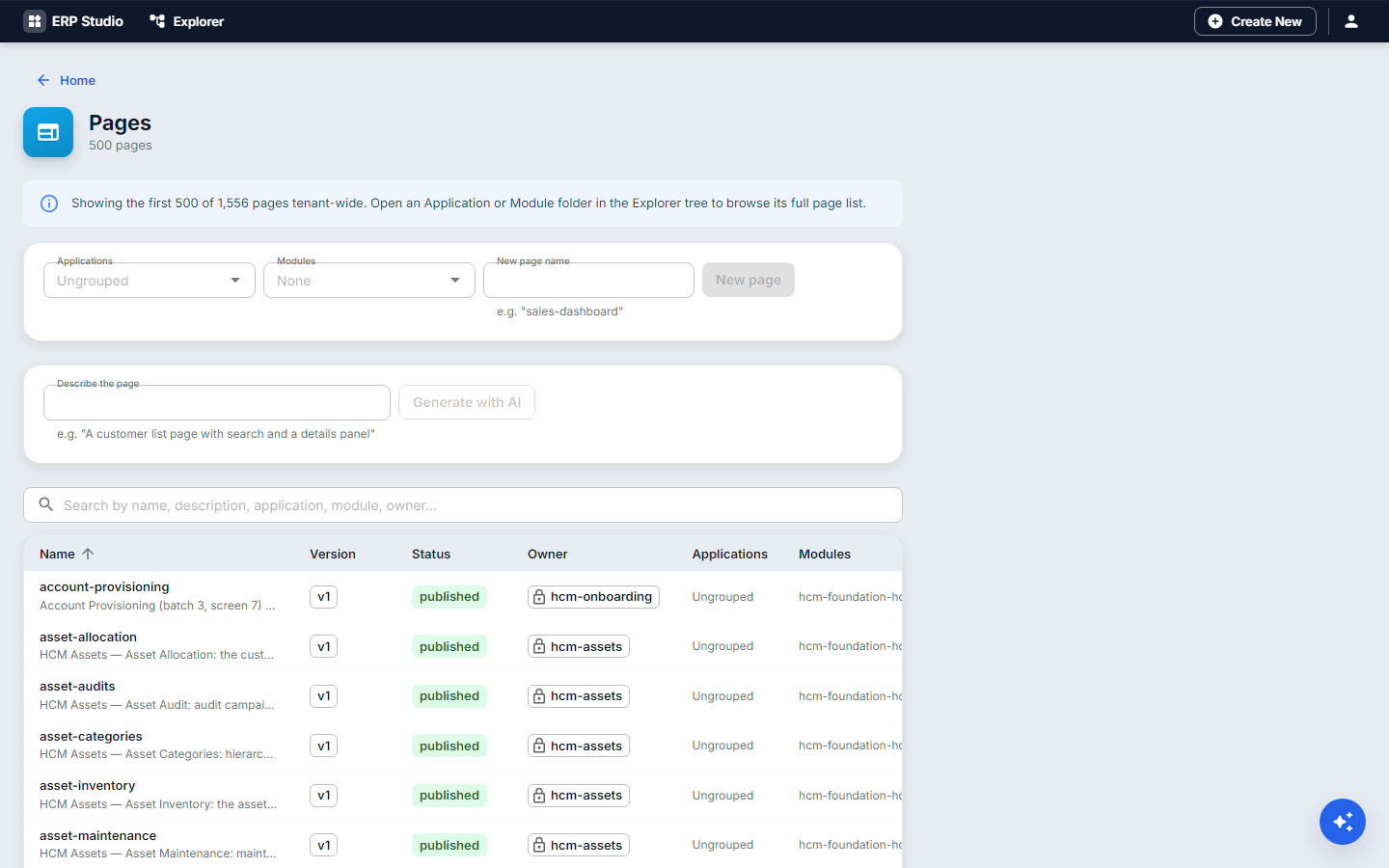
Every artifact type has a list: search box, a table with name, owner, status and version, and New. A lock chip means the artifact belongs to a plugin (customize it, don't edit it).
Plugin Studio
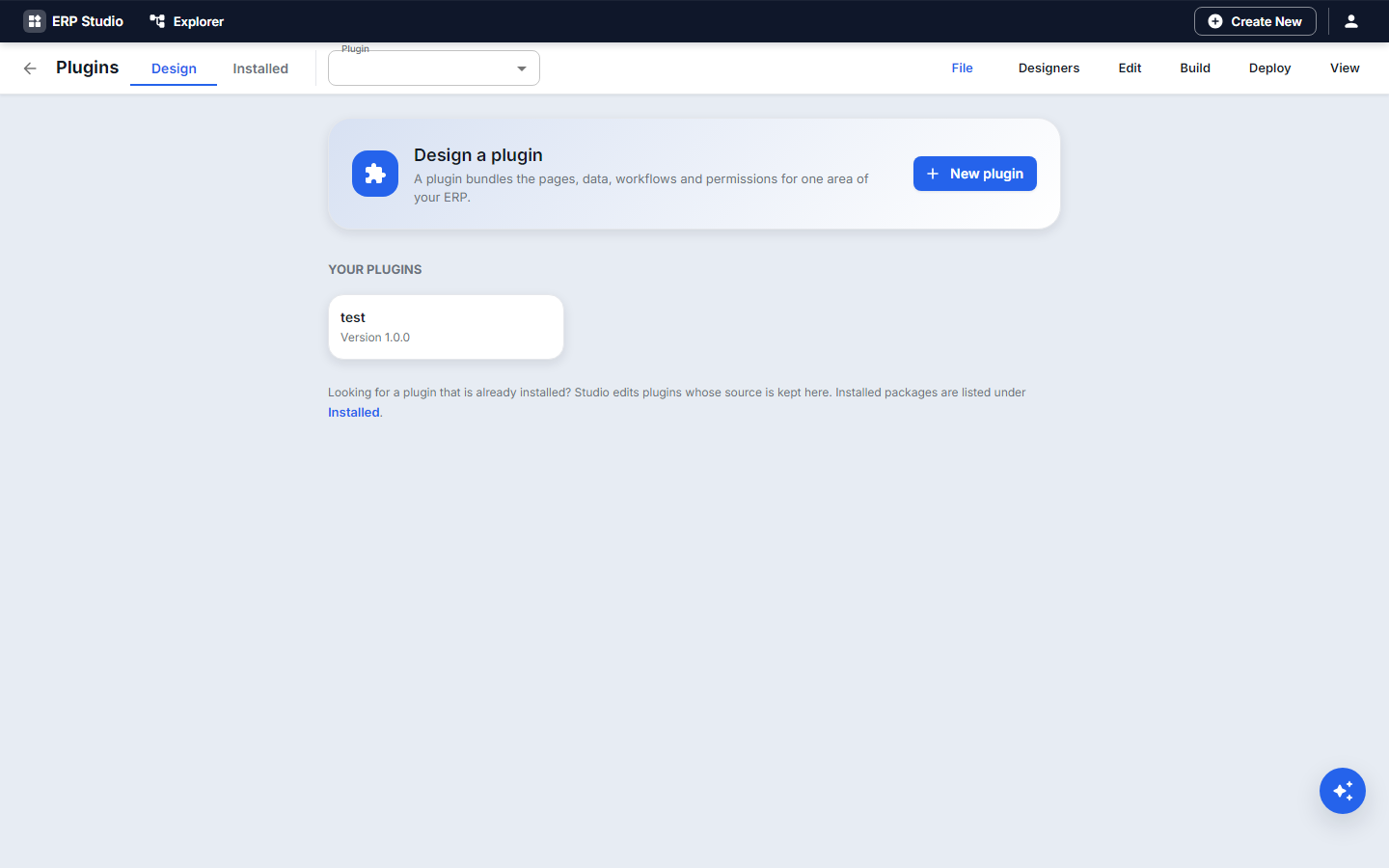
Plugin Studio is the workbench for one plugin at a time. Two tabs: Design (the plugin being built) and Installed (what is installed in your tenant, with Customize...). The header shows name, version and status chips (Draft, Valid, Warnings, Built, Installed) and the Validate, Build and Deploy actions. The menu bar has File, Designers, Edit, Build, Deploy, View.
Designers
Opening an artifact opens its designer: a palette on the left, a canvas in the middle, Properties and Layers on the right, and tabs along the bottom (Problems, Rules, Validations, Events, Translations, History).
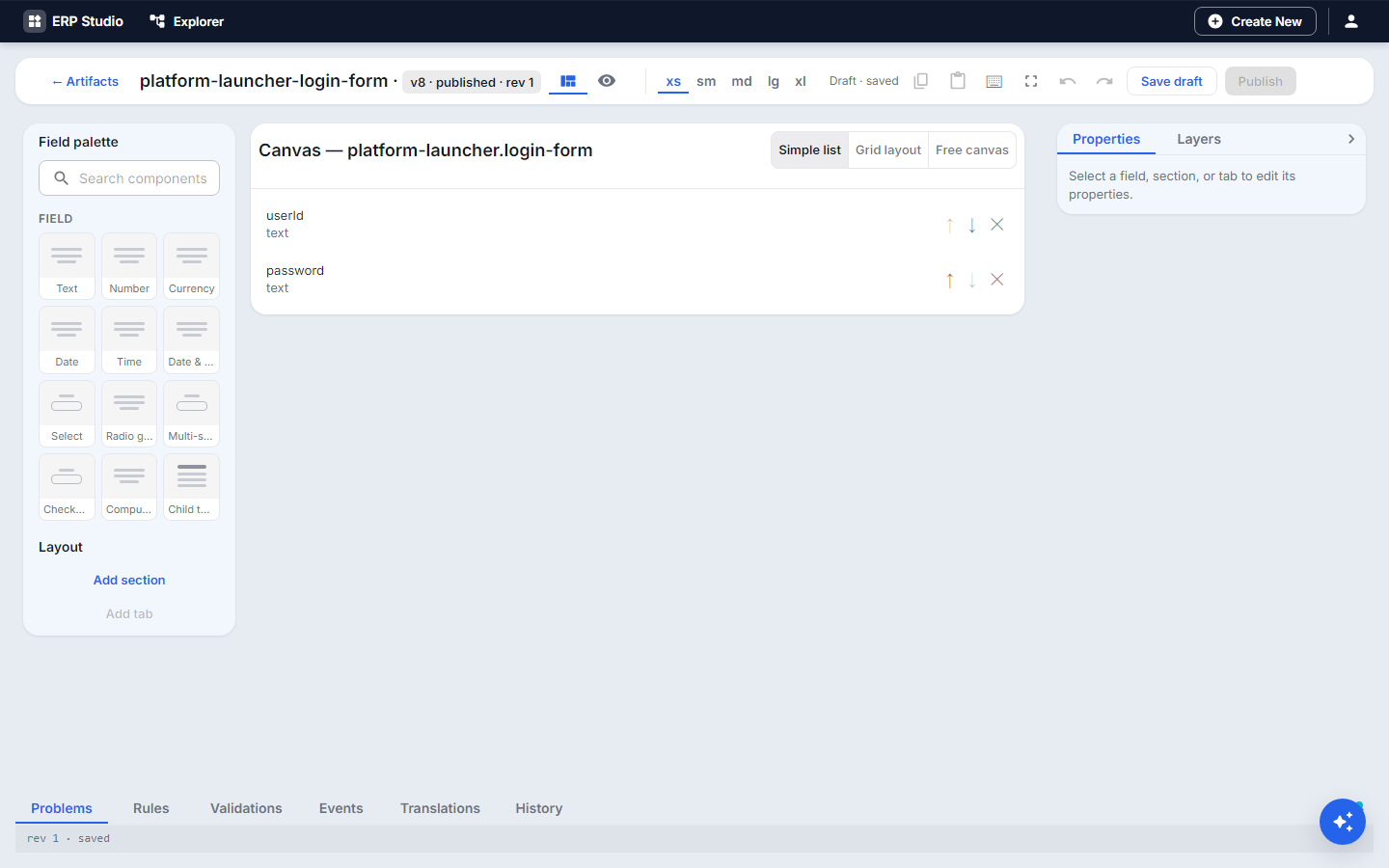
The complete screen list
Every screen and what it is for is in the screen reference.
Habits worth having
- The JSON tab is always there. Use it to copy a definition, or to fix something the visual editor refuses.
- History lists every version; you can compare and restore.
- Look at the Problems tab before you publish anything.