
Appearance
Employee Engagement (HCM): from setup to daily use
Employee Engagement lets a company listen to its people and answer back. It has three parts that are built today: Pulse Surveys (short anonymous surveys with an eNPS question), Pulse Actions (what the company will do about the results) and Recognition (colleagues thanking each other for company values).
1. Who uses it
| Role | What they do |
|---|---|
| Administrator (HR) | Launches pulses, reads results, plans and tracks actions, reads recognition insights. |
| Employee | Answers the pulses sent to them, anonymously; recognises colleagues; reads the recognition feed. |
| Manager | Recognises their team and takes part in the actions HR assigns. |
2. Before you start
- Installed plugins.
hcm-engagement(needs HCM Foundation). It is the free tier. - Employees must exist in Core HR: a pulse is sent to every active employee, and a login without an employee record cannot answer or recognise anyone (the page says so).
- Trial data. In a trial tenant, generate the Employee engagement pack in Demo Data: one pulse with answers (some departments deliberately too small to show), the eNPS question and answers, a few actions and 40 recognitions.
3. Set up
There is nothing to configure first. An administrator launches the first pulse from Pulse Surveys; the company values used by Recognition are fixed (teamwork, customer focus, innovation, ownership, integrity, learning).
4. Daily use
4.1 Launch a pulse (administrator)
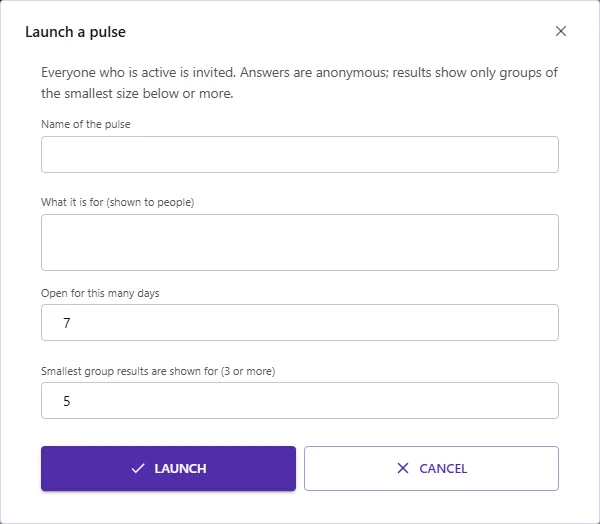
Open Pulse Surveys and choose Launch a pulse: a name, what it is for, how many days it stays open and the smallest group results are shown for (3 or more, default 5). Everyone who is active is invited. The pulse comes with six 1-to-5 questions (engagement, manager, workload, recognition, growth, wellbeing), the 0-to-10 recommendation question that gives the eNPS, and an optional comment.
4.2 Answer a pulse (employee)
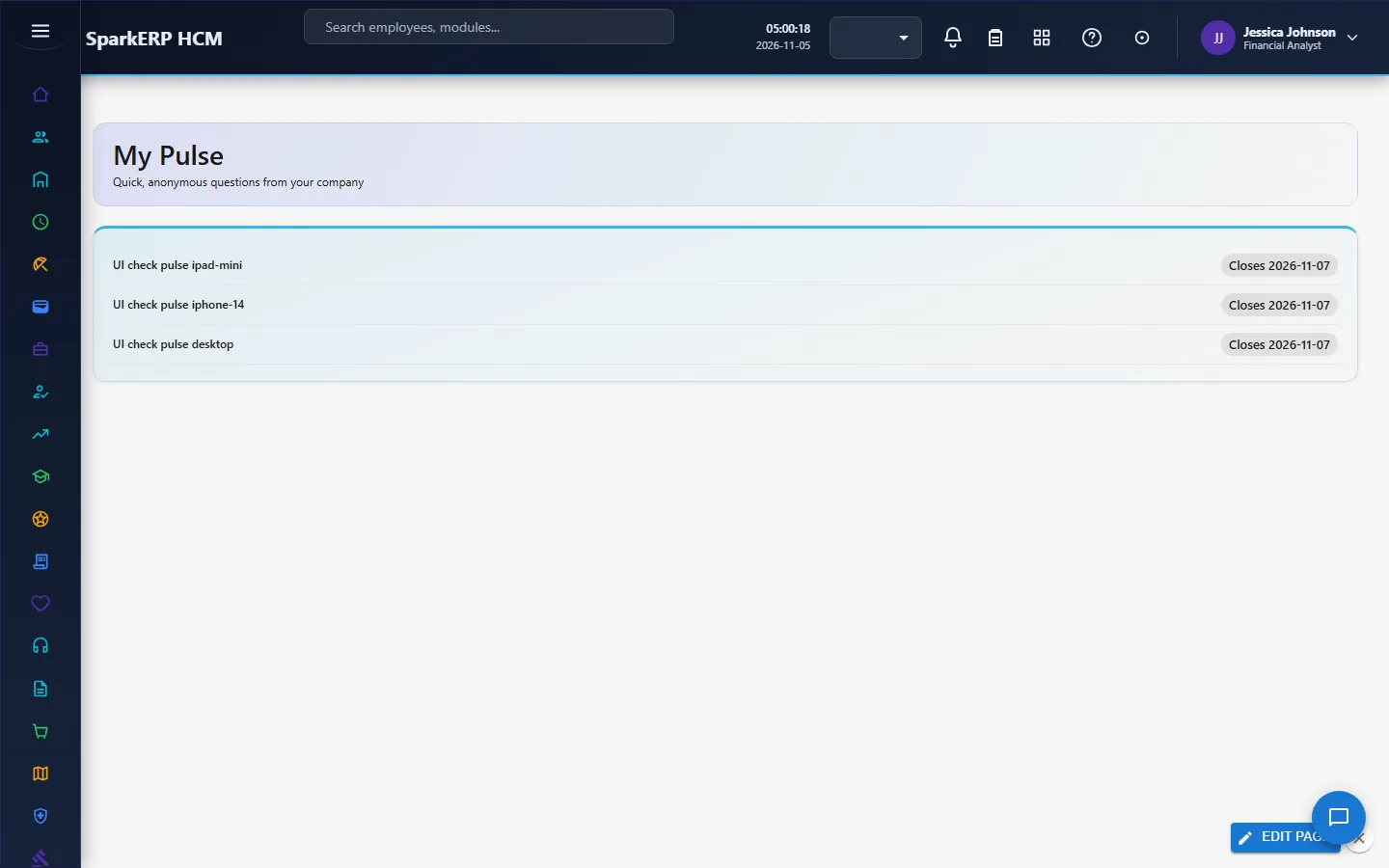
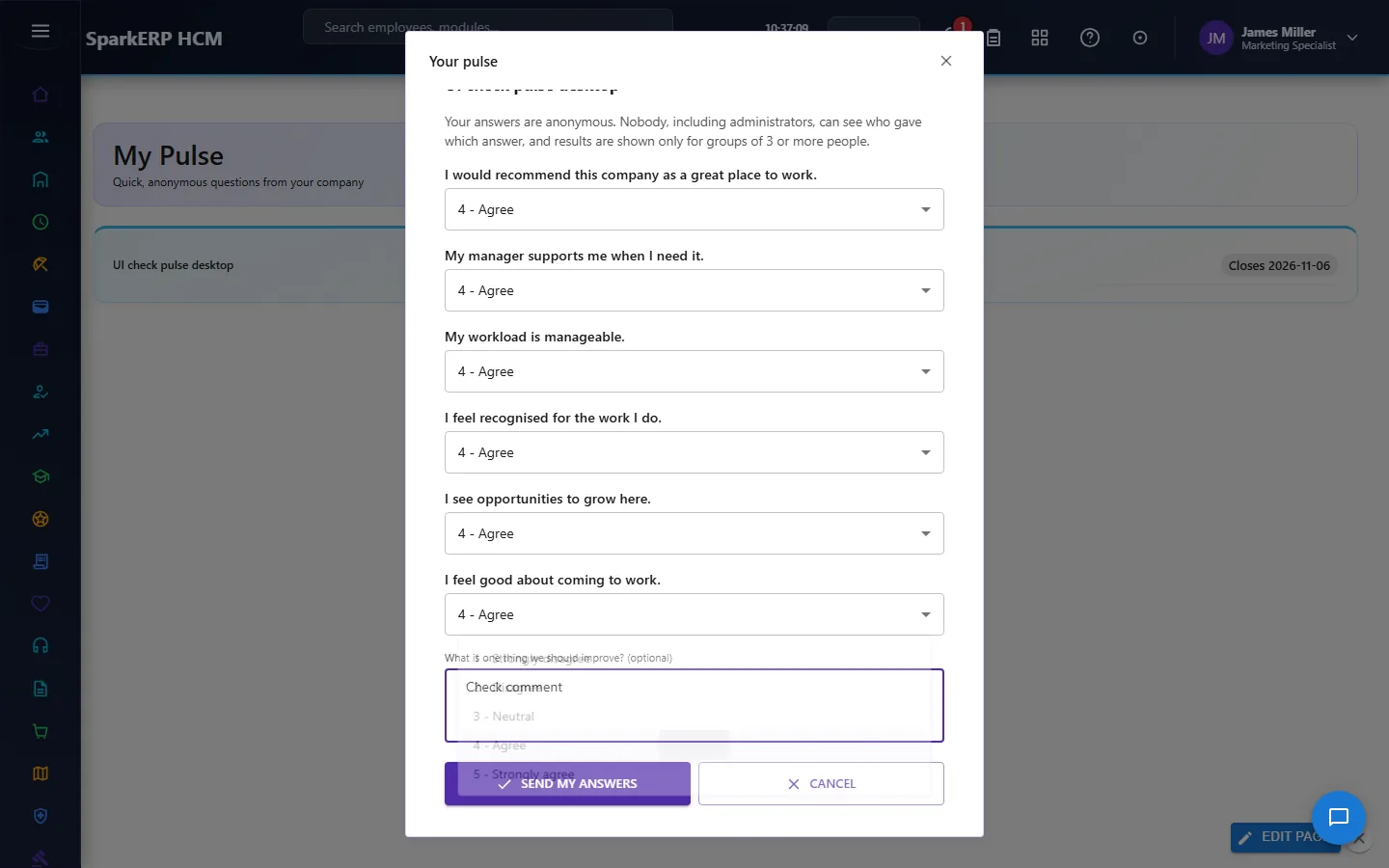
My Pulse lists the pulses waiting for you. Open one, rate each statement, say how likely you are to recommend working here (0 to 10), add a comment if you want, and send. The answers are saved anonymously: nothing links them to you.
4.3 Read the results (administrator)
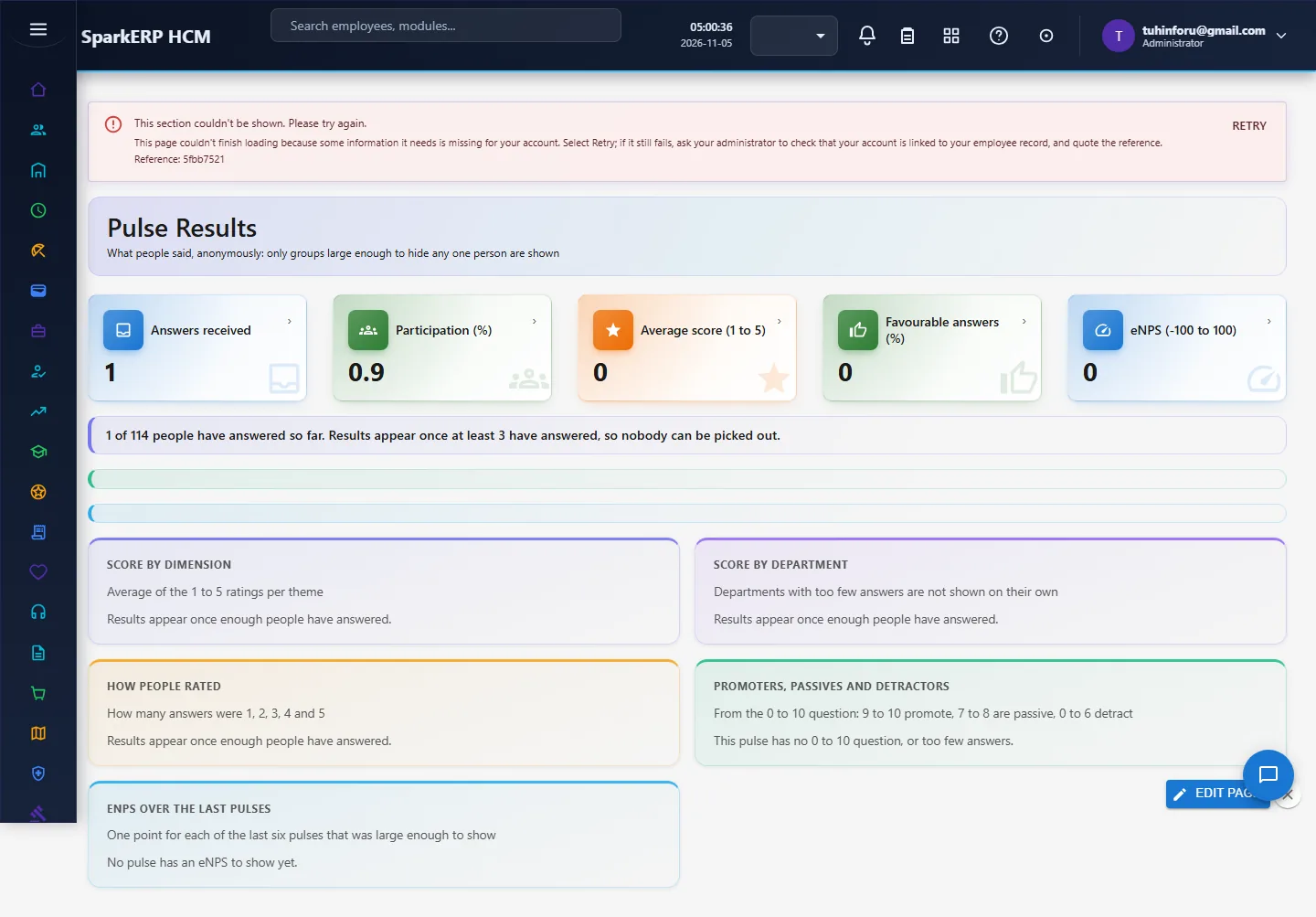
Pulse Results shows answers received, participation, the average score, the share of favourable answers and the eNPS. Charts show the score by theme and by department, how people rated, the split of promoters, passives and detractors, and the eNPS over the last pulses. Results appear only when enough people have answered, and small groups are never shown on their own.
4.4 Act on the results (administrator)
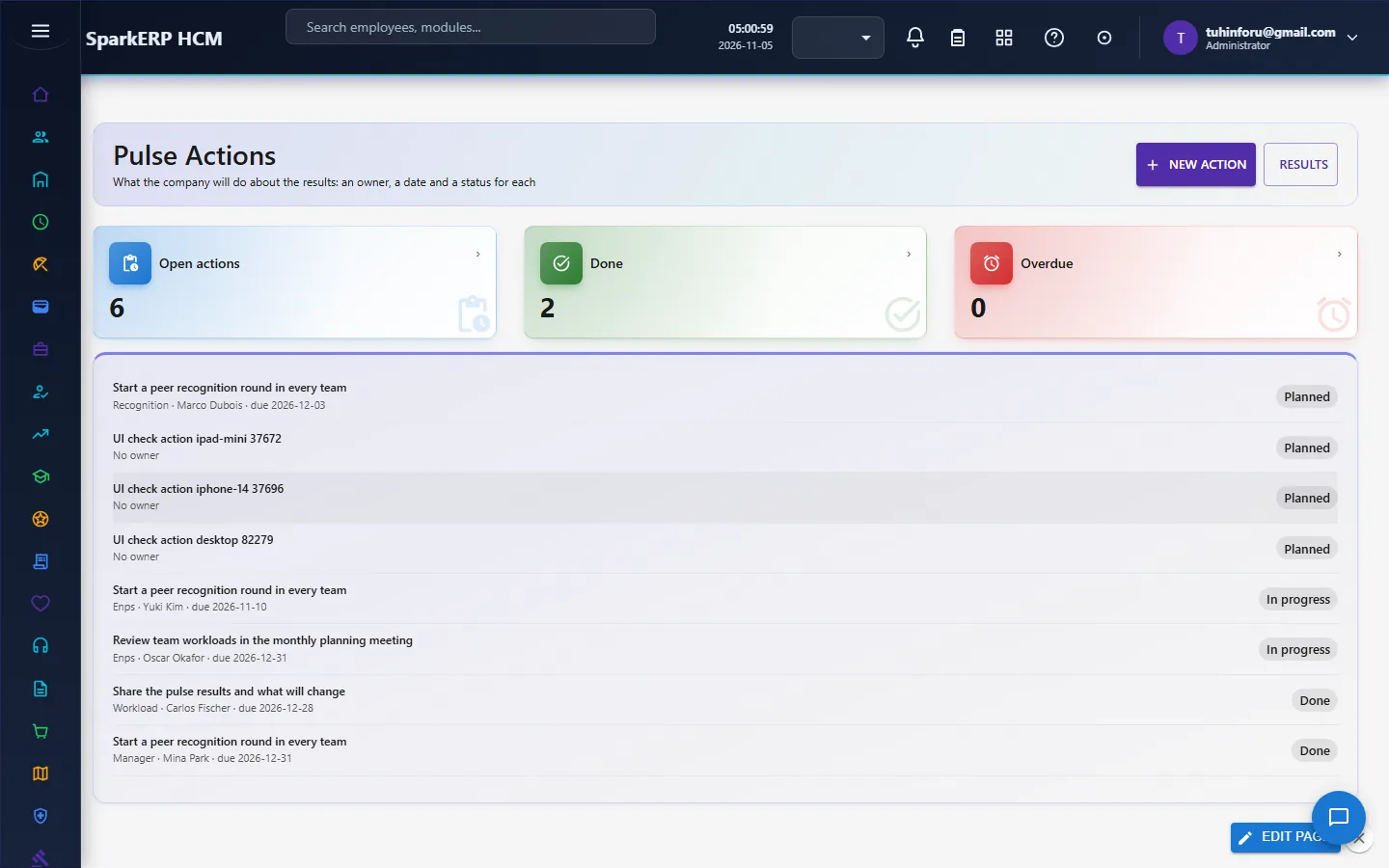
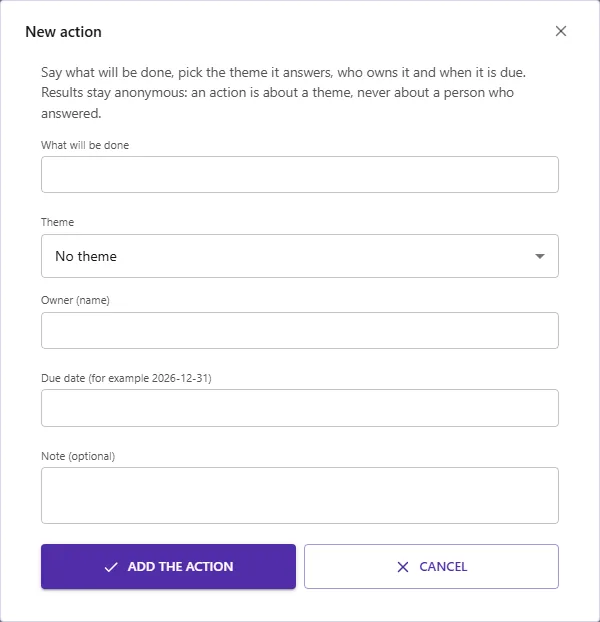
Reading a result is not enough: Pulse Actions records what will be done. Choose New action, say what, pick the theme it answers, an owner and a due date. Start, finish or drop it from the list; the tiles count open, done and overdue actions. An action is about a theme and never about a person who answered.
4.5 Recognise a colleague
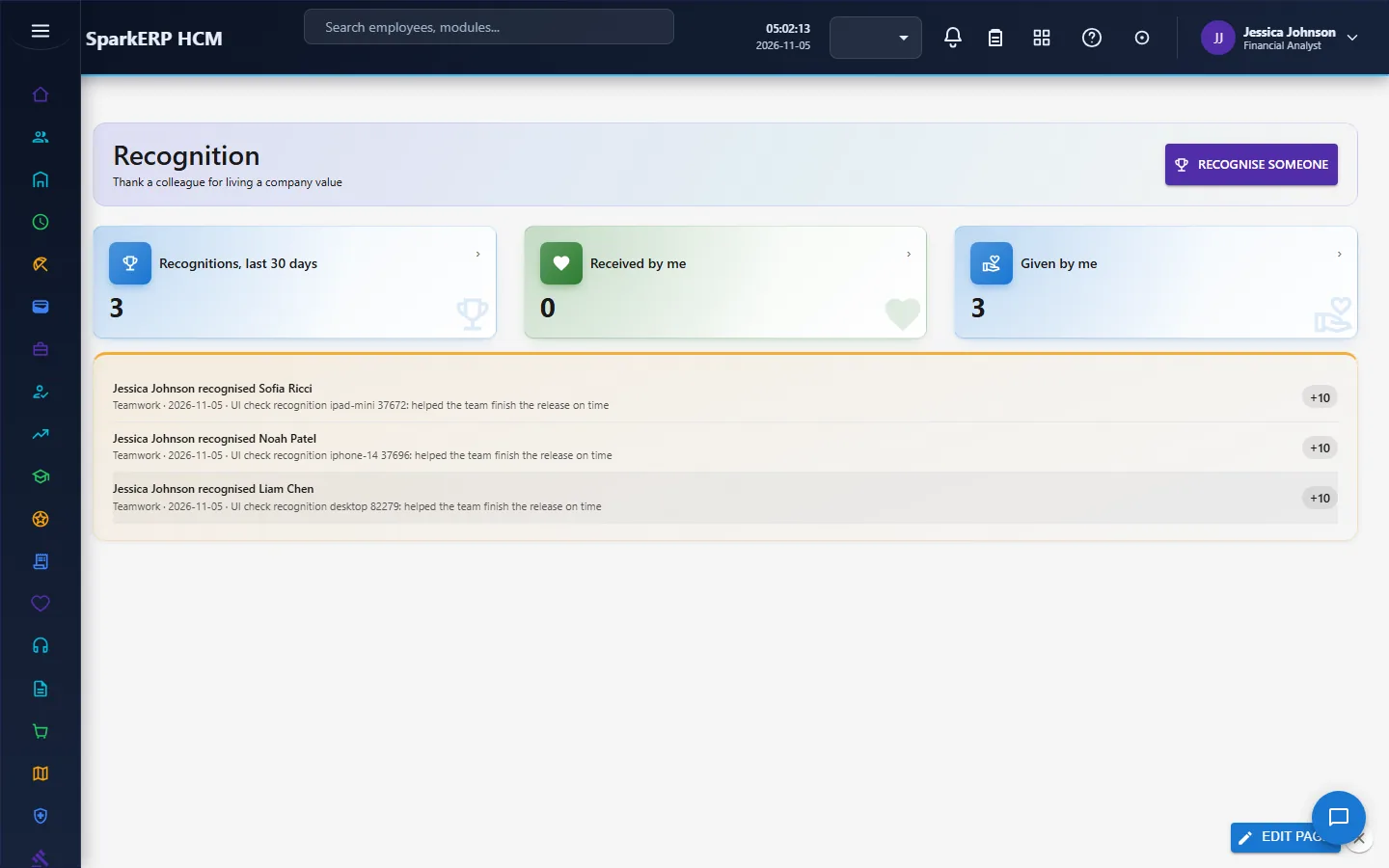
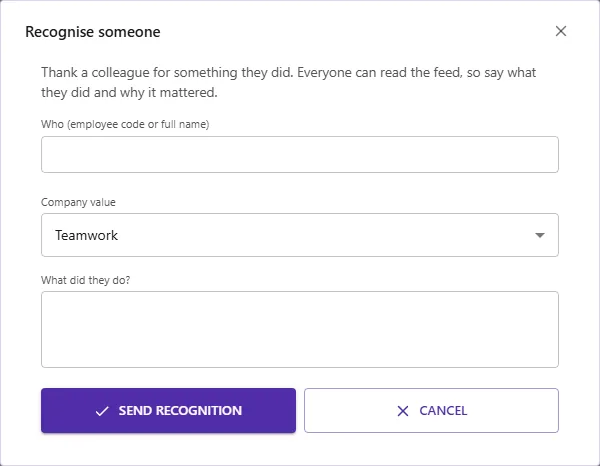
Recognition is the company feed. Choose Recognise someone, give an employee code or full name, pick the company value and say what they did. It appears in the feed for everyone, with points. You cannot recognise yourself, the message needs at least a sentence, and there is a limit of 10 a day.
4.6 Send and follow a suggestion
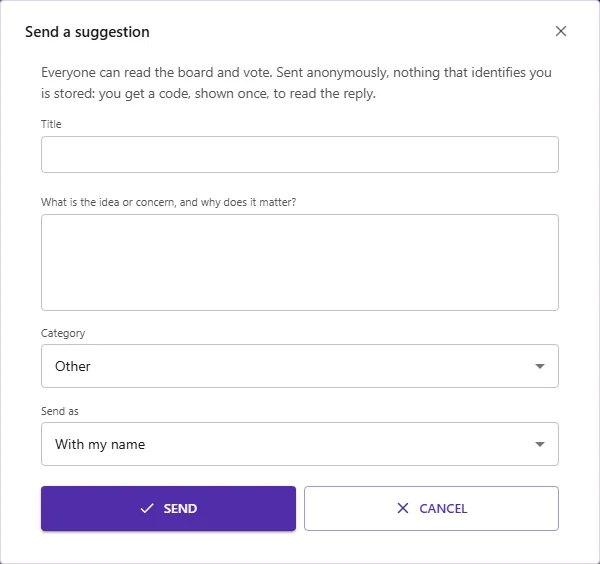
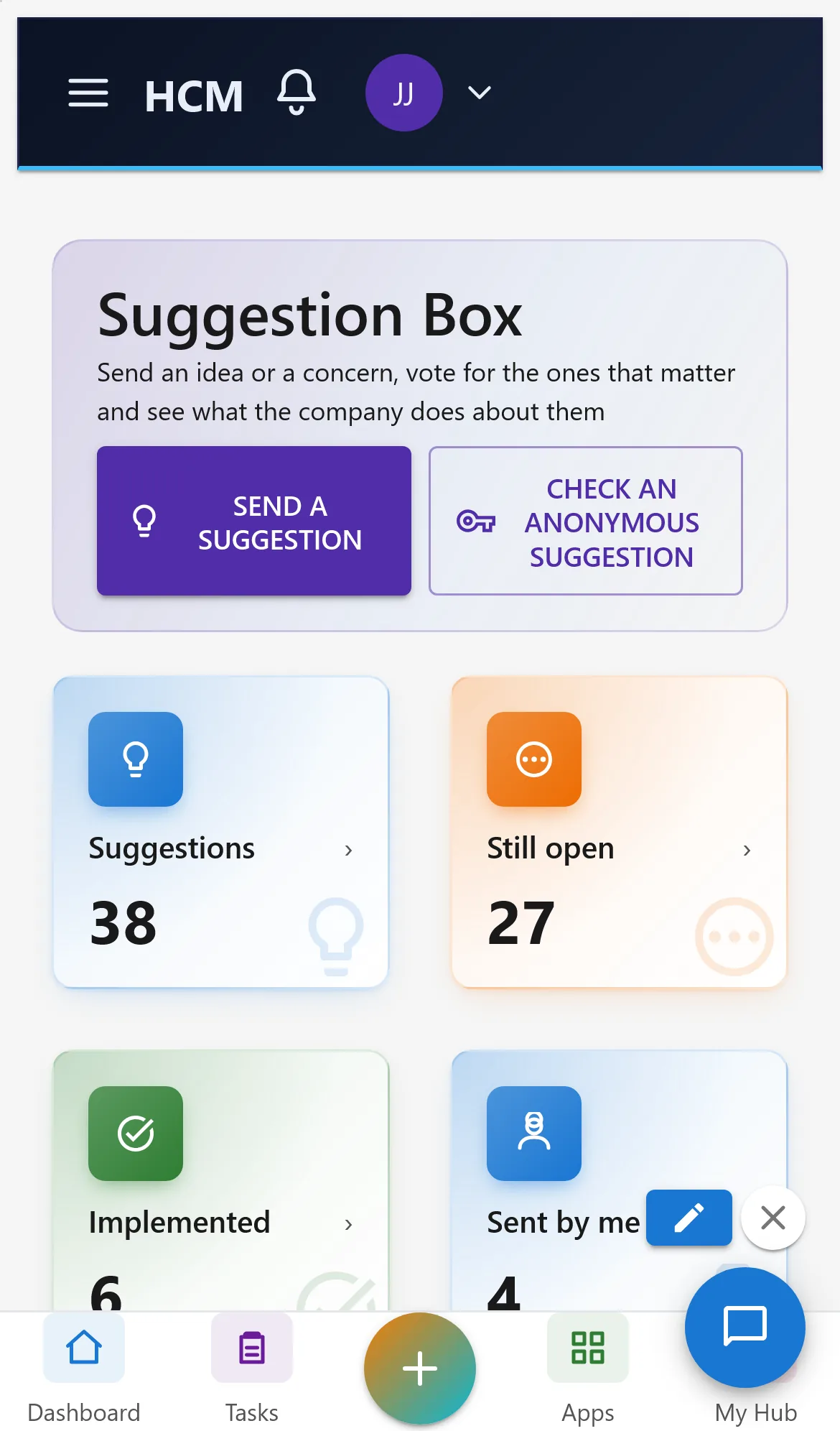
Suggestion Box is the company board of ideas and concerns. Choose Send a suggestion, give it a title (at least 5 characters), explain it (at least 20) and pick a category. Send it With my name or Anonymously. An anonymous suggestion stores nothing that identifies you: no employee, no name, no department; you get a follow-up code, shown once, and nothing else can recover it.
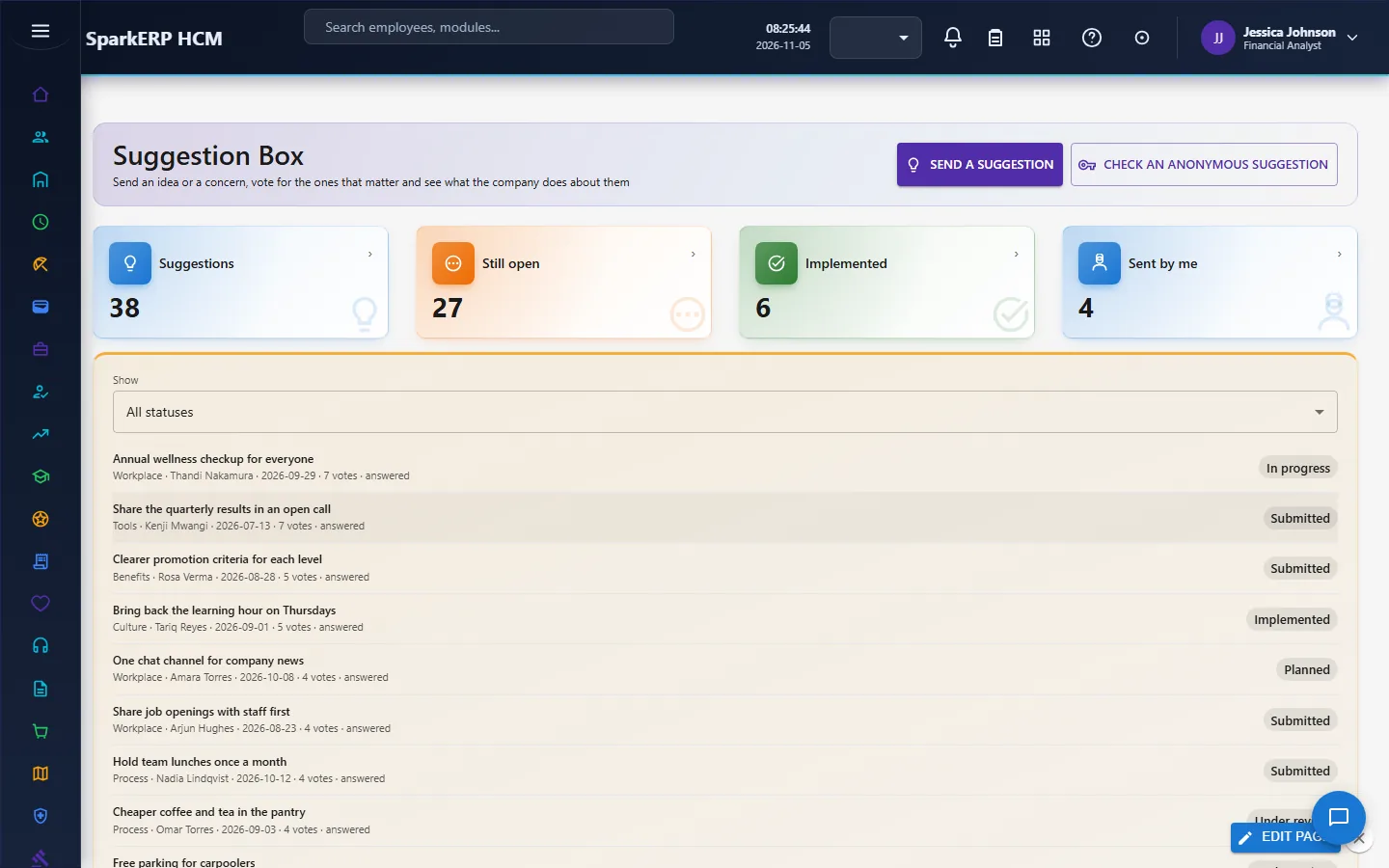
Everyone can read the board, newest ideas with the most votes first. Select one and choose Read the selected suggestion to see the details and the reply, or Vote for the selected suggestion (one vote each; choose it again to take the vote back; you cannot vote for your own, and a closed suggestion takes no votes). To read the reply to an anonymous suggestion, choose Check an anonymous suggestion and enter the code.
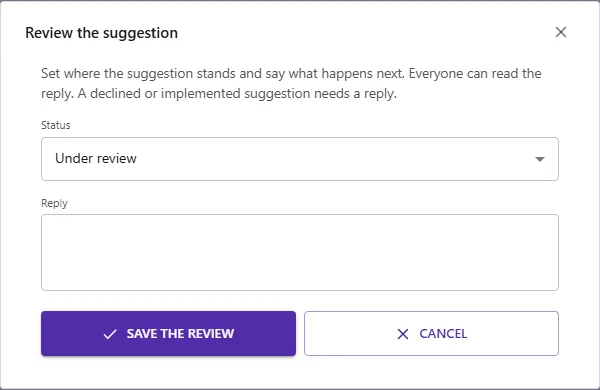
An administrator selects a suggestion and chooses Review the selected suggestion: set the status (Submitted, Under review, Planned, In progress, Implemented, Declined) and write a reply that everyone can read. A declined or implemented suggestion needs a reply, so the sender always learns what happened.
4.7 Run a survey (administrator)
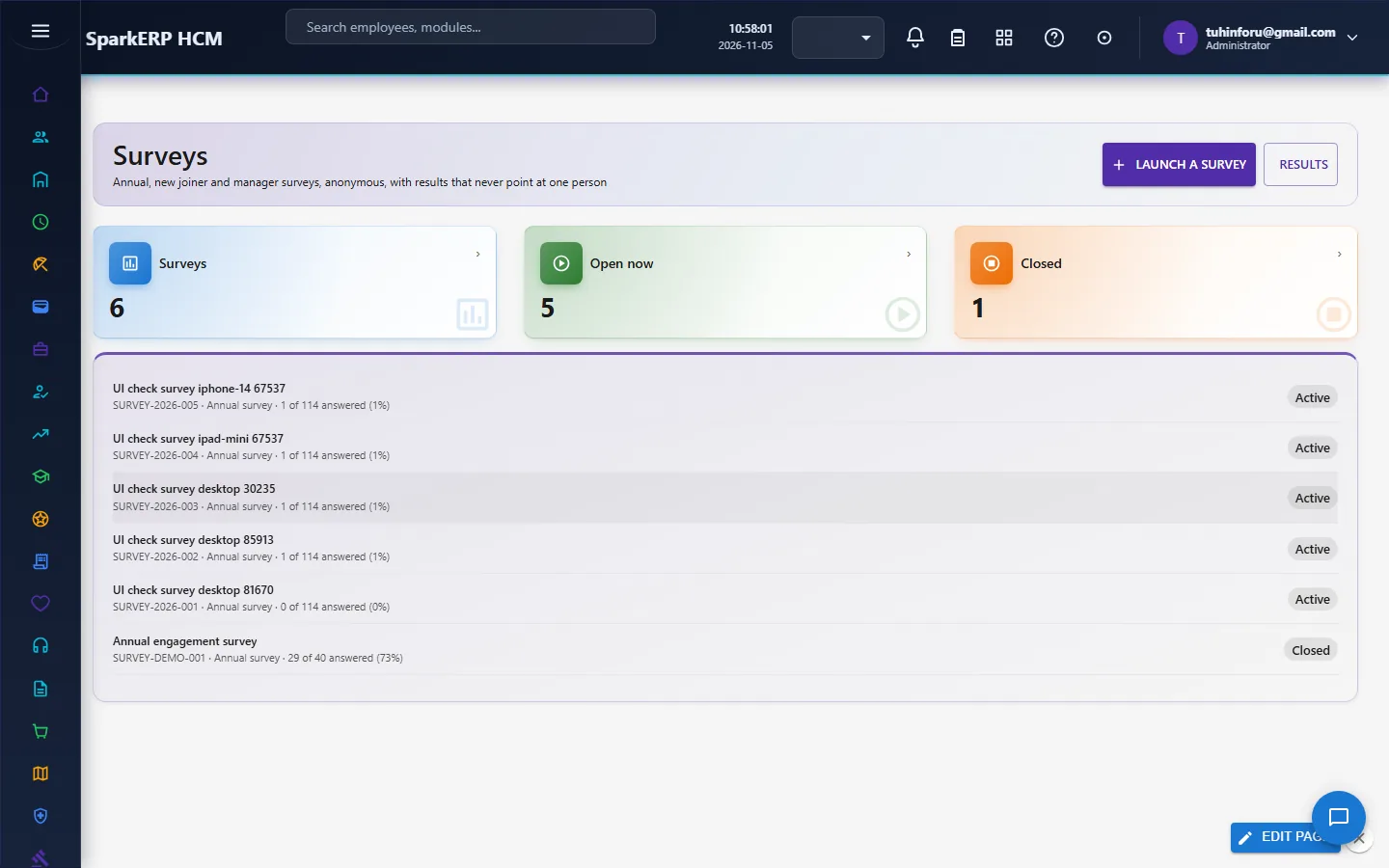
Surveys is for the longer, planned surveys. Choose Launch a survey and pick a template:
| Template | For | Goes to by default |
|---|---|---|
| Annual engagement survey | The yearly check: engagement, manager, workload, recognition, growth, wellbeing, culture, eNPS and one open question | Everyone active |
| New joiner survey, first month | First impressions and what was missing on day one | People hired 20 to 45 days ago |
| New joiner survey, 90 days | Role against what was promised, training, belonging | People hired 75 to 105 days ago |
| Manager effectiveness | How people rate the way they are managed | Everyone active |
Name the survey, say what it is for, set how many days it stays open (empty uses the template's, 14 days) and the smallest group results may be shown for (3 or more). Who it goes to can be left as the template says, set to everyone, to one department (type its name) or to people hired recently (type days since hire such as 20-45). You can add up to 4 questions of your own, one per line, each rated 1 to 5; they are placed before the open question. A survey is refused when fewer people would be invited than the smallest group size, because results could never be shown without picking someone out.
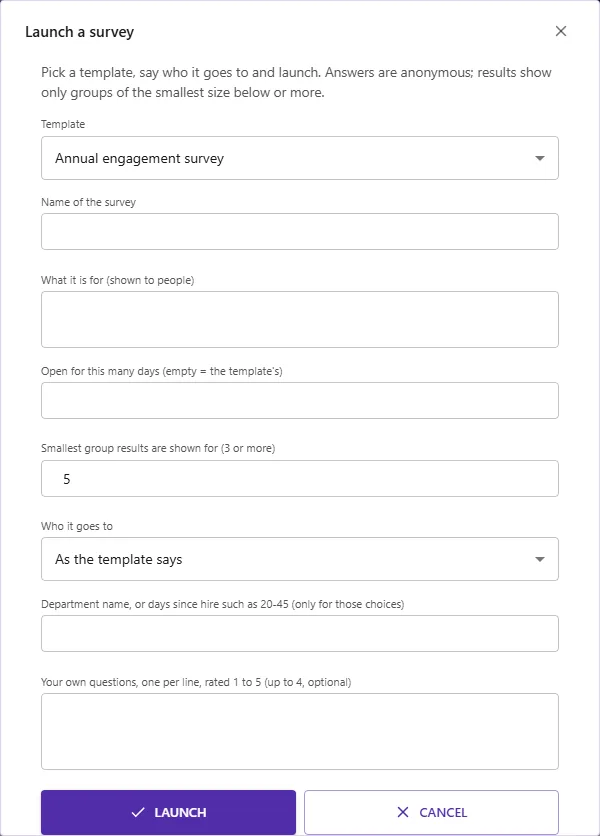
Everyone invited sees the survey on My Pulse and Surveys and answers it there: the dialog shows only that survey's questions (1 to 5 ratings, a 0 to 10 recommendation score, or yes and no) and an optional comment. Answers are anonymous in the same way as a pulse.
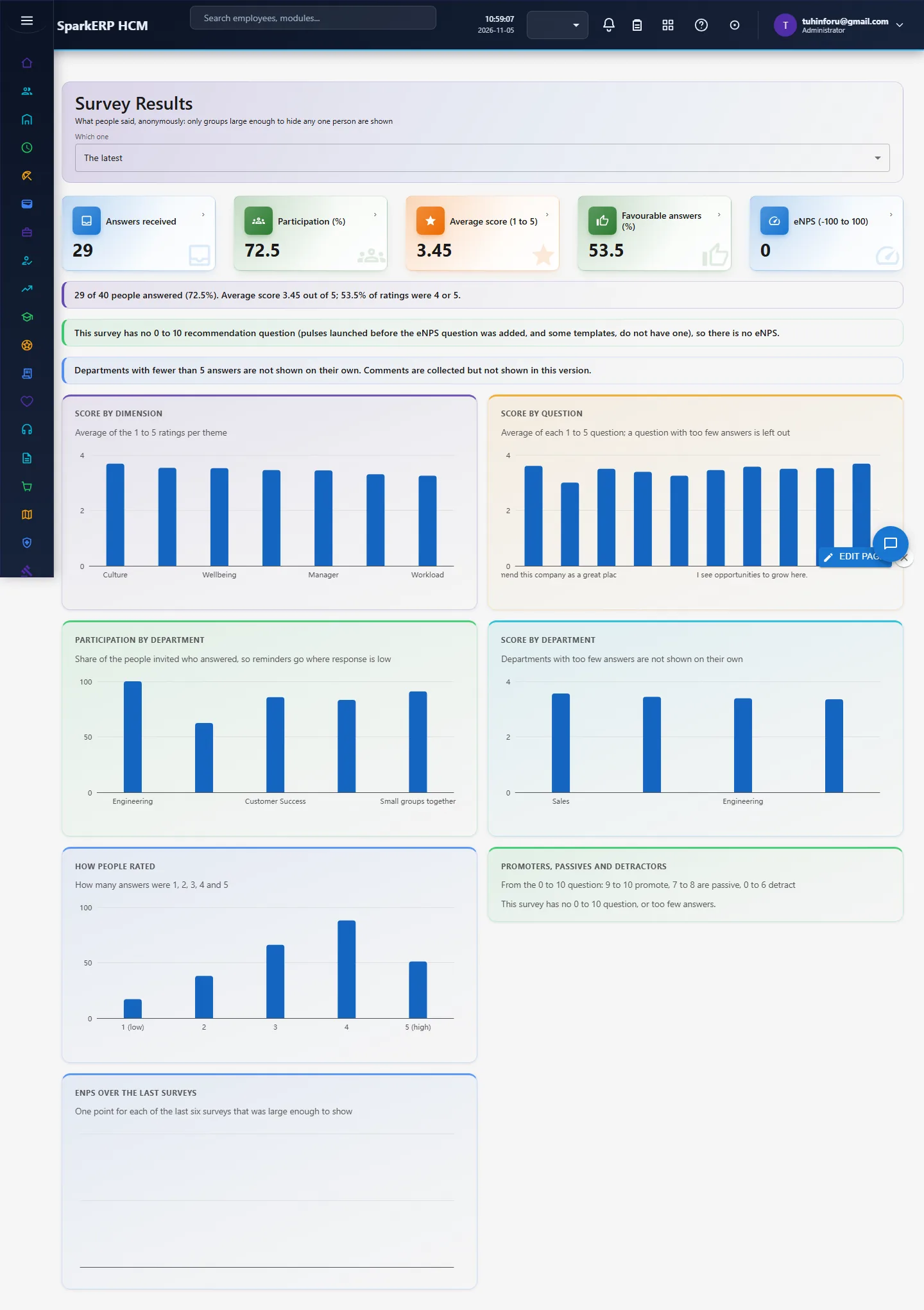
Survey Results has the same charts as Pulse Results plus score by question and participation by department. Choose Which one to look at the latest survey or an earlier one. Use participation to send a reminder to the departments that answered least, and read the lowest two or three questions first: write one action for each on Pulse Actions, with an owner and a date.
4.8 Give and ask for feedback
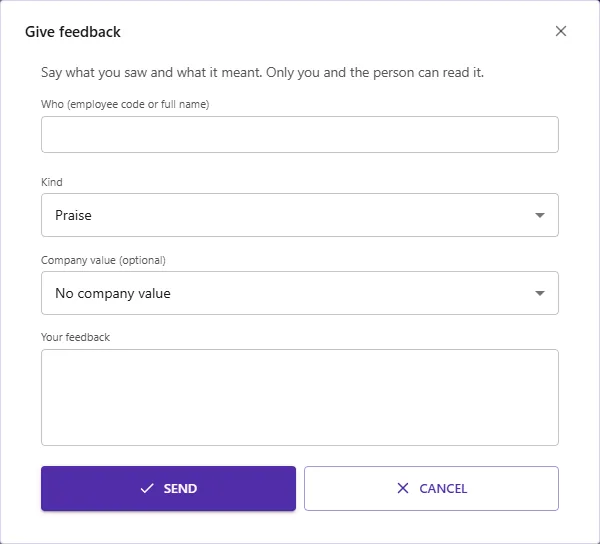
Feedback is private between two colleagues. Choose Give feedback, say who (employee code or full name), pick Praise or Constructive feedback, optionally a company value, and write at least a sentence (20 characters): what you saw and what it meant. Choose Ask for feedback to ask a colleague about something specific; they can Answer this request or Decline it, once. Use Show to switch between what you received, gave, what is waiting for my answer and my requests, and Read the selected feedback to open one.
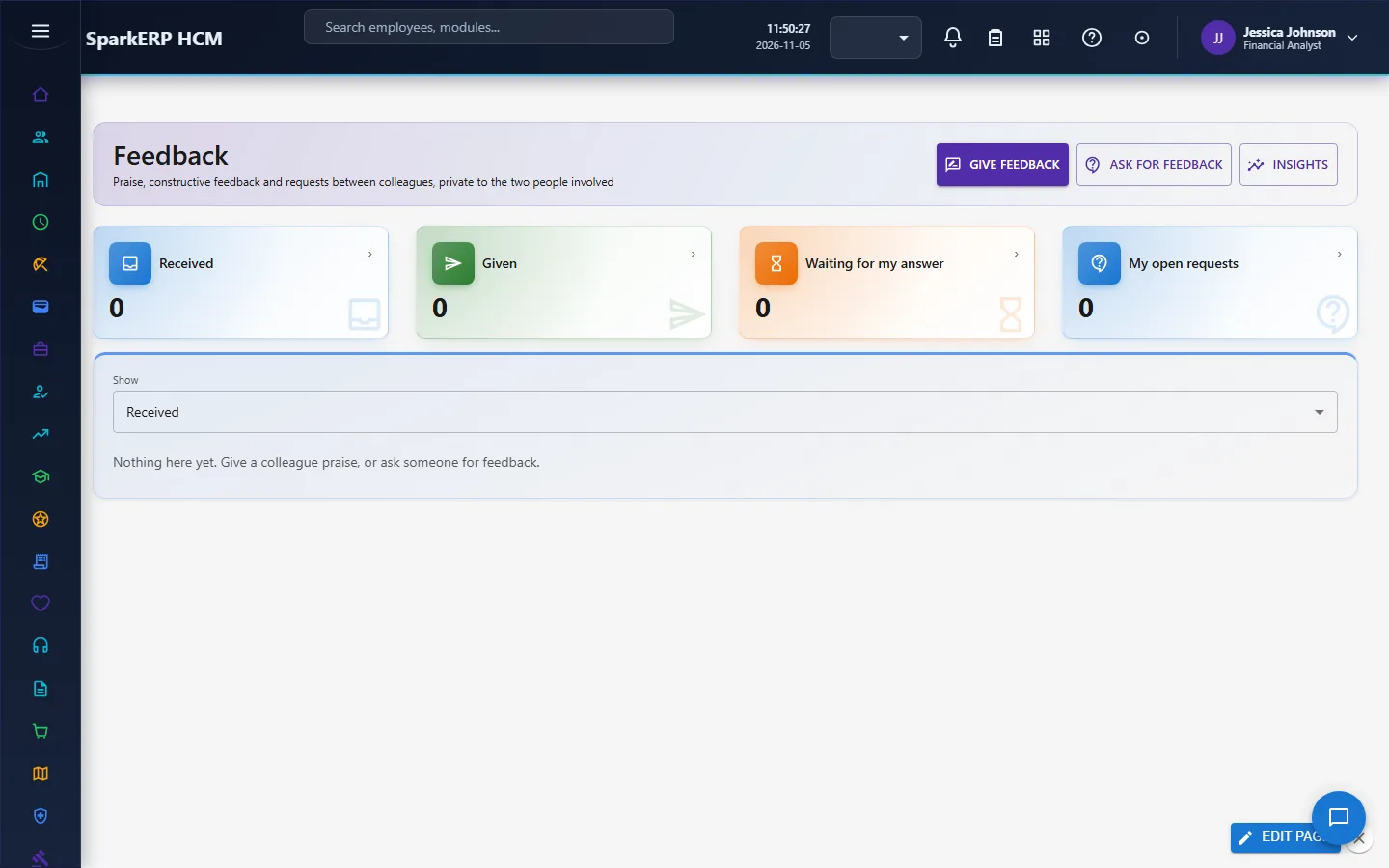
Only the two people involved can read a piece of feedback: a third person, an administrator included, gets "not found". You cannot give feedback to yourself, a second open request to the same person is refused, and you can send 20 pieces of feedback a day. Administrators see only counts, on Feedback Insights.
4.9 Rewards: spend recognition points
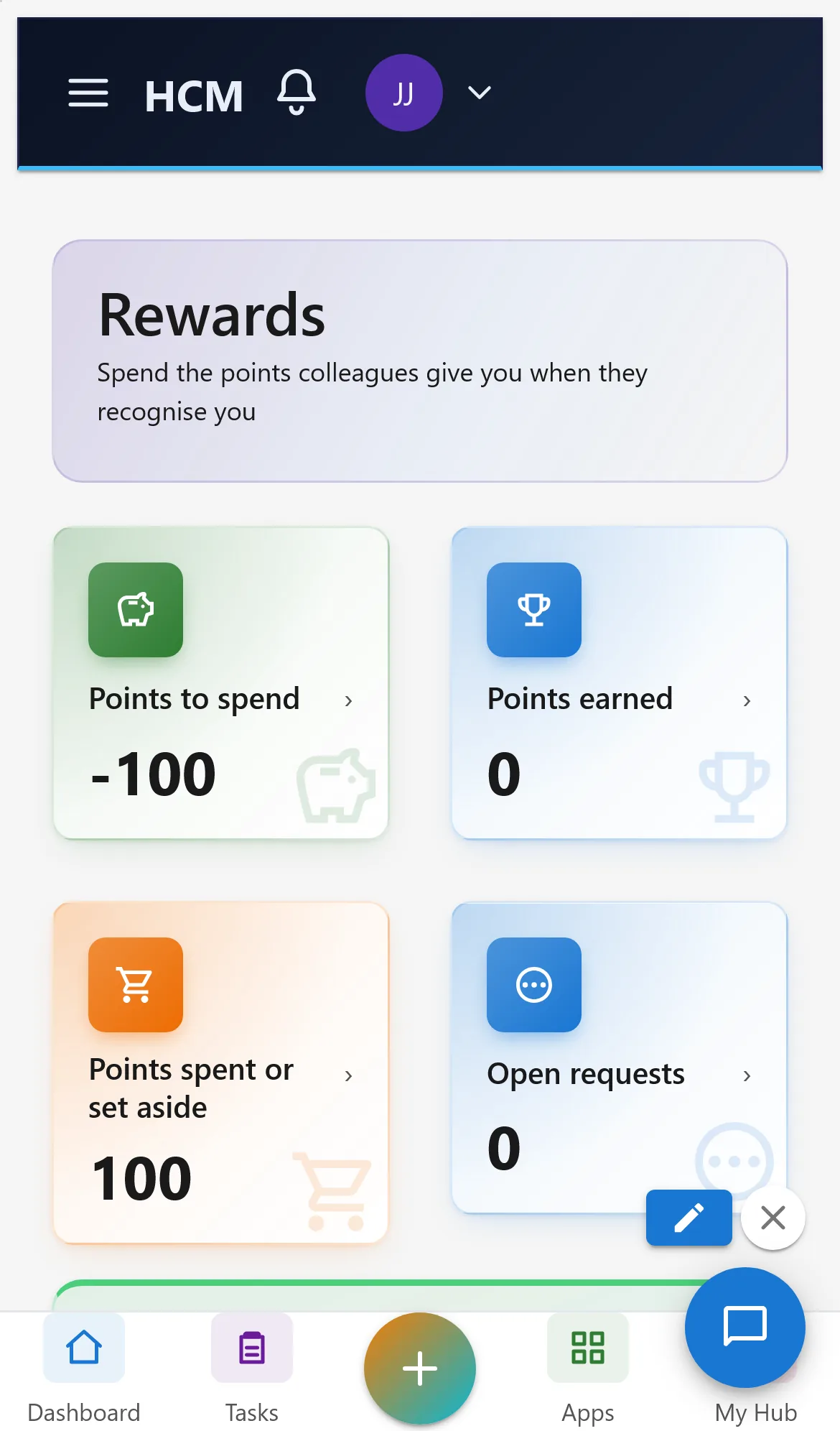
Points come from Recognition: every recognition you receive is worth its points. Rewards shows Points to spend (earned minus spent or set aside), Points earned, and the catalogue. Select a reward and choose Redeem the selected reward: the points are set aside at once and the request appears under My requests, where you can Cancel it while it is only requested. A request above your balance is refused, and you can have 5 open requests at a time.
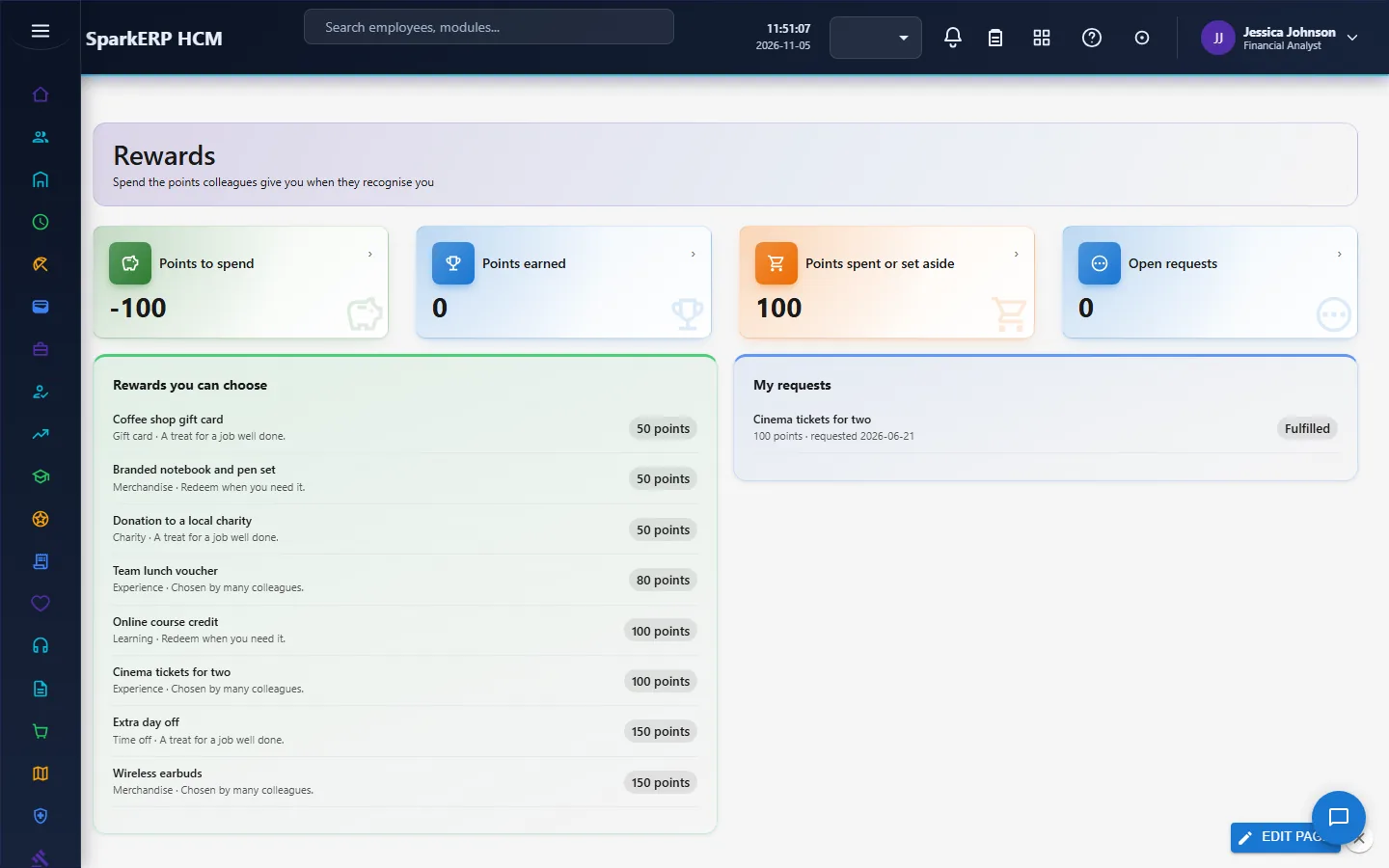
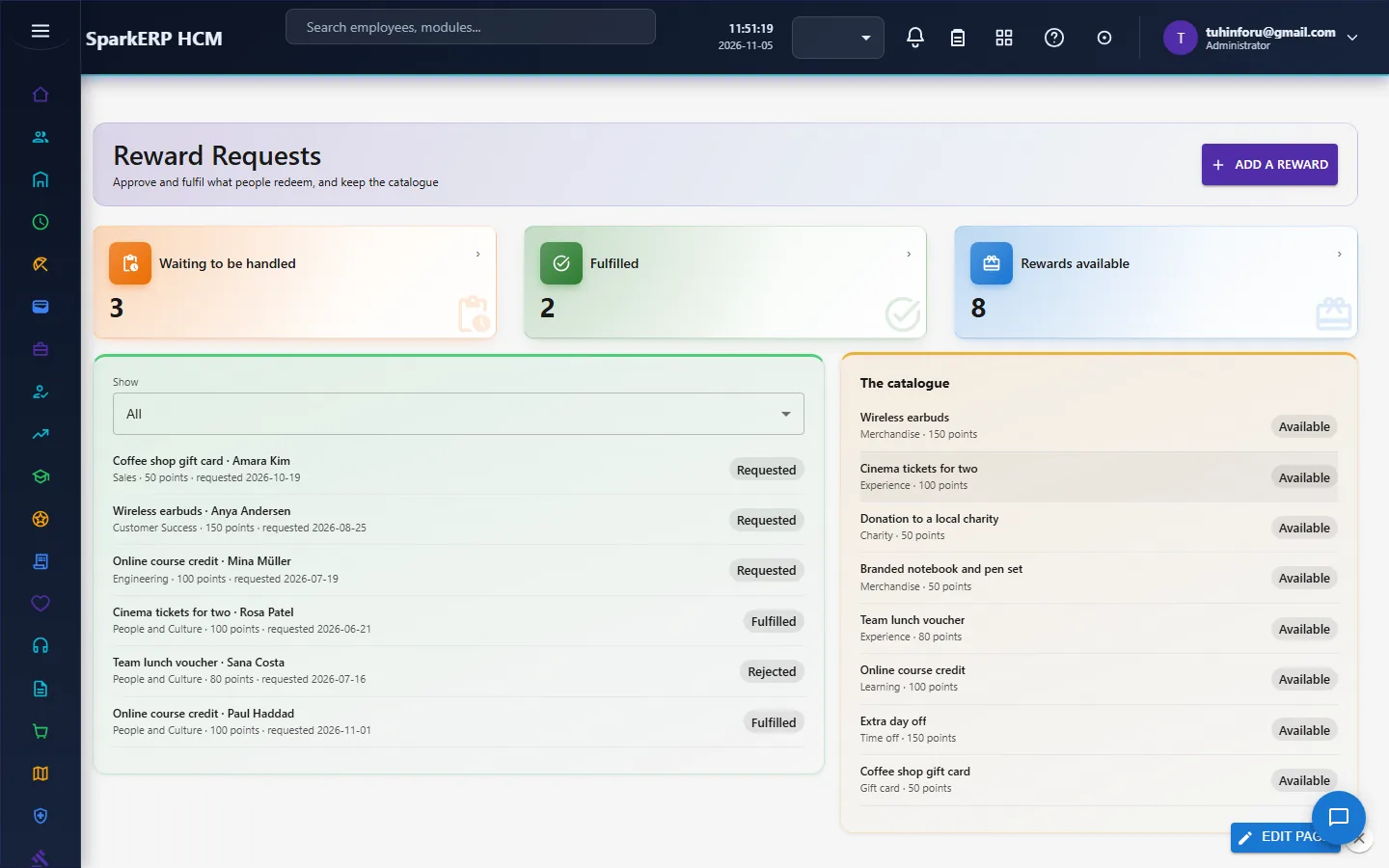
A request goes to the platform's approval workflow as soon as it is made, so it also shows in the approver's approval inbox. Only people with the HR Administrator or HCM Administrator role can approve or reject it (an administrator without one is refused). An administrator opens Reward Requests (the Manage rewards button): Approve a requested redemption, then Mark fulfilled when HR has delivered it; Reject needs a reason and gives the points back. Add a reward puts a new item in the catalogue (name, category, points, how it is fulfilled); Switch the selected reward on or off hides or shows it.
4.10 Wellbeing: weekly check-in and challenges
Wellbeing asks two quick questions once a week: how you feel about work (1 to 5) and how your workload is. A check-in stores no employee and no link to who checked in, only your department (to report groups), the two scores and the day. A separate marker remembers only that you checked in this week, so you are asked once; it holds no score. Challenges are voluntary (a step week, a no-meeting afternoon): Join the selected challenge and later I did the selected challenge. Only you can see that you joined; managers and HR see counts.
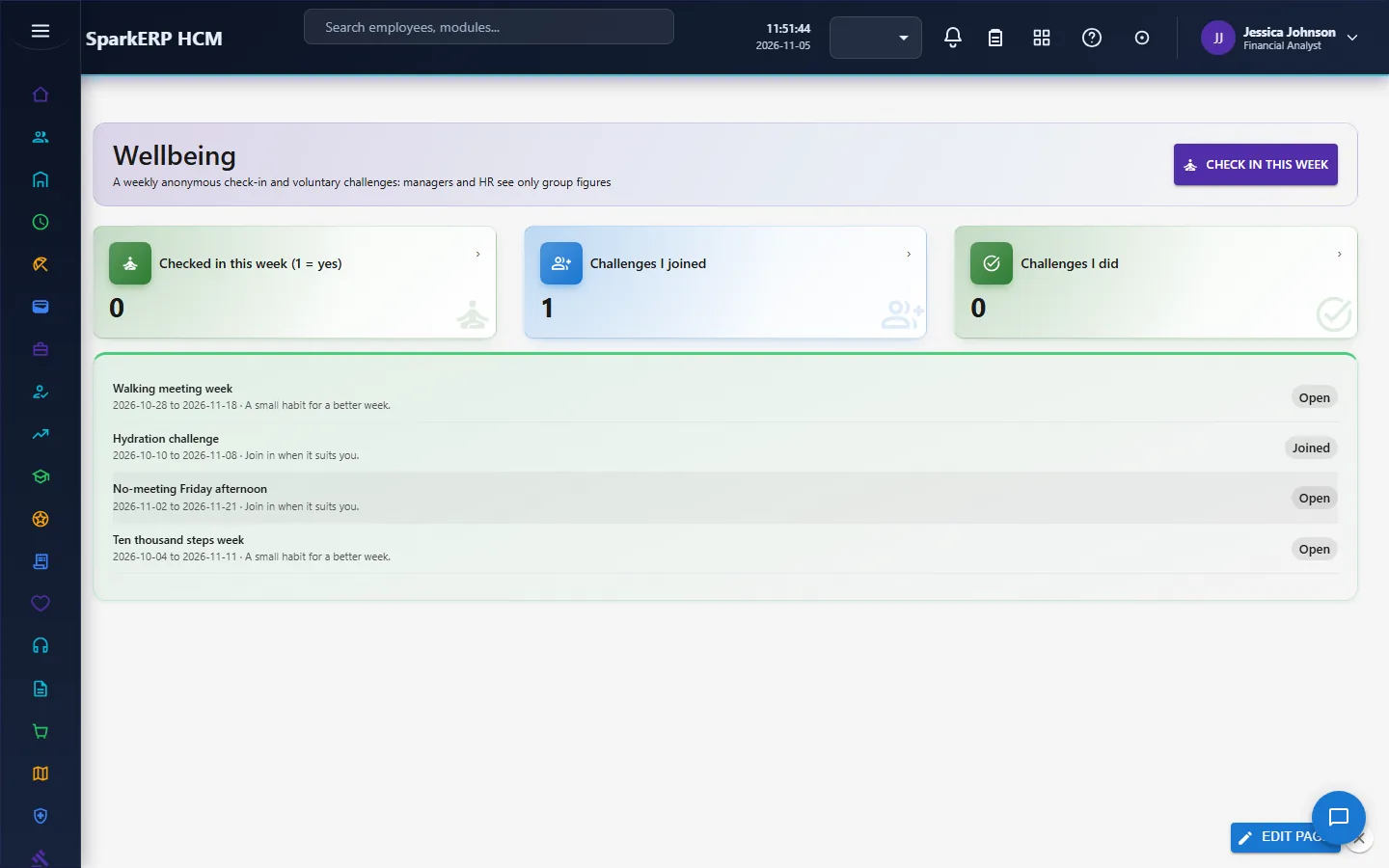
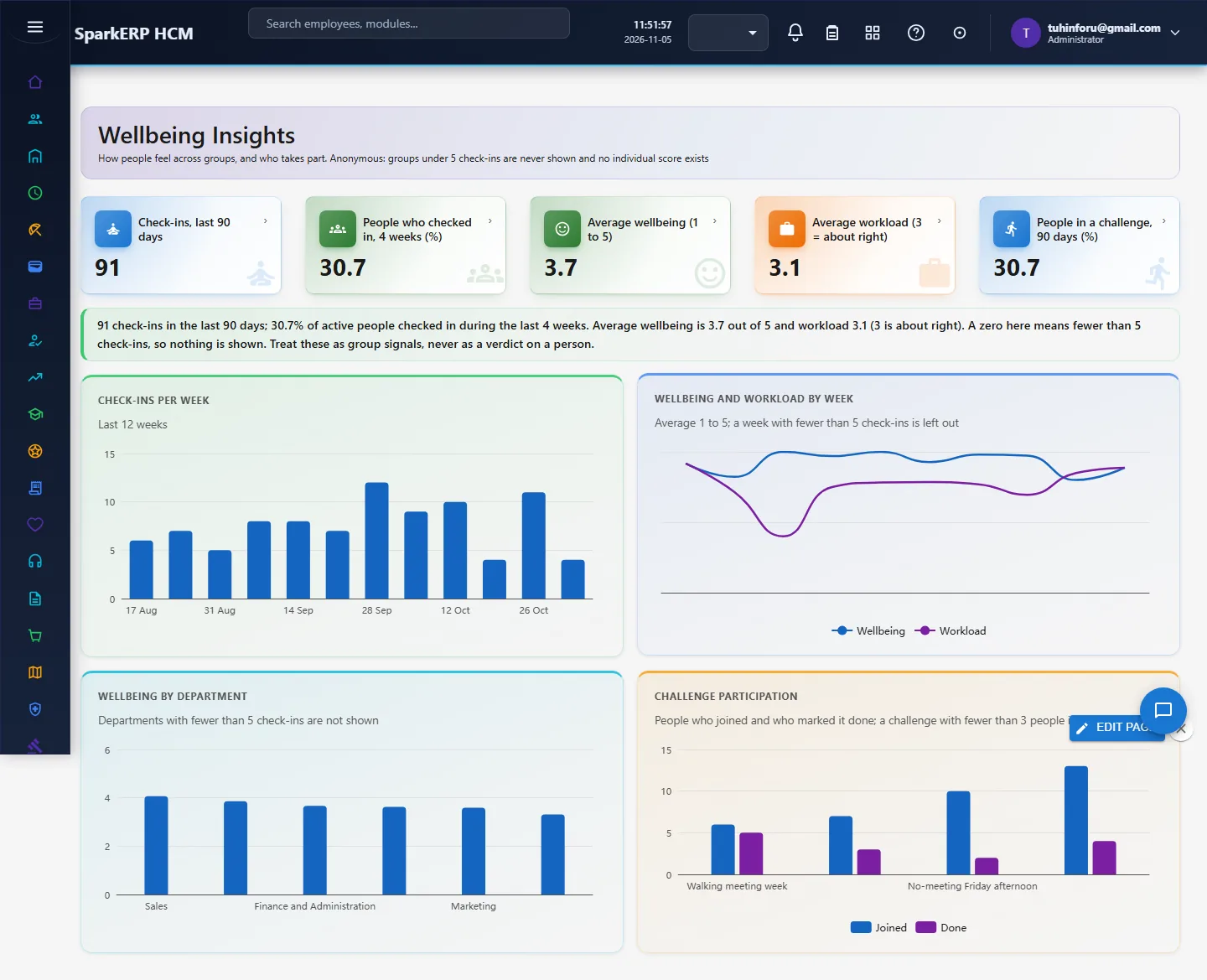
Administrators Start a challenge (title, what to do, number of days) and Close it. Wellbeing Insights shows participation, the average wellbeing and workload by week and department, and challenge participation, always in groups of 5 or more.
4.11 Social Feed
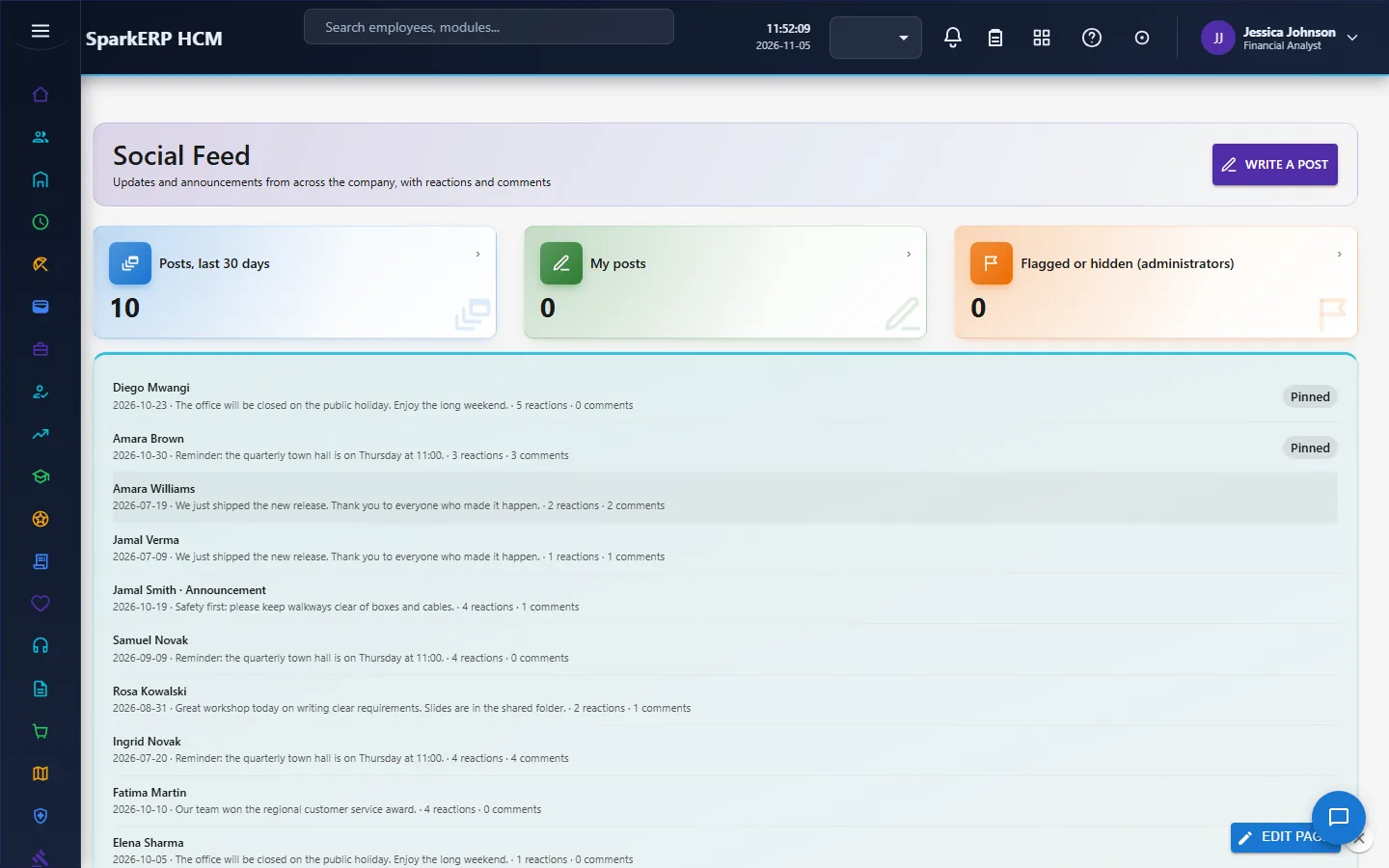
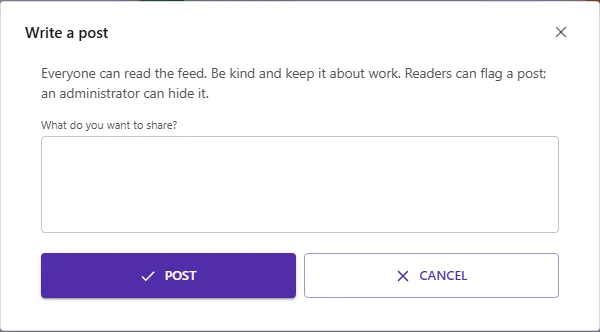
The Social Feed is the company noticeboard. Write a post to share an update; administrators can post an announcement, which is pinned on top. Open a post to react (Like, Celebrate, Thanks: one reaction each, tap the same again to take it back, never listed by name), comment, or Flag this post. A post flagged by 3 different people is held (hidden from everyone but administrators) until an administrator looks at it. Administrators can Pin, Unpin, Hide and Restore a selected post. You can post 10 times a day.
5. Charts and reports
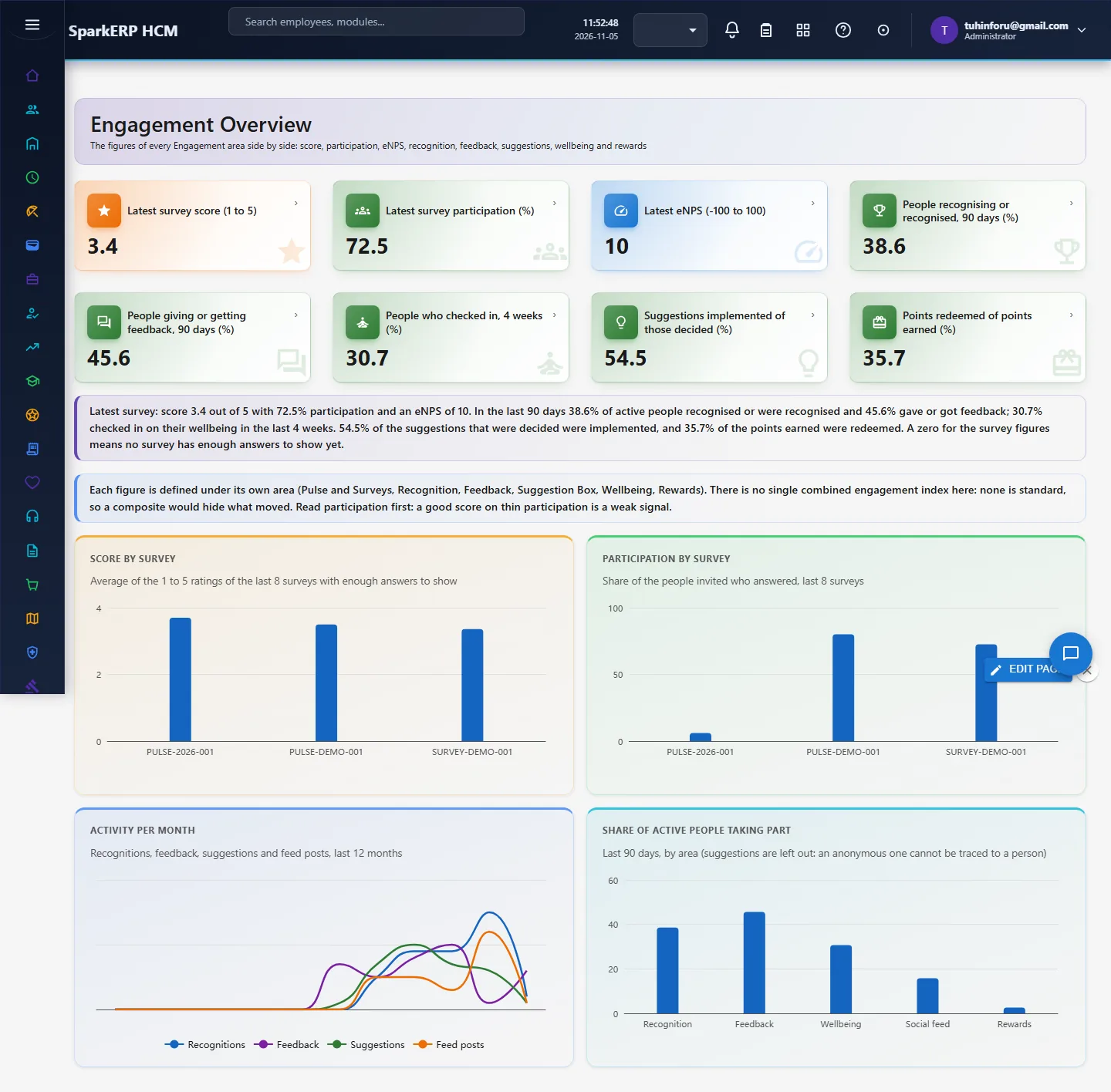
Engagement Overview (the Reports entry) puts the figures of every area side by side: the latest survey's score, participation and eNPS (only surveys with enough answers to show), the share of active people who recognised or were recognised and who gave or got feedback in 90 days, wellbeing check-ins in 4 weeks, suggestion follow-through and the share of earned points redeemed, with score and participation by survey, activity per month and participation by area. There is deliberately no single engagement index: none is standard, so a composite would hide what moved. Read participation first: a good score on thin participation is a weak signal.
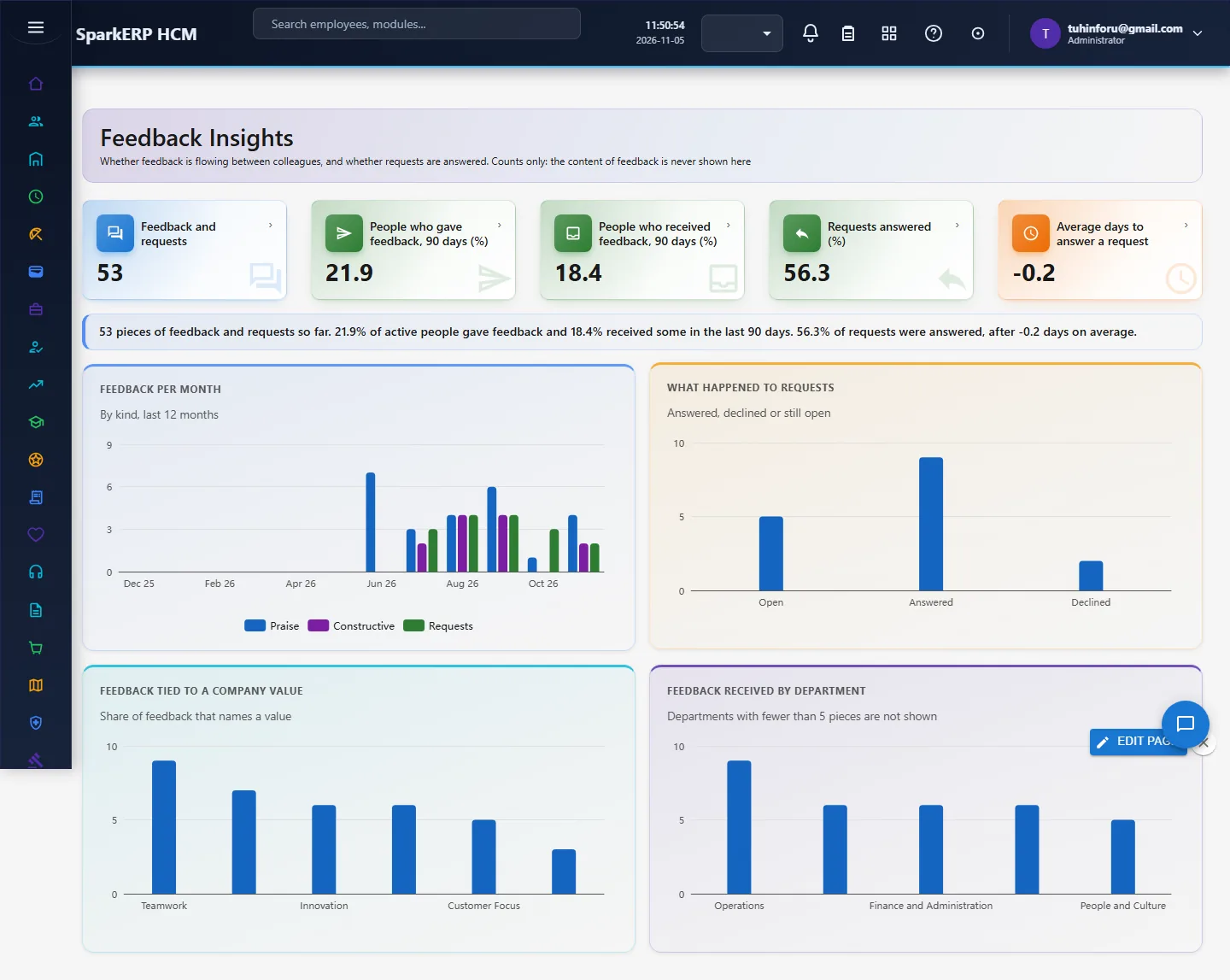
Feedback Insights, Reward Insights, Wellbeing Insights and Feed Insights (administrators) give the figures of each area: feedback per month by kind, request outcomes and time to answer; points earned against redeemed, redemption rate and most chosen rewards; check-in participation and wellbeing by week and department (groups of 5 or more); posts, reactions, comments and flagged posts.
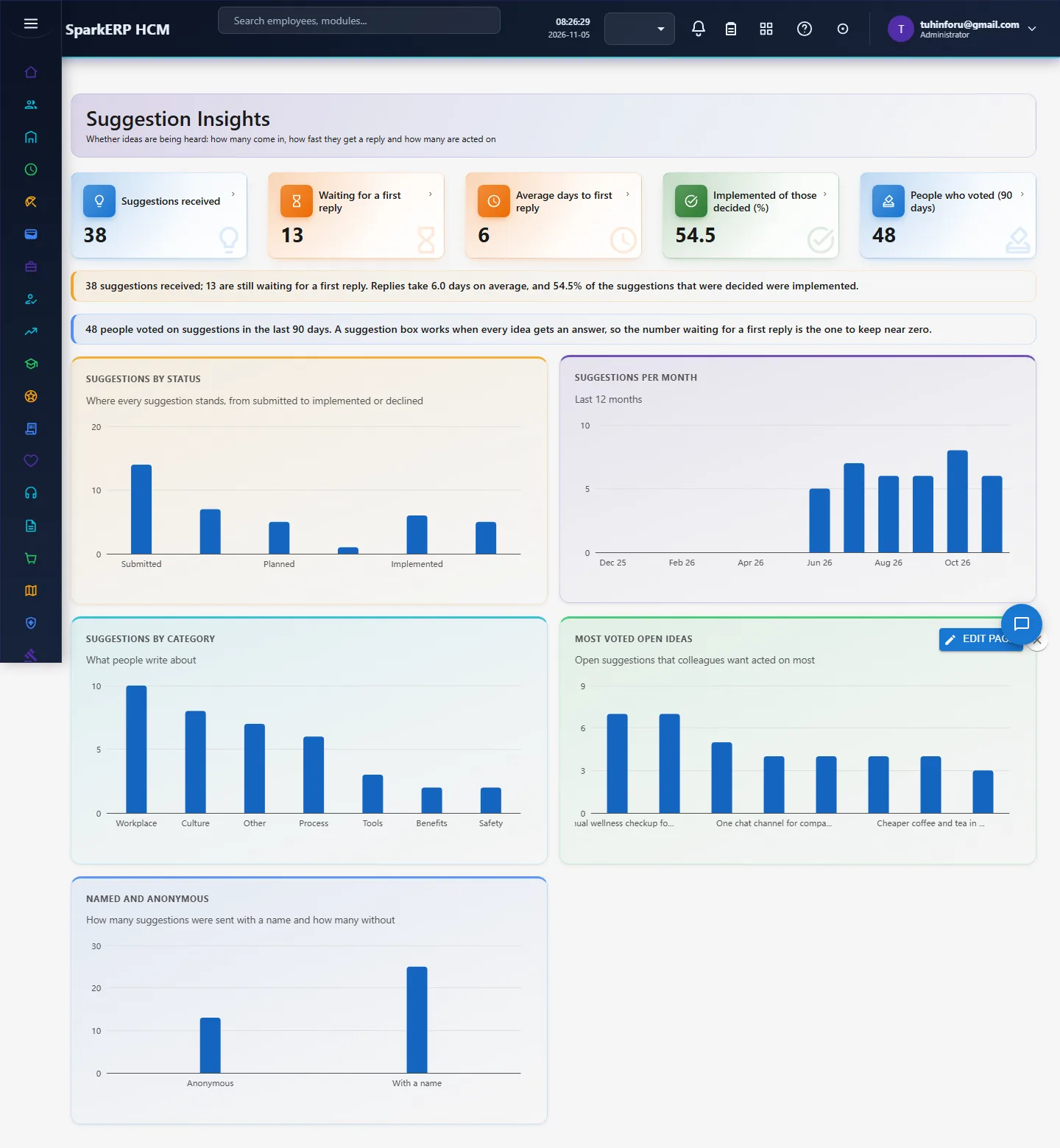
Suggestion Insights (administrators) shows suggestions received, how many still wait for a first reply, the average days to reply, the share of decided suggestions that were implemented, and charts by status, month, category, named against anonymous, and the most voted open ideas. Following the research, the figure to keep near zero is the number waiting for a first reply: a suggestion box works only if every idea is answered.
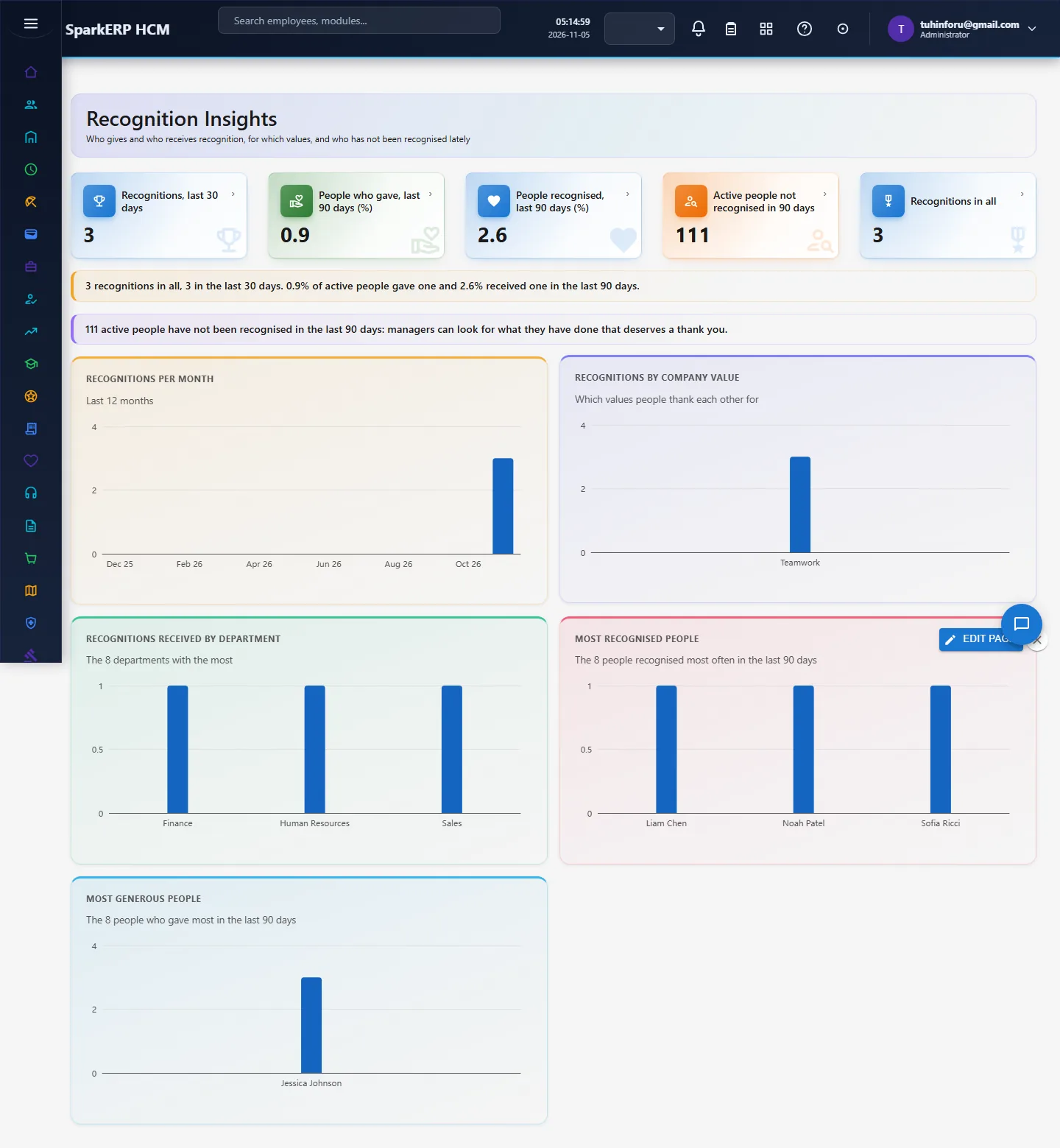
Pulse Results has the survey charts. Recognition Insights shows recognitions per month, by company value, received by department, the most recognised people, the most generous people, the share of people who gave and received recognition in the last 90 days, and how many active people have not been recognised in 90 days, so managers can look for what deserves a thank you.
6. On a phone or tablet
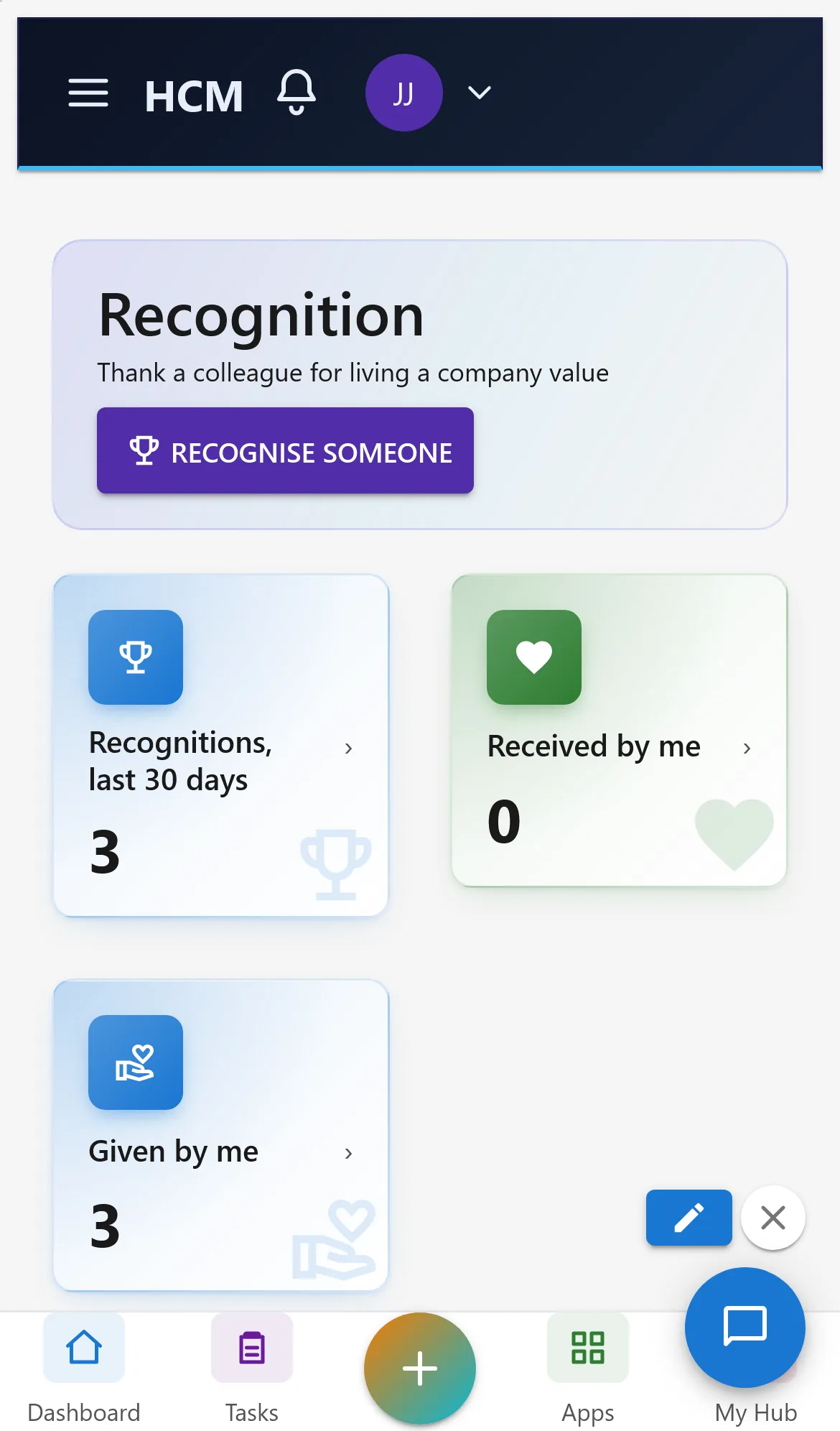
All Engagement screens work on a phone: tiles and charts stack one per row and dialogs fit the screen. Employees can answer pulses and recognise colleagues from the phone.
7. Rules and limits
- Anonymity is built in. A response stores no employee and no link to the invitation, only the pulse, a department snapshot and the date (not the time). Comments are collected but not shown in this version. Results come back only for groups at or above the smallest group size, and when some groups are hidden the smallest shown group is hidden with them, so a hidden group cannot be worked out by subtraction.
- eNPS is the share of promoters (9 to 10) minus the share of detractors (0 to 6); passives (7 to 8) count in neither. A pulse launched before the eNPS question was added has no eNPS.
- Only administrators read results and manage actions.
- Suggestion Box privacy. An anonymous suggestion is stored with no employee, name or department and its creator is recorded as "anonymous"; because of that it cannot be limited per person, so the daily limit of 5 applies to named suggestions only. A vote is stored with the employee only so it is counted once and is never shown with a name. A tenant administrator can read every suggestion and reply. Not built in the Suggestion Box yet: comments on a suggestion, attachments, a link to a complaint case in Employee Relations, tags, and notifying the sender when the status changes (anonymous senders use the code).
- Not built yet: exit surveys (leavers have no login to answer with), 360 feedback, reminders and schedules, branching questions, translations and benchmarks for Surveys; comments, tags and attachments on suggestions; Rewards: budgets per manager, expiry of points, tax treatment, delivery through an outside provider, and a second approval stage or approval by amount (approval is one HR administrator stage; fulfilment is a separate step); Feedback: 1:1 meeting notes and manager-wide reports; Wellbeing: wellness programmes beyond check-ins and challenges, and any link to health data; Social Feed: pictures and files, polls, mentions, must-read acknowledgement, and automatic moderation filters. Wellbeing and Feedback were designed so that no individual's data is shown to a manager or HR.
- In the trial data, the department chart shows several departments grouped under "Small groups together" on purpose.
8. Troubleshooting
| Symptom | Cause and fix |
|---|---|
| "No employee record is linked to this login" | The login has no employee record, so it cannot answer pulses or recognise anyone. Link the login to an employee in HCM Settings. |
| Results say "Results appear once at least N have answered" | Fewer people have answered than the smallest group size. Wait, or launch with a smaller group size (3 at least). |
| A pulse is not listed on My Pulse | You already answered it, it is closed, or it was not sent to you (you joined after it launched). |
| "You cannot recognise yourself" | Give a colleague's code or name. |
| "Several people have that name" | Use the employee code instead. |
| "Only N people would be invited" | The audience is smaller than the smallest group size. Widen it or lower the group size (3 at least). |
| "Nobody matches that audience" | The department name is not spelled as in the organisation, or nobody was hired in those days. |
| "You have already checked in this week" | A check-in is accepted once a week; come back next Monday. |
| "You have X points and this reward costs Y" | Points come from recognition by colleagues; ask for or give recognition. |
| "No employee has that code or name" (Feedback) | Use the employee code, or the full name exactly as in the directory. |
| A flagged post disappeared | Three people flagged it, so it is held; an administrator can restore it from the feed. |
| "No suggestion matches that code" | The code was copied wrongly (8 letters and digits, no 0, 1, I, L or O), or it belongs to another tenant. A code cannot be recovered; send the suggestion again. |
| "You cannot vote for your own suggestion" | Votes come from colleagues; ask others to vote. |
| Recognition Insights or Suggestion Insights says "Report.View is required" | The login lacks the Report view permission; ask an administrator. |