
Appearance
Payroll: how it works and how to set it up
Payroll answers four questions every month: what is each person owed, what must be taken off it (tax, contributions, deductions), who has to agree before it is final, and how does the money and the accounting get out the door. This guide explains how the module works from start to finish, then how to set it up, then how each person sees it. Every screen has its own page in the Payroll section; this guide is the one to read first.
1. What Payroll does for your business
- Calculates pay for a period from each person's compensation, plus the bonuses, incentives, overtime and adjustments that were approved for that period, less deductions, statutory contributions and income tax.
- Puts a person between the calculation and the money. A run is checked, submitted, approved by a Payroll Administrator or Payroll Reviewer, and only then finalized.
- Produces what comes after the run: payslips for employees, a bank file for the bank, and a journal for accounts.
- Protects what was paid. A finalized run can be locked; unlocking goes through an approval and opens only for a limited time.
- Keeps people in step with other modules. Time and Attendance hands over attendance input, Leave encashment and Separation settlements arrive as adjustments, and Benefits contributions and Expense reimbursements are folded into the run.
What it does not do: it does not send money to a bank (it builds the file; a person sends it), and it does not decide your tax law. Tax slabs and statutory contribution rates are data you or your country pack enter.
2. How a payroll run works, end to end
2.1 The life of a run
A run is one payroll for one period and one group of people. It moves through these statuses:
| Status | Meaning | What happens next |
|---|---|---|
| Draft (also Ready, Failed) | The run exists but has no figures, or a calculation failed. | Calculate it. |
| Processing | A large run is being calculated in the background. | Wait; it moves on by itself. |
| Calculated (or In review) | Every person has a result line: pay, deductions, tax, net. | Review the exceptions and flagged people, then submit. |
| Pending approval | A task is waiting for a Payroll Administrator or Payroll Reviewer. | Approve or reject. |
| Approved | Agreed, not yet final. | Finalize. |
| Finalized / Published | Final. The run counts in year-to-date figures, payslips can be made, the bank batch and journal can be built. | Payslips, bank batch, journal, lock. |
| Rejected / Cancelled | Stopped. | Start a new run if needed. |
The approval is a single stage. The task is due within three days and either a Payroll Administrator or a Payroll Reviewer can decide it.
2.2 What the calculation does for each person
The calculation runs per person, in this order:
- Who is in the run. The run's scope is a pay group or a department, an employment type, or named employees. People on an active Payroll Hold for the period (or for every period) get no line at all.
- Base pay. The person's active compensation record for the period gives the annual base salary; it is divided by the number of periods in the year for the run's frequency. If the compensation is in another currency, it is converted with the run's exchange rates. A missing rate puts the person in exceptions, and so does paying in a second currency when multi-currency payroll is switched off in Payroll Settings.
- Proration. A joiner or leaver is paid only for the days employed in the period, using the proration method in Payroll Settings.
- Additions. Approved bonuses, incentives and overtime for the person and the period are added.
- Adjustments. Approved adjustments for the period: a positive amount adds to pay, a negative amount is a deduction. A reimbursement is paid back as money and is not income, so no tax or contribution is taken on it.
- Salary structure. If the person has a salary structure, its earnings drive gross pay, and its deduction components are evaluated; employer-side components count as employer cost.
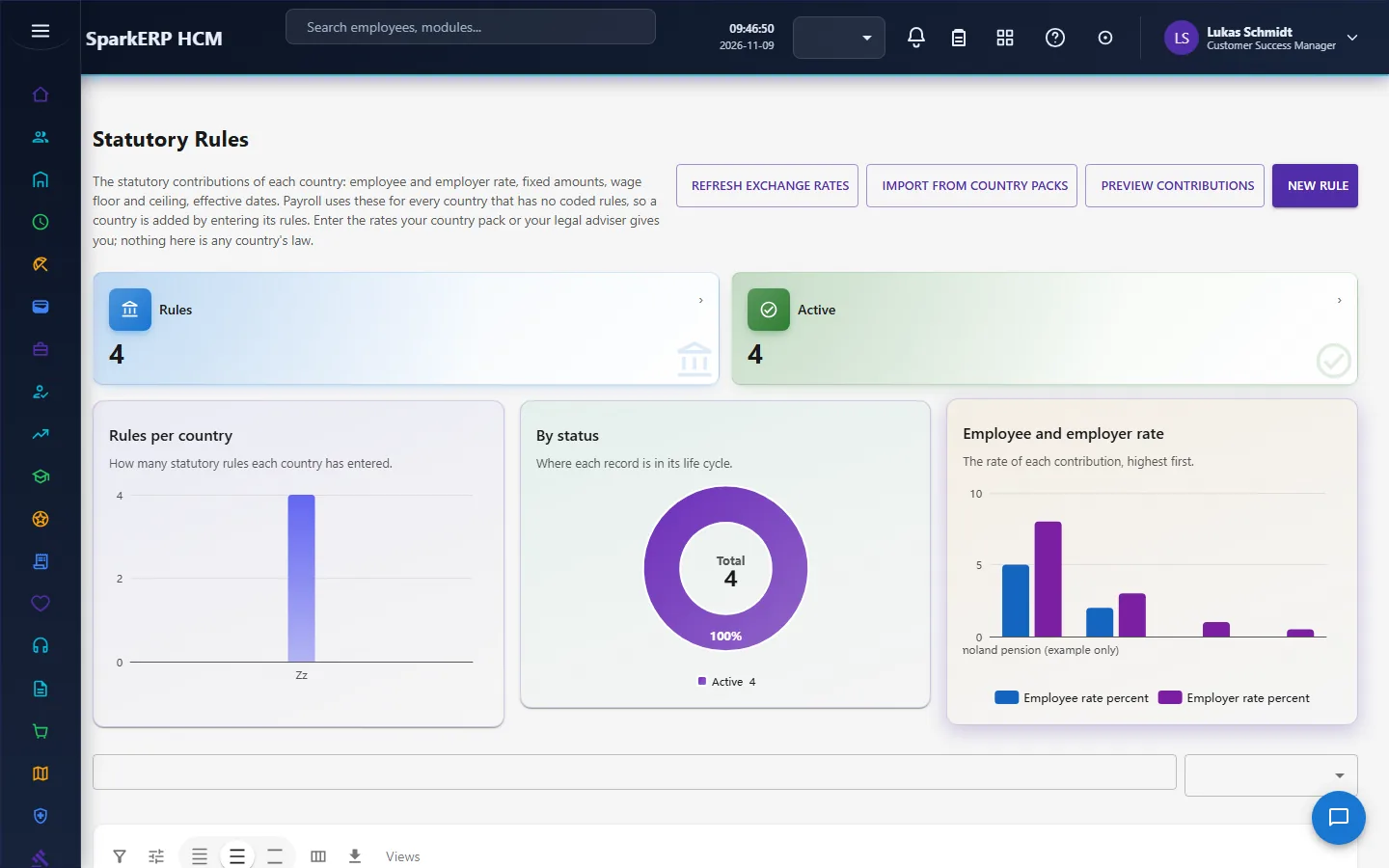
- Statutory contributions. Employee and employer contributions are worked out from the country's rules. India (PF, ESI), Singapore (CPF) and the United States (FICA) have built-in resolvers; any other country is handled by Statutory Rules, which hold a rate, an optional fixed amount, and an optional wage floor and ceiling for each contribution. Nothing in the calculation knows any country's law: it reads the rows.
- Benefits. The person's enrolled benefit contributions are a deduction; the employer's share is an employer cost.
- Income tax. The tax engine finds the person's tax regime, works out the annual tax with progressive slabs (each bracket taxes only its own portion) and divides it over the periods left in the tax year. The regimes and slabs are data.
- Net pay. Gross, less deductions and tax, plus reimbursements, rounded as set in Payroll Settings.
A person who cannot be calculated (no active compensation, no exchange rate, or negative net pay that the settings do not allow) gets an Exception line and is skipped. One bad person never fails the whole run.
Negative net pay follows the setting negative net pay policy: allow it, carry forward (the person is paid zero and the shortfall is written on the line so it can be recovered), or refuse it (the person goes to exceptions).
Recalculating a run updates the lines in place; it does not duplicate them. A run of more than 100 people calculates in the background (Processing); a smaller one calculates while you wait.
2.3 The checks before you approve
Two lines catch mistakes before the money moves:
- Exceptions: people the calculation could not pay. Each line says why.
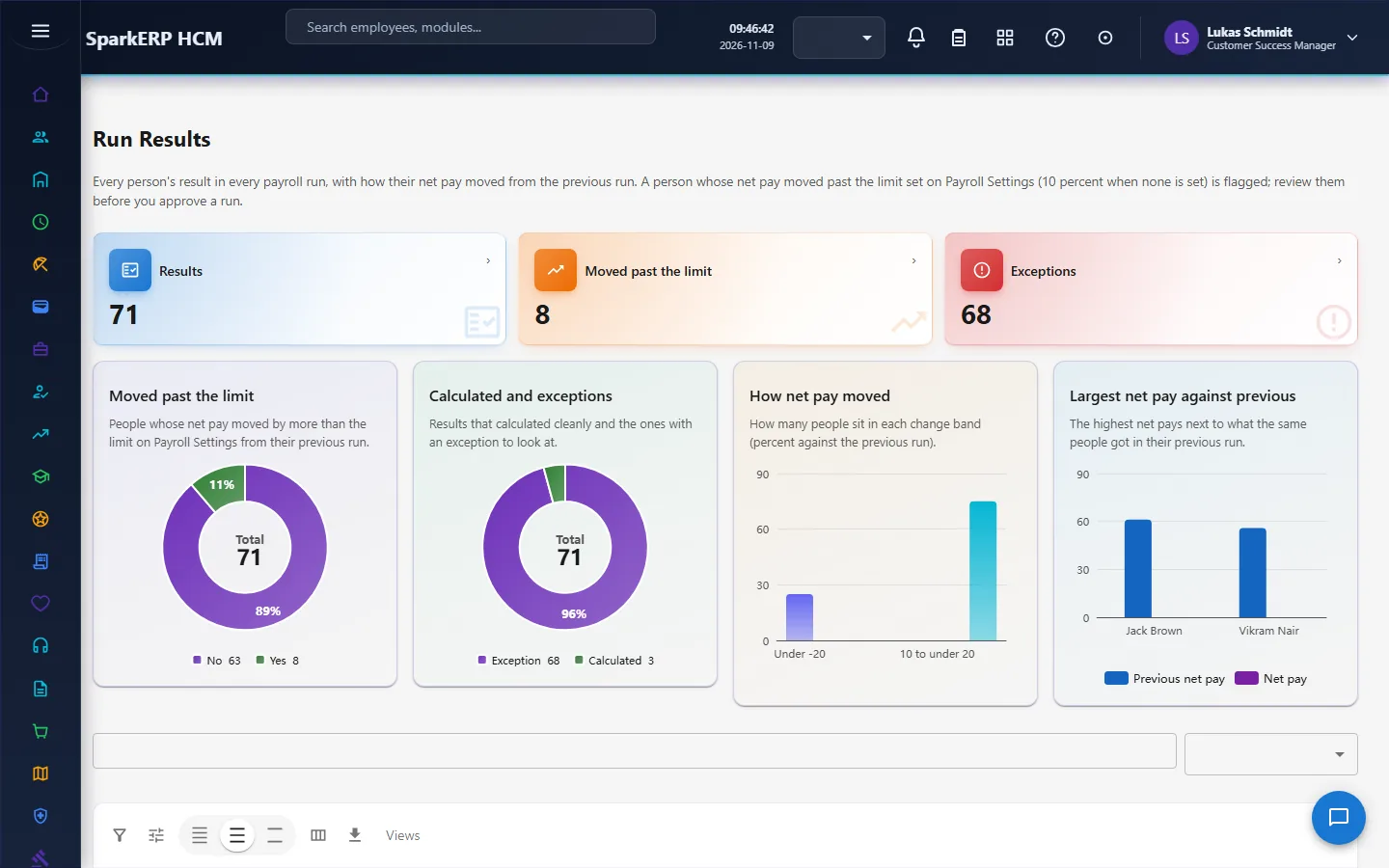
- Flagged people: people whose net pay moved more than the variance limit from their previous payslip (10% until you change it on Payroll Review Limits). A person can legitimately move, for example after a raise, but the run does not go on silently.
Payroll Controls and Payroll Data Checks test the master data around the run: shared bank accounts, people without bank details, repeated identifiers, bank changes just before the cut-off, and people paid after their last working day. They mark records for review; they do not prove anything.
2.4 One-click payroll
One-click payroll drives a run through every step with the same operations the buttons call: calculate, submit, finalize, payslips, bank batch, journal. It stops in three places on purpose:
- After the calculation, when there are exceptions or flagged people. Someone looks at the results and continues with acknowledge.
- At the approval. The run goes through the normal approval. Only when the tenant has switched on auto-approve clean runs (off by default) is a run with no exceptions and no flagged person approved without a person, and that is written on the run.
- When a step fails; the run says which.
The run keeps its own progress, so asking again after a restart resumes where it stopped and never repeats a step. Paying the bank batch and publishing payslips stay separate actions. One-click payroll never sends money to a bank.
2.5 After the run: payslips, bank, accounting, lock
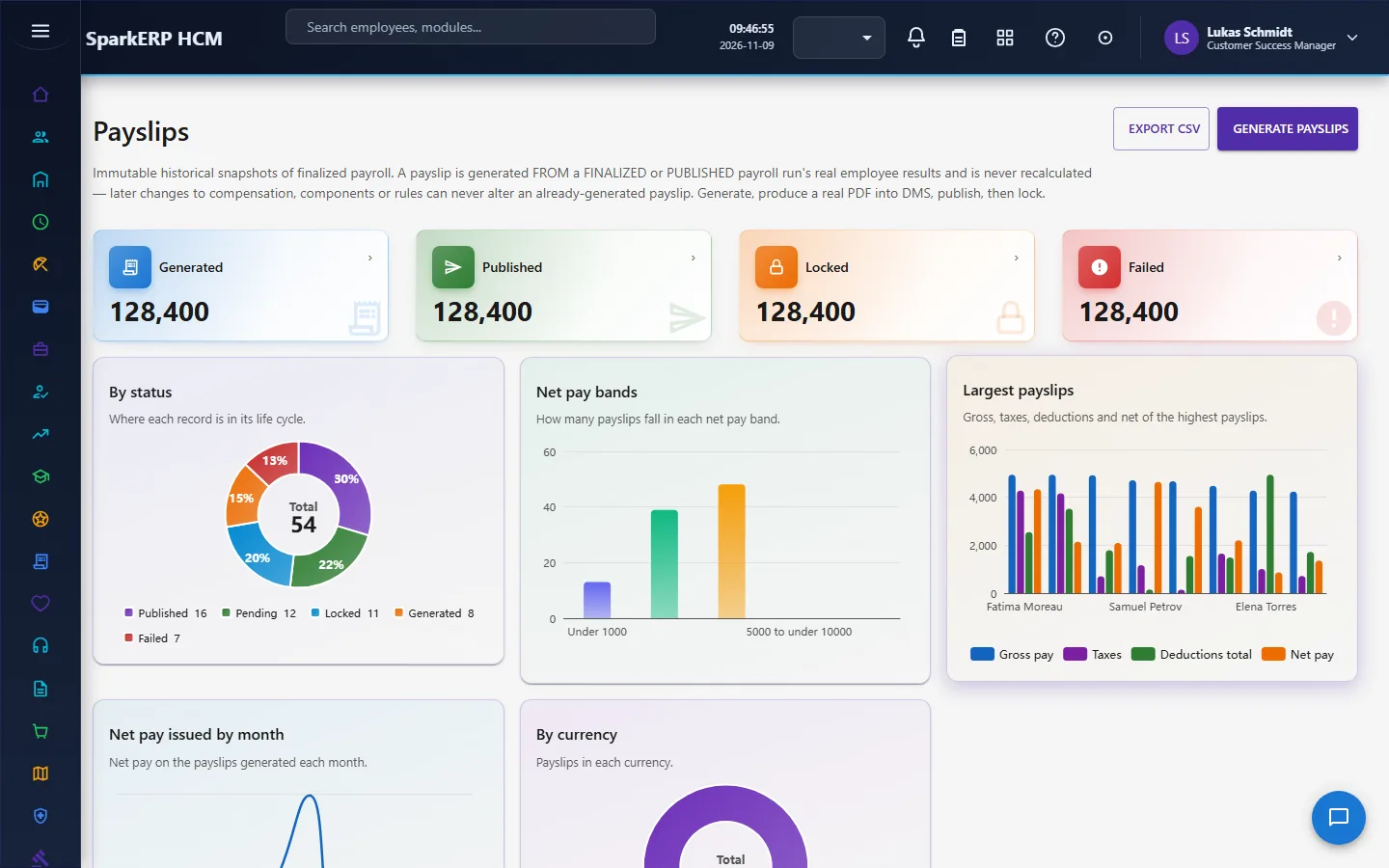
- Payslips. Generated from a finalized run, one per person. Each is a snapshot; it does not change later if other data does. Employees see them on My Payslips unless Payroll Settings says they do not. The setting publish payslips is manual or when the run is approved.
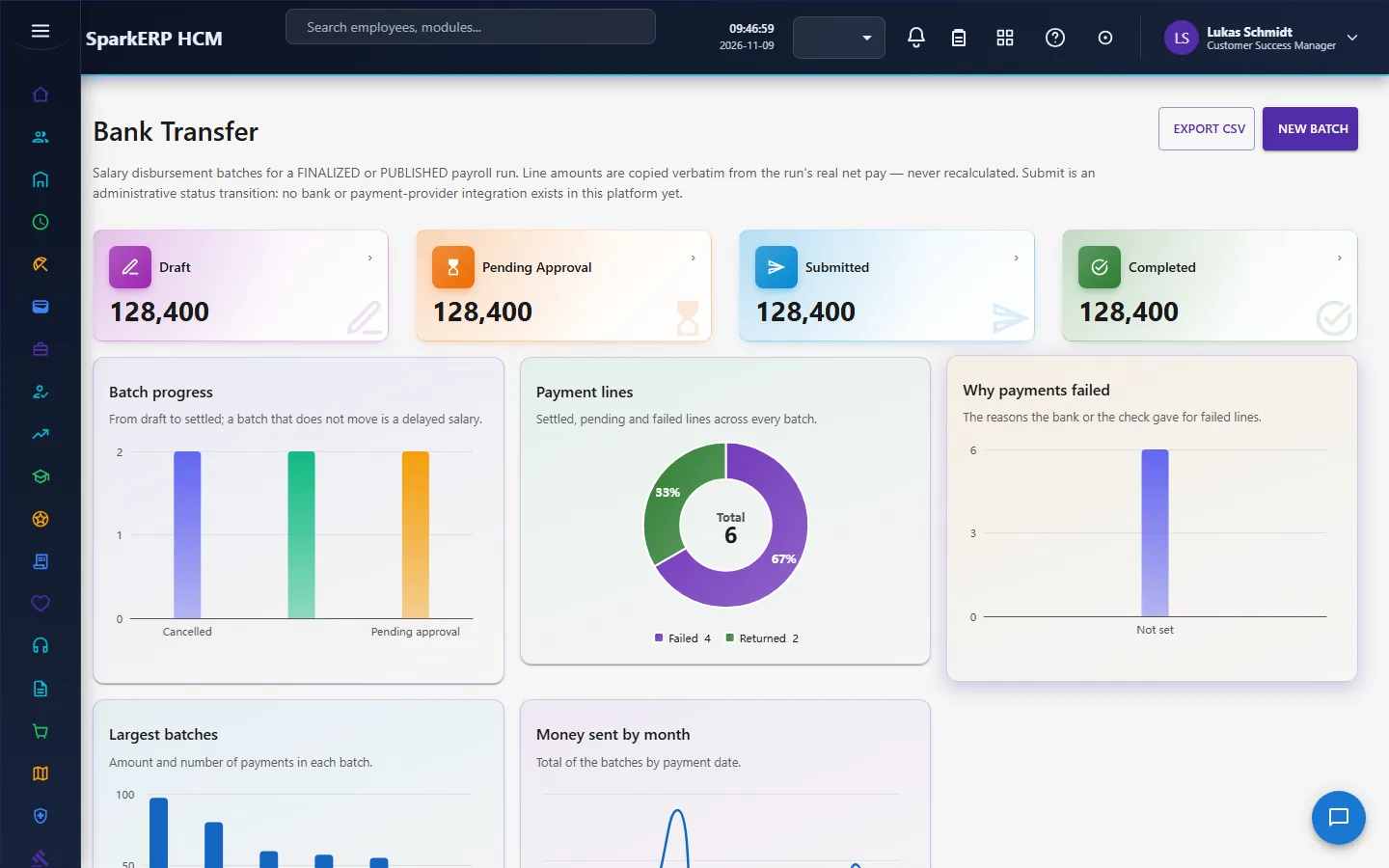
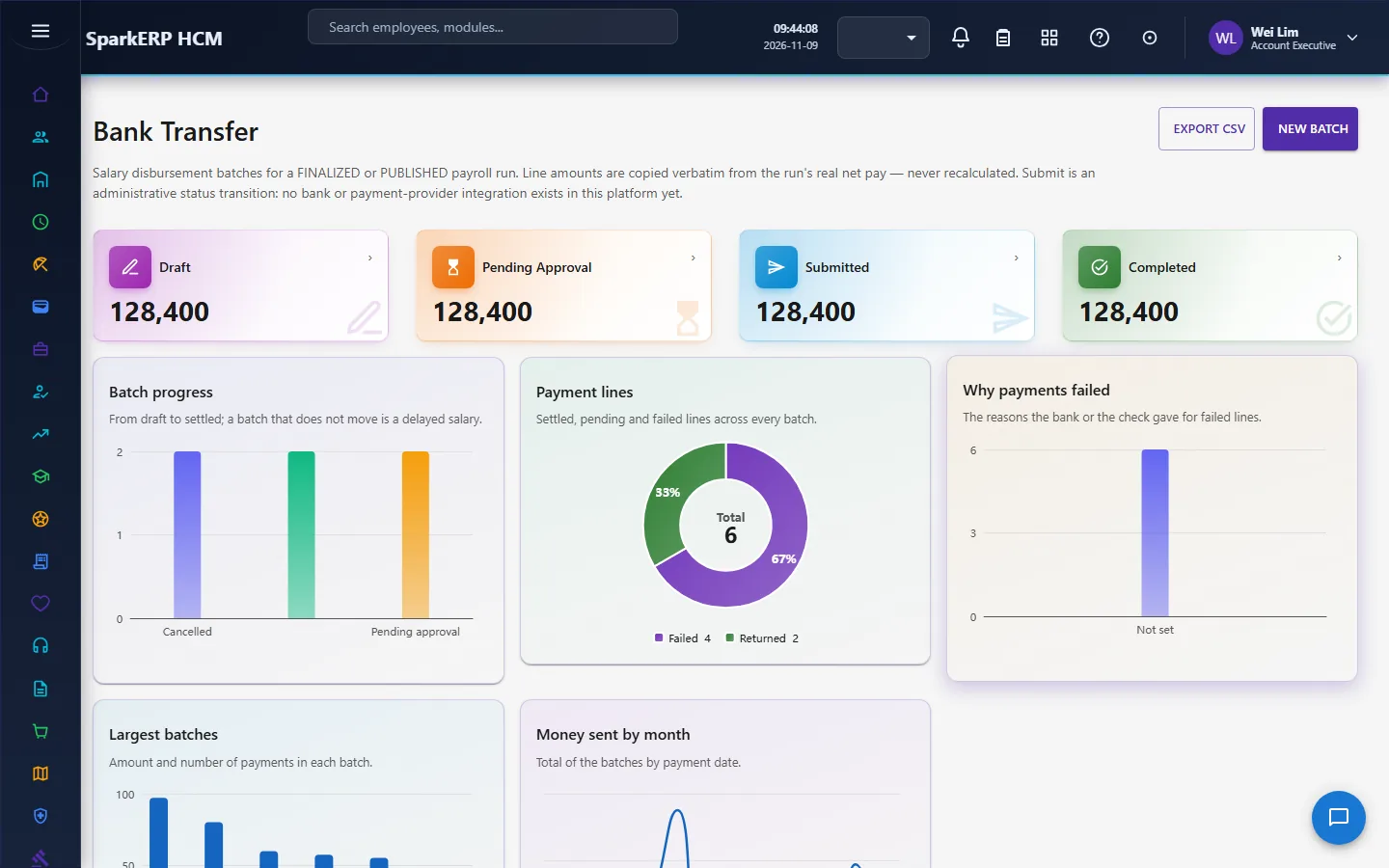
- Bank Transfer. A batch is built from the run's net pay. It goes for approval, then you export the bank file: ISO 20022 (pain.001) or a CSV. Replies from the bank are read back: pain.002, NACHA return, or a pipe-delimited file mark each line failed or returned.
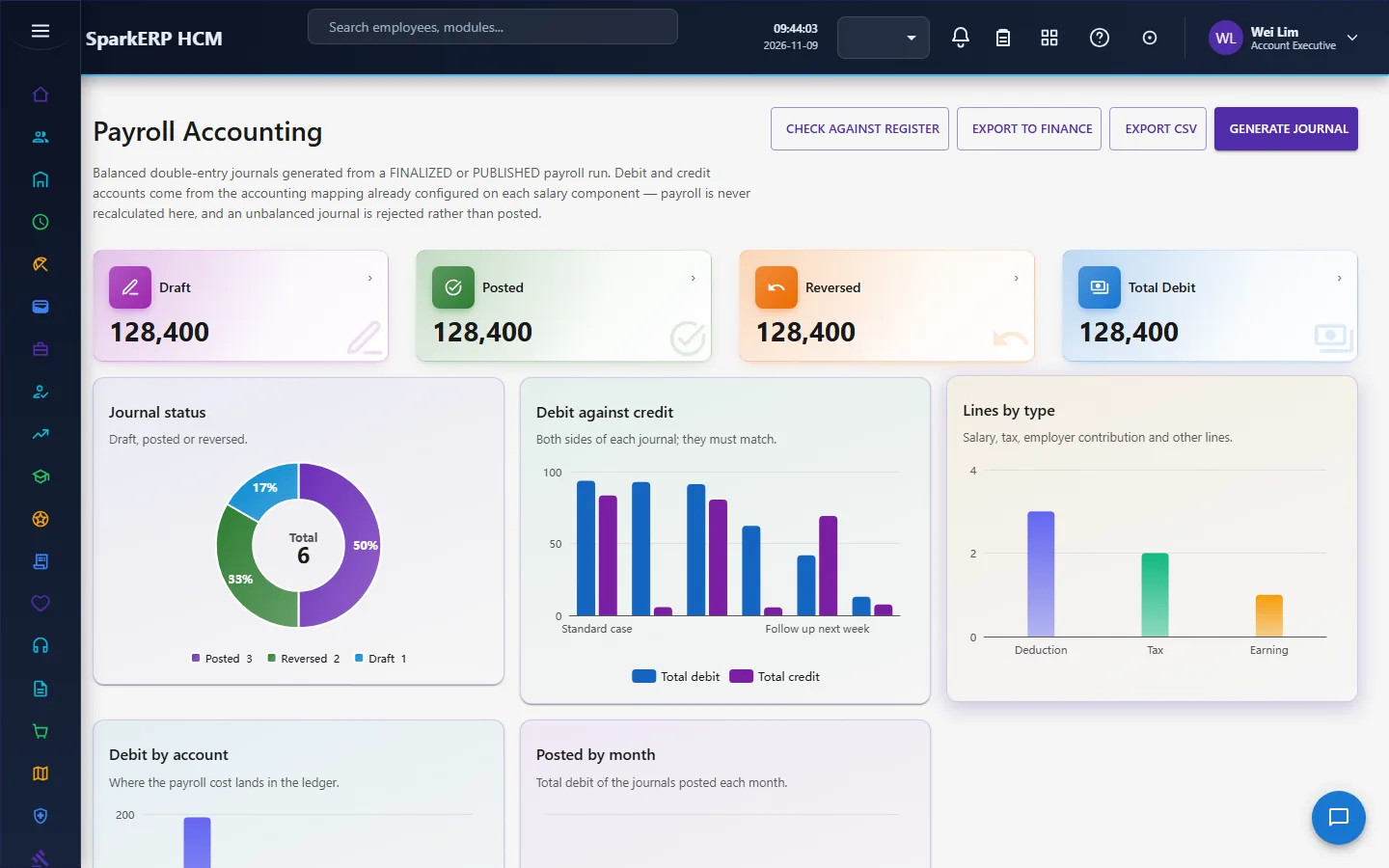
- Payroll Accounting. The journal posts the run to the general ledger accounts you mapped. The page shows whether a journal balances and the gap if it does not.
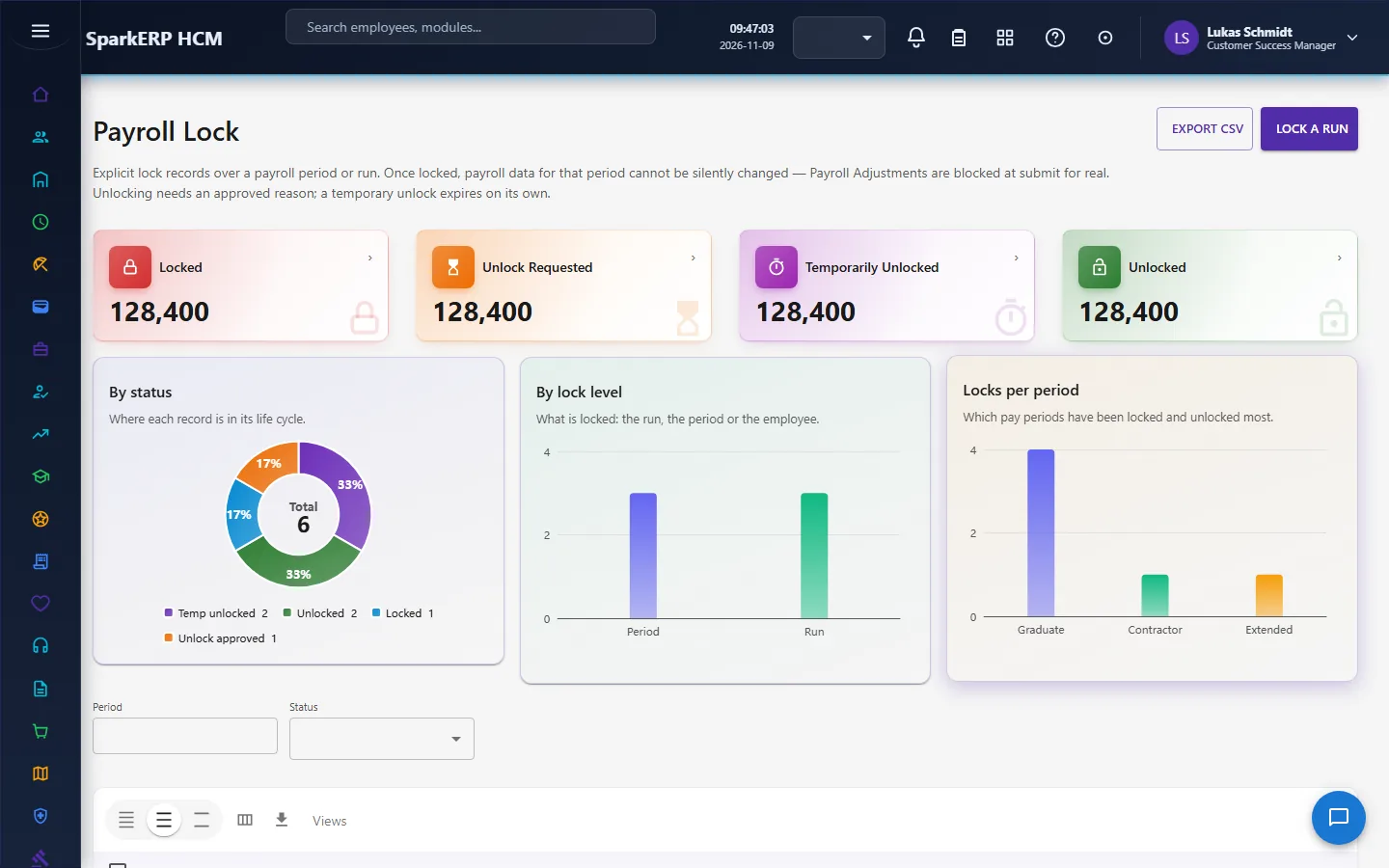
- Payroll Lock. A finalized run can be locked at run or period level. Unlocking is a request that goes through the approval, then a temporary unlock that re-locks by itself when it expires. A tenant can lock automatically at finalize.
2.6 Payments that are not the regular run
- Off-cycle and final settlement. A leaver's settlement is calculated from payroll data: salary to the last working day, leave encashment as Leave allows it, notice shortfall, loans, expense advances and gratuity. It only proposes; HR and Finance approve it. Paying it turns the approved items into adjustments and creates a Final Settlement run for that person, which then goes through the same tax, payslip, bank and journal flow.
- Retro pay. A raise backdated to March and entered in June leaves the March to May payslips on the old figure. Retro pay compares what the finalized runs paid with what the compensation in force gives now, and creates one draft adjustment for the pay period you name. It goes through the normal adjustment approval. It does not reopen paid runs, and it does not recompute bonuses, overtime or one-off adjustments; tax and contributions are worked out by the next run on the adjusted gross. It is refused when the setting for back-dated payroll is off.
- Loans and advances. Loan accounts and their repayments are tracked in Payroll, with a guard that a repayment never exceeds the balance. A repayment is recorded by a person; the run does not take it automatically, so enter it as a deduction adjustment if it should come off pay.
- Tax year end. Year-to-date ledgers are committed when a run is finalized, and tax year-end documents are built from them.
3. Who does what
| Role | What they do |
|---|---|
| Payroll Administrator | Sets up components, structures, pay groups, calendar and rules; creates and calculates runs; submits; finalizes; payslips, bank batch, journal, lock. |
| Payroll Reviewer | Reviews runs; approves runs, bank batches, bonuses, compensation changes and unlock requests. |
| Payroll Auditor / Auditor | Reads runs, results, controls and data checks. |
| Finance Approver / Finance | Reads Payroll Accounting and Bank Transfer; posts the journal and handles bank returns. |
| Compensation Administrator / Manager | Maintains employee compensation and pay changes. |
| HR Administrator / Manager / Executive | Employee compensation, payroll dashboard, and the master data payroll depends on (bank details, status). |
| Employee | Sees their own payslips and tax. Cannot open the administration screens. |
Screens are open to the roles that run them. An employee who types an administration address gets no page.
3a. What each role sees, screen by screen
The employee
An employee sees My Payslips and My Tax under Employee Services. The payslip appears when it is generated, or published, according to the tenant's setting.
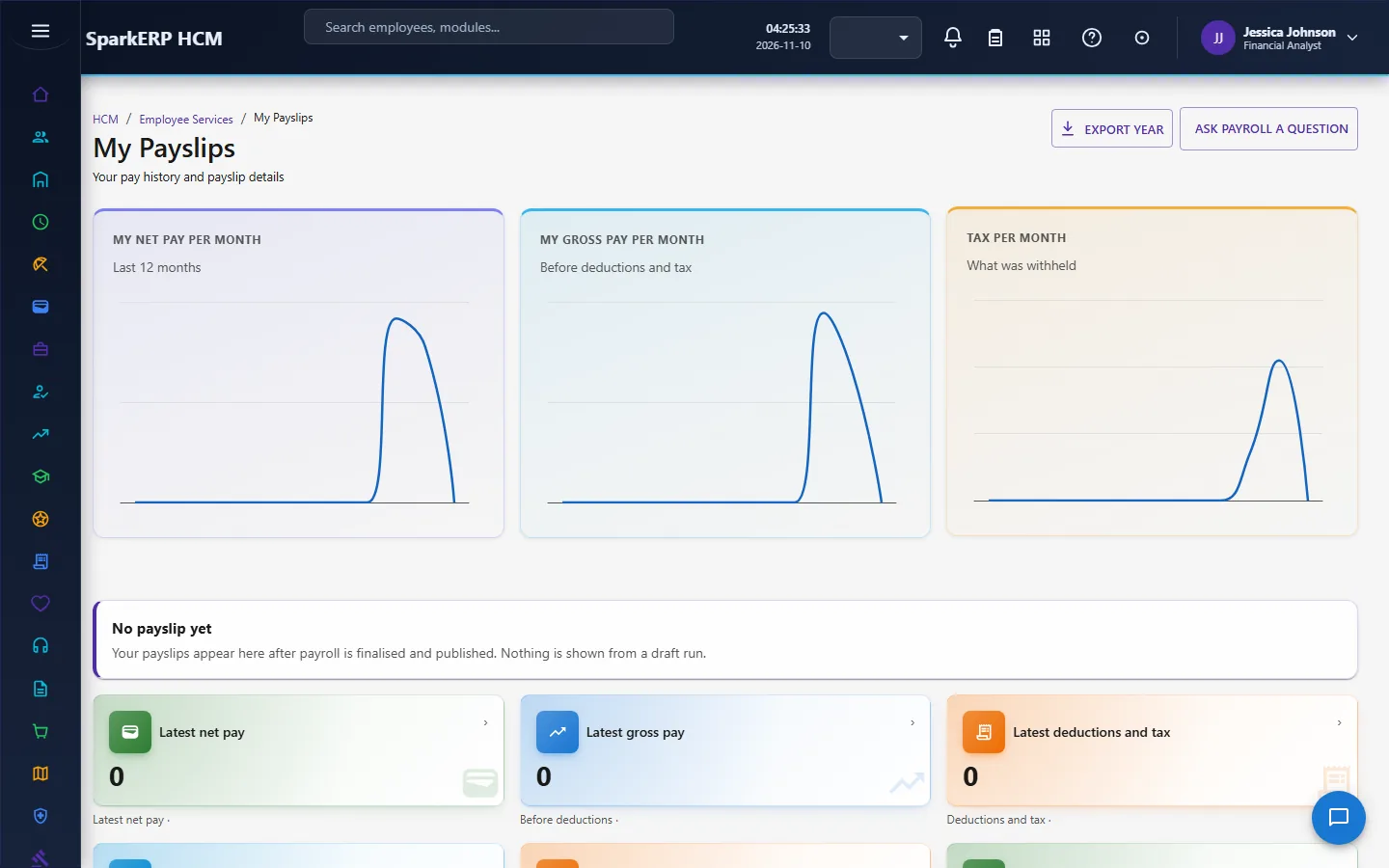
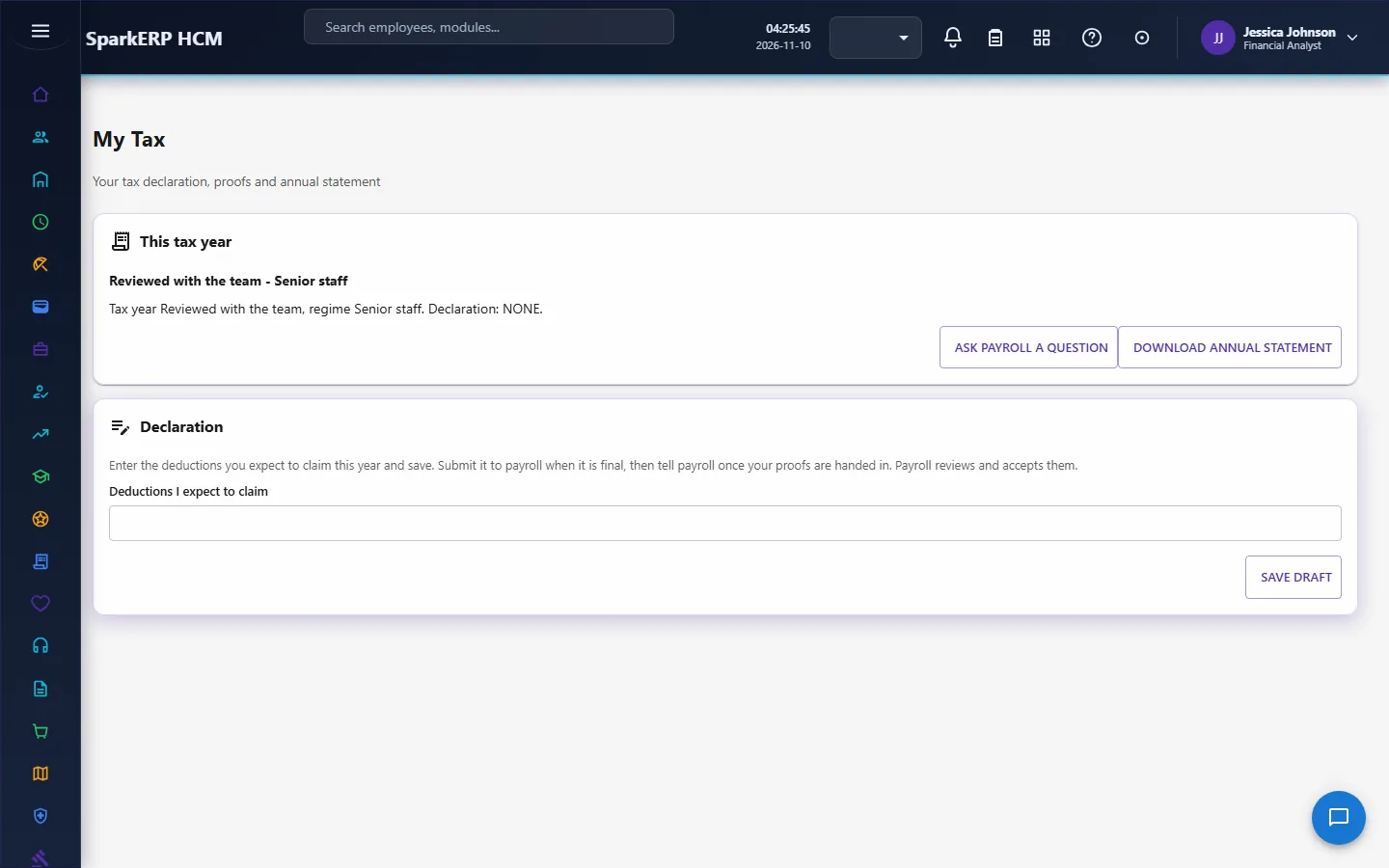
The Payroll administration screens do not exist for them: opening the Payroll Runs address shows that no page matches.

The payroll administrator
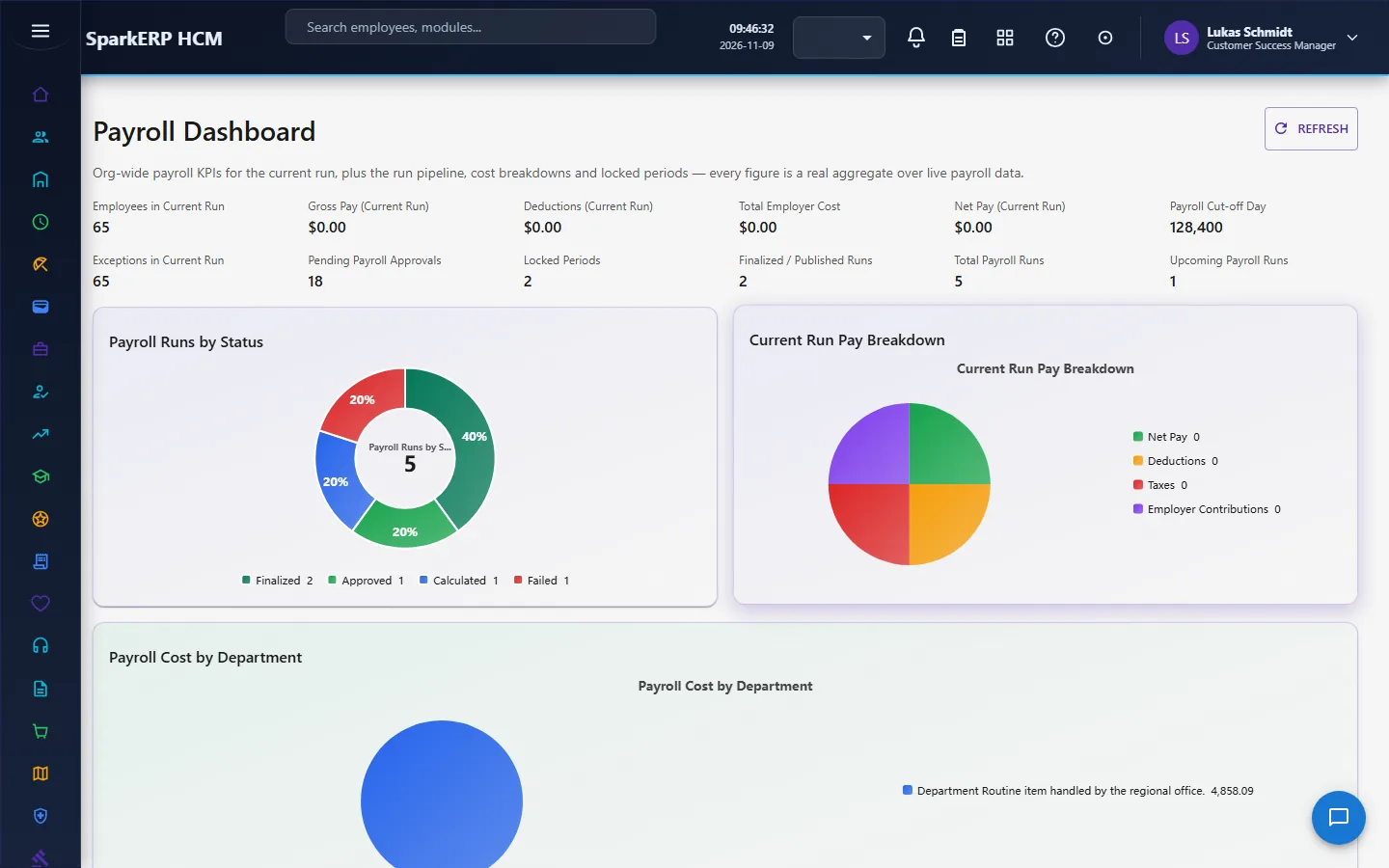
The Payroll Dashboard is the start: runs by status, what is waiting, and the money.
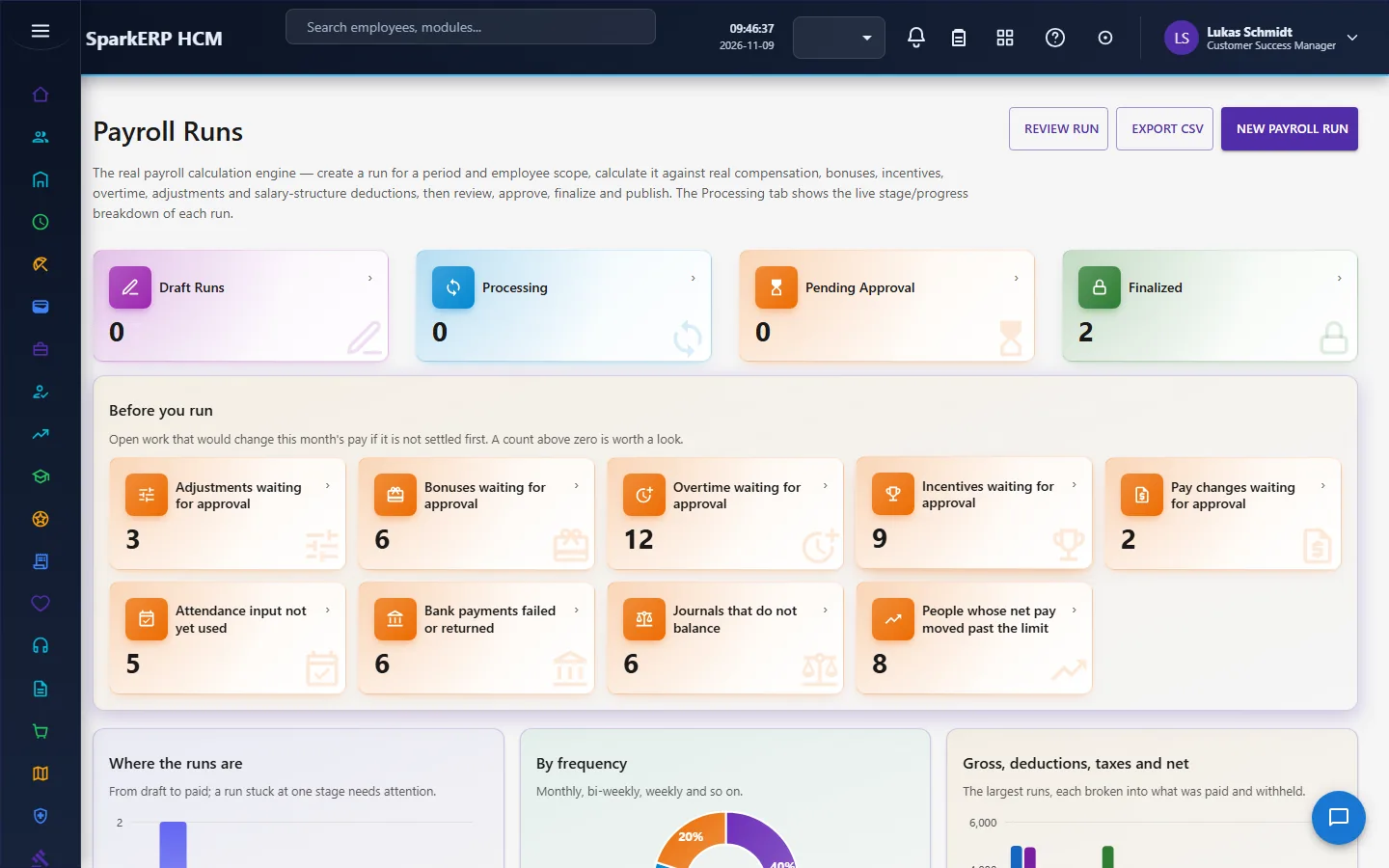
Payroll Runs lists the runs and the four status cards (draft, processing, pending approval, finalized). Above the table, Before you run shows open work that would change this month's pay if it is not settled first: adjustments, bonuses, overtime, incentives and pay changes waiting for approval, attendance input not yet used, bank payments that failed or came back, journals that do not balance, and people whose net pay moved past the limit. A count above zero is worth a look before you calculate.
Payroll Run Results is the review screen: every person's line, with the exception text and the flag for a large move.
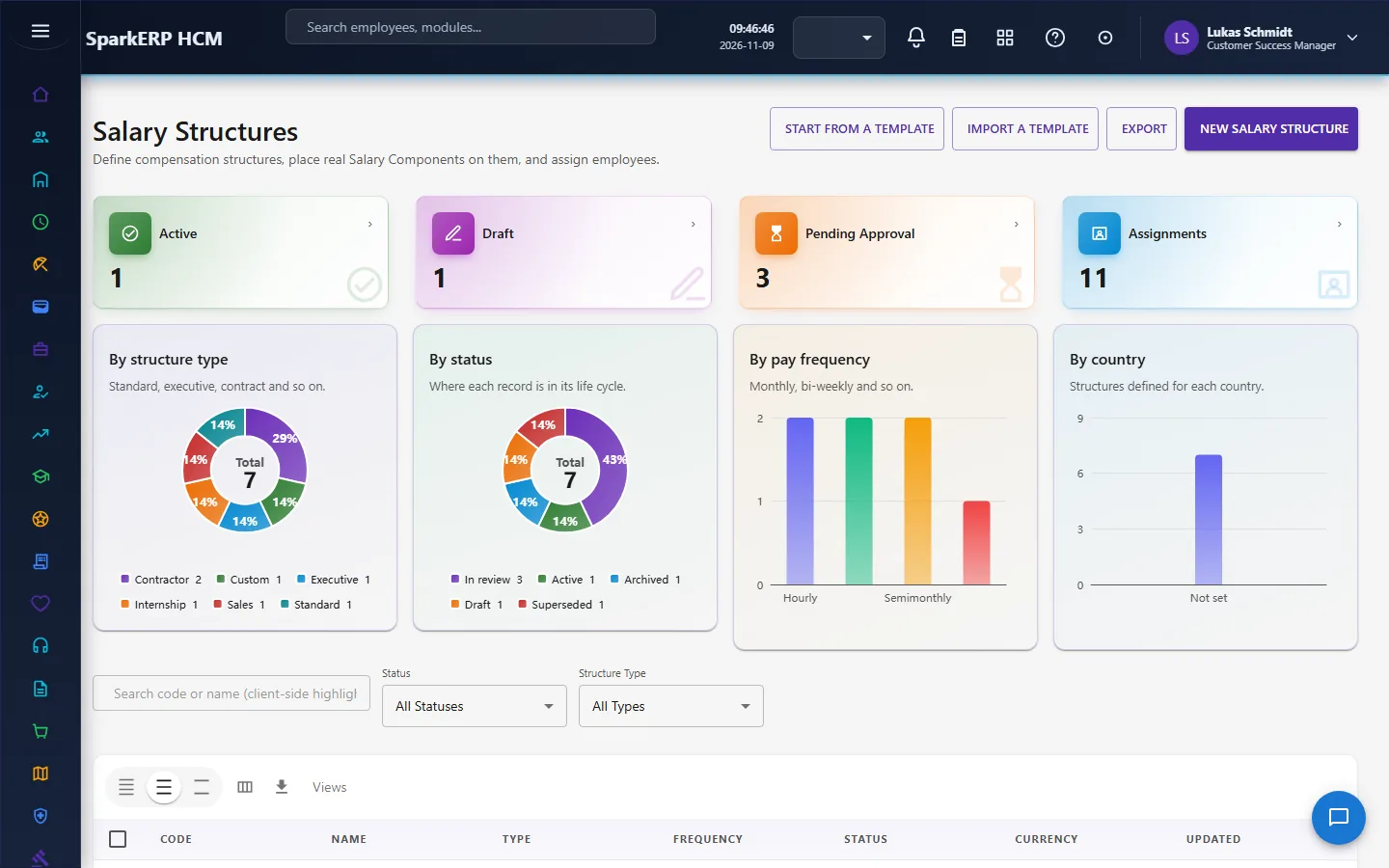
Salary Structures and Statutory Rules hold the rules of the calculation.
After the run: Payslips, Bank Transfer and Payroll Lock.
Finance
Finance reads Payroll Accounting (the journal and whether it balances) and Bank Transfer (batches and their returns).
4. Decide before you set up
| Decision | What to think about |
|---|---|
| Pay frequency and calendar | Monthly, semi-monthly, biweekly, weekly, quarterly or annual. Monthly periods are calendar months; semi-monthly is the 1st to the 15th and the 16th to month end. |
| Pay groups | A run is for one group. Split by country, legal entity or pay cycle. |
| Currency and exchange rates | One run currency; people paid in another currency need a rate in the run. |
| Rounding | Decimal places and the rounding method (default 2 places, half up). |
| Proration | Calendar days or working days for joiners and leavers. |
| Negative net pay | Allow, carry forward, or refuse. |
| Approval | Keep the approval workflow on. Auto-approve clean runs only when you trust your data checks. |
| Locking | Lock automatically when a run is finalized, or lock by hand. |
| Payslips | Generate automatically at finalize, publish manually or on approval, whether employees can see them. |
| Back-dated payroll | Whether retro pay is allowed. |
| Accounting | Whether payroll posts a journal, and the ledger accounts it posts to. |
5. Set up step by step
- Switch payroll on and set the rules. In HCM Settings, Payroll: name, frequency, currency, decimal places and rounding method, proration method, negative net pay policy, approval, locking, payslip behavior, back-dated payroll, accounting integration.
- Salary components. Create the earnings, deductions, benefits and employer contributions you use (see Salary Components, Salary Structures, Earnings & Deductions).
- Salary structures. Group components into structures and assign them to people.
- Pay groups. Create the groups a run is made for.
- Statutory rules and tax. Make sure the country's contributions and tax regime are in place: from the country pack, or enter Statutory Rules and tax slabs. Check a sample person with the structure's test calculation before the first run.
- Employee compensation. Every person needs an active compensation record with an annual base salary, a currency and a pay group. A person without it is an exception.
- Bank details. Employee Information holds each person's bank account; Payroll Data Checks lists those who have none.
- Payroll calendar and deadlines. Add the periods with their cut-off and pay dates, and the statutory deadlines to be reminded of.
- Review limits. Set the variance limit that flags a large move in net pay.
- Ledger accounts. Map the components to ledger accounts for the journal.
- Roles. Give the Payroll Administrator and Payroll Reviewer roles to the right people. Approvals go to those two roles.
- Do a trial run. In a trial tenant, generate the Payroll demo packs, run a period, and read the results before the first real one.
6. Daily use
6.1 Running a month
- Open Payroll Runs and read Before you run. Settle what is waiting: approve or reject the bonuses, overtime, incentives, adjustments and pay changes.
- Check attendance input has been received and used.
- Place holds on people who must not be paid in this run.
- New Payroll Run: choose the period, the pay group or scope, and the pay date.
- Calculate. Read the exceptions and flagged people on Run Results; fix the cause (compensation, exchange rate, bank detail) and recalculate.
- Submit for approval. A Payroll Administrator or Payroll Reviewer approves.
- Finalize. Year-to-date ledgers are committed; payslips and the lock follow if the settings say so.
- Payslips: generate if not automatic, then publish.
- Bank Transfer: create the batch, approve it, export the bank file, send it through your bank, and import the return file.
- Payroll Accounting: generate the journal, confirm it balances, post it.
- Lock the run if it is not locked automatically.
6.2 Correcting a mistake after finalizing
Never edit a finalized run. Choose the way that fits:
- A one-off difference for a person: an adjustment for the next period.
- A backdated pay change: retro pay creates the adjustment for you.
- A locked run that must change: request an unlock, wait for approval, correct, and it re-locks when the time expires.
6.3 A leaver
Separation proposes the final settlement from payroll data; HR and Finance approve it; paying it creates the Final Settlement run for the person.
7. A calendar of recurring work
| When | What |
|---|---|
| Before the cut-off | Approve bonuses, overtime, incentives, adjustments, pay changes; chase attendance input. |
| Cut-off day | Apply holds; run data checks. |
| Calculation day | Calculate, review exceptions and flagged people. |
| Approval | Submit and approve. |
| Before pay date | Finalize, payslips, bank batch and file. |
| Pay date and after | Handle returns; journal; lock. |
| Month end | Reconcile the journal. |
| Year end | Tax year-end documents from the year-to-date ledgers. |
| Any time | Statutory deadlines on the Payroll Deadlines page. |
8. Reports and figures
The Payroll Dashboard, Payroll Reports, Component Ledger and Country Payroll Rollup show cost over time, by component and across countries. The rollup is calculated when you open it. Payroll Controls shows cost per employee from run to run and the net pay moves. Every list can be exported to CSV.
9. Limits you should know about
- Payroll never sends money to a bank. It builds the file and reads the reply.
- Built-in contribution resolvers exist for India, Singapore and the United States. Other countries rely on Statutory Rules you or the country pack enter. The rates are only as right as the rows.
- Tax is only as right as the slabs. The engine is country-neutral; the regimes and slabs come from data.
- Retro pay does not re-compute bonuses, overtime or one-off adjustments, and it never reopens a paid run.
- Controls mark records for review and do not prove fraud.
- Approval is single-stage. There is no multi-level approval chain for a run.
- Loan repayments are not taken automatically by the run. Record them and enter the deduction as an adjustment.
10. Troubleshooting
| Symptom | Cause and fix |
|---|---|
| A person is missing from the run | An active hold, no active compensation, or not in the run's scope. |
| A person is in Exceptions | Read the line: no compensation, no exchange rate, or negative net pay that the settings do not allow. |
| Tax is zero for someone | No tax regime resolved for them; the line carries a warning. Assign the regime. |
| No contributions were taken | The person has no country profile, or the country has no rule. |
| The journal does not balance | Open Payroll Accounting; the gap is shown. A component has no ledger account, or an account mapping is wrong. |
| An employee cannot see a payslip | Not generated or not published yet, or payslips are hidden from employees in Payroll Settings. |
| Cannot finalize | The run is not Approved. |
| "Back-dated payroll is switched off" | Turn the setting on in Payroll Settings. |
| A screen says you do not have access | The role does not run that screen. Ask for the Payroll Administrator or Reviewer role. |