
Appearance
Shift Scheduling: how it works and how to set it up
Shift Scheduling answers the questions a company with shift work asks every week: what shifts do we run and who follows each one, who works when, do we have enough people on every shift, are the schedules fair and legal, what happens when someone swaps or calls in, and what is the plan of record. This guide explains how the module works from start to finish, then how to set it up, then what each person sees. Shift Scheduling has three screens, Shifts, Scheduling and Rosters. The rules behind them run in the Time & Attendance engine, so the Time & Attendance guide explains how a day of attendance is worked out; this guide is the one to read first for planning.
1. What Shift Scheduling does for your business
- Defines shifts: their times, their breaks and how long they really are.
- Assigns shifts to people, teams, departments, locations, business units or the whole organization, with the most specific assignment winning.
- Builds schedules by hand, by copying, from a rotation, by importing, or with the auto-scheduler.
- Checks every schedule against the rules (rest, hours, days in a row, a day off) and against staffing requirements.
- Handles change: open shifts, swaps, availability and changes after publishing.
- Keeps the plan of record. A roster names the published schedules whose days are in force, and tracks adherence.
- Feeds attendance. The daily attendance engine reads the published days, so the schedule is what attendance is measured against.
What it does not do: it does not pay anyone or track hours worked. It plans; Time & Attendance records what actually happened, and Payroll pays it.
2. How shift scheduling works, end to end
2.1 The path of a schedule
- Shifts are defined and switched on (with an approval if the tenant asks for one).
- People are assigned to shifts.
- Staffing requirements say how many people each shift needs, by day.
- A schedule is built, by hand or with the auto-scheduler, as a draft.
- It is checked for conflicts and coverage, then approved and published.
- A roster names the published schedules that are in force.
- Attendance reads the published days. Changes after publishing are recorded.
2.2 Shifts
A shift has times, breaks, a type (fixed, flexible, overnight or rotational), the length the server works out (aware of shifts that cross midnight, and less any breaks nobody is paid for), flexible hours, rest and an allowance. A shift is draft, then pending approval, active, and later inactive, expired or archived. A shift can be switched on only after the checks pass, and with an approval when the tenant asks for one (a task for the HR Manager, due within three days). Every change keeps a history nobody can change.
Which shift a person follows on a day is decided by assignment. An assignment can be to the person, or else to their team, department, location, business unit or the whole organization, and the most specific one wins. An assignment can be made, replaced, changed, ended, and moved when a shift is switched off. The daily attendance engine asks the same question the page shows, so what Shifts shows is what attendance does.
2.3 Staffing requirements and coverage
A staffing requirement says how many people a shift needs, with the skills needed. The schedule's coverage compares what is planned with what is required and shows where it is short or overstaffed.
2.4 Schedules and their rules
A schedule is a grid of people against days. Several kinds of limit are checked, and each broken rule is a conflict:
- Rest between two shifts.
- Hours a day and a week.
- Days in a row.
- A day off in the week.
- Overlap with another shift the same day, a duplicate, leave, a holiday, a weekly off, overnight rules, the person's availability and preference, and a missing skill.
- Staffing: a place not filled, or overfilled.
Conflicts are kept up to date after every change. Each is an error or a warning. A schedule is moved through draft, validated and approved. The auto-scheduler uses the same checks, so what it builds is what the checks accept.
2.5 Building a schedule
A schedule can be made by hand, copied from another, from a rotation, auto-scheduled, or imported. Days can be set one by one; open shifts, staffing requirements and availability are managed here too.
2.6 The auto-scheduler
The auto-scheduler fills the gaps between what the staffing requirements ask for and what is already planned, day by day, from a pool of people, then improves the result in three steps:
- Fill. For each place still to fill it takes, from the people who may work it without breaking a hard rule (leave, holiday, availability, a shift already that day, rest, hours a day and a week, days in a row, a day off in the week, skill), the one who has the least so far (hours, nights, weekends). A second pass lets people work a day they would rather avoid.
- Repair. A place still empty is tried by an ejection chain: a person blocked only by a day this run itself gave them has that day moved to somebody else who may take it, and then takes the empty place. Up to two such days are tried for each person, and a move is undone when it does not free the place.
- Balance. While the person with the most and the person with the least are further apart than one shift, a day this run made is moved from the first to the second when the rules allow it.
What cannot be filled is listed with the reasons, and the result is a draft for a planner to review. It is a heuristic with local search: it does not promise the best schedule that exists.
2.7 Open shifts, swaps and changes
Open shifts are places nobody holds yet. Swaps let people exchange shifts. Changes after publishing are recorded as amendments, and a change to a day in force makes the engine work out again what depends on it. Employees can declare availability and see their own schedule.
2.8 Rosters and rotation patterns
A roster is the plan of record. It names the published schedules whose days make it up, and works out what is true about those days: who has none, what each version held, which working-time rules the days break, whether people kept to them (adherence), when days lock, and what has to be worked out again when a day in force changes. The attendance engine keeps reading the published days of the schedules; the roster adds the record, and nothing here can make attendance read something else.
Rotation patterns are a cycle of days for each crew, written with tokens (D for a day shift, N for a night shift, M, E and so on for the organization's own, O for a day off). The well-known 12-hour rotations come with the product, and an organization can add its own as a cycle of days for each crew. When a pattern is used, the tokens are tied to real shifts and the crews to real people, and the days are written into a schedule. A roster also has compliance profiles, acknowledgements by the people on it, and a link for a person's own calendar.
2.9 Approvals
Shifts, schedules, schedule requests and rosters each go through an approval task due within three days, decided by the HR Manager.
3. Who does what
| Role | What they do |
|---|---|
| Attendance Shift, Schedule and Roster administrators | Each runs one area: shifts, schedules or rosters. |
| HR Manager | Decides the approvals of shifts, schedules, schedule requests and rosters. |
| HR Administrator and HR Executive | Run the planning across the organization. |
| Employee | Sees their own schedule and roster, declares availability, asks for swaps. |
The Scheduling and Rosters screens are planner screens and show everyone's plan, so they are open only to the planning roles, HR and the auditor. A line manager decides on their team through their approvals.
3a. What each role sees, screen by screen
The employee
An employee sees their own schedule on My Attendance. The planner screens are not open to them.


The HR administrator
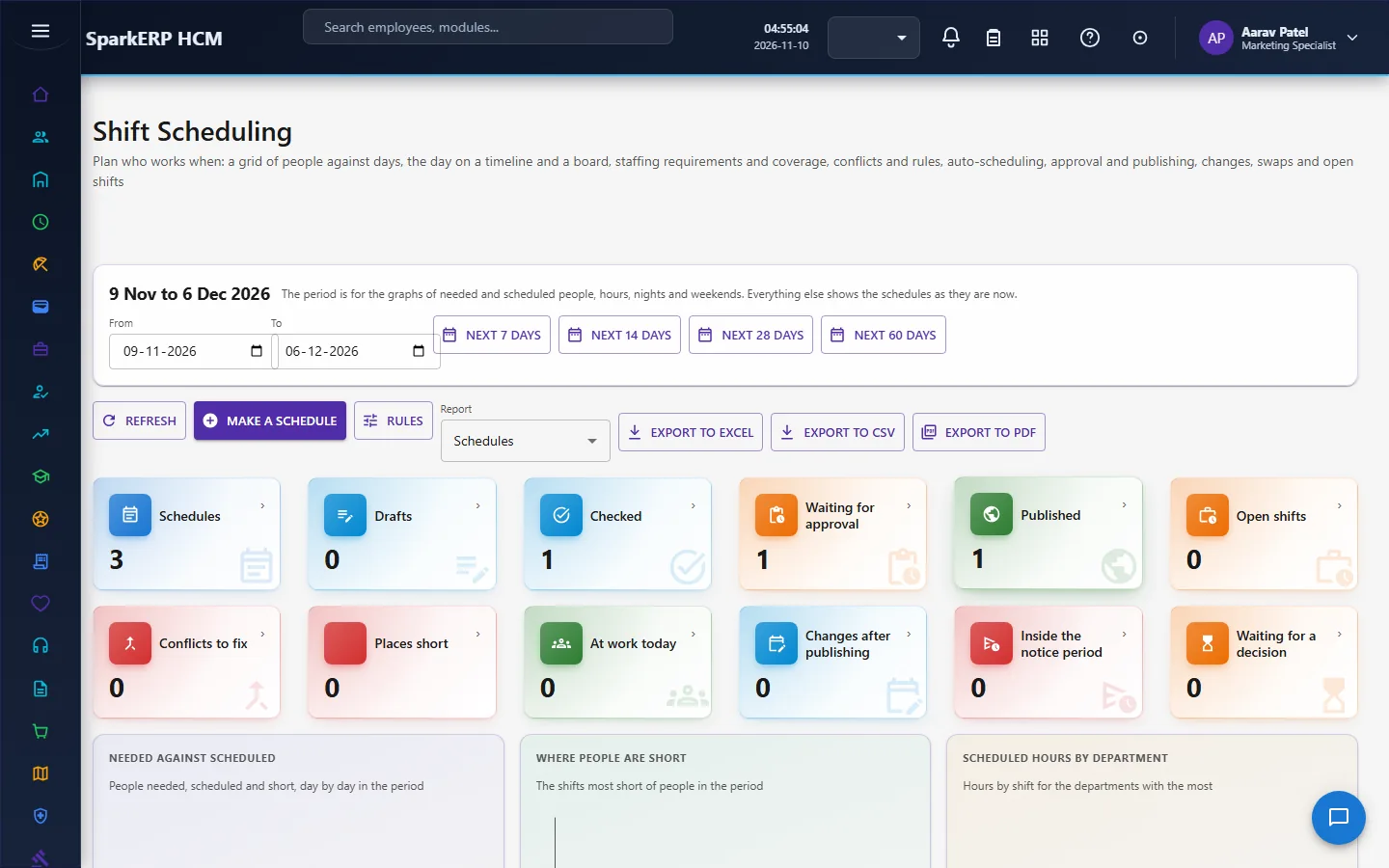
Shifts defines the shifts and who follows them.
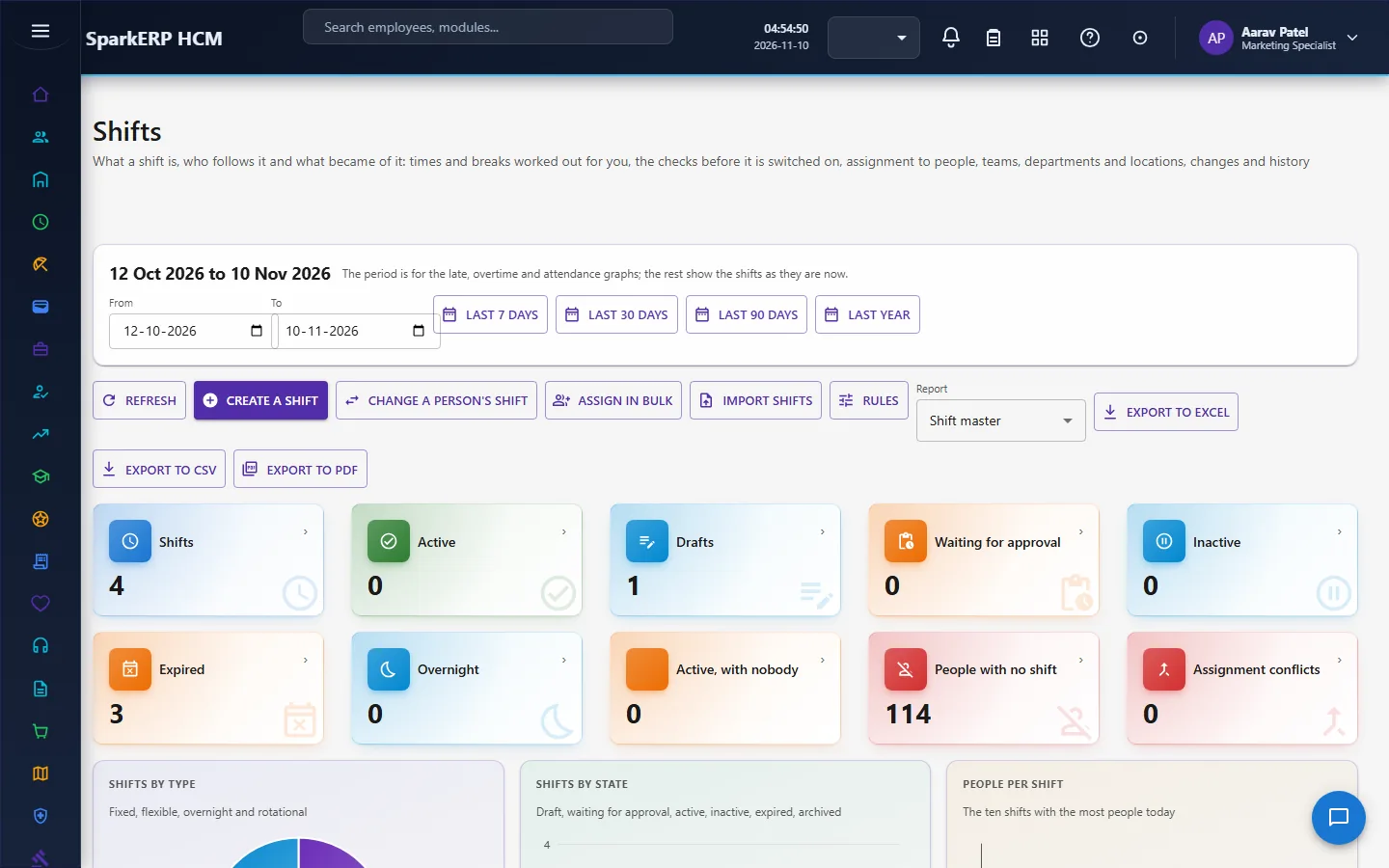
Scheduling builds and checks the schedules.
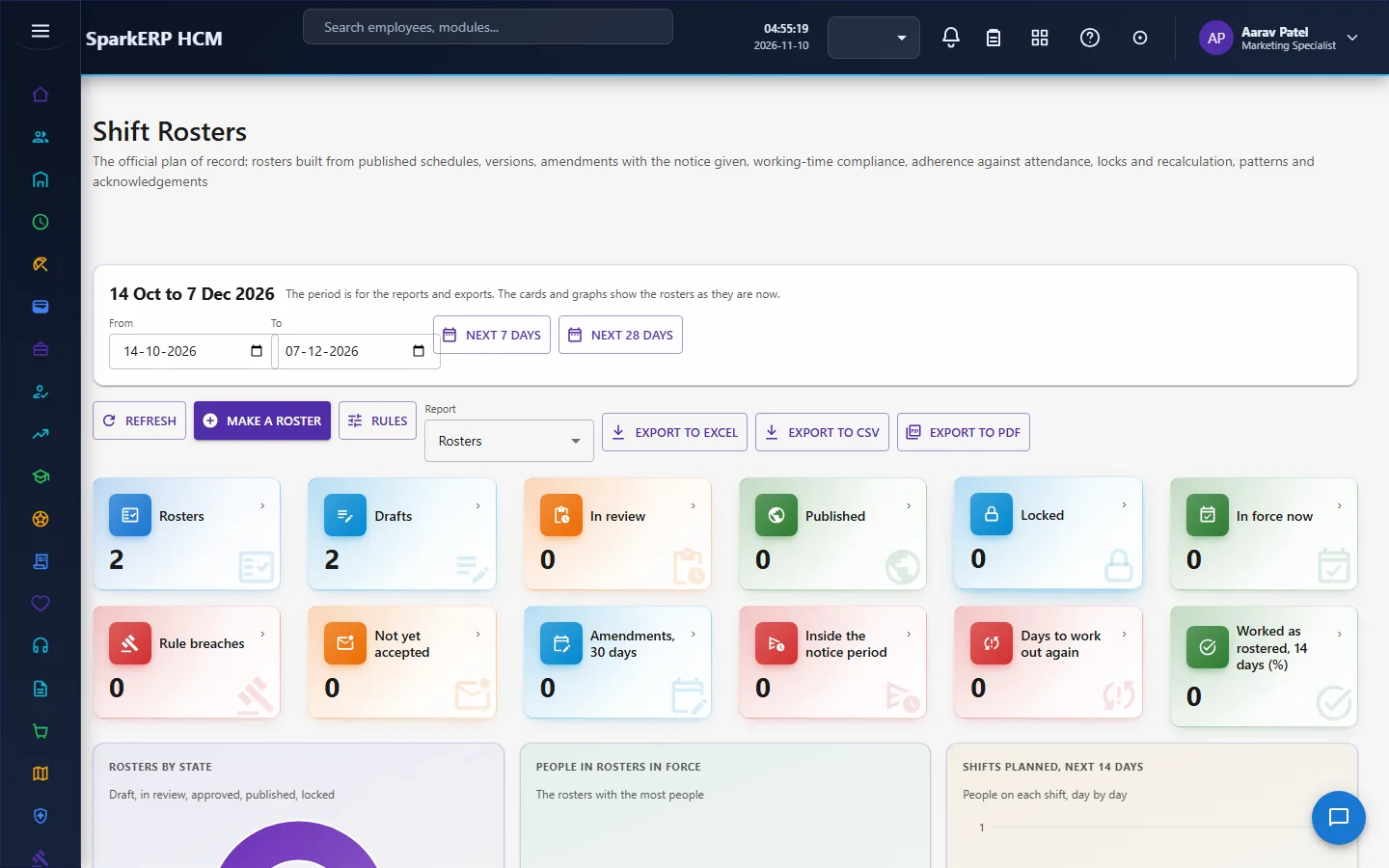
Rosters keep the plan of record.
4. Decide before you set up
| Decision | What to think about |
|---|---|
| The shifts you run | Fixed, flexible, overnight or rotational; their breaks. |
| The limits | Rest between shifts, hours a day and a week, days in a row, a day off. |
| Staffing | How many people each shift needs and which skills. |
| Rotations | Whether you use 12-hour rotations or your own cycle. |
| Approval | Whether a shift or a schedule needs approval. |
| Fairness | The auto-scheduler balances hours, nights and weekends; decide if that is the right balance. |
5. Set up step by step
- Roles. Give the Attendance Shift, Schedule and Roster administrator roles, and the HR Manager role for approvals.
- Shifts. Define the shifts and switch them on.
- Assignments. Assign shifts to people, teams, departments or locations.
- Limits. Set the working-time limits in the attendance policy.
- Staffing requirements. Enter how many people each shift needs.
- First schedule. Build it by hand or from a rotation; run the checks.
- Roster. Create the roster from the published schedule.
- Trial. In a trial tenant generate the Shift Scheduling demo pack and run the auto-scheduler on a week.
6. Daily use
6.1 Planning a period
- Check the staffing requirements and people's availability.
- Build the schedule; run the auto-scheduler for the gaps and read what it could not fill.
- Fix the conflicts; check the coverage.
- Submit for approval, then publish.
6.2 During the period
- Handle swaps and open shifts; record changes after publishing.
- Read the roster's adherence and the breaches of the working-time rules.
7. A calendar of recurring work
| When | What |
|---|---|
| Weekly | Plan the next period; handle swaps and open shifts. |
| Before publishing | Check conflicts and coverage. |
| Monthly | Roster adherence and breaches. |
| Yearly | Review shifts, limits and rotations. |
8. Reports and figures
The schedule and the roster pages show cards and graphs (coverage, conflicts, hours, adherence, breaches of the rules) and reports. Lists can be exported.
9. Limits you should know about
- The auto-scheduler is a heuristic. It produces a draft for a planner and does not promise the best schedule.
- Attendance reads only the published days. A draft changes nothing.
- Scheduling plans; it does not record hours.
- A shift needs its checks (and an approval, if switched on) before it is active.
10. Troubleshooting
| Symptom | Cause and fix |
|---|---|
| A shift cannot be switched on | A check failed, or it is waiting for approval. |
| The auto-scheduler left places empty | The rules (leave, rest, hours, skill, availability) left nobody for them; the reasons are listed. |
| A person has no shift on a day | There is no assignment that reaches them, or the schedule is not published. |
| Attendance does not match the schedule | The schedule is still a draft; attendance reads only the published days. |
| A roster shows a breach | A published day breaks a working-time rule; fix it with a change after publishing. |
| An employee cannot open Scheduling | It is a planner screen. |