
Appearance
Employee Documents (HCM): from setup to daily use
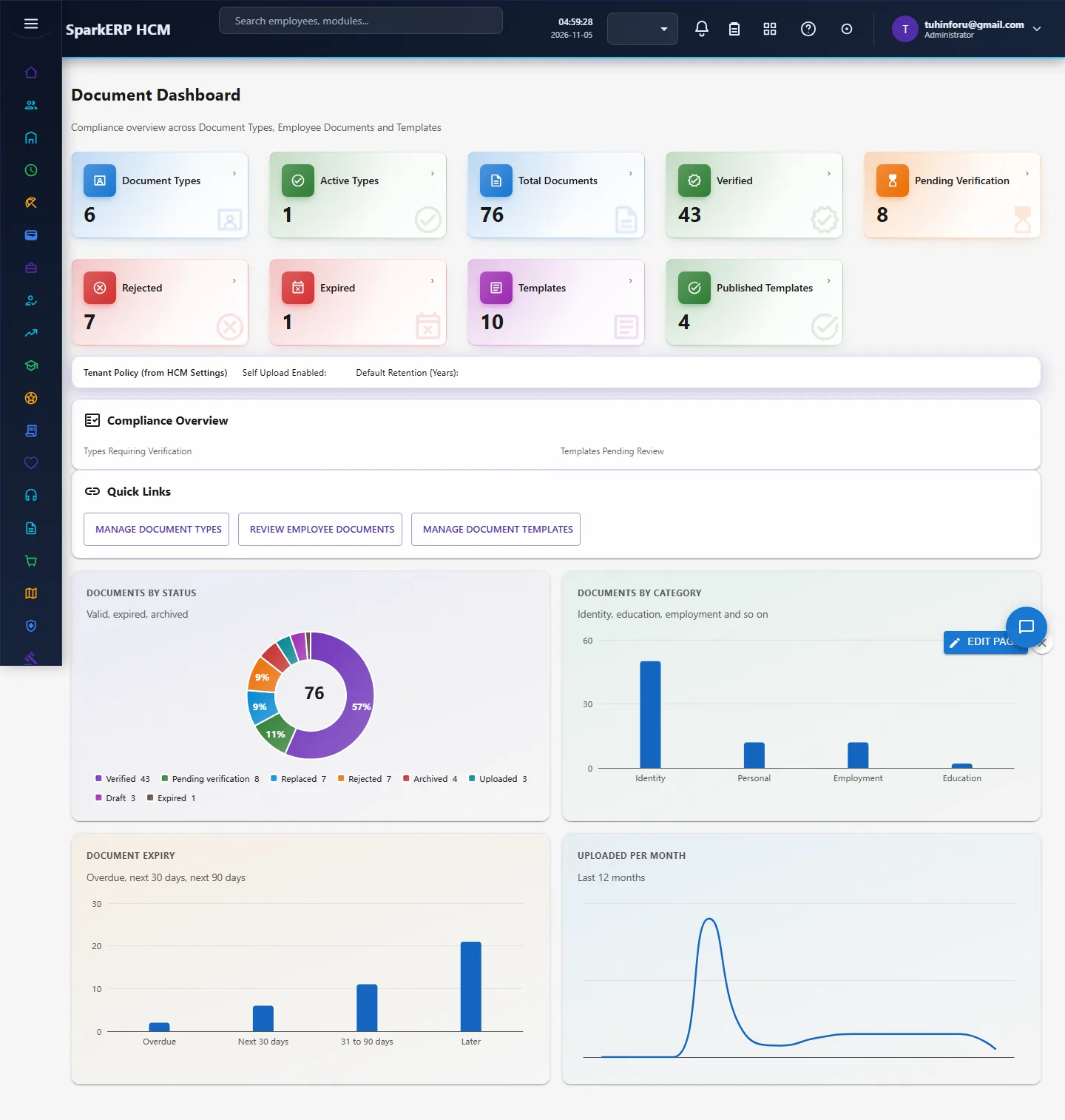
Employee Documents holds the papers that belong to a person's employment: IDs, contracts, certificates, letters. Each document is uploaded to the platform's document store, goes through verification, can carry an expiry date, and can be requested, generated from a template, signed digitally and shared. HR can see at a glance what is missing, expiring or unverified.
1. Who uses it
| Role | What they do |
|---|---|
| HR administrator | Defines document types and requirements, requests and verifies documents, issues letters, reads compliance. |
| Employee | Uploads requested documents and signs what is sent to them. |
| Manager | Sees the documents of their team where the type allows it. |
| A third party (a bank, a new employer) | Checks a document's authenticity with its verification code, without a login. |
2. Before you start
- Installed plugins.
hcm-employee-documents(needs HCM Foundation). It is the free tier. - Employees must exist in Core HR; documents are kept per employee.
- Trial data. In a trial tenant, generate the Documents pack in Demo Data: document types, requirements, documents with verification and expiry, templates, signature requests and shares.
3. Set up
Document types. Open Document Types and define what you keep: name and code, category, whether it has an expiry and the default validity, the renewal reminder days, whether verification or approval is needed, allowed file types and size, and the retention period in years.
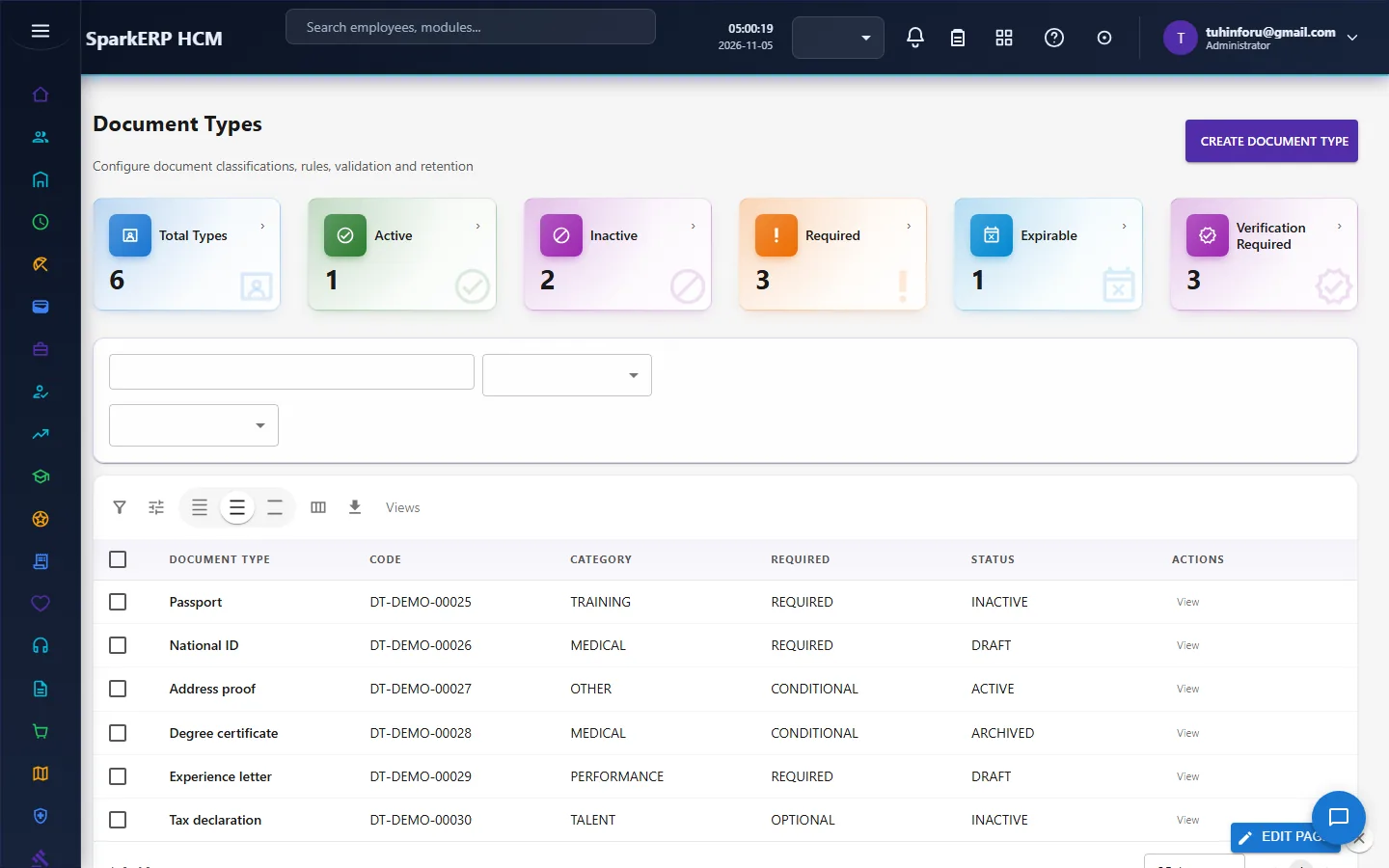
Requirements. Say which types each kind of employee must hold (by employee category, department, country, position, location or employment type), mandatory or not, with a grace period. These drive the missing-document figures.
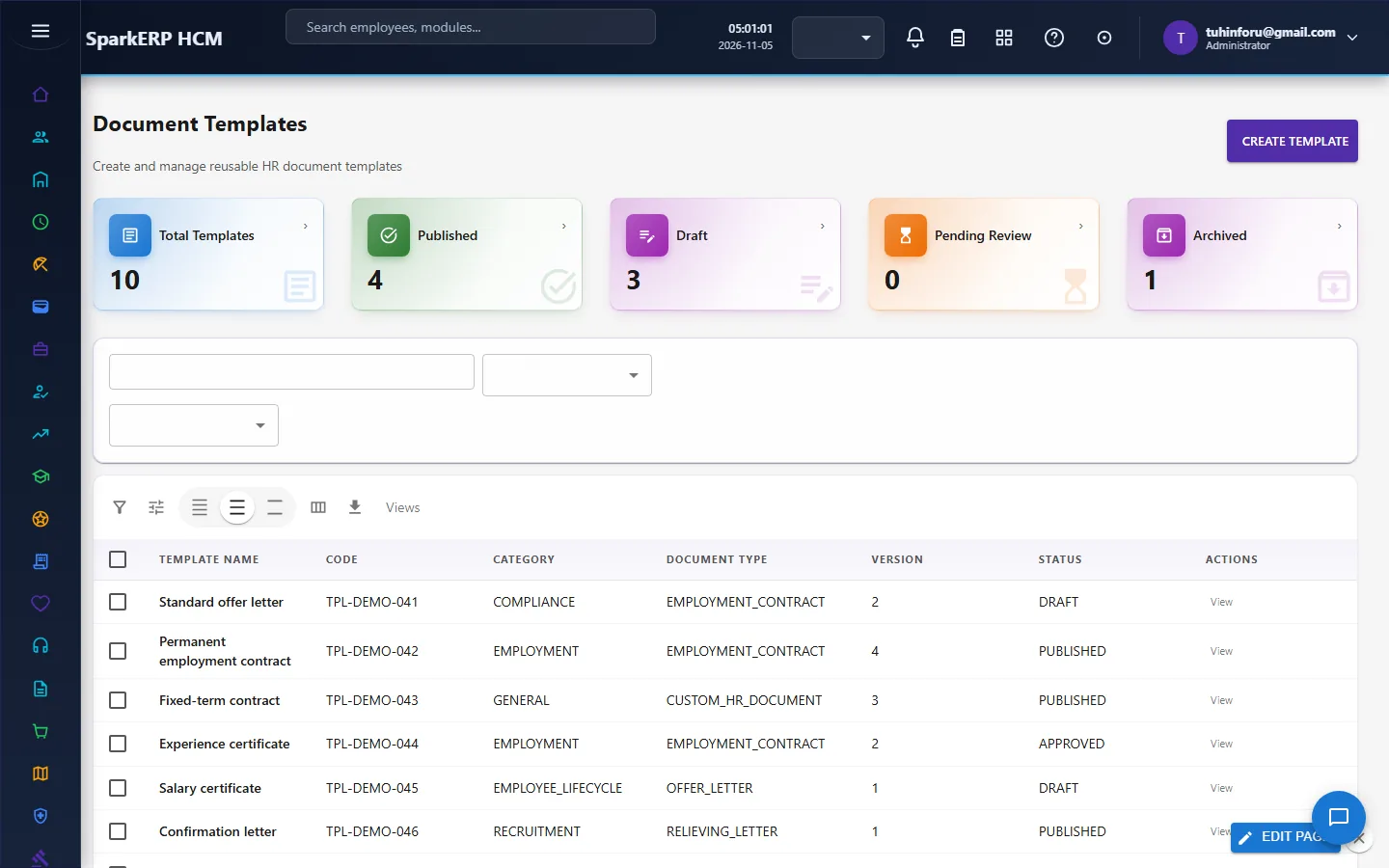
Templates. In Document Templates keep the letters and forms you generate (offer, salary, experience letters, certificates) with merge fields; a template is published, draft, in review or archived.
4. Daily use
4.1 Keep and verify documents
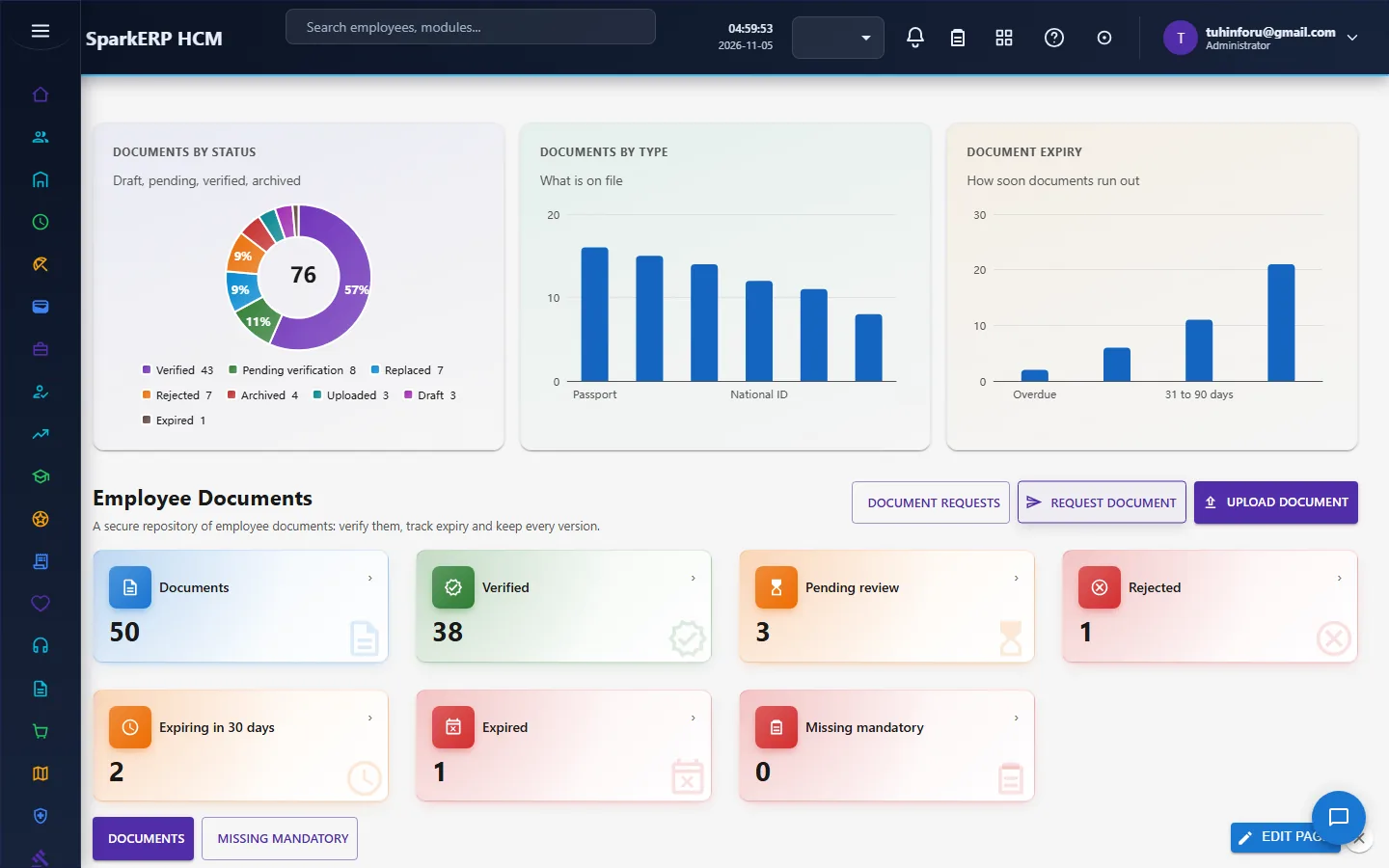
Employee Documents lists every document with its type, employee, issue and expiry dates, status and verification state. Upload through the platform's storage; verification moves a document from pending to verified or rejected.
4.2 Ask for a document
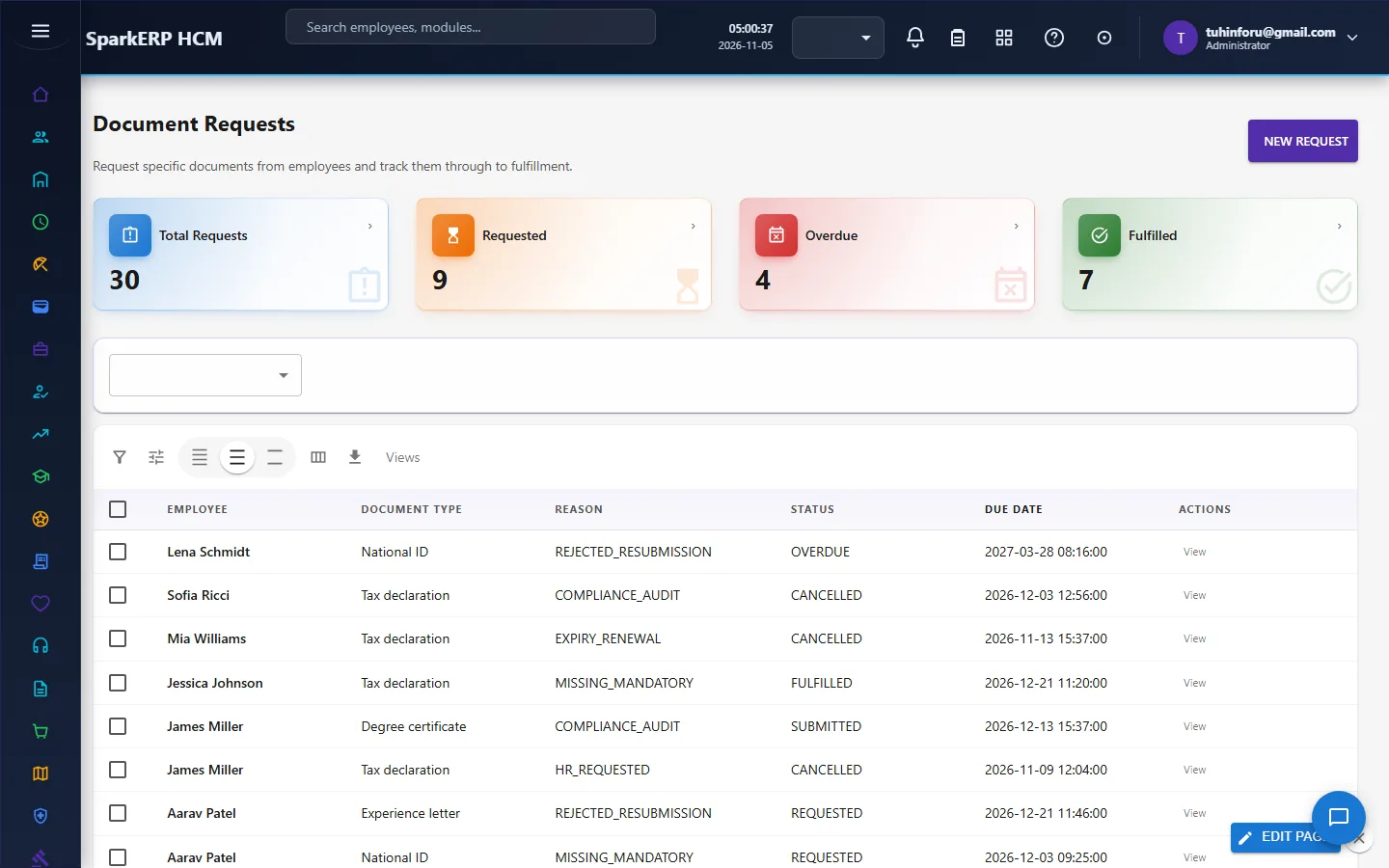
Document Requests asks an employee for a specific document, either raised by HR or started automatically from an expiring document's Start renewal.
4.3 Sign
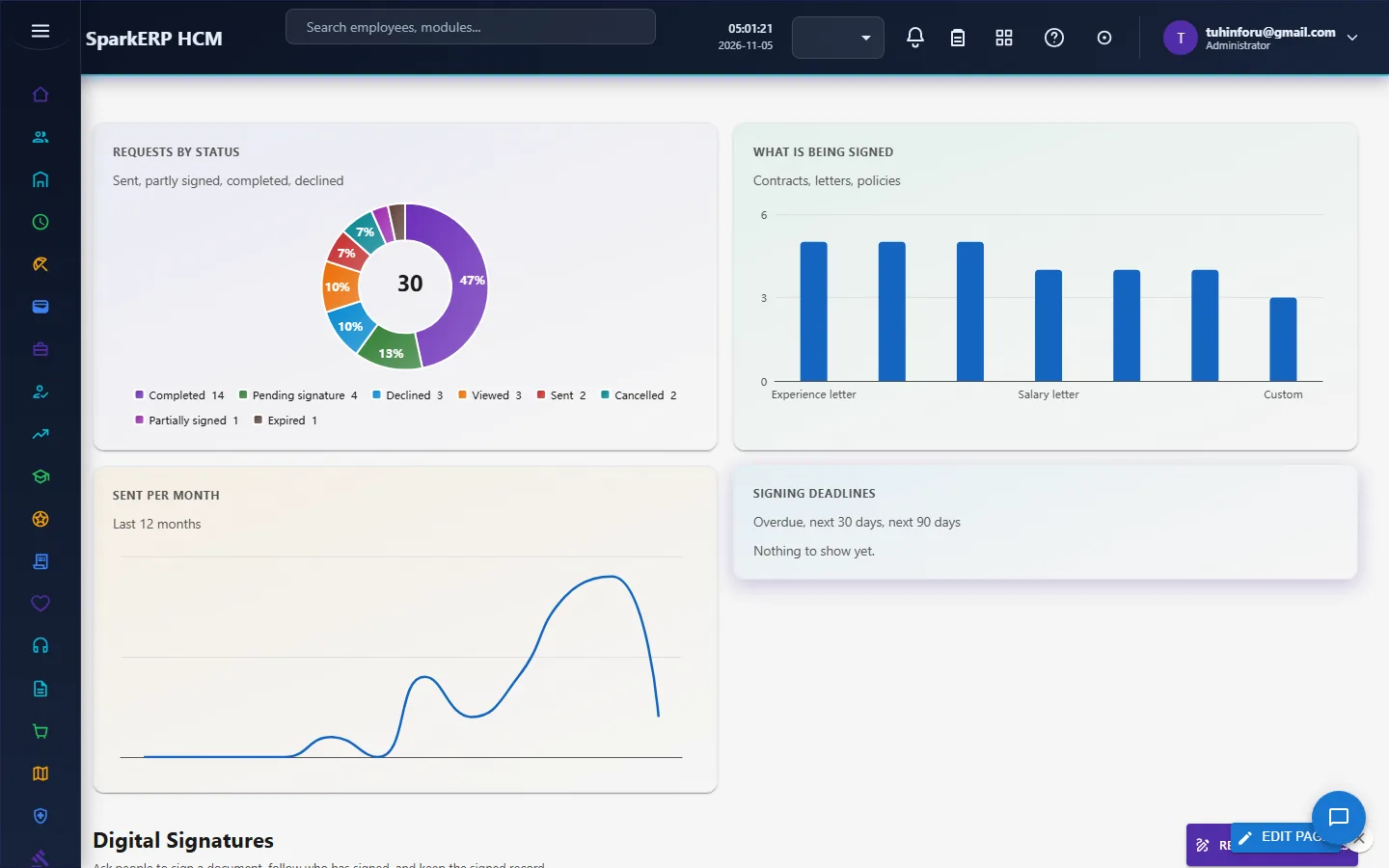
Digital Signatures sends a document to its signers in order and tracks each request: sent, partly signed, completed, declined, cancelled or expired, with the signing deadline.
4.4 Watch expiry
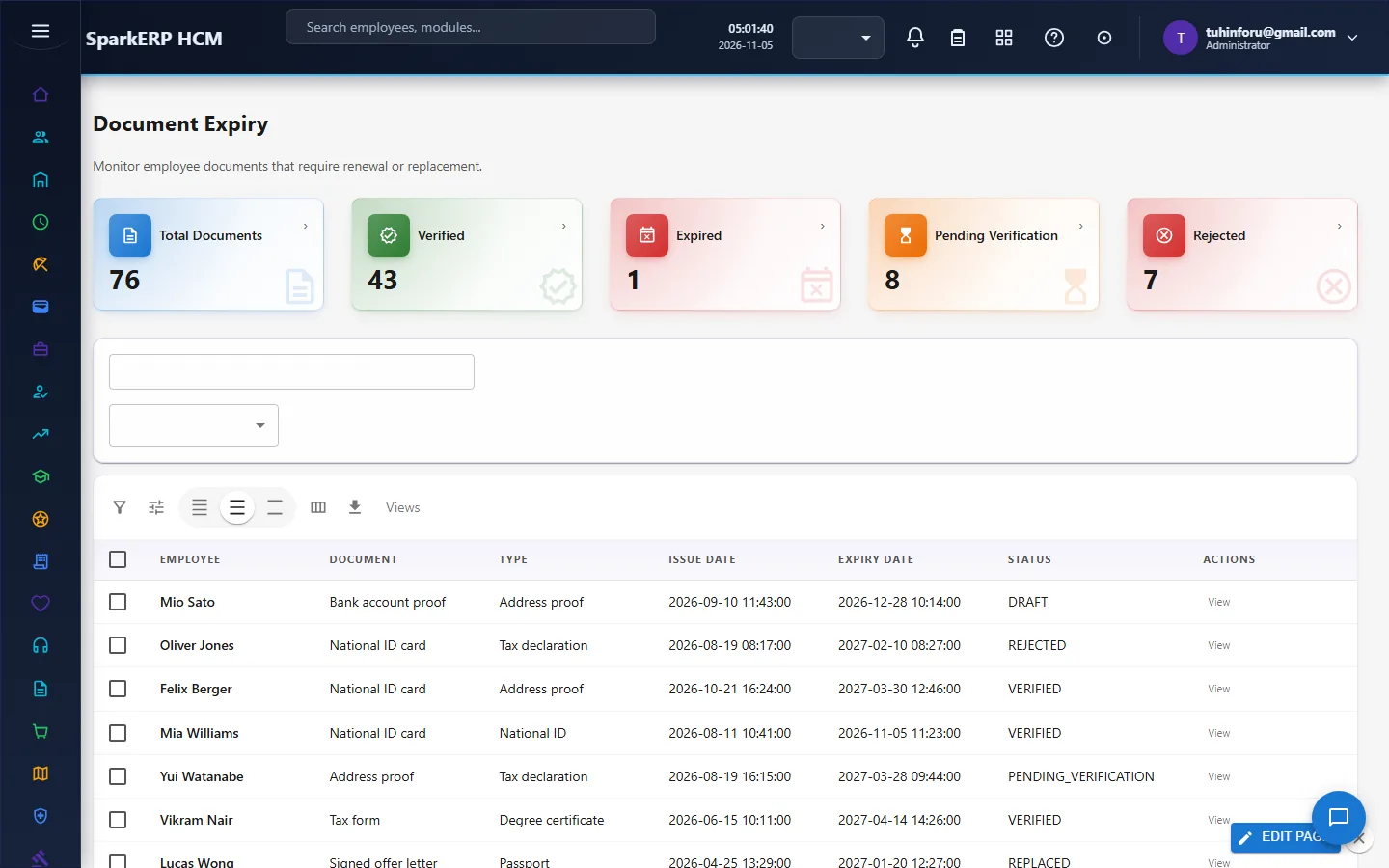
Document Expiry lists what lapses soon, so a renewal can be requested in time.
4.5 Let others verify
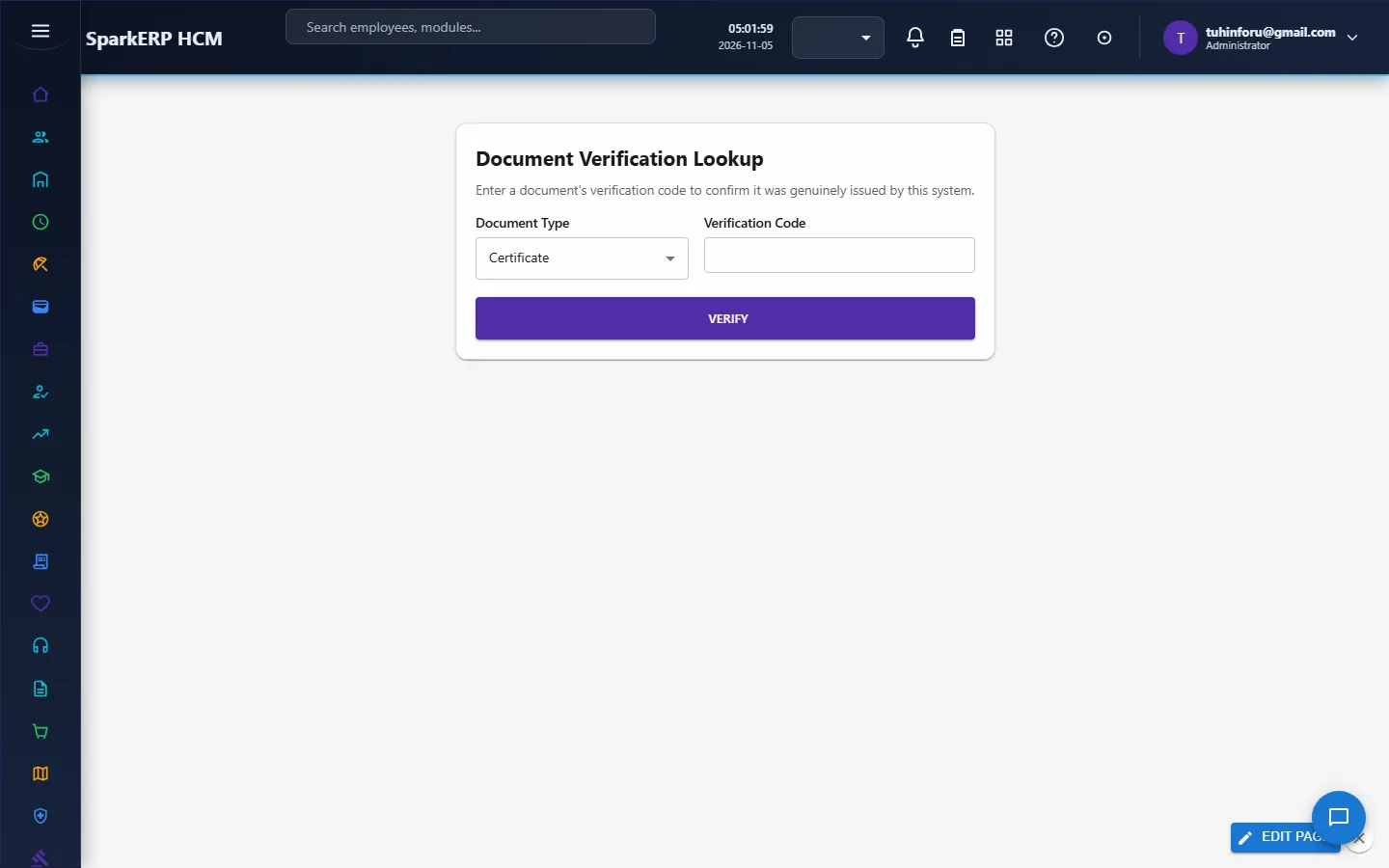
Document Verification Lookup lets a third party enter the verification code stamped on an issued PDF and confirm it against the record, with no access to the system.
5. Charts and reports
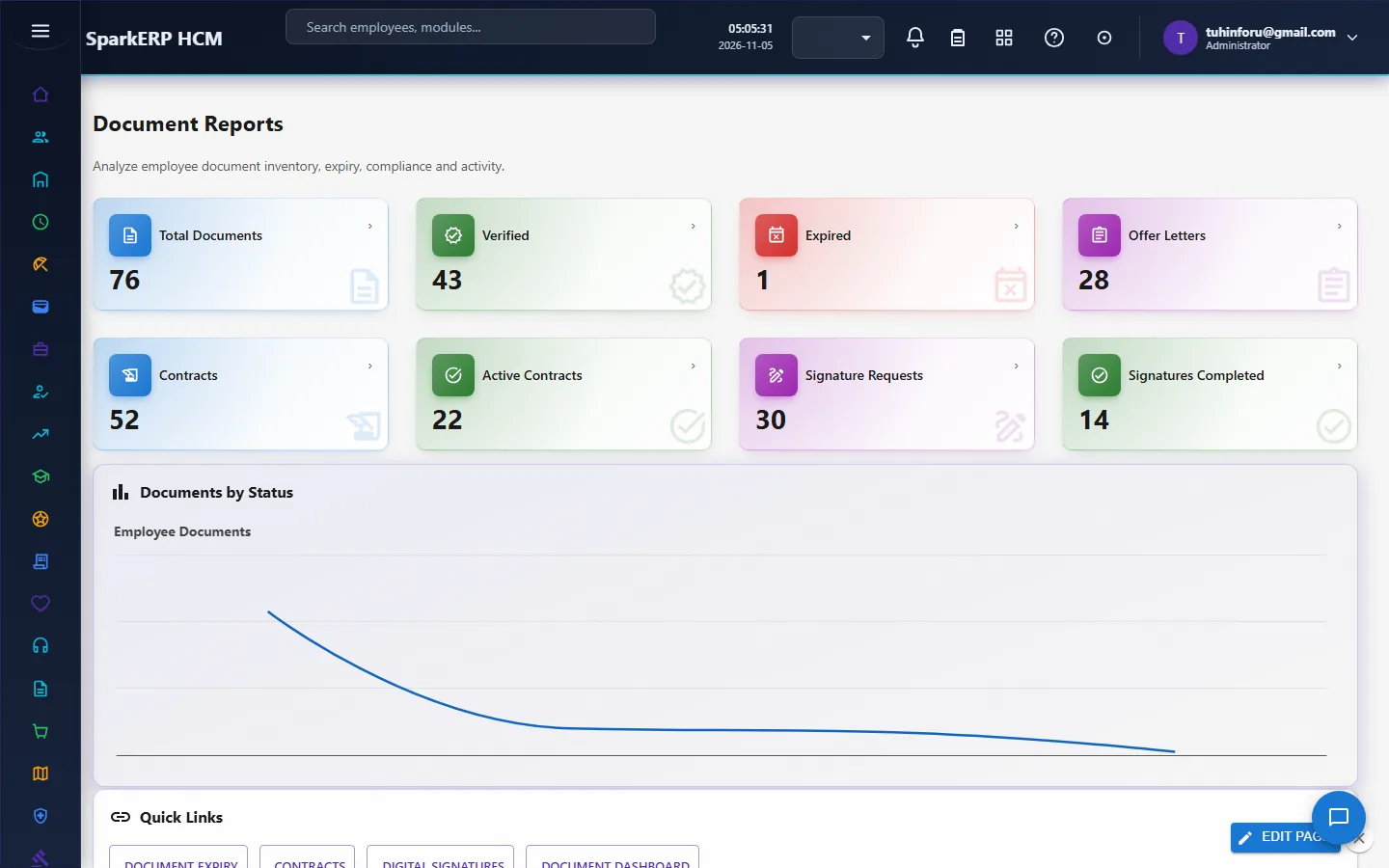
The Document Dashboard and Document Reports show the counts and charts of every area.
Document Compliance answers whether the records are in order: current documents, those expiring in 60 days, those past their expiry date while still current, those awaiting verification, and earlier versions past the retention period of their type. Charts show when documents expire, verification status, people holding each mandatory document beside the active headcount, documents by type and retention by type.
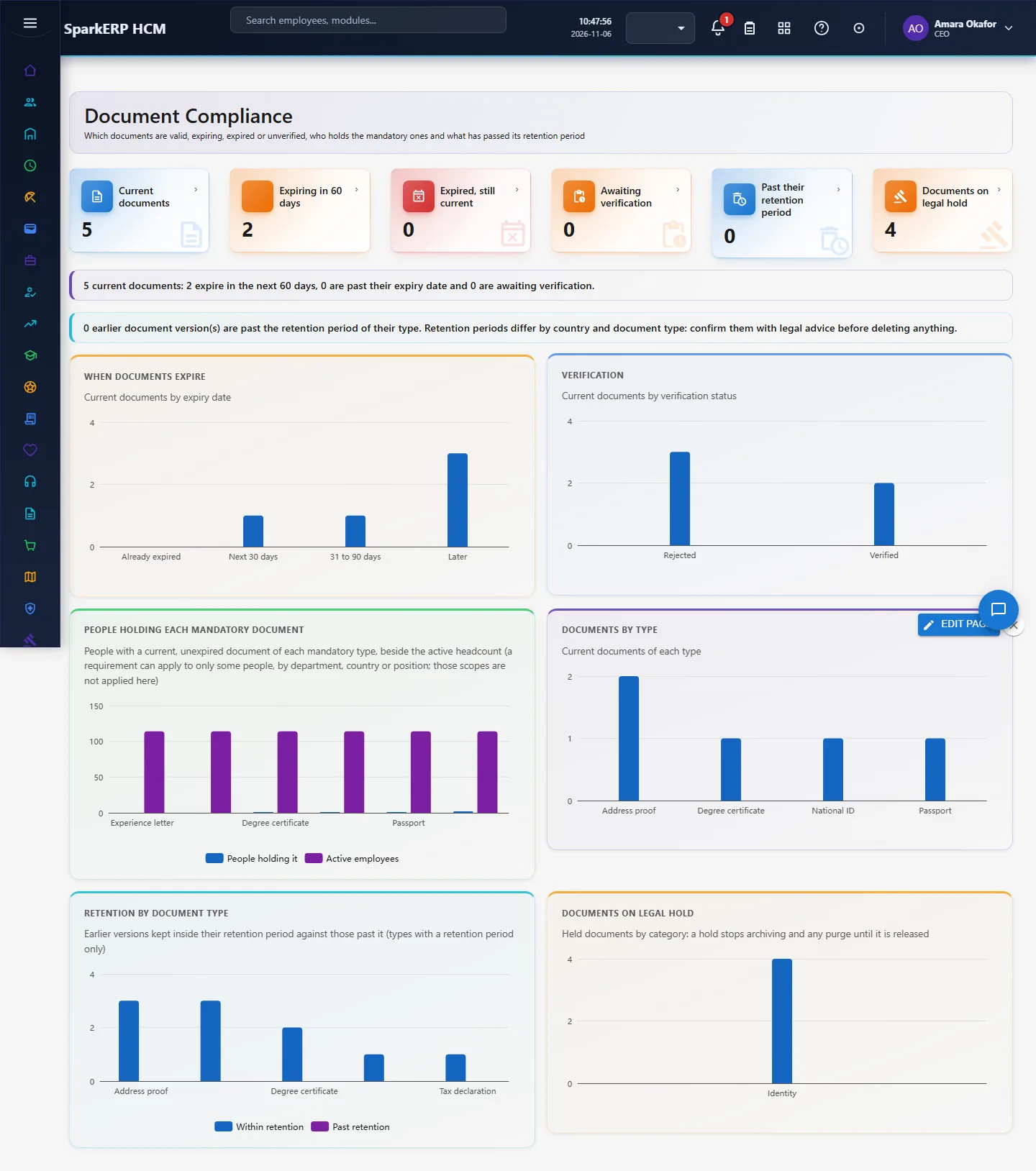
Legal holds. An administrator can place a document under legal hold from the document (with a reason); while a hold is on, the document cannot be archived and no purge may touch it, until the hold is released. Documents on legal hold counts the documents whose latest hold action is a hold, and the chart below shows them by category. The hold and the release are written to the document's history with who did it and why. The count reads that history, so a hold set in the document store without going through this module is not counted.
Signing deadlines on Digital Signatures covers the requests awaiting signature: overdue, due in 30 days and due in 90 days.
6. On a phone or tablet
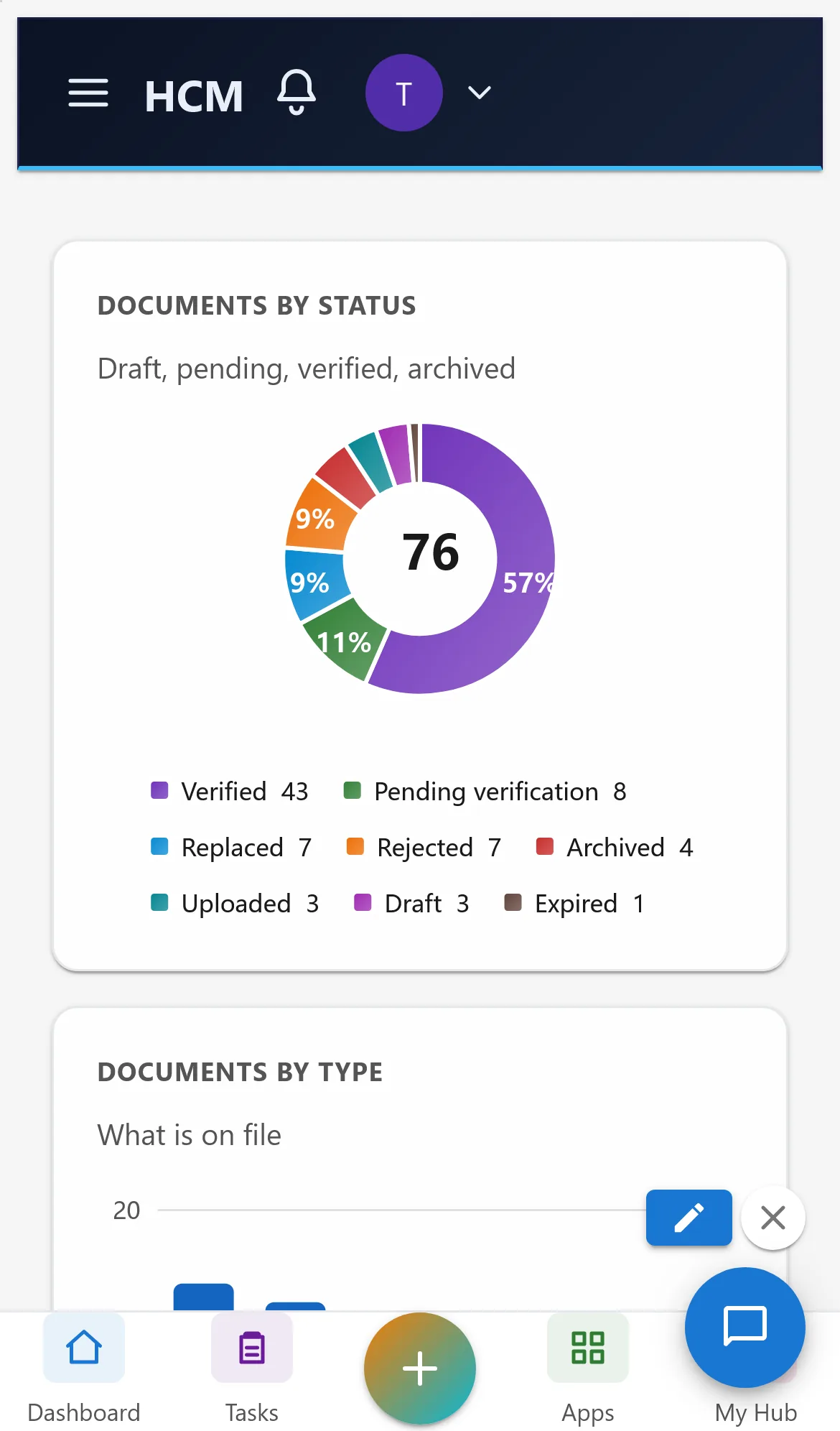
Every screen works on a phone: tiles and charts stack one per row and lists scroll inside their card. The lists are readable on a phone; uploading and signing from a phone have not been tested for this guide.
7. Rules and limits
Retention periods differ by country and document type. The compliance page only shows what has passed the period set on the type; confirm periods with legal advice before deleting anything.
The exact count of people missing a mandatory document is not shown: a requirement can apply to only some people (by department, country or position) and those scopes are not applied to the count yet, so holders are shown beside the active headcount.
A document counts as current when it is not archived, replaced or a draft.
Demo data for contract versions and document history is not generated yet.
A document cannot be archived while it is under legal hold; release the hold first (only an administrator can place or release one).
The signing-deadlines card counts requests awaiting signature only; requests that are sent or viewed but not yet at that status are not in it.
8. Troubleshooting
| Symptom | Cause and fix |
|---|---|
A chart shows a raw text like hcm-employee-documents.... | Seen on version 1.0.110 and earlier on Document Reports; fixed in 1.0.111. Update the plugin. |
| "Past their retention period" stays 0 | No type has a retention period set, or no earlier version exists. Set it on the document type. |
| A requirement shows nobody holding it | No current, unexpired document of that type exists for anyone. Check the type matches the uploaded documents. |
| A verification code is not found | The code is only stamped on genuinely issued PDFs; check it was copied exactly. |
| Document Compliance says "Report.View is required" | The login lacks the Report view permission; ask an administrator. |