
Appearance
Employee and Manager Self-Service: how it works and how to set it up
Self-Service is the front door of HCM for everyone who is not in HR. It answers the questions people ask about themselves and their team: what is my pay, my leave, my attendance and my timesheet, what are my goals and my review, what training and benefits do I have, what have I asked for and where is it, who do I ask for help, and, for a manager, what is waiting for my decision and how is my team doing. This guide explains how the module works, then how to set it up, then what the employee, the manager and HR each see. Each screen has its own page in the Employee Services section; this guide is the one to read first.
1. What Self-Service does for your business
- Gives every person one place for their own record, pay, time, leave, goals, learning and benefits, with the numbers of each area on one home page.
- Lets people ask instead of phoning HR: change a profile field, regularize attendance, submit overtime, request training or a benefit change, and ask HR a question.
- Gives managers one workspace over the modules that own the team's data, with every approval waiting for them in one list.
- Never owns the data. Each screen reads and acts through the module that owns the record (Leave, Payroll, Performance, Learning, Benefits, Expenses and so on), so that module's rules and approvals still apply.
- Keeps people informed. What a person does leaves an audit line, and a message to them in the app, by push and by email.
What it does not do: it does not hold HR data of its own beyond requests, helpdesk tickets and profile changes. An employee can never set a figure that someone else must decide: no approved amount, no paid amount, no rating, no score and no completion typed in by the employee.
2. How self-service works, end to end
2.1 Who the person is
The person is found from the platform login on the server, never from anything the page sends. Every query is on that employee's own rows, bounded (a month, six periods, a handful of rows), and a record of someone else is never returned, whatever id is sent. Each section is read on its own, so one module that is not installed or not ready leaves the rest of the page working.
2.2 The home page
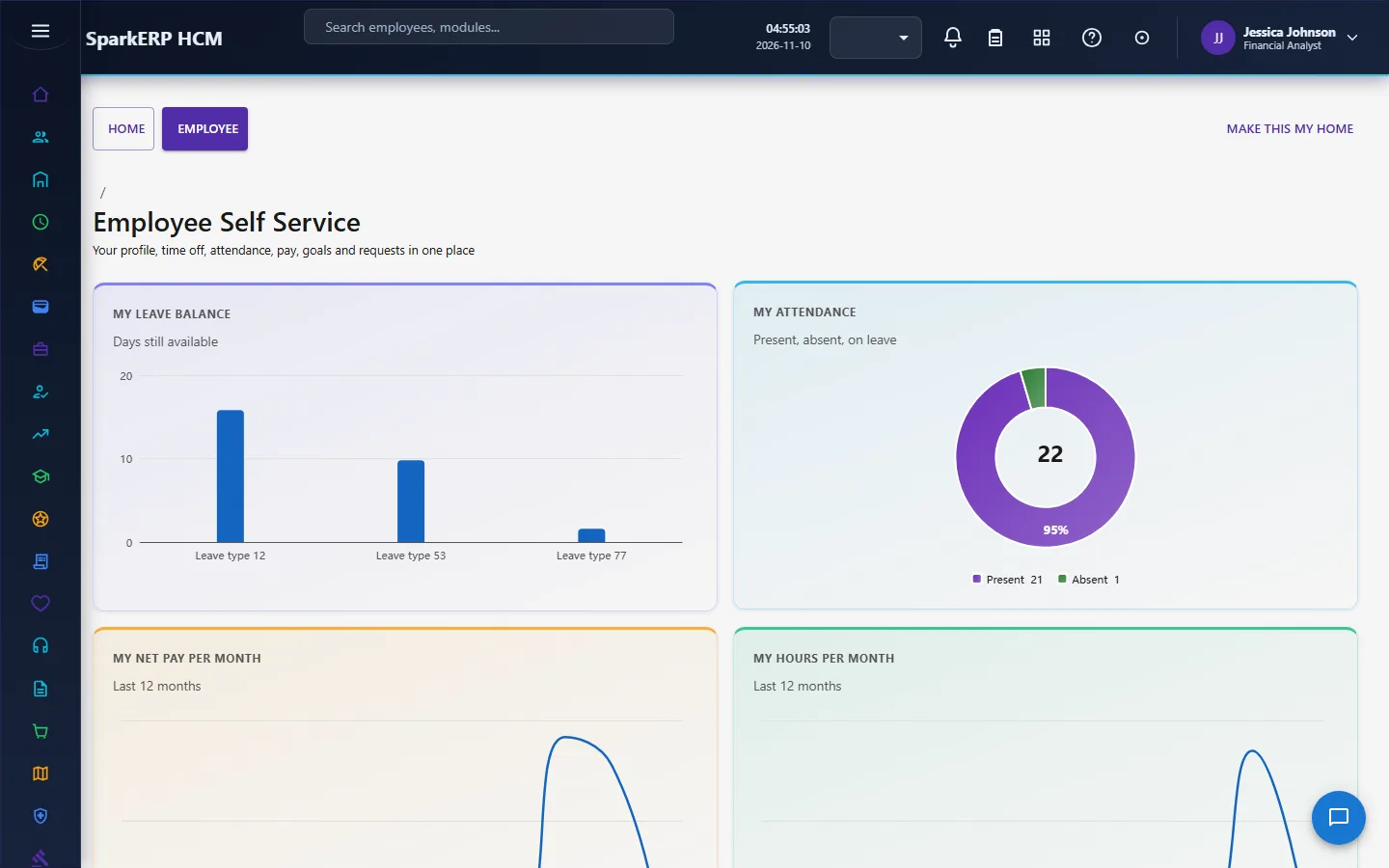
One read gives the Employee Self Service home: the person's profile card, the numbers across leave, attendance, pay, goals, learning and benefits, the graphs, their open requests of every kind, and the announcements.
2.3 My Profile and profile changes
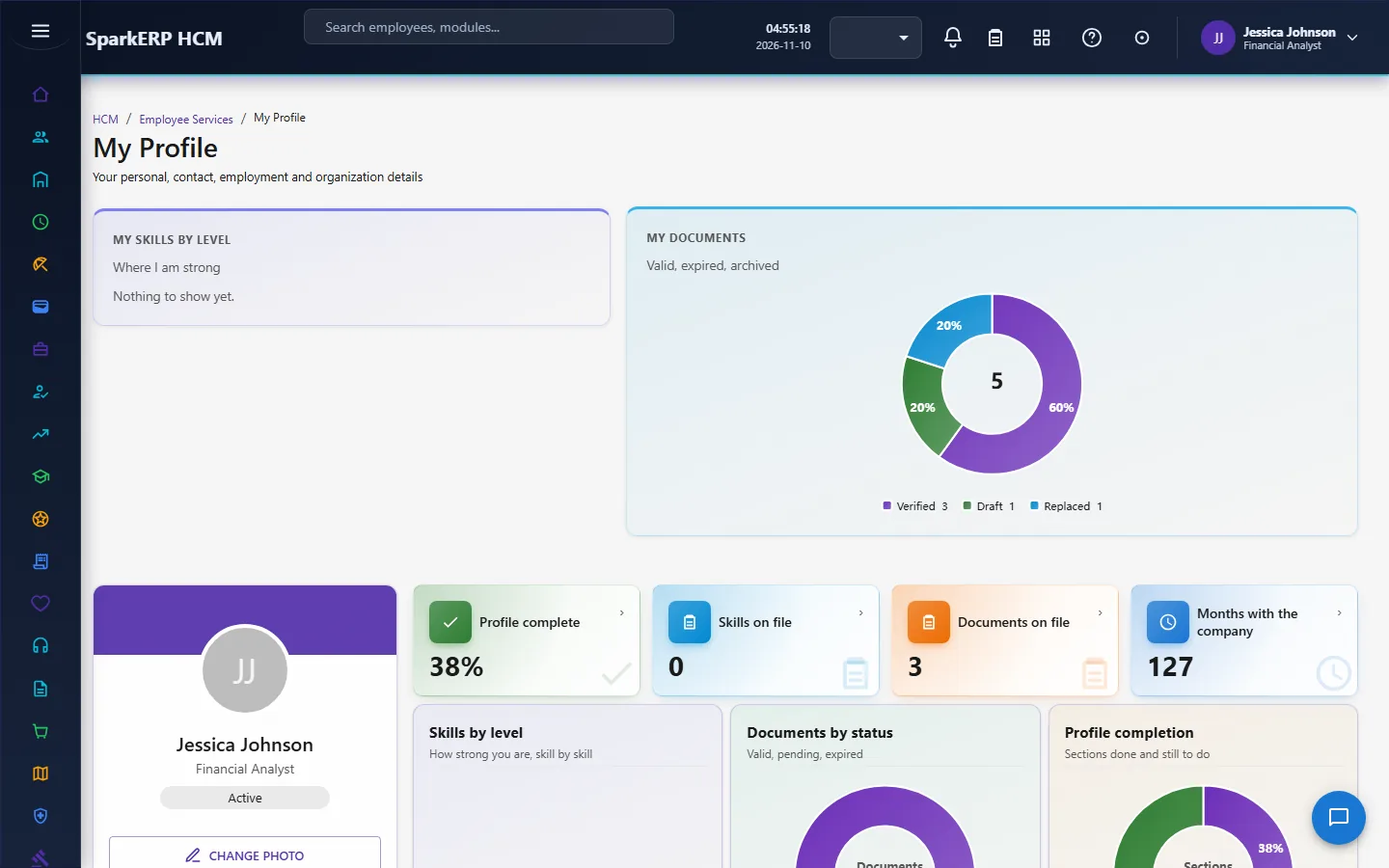
My Profile shows the header, the profile completion, and the personal, contact, employment, organization and bank sections as ready-to-show label and value rows (dates and codes already in words, empty values marked). Skills, addresses, contacts and dependents keep their own endpoints, which the page edits through.
An employee asks to change a field of their own record. Low-risk fields are applied at once; the rest wait for a person who holds the profile-change approval permission (or an administrator), who approves or rejects with a note. Which fields need approval is a tenant setting, and only the fields listed can ever be changed, whatever a caller sends. Every request, decision and the value before and after is kept. The photo, preferred name and pronouns are kept separately. The approval is two steps, manager then HR, decided by the HR Administrator or HR Manager.
2.4 My Leave, My Attendance and My Timesheet
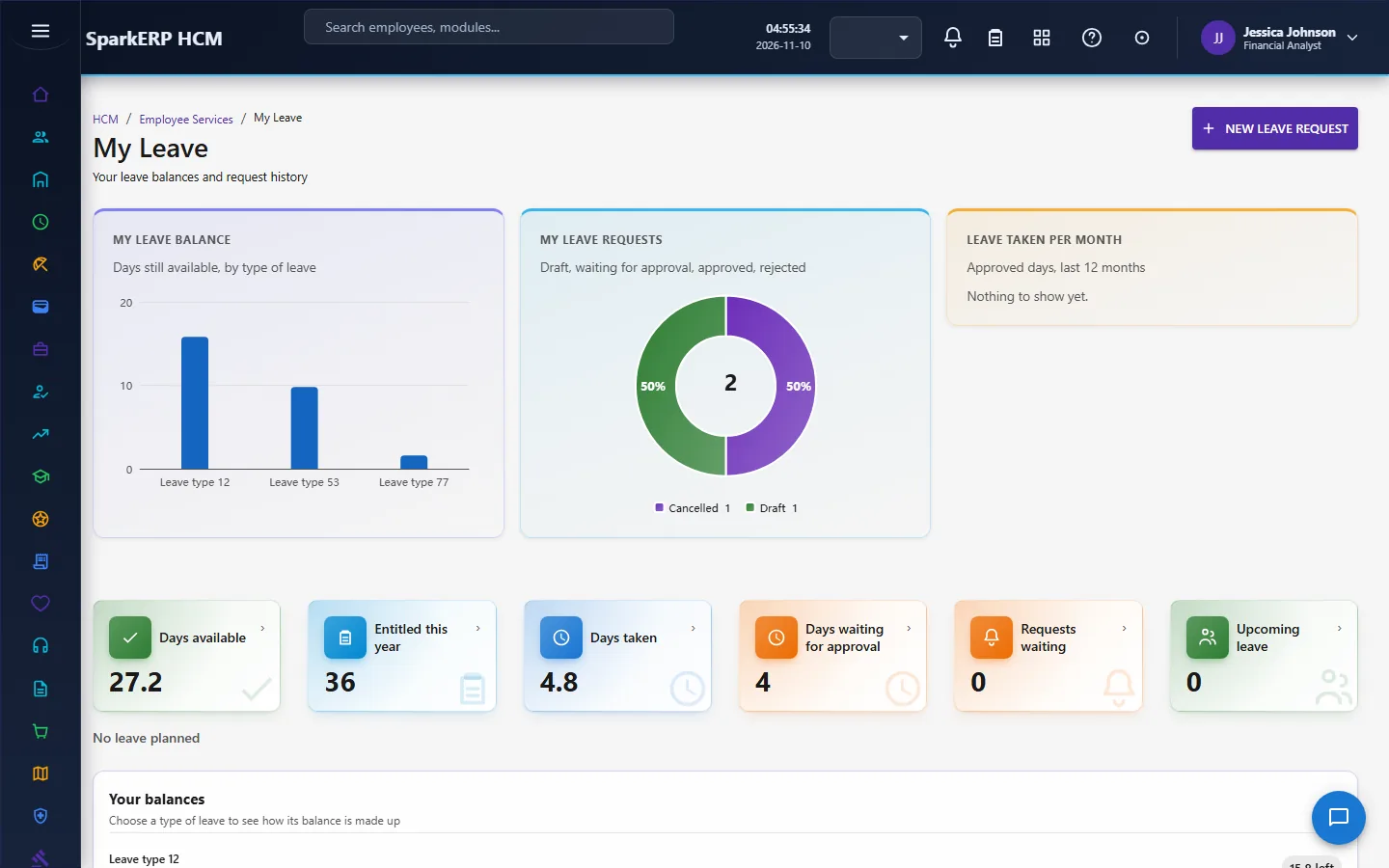
- My Leave: the month calendar (the person's own leave, the team's approved leave and holidays), a request with its approval timeline and attachments, and a balance with its ledger.
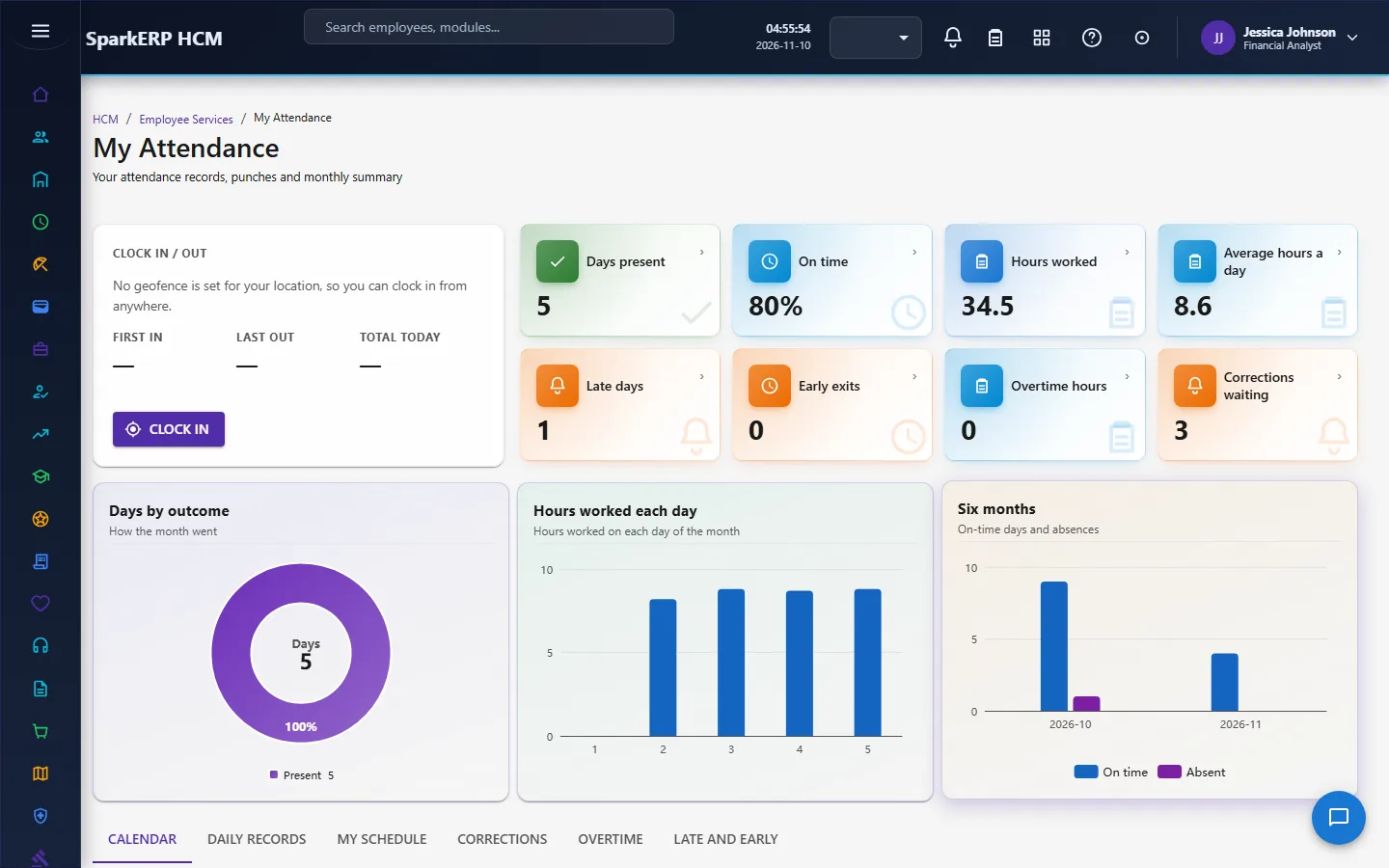
- My Attendance: the month's figures, graphs and calendar, the exceptions that can be corrected, the person's regularization requests and overtime. An employee has two actions: ask for a correction (also used for work from home and field work) and submit overtime. Both go to the platform workflow, and its callback applies the correction to the day's record or closes the request. The approval path is configurable: manager only, manager then HR, manager then department then HR, or manager, HR and payroll.
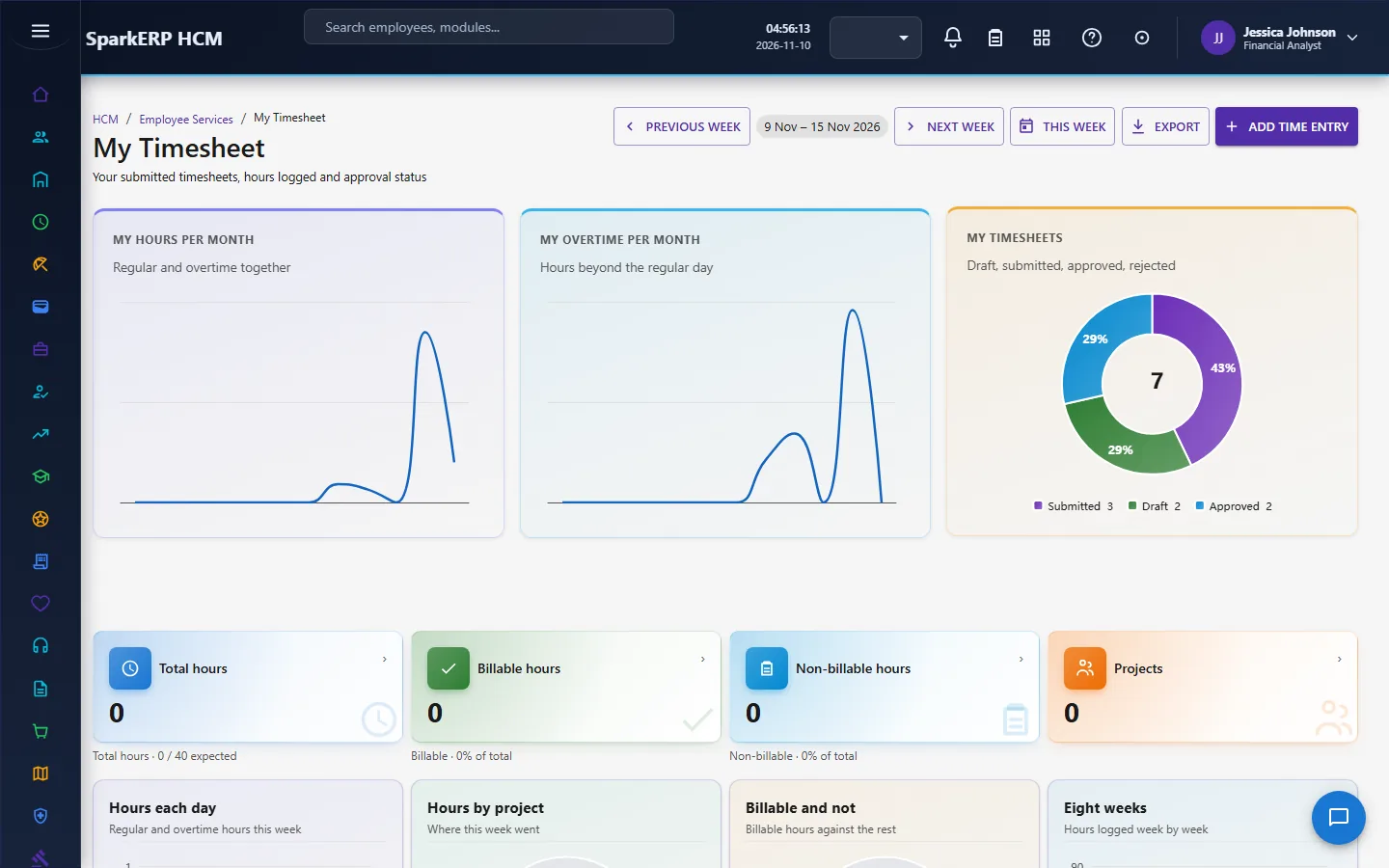
- My Timesheet: a week at a time. The actions add, change and delete an entry, copy last week, submit (to the workflow and the reporting manager), take a submission back, and add a note. Daily hours above the regular day are overtime. Every rule a browser might be tempted to trust (who the employee is, the hours, the status, the lock) is worked out on the server. The Timesheets guide explains the rules.
2.5 My Payslips and My Tax
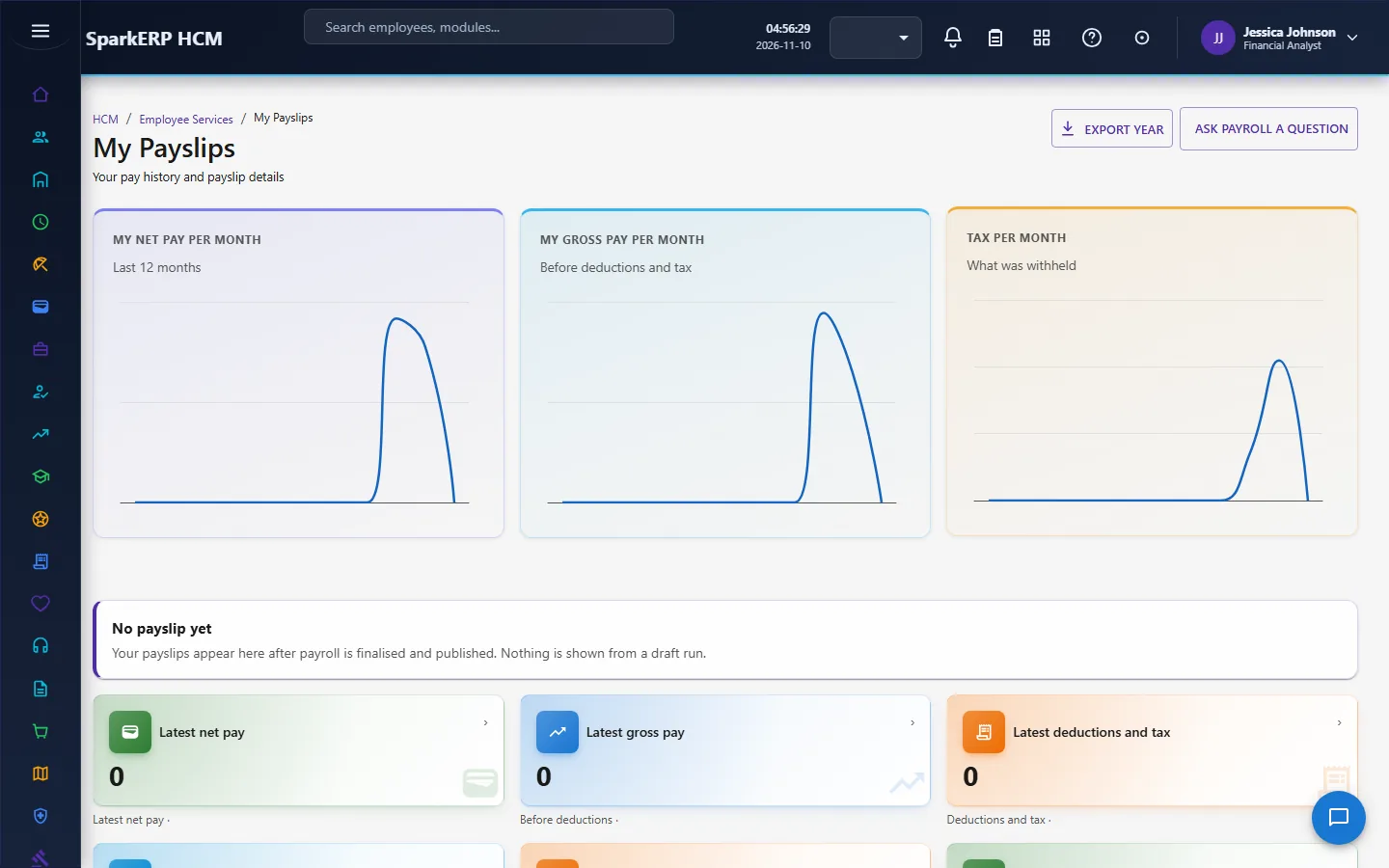
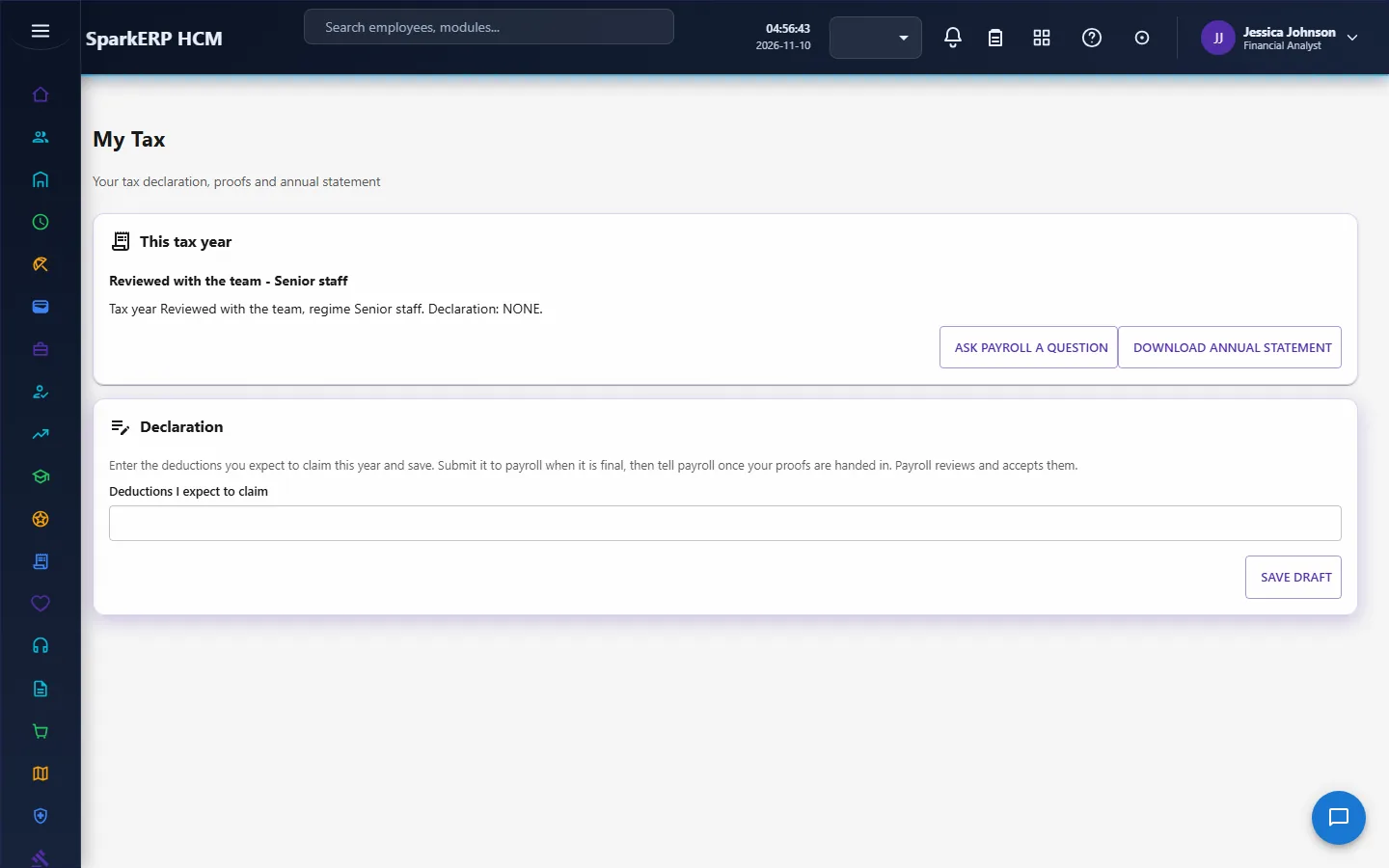
My Payslips shows the latest payslip, the year to date and graphs, from the payslips that are visible to employees (the Payroll settings decide whether employees see payslips and whether only published ones show). The person can download, print or email a payslip when the settings allow it. The gallery of built-in payslip designs shows a small drawing in the tenant's brand colours so you can see what the colours will do before a document is made; it is a drawing of the layout, and the real document is made by the print engine. My Tax shows the person's own tax figures.
2.6 My Benefits
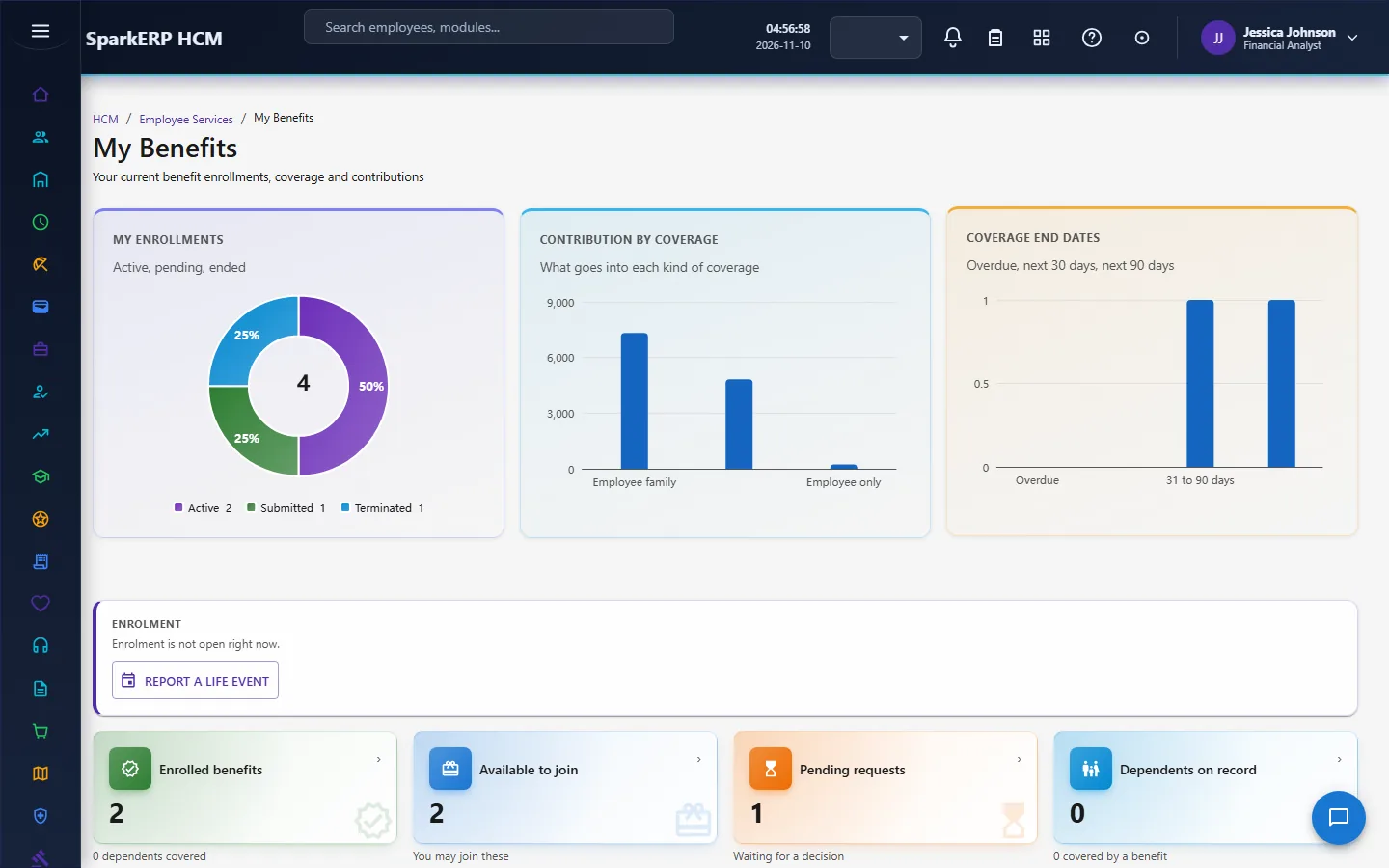
My Benefits shows what the employee is enrolled in, what they may join, the open enrolment and life-event windows, dependents and beneficiaries for each enrolment, change requests, private benefit documents, history, and the contributions payroll took.
- Who may join a benefit is decided by rules held in the platform's own rule grammar (all, any, not, with a field, an operator and a value), and the page says in words which clause failed.
- What an option costs one person is set in the offer, in one of three ways: fixed amounts, a percent of salary (for example 2 and 3 means the employee pays 2% and the employer 3% of monthly base salary), or age bands (an employee and employer amount for the band the person's age falls in). A per-dependent amount is added for each covered dependent. When age or salary is not known, the fixed amounts apply, so a price is always shown. Pricing comes from the plan offer, never from the browser.
- A daily sweep makes dependents whose proof is late lose their cover (and tells the employee), sends proof reminders, "open enrolment started" and "closing soon" notices, and "benefit ends soon" notices, each once.
2.7 My Goals, My Performance and My Training
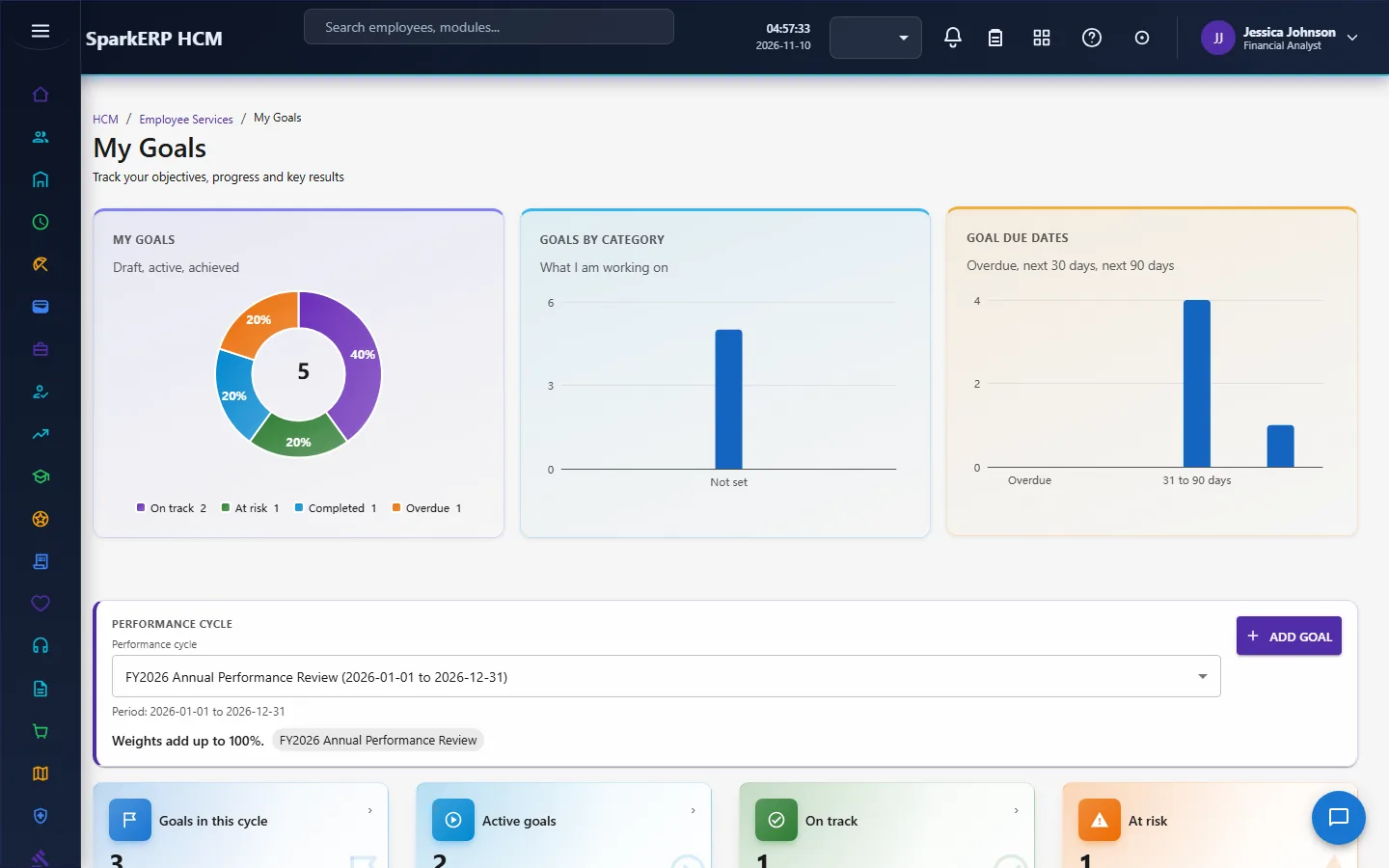
- My Goals: the person's goals of a cycle with progress, key results, milestones, check-ins, comments, evidence, alignment and history. The server works out the progress and status (baseline, target and direction, weighted key results, thresholds from the tenant's settings), so the browser never calculates a different result. A goal is approved, completed or cancelled through the platform workflow by the reporting manager.
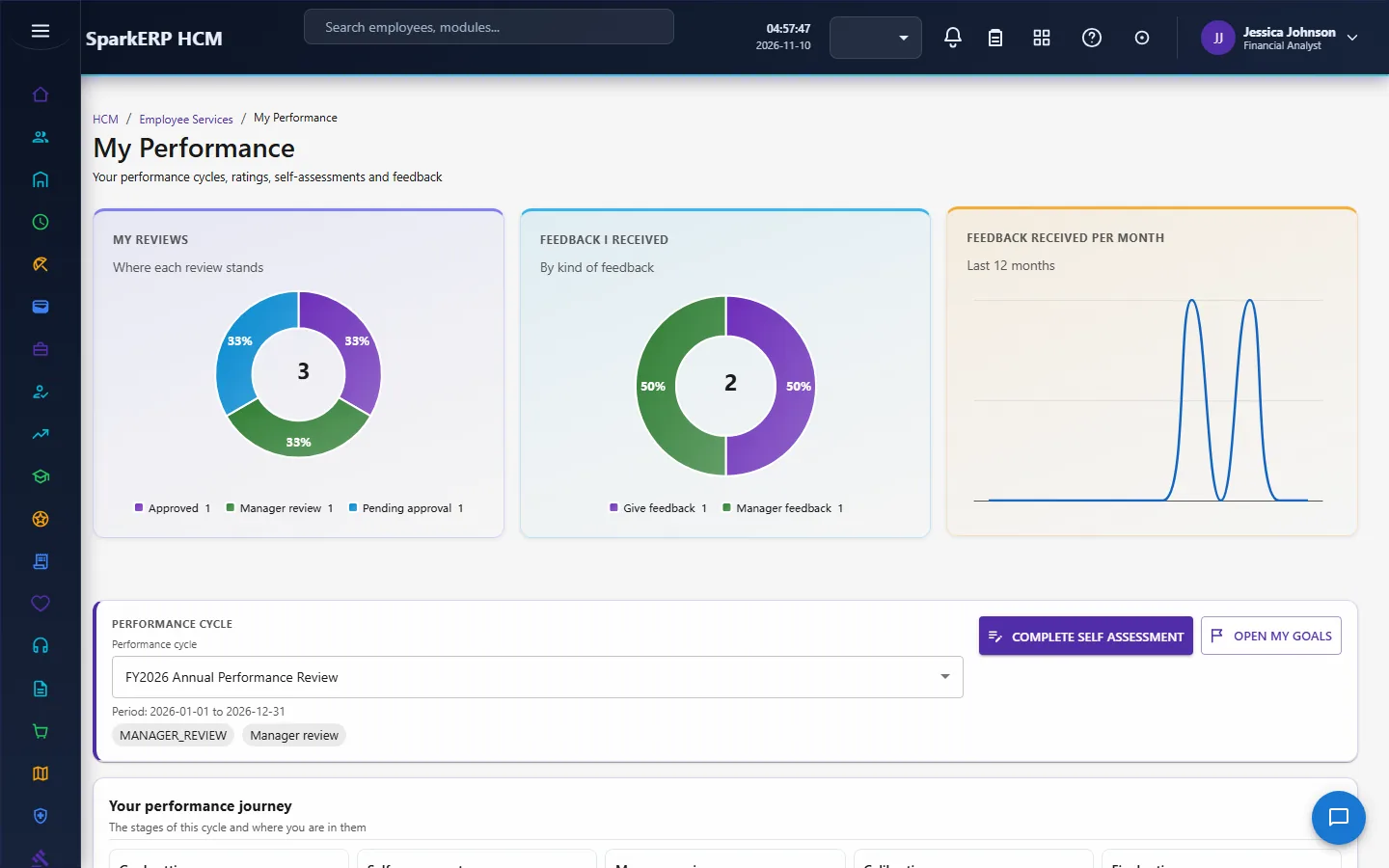
- My Performance: the person's cycle at a glance: the journey, goals, competencies, self assessment, feedback, 360, rating, improvement plan and history. Scores, ratings and statuses are only read from the Performance engine, the self assessment is saved and submitted, and a published review acknowledged, through that engine's own operations. Ratings and manager comments appear only once the review is published.
- My Training: assigned and in-progress learning, upcoming sessions, courses to enrol in, learning paths, certificates, requests, assessments, skills, hours and history. Enrolment, withdrawal, training requests and assessment results are written through the Learning module's own records, so its lifecycle and approval apply. Completion, progress and scores are never typed in by the employee. A training request goes manager, then L&D, then budget.
2.8 My Expenses
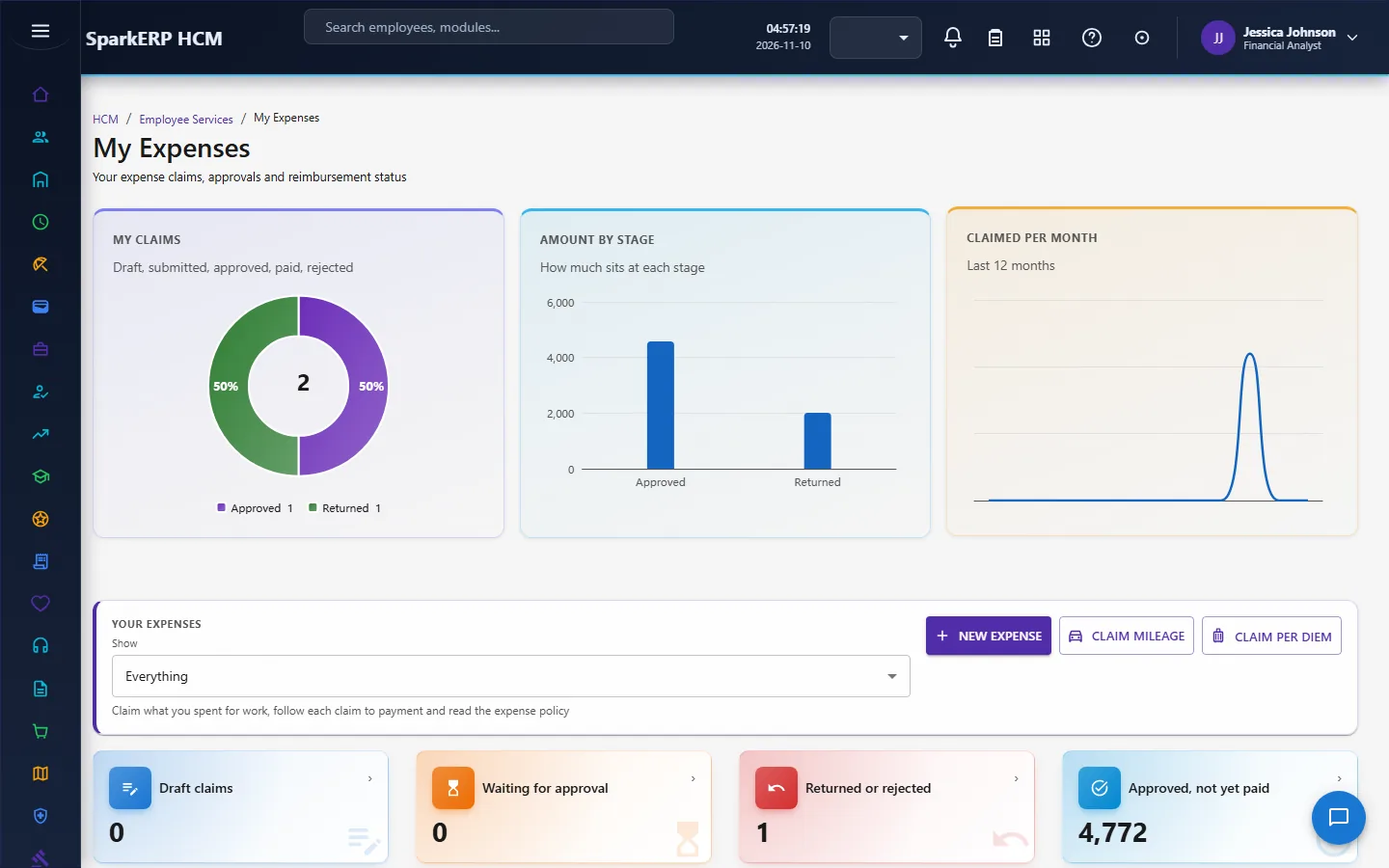
My Expenses shows the person's claims and the actions on them. Claims, lines, policy checks, receipts, approval and payment are all done by the Expenses module. This layer finds the person from the sign-in, checks submission rules, works out mileage and per diem from the policy's rates on the server, detects duplicates, and reads the approval timeline and the reimbursement. The person can never set an approved or paid amount.
2.9 My Documents and My Policies
My Documents holds the person's own documents. My Policies lists the HR policies given to the person and lets them acknowledge each one.
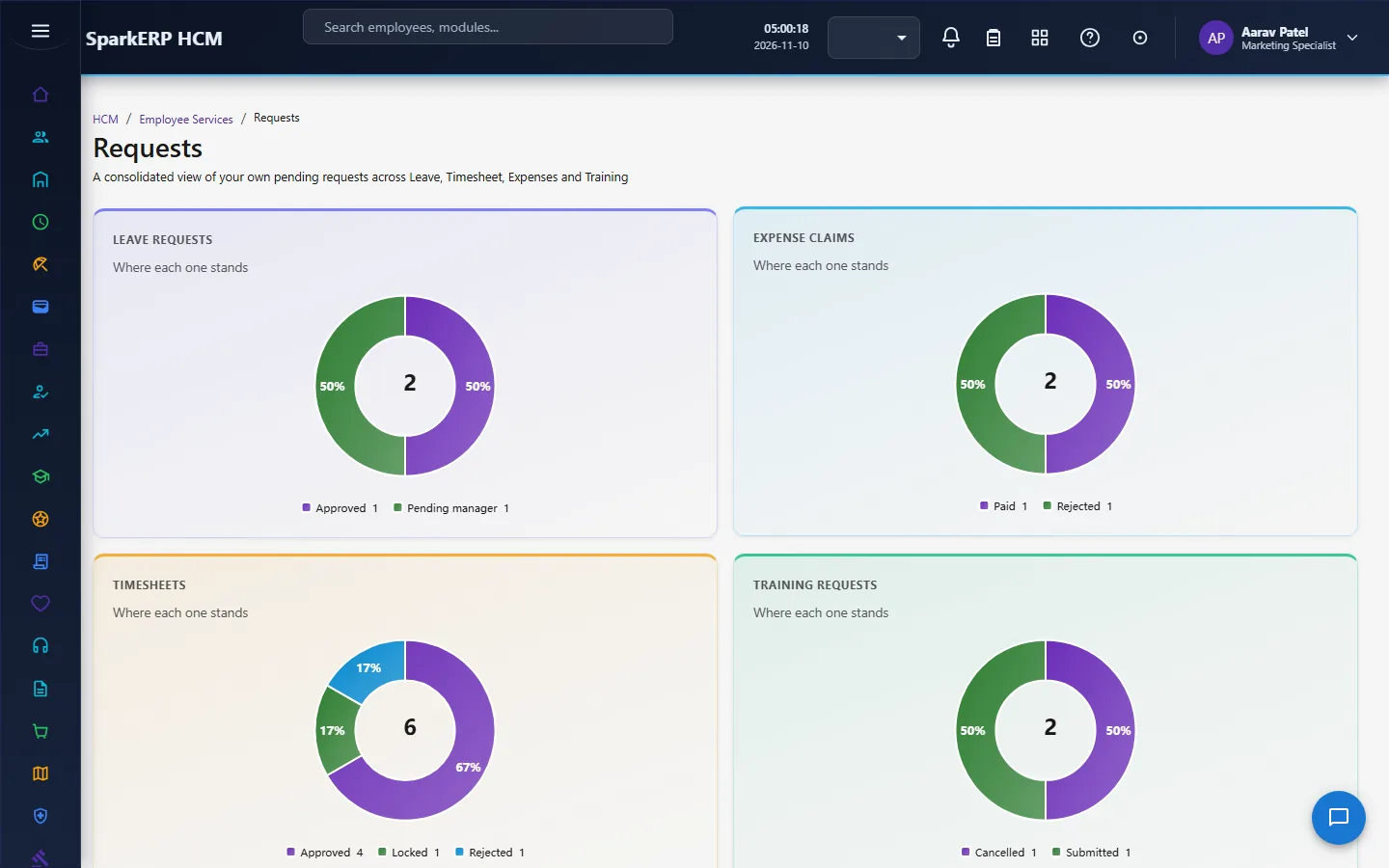
2.10 Requests
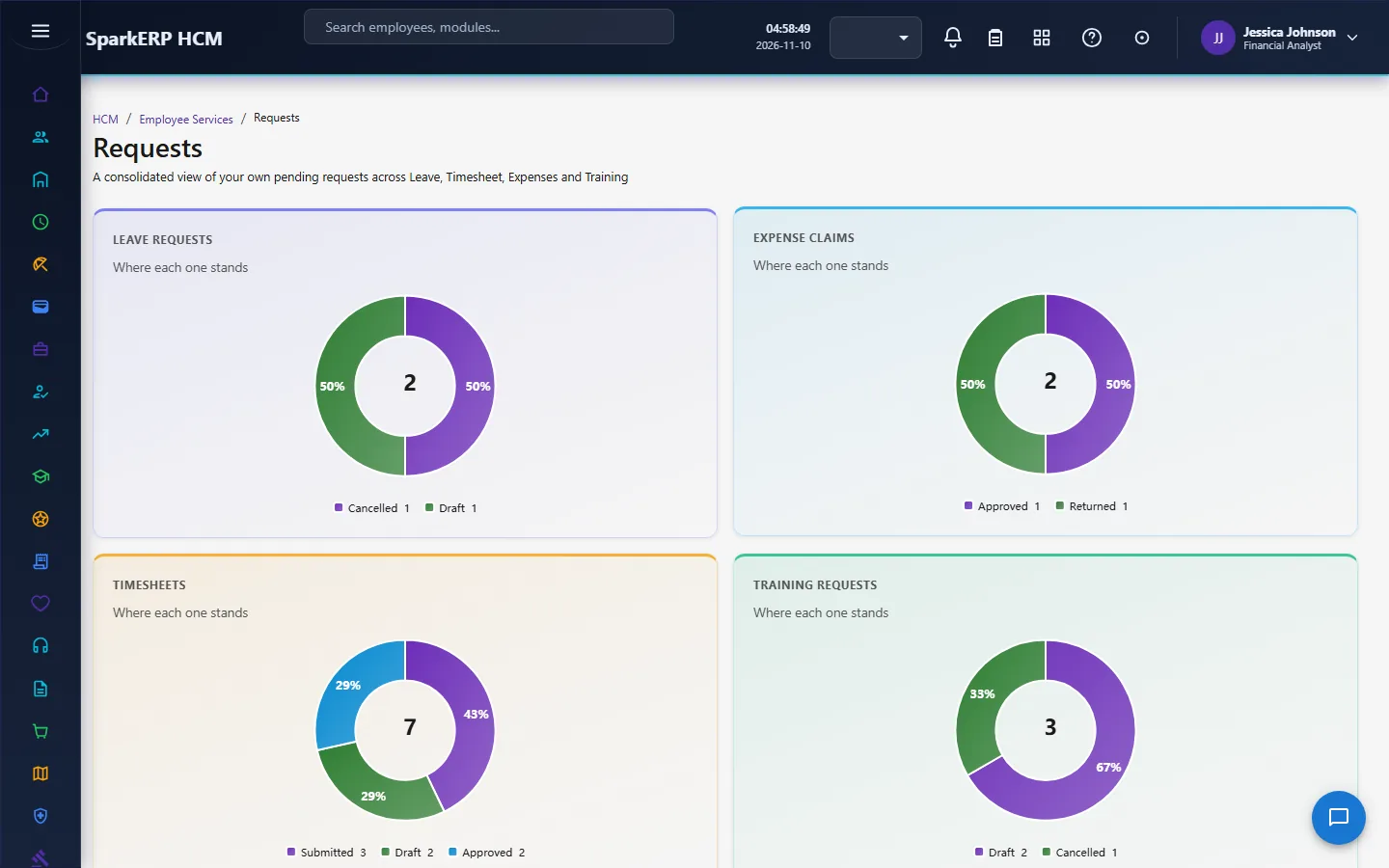
Requests is one place for everything an employee has asked for. A request type is configuration: a form of up to twelve fields, the documents it needs, who approves it, how long it should take, and what the employee may do with it. A request is a row with its values, comments, documents and history. Approval runs through the platform workflow (the Approval Inbox) and its callback settles the request. Nobody sets approved or completed from the page. The list also shows what the person asked for through leave, expenses, training, benefits, attendance, profile and letters, with the page to open for each.
The approval path of a request type is configurable: a single approver, all of several, any of several, sequential (manager, HR, finance), parallel (manager and HR together), or manager then HR.
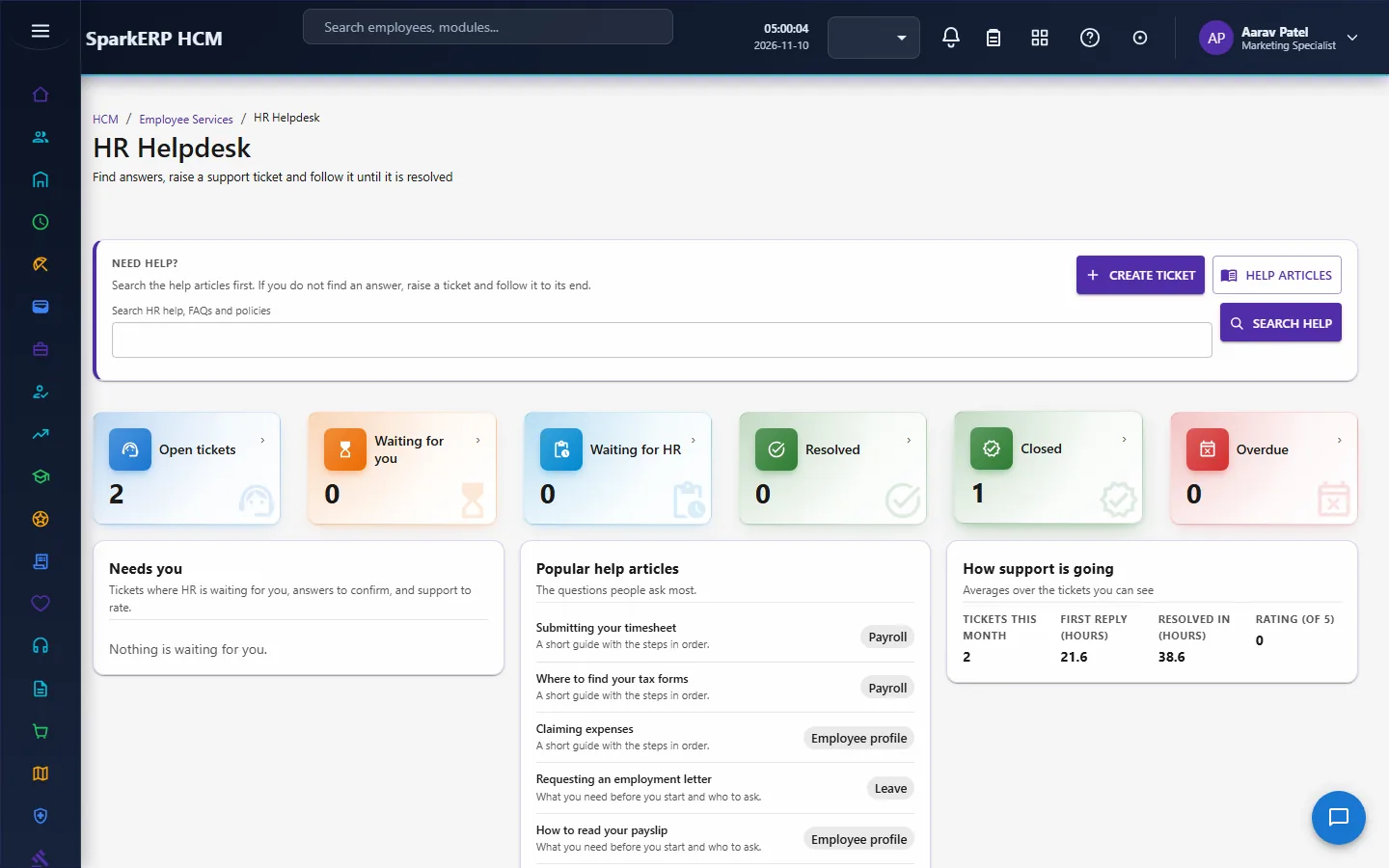
2.11 HR Helpdesk
HR Helpdesk is where an employee asks HR a question as a ticket. The rules are in one engine:
- The status moves allowed are configuration, with a standard flow as the default.
- Ticket numbers are generated.
- SLA dates are counted in working hours, and the SLA clock pauses while the employee is asked for something.
- Tickets are routed and escalated when past their expected date.
- A resolved ticket closes after the number of days the tenant sets.
A sweep every fifteen minutes brings every open ticket's SLA state up to date, warns before a breach, escalates tickets past their expected date and closes resolved ones. Service Reports (readable only by a helpdesk agent or an administrator) show what the desk promised and kept: open is every status except draft, resolved, closed and cancelled; SLA met is a ticket resolved on or before its resolution due time, over the tickets resolved in the last 90 days that had a due time; ageing counts open tickets by days since submission; first response and resolution time are averaged per month; and CSAT is the average of the 1 to 5 ratings employees gave after a ticket.
2.12 Manager Self-Service
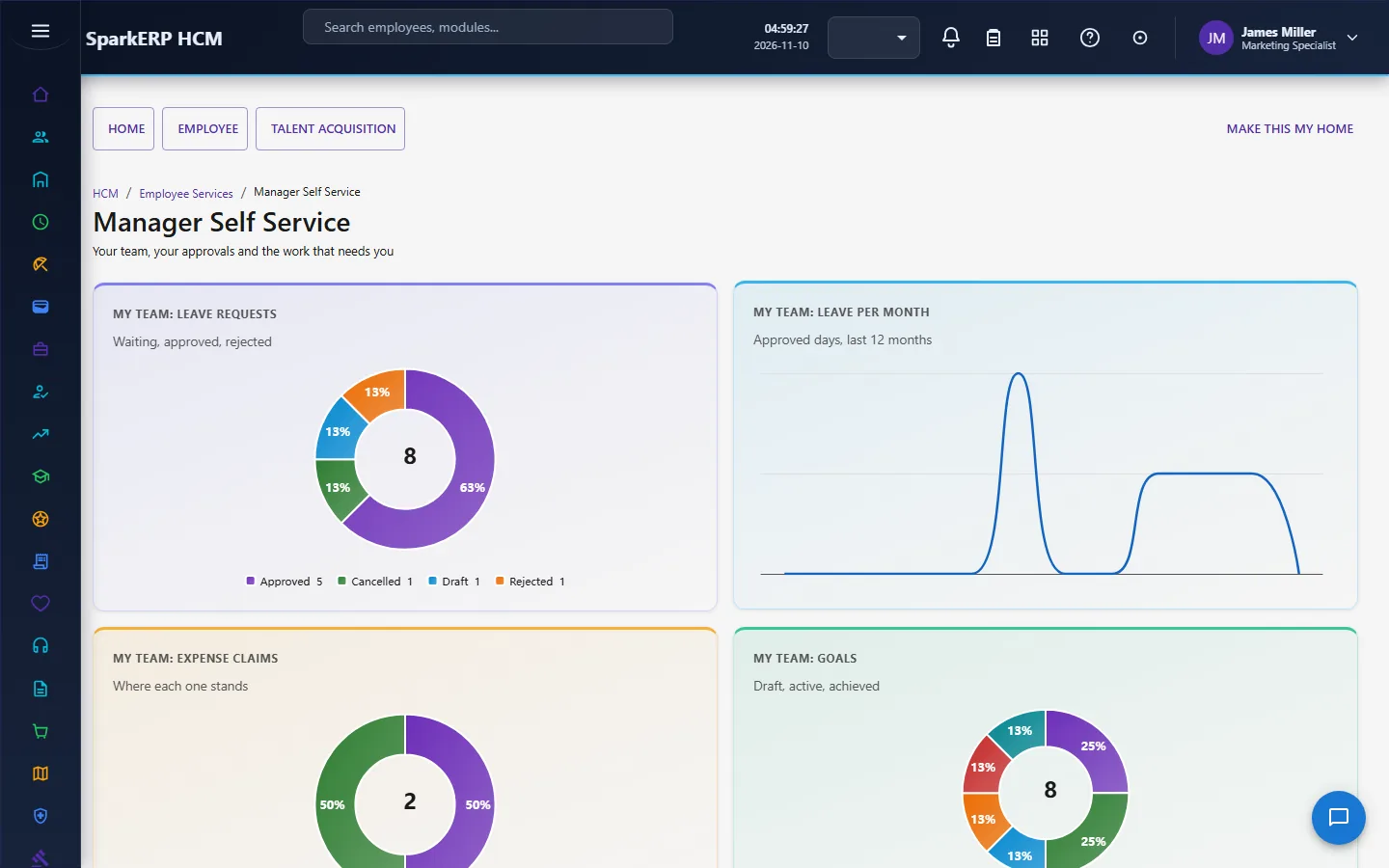
Manager Self-Service is one workspace over the owning modules. What a manager may see is resolved on the server from the reporting hierarchy and the scopes an administrator gave them, and the page can never widen it: every id a call names is checked against that set. Most actions are on for a manager who has people in scope; the sensitive ones need an explicit role (the sensitive data, talent, payroll summary and benefits summary roles), and an administrator can switch any action off for managers.
- Approvals are decided through the platform workflow (the owning module settles its own record); the page only collects them in one list and acts.
- Team data is read from the modules that own it, and what a manager starts (goals, feedback, recognition, training recommendations, requests to HR) is created in those modules, with employment changes sent to HR for approval.
- A reminder sweep runs every hour: a manager is reminded of an approval that waited a day, and the manager's own manager is told when it has waited three days. Each reminder goes once for each approval and level, and an approval that is no longer waiting is never mentioned.
2.13 Audit and messages
What a person does or looks at leaves an audit line (kept in one table that holds every self-service action) and a message to the person through the communication platform (in the app, by push and by email). Both are best effort and never stop the action that caused them.
3. Who does what
| Role | What they do |
|---|---|
| Employee | Uses their own screens: profile, leave, attendance, timesheet, payslips, tax, benefits, expenses, goals, performance, training, documents, policies, requests and the helpdesk. |
| Line manager | Uses Manager Self-Service for their team and decides the approvals waiting for them. |
| HR roles | Approve profile changes, decide the HR steps of requests, work the helpdesk. |
| Fine-grained roles | Self-service, view-only and approver roles for payslips, benefits, goals, performance, training and expenses, and the sensitive-data, talent, payroll summary and benefits summary roles for managers. |
An employee sees only their own records. The staff screens in other modules show the whole organization, so an employee uses Self-Service instead.
3a. What each role sees, screen by screen
The employee
The home gathers the person's numbers. My Profile and Requests are the person's own record and what they asked for.
My Leave, My Attendance and My Timesheet cover time.
My Payslips and My Tax cover pay.
My Benefits and My Expenses cover what the company gives and repays.
My Goals, My Performance and My Training cover growth.
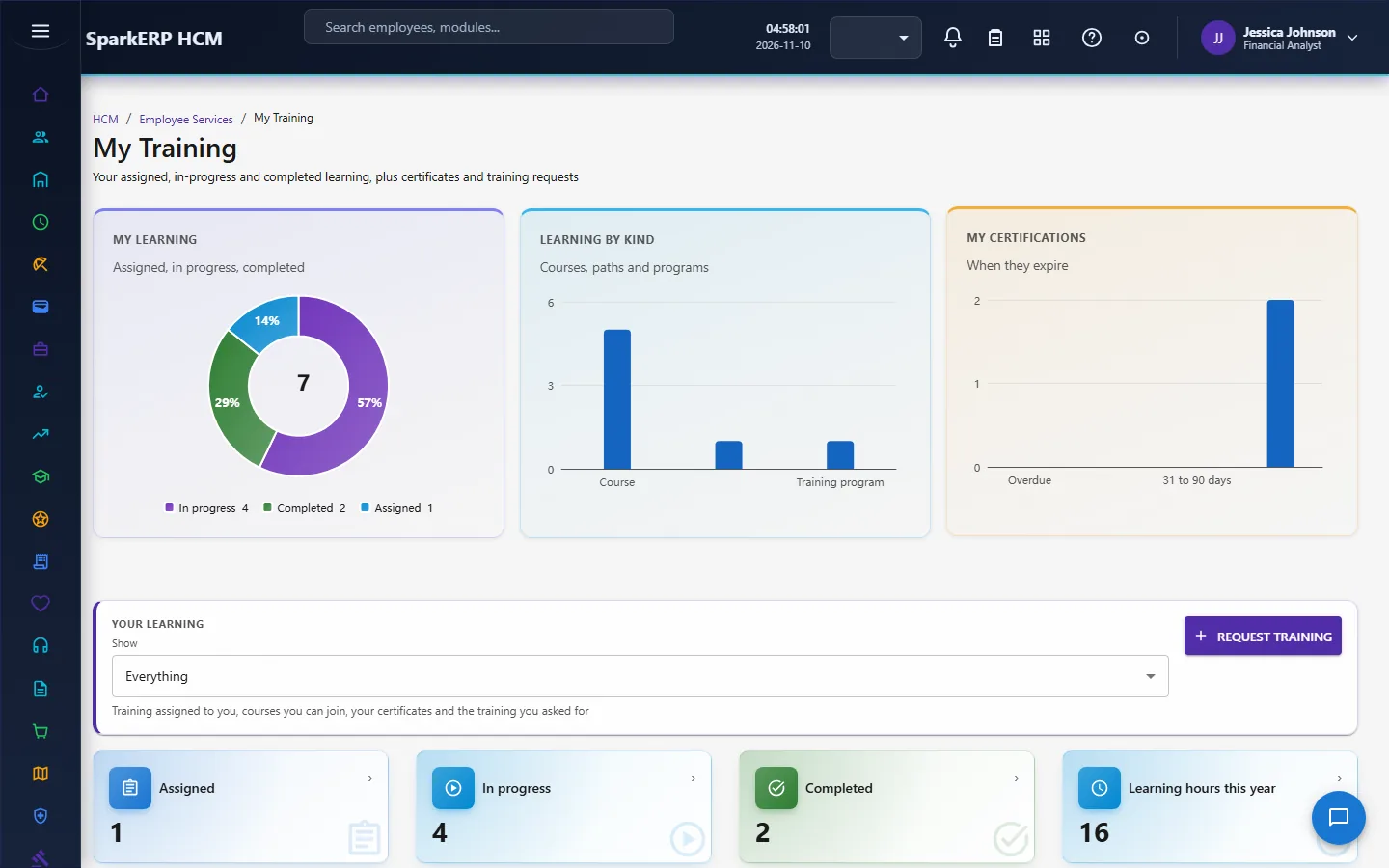
My Documents, My Policies and HR Helpdesk complete it.
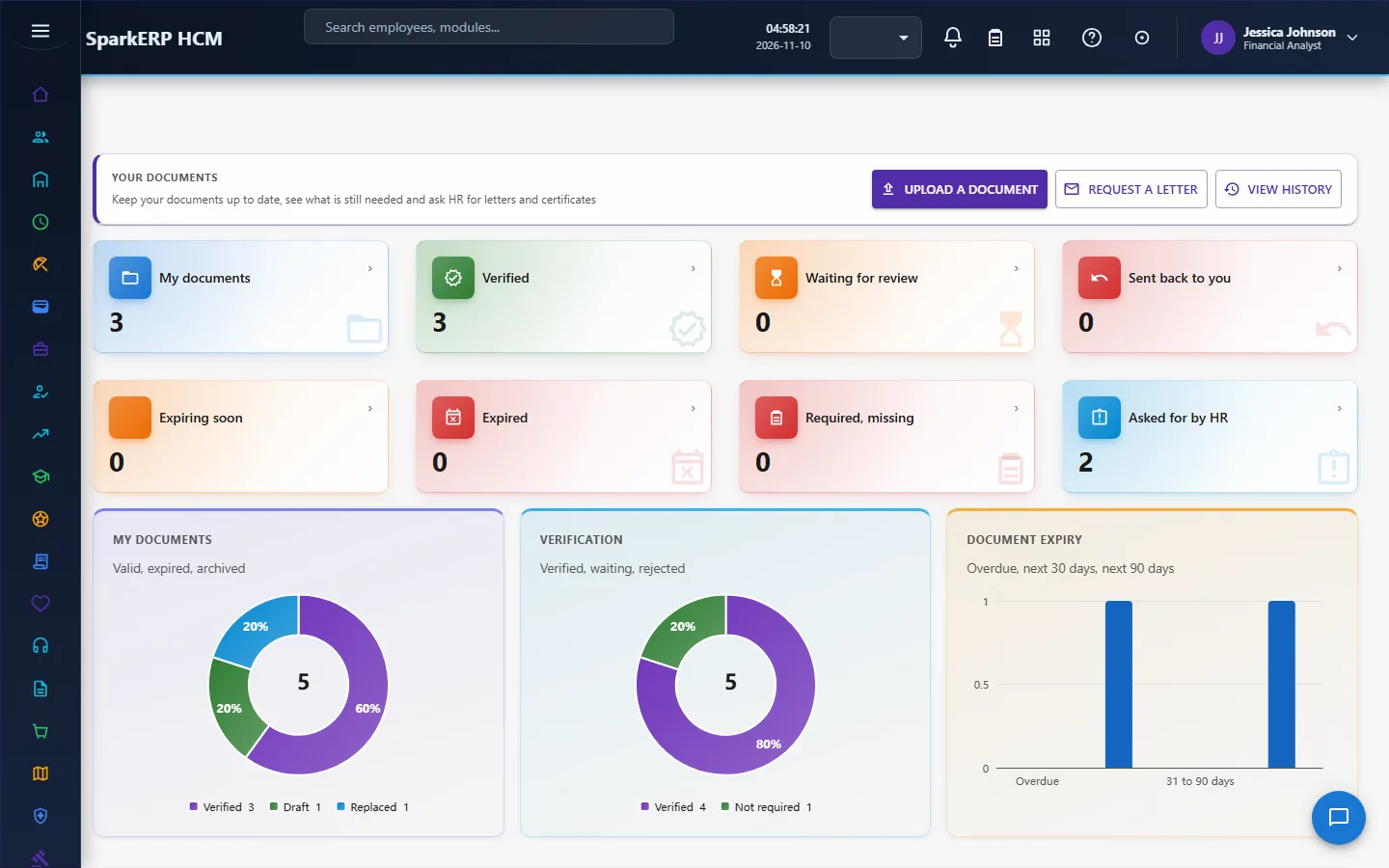
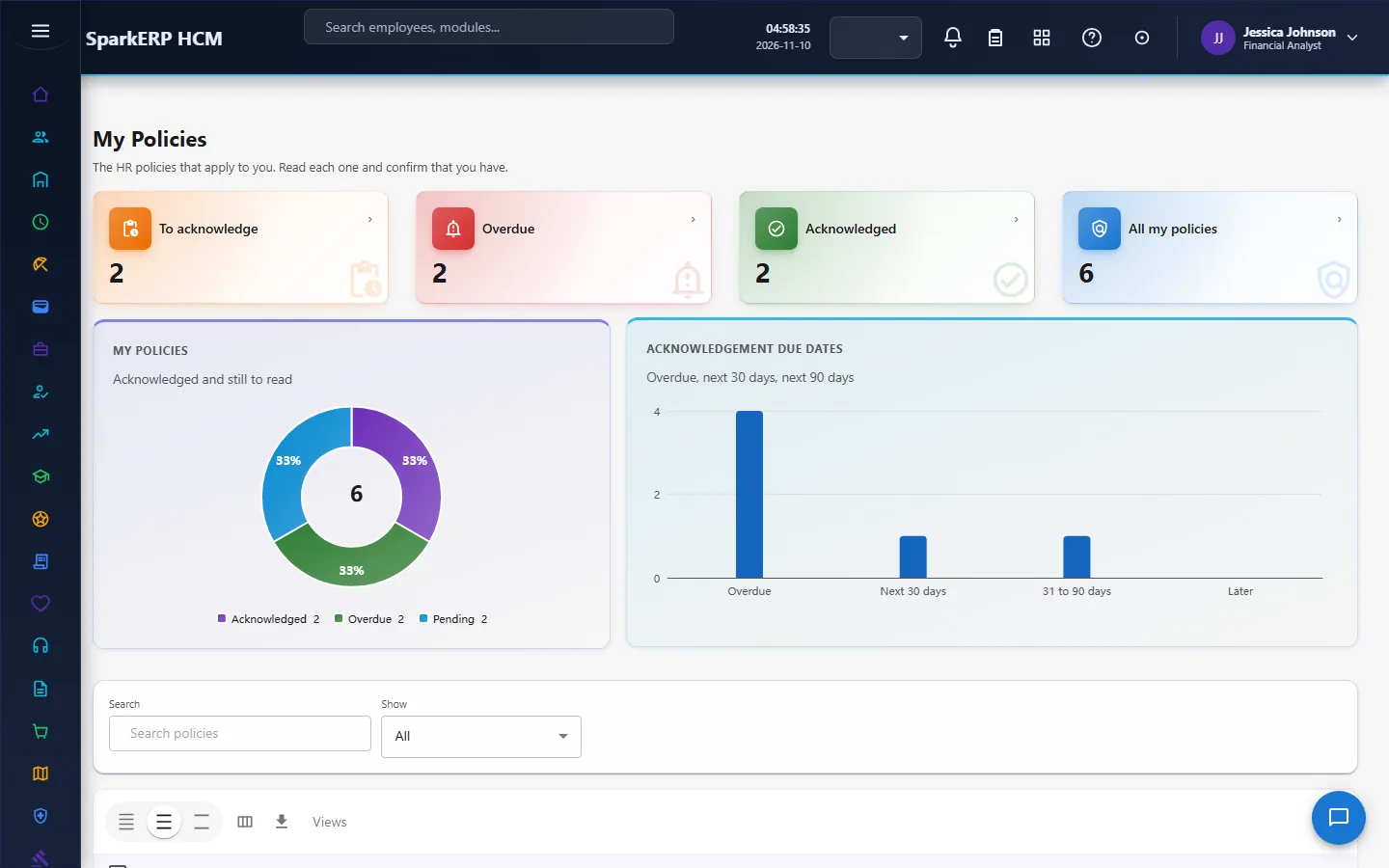
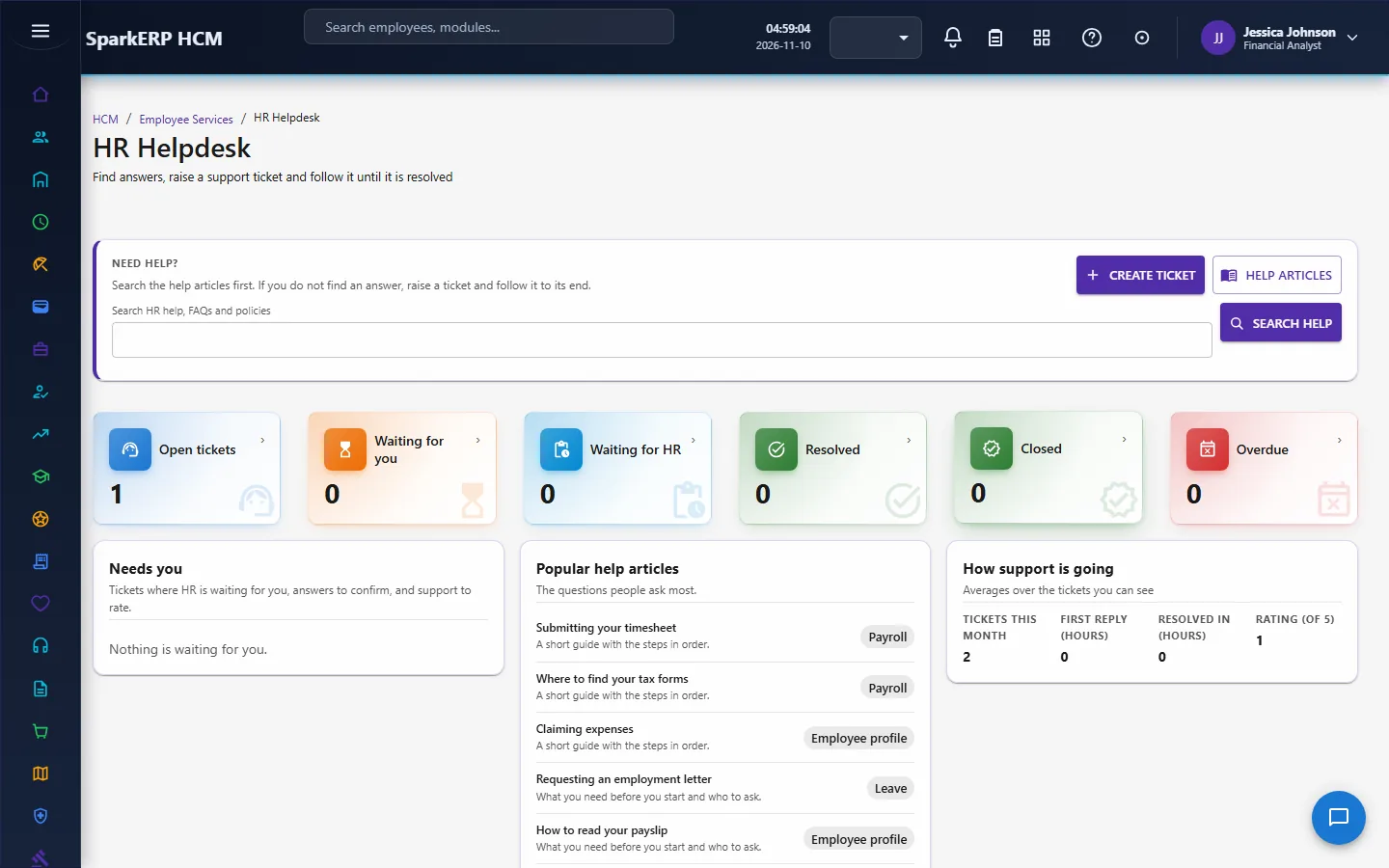
The manager
Manager Self-Service is the manager's workspace: the team, the approvals waiting and the work that needs them.
HR
HR works the HR Helpdesk and sees the Requests and the manager workspace.
4. Decide before you set up
| Decision | What to think about |
|---|---|
| Which profile fields need approval | Low-risk fields are applied at once; the rest wait for a person. |
| Approval paths | For attendance regularization, overtime, requests and timesheets: manager only, two levels, three levels, or with payroll. |
| Request types | The forms, the documents, the approvers and the expected time of each. |
| Payslip visibility | Whether employees see payslips, and whether only published ones show. |
| Benefit rules and prices | Who may join each benefit, and how it is priced. |
| Helpdesk | The status flow, the SLA by priority, the routing, and how long a resolved ticket stays open. |
| What managers may do | Which actions are off for managers, and who holds the sensitive roles. |
5. Set up step by step
- Link people to logins. Self-Service finds the person from the sign-in, so each employee record must be linked to a user.
- Reporting lines. A manager's scope comes from the reporting hierarchy, so keep it right.
- Owning modules. Install and set up Leave, Payroll, Performance, Learning, Benefits and Expenses as you need them; each section works only when its module is ready.
- Profile fields and approvals. Choose which profile fields need approval, and who holds the approval permission.
- Request types. Define the request types with their forms and approvers.
- Helpdesk. Set the status flow, SLA and routing.
- Manager roles. Give the sensitive-data, talent, payroll summary and benefits summary roles to the managers who need them.
- Trial. In a trial tenant generate the Employee Services demo data and walk through each screen as an employee and as a manager.
6. Daily use
6.1 An employee
- Open the home to see what needs attention.
- Apply for leave, submit the timesheet, ask for an attendance correction, submit overtime.
- Check the payslip; acknowledge a new policy; answer an open request.
- Ask HR a question on the helpdesk; follow the ticket.
6.2 A manager
- Open Manager Self-Service; read the approvals waiting.
- Decide each: the owning module settles it.
- Check the team's leave, attendance and goals; start feedback or a recognition.
7. A calendar of recurring work
| When | What |
|---|---|
| Every 15 minutes | The helpdesk sweep: SLA state, warnings, escalations, closing resolved tickets. |
| Every hour | The manager reminder sweep: a day, then three days. |
| Daily | The benefits sweep: late proofs, reminders, enrolment notices. |
| Weekly | Timesheets submitted; managers' approvals cleared. |
8. Reports and figures
The home shows each person's own numbers. HR sees the Service Reports of the helpdesk. Managers see their team's figures in Manager Self-Service.
9. Limits you should know about
- A section works only when its owning module is installed and ready. The rest of the page keeps working.
- An employee never sets an approved amount, a paid amount, a rating, a score or a completion.
- A manager's scope never widens beyond the reporting line and the scopes given.
- Ratings and manager comments appear only after the review is published.
- Messages and audit lines are best effort and never stop the action.
10. Troubleshooting
| Symptom | Cause and fix |
|---|---|
| A screen says information is missing for your account | The employee record is not linked to the login, or the owning module has not returned the data; ask HR to check the link. |
| A profile change did not apply | The field needs approval and is waiting for the approver. |
| A manager sees nobody | The reporting line is not set, or the scopes were not given. |
| A manager cannot do an action | It needs a sensitive role, or an administrator switched it off for managers. |
| A payslip is not visible | Payslips are hidden from employees, or only published ones show, in the Payroll settings. |
| A benefit is not offered | The eligibility rule failed; the page says which clause. |
| A request is stuck | It is in the approval workflow; the approver sees it in the Approval Inbox. |
| A helpdesk ticket is late | Its SLA is counted in working hours and pauses while the employee is asked for something. |