
Appearance
Communications: how it works and how to set it up
Communications answers the questions a company asks about talking to its people: how do we tell everyone something and know they saw it, how do we send the right message on the right channel without flooding anyone, what did we send and did it arrive, did people agree to be contacted, and how do employees and HR talk to each other and get answers on time. This guide explains how the module works from start to finish, then how to set it up, then what each person sees. Every screen has its own page in the Communications section; this guide is the one to read first.
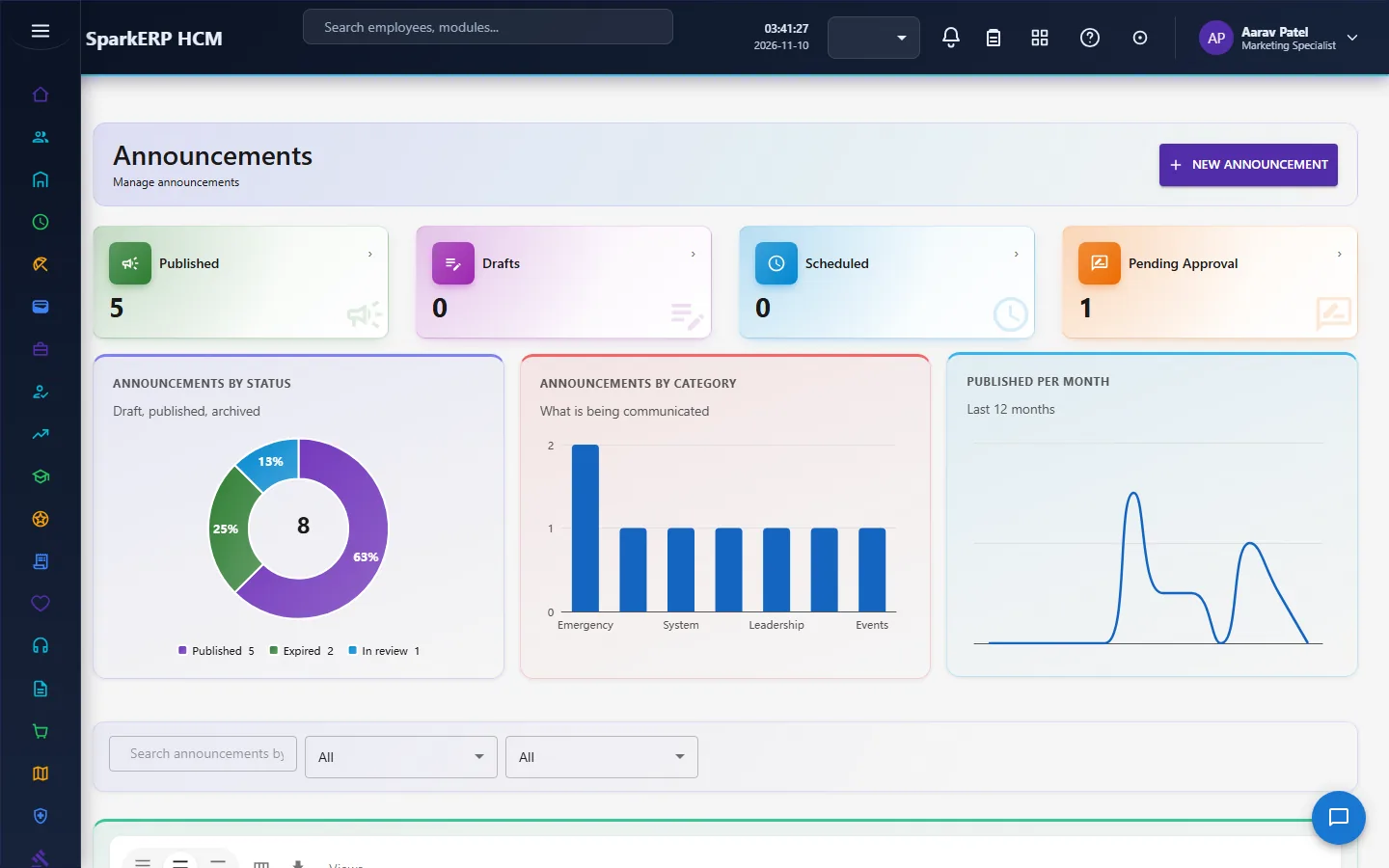
1. What Communications does for your business
- Announces. An announcement reaches the people it is for, and the module counts who was reached, who opened it and who acknowledged it.
- Keeps templates. Email, SMS and push templates have versions, a history, a preview with sample data, a check of the merge tags and a test send.
- Sends mailings of an email template to an audience at a set time, in each person's language.
- Notifies on events. Notification rules fire on real events, such as a leave request being created, and tell the people the rule names.
- Respects people. Each person's channel preferences, quiet hours and an hourly cap are applied by the platform's communication engine, and urgent and security messages are never held back.
- Keeps a record. The history of everything that was really sent, by this and by other applications, and the consent log.
- Handles conversations between employees and HR, with deadlines counted in working hours.
What it does not do: it does not send messages itself. Every message goes through the platform's communication engine, which owns the channels, the providers, the preferences and the history. This module reads the engine only through its REST API and never reads its tables, so HCM can run on its own host database. Which provider carries an email, an SMS or a push is configured in the platform's provider connectors, not here.
2. How communications work, end to end
2.1 Announcements
An announcement has an audience: all active employees, the employees named in it, or the people in named departments. The life of an announcement:
- It is written and sent for approval. The approval is a task for the Communications Manager or the Tenant Owner.
- When approved or scheduled, it is published and sent to its audience when its publish time comes: every minute a job publishes what is due. A published announcement whose expiry time has passed becomes expired.
- Sending is a fan-out: one notification per person in the audience. Running it twice adds nobody twice.
- Engagement is counted. A person opening it (view) and acknowledging it (acknowledge) are each recorded once per person. The readership shows how many were reached, opened and acknowledged, and the same by department.
For an announcement people must acknowledge, a reminder ladder runs: a reminder to the person after 48 hours, another after 96 hours that also tells their reporting manager, and after 7 days one note to the announcement's owner saying how many have still not acknowledged. Every step is sent once. The owner can also press remind now, which keeps its own once-a-day rule.
2.2 Templates
Email, SMS and push templates share the same machinery: real version numbers with a history and a way back, a preview with sample data, a check of the merge tags (written in double braces) against the variables the template declares, and a test send through the communication engine. SMS templates show the length and the number of segments. A template goes through an approval before use, a task for the Communications Manager or the Tenant Owner.
The visual email editor works on a list of blocks (add, move, delete, edit) and renders email-safe HTML. The rules are built in: an image needs alt text and a secure address, a link is http, https or mailto (or a variable), text is escaped (a template is a document, never a place to paste script), a button's colour must have readable contrast with its label, and the layout is a 600 pixel table that scales on a phone.
A push is checked before it is sent: things that must be fixed (a link that cannot be opened safely, buttons that cannot work) and things that read badly on a phone. A deep link may be a path inside the app, an https address or the app's own scheme; javascript:, data: and plain http are not allowed.
2.3 Mailings and split tests
A mailing sends an email template to an audience at a time you set (a time in the past, or none, means now). It needs the right to manage email templates. Every minute a mailing that is due starts and is sent in batches of 300 people (a big audience takes a few minutes, and a mailing already sending carries on where it stopped). Each person gets the email in their own language, or the original, with their name filled in. A mailing goes out as a marketing message, so anyone who turned those emails off in their preferences is left out, and a person's quiet hours hold it. A person is never sent the same mailing twice.
An email split test compares two versions on the share of delivered mails that were opened (a two-proportion test). A winner is called only when the difference is clear at 95% and at least 2 percentage points; "no clear winner" is a normal answer, not a failure.
2.4 Notification rules
A notification rule fires on a real event, named as the thing and the change (for example a leave request created). Every minute, the changes the platform recorded since the rule last looked are checked against the rule's conditions, and each match tells the people the rule names, on the channels it names: the in-app inbox directly, and any other channel through the communication engine. A notification already sent for the same event and person is never sent twice. A rule can escalate: a notification still unopened after the rule's number of hours is sent again on the escalation channels.
2.5 The daily digest
When the organization switches it on (in HCM Settings, Notifications), each person's unread notifications of normal or low priority from the last two days that have not been in a digest are sent as one email instead of piling up. Urgent and high priority notifications are never held back. A notification is in at most one digest, and a person gets at most one digest a day.
2.6 Preferences, quiet hours and caps
My notification preferences show which channels a person wants for each kind of message. A missing row means the channel is on. The in-app inbox is always on and has no switch, and security and system messages cannot be switched off. The engine honours the choices whenever it sends.
A person's own quiet hours (between their start and end time in the organization's time zone) hold ordinary email, SMS and push messages until the window ends. Urgent messages are never held. The organization's own quiet hours apply to people with no window of their own. The engine also applies an hourly cap.
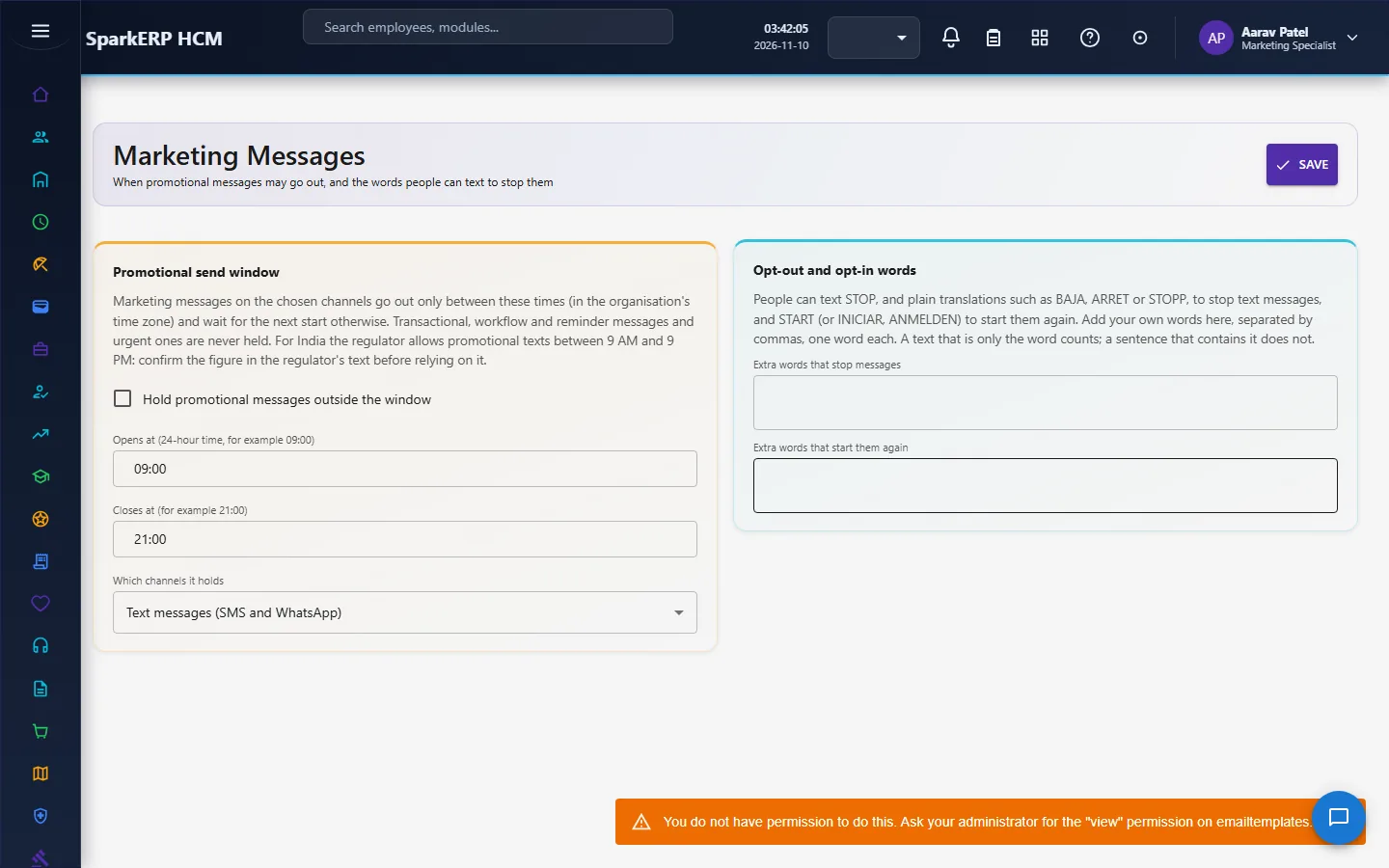
The promotional send window is applied in the recipient's own time zone. The organization sets the window (marketing messages on or off, the opening and closing time, and which channels); each person's message waits until the window opens where that person is. The person's zone is the time zone of the device they last used; a person with no device gets the organization's time zone.
2.7 Conversations between employees and HR
A conversation has a priority and a due time. When it has no due time, one is set from its priority, counted in working hours from when it was opened: critical 4 hours, urgent 8, high 24, normal 48, low 96. Only the hours between opening and closing time of a working day count; weekends and public holidays are skipped, so a conversation opened on a Friday evening is not already late on Saturday. The working week and the zone come from HCM Settings, and the day runs from 09:00 to 18:00.
Every five minutes a job keeps conversations honest: while a conversation waits for the employee its clock is paused, and the waiting time is given back when the employee answers; the first reply an HR person sent (not an internal note) is recorded as the first response; and a conversation still waiting for its first response after its due time is escalated: its status becomes escalated, a note from the system is added, and the person it is assigned to is told.
2.8 History, analytics and consent
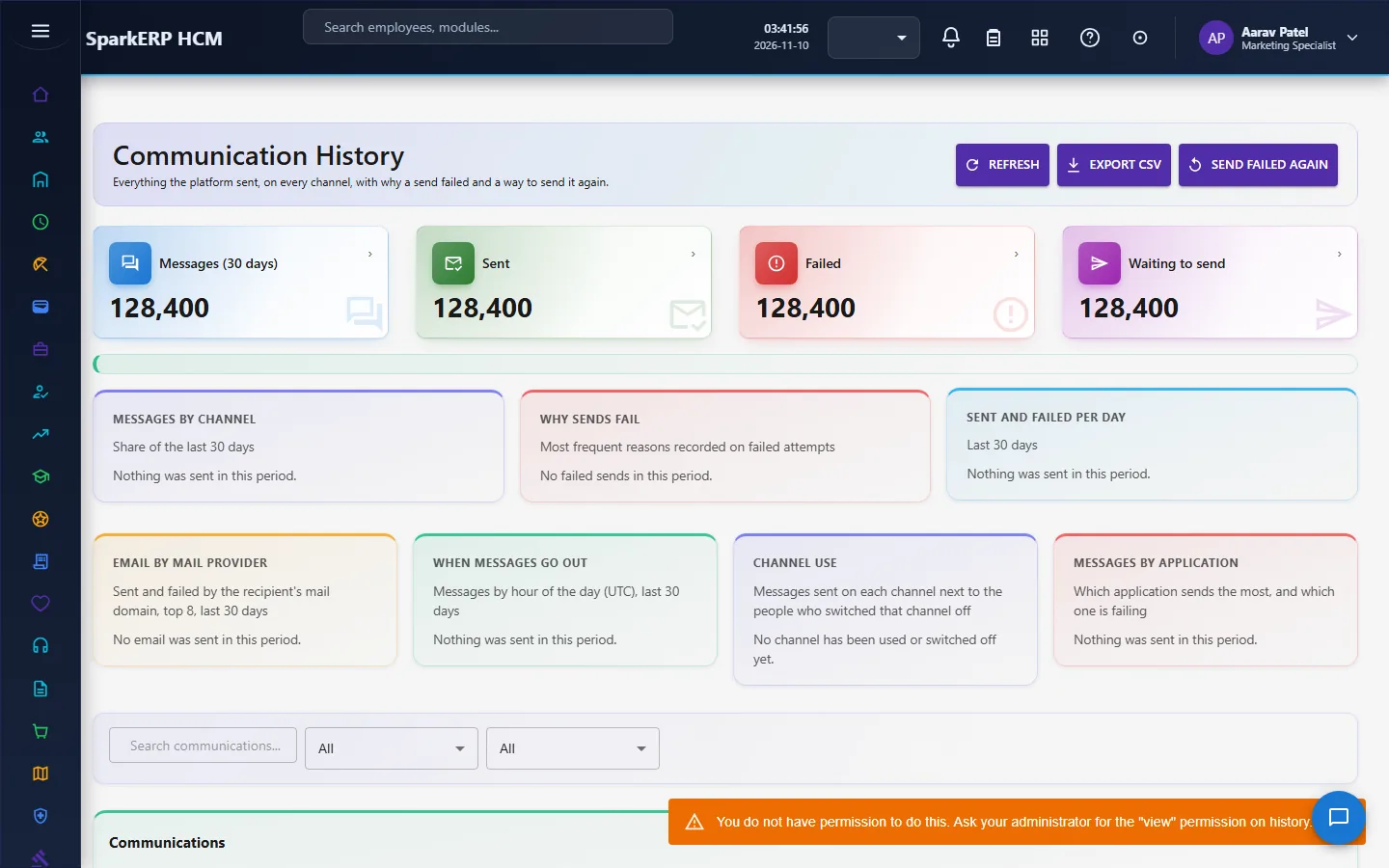
Communication History shows everything the engine really sent, including by other applications, and Resend uses the engine's own retry rather than a copy. Every request is bounded by a time window and a row limit, because the engine can hold hundreds of thousands of messages. Delivery analytics show the daily trend, the top failure reasons, failures per channel, email by recipient mail domain, messages by hour and the people who switched a channel off.
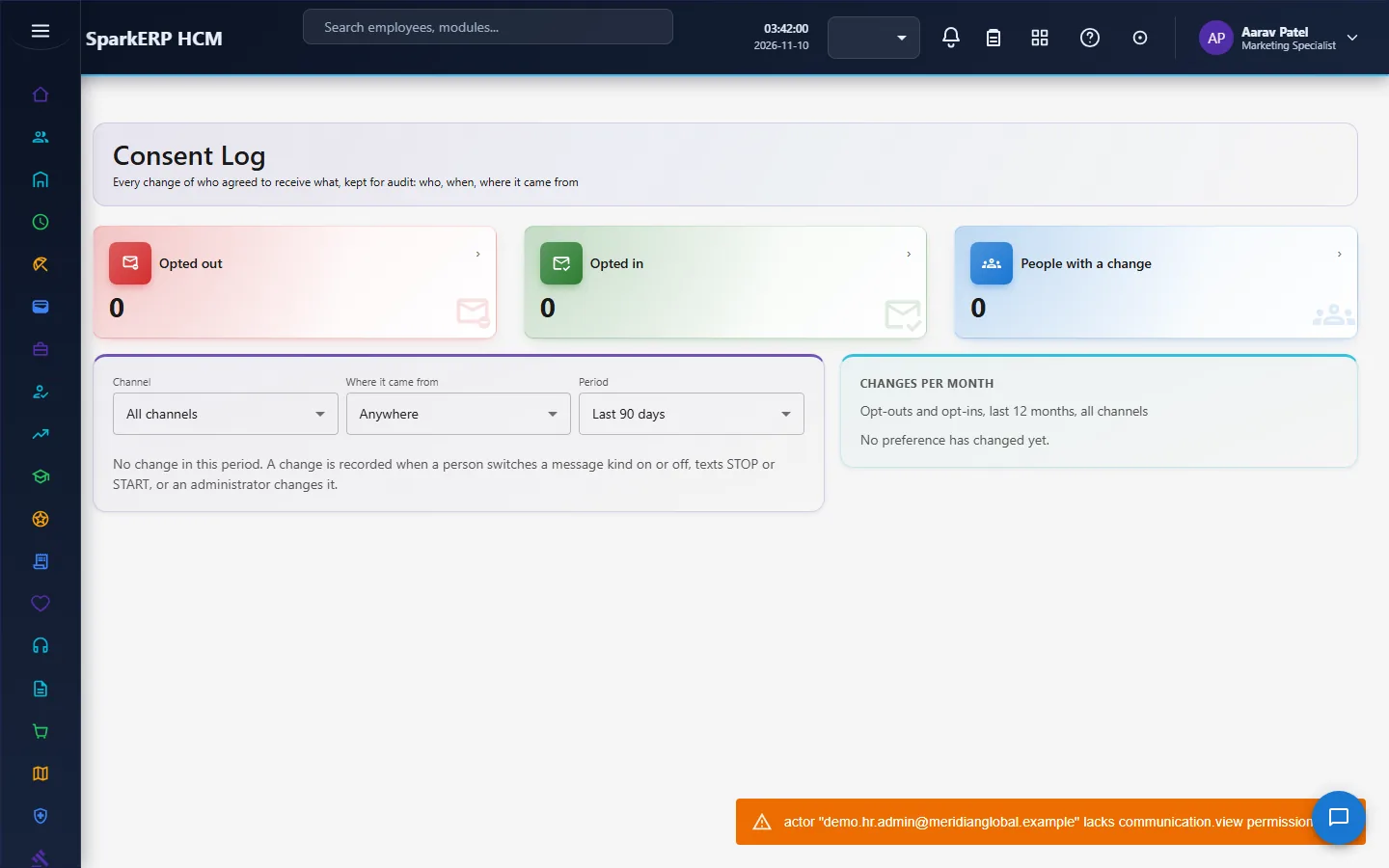
The Consent Log shows who agreed to or withdrew from which messages, read from the engine. The engine's own privileged-action gate decides who may open it, so an ordinary employee gets a refusal, and the AI assistant can never show more than the person could open.
2.9 What the automation did
A page lists what Communications does on its own, in plain words: each automatic job (publishing, notification rules, the digest, conversation deadlines) with how often it runs, when it last finished and what it did, and each notification rule with how many times it fired and who it last told. It answers "why did that go out" and "why did nothing go out".
3. Who does what
| Role | What they do |
|---|---|
| HCM Communications Manager | Approves announcements and templates; manages templates, mailings and settings; reads the history and the consent log. |
| Communications HR User | Writes announcements and answers conversations. |
| Communications Employee | The role exists for what employees do themselves (their own notification preferences). The Communications screens are staff screens and are not open to it. |
| Tenant Owner | Can decide the approvals. |
| HR and the auditor | Read the records and reports. |
Every Communications screen is a staff screen that shows organization-wide counts and records (who was sent what, every conversation, every rule), so they are open to the communications roles, HR, the auditor and the analytics viewer. What an employee receives arrives in their in-app notifications and by the channels they have chosen, not on these screens.
3a. What each role sees, screen by screen
The employee
An employee does not use the Communications screens: they show organization-wide counts, every conversation and what was sent to whom. What an employee receives arrives in their notifications and on the channels they chose.
The communications and HR administrator
Announcements, Employee Communications and Notifications are the working screens.
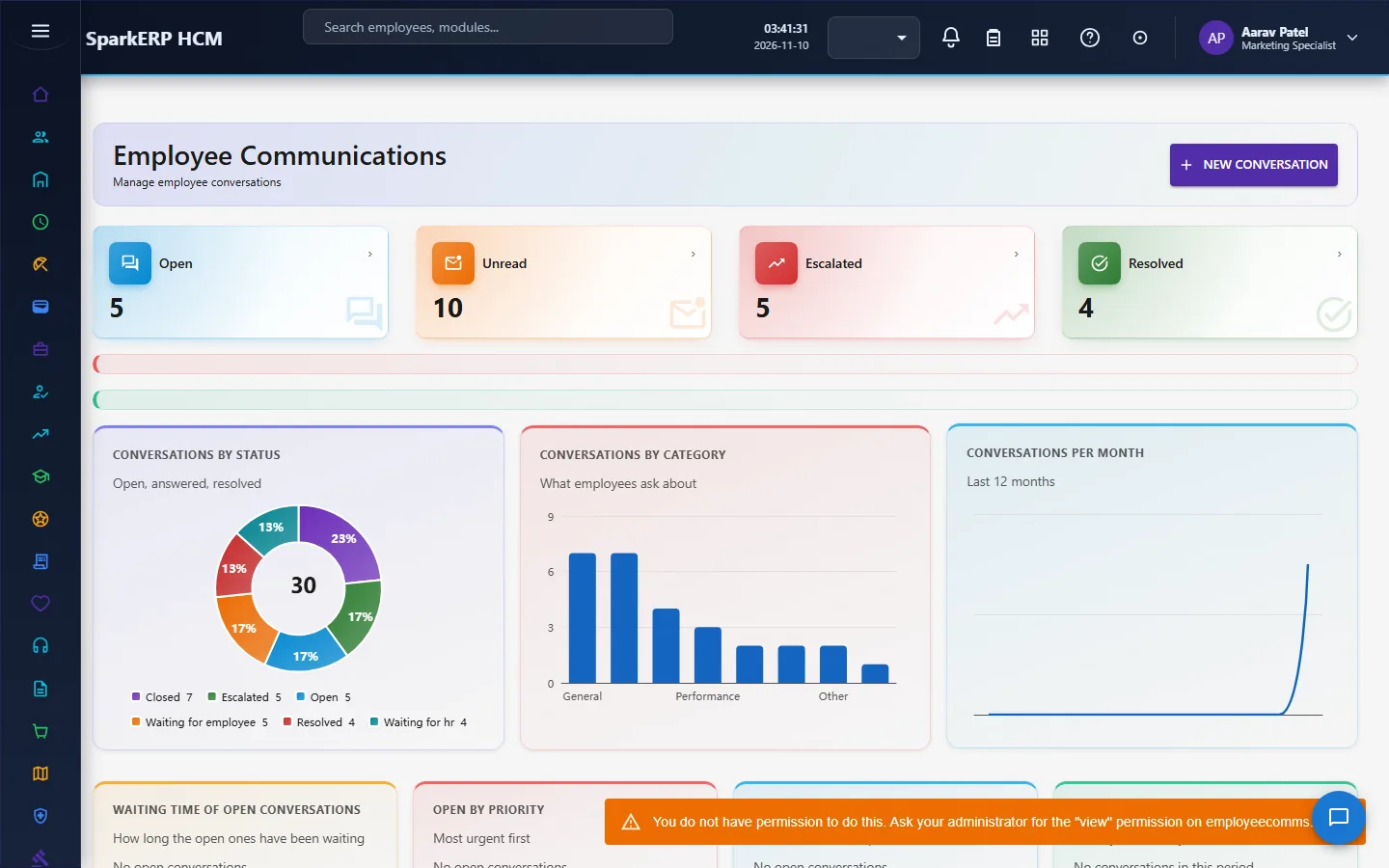
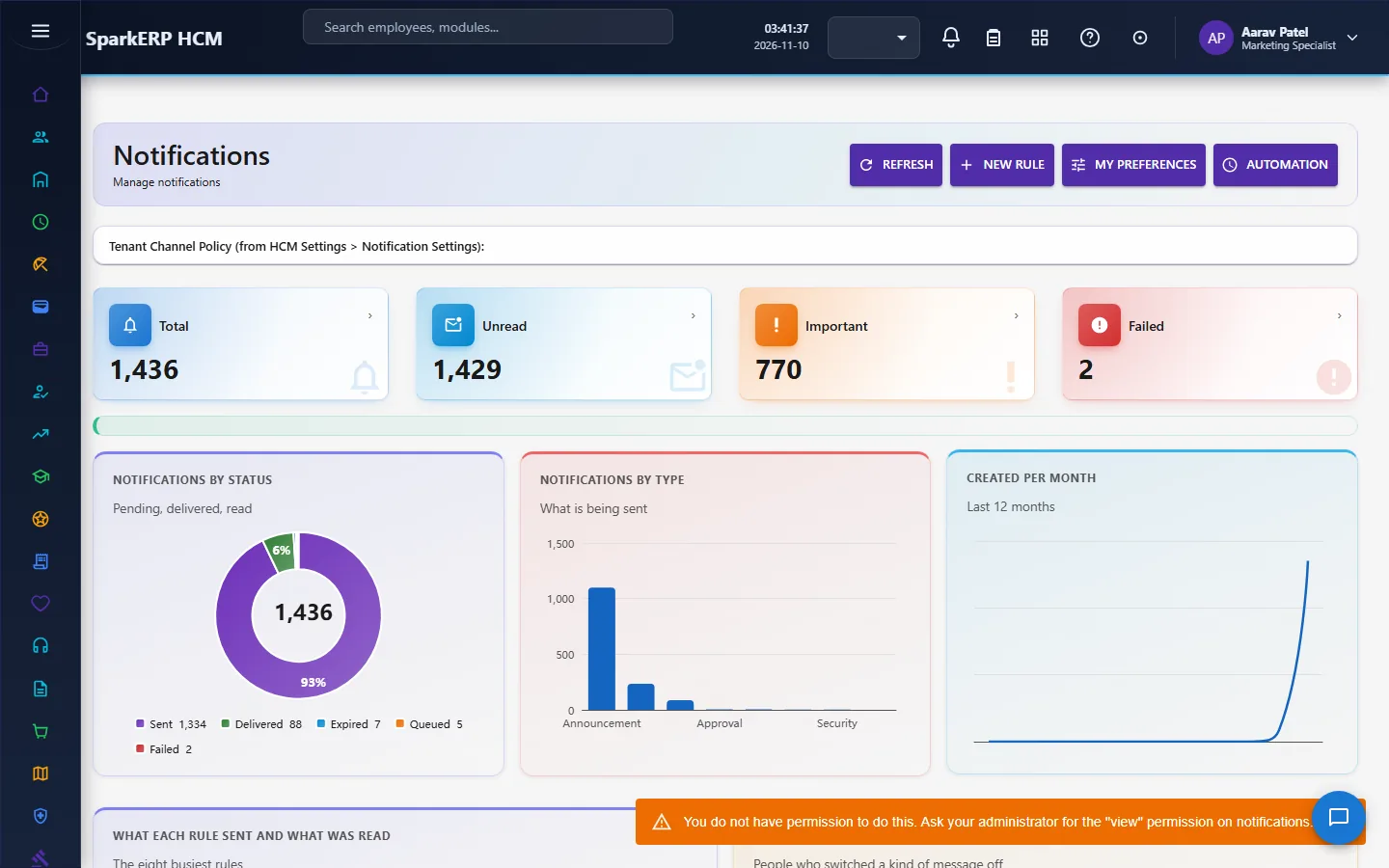
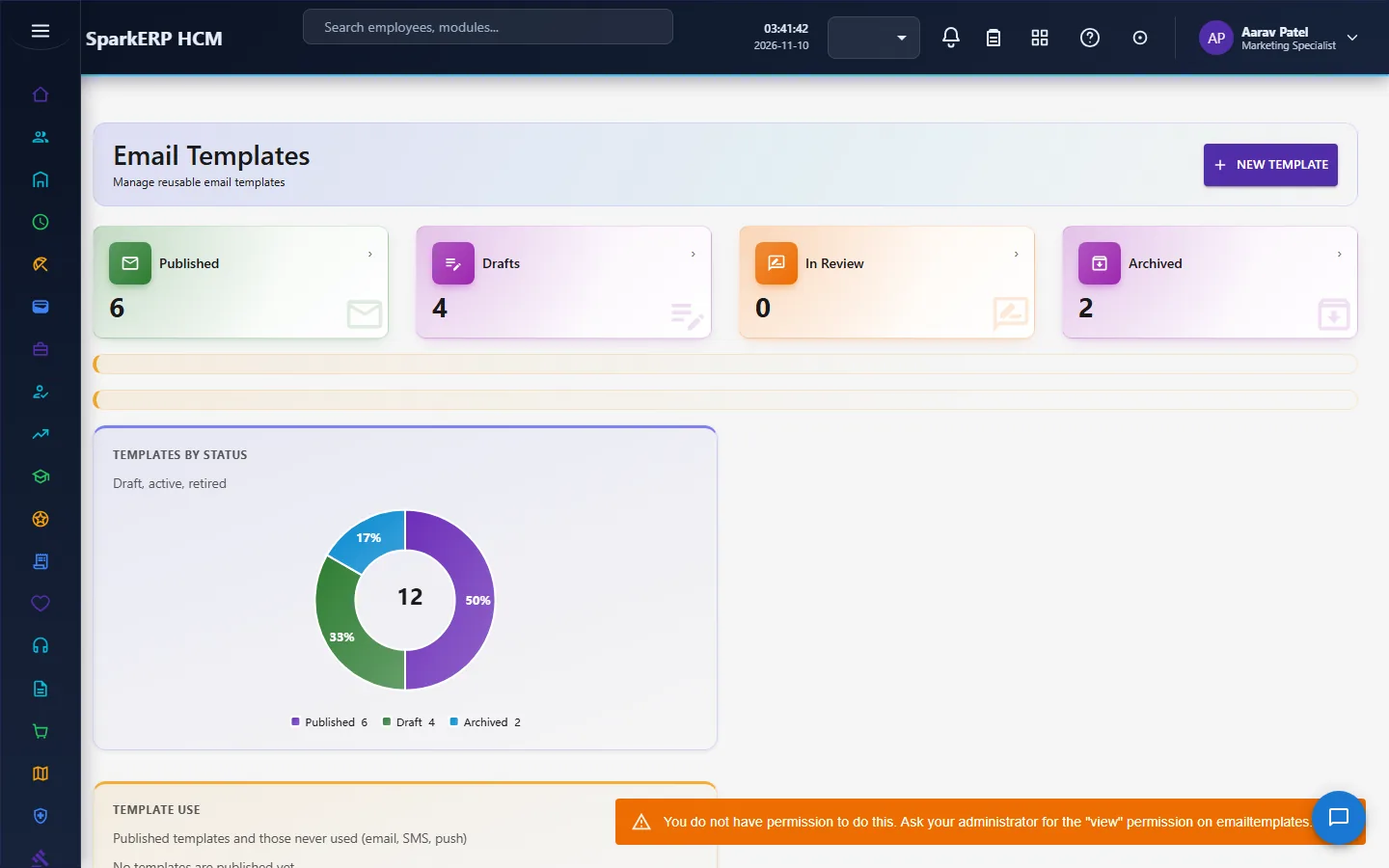
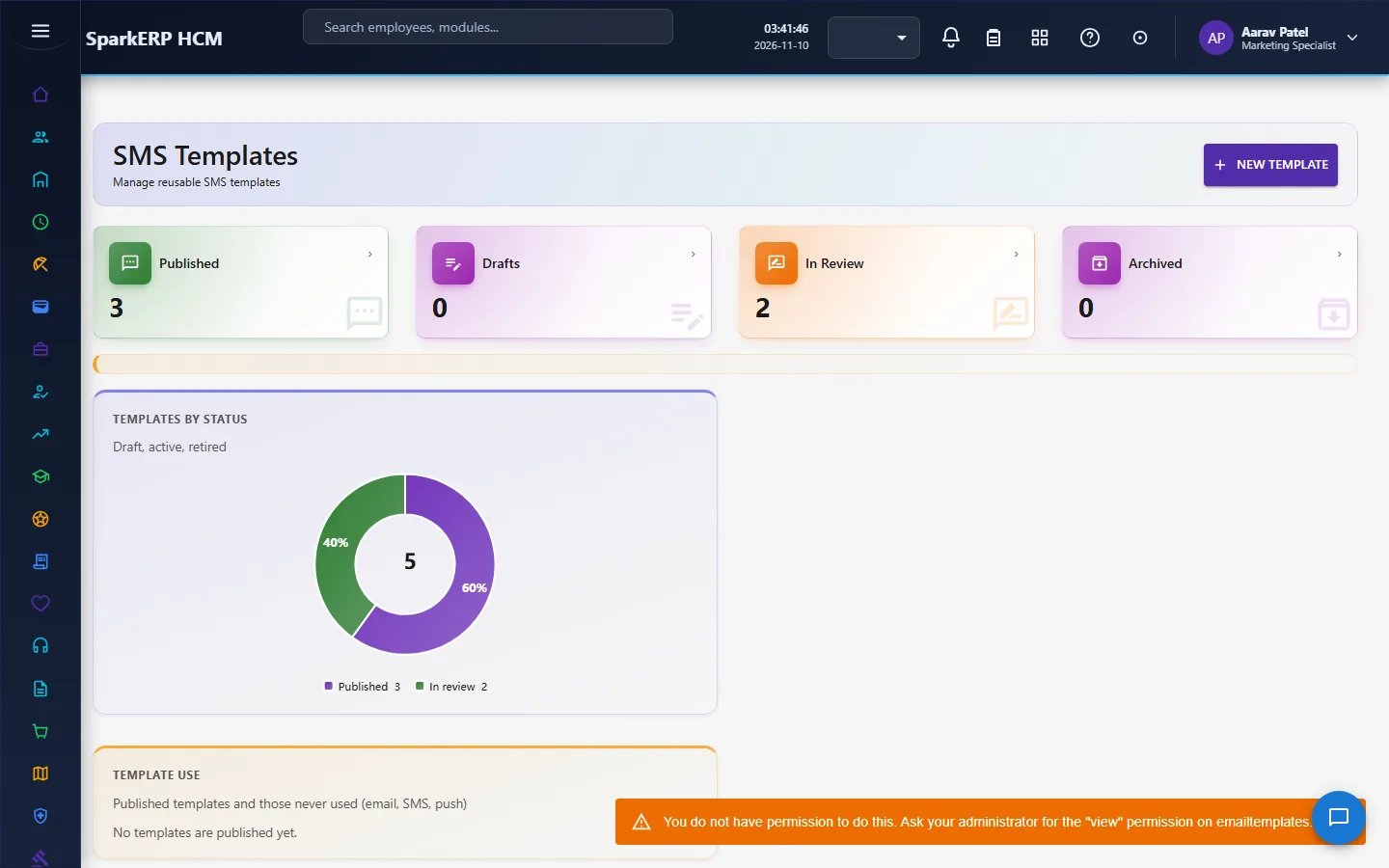
Email Templates, SMS Templates and Push Notifications hold the content.
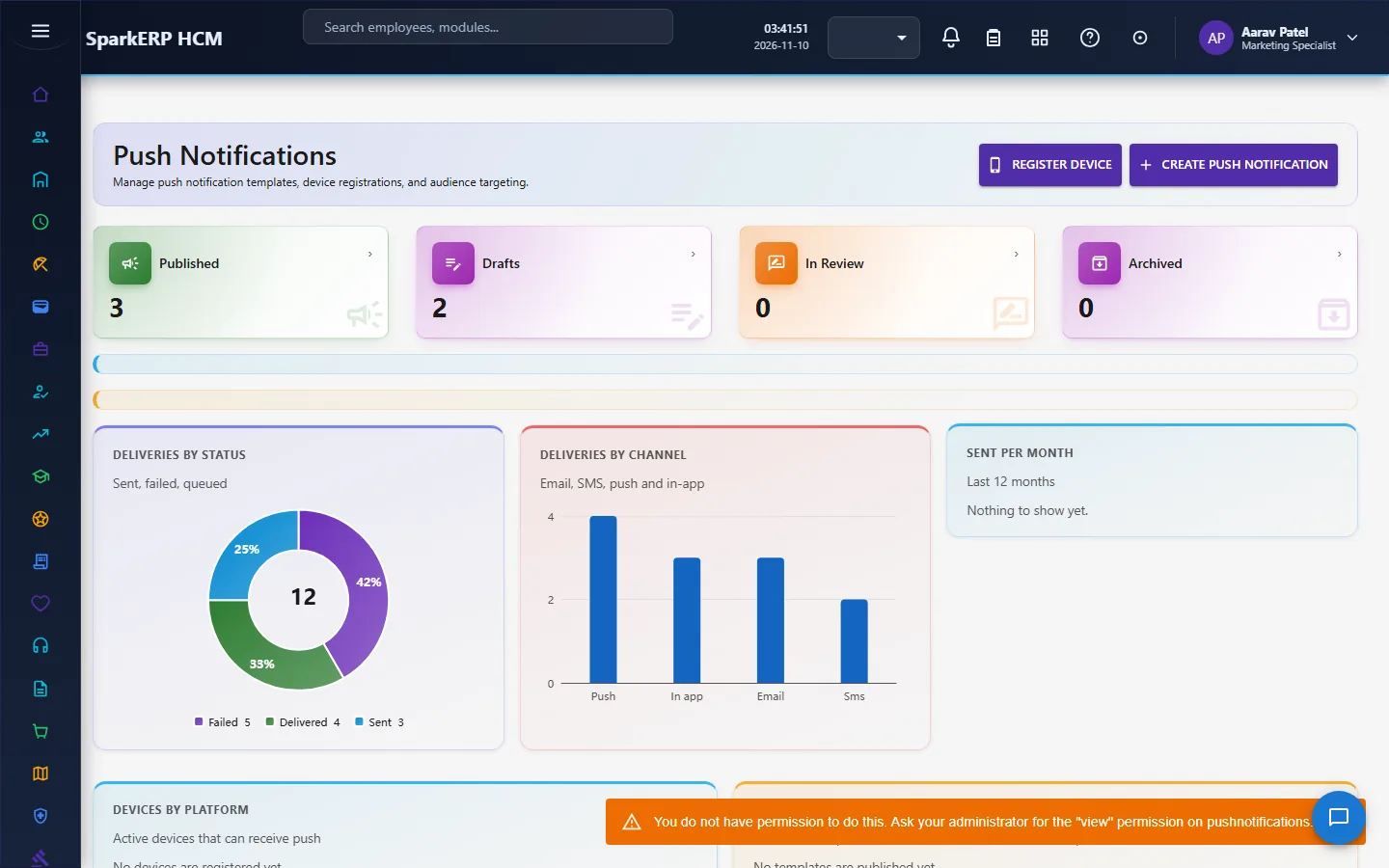
Communication History, Consent Log and Marketing Settings keep the record and the rules.
4. Decide before you set up
| Decision | What to think about |
|---|---|
| Channels and providers | Which providers carry email, SMS and push; they are set in the platform's provider connectors. |
| Who approves content | Who holds the Communications Manager role. |
| Quiet hours and the promotional window | The organization's hours and which channels the window holds. |
| The digest | Whether to send one daily email of normal and low priority notifications. |
| Acknowledgement | Which announcements must be acknowledged. |
| Conversation deadlines | The working week and zone in HCM Settings; the hours per priority are fixed. |
| Consent | What people agree to, and who may read the log. |
5. Set up step by step
- Providers. Configure the email, SMS and push providers in the platform's provider connectors.
- Roles. Give the HCM Communications Manager and Communications HR User roles.
- Settings. In HCM Settings, set the notification digest, quiet hours, the marketing window and the working week.
- Templates. Write the email, SMS and push templates; preview them; send a test; approve them.
- Notification rules. Create the rules for the events you want to tell people about.
- Announcement. Send a first announcement to a small audience and check the readership.
- Trial. In a trial tenant generate the Communications demo pack and follow one announcement to acknowledged.
6. Daily use
6.1 An announcement
- Write it, choose the audience and whether it must be acknowledged, and send it for approval.
- It publishes at its time; follow the readership by department.
- Use remind now for people who have not acknowledged.
6.2 A mailing
- Pick an approved email template and an audience, and a time.
- Check the preview; send a test.
- Schedule it; it goes out in batches; cancel it if it has not finished.
6.3 A conversation
- An employee opens a conversation with HR; HR replies.
- The first reply is the first response; a conversation past its due time with no reply is escalated.
6.4 "Why did that go out?"
Open Communication History for what was sent, and the automation page for which job or rule fired.
7. A calendar of recurring work
| When | What |
|---|---|
| Every minute | Publishing, mailings and notification rules run. |
| Every five minutes | Conversation deadlines. |
| Daily | The digest; acknowledgement reminders (48 hours, 96 hours, 7 days). |
| Monthly | Delivery analytics and failure reasons. |
| Yearly | Review templates, consent and quiet hours. |
8. Reports and figures
Communication History and the delivery analytics show messages by channel, failures, opens and the people who switched a channel off. An announcement shows its readership. Lists can be exported.
9. Limits you should know about
- Everything is sent by the platform's communication engine, so a provider that is not configured sends nothing.
- Urgent and security messages are never held by quiet hours, preferences, the digest or the cap.
- The in-app inbox cannot be switched off.
- A split test calls a winner only when the result is clear.
- Conversation hours per priority are fixed; the working week and zone are settings.
- A mailing never reaches someone who turned marketing off.
10. Troubleshooting
| Symptom | Cause and fix |
|---|---|
| An announcement did not go out | It is not approved, or its publish time has not come, or the audience is empty. |
| Someone did not get a mailing | They turned those emails off, quiet hours held it, or it has not reached their batch yet. |
| A notification rule did not fire | The event has not happened since the rule last looked, or its conditions did not match. |
| A message was held | Quiet hours, the person's preferences or the hourly cap. Urgent messages are never held. |
| A push is refused | Its link is not allowed (javascript:, data: or plain http). |
| An image is refused in an email | It has no alt text or its address is not secure. |
| A conversation was escalated | It waited for its first response past its due time, counted in working hours. |
| An employee cannot open a screen | It shows what was sent to whom. |