
Appearance
Travel: duty of care, preferred suppliers and booking through a provider
This guide covers three newer parts of Travel: Duty of Care (who is travelling now, where the risk is, safety alerts and check-ins), Preferred Suppliers with Supplier Compliance (how much booking goes to the airlines and hotels the company prefers), and Book with the Provider (search a travel provider's offers and book one against an approved trip). The request, approval, booking, advance and expense screens are in Travel: from setup to daily use.
1. What it is and who uses it
| Role | What they do |
|---|---|
| Travel administrator (tenant administrator) | Keeps the Destination Risk and Preferred Suppliers lists, sends safety alerts, watches check-in answers and help requests, reads Supplier Compliance. |
| Travel desk | Searches and books through the provider against an approved request. |
| Traveller (employee) | Answers a safety alert from Safety Check-in: safe, or needs help. |
| Finance / procurement | Reads Supplier Compliance to see whether the negotiated suppliers are used. |
2. Before you start
- Installed plugin.
hcm-travel(needs HCM Foundation and Employee). It is the free tier, so no licence feature has to be granted. - Access. Tenant administrators use every screen. Duty of Care and Supplier Compliance need a tenant administrator or the Report.View permission; sending and closing an alert needs a tenant administrator. A traveller answers only their own check-in.
- A travel provider. Booking through a provider calls two Integration Designer flows by code,
travel-offers-searchandtravel-offer-book, over a connection the administrator sets up. Nothing about the provider is written in the module. Without the flows, a search says plainly that the provider is not set up. For a trial, the repository'sdummy-servicesmodule stands in (node dummy-services/setup-travel.mjs --tenant <id> --user <login> --password <pw>creates the connectiondummy-traveland the two flows); a real provider replaces the connection address and the flow mapping. - An email channel for safety alerts: alerts go through the platform's communication engine, using the tenant's own email provider.
- Trial data. In a trial tenant, generate the Travel pack in Demo Data: it adds eight suppliers, ten destination risk levels, thirteen or so people travelling now, and three safety alerts with answers.
3. Set up
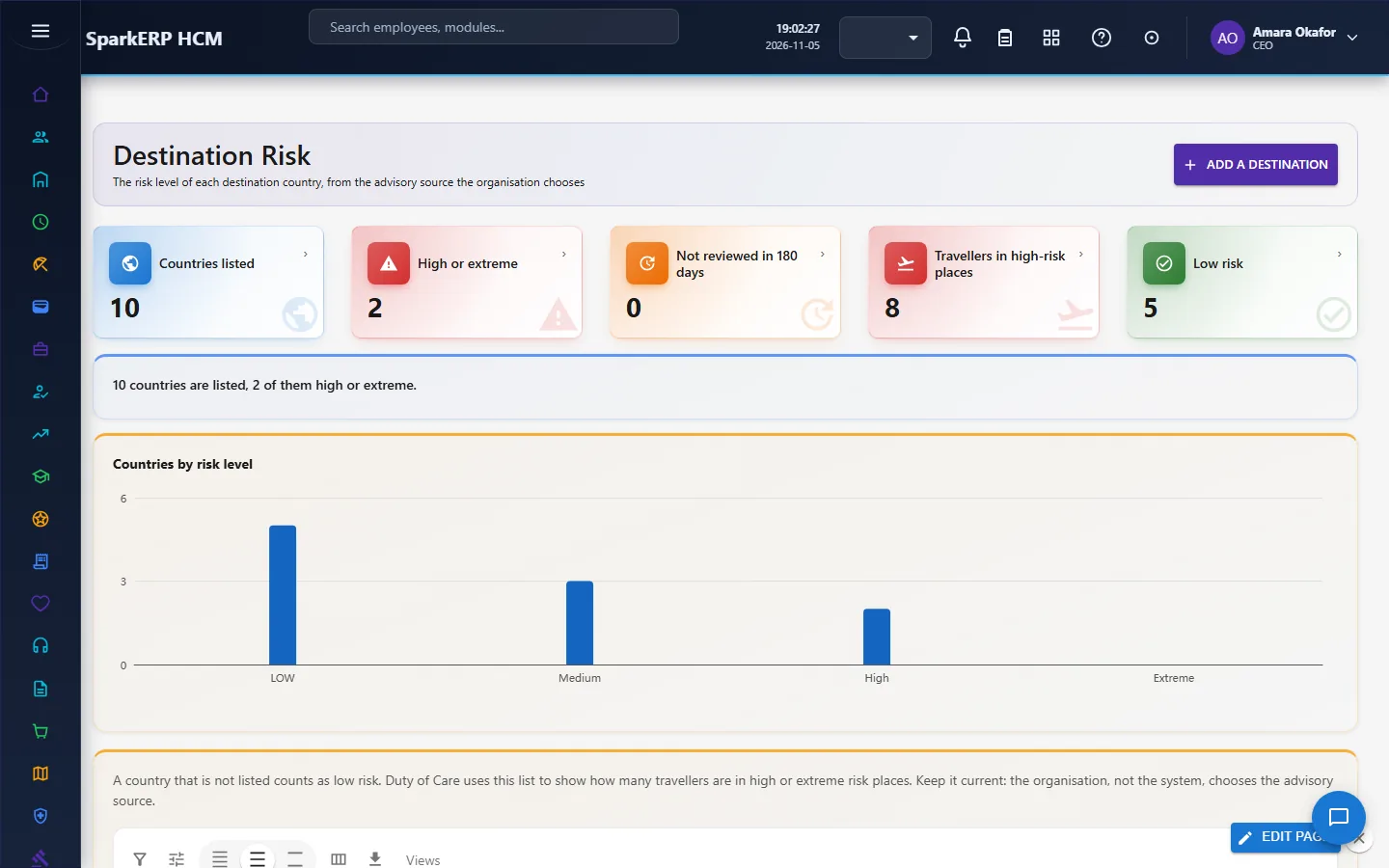
Destination Risk. Open Destination Risk and add a row per country: the risk level (low, medium, high, extreme), a short advisory and where it comes from. The organisation chooses its advisory source (a government advisory, an assistance provider); the system does not. A country that is not listed counts as low risk. Write the country the way it is written on travel requests.
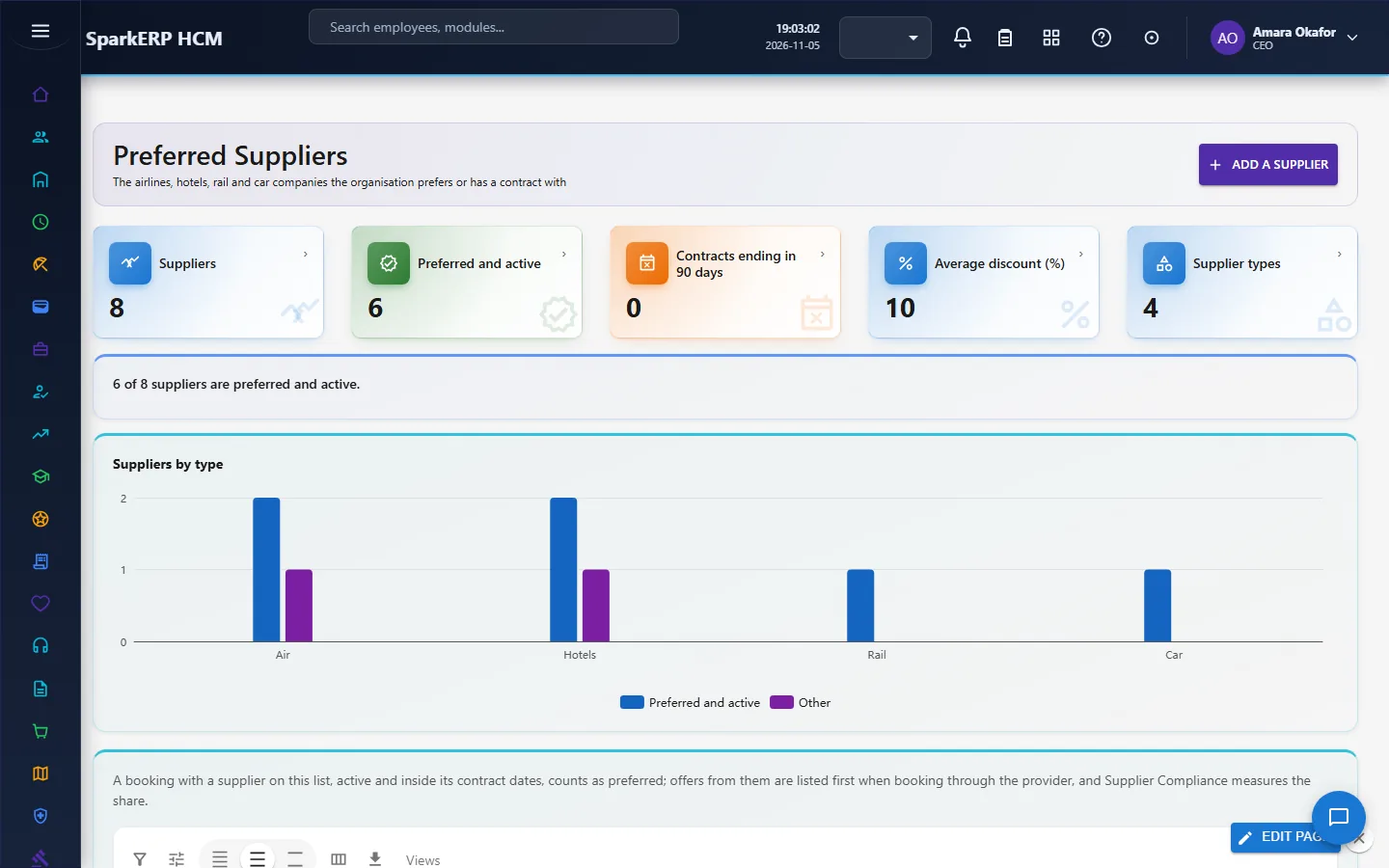
Preferred Suppliers. Open Preferred Suppliers and add the airlines, hotels, rail and car companies: name (as the provider writes it), type, preferred yes or no, negotiated discount, an optional country, the contract dates and the status. A supplier counts as preferred for a booking when it is on the list, preferred, active, of the same type, inside its contract dates and, if it names a country, for that destination.
The provider. Ask the integration administrator to set up the two flows (section 2). Test them from the Integration Designer before using Book with the Provider.
Who can send alerts. Only tenant administrators. Check that travellers are linked to their employee record, because a check-in is shown to the person whose login is linked to the traveller.
4. Daily use
4.1 See who is travelling and send a safety alert
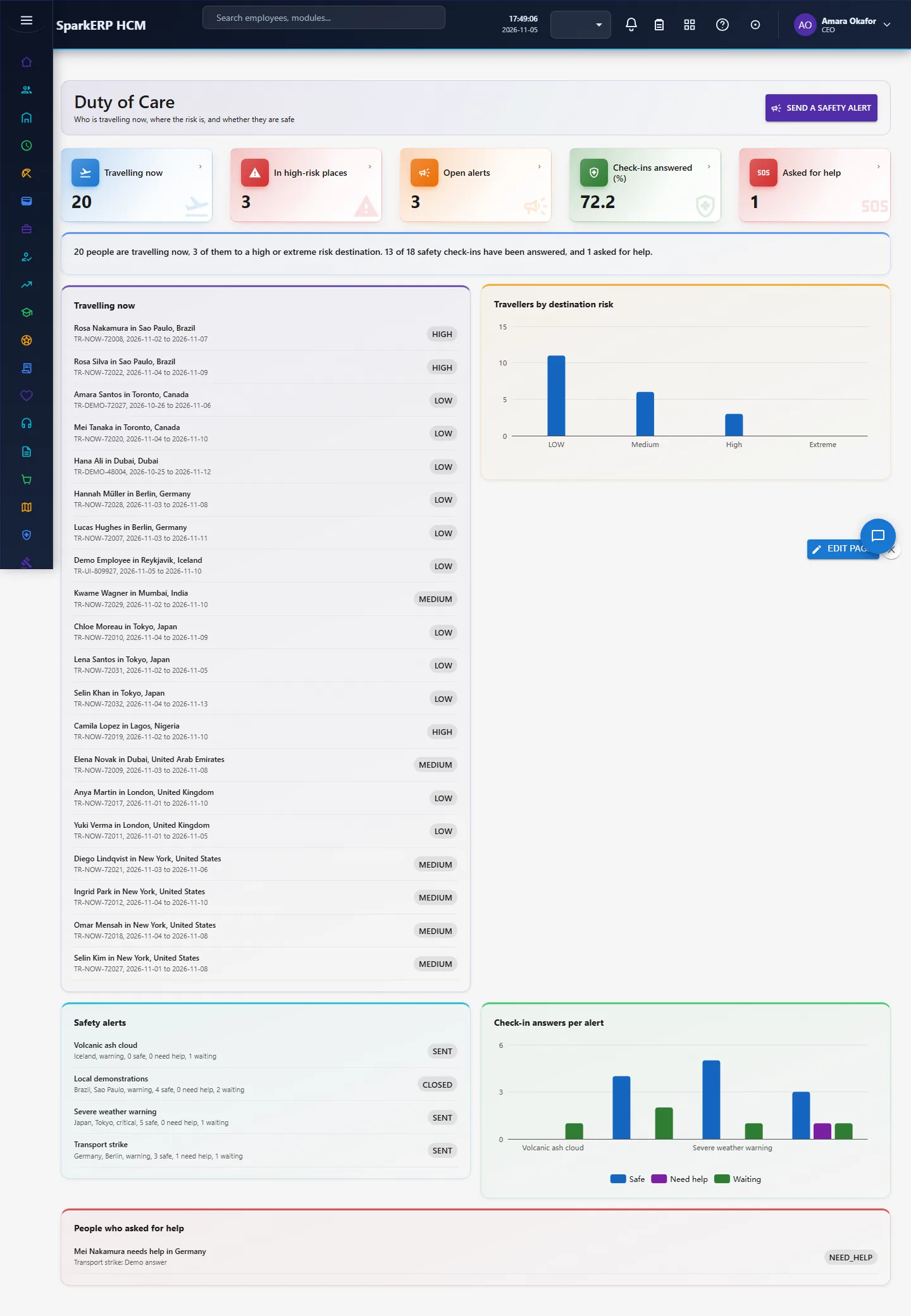
Open Duty of Care. The tiles show how many people are travelling now (an approved or in-progress request that covers today), how many are in high or extreme risk places, open alerts, the share of check-ins answered and how many people asked for help. A sentence sums it up.
Choose Send a safety alert. Give a title and a message, the country the travellers are in (as written on the trips), optionally a city, and the severity (information, warning, critical).
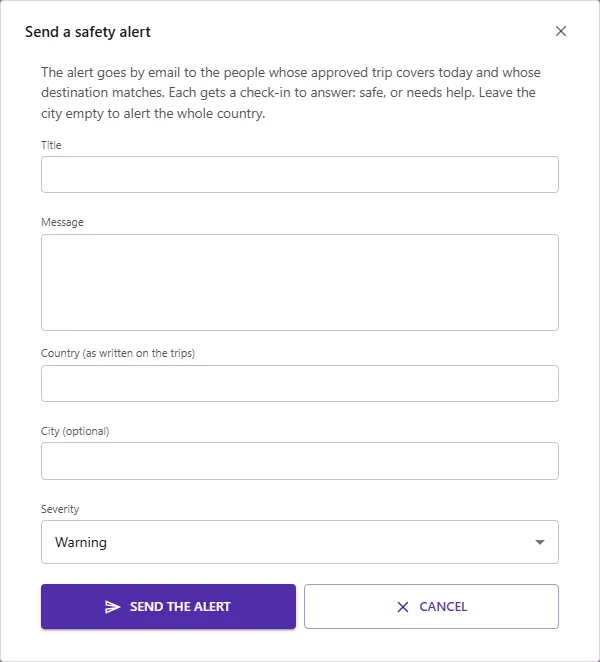
Choose Send the alert. It goes by email to the people whose trip covers today and whose destination matches; a critical alert is sent as urgent and is not held by quiet hours. If nobody is travelling there today, nothing is sent and the screen says so.
Watch Safety alerts and Check-in answers per alert. A traveller who answers I need help appears under People who asked for help, with their note. Select an alert and choose Close the selected alert when it is dealt with.
4.2 Answer a safety alert (traveller)
Open Safety Check-in. Alerts waiting for your answer are listed.
Select one, add a note if you like (where you are, what you need) and choose I am safe or I need help.
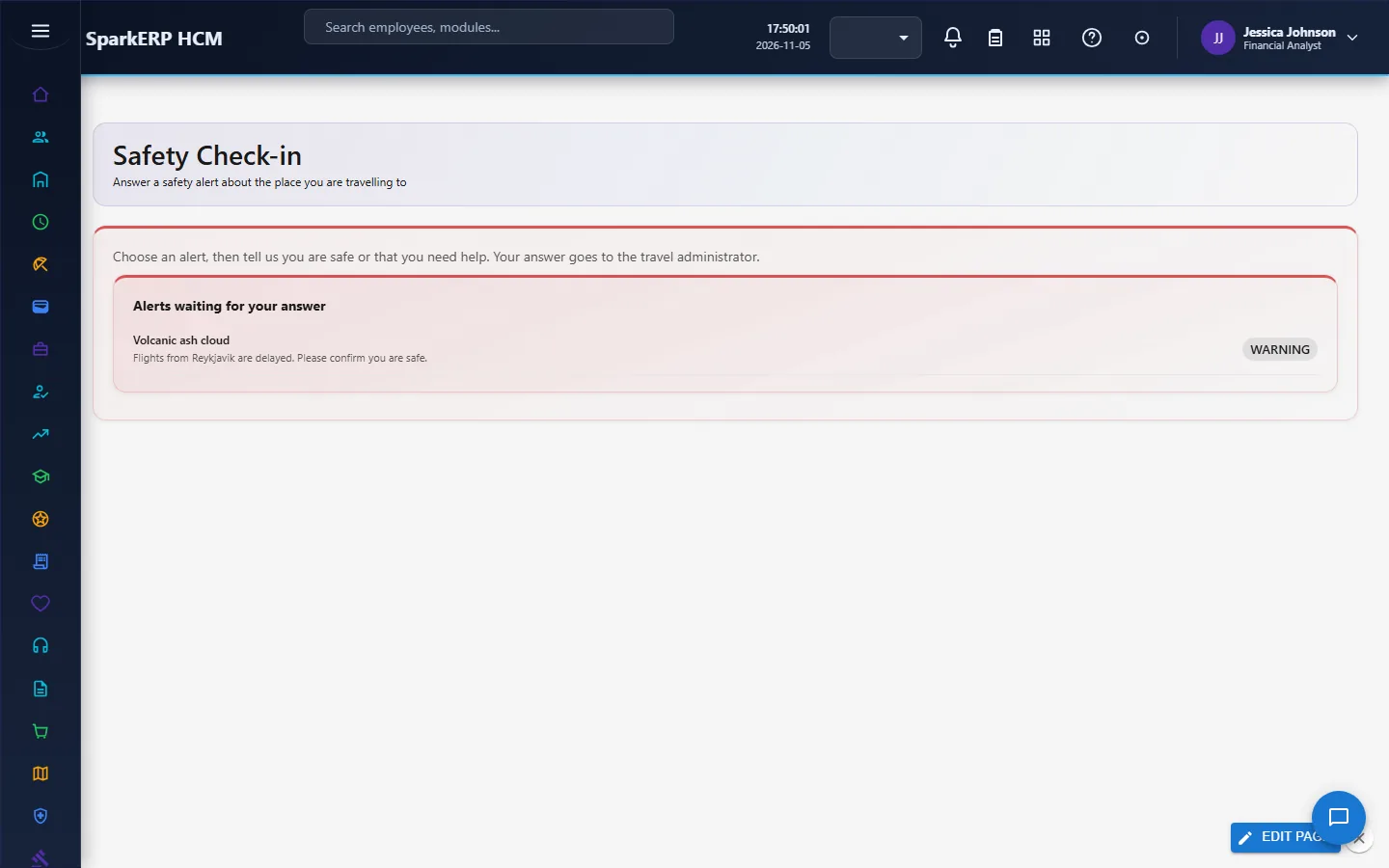
An answer cannot be changed afterwards, and nobody else can answer for you.
4.3 Book through the provider
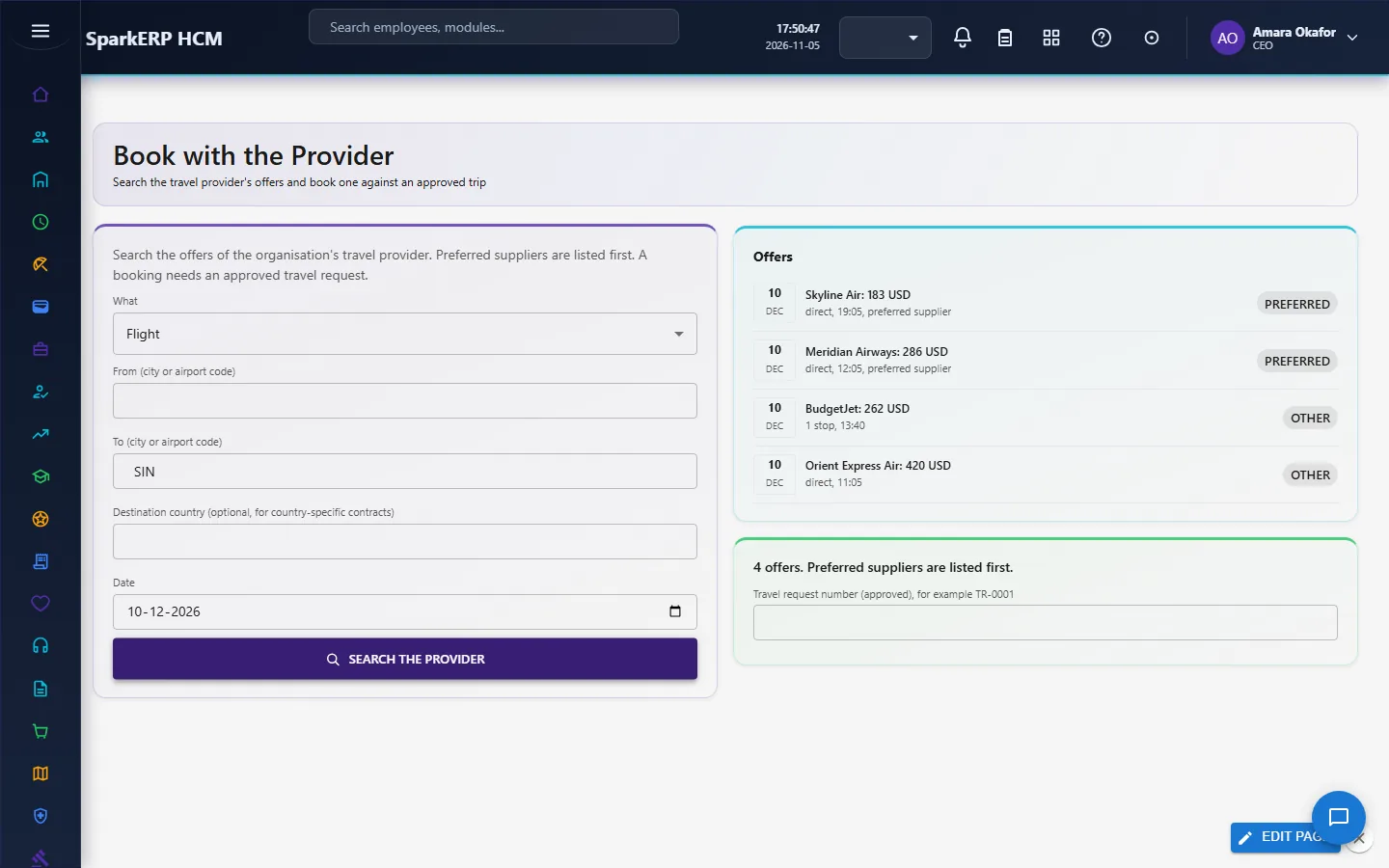
Open Book with the Provider. Choose what to search (flight, hotel, train, rental car), from, to, the date, and optionally the destination country for country-specific contracts. Choose Search the provider.
The offers come back with preferred suppliers first, then by price. Select one.
Enter the number of the approved travel request the booking is for and choose Book the selected offer. The provider's confirmation is kept on a new booking (visible on Travel Bookings); the booking records whether the supplier was preferred. A booking without an approved request is refused, a provider refusal books nothing, and a price above the request's whole estimate is allowed but flagged in the message.
4.4 Read Supplier Compliance
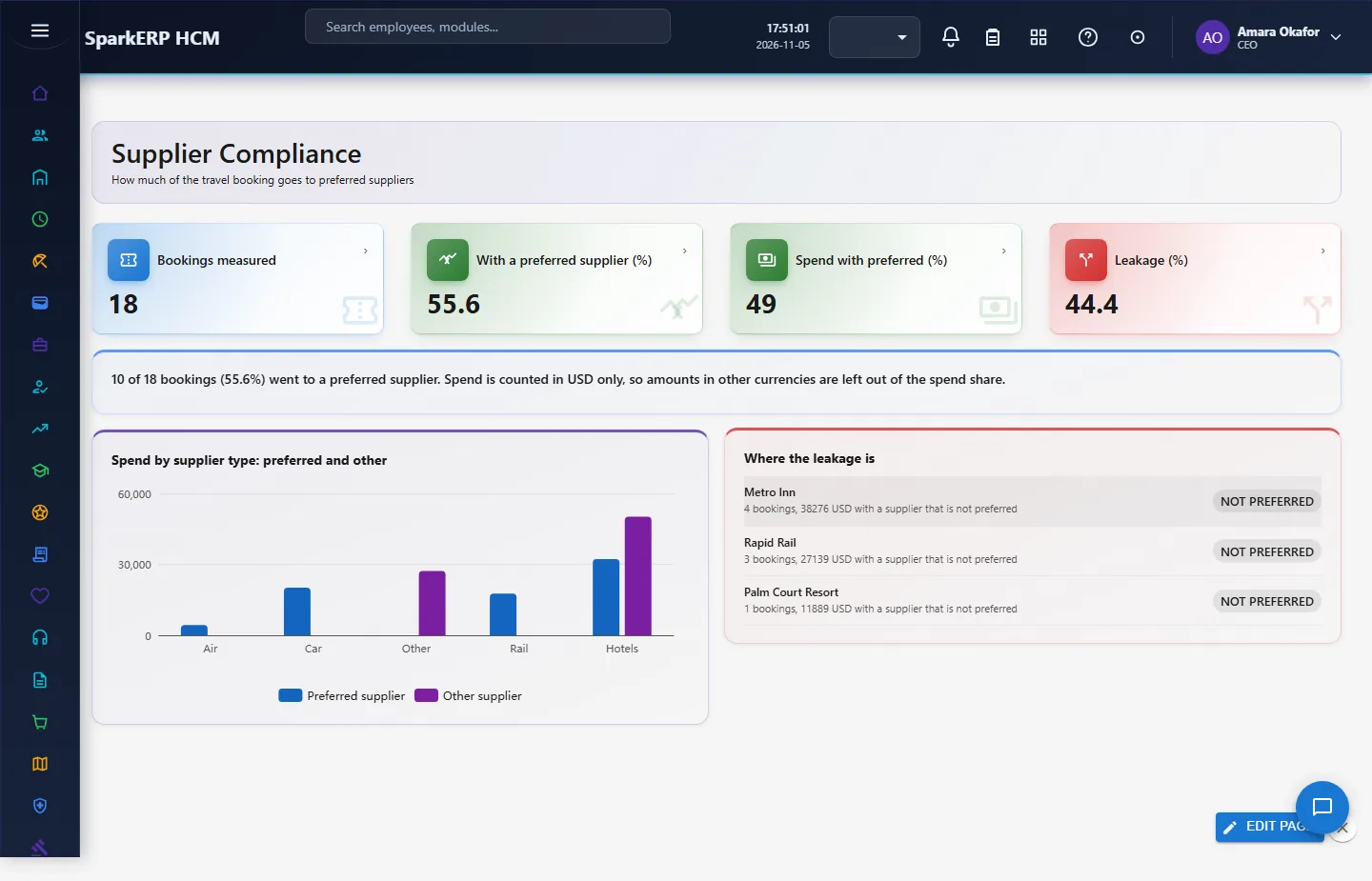
Open Supplier Compliance: the share of bookings and of spend that went to preferred suppliers, the leakage (the rest), spend by supplier type (preferred and other) and the suppliers outside the list that take the most spend.
5. Charts, reports and exports
| Figure | What it counts |
|---|---|
| Travelling now | People with an approved or in-progress request whose dates cover today. |
| In high-risk places | Of those, the destination country is high or extreme on Destination Risk. |
| Open alerts | Safety alerts not yet closed. |
| Check-ins answered (%) | Answers (safe or need help) as a share of all check-ins sent. |
| Bookings measured | Bookings and hotel stays that are not draft, cancelled, failed or refunded. |
| With a preferred supplier (%) | Measured bookings whose supplier was preferred. Provider bookings keep the answer they were made with; older bookings are checked against the list and their dates. |
| Spend with preferred (%) | The same by amount, counted only in the most used currency, because amounts in different currencies cannot be added. |
| Leakage (%) | One hundred minus the share with a preferred supplier. |
Preferred Suppliers shows suppliers, preferred and active ones, preferred contracts ending within 90 days, the average negotiated discount and a chart of suppliers by type (preferred and other). Destination Risk shows countries listed, high or extreme ones, entries not reviewed in 180 days, travellers now in high-risk places and a chart of countries by risk level. Both are also grids with the platform's own search, paging and export.
6. On a phone or tablet
Every screen works on a phone: tiles and cards stack, the alert dialog fits the screen, and the Safety Check-in is made for a phone, because a traveller in trouble will use one.

7. Rules and limits
- No location tracking. The only position is the destination on an approved request. There is no GPS and no live map; an alert reaches people by country (and city), not by where their phone is.
- The risk levels are yours. Keep Destination Risk current; the system does not fetch advisories.
- Alerts go by email. Other channels follow the tenant's communication settings; a person with no email address gets the check-in on the screen only.
- Country names must match: a trip to "UK" is not found by an alert to "United Kingdom".
- Not built: a map; automatic alerts from an advisory feed; a rental-car or hotel booking that creates the full accommodation record (a provider hotel is saved as a booking marked as provided by the provider); cancelling or changing a provider booking from Travel (do it with the provider and on the booking); price comparison across several providers; per-traveller preferences.
- Spend is counted in the most used currency only; other currencies are counted in the booking numbers but not in the spend share.
8. Troubleshooting
| Symptom | Cause and fix |
|---|---|
| "Nobody is travelling to X today" | No approved or in-progress request covers today for that country. Check the country spelling on the trips. |
| "The travel provider flow ... is not set up" | The flows travel-offers-search and travel-offer-book are missing or switched off. Ask the integration administrator (Integration Designer, Flows). |
| "A booking needs an approved request" | Enter the number of an approved or in-progress travel request. |
| A traveller sees no check-in | Their login is not linked to their employee record, or the alert was closed, or they already answered. |
| Everything shows as leakage | Preferred Suppliers is empty, or the supplier names differ from the provider's. Names are compared without regard to case. |
| Duty of Care says forbidden | Your login is not a tenant administrator and lacks Report.View. |