
Appearance
Timesheets: how it works and how to set it up
Timesheets answers the questions a company asks when hours matter beyond attendance: how many hours did each person work and on what, are the hours consistent with attendance and leave, did anyone go over a limit, who approved the week, and what is ready for payroll or for billing a client. This guide explains how the module works from start to finish, then how to set it up, then what each person sees. The timesheet logic runs in the Time & Attendance engine, and the screens are Timesheets (for managers, HR and payroll) and My Timesheet (for the employee). This guide is the one to read first.
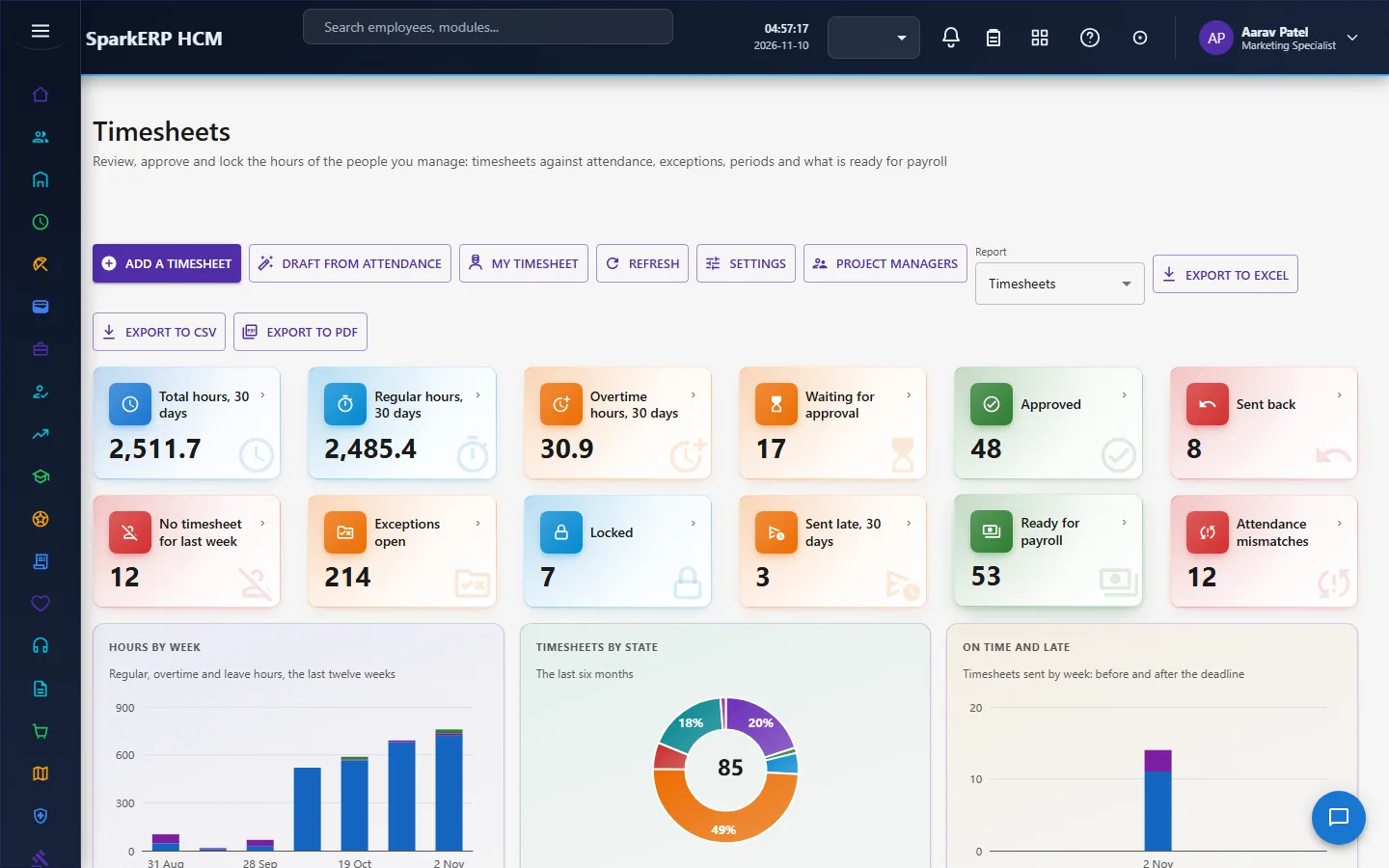
1. What Timesheets does for your business
- Records hours by week: regular, overtime, holiday, weekly off, night, leave, billable and attendance hours, by day and by entry.
- Compares hours with attendance, with leave, with projects and tasks, with periods and with limits, and raises an exception where they disagree.
- Generates a draft from attendance, so people correct a draft instead of typing from memory.
- Controls the week: a period with a submission deadline and an approval deadline, which can lock.
- Routes approval from submitted to approved to locked.
- Shows what is ready for payroll.
What it does not do: it does not pay anyone, and it does not replace attendance. Field work and work from home appear only as context beside the hours, never as extra hours.
2. How timesheets work, end to end
2.1 The path of one week
- A period opens for the week (weekly periods start on the day set in settings, Monday by default).
- A draft is generated from attendance (or the person adds entries by hand).
- The employee corrects the draft and submits it before the submission deadline.
- The manager reviews it and approves, or rejects it for correction, before the approval deadline.
- The week is locked (by hand or automatically after the approval deadline).
- Approved hours are ready for payroll and for billing.
2.2 The life of a timesheet
| Status | Meaning |
|---|---|
| Draft | Being written; can be corrected. |
| Submitted | Sent for approval. |
| In review | A reviewer is looking at it. |
| Approved | Agreed. |
| Rejected | Sent back to the employee to correct. |
| Locked | Closed with its period. |
| Cancelled | Withdrawn. |
2.3 Entries and the calculation
A timesheet has entries: a day, hours, a work type (regular, overtime, training, meeting or other), a project and a task where the organization uses them, a client, and a source. The platform works out the totals itself, and the page never calculates: it reads what the engine keeps.
- Regular hours are the hours of a day up to the daily regular hours (8 by default). Overtime is what goes beyond, or the overtime attendance recorded for that day, whichever the entry carries.
- Leave counts the daily regular hours for a full day of approved leave, and half of it for a half day.
- The totals show regular, overtime, holiday, weekly off, night, leave, billable and attendance hours.
2.4 Periods
A period is a week with a start and end date, a submission deadline (2 days after the week ends by default) and an approval deadline (5 days after by default). A period can be locked, and with the setting on, a period past its approval deadline locks by itself. A locked period cannot change.
2.5 The checks (exceptions)
After every change, the engine compares the timesheet with attendance, leave, projects and limits, and raises an exception for each disagreement. An exception records the day, the severity, what was expected and what was found, and a sentence that says what is wrong. The kinds:
| Exception | Raised when |
|---|---|
| Attendance and timesheet differ | The hours differ from attendance by more than the tolerance (15 minutes by default); an error when the gap is over two hours, otherwise a warning. |
| Attendance, no hours | There is attendance and no hours on the timesheet. |
| More hours than a day allows | More than the daily maximum (16 hours by default). An error. |
| Hours on a day of leave | Hours are entered on a day of approved full leave. |
| Overtime over the limit | The week's overtime is over the weekly limit (20 hours by default). |
| Task | An entry uses a task that is not active, or does not belong to the project. |
| Missing approval | Nobody decided before the approval deadline. |
An exception already settled for the same day and kind is not raised again.
2.6 Generating a draft from attendance
Drafts are generated from attendance. The hours and overtime come from the day's attendance record. Field work and work from home are shown as context, never as extra hours. The daily round can generate drafts for the last two weeks each day, when the organization turns that on, so people open a draft rather than a blank week.
2.7 Approval
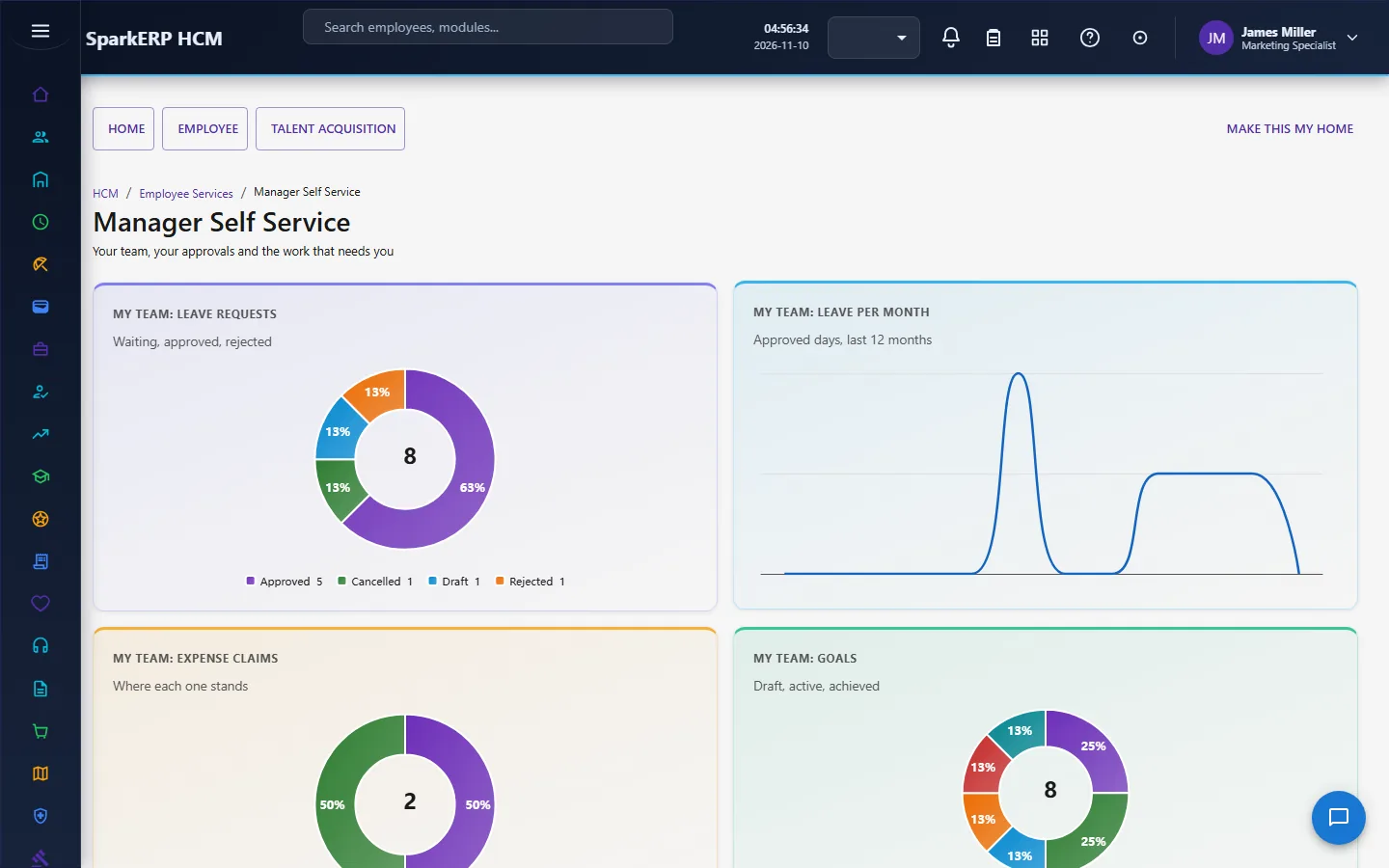
A manager sees the pending approvals of their own team (the people who report to them) on Manager Self-Service, and the team's week and exceptions on the Timesheets screen. HR and payroll see every timesheet, with every filter, and what is ready for payroll.
2.8 History
Every action on a timesheet or an entry writes a history line with who did it, when, the old and new values and the reason. Nobody can change the history.
2.9 Settings
The settings are shared by Timesheets and My Timesheet:
| Setting | Default | Effect |
|---|---|---|
| Daily regular hours | 8 | Where regular turns into overtime. |
| Daily maximum hours | 16 | The most hours in a day before the check fires. |
| Weekly overtime limit | 20 hours | Where the overtime check fires. |
| Tolerance | 15 minutes | How far the hours may differ from attendance. |
| Submission deadline | 2 days after the week | When the timesheet is due. |
| Approval deadline | 5 days after the week | When a decision is due. |
| Week start | Monday | The day a weekly period begins. |
| Auto-generate | Off | Generate drafts from attendance each day. |
| Auto-lock | Off | Lock a period after its approval deadline. |
3. Who does what
| Role | What they do |
|---|---|
| Employee | Opens the draft, corrects it, submits it, follows its status. |
| Line manager | Approves or rejects the timesheets of their team. |
| Attendance Timesheet administrator | Runs the module: periods, locks, settings, every timesheet. |
| HR and payroll | Read every timesheet and what is ready for payroll. |
The Timesheets screen shows timesheets and exceptions across people, so it is open to the timesheet administrators, HR, the auditor and the people who work from it. An employee uses My Timesheet.
3a. What each role sees, screen by screen
The employee
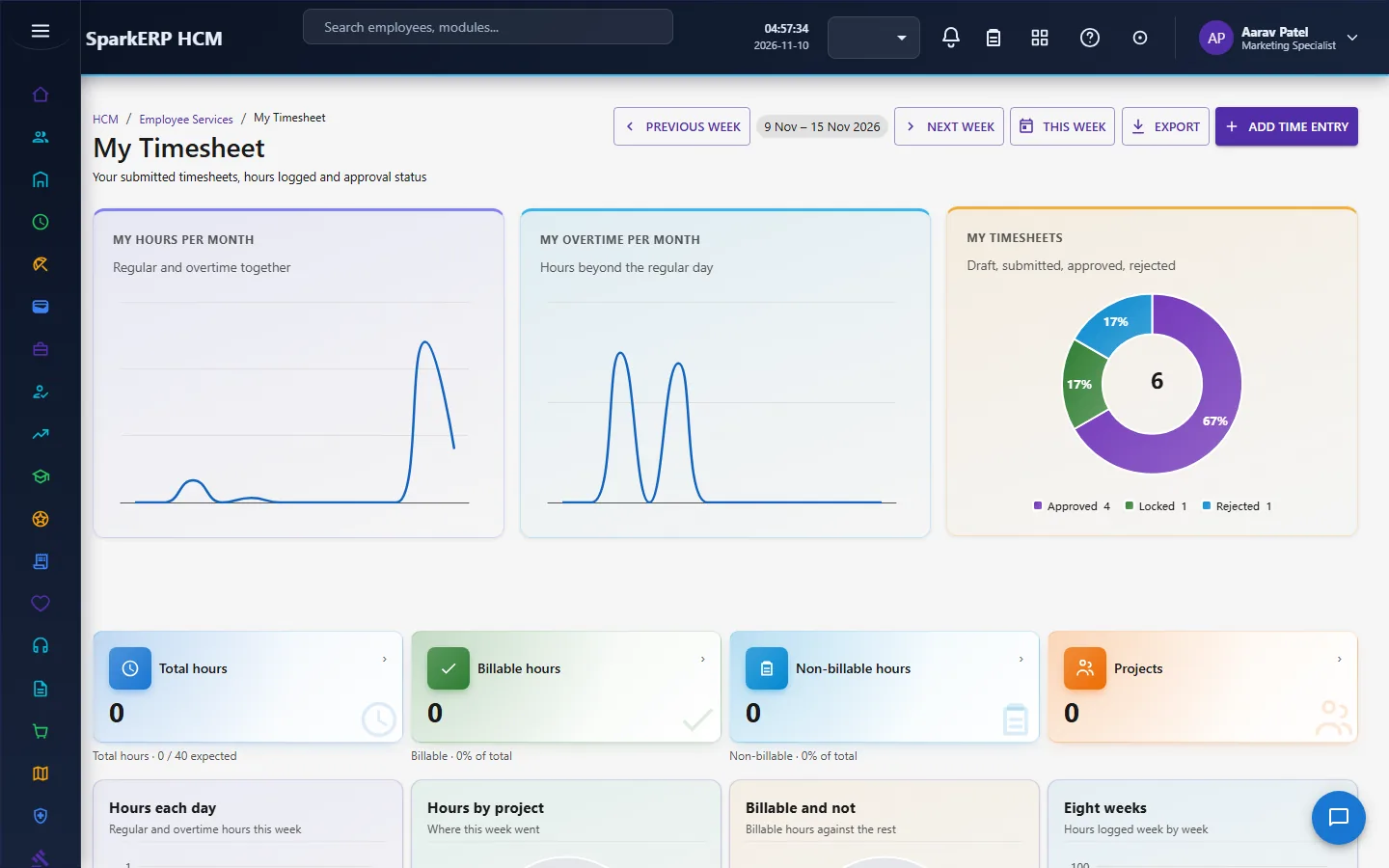
An employee works from My Timesheet: the week, the hours logged and the status.
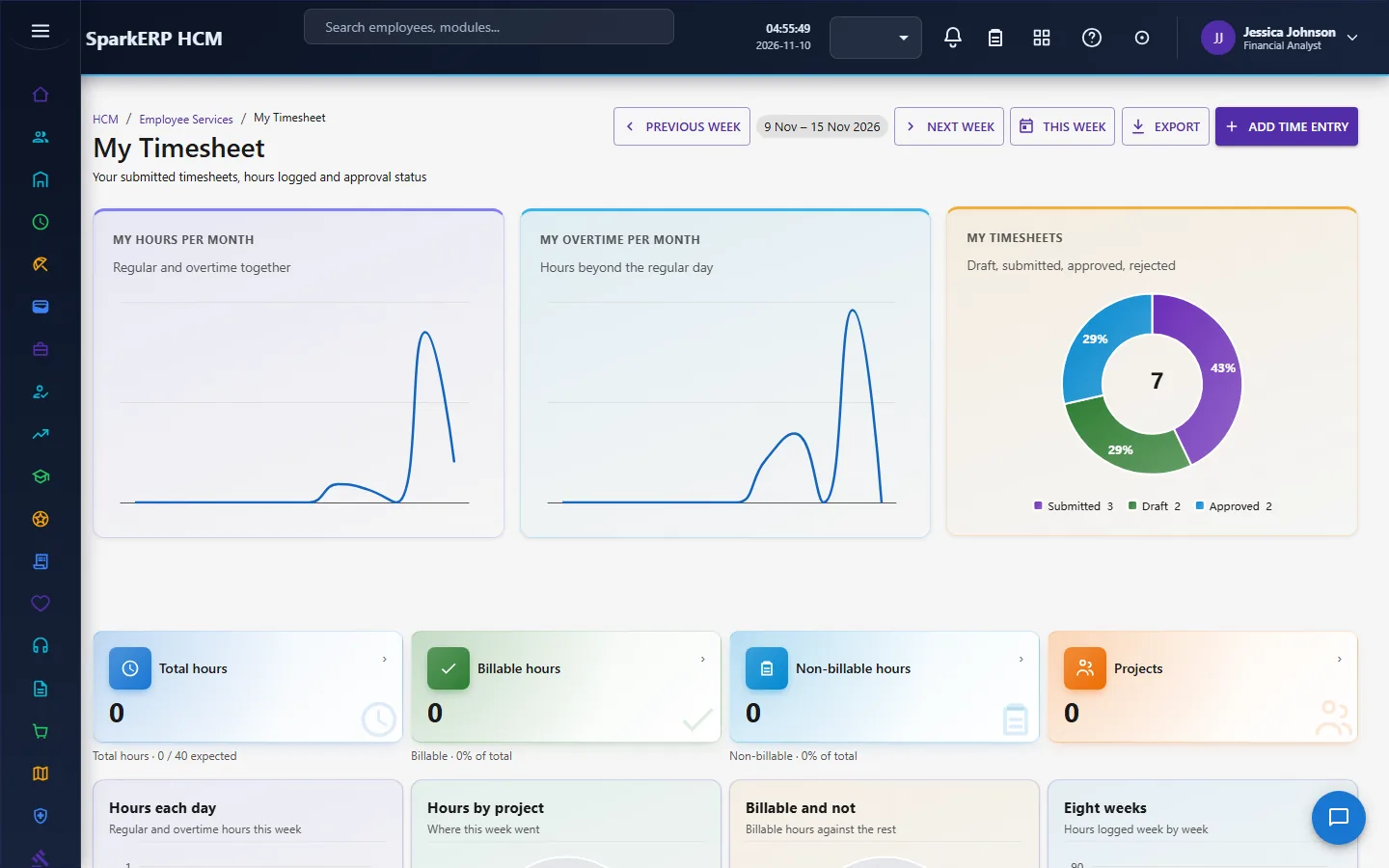
The Timesheets screen shows everyone's.
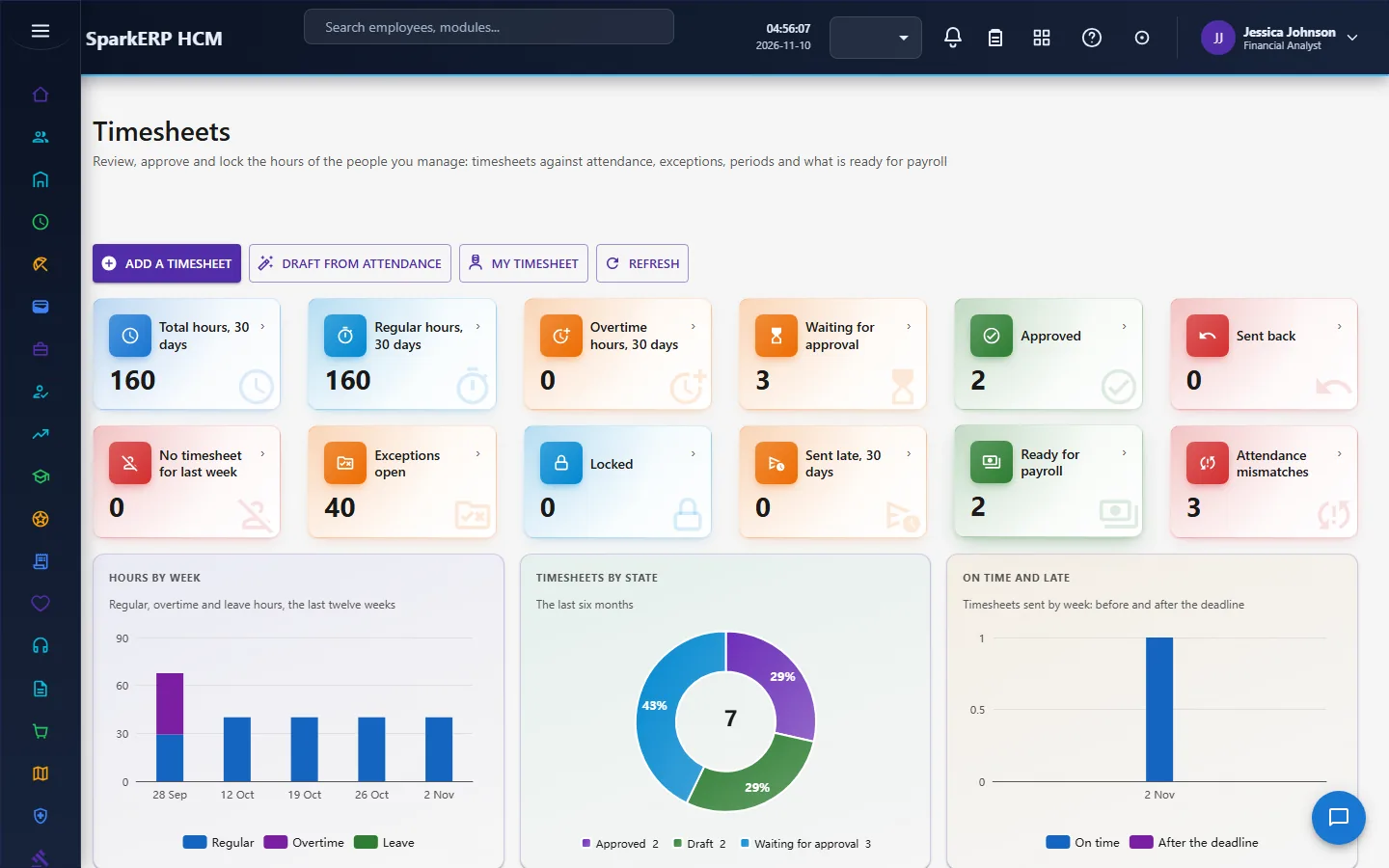
The manager
A manager sees the pending approvals of their team on Manager Self-Service.
The HR administrator
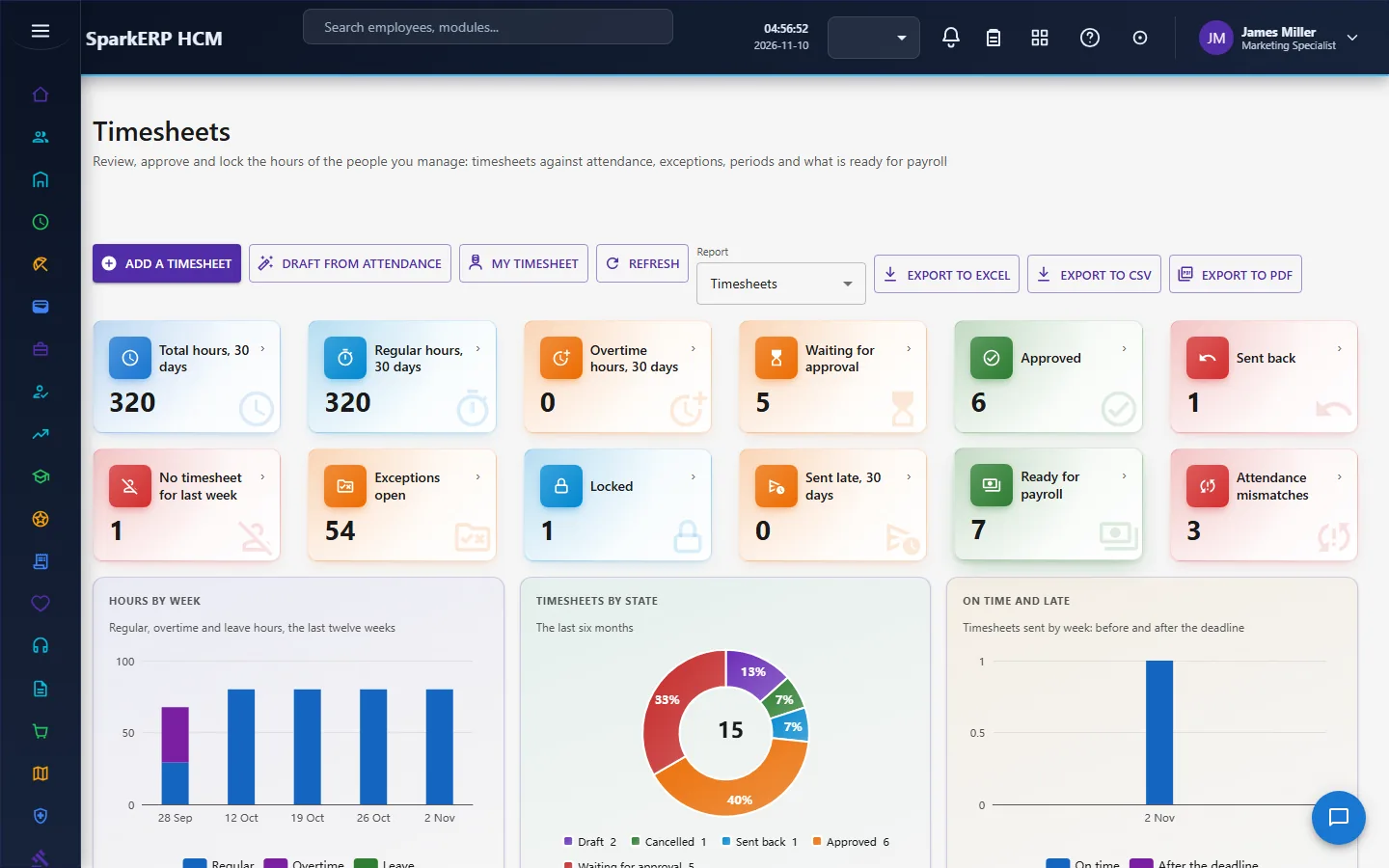
Timesheets shows every timesheet, the team's week, the exceptions, the periods and what is ready for payroll.
4. Decide before you set up
| Decision | What to think about |
|---|---|
| Daily regular hours and limits | Your standard day, the maximum, the weekly overtime limit. |
| Deadlines | How long people have to submit and managers to approve. |
| Auto-generate and auto-lock | Whether to generate drafts and lock periods by themselves. |
| Projects and tasks | Whether people book hours to projects, and where those are kept. |
| Billable hours | Whether you bill by the hour. |
| Tolerance | How much difference from attendance is acceptable. |
5. Set up step by step
- Roles. Give the Attendance Timesheet administrator role; make sure managers' reporting lines are set.
- Settings. Set the hours, limits, deadlines, week start and the two switches.
- Attendance. Time & Attendance must be running, because drafts and checks read it.
- Projects and tasks, if you book hours to them.
- Trial. In a trial tenant generate the Timesheets demo data and follow one week from draft to approved.
6. Daily use
6.1 An employee's week
- Open My Timesheet; the draft from attendance is there.
- Correct the hours, add the project and task, fix any exception shown.
- Submit before the deadline.
6.2 A manager's decision
- Open the pending approvals; read the hours, the attendance beside them and the exceptions.
- Approve, or reject for correction with a reason.
6.3 Closing the period
- HR chases the late timesheets and the missing approvals.
- The period is locked (or locks by itself).
- Approved hours go to payroll.
7. A calendar of recurring work
| When | What |
|---|---|
| Daily | Drafts are generated (if on); exceptions are raised and cleared. |
| End of the week | Employees submit within the submission deadline. |
| After the week | Managers approve within the approval deadline. |
| Approval deadline | The period locks (if on). |
8. Reports and figures
The Timesheets screen shows the list with every filter, the team's week, the exceptions by kind, the periods and what is ready for payroll. Lists can be exported.
9. Limits you should know about
- Timesheets read attendance; they do not replace it.
- Field work and work from home are context, never extra hours.
- The checks warn; people decide. Only the daily maximum is an error, and a gap over two hours between attendance and the timesheet.
- A locked period cannot change.
- The page never calculates; it reads what the engine keeps.
10. Troubleshooting
| Symptom | Cause and fix |
|---|---|
| The draft is empty | There is no attendance for the week, or auto-generate is off and nobody generated it. |
| An exception "Attendance and timesheet differ" | The hours differ from attendance by more than the tolerance. Correct the hours or regularize the attendance. |
| "More hours than a day allows" | An entry or the day's total is over the daily maximum. |
| "Hours on a day of leave" | Hours were entered on a day of approved full leave. |
| A timesheet cannot be changed | Its period is locked. |
| A manager sees no timesheets | Their team has no reporting line set, or nothing is submitted. |
| An employee cannot open Timesheets | It shows everyone's timesheets. Use My Timesheet. |