
Appearance
Time & Attendance: how it works and how to set it up
Time & Attendance answers the questions payroll and managers ask every day: who was at work, for how long, were they on time, who worked extra, who was away and for what reason, and what has to be corrected before the month is closed. This guide explains how the module works from start to finish, then how to set it up, then what each person sees. Every screen has its own page in the Time & Attendance section; this guide is the one to read first.
1. What Time & Attendance does for your business
- Records presence from the places your people really punch: a web or mobile clock, a biometric device, a work-from-home check-in, a field-work check-in, a kiosk, or a corrected entry.
- Turns punches into a day. For every person and date it decides what kind of day it was (working day, weekly off, holiday, approved leave), pairs the punches, and works out the hours worked, breaks, late and early minutes and overtime.
- Raises exceptions instead of guessing. A missing punch, an absence, severe lateness, insufficient or excessive hours, a duplicate punch, or an unauthorised source becomes an exception that a person decides.
- Lets people correct the record properly. A correction is a request with a reason, a decision and a history, not a silent edit.
- Hands results to the next module. Approved overtime goes to payroll or becomes compensatory leave, late and early deductions can be sent to payroll, and timesheets use attendance as their source.
What it does not do: it does not decide pay. It produces hours, exceptions and approved overtime; Payroll turns them into money.
2. How attendance works, end to end
2.1 From a punch to a day
- A punch arrives from one of the allowed sources: biometric device, mobile, web, kiosk, field work, work from home, a manual entry, an API, an import or a regularization. Which sources a policy accepts is a rule (Where punches may come from); a punch from any other source raises an unauthorised source exception.
- The punch is checked. An employee's own clock punch must be inside a geofence of one of their assigned locations when the locations have geofences; with no geofences, punching is open. A refused punch is still written, marked invalid with the reason, so the audit trail shows the attempt.
- The day is worked out. The engine resolves the shift, the kind of day, pairs the day's valid punches (a shift that crosses midnight belongs to the day it starts) and calculates work, break, late, early and overtime minutes using the attendance policy that applies to the person.
- Exceptions are kept in step. An exception that no longer applies is closed; a new one is raised.
- The day moves through its stages: processed, reviewed, finalized, and, when the period is closed for payroll, locked.
The calculation is safe to run again. It never touches a day that is finalized, locked or corrected by hand, and one person's bad data is reported without stopping the rest. The same engine is used by the page, the hourly jobs, the bulk actions and the policy simulator, so a number means the same everywhere.
2.2 What kind of day it is
A day is a working day, a weekly off, a holiday, or approved leave. Leave and holidays come from the Leave module and the holiday calendar, so a person on approved leave is not marked absent. How a day worked on a holiday or weekly off is treated is a policy rule (Work on a holiday, Work on a weekly off, whether approval is needed, and whether it can earn overtime).
2.3 Present, half day or absent
The policy decides how a full day and a half day are worked out. You choose one of four methods: a fixed number of minutes, a percent of the shift's working time, the whole shift, or halves. With the fixed method the defaults are 450 minutes for a full day and 240 for a half day; a person present for less than the minimum presence (240 minutes by default) is marked absent. A day with no check-in and a day with no check-out each have their own rule (mark absent, or raise an exception), and absence can be marked automatically at the end of the day or after a later cut-off.
2.4 Late, early and grace
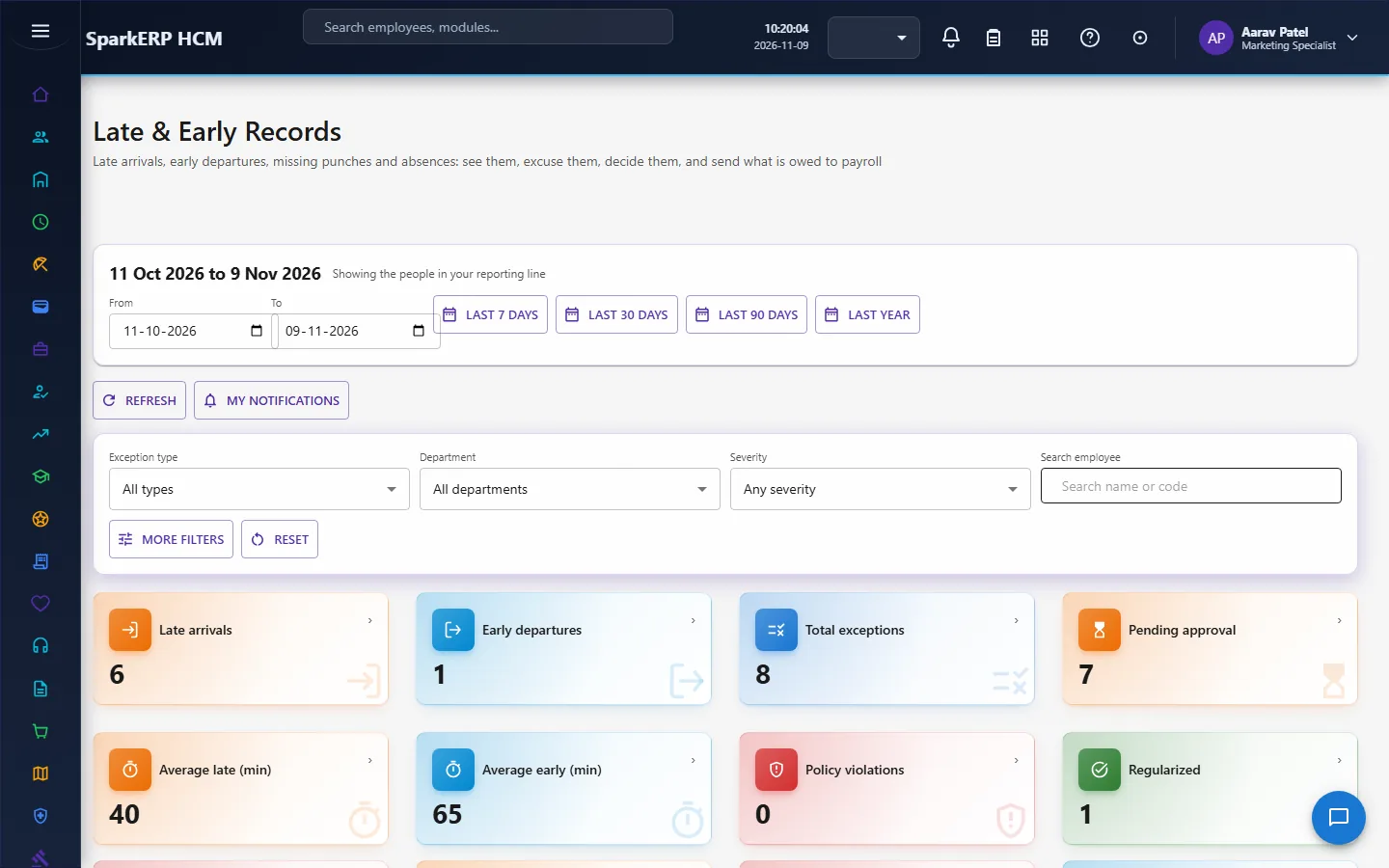
The policy gives a grace period for arriving late and for leaving early (10 minutes each by default), a limit on how many times grace may be used in a month (5) and in a day, what happens after the grace (mark the person late, or early), the minutes after which lateness is severe (60), and how often repeated lateness within a window (3 times in 30 days for late arrivals, 5 in 30 days for early departures) becomes a violation. Late and early records can be excused in part or in full, waived, or sent to payroll as a deduction (and taken back).
2.5 Breaks
The policy sets the shortest break charged, the longest allowed, whether breaks are paid, and whether the break is deducted automatically after a number of minutes at work (360 by default). A break that runs over the limit raises an excess break exception.
2.6 Overtime
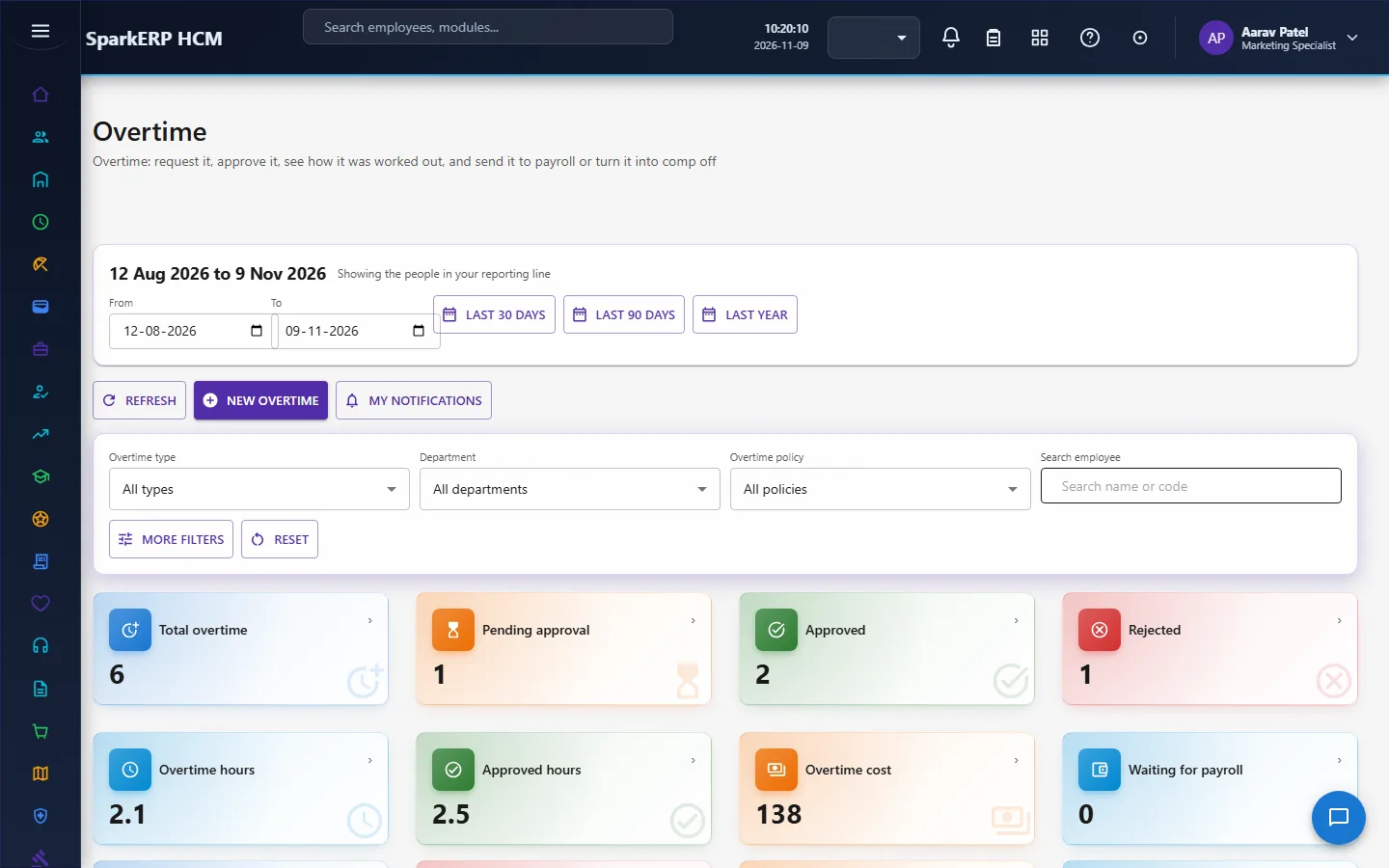
Overtime is time beyond the shift (it starts after 30 minutes by default) and is limited per day (240 minutes) and per month (2,400). The policy decides whether overtime is allowed on a weekly off and on a holiday, how it is rounded, and whether it must be approved before it is worked. The calculation applies the minimum, grace, rounding, the daily, weekly and monthly limits, the kind of day and night time, and the rate and amount, and it lists the rules a record breaks.
An overtime record is submitted, approved (by the manager when the policy says so), and then finished by an hourly job: either it becomes compensatory leave or the paid record goes to payroll. Results from payroll and leave are matched back to the record. Approved overtime that was sent to payroll can be reversed. Overtime cap watch reads the last 7 days against the weekly cap and the last 30 days against the monthly cap, so managers are warned before the limit is reached, not after.
2.7 Corrections: regularization
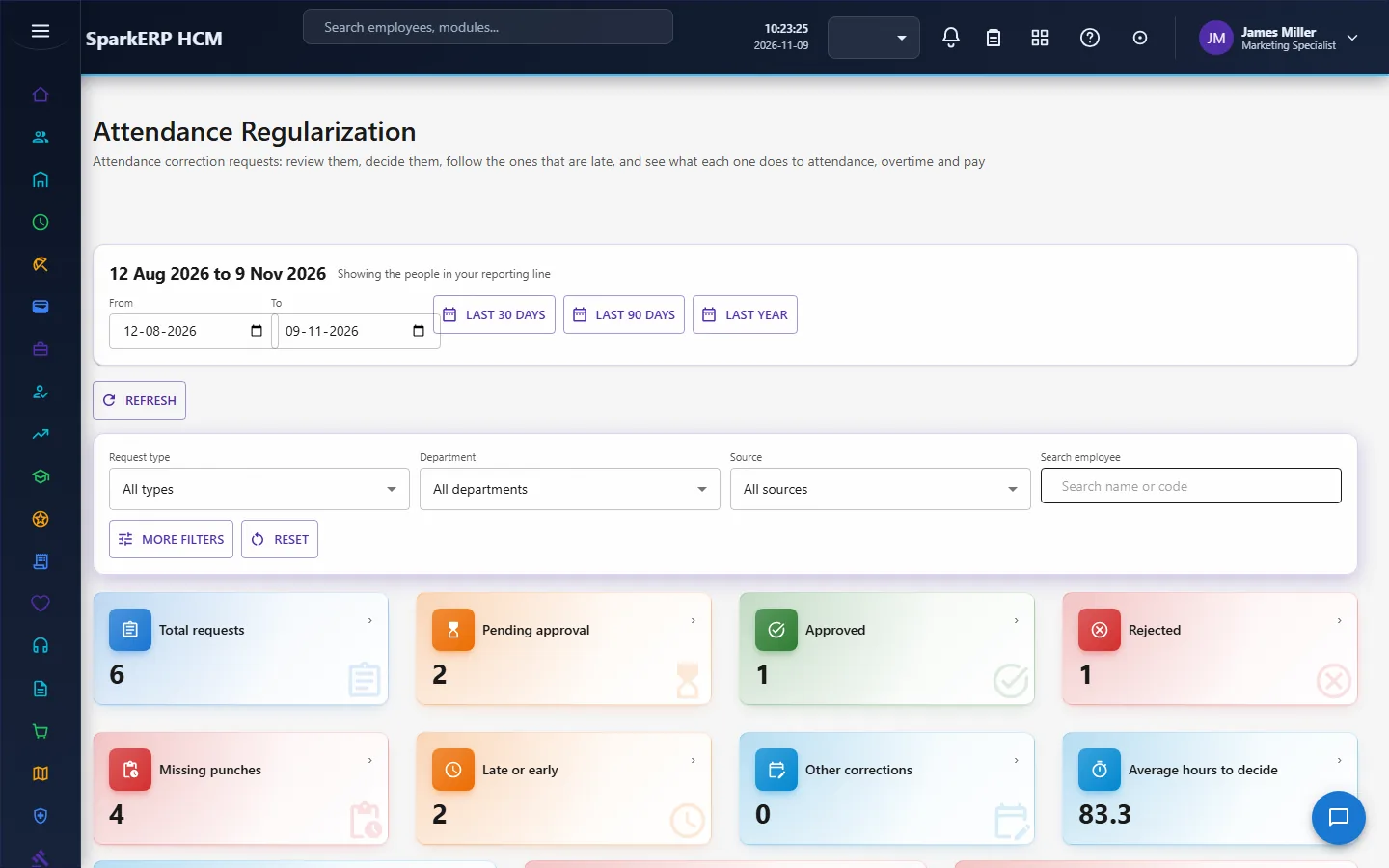
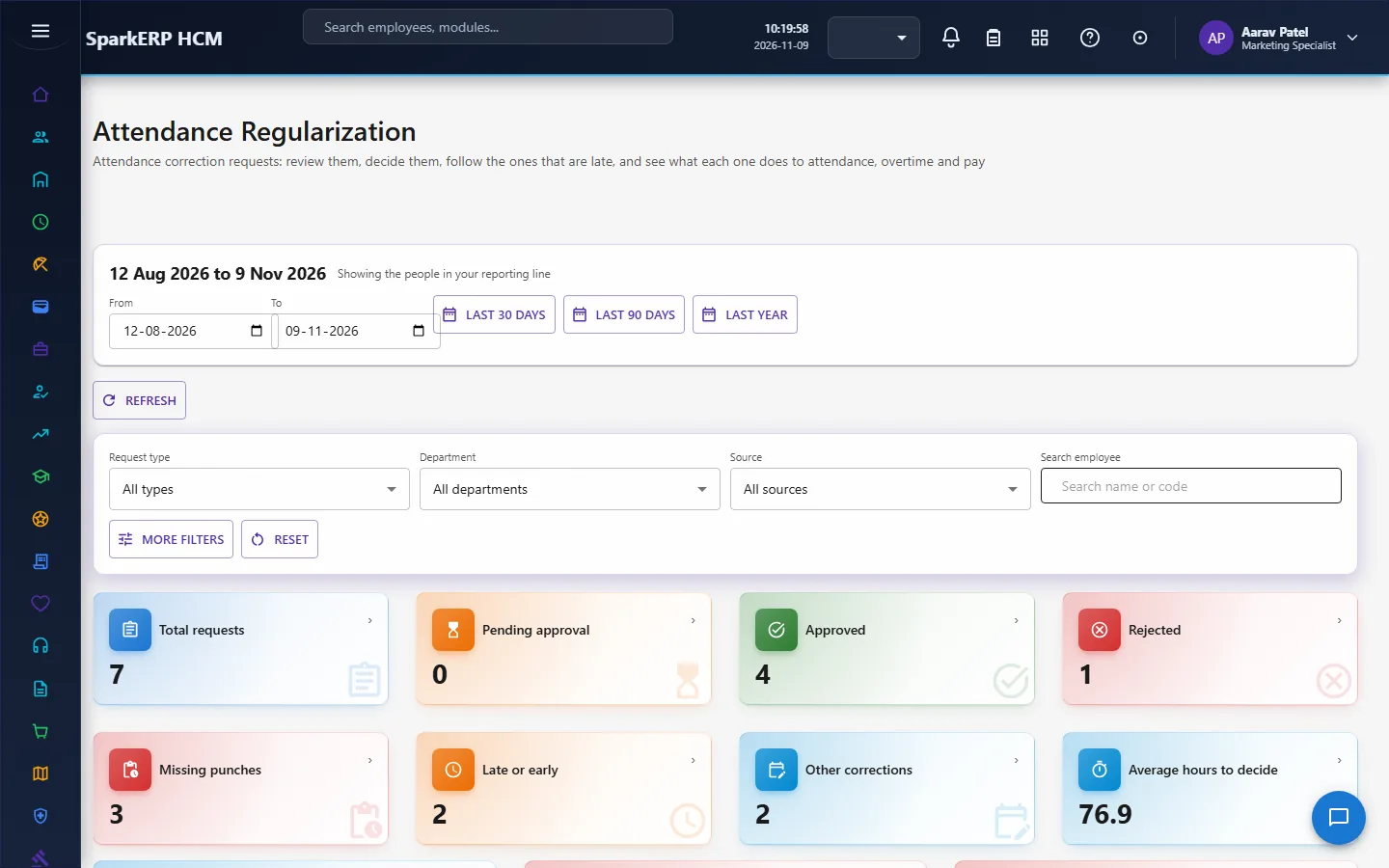
When a punch is missing or wrong, the person sends a regularization request from My Attendance with one of these reasons: missed check-in, missed check-out, biometric failure, device failure, official work, GPS failure, or other. The policy says how many days after the day a request is allowed (3 by default), how many requests a person may make in a month (5), and whether the manager approves.
The request is approved, approved in part, rejected, or sent back for more information, one at a time or in bulk with a result for every request. An approved request is put on the day through the attendance engine, and a failed one can be tried again. The request keeps its history: who did what, with the old and new values, and what it did to attendance, overtime and pay. A day inside a locked period cannot be corrected until the period is unlocked.
2.8 Work from home and field work
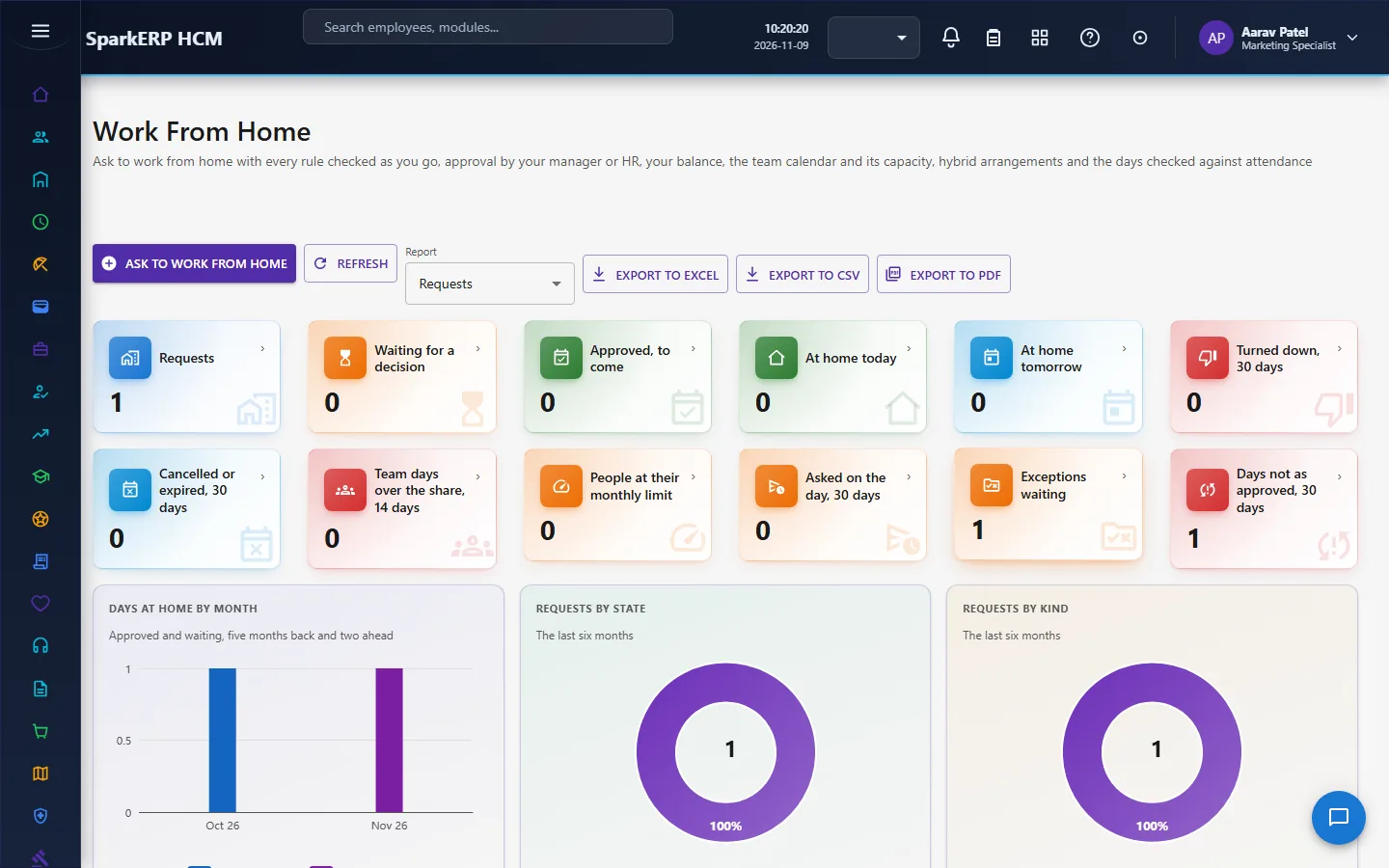
- Work from home. A request is checked against the policy as it is made: notice, balance, team capacity, consecutive days, overlap with leave, and partial hours. Weekends, holidays and leave days are left out of the days it covers. A request outside the policy is not refused outright: what can be allowed becomes an exception that somebody with authority decides. Approved days are later checked against attendance.
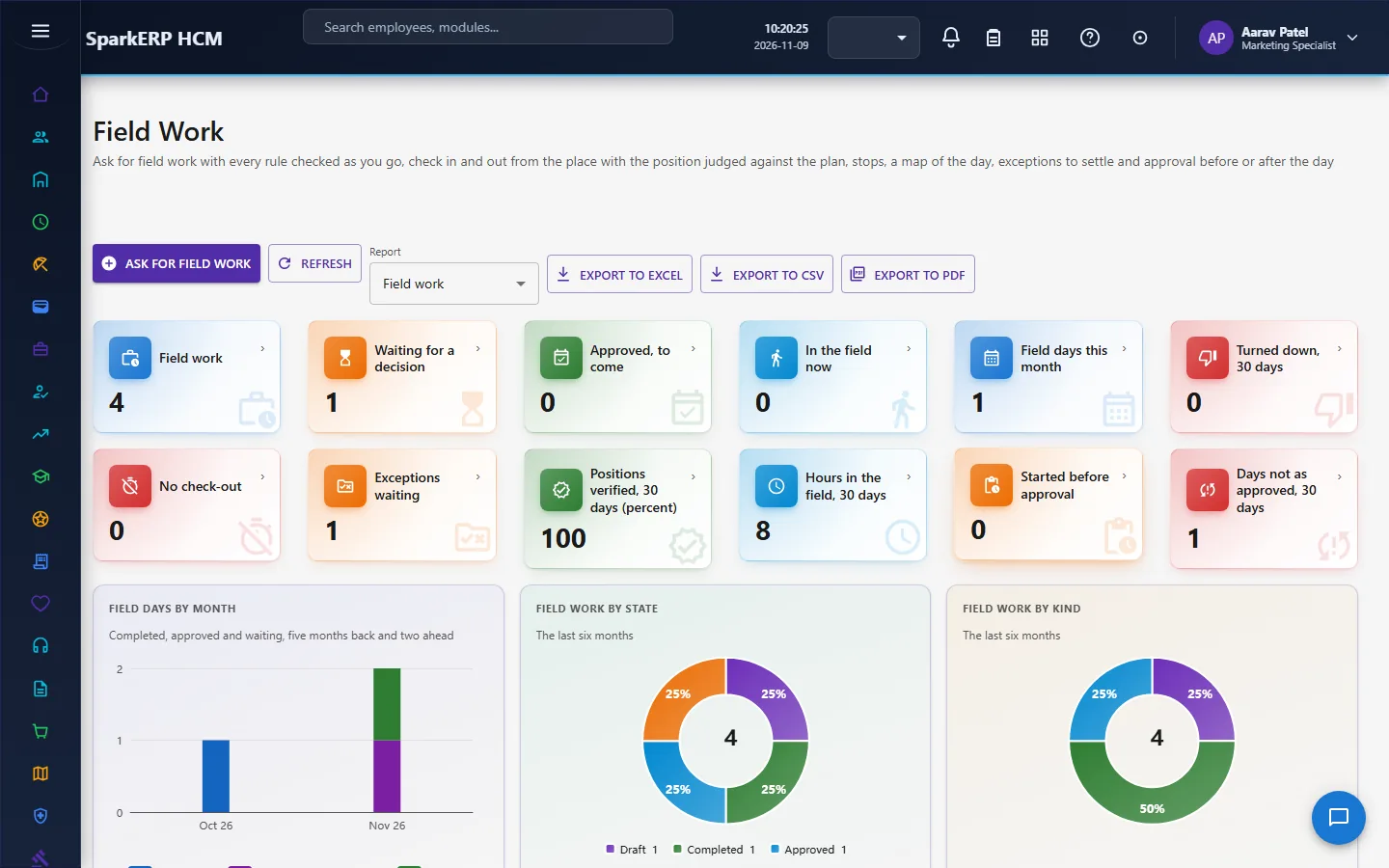
- Field work. A request is checked for overlap with leave and work from home, notice, hours, days a month and what the type asks for (a position, a photo, a geofence). A check-in or check-out records a position, judged as verified, outside the radius, poor accuracy or none, and makes an attendance punch. Check-in can be done offline. Attendance itself is still worked out by the common engine.
Both go through approval by an HR Manager task due within three days.
2.9 Biometric devices
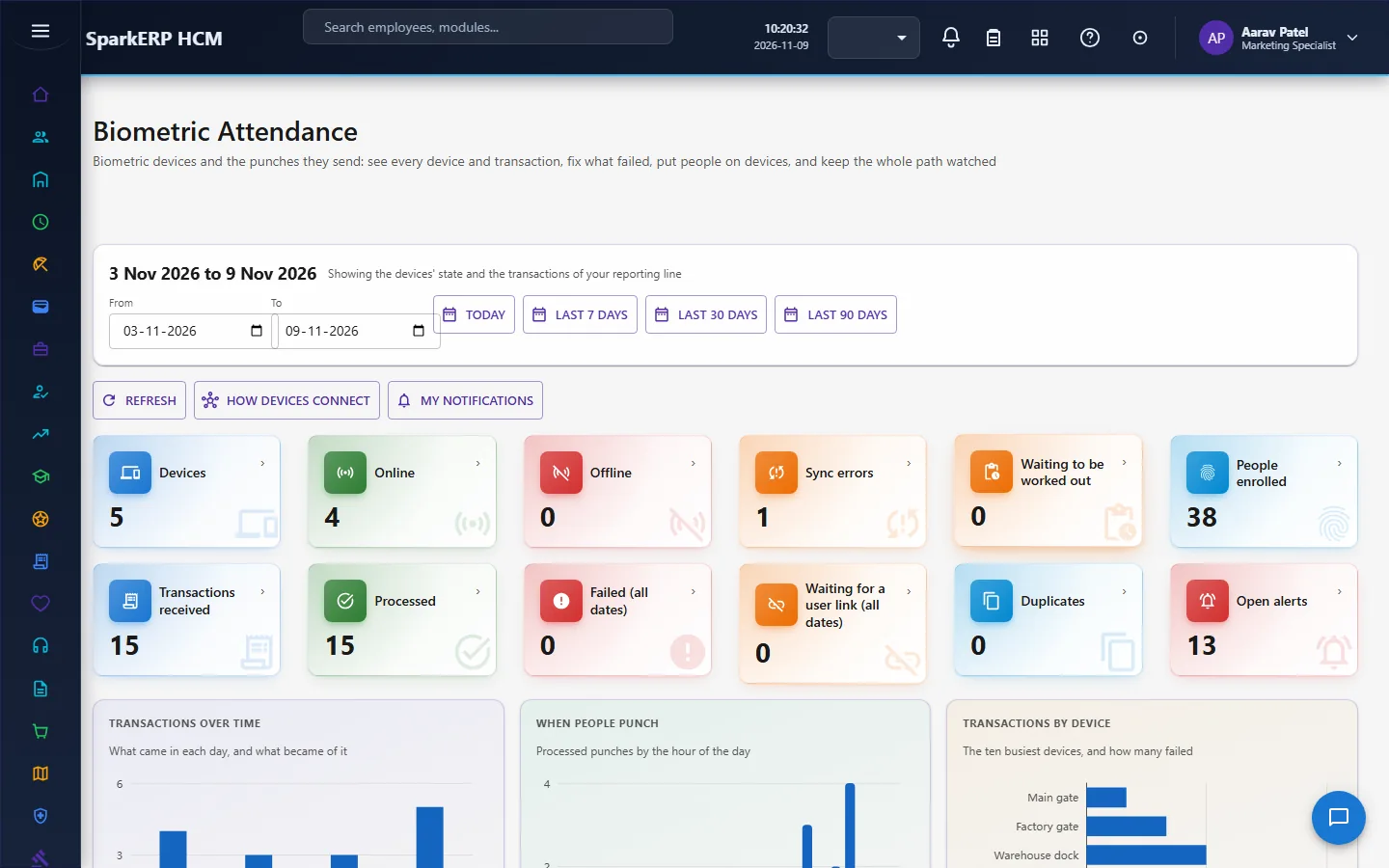
Devices are reached through the platform's connectors, or send their punches to the platform. Raw device transactions are kept apart from attendance, checked and mapped (employee, duplicate, clock, type), and a good one becomes an attendance punch. The module keeps the device's health, sync jobs, commands, alerts and audit, and who is enrolled on which device.
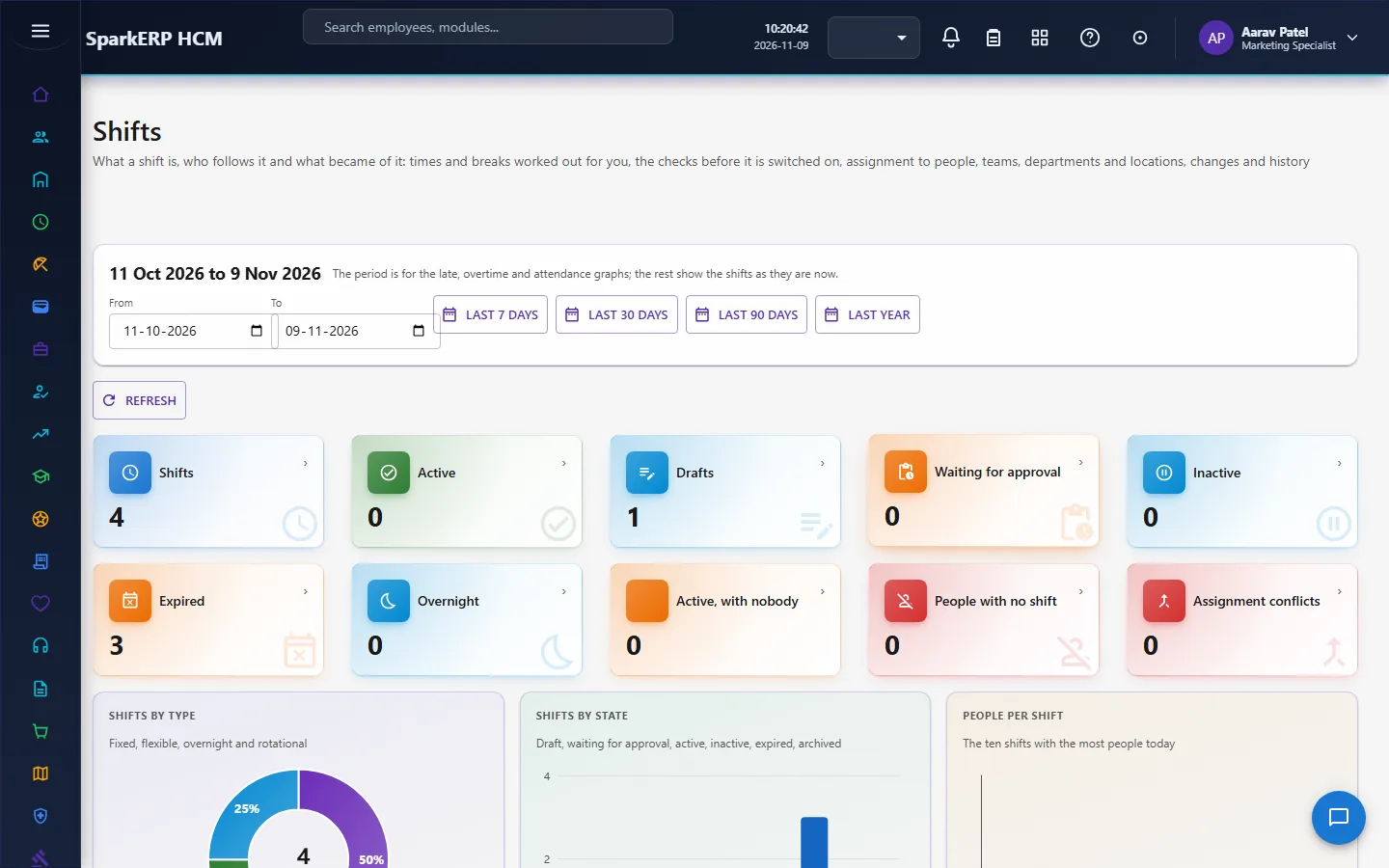
2.10 Shifts, schedules and rosters
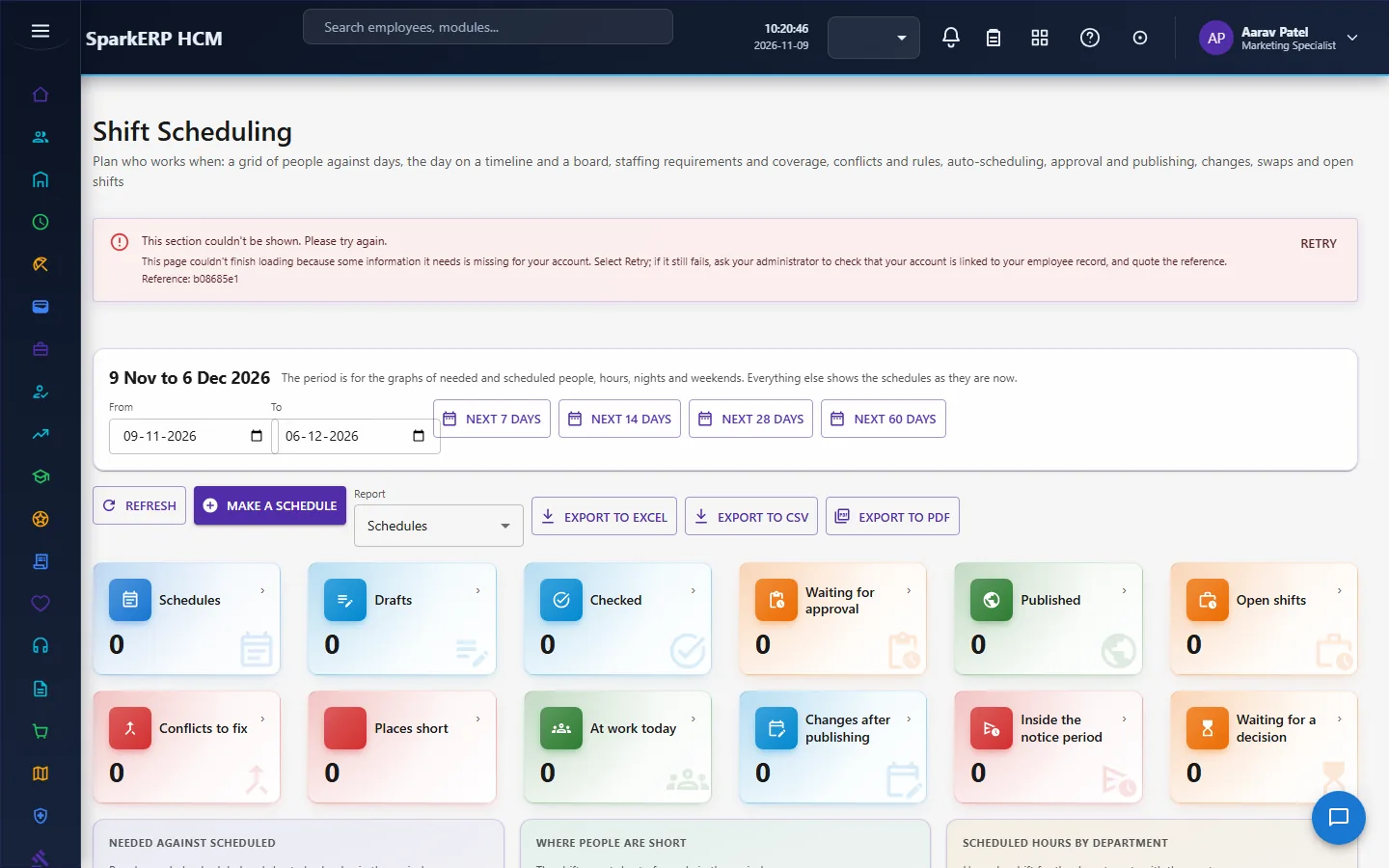
Shifts, scheduling and rosters live in Shift Scheduling (see that guide). A shift has times and breaks; a schedule assigns shifts to people by day and can be filled by the auto-scheduler, which fills the gaps from a pool of people while respecting leave, holidays, availability, rest, hours per day and week, days in a row and skill, then repairs and balances the result. What it cannot fill is listed with the reasons, and the result is a draft for a planner to review: it is a heuristic, not a guarantee of the best schedule. A roster is the plan of record built from published schedules; the attendance engine reads the published days.
2.11 Timesheets
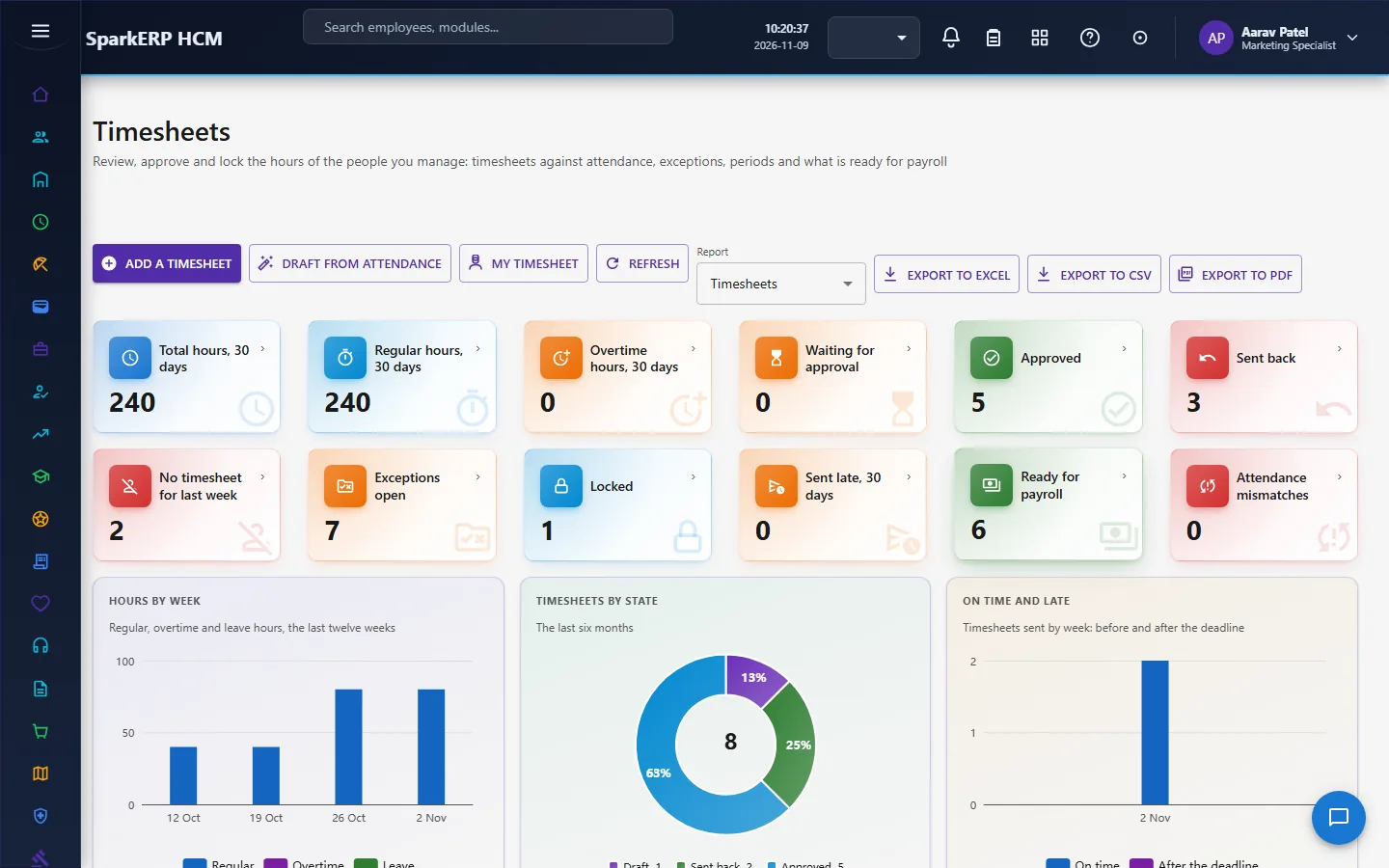
A timesheet is built from attendance (regular, overtime, holiday, weekly off, night, leave, billable and attendance hours). Drafts can be generated from attendance, with field work and work from home as context, never as extra hours. Exceptions are raised between a timesheet and attendance, leave, projects, periods and limits. Periods have locks.
2.12 The follow-up every hour
An hourly job follows up the days, driven by the tenant's policy. It tells people about a missing punch and their manager about repeated lateness, reminds HR that a day is not finalized after the cut-off, tells HR about a high absence rate and critical exceptions nobody resolved, finalizes a day by itself when the policy says so, and locks finalized days for payroll when the policy says so. Each message is sent once, and every event is published so a flow in the Integration Designer can carry it on to payroll, chat or a webhook.
2.13 The attendance period
The Attendance Register shows a period person by person, as a row for each person and day and as a month matrix with a code for each day. Periods are created, finalized, locked for payroll, and unlocked with a reason. Punches can be imported from a pasted file, with every line checked first. A day inside a locked period cannot be created, processed or imported until the period is unlocked.
3. Who does what
| Role | What they do |
|---|---|
| Employee | Clocks in and out, asks for corrections, overtime, work from home and field work, reads their own calendar, hours and timesheet. |
| Line manager | Decides their team's corrections, overtime and requests; sees only the people below them in the reporting line. |
| HR Manager | Approves work-from-home, field-work, shift, schedule, roster and policy requests. |
| Attendance administrators | Each attendance role runs one area: Operations, Register, Regularization, Overtime, Late & Early, Biometric, Devices, Policy, Shift, Schedule, Roster, Work From Home, Field Work, Timesheet, Reports. |
| HR Administrator / Executive | Runs attendance across the organisation. |
| Payroll | Reads approved overtime and deductions through the attendance input. |
A line manager holds no platform role: the reporting line makes them one. The attendance screens a manager works from (the dashboard, daily attendance, regularization, late and early, overtime, work from home, field work and timesheets) show a person who is not an administrator only the people below them in the reporting line. The rules, devices, register and reports are for the attendance roles.
3a. What each role sees, screen by screen
The employee
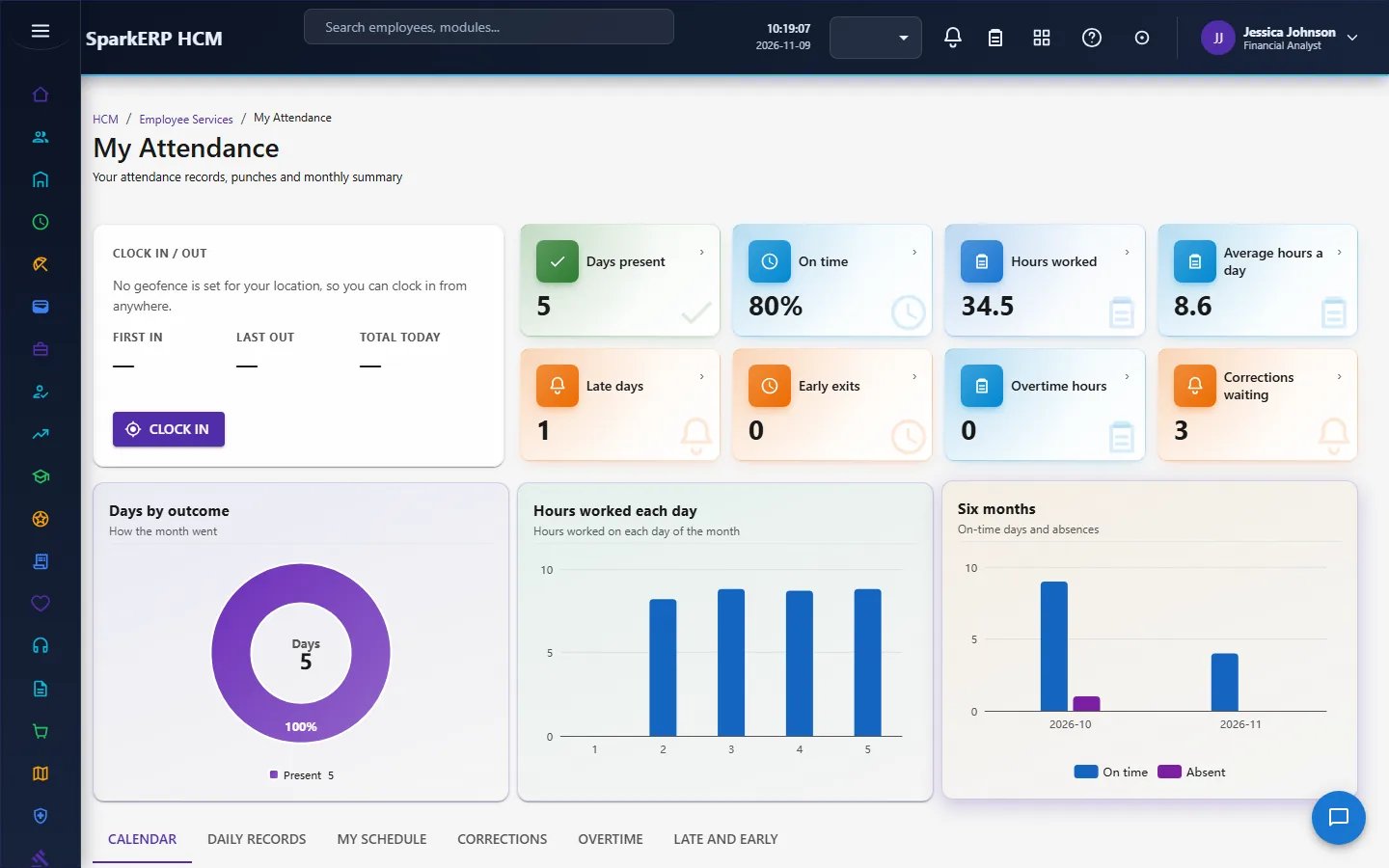
An employee works from My Attendance: a clock in and clock out button (with a note when no geofence is set for their location, so they can clock in from anywhere), their schedule, their calendar and monthly summary, and the requests they can make: a correction, overtime, or an explanation for a late or early record.
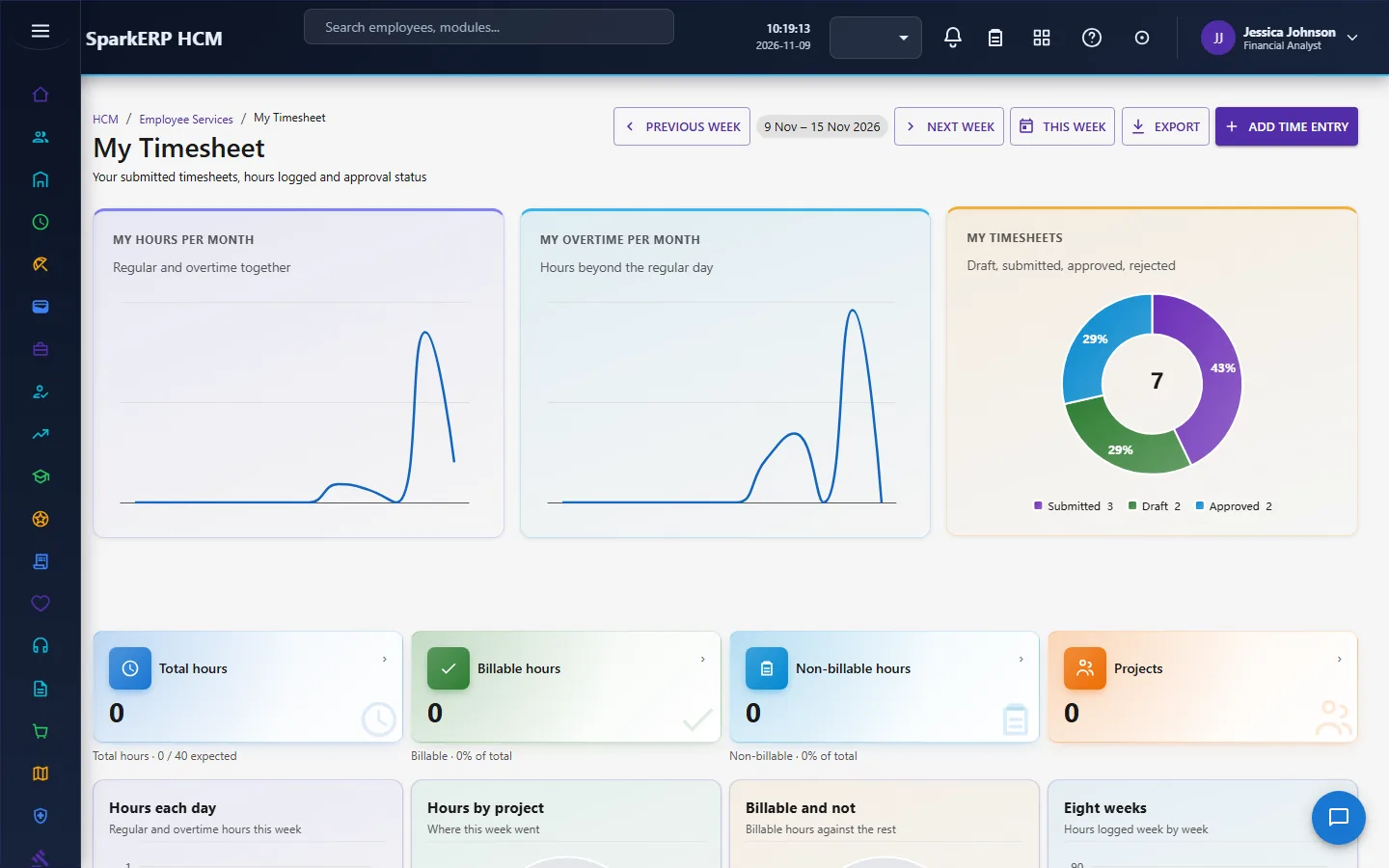
My Timesheet shows the week, the hours logged and the approval status.
The manager
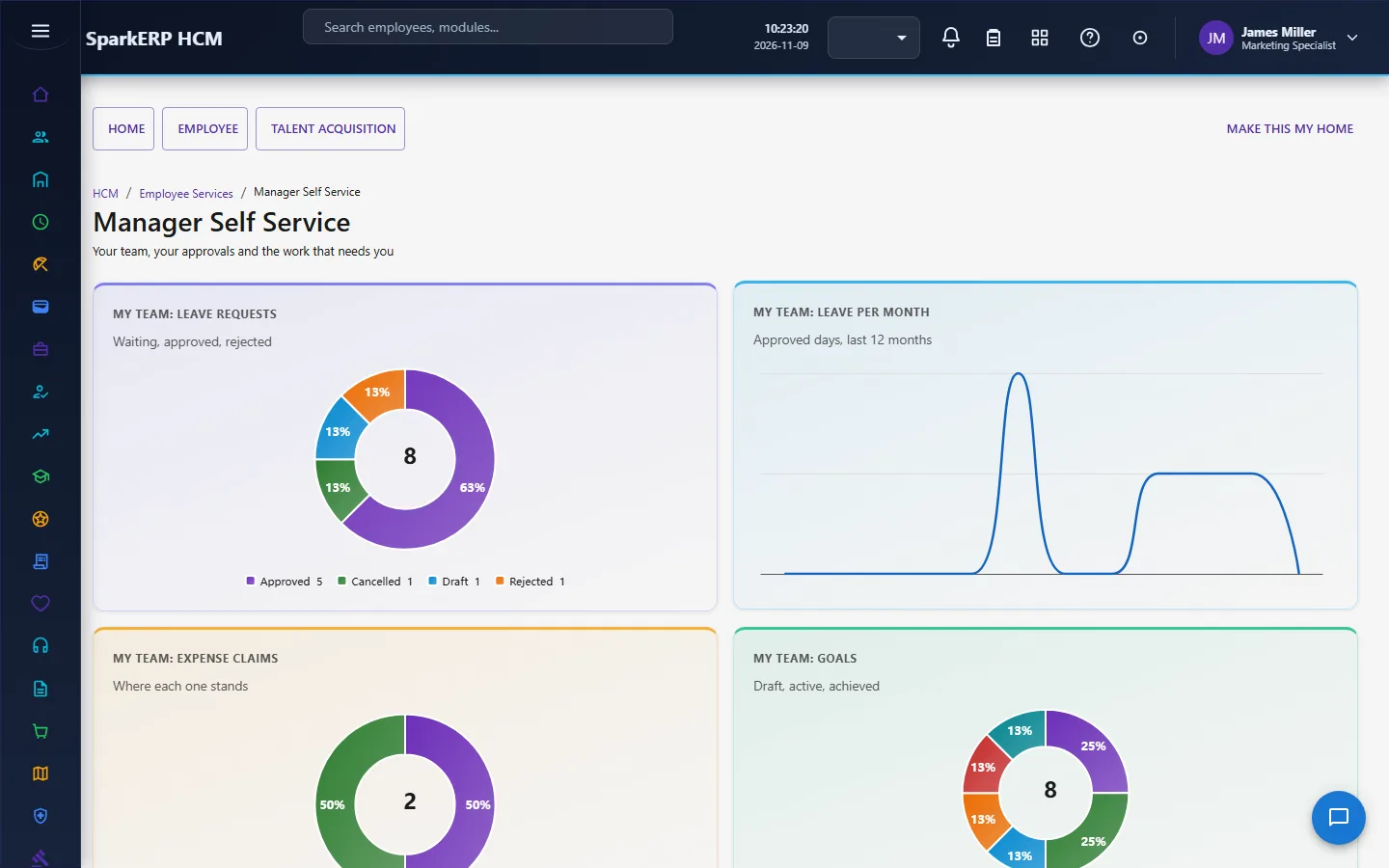
A manager starts at Manager Self-Service (their team and the approvals waiting) and decides corrections on Regularization, which shows only the requests of the people in their reporting line.
The HR administrator
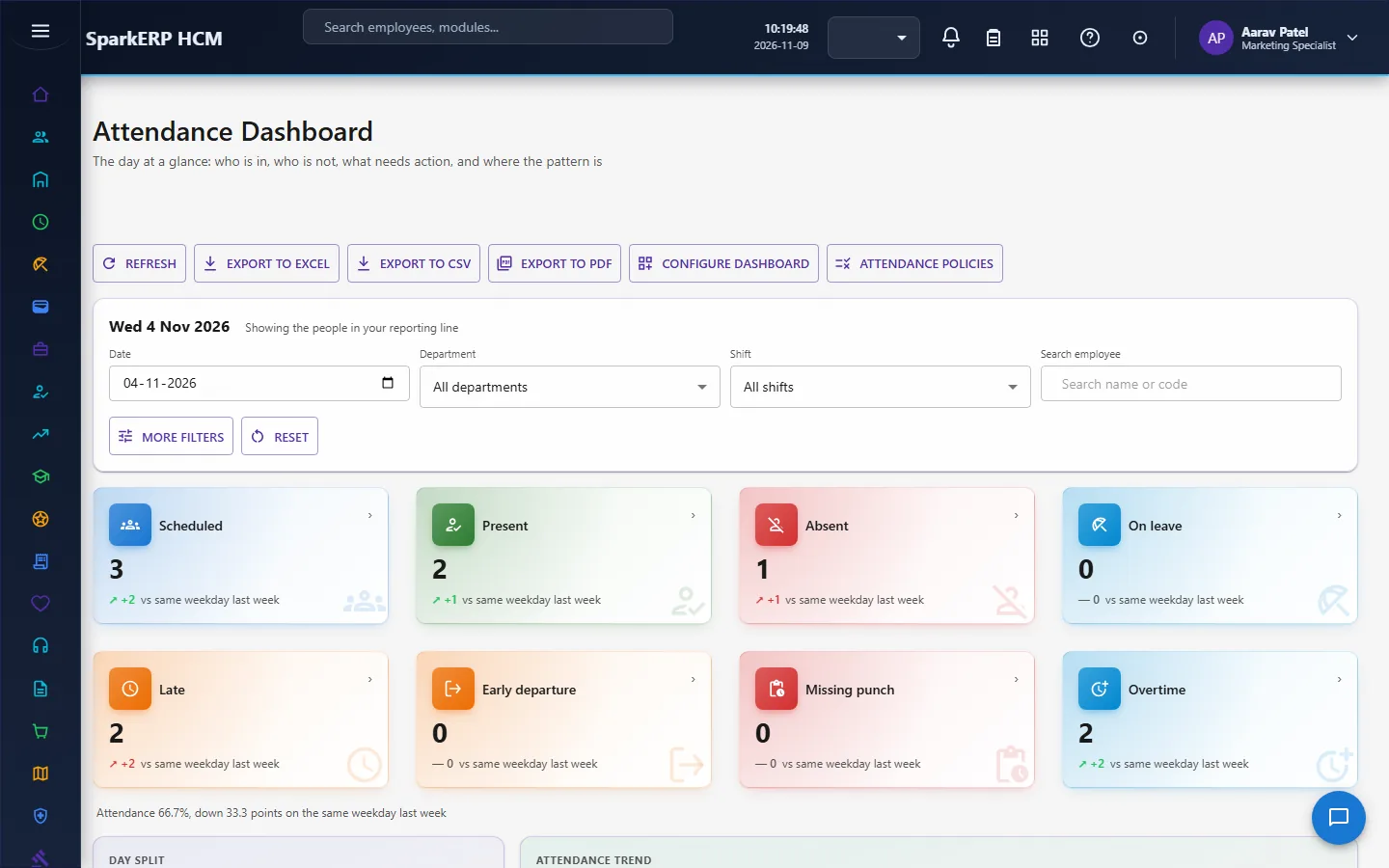
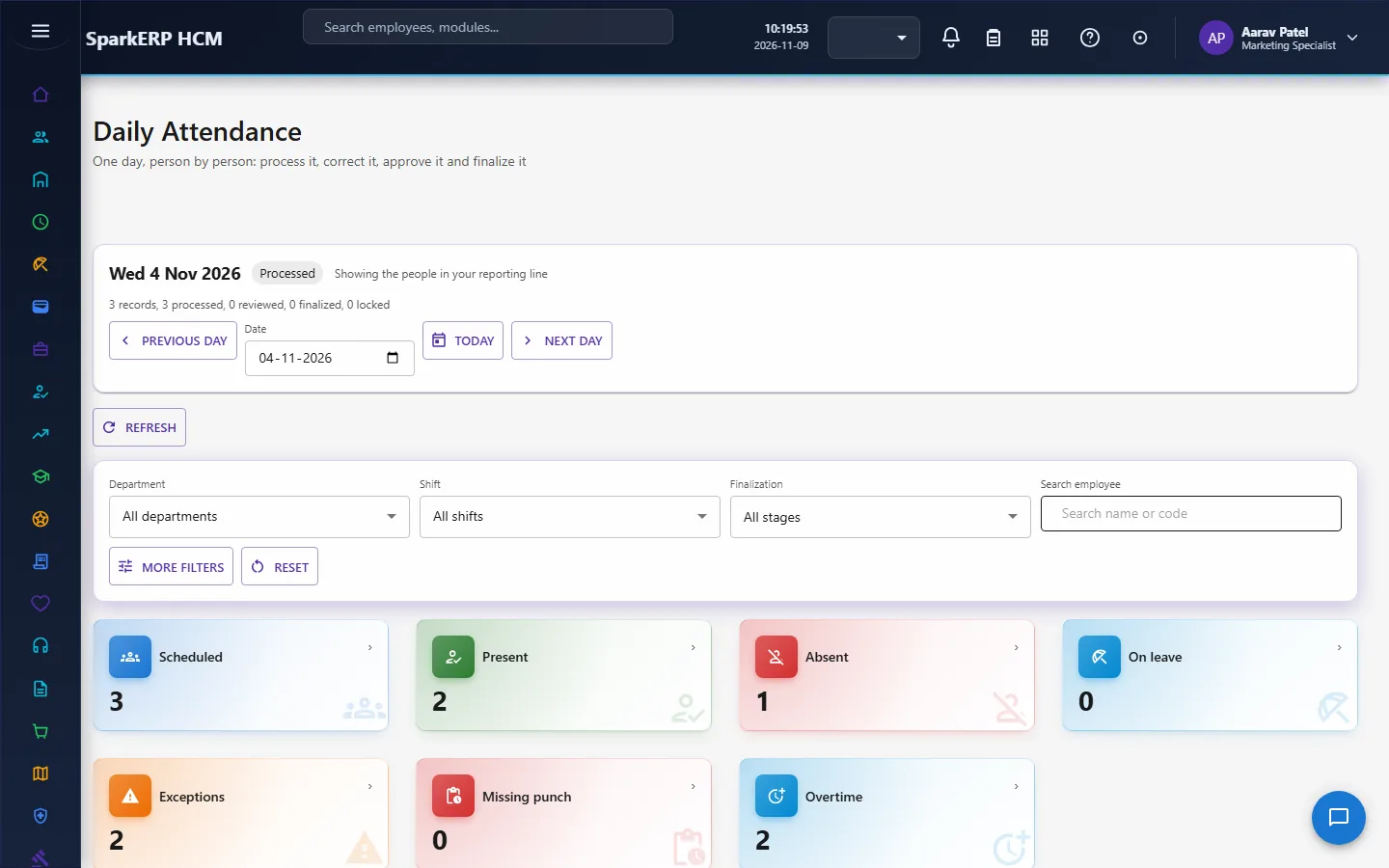
The Attendance Dashboard shows who is in, who is not, what needs action and where the pattern is. Daily Attendance is one day, person by person: process it, correct it, approve it and finalize it.
Late & Early Records, Overtime and Regularization are the decision screens.
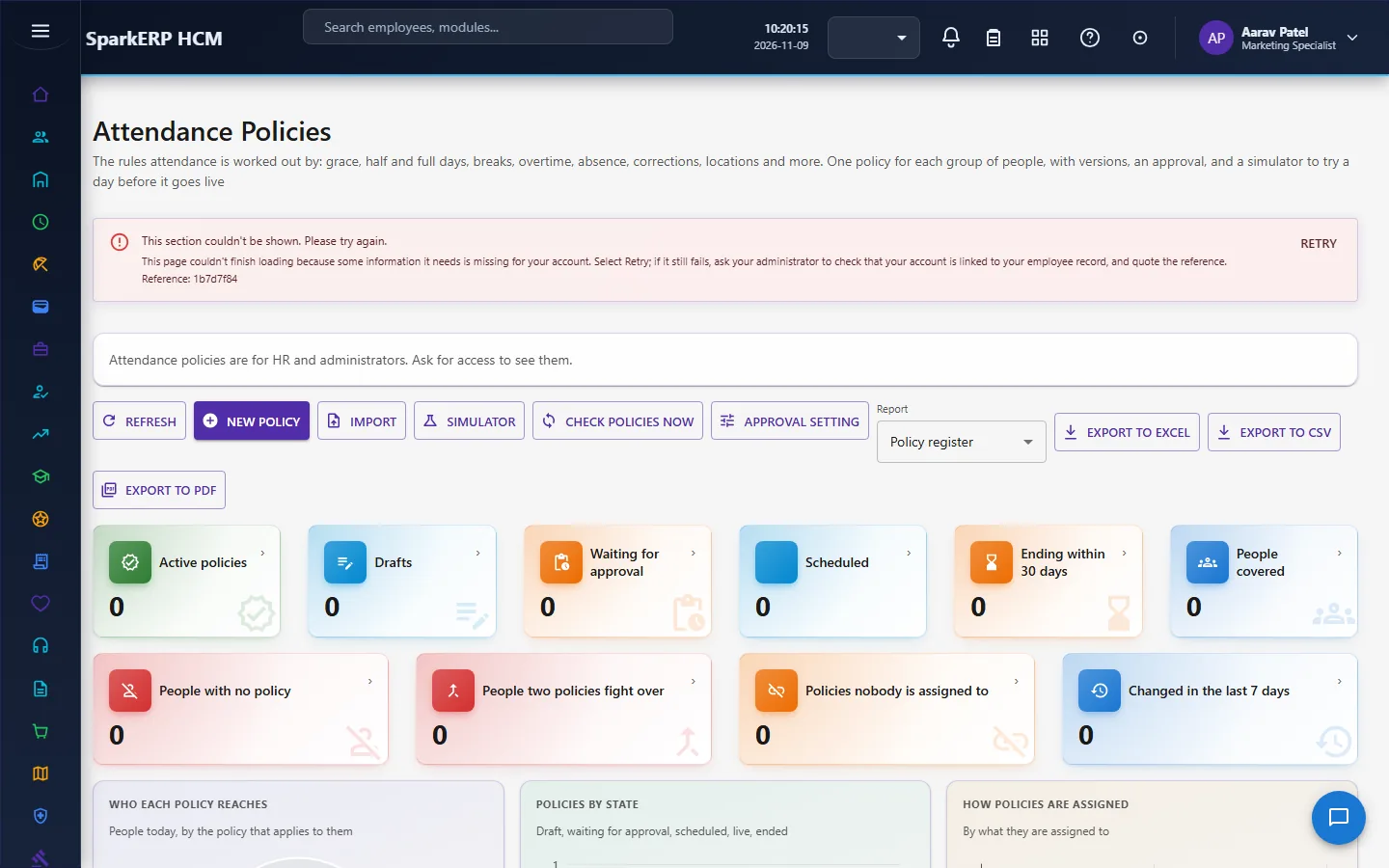
Attendance Policies hold the rules, one policy for each group of people.
Work From Home, Field Work and Biometric Attendance cover remote and device attendance. Timesheets and Reports close the loop.
Shifts and Scheduling (in Shift Scheduling) plan the work.
4. Decide before you set up
| Decision | What to think about |
|---|---|
| Where punches come from | Biometric, mobile, web, kiosk, field work, work from home. Allow only the sources you trust. |
| How a full and half day are measured | Fixed minutes, percent of the shift, the whole shift or halves. |
| Grace and lateness | Grace minutes, how often grace may be used, when lateness is severe, when it is repeated. |
| Breaks | Paid or unpaid, deducted automatically or not. |
| Overtime | Allowed or not, who approves, before or after the work, daily and monthly limits, rounding, weekly off and holiday rules, comp off or pay. |
| Corrections | Which reasons, how many days after, how many a month, who approves. |
| Remote work | Work from home and field work: approval, balance, position, geofence, photo. |
| Days off | Holiday work, weekly-off work, days in a row, rest days, night shifts in a row. |
| Groups | One policy for each group of people. |
| Locking | Finalize and lock automatically, or by hand. |
5. Set up step by step
- Holidays and weekly offs in the foundation (the holiday calendar) and the Leave module, so a day is classified correctly.
- Locations and geofences. Assign active locations to employees and add geofences where clock-in must happen at a place.
- Shifts in Shift Scheduling: times and breaks.
- Attendance policies. Create a policy per group and set the rules on its tabs: work, late, breaks, overtime, absence, regularization, remote, location, days off. A rule a policy does not set is not applied; the engine keeps the behaviour it has without a policy. Use the policy simulator to see a person's day under the policy before activating. A policy goes through approval.
- Devices. Register biometric devices and enrol people on them, or connect them through the Connector Designer.
- Overtime policies and limits.
- Roles. Give the attendance roles to the people who run each area; give HR Manager to those who approve remote work and plans.
- Schedules and rosters. Build the schedule, review the auto-scheduler's draft, publish.
- Periods. Create the attendance periods and the lock rule for payroll.
- Trial. In a trial tenant generate the Time & Attendance demo packs and read a day on Daily Attendance.
6. Daily use
6.1 An employee clocks in and out
- Open My Attendance and select Clock in at the start of the day. The first punch is in; the next ones are out, and the last out is the day's out time.
- If the location has a geofence and you are outside it, the punch is refused and written as invalid.
- Select Clock out at the end.
6.2 An employee asks for a correction
- On My Attendance, open the day and select the regularization action.
- Choose the reason and write why. Submit within the days the policy allows.
- Follow the request until it is approved, approved in part, rejected, or sent back.
6.3 A manager decides
- Open Regularization (or the approvals on Manager Self-Service).
- Read the request, the before and after, and the history.
- Approve, approve in part, reject, or send back for more information. Decide many at once when they are alike.
6.4 HR closes the day and the month
- On Daily Attendance, process the day, resolve the exceptions and finalize it.
- On the Attendance Register, review the period, finalize it and lock it for payroll.
- Overtime and deductions go to payroll as the policy says.
7. A calendar of recurring work
| When | What |
|---|---|
| Every day | Process the day; resolve missing punches and exceptions. |
| Every hour | The follow-up job reminds people, managers and HR. |
| Every week | Read the overtime cap watch; review lateness trends. |
| Cut-off | Finalize the days; decide pending corrections and overtime. |
| Period end | Finalize and lock the period for payroll. |
| After payroll | Match payroll and leave results back to overtime records. |
8. Reports and figures
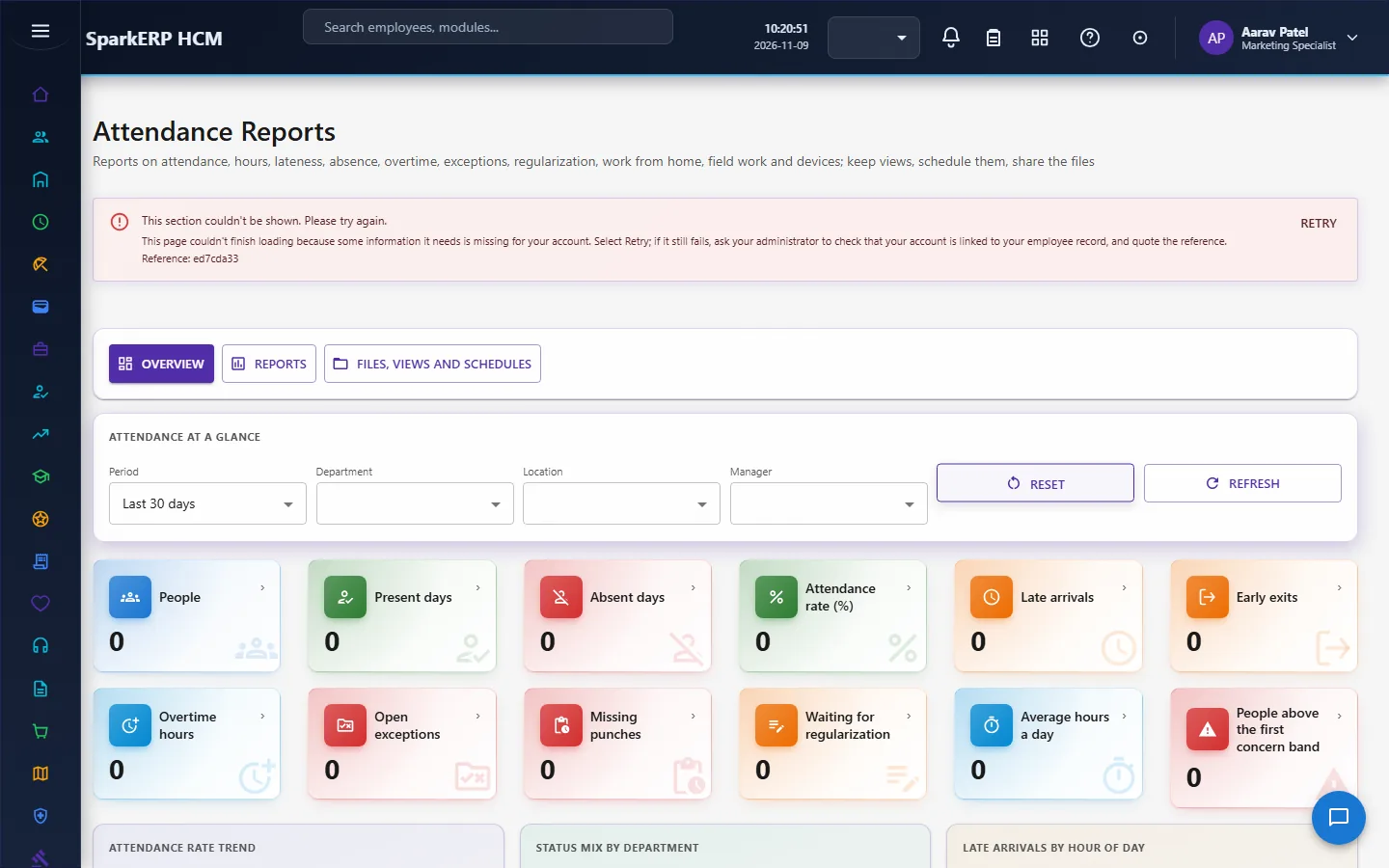
The Attendance Dashboard shows the current picture, history by trend, weekday and team. Reports has twelve cards and twelve graphs and lets you keep views, schedule them and share the files. The Register exports through the platform's Document Service. Every list can be exported to CSV.
9. Limits you should know about
- A rule a policy does not set is not applied. The result is the same as without a policy.
- The auto-scheduler is a heuristic; it produces a draft for a planner and does not promise the best schedule.
- A locked day cannot change until the period is unlocked with a reason.
- A request outside a policy is not refused; it becomes an exception that a person with authority decides.
- Late and early records mark behaviour for review; they decide nothing about pay on their own.
10. Troubleshooting
| Symptom | Cause and fix |
|---|---|
| A person is marked absent but was at work | No punch from an allowed source, a day type or shift mismatch, or the minimum presence is not met. Check the policy and add a regularization. |
| A punch was refused | The person is outside the geofence, or the source is not allowed by the policy. The invalid punch shows the reason. |
| A person on leave is marked absent | The leave is not approved for that date, or the day was finalized before it was approved. Reprocess after the leave is approved. |
| Overtime did not reach payroll | It is not approved, or not finished yet (an hourly job finishes it), or the period is locked. |
| A correction cannot be requested | The day is older than the policy allows, the monthly limit is reached, or the period is locked. |
| A device sends nothing | See Biometric Attendance: the device health and sync job list say why. |
| A manager sees nobody | The reporting line is not set for their team. |