
Appearance
Shifts: Assign
This article covers: Assign.
Before you start
- Access. You need access to Time & Attendance > Shifts. If you do not see it in the menu, ask your administrator for the role that covers this area.
Steps
Open Time & Attendance > Shifts.
Select Assign.
In the window Assign the shift fill in the fields below.
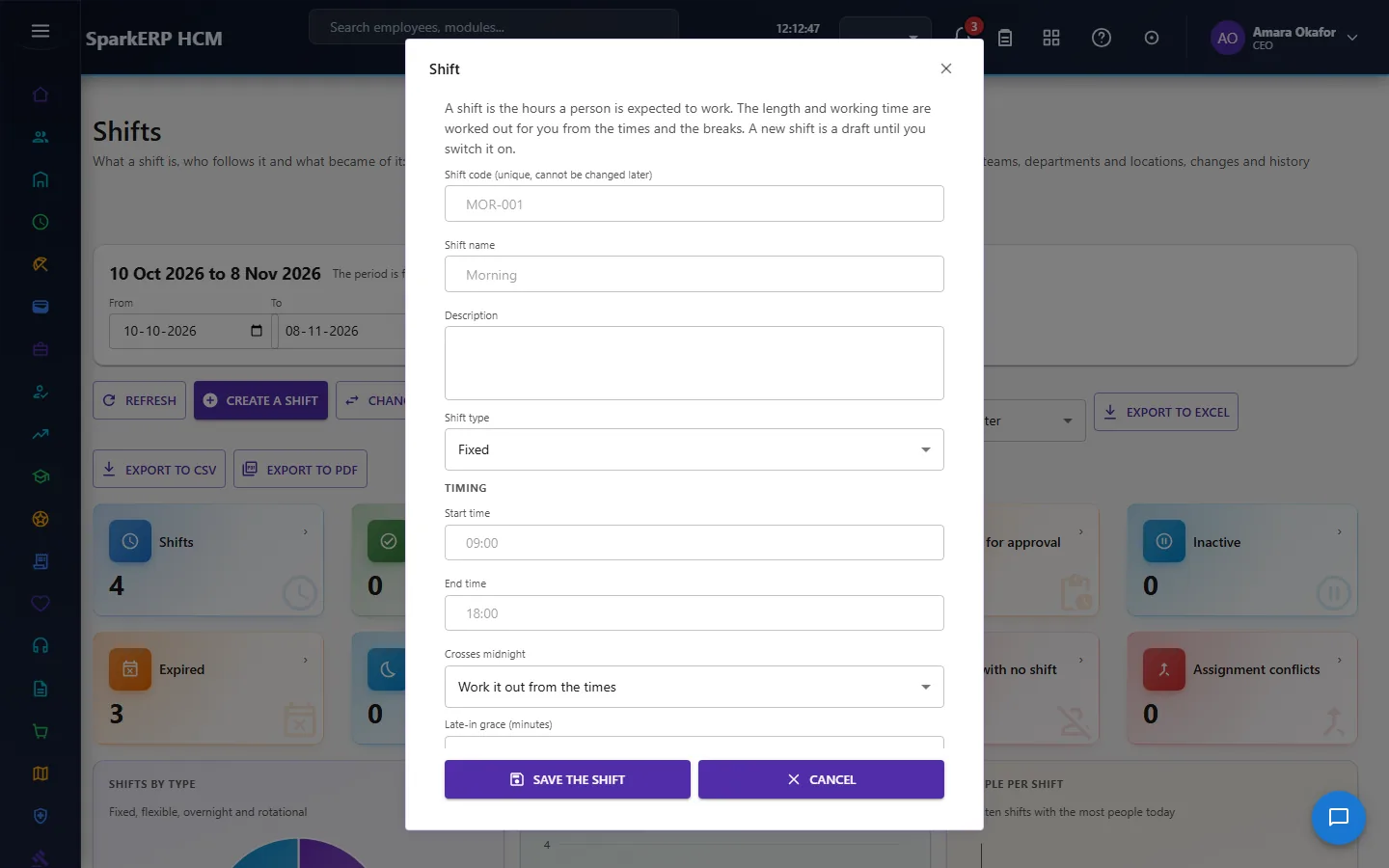
| Field | What it means and what to enter |
|---|---|
| Made to | Choose one: A person, A team, A department, A location, A business unit, The organization. |
| Find the employee | Optional. Type part of a name or code to narrow the list next to it. |
| Person | Choose from the list. |
| Which one | Choose from the list. |
| From | Pick a date. |
| To (empty: no end) | Pick a date. |
| Apply to all future dates (no end date) | The last day the record is in force. Leave it empty if it has no end. Choose one: Yes, No. |
| Priority (a higher number wins between two of the same kind) | Type the priority (a higher number wins between two of the same kind). |
| Replace the existing shift (it ends the day before) | Choose one: Yes, No. |
| Allow exceptions (short rest, too many days in a row) | Choose one: Yes, No. |
| Why | Say why. The text is kept with the record and shown to whoever reads or approves it. |
- Select the confirm button.
The window closes and the table shows the result.
If something does not work
- The button "Assign" is missing. You do not have the permission, or the page is not in your menu. See Access above.
- A list in the window is empty. The records it picks from do not exist yet.
- The window will not close or shows a message. Read the message: it names the field that is missing or not allowed.