
Appearance
Scheduling: Make a schedule
This article covers: Make a schedule.
Before you start
- Access. You need access to Time & Attendance > Shift Scheduling. If you do not see it in the menu, ask your administrator for the role that covers this area.
- These lists must already have entries, because the window picks from them: departments (add one); locations (add one).
Steps
Open Time & Attendance > Shift Scheduling.
Select Make a schedule.
In the window Schedule fill in the fields below.
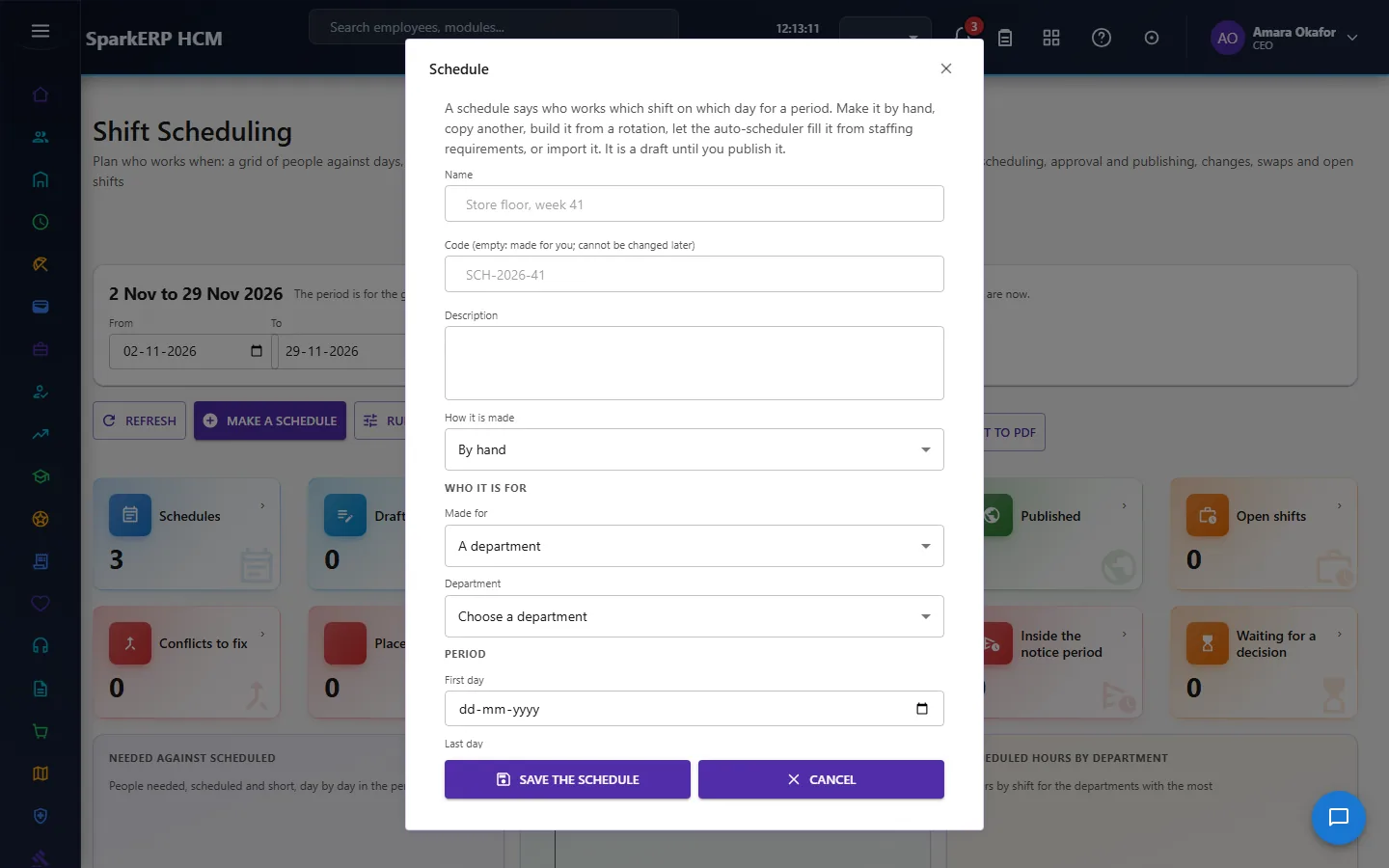
| Field | What it means and what to enter |
|---|---|
| Name | The name people see for the record. For example: Store floor, week 41. |
| Code (empty: made for you; cannot be changed later) | A short, unique code that identifies the record. For example: SCH-2026-41. |
| Description | Free text for your own notes. |
| How it is made | Choose one: By hand, Copy a schedule, Rotation, Auto-scheduled, Import. |
| Made for | Choose one: A department, A team, A location, Chosen people. |
| Department | Choose from the list. |
| Team | Choose from the list. |
| Location | Choose from the list. |
| Employee codes (separated by commas or spaces) | Type the employee codes (separated by commas or spaces). |
| First day | Pick a date. |
| Last day | Pick a date. |
| Schedule to copy (its days move to the new dates; its staffing requirements are copied) | Choose from the list. |
| Rotation: one line for each week, seven codes from Monday to Sunday | Type the rotation: one line for each week, seven codes from monday to sunday. |
| Each person starts one week further on in the rotation | Choose one: Yes, No. |
| Or continue each person from where their last published schedule left off | Choose one: Yes, No. |
| Staffing needed: one line for each shift: code, people, weekdays (1 to 7, optional) | A short, unique code that identifies the record. For example: MOR,3,1 2 3 4 5. |
| Auto-schedule it now | Choose one: Yes, No. |
| Publish this many days ahead | Type the publish this many days ahead. |
| Rest between two shifts (hours) | Type the rest between two shifts (hours). |
| Most hours in a day | Type the most hours in a day. |
| Most hours in a week | Type the most hours in a week. |
| Most days in a row | Type the most days in a row. |
| Days off a week (at least) | Type the days off a week (at least). |
| Check skills | Choose one: The organization's setting, Yes, No. |
| Do not plan people on a holiday | Choose one: The organization's setting, Yes, No. |
| Share hours, nights and weekends evenly | Choose one: The organization's setting, Yes, No. |
| Why (kept in the history) | Say why. The text is kept with the record and shown to whoever reads or approves it. |
- Select Save the schedule.
The window closes and the table shows the result.
If something does not work
- The button "Make a schedule" is missing. You do not have the permission, or the page is not in your menu. See Access above.
- A list in the window is empty. The records it picks from do not exist yet. Add them first: Departments, Locations.
- The window will not close or shows a message. Read the message: it names the field that is missing or not allowed.