
Appearance
Create an opening
This article covers: New Opening.
Before you start
- Access. You need access to Recruitment > Job Openings. If you do not see it in the menu, ask your administrator for the role that covers this area.
Steps
Open Recruitment > Job Openings.
Select New Opening.
In the window New Job Opening fill in the fields below.
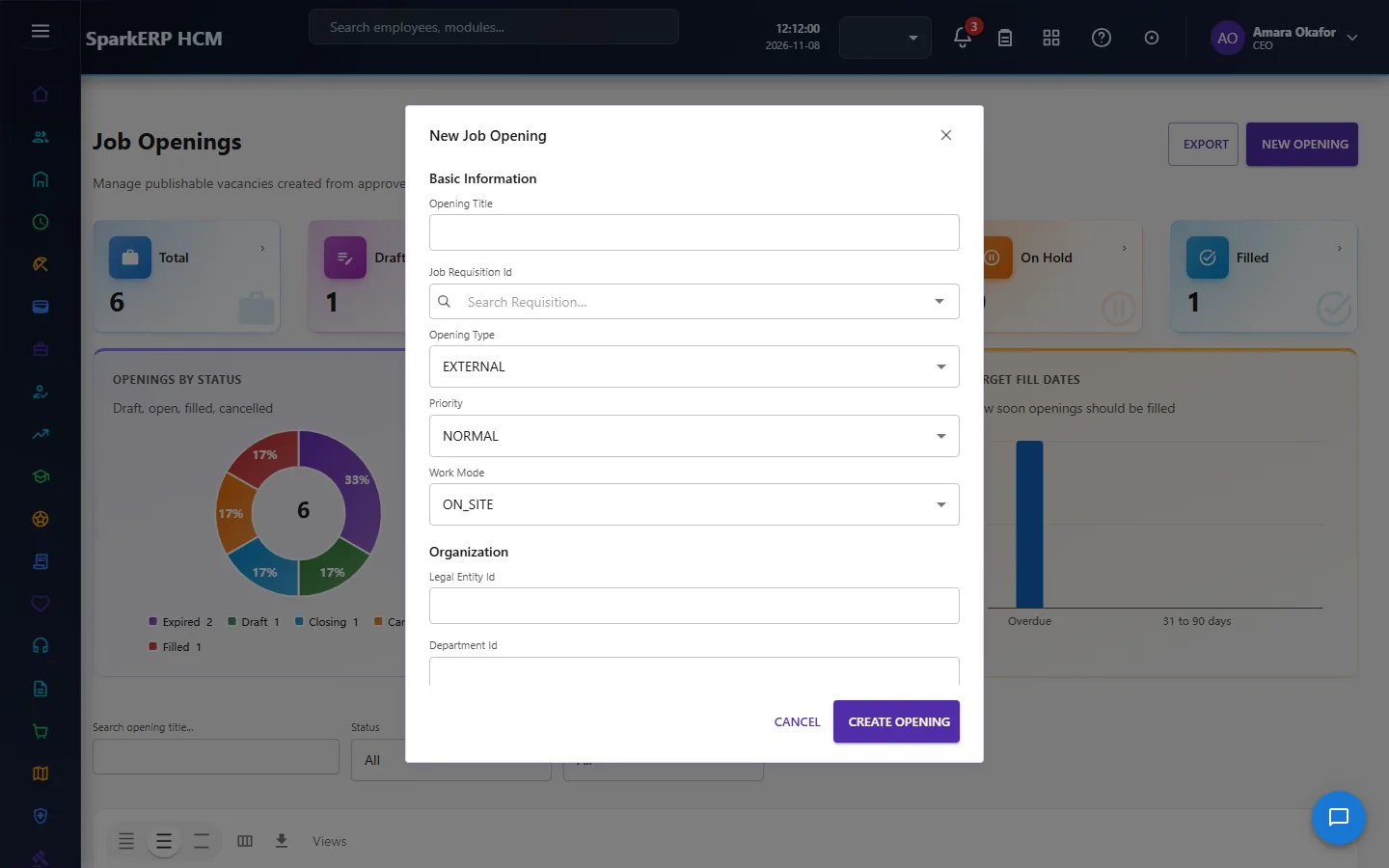
| Field | What it means and what to enter |
|---|---|
| Opening Title | Type the opening title. |
| Opening Type | Choose one: EXTERNAL, INTERNAL, INTERNAL_AND_EXTERNAL, CONFIDENTIAL, AGENCY. |
| Priority | Choose one: LOW, NORMAL, HIGH, URGENT, CRITICAL. |
| Work Mode | Choose one: ON_SITE, REMOTE, HYBRID, FIELD. |
| Legal Entity Id | Type the legal entity id. |
| Department Id | Type the department id. |
| Location | Type the location. |
| Currency | The currency of the amounts on this record, for example USD or INR. |
| Minimum Salary | Type the minimum salary. |
| Maximum Salary | Type the maximum salary. |
| Posting Start Date | The first day the record is in force. |
| Posting End Date | The last day the record is in force. Leave it empty if it has no end. |
| Job Description | Free text for your own notes. |
- Select Create Opening.
The window closes and the table shows the result.
If something does not work
- The button "New Opening" is missing. You do not have the permission, or the page is not in your menu. See Access above.
- A list in the window is empty. The records it picks from do not exist yet.
- The window will not close or shows a message. Read the message: it names the field that is missing or not allowed.