
Appearance
Create a shift
This article covers: Create a shift.
Before you start
- Access. You need access to Time & Attendance > Shifts. If you do not see it in the menu, ask your administrator for the role that covers this area.
- These lists must already have entries, because the window picks from them: locations (add one).
Steps
Open Time & Attendance > Shifts.
Select Create a shift.
In the window Shift fill in the fields below.
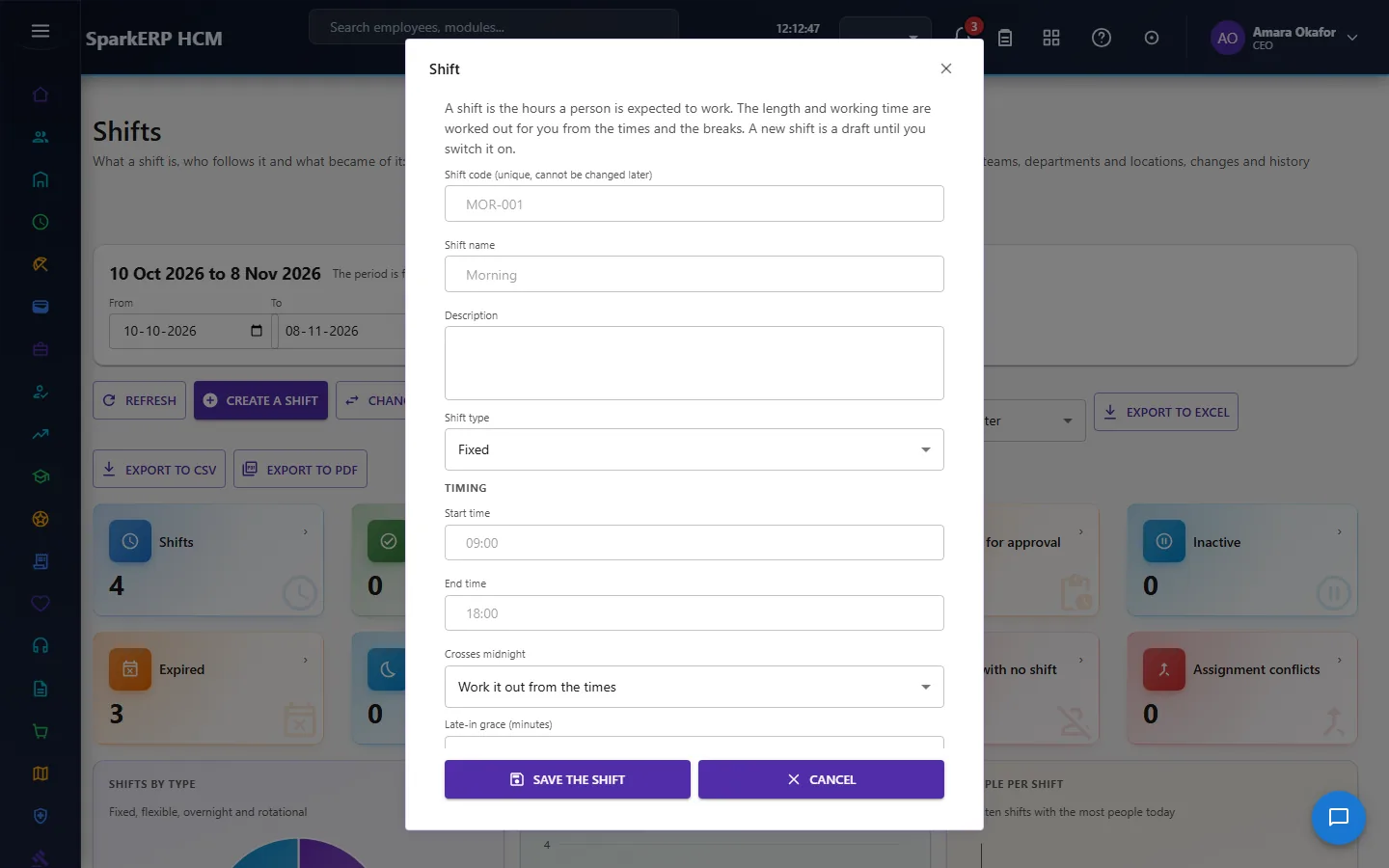
| Field | What it means and what to enter |
|---|---|
| Shift code (unique, cannot be changed later) | A short, unique code that identifies the record. For example: MOR-001. |
| Shift name | The name people see for the record. |
| Description | Free text for your own notes. |
| Shift type | Choose one: Fixed, Flexible, Overnight, Rotational. |
| Start time | For example: 09:00. |
| End time | For example: 18:00. |
| Crosses midnight | Choose one: Work it out from the times, Yes, it ends the next day, No, it ends the same day. |
| Late-in grace (minutes) | Type the late-in grace (minutes). |
| Early-out grace (minutes) | Type the early-out grace (minutes). |
| Latest start of a flexible shift | For example: 11:00. |
| Core hours start (flexible shift) | For example: 11:00. |
| Core hours end (flexible shift) | For example: 16:00. |
| Effective from | The first day the record is in force. |
| Effective to (empty: no end) | The last day the record is in force. Leave it empty if it has no end. |
| Work location | Choose from the list. |
| Time zone | The time zone for dates and times on this record, for example Europe/London. For example: Europe/Berlin. |
| Minimum rest before the next shift (minutes) | Type the minimum rest before the next shift (minutes). |
| Longest working time (minutes) | Type the longest working time (minutes). |
| Night shift allowance | Choose one: Yes, No. |
| Night shift allowance amount | Type the night shift allowance amount. |
| Clock-in rounding | How many decimals the result keeps. Choose one: Not set here, None, 5 minutes, 10 minutes, 15 minutes, 30 minutes. |
| Clock-out rounding | How many decimals the result keeps. Choose one: Not set here, None, 5 minutes, 10 minutes, 15 minutes, 30 minutes. |
| Late threshold: a day this late is serious (minutes) | Type the late threshold: a day this late is serious (minutes). |
| Tell the manager about a missing punch | The person in charge. Start typing a name or code and pick a match. Choose one: Leave to the policy, Yes, No. |
| Mark absent when there is no valid attendance | Choose one: Leave to the policy, Yes, No. |
| Half day needs at least (minutes worked) | Type the half day needs at least (minutes worked). |
| Full day needs at least (minutes worked) | Type the full day needs at least (minutes worked). |
| Overtime is allowed | Choose one: Leave to the policy, Yes, No. |
| Overtime starts after this many minutes beyond the shift | Type the overtime starts after this many minutes beyond the shift. |
| Most overtime a day (minutes) | Type the most overtime a day (minutes). |
| Time worked before the shift counts as overtime | Choose one: Leave to the policy, Yes, No. |
| Time worked after the shift counts as overtime | Choose one: Leave to the policy, Yes, No. |
| Overtime needs the manager to approve it | The person in charge. Start typing a name or code and pick a match. Choose one: Leave to the policy, Yes, No. |
| Holiday calendar | Choose from the list. |
| Weekly off days (1 Monday to 7 Sunday) | For example: 6,7. |
| Overtime counts only after this time of day | For example: 18:00. |
| Most days in a row on this shift | Type the most days in a row on this shift. |
| Attendance policy for people on this shift | Choose from the list. |
| Overtime policy for work on this shift | Choose from the list. |
| Rounding policy (an attendance policy whose rounding this shift uses) | How many decimals the result keeps. |
| Leave policy of the people on this shift | Choose from the list. |
| Payroll calendar (pay group) | Choose from the list. |
| Attendance device group (the devices people on this shift punch on) | Type the attendance device group (the devices people on this shift punch on). |
| Why you are changing it (kept in the history) | Say why. The text is kept with the record and shown to whoever reads or approves it. |
- Select Save the shift.
The window closes and the table shows the result.
If something does not work
- The button "Create a shift" is missing. You do not have the permission, or the page is not in your menu. See Access above.
- A list in the window is empty. The records it picks from do not exist yet. Add them first: Locations.
- The window will not close or shows a message. Read the message: it names the field that is missing or not allowed.