
Appearance
Create a report
This article covers: Create Report.
Before you start
- Access. You need access to Learning & Development > Learning Reports. If you do not see it in the menu, ask your administrator for the role that covers this area.
Steps
Open Learning & Development > Learning Reports.
Select Create Report.
In the window Learning Report fill in the fields below.
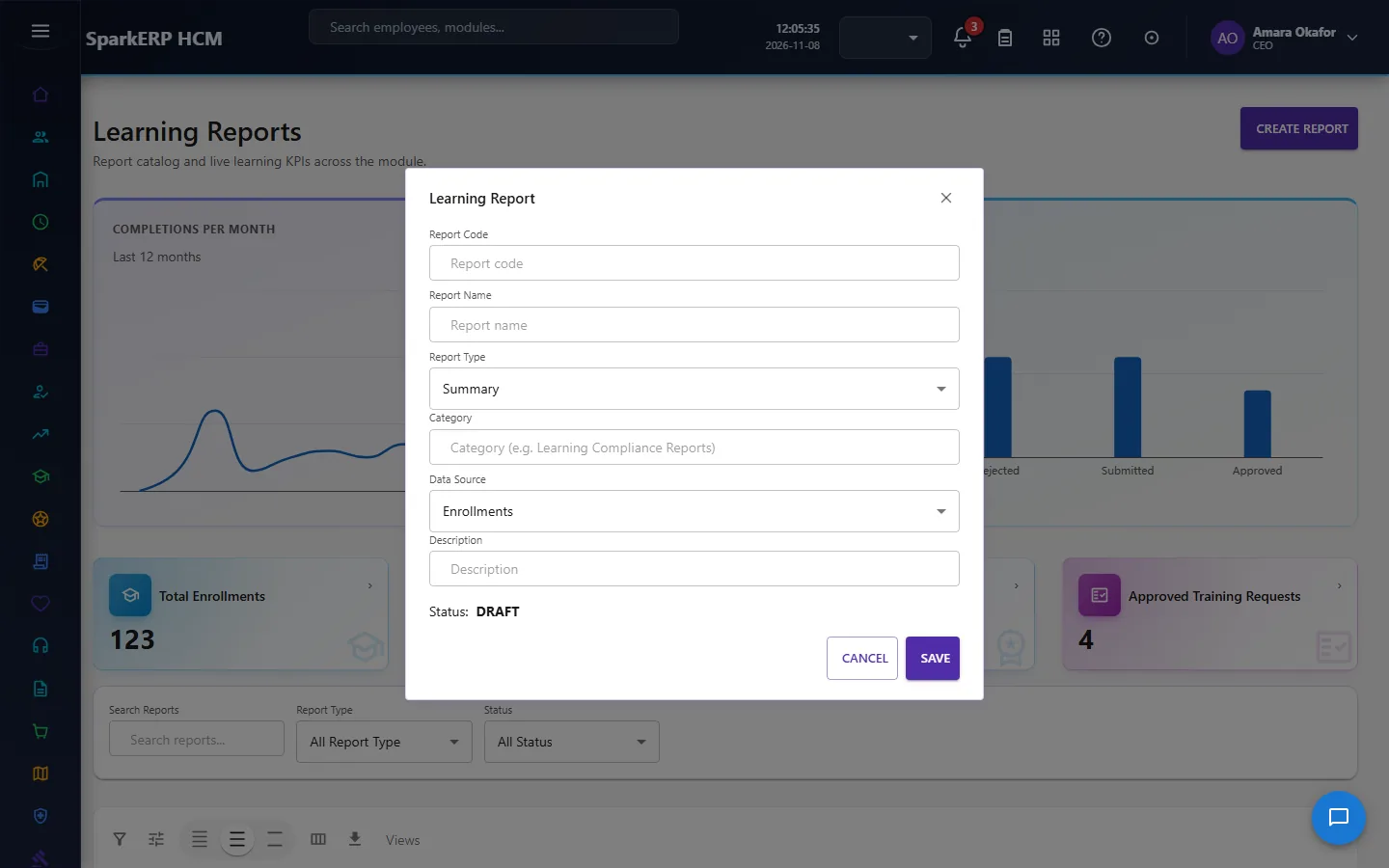
| Field | What it means and what to enter |
|---|---|
| Report Code | A short, unique code that identifies the record. |
| Report Name | The name people see for the record. |
| Report Type | Choose one: Summary, Detail, Analytical, Trend, Compliance, Cost, Performance, Comparison, Pivot, Matrix.... |
| Category | Type the category. |
| Data Source | Choose one: Employees, Courses, Learning Paths, Training Programs, Enrollments, Assessments, Assessment Attempts, Certifications, Skills, Skill Development.... |
| Description | Free text for your own notes. |
- Select Submit for Approval.
WARNING
The record is saved with the status Pending approval and an approval request goes to the approver. It becomes Active when it is approved. Who approves is set under Administration > Approval Hierarchies.
If something does not work
- The button "Create Report" is missing. You do not have the permission, or the page is not in your menu. See Access above.
- A list in the window is empty. The records it picks from do not exist yet.
- The window will not close or shows a message. Read the message: it names the field that is missing or not allowed.