
Appearance
Create a leave Type
This article covers: New Leave Type.
Before you start
- Access. You need access to Leave Management > Leave Types. If you do not see it in the menu, ask your administrator for the role that covers this area.
Steps
Open Leave Management > Leave Types.
Select New Leave Type.
In the window Leave Type fill in the fields below.
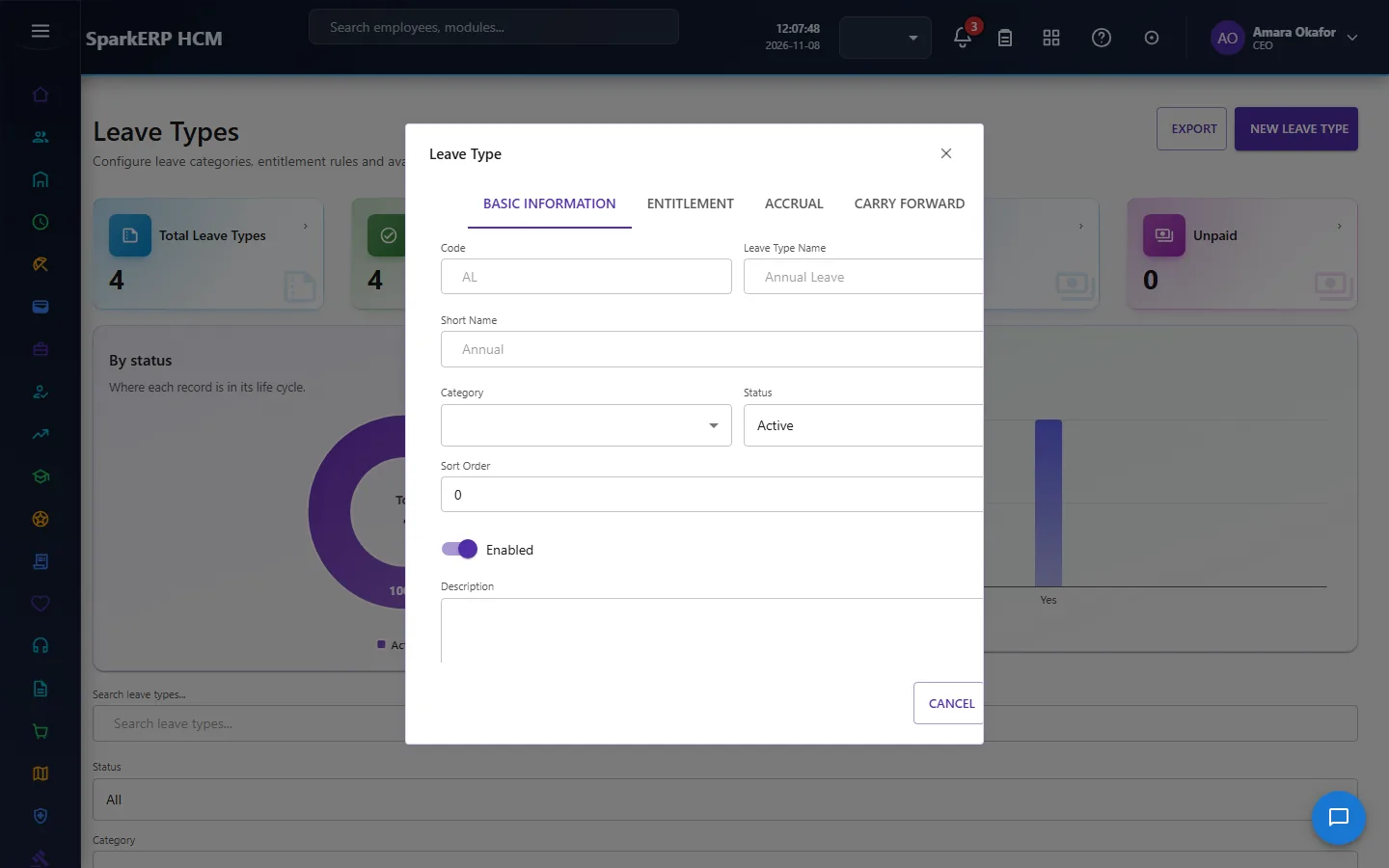
| Field | What it means and what to enter |
|---|---|
| Code | A short, unique code that identifies the record. |
| Leave Type Name | The name people see for the record. |
| Short Name | A short form of the name. |
| Category | Choose from the list. |
| Status | Whether the record is in use. Choose one: Active, Inactive. |
| Sort Order | Type the sort order. |
| Description | Free text for your own notes. |
| Entitlement Type | Choose one: Fixed, Accrued, Unlimited, No Entitlement, Policy Based, Service Based, Grade Based. |
| Annual Entitlement (Days) | Type the annual entitlement (days). |
| Maximum Entitlement (Days) | Type the maximum entitlement (days). |
| Accrual Method | Choose one: None, Annual, Monthly, Quarterly, Biweekly, Per Pay Period, Daily, Custom. |
| Accrual Amount | Type the accrual amount. |
| Start After (Days) | Type the start after (days). |
| Maximum Accrual Balance | Type the maximum accrual balance. |
| Carry Forward Rule | Choose one: No Carry Forward, Unlimited, Fixed Days, Percentage, Policy Based. |
| Maximum Carry Forward (Days) | Type the maximum carry forward (days). |
| Carry Forward Expiry | For example: 31-MAR. |
| Maximum Encashment (Days) | Type the maximum encashment (days). |
| Minimum Balance to Encash | Type the minimum balance to encash. |
| Employment Types (comma-separated) | Type the employment types (comma-separated). |
| Minimum Service (Days) | Type the minimum service (days). |
| Gender Eligibility | Choose one: All, Male, Female, Other, Custom Rule. |
| Minimum Hours | Type the minimum hours. |
| Required After (Days) | Type the required after (days). |
| Document Types (comma-separated) | Type the document types (comma-separated). |
| Approval Workflow Id | Type the approval workflow id. |
| Payroll Component | Type the payroll component. |
| Calendar Visibility | Choose one: Team, Manager, Private, Public. |
- Select Save.
The window closes and the table shows the result.
If something does not work
- The button "New Leave Type" is missing. You do not have the permission, or the page is not in your menu. See Access above.
- A list in the window is empty. The records it picks from do not exist yet.
- The window will not close or shows a message. Read the message: it names the field that is missing or not allowed.