
Appearance
Create a certification
This article covers: Create Certification.
Before you start
- Access. You need access to Learning & Development > Certifications. If you do not see it in the menu, ask your administrator for the role that covers this area.
Steps
Open Learning & Development > Certifications.
Select Create Certification.
In the window Certification fill in the fields below.
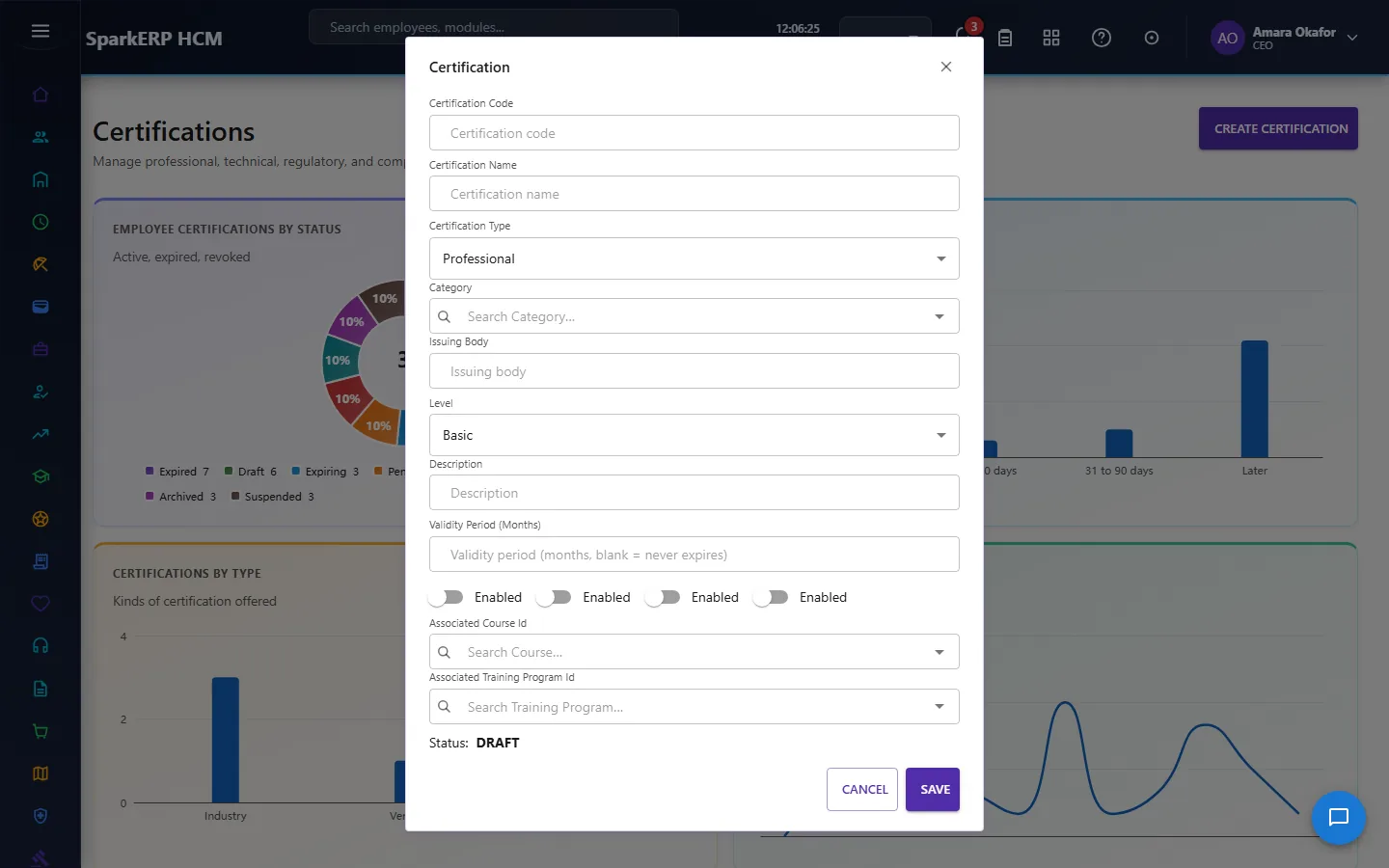
| Field | What it means and what to enter |
|---|---|
| Certification Code | A short, unique code that identifies the record. |
| Certification Name | The name people see for the record. |
| Certification Type | Choose one: Professional, Technical, Academic, Regulatory, Compliance, Safety, License, Industry, Vendor, Internal.... |
| Issuing Body | Type the issuing body. |
| Level | Choose one: Basic, Intermediate, Advanced, Expert. |
| Description | Free text for your own notes. |
| Validity Period (Months) | Type the validity period (months). |
- Select Save.
The window closes and the table shows the result.
If something does not work
- The button "Create Certification" is missing. You do not have the permission, or the page is not in your menu. See Access above.
- A list in the window is empty. The records it picks from do not exist yet.
- The window will not close or shows a message. Read the message: it names the field that is missing or not allowed.