
Appearance
Create a candidate
This article covers: New Candidate.
Before you start
- Access. You need access to Recruitment > Candidates. If you do not see it in the menu, ask your administrator for the role that covers this area.
Steps
Open Recruitment > Candidates.
Select New Candidate.
In the window New Candidate fill in the fields below.
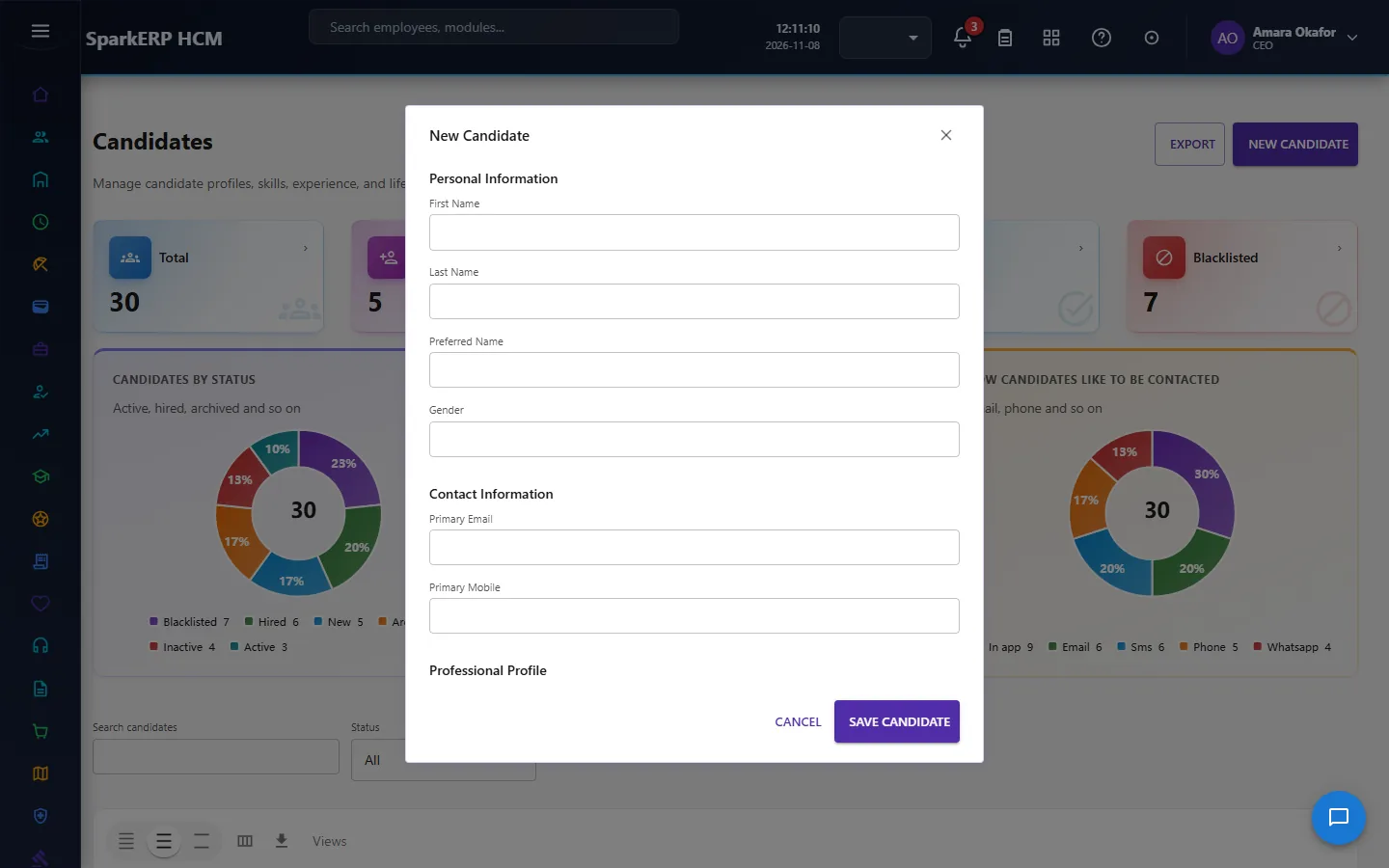
| Field | What it means and what to enter |
|---|---|
| First Name | The name people see for the record. |
| Last Name | The name people see for the record. |
| Preferred Name | The name people see for the record. |
| Gender | Type the gender. |
| Primary Email | An email address. |
| Primary Mobile | A phone number with the country code. |
| Professional Headline | Type the professional headline. |
| Professional Summary | Type the professional summary. |
| Total Experience (Years) | Type the total experience (years). |
| Current Employer | Type the current employer. |
| Current Job Title | Type the current job title. |
| Expected Compensation | Type the expected compensation. |
| Notice Period (Days) | Type the notice period (days). |
| Source | Choose one: Career Site, Job Board, Employee Referral, Agency, Social Media, Direct, Recruiter, Talent Pool, Import, Event.... |
- Select Save Candidate.
The window closes and the table shows the result.
If something does not work
- The button "New Candidate" is missing. You do not have the permission, or the page is not in your menu. See Access above.
- A list in the window is empty. The records it picks from do not exist yet.
- The window will not close or shows a message. Read the message: it names the field that is missing or not allowed.