
Appearance
Add a registration (Legal Entities)
This article covers: Add a registration.
Before you start
- Access. Changing records here needs permissions of this area (LegalEntity.Create, LegalEntity.Update, LegalEntity.Deactivate). Roles that include them: Organization Administrator. Ask your administrator if you do not have one of these roles.
Steps
Open Organization > Legal Entities.
Select Add a registration.
In the window Registrations fill in the fields below.
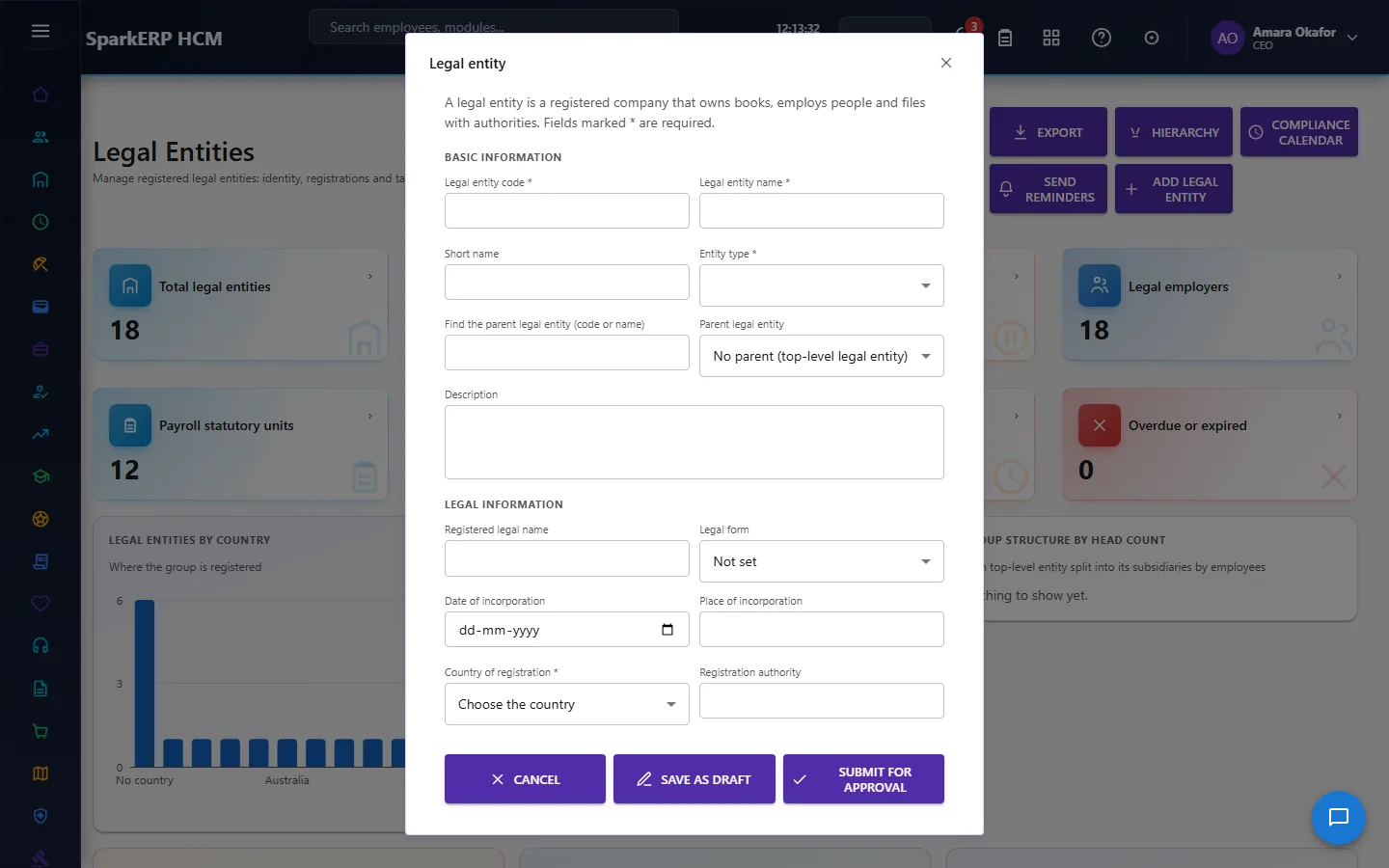
| Field | Required | What it means and what to enter |
|---|---|---|
| Category | Yes | Choose one: Registration, Tax, Statutory. |
| Type * (for example VAT number, tax ID, social security number) | No | The official number from your registration papers. |
| Number | Yes | The number printed on the document. |
| Authority | No | Type the authority. |
| Registration date | No | The official number from your registration papers. |
| Effective from | No | The first day the record is in force. |
| Expiry date | No | Pick a date. |
| Status | No | Whether the record is in use. Choose one: Active, Inactive, Expired, Suspended. |
| Notes | No | Free text for your own notes. |
- Select Save.
The window closes and the table shows the result.
TIP
A star after a field name means the screen requires it.
If something does not work
- The button "Add a registration" is missing. You do not have the permission, or the page is not in your menu. See Access above.
- A list in the window is empty. The records it picks from do not exist yet.
- The window will not close or shows a message. Read the message: it names the field that is missing or not allowed.