
Appearance
Add a location
This article covers: Add Location.
Before you start
- Access. You need access to Core HR > Locations. If you do not see it in the menu, ask your administrator for the role that covers this area.
- These lists must already have entries, because the window picks from them: locations (add one).
Steps
Open Core HR > Locations.
Select Add Location.
In the window Location fill in the fields below.
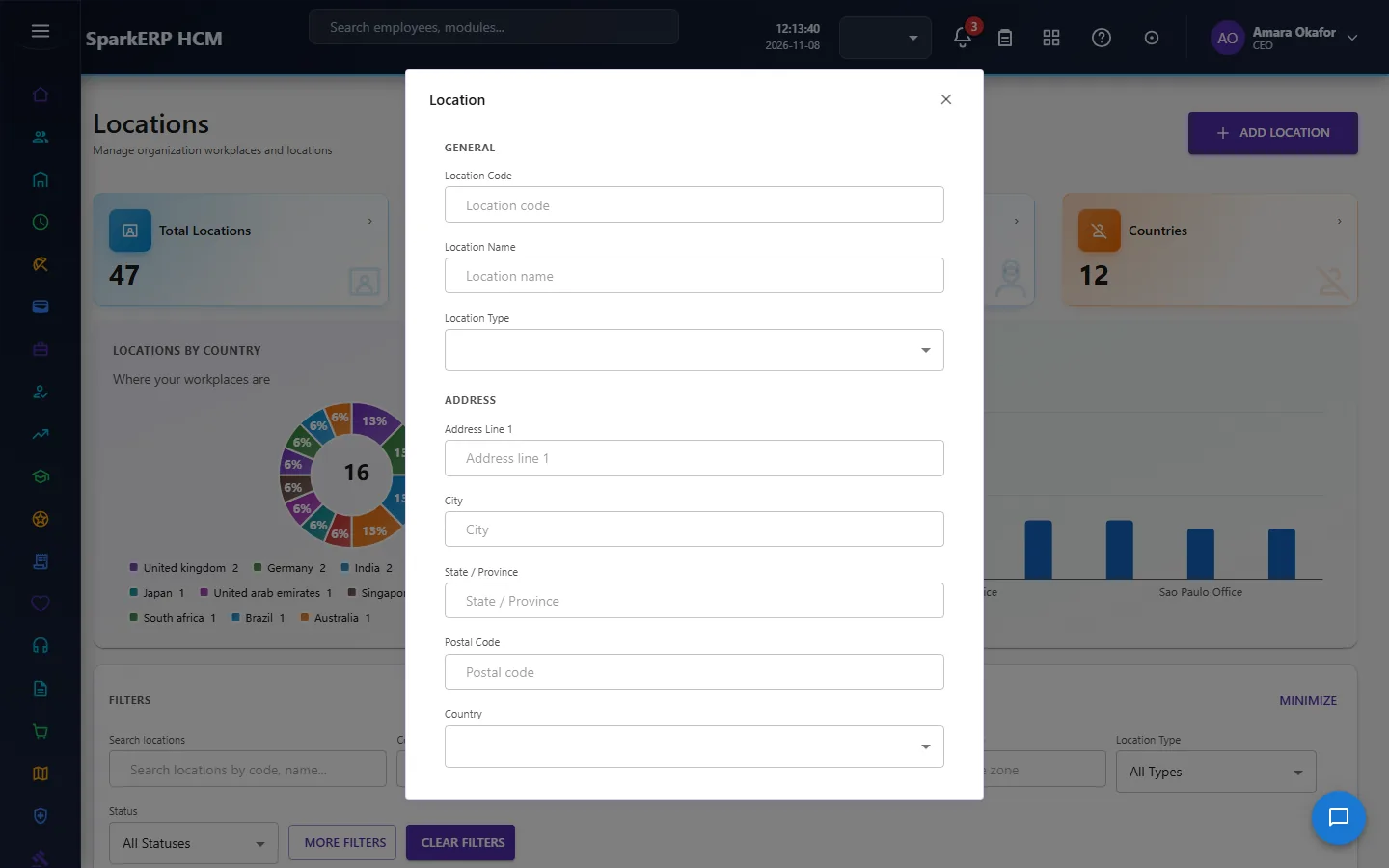
| Field | What it means and what to enter |
|---|---|
| Location Code | A short, unique code that identifies the record. |
| Location Name | The name people see for the record. |
| Location Type | Choose one: Headquarters, Regional Office, Branch, Office, Plant, Factory, Warehouse, Store, Site, Project Site.... |
| Address Line 1 | Part of the postal address. For example: Address line 1. |
| City | Part of the postal address. |
| State / Province | Part of the postal address. |
| Postal Code | A short, unique code that identifies the record. |
| Country | The country. Choose one: India, United States, United Kingdom, United Arab Emirates, Singapore, Australia, Other. |
| Latitude | A position on the map in decimal degrees, for example 12.9716. |
| Longitude | A position on the map in decimal degrees, for example 12.9716. |
| Time Zone | The time zone for dates and times on this record, for example Europe/London. Choose one: UTC, Asia/Kolkata (IST), Asia/Dubai (GST), Asia/Singapore (SGT), Europe/London (GMT/BST), America/New_York (ET), America/Los_Angeles (PT), Australia/Sydney (AEST). |
| Parent Location / Unit | The record this one sits under. Leave it empty for a top-level record. |
| Location Head | Choose from the list. |
| Effective From | The first day the record is in force. |
| Effective To | The last day the record is in force. Leave it empty if it has no end. |
| Status | Whether the record is in use. Choose one: Active, Inactive, Draft. |
| Description | Free text for your own notes. |
- Select Save.
The window closes and the table shows the result.
If something does not work
- The button "Add Location" is missing. You do not have the permission, or the page is not in your menu. See Access above.
- A list in the window is empty. The records it picks from do not exist yet. Add them first: Locations.
- The window will not close or shows a message. Read the message: it names the field that is missing or not allowed.