
Appearance
Add a goal
This article covers: Add goal.
Before you start
- Access. You need access to Employee Services > My Goals. If you do not see it in the menu, ask your administrator for the role that covers this area.
Steps
Open Employee Services > My Goals.
Select Add goal.
In the window Goal fill in the fields below.
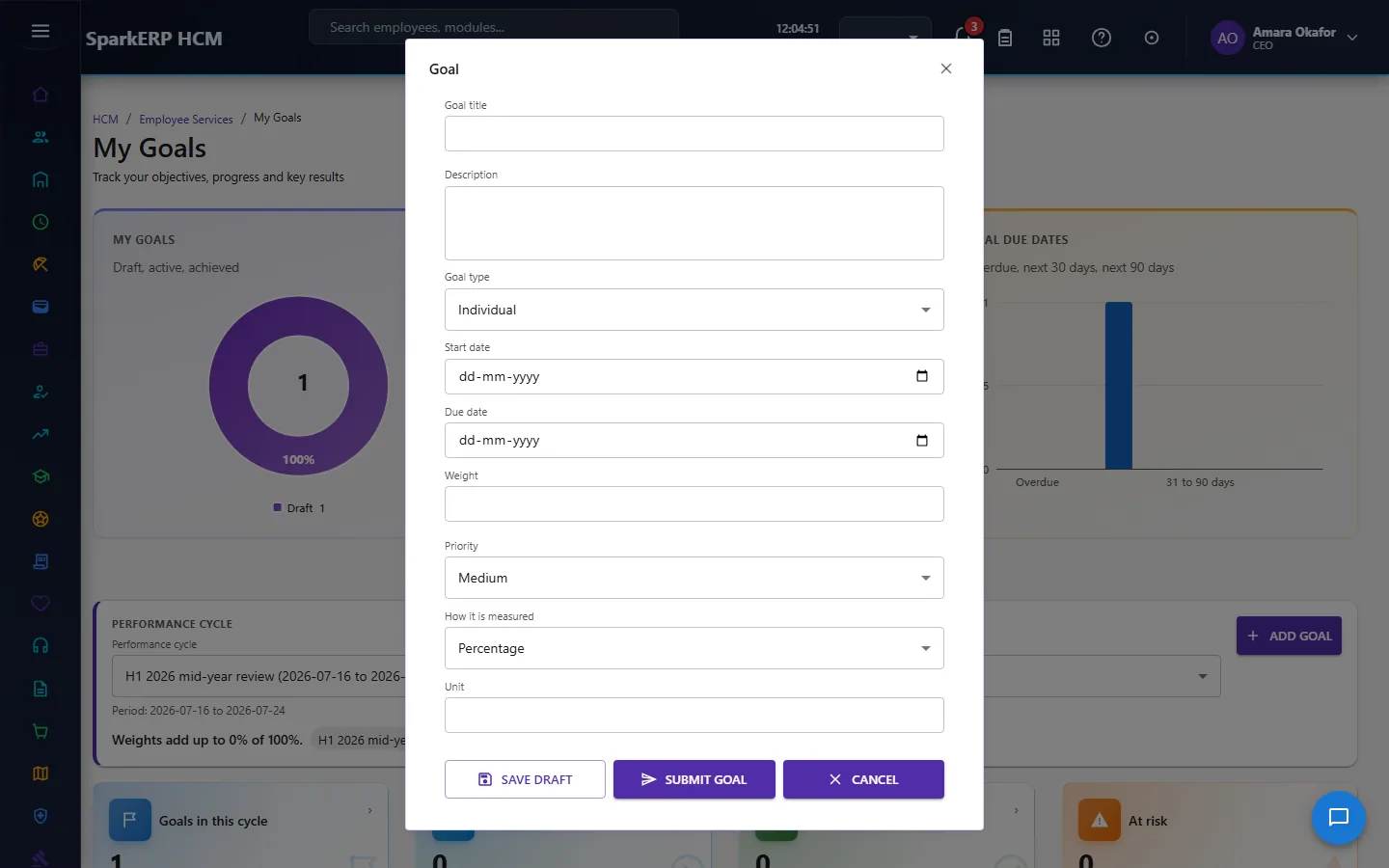
| Field | What it means and what to enter |
|---|---|
| Goal title | A short title people will recognise. |
| Description | Free text for your own notes. |
| Goal type | Choose one: Individual, Team, Department, Project, Development, Behavioural, KPI, OKR, SMART, Custom. |
| Start date | The first day the record is in force. |
| Due date | The day it must be done by. |
| Weight | A number between 0 and 100 unless the screen says otherwise. |
| Priority | Choose one: Low, Medium, High, Critical. |
| How it is measured | Choose one: Percentage, Number, Currency, Count, Score, Done or not done, Milestones, Date, Other. |
| Unit | The unit the number is measured in, for example days or hours. |
| Direction | Choose one: Higher is better, Lower is better, Exact target. |
| Baseline | Where things stand today. |
| Target | Where you want it to be at the end. |
| Success criteria | What done looks like, in a sentence or two. |
| Who can see it | Choose one: Me and my manager, Only me, My team, My department, Everyone. |
| Key results | Type the key results. |
| Milestones | Type the milestones. |
- Select Save draft.
The window closes and the table shows the result.
If something does not work
- The button "Add goal" is missing. You do not have the permission, or the page is not in your menu. See Access above.
- A list in the window is empty. The records it picks from do not exist yet.
- The window will not close or shows a message. Read the message: it names the field that is missing or not allowed.