
Appearance
Add a category
This article covers: Add category.
Before you start
- Access. Changing records here needs permissions of this area (EmployeeCategory.Create, EmployeeCategory.Update, EmployeeCategory.Deactivate, EmployeeCategory.Assign, EmployeeCategory.Delete). Roles that include them: HR Administrator, HR Manager, HR Executive. Ask your administrator if you do not have one of these roles.
Steps
Open Core HR > Employee Categories.
Select Add category.
In the window Employee category fill in the fields below.
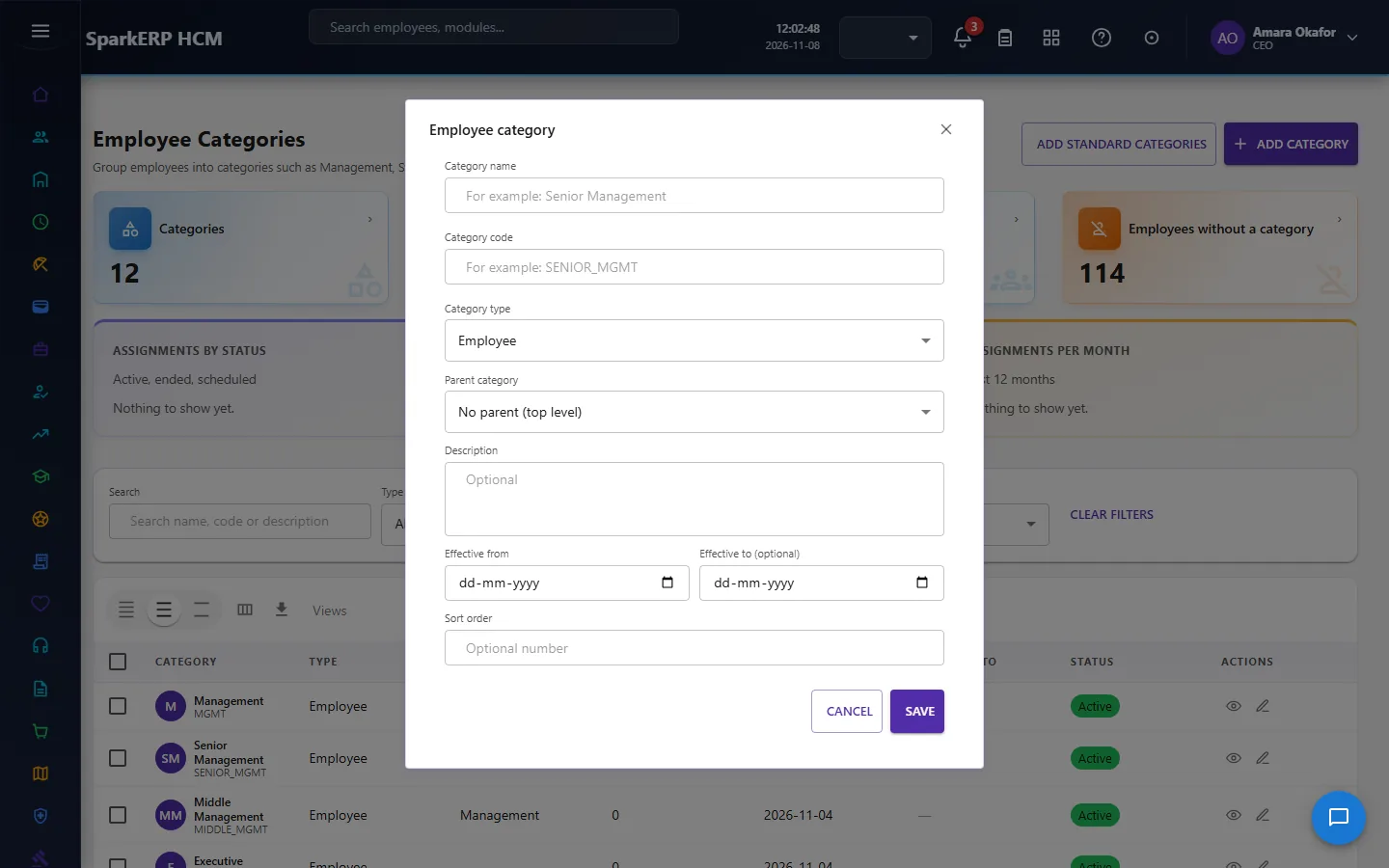
| Field | What it means and what to enter |
|---|---|
| Category name | The name people see for the record. For example: For example: Senior Management. |
| Category code | A short, unique code that identifies the record. For example: For example: SENIOR_MGMT. |
| Category type | Choose one: Employee, Contract, Temporary, Intern, Apprentice, Consultant, Worker, Other. |
| Parent category | The record this one sits under. Leave it empty for a top-level record. |
| Description | Free text for your own notes. |
| Effective from | The first day the record is in force. |
| Effective to (optional) | The last day the record is in force. Leave it empty if it has no end. |
| Sort order | Type the sort order. |
- Select Save.
The window closes and the table shows the result.
If something does not work
- The button "Add category" is missing. You do not have the permission, or the page is not in your menu. See Access above.
- A list in the window is empty. The records it picks from do not exist yet.
- The window will not close or shows a message. Read the message: it names the field that is missing or not allowed.