
Appearance
HCM Settings: how it works and how to set it up
HCM Settings answers the questions an administrator asks on day one and again at every change: what are our organization-wide defaults, how are employee numbers formed, how long do approvals wait and who do they escalate to, which channels may send notifications and when, which documents may be uploaded, how are records numbered, and which outside systems are connected. This guide explains how the settings work, what each group controls, and how to set them up. Each group has its own page in the Settings section; this guide is the one to read first.
1. What Settings does for your business
- Holds the defaults once. Language, time zone, currency, working days and similar values are set in one place and used by the other modules.
- Controls how work flows: approval waiting times, escalation, delegation, workflow switches and notification channels.
- Controls how records are numbered, so employee numbers and other references follow your format.
- Controls documents: who may upload, which files are accepted, how large, how long they are kept.
- Registers outside connections and your own forms and fields.
What it does not do: it does not change old records when a setting changes, and it does not hold the detailed policies of a module. Leave, payroll, performance, recruitment, training and attendance each keep their own policy settings on their own pages, reached from the Settings menu.
2. How settings work
2.1 One row per organization
Most groups are a single row for the organization: the page opens the row (and creates it with defaults the first time), you change the fields and save. A change takes effect for new work from then on; it does not rewrite what already happened. Each row records who changed it last.
2.2 The groups
| Page | What it controls |
|---|---|
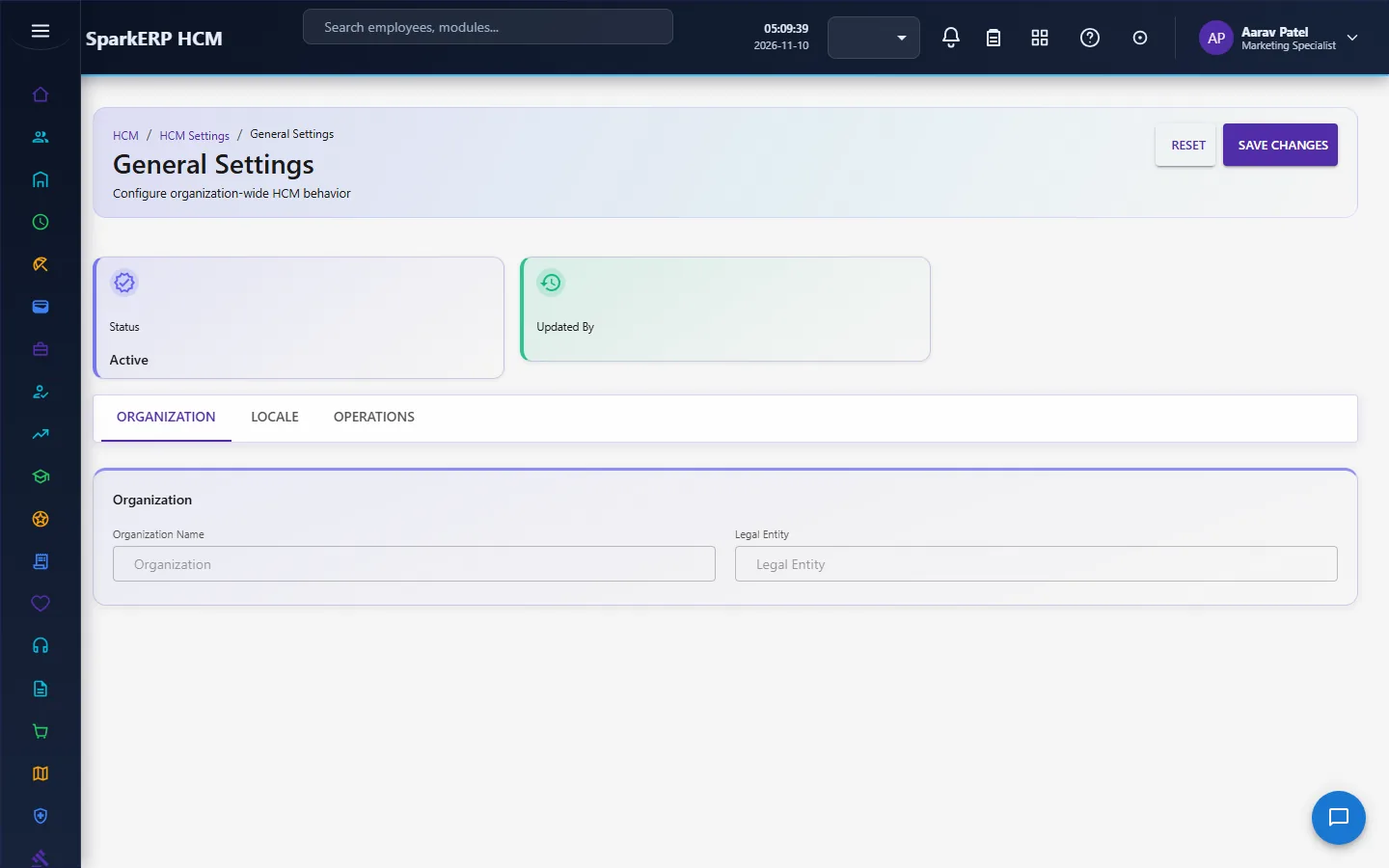
| General Settings | Organization and legal-entity name, default location, language, time zone, date and time format, currency, first day of the week, financial-year start month, employee number format, default employment type, probation and notice days, working days and hours, leave approval and back-dated leave, attendance method, payroll frequency, the master switches for e-mail, in-app and SMS notifications, approval workflow and escalation, audit logging, and employee data retention. |
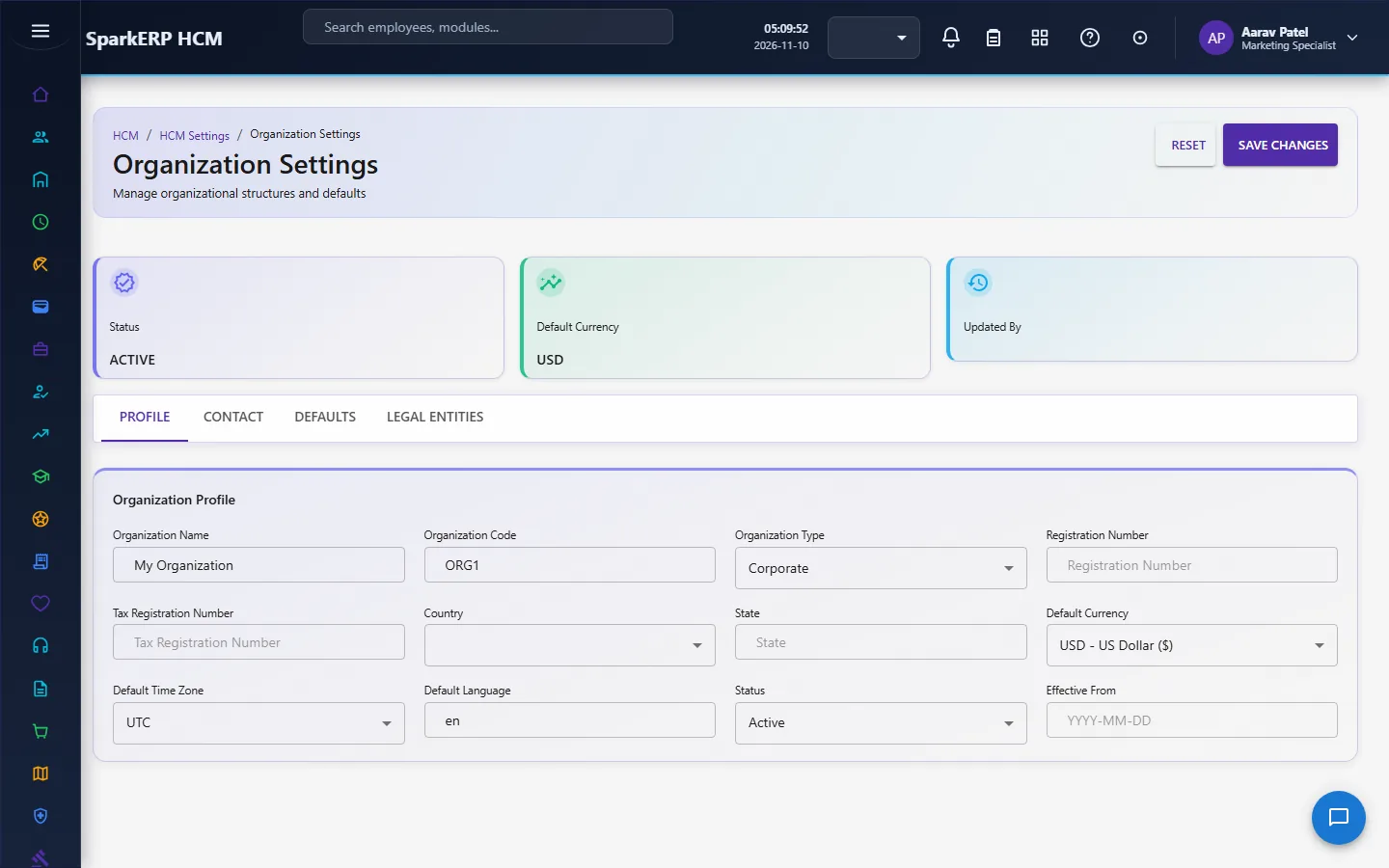
| Organization Settings | The organization profile (name, code, type, registration and tax numbers, address, contacts, logo), default business unit, location, cost centre and calendar, the number of hierarchy levels, matrix reporting, effective dating, and a register of legal entities. |
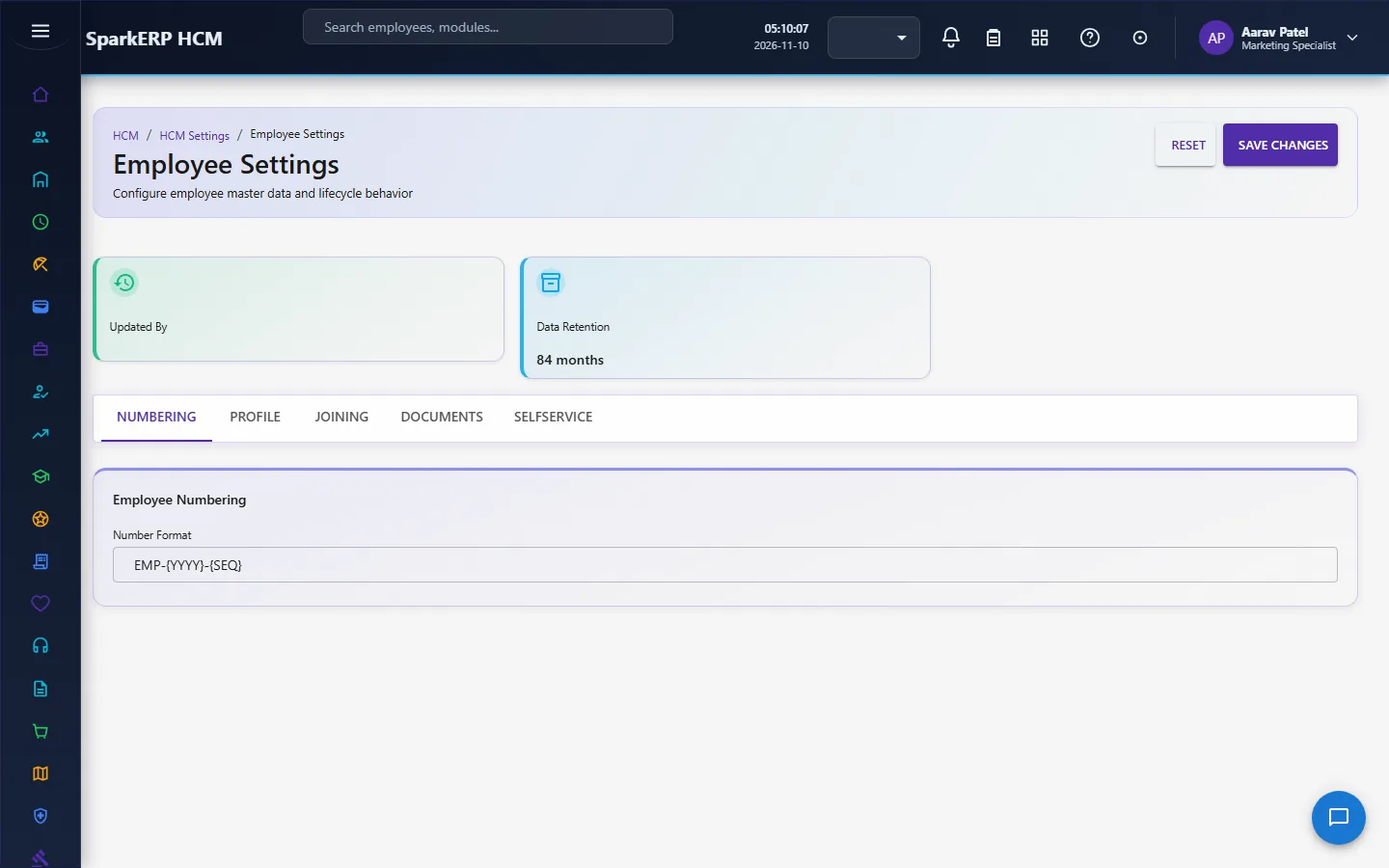
| Employee Settings | Employee numbering (format, start, padding, scope), default category, employment type and work location, which details are required (photo, personal e-mail, date of birth, emergency contact, bank details), probation days and extension, notice days, joining documents and approval, document expiry alerts, self-service switches for employees and managers, rehire, position control and retention. |
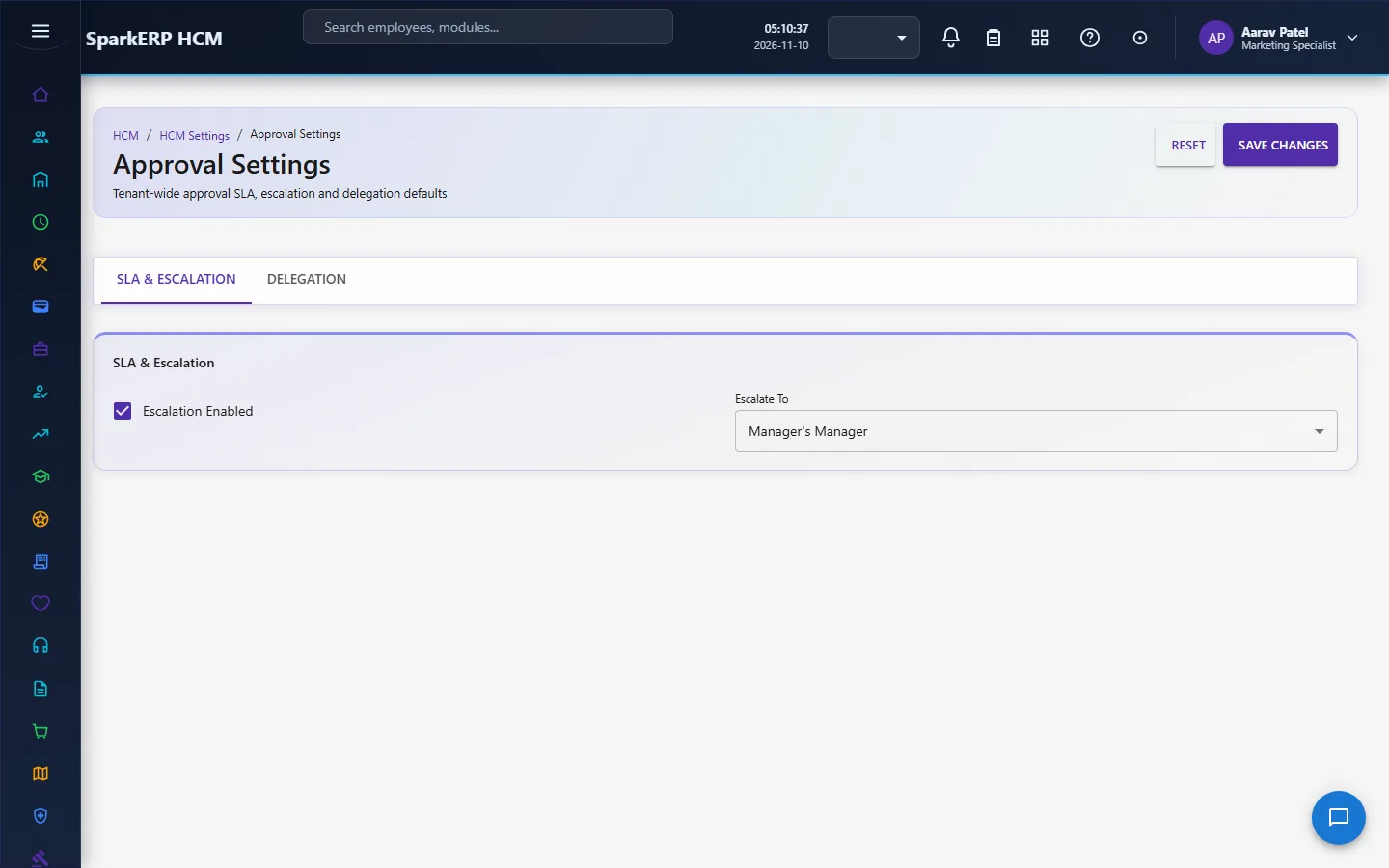
| Approval Settings | The default time an approval may wait, whether weekends and holidays count, escalation after so many hours and to whom, up to how many levels, first and second reminders, delegation and proxy approval, whether a comment is required on rejection, and the fallback approver role. |
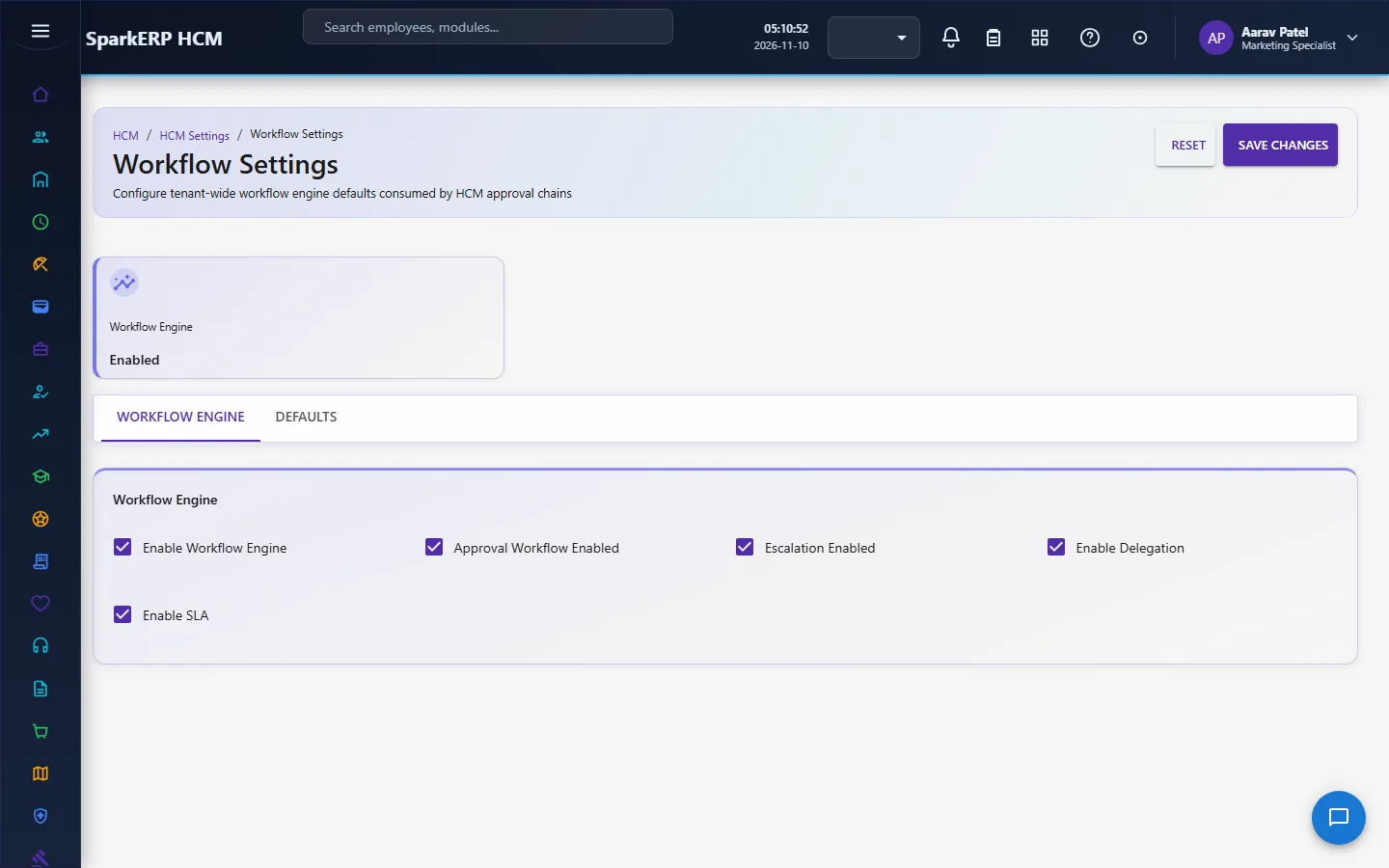
| Workflow Settings | Whether the workflow engine, approvals, escalation, delegation and service levels are on, the default waiting days, parallel approvals, reassignment, withdrawal, execution history and how long the workflow audit is kept. |
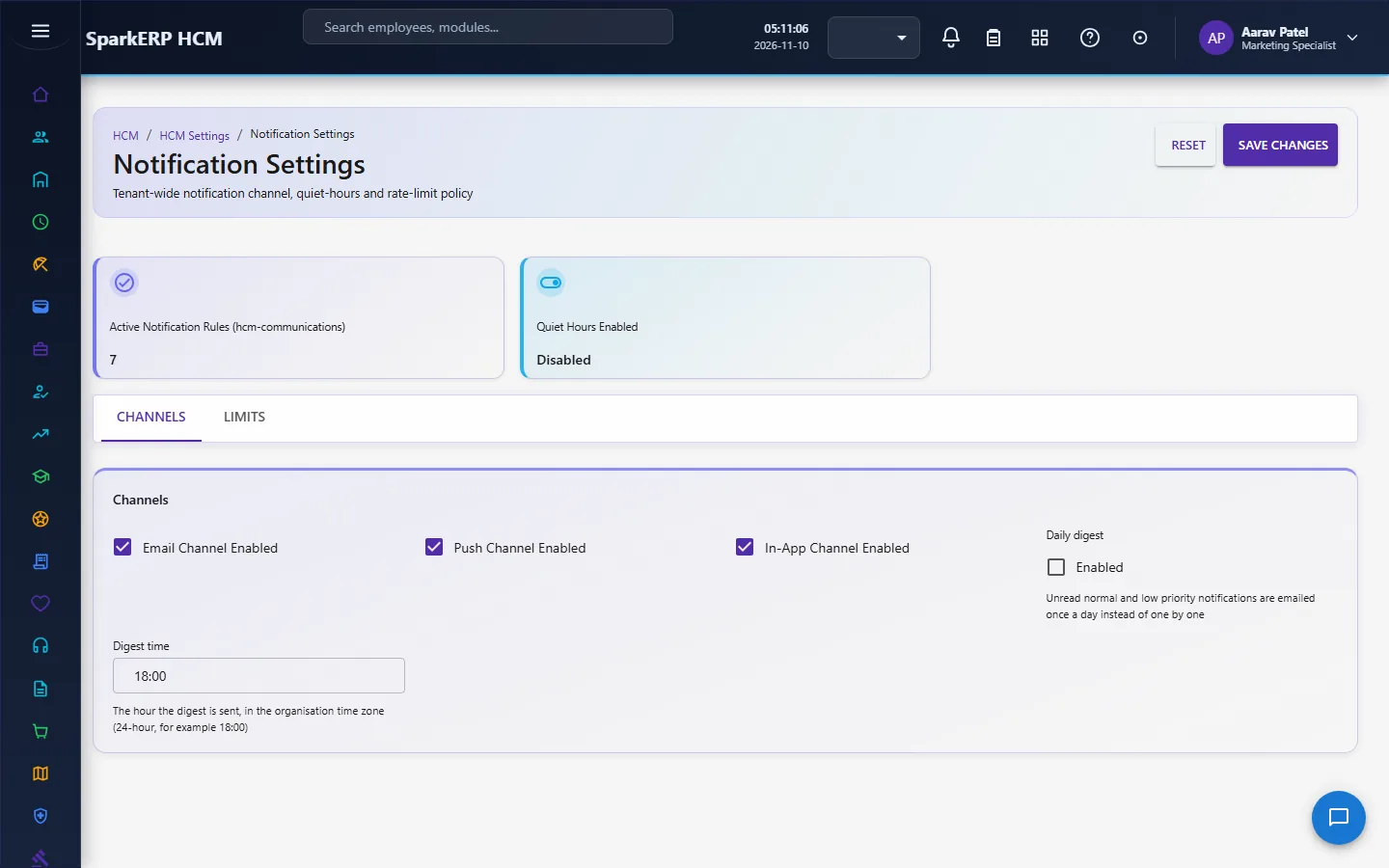
| Notification Settings | Which channels are on (e-mail, SMS, push, in-app, WhatsApp), quiet hours and whether urgent items override them, the daily digest, limits per person per hour and per day, retry attempts, the delivery log retention, and a window for promotional messages. |
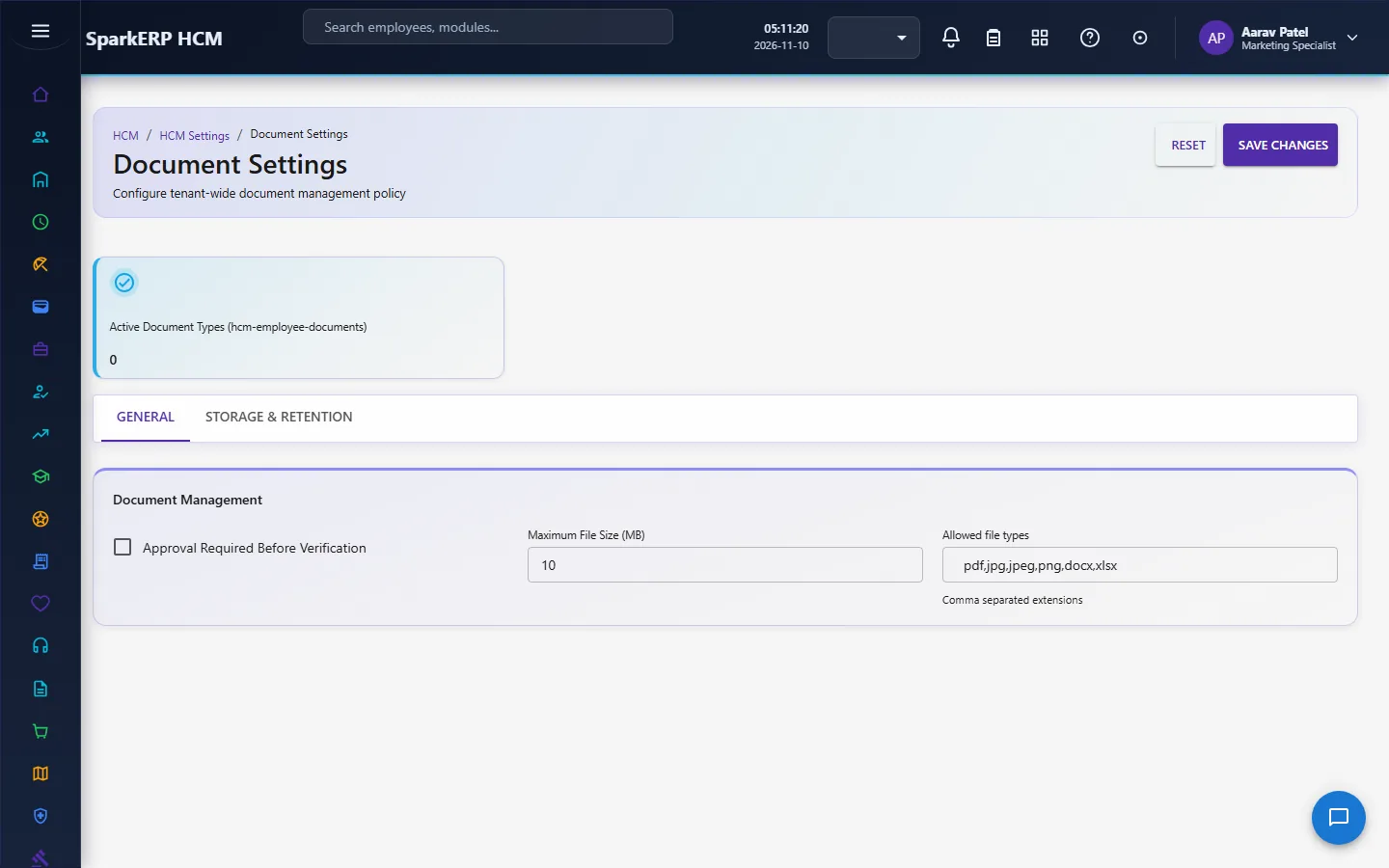
| Document Settings | Whether employees and HR may upload, expiry tracking, versioning, approval of documents, the largest file, allowed file types, storage provider, default visibility, retention years, virus scan, watermark, whether employees may download, and the expiry reminder days. |
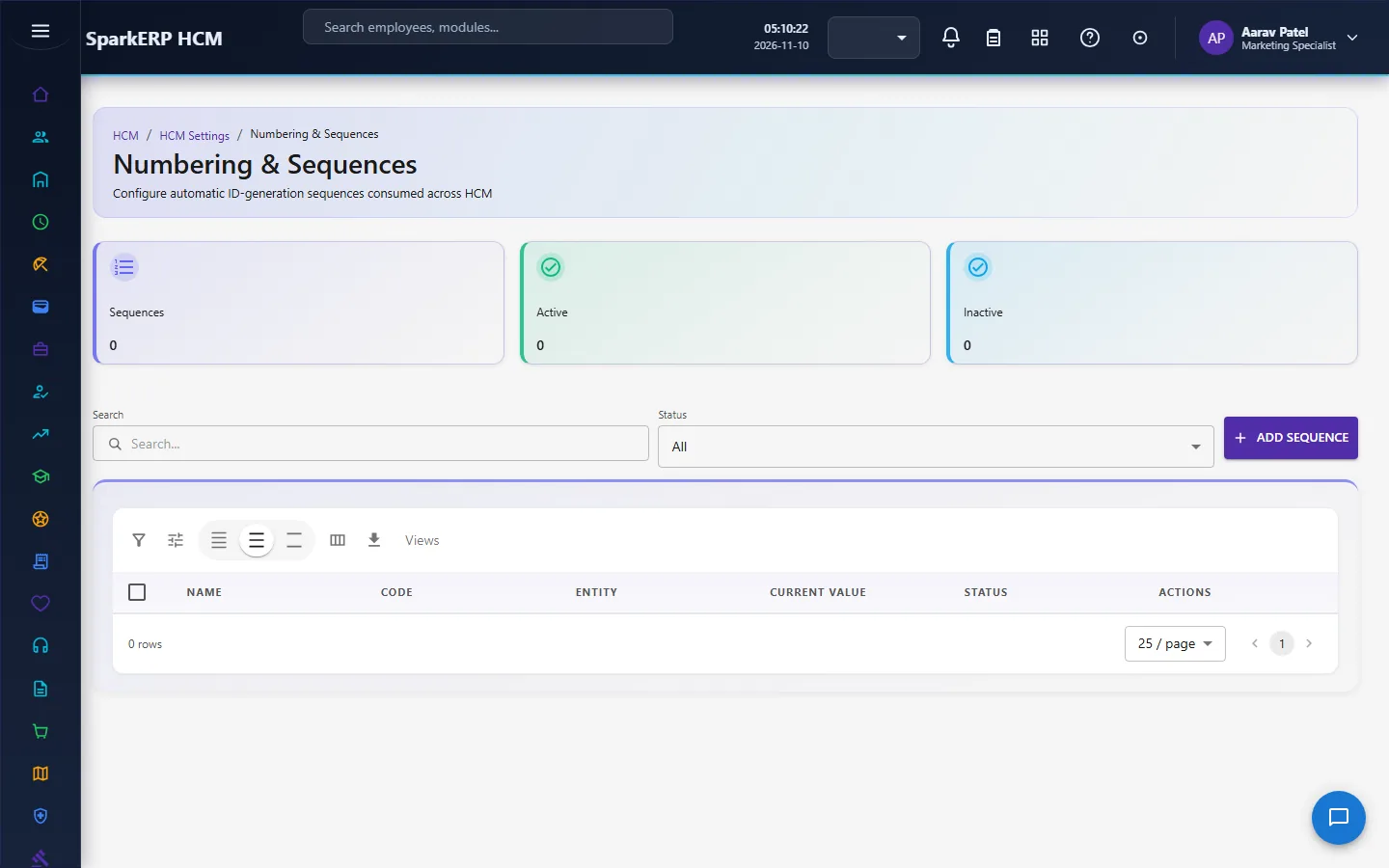
| Numbering Sequences | A list of sequences, each with a name, the record it numbers, a prefix, a date token, a separator, the number of digits, the step, the current value, a scope and a reset period. |
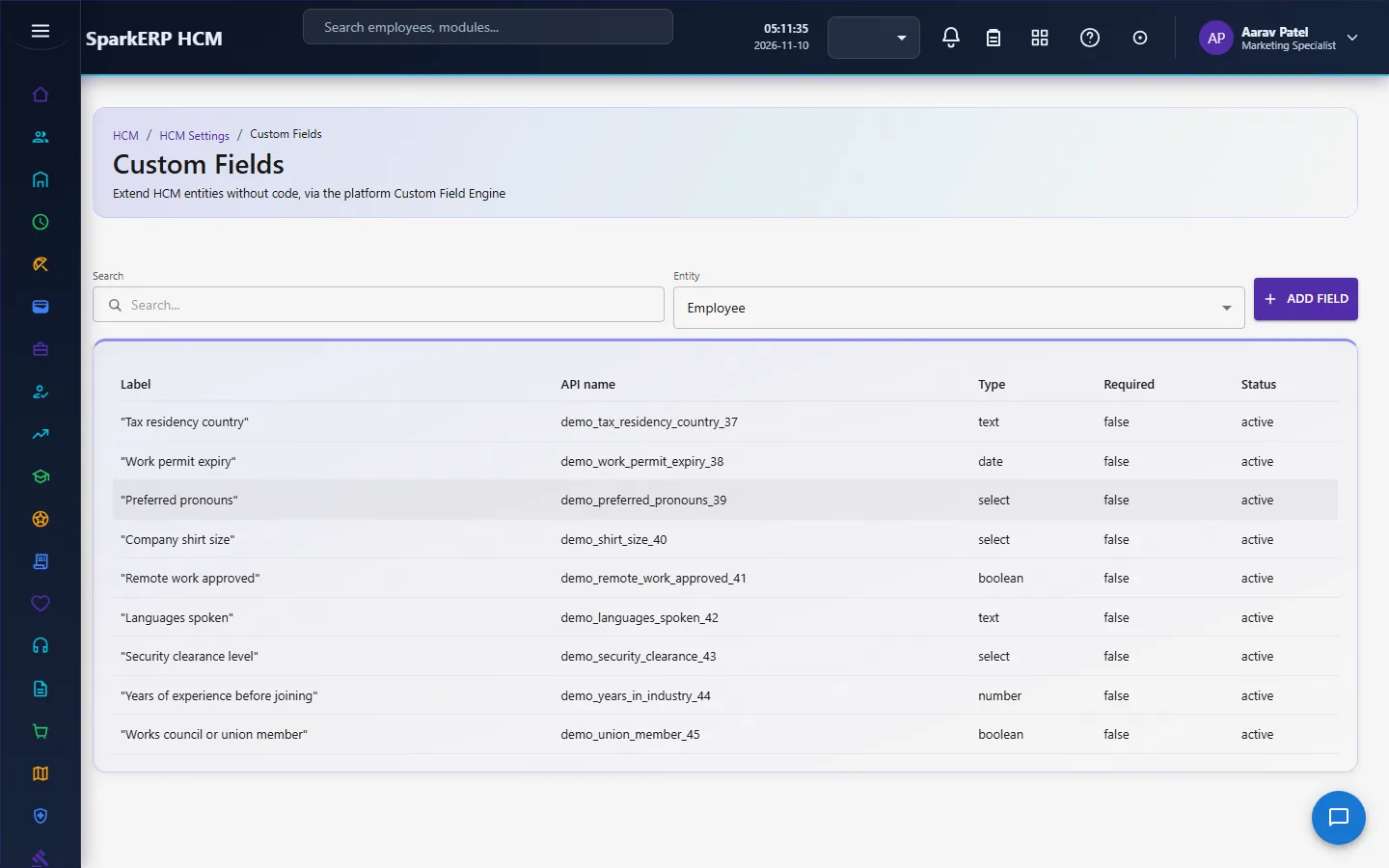
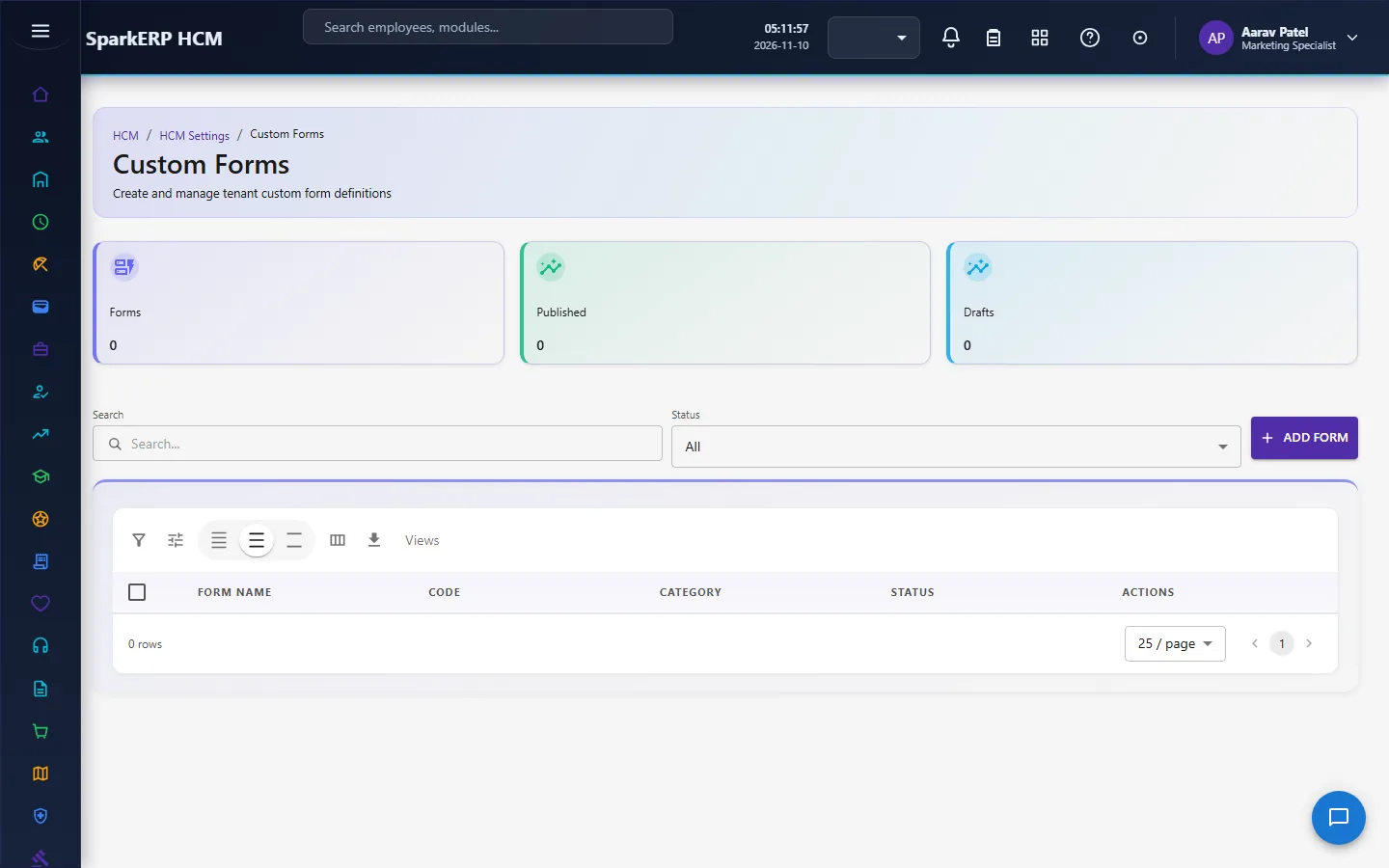
| Custom Fields and Custom Forms | Extra fields on records and forms you define, each tied to the record it extends. |
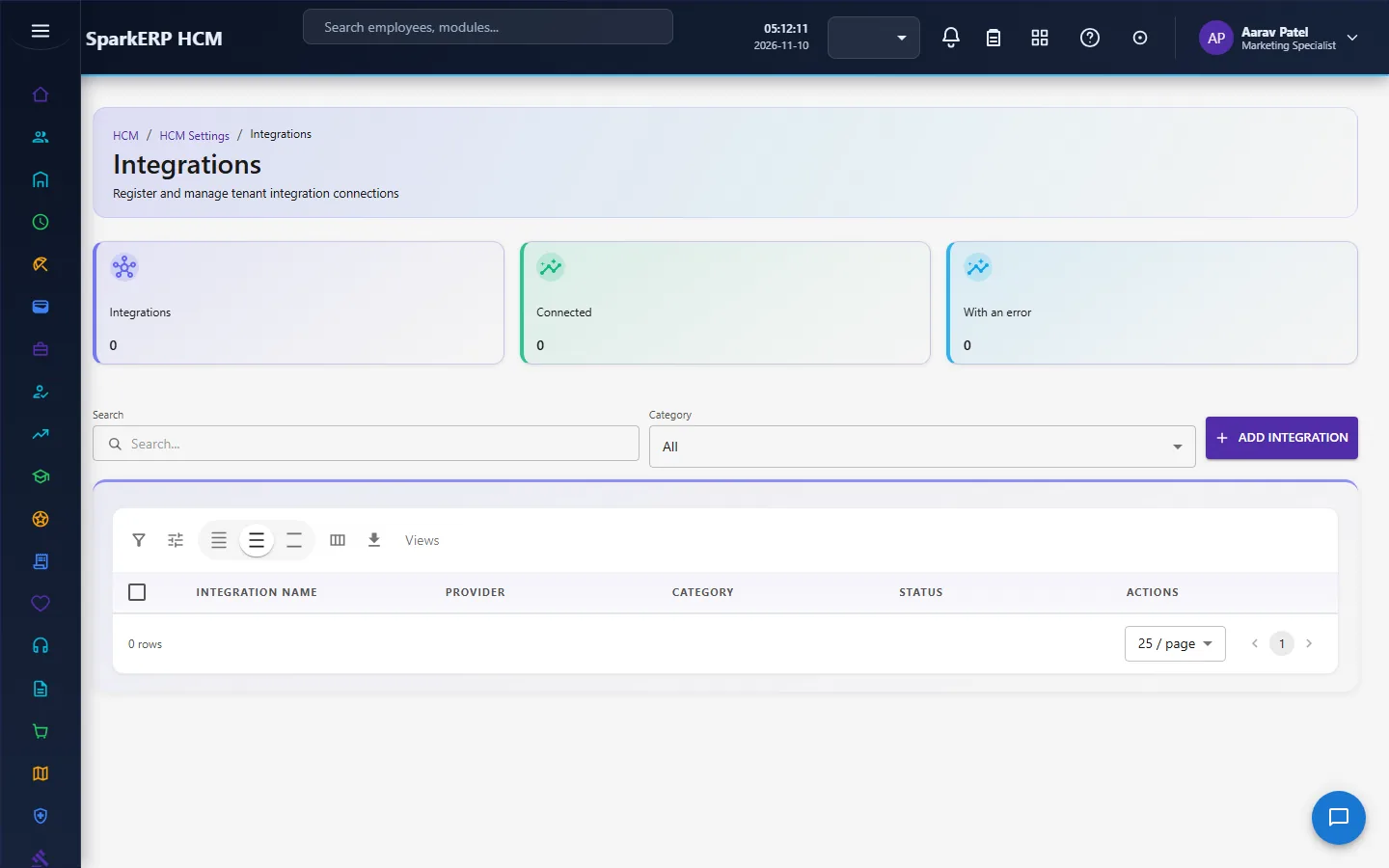
| Integrations | A register of outside connections: provider, category, how it signs in, the environment, whether it is on, and when it last synchronised. |
2.3 How the settings reach the other modules
- Approval, Workflow and Notification settings are copied into the platform's tenant policies for workflow and notification, so the platform's own approvals and messages follow the same values you see on the page.
- Numbering is allocated by a service that takes the next number for a sequence atomically, for the right period and region, so two people saving at the same moment never receive the same number. In a multi-region set-up the region is added to the number to keep them apart.
- Module policy pages (leave, payroll, performance, recruitment, training, attendance) are separate: they are listed under Settings so an administrator finds everything in one place.
2.4 Who may open Settings
Settings change how the whole organization works, so the pages are for the people who administer HCM: the HCM Settings administrators and the HR roles. An employee or a line manager does not open them.
3. Who does what
| Role | What they do |
|---|---|
| HCM Settings administrator / HR Administrator | Maintains the settings. |
| HR Manager | Reads them; decides approvals under them. |
| Other roles | Feel the effect (numbers, reminders, notifications) but do not open the pages. |
3a. What each role sees, screen by screen
The employee
An employee does not open the Settings pages.
The HR administrator
General Settings and Organization Settings hold the defaults and the profile.
Employee Settings and Numbering Sequences control employee data and numbers.
Approval, Workflow and Notification Settings control how work is routed and announced.
Document Settings, Custom Fields, Custom Forms and Integrations complete it.
4. Decide before you set up
| Decision | What to think about |
|---|---|
| Language, time zone, currency | Used as defaults everywhere; set them first. |
| Employee number format | Prefix, digits, start and scope. Changing it later does not renumber people. |
| Approval waiting times | How long a decision may wait, when to remind and to whom to escalate. |
| Quiet hours | When people should not be messaged, and whether urgent items may break through. |
| Documents | Allowed types, size, who may upload and download, retention. |
| What is required | Which employee details must be present before a record is accepted. |
| Outside systems | Which providers you connect (through the Integration Designer, not in code). |
5. Set up step by step
- Roles. Give the Settings administrator role to the people who maintain them.
- General Settings. Language, time zone, currency, working days and hours, financial-year start.
- Organization Settings. The profile and your legal entities.
- Employee Settings. Numbering, required details, probation and notice, self-service switches.
- Numbering Sequences. One sequence for each record that needs a reference.
- Approval, Workflow and Notification Settings. Waiting times, escalation, channels, quiet hours.
- Document Settings. Upload rules, allowed types, retention.
- Module policies. Open each module's own policy page from the Settings menu.
- Integrations. Register the providers you use.
- Trial. In a trial tenant, hire one test employee and check the number, the reminders and the notification.
6. Daily use
- Open the page of the group to change; edit the field; save.
- Check the result on the screen that uses it (for example the next employee number).
- Record why the setting changed in your own change log; the page records who changed it.
7. A calendar of recurring work
| When | What |
|---|---|
| Before go-live | Review every group once. |
| Start of the financial year | Check the financial-year month, the numbering reset periods and the calendar. |
| Yearly | Review retention, approval waiting times and quiet hours. |
| When a provider changes | Update the Integrations register. |
8. Reports and figures
Each page shows the current values; the Numbering Sequences, Legal Entities, Custom Fields, Custom Forms and Integrations lists can be searched, filtered and exported.
9. Limits you should know about
- A setting is not retroactive. Old records and numbers stay as they are.
- Switches only help if the module uses them. A switch for a channel does not create the provider account; connect providers in the Integration Designer.
- Some groups are one row for the whole organization; there are no per-department values on these pages.
- Settings for shifts, benefits, expenses, compliance, localization and message templates have no page here; those modules keep their own.
10. Troubleshooting
| Symptom | Cause and fix |
|---|---|
| New employees get an unexpected number | The employee numbering format or start on Employee Settings, or the sequence's current value. |
| Reminders or escalations do not arrive | Escalation or the channel is switched off on Approval, Workflow or Notification Settings. |
| A notification arrives late | Quiet hours or the daily digest are on. |
| A file cannot be uploaded | Document Settings: type not allowed, file too large, or upload switched off for that role. |
| A setting change has no effect on old records | Settings are not retroactive. |
| An employee or manager cannot open a Settings page | The pages are for administrators. |