
Appearance
Recruitment: how it works and how to set it up
Recruitment answers the questions a hiring company asks every week: do we really need this person, where do candidates come from, who is moving through the process and where are they stuck, who decided what and why, what are we offering, and how long and how much does a hire take. This guide explains how the module works from start to finish, then how to set it up, then what each person sees. Every screen has its own page in the Recruitment section; this guide is the one to read first.
1. What Recruitment does for your business
- Turns a need into an approved requisition. A hiring manager asks for a role; the request is approved by department, HR and, above a budget limit, finance, before anyone is hired.
- Publishes openings and collects candidates. An opening is the vacancy people see; a candidate is the person, kept once and reused for every opening they apply to.
- Moves each application through a fixed pipeline (applied, screening, shortlisted, interview, assessment, offer, pre-joining, hired) where every move is a recorded action with a reason.
- Keeps the decision with a person. Screening scores and recommendations help; a named person decides and every override needs a note.
- Controls the offer. An offer is approved, sent, accepted or declined, and acceptance moves the application toward a hire.
- Measures hiring. Sources, agencies, cost per hire, hiring speed and the pipeline show what works.
What it does not do: it does not run online tests or grade them (assessments record a score produced elsewhere), it does not schedule through a calendar or video service, and it does not create the employee record. The hire is handed to Core HR, where onboarding and pre-joining take over.
2. How recruitment works, end to end
2.1 The path of one hire
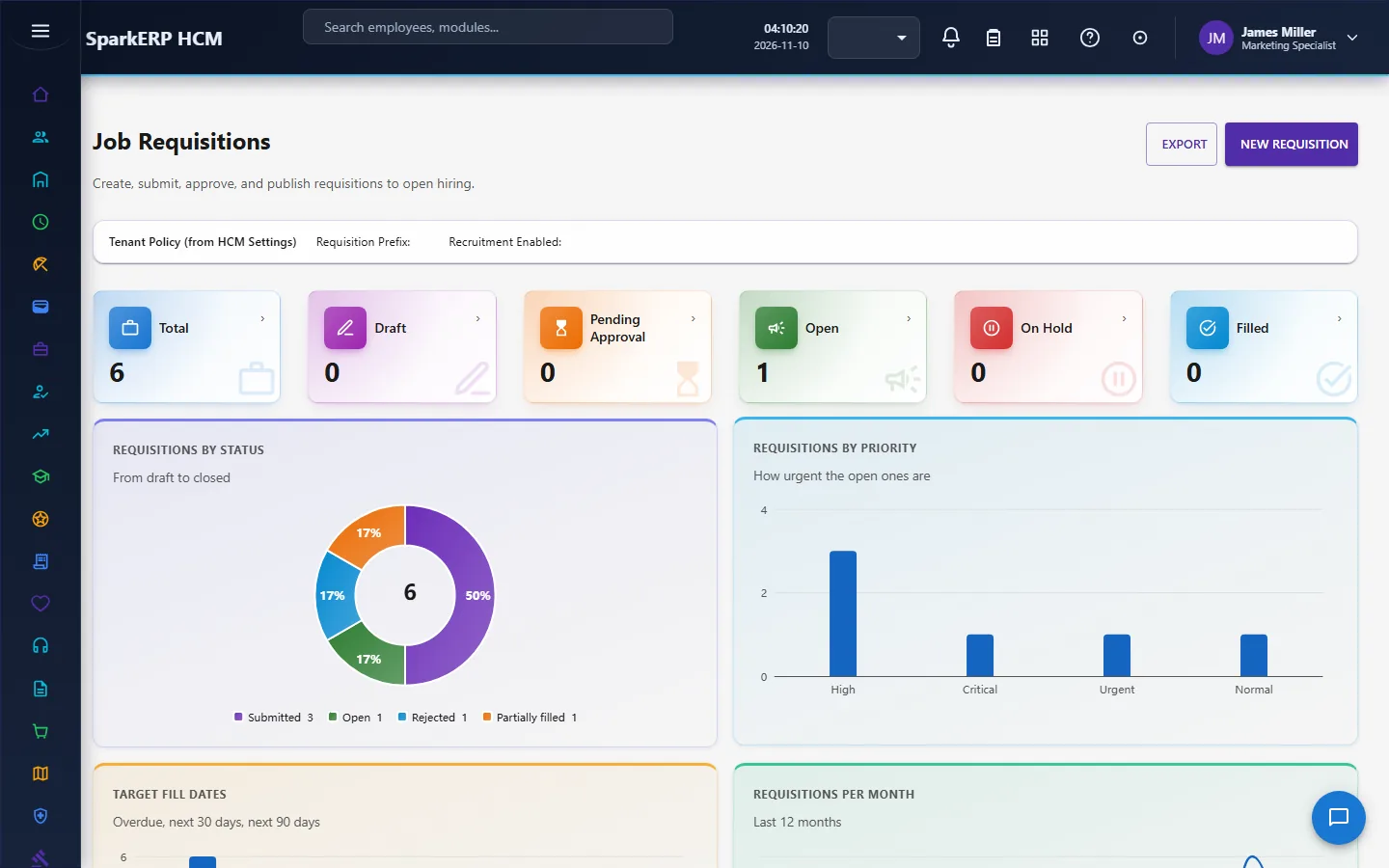
- Requisition. The hiring manager raises a requisition: the department, position, number of openings, dates, salary range, and a reason. A requisition for a replacement names the person being replaced. It must have a number of openings above zero, ordered dates and an ordered salary range.
- Approval. The requisition is submitted and goes to the department step, which the Hiring Manager, Recruitment Manager or HR Administrator role can decide. Depending on the budget it goes on to the HR step (Recruitment Manager or HR Administrator) when the budget is 50,000 or more, and to the finance step when it is 200,000 or more. The role that holds the finance step is HR Administrator, because the module defines no separate finance role. Each step has a due time of three days.
- Publish. Only an approved requisition can be published. It becomes open and an internal publication is recorded for it. The job opening is the vacancy people see and has its own posting, publishing and status, because a requisition is the internal request and the opening is the vacancy; openings are created from an approved requisition on the Job Openings screen.
- Candidates and applications. A candidate is the master record of a person. An application is that candidate's participation in one opening, with its own stage, status, source and recruiter. The same candidate can have many applications.
- Screening. The application is screened, and either shortlisted or rejected.
- Interviews and assessments. Interviewers give feedback; an assessment records a score.
- Offer. An offer is prepared, approved, sent, and accepted or declined by the candidate.
- Hire. Acceptance moves the application to pre-joining and then to hired, and the requisition records the hire. Background verification and pre-joining continue in Core HR.
2.2 The life of a requisition
| Status | Meaning |
|---|---|
| Draft | Being written. |
| Pending approval | In the department, HR or finance approval. |
| Approved | Agreed; can be published. |
| Open / Partially filled | Published; hires can be recorded. |
| On hold | Paused; resume to continue. |
| Filled / Closed / Cancelled | Finished. |
Actions: submit, publish, hold, resume, cancel, close, record a hire, and duplicate (to raise a similar requisition quickly). Each action is a checked move: you cannot publish a draft or record a hire on a cancelled requisition. Every change writes a history line.
2.3 The life of an application
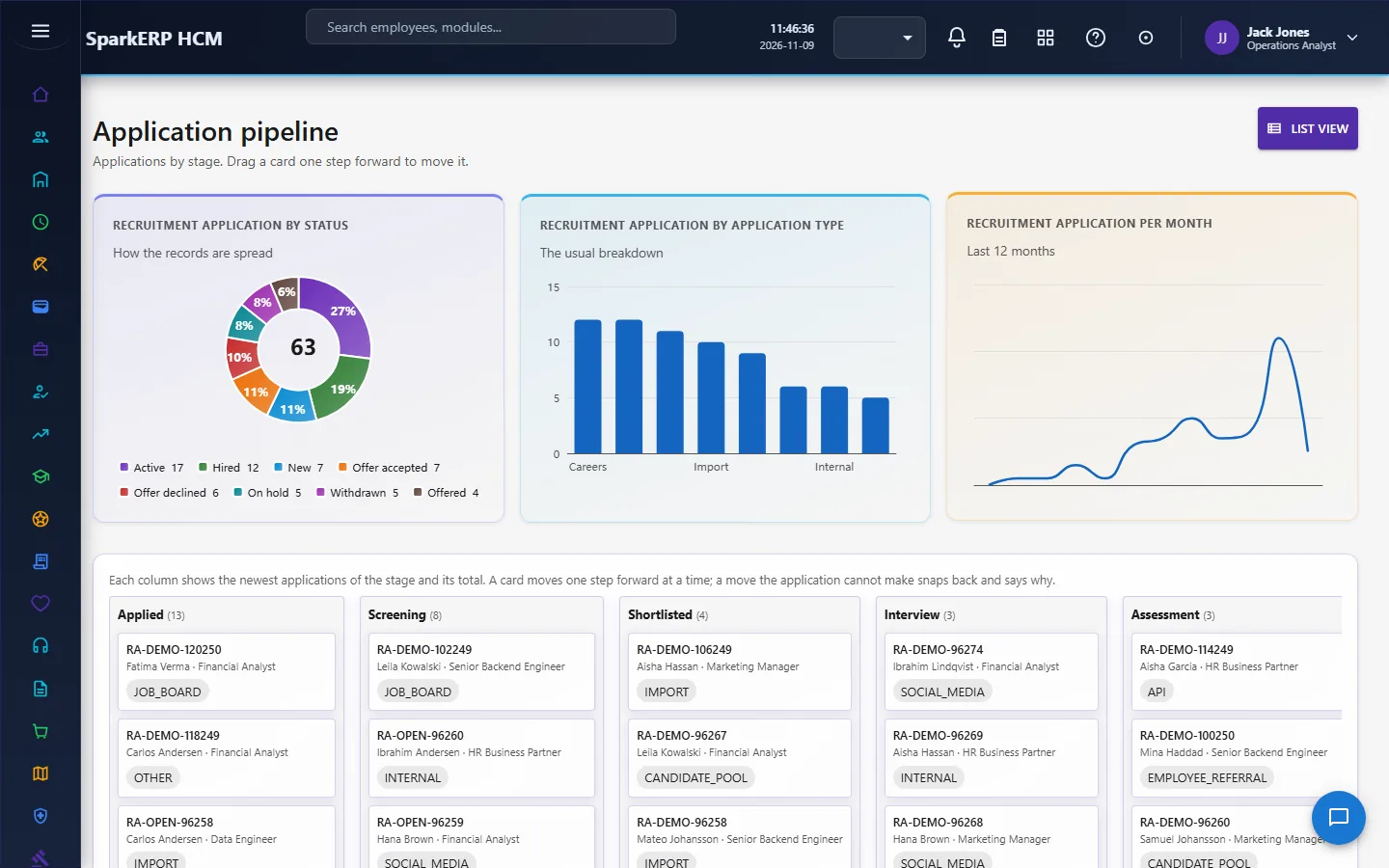
An application has a stage and a status. The stages follow one path, and each move is an action that checks where the application is now:
| From | Action | To |
|---|---|---|
| Applied | Screen | Screening |
| Screening | Shortlist | Shortlisted (not allowed after a failed screening decision; reject it instead) |
| Shortlisted | Start interview | Interview |
| Interview | Start assessment | Assessment |
| Interview or Assessment | Create offer | Offer (status Offered) |
| Offer | Accept offer | Pre-joining (status Offer accepted) |
| Pre-joining | Hire | Hired |
Beside the main path: reject (with a reason code, a reason, and the message to the candidate), withdraw, hold and resume, decline offer, cancel and archive. The pipeline board moves a card to the next stage and runs one action on many applications; each move and bulk step goes through the same single-application action, so the checks and the history are the same as clicking the action on one application.
Every action needs its own permission (Screen, Shortlist, Interview, Offer, Pre-joining and so on), so a role can be allowed to screen and not to hire.
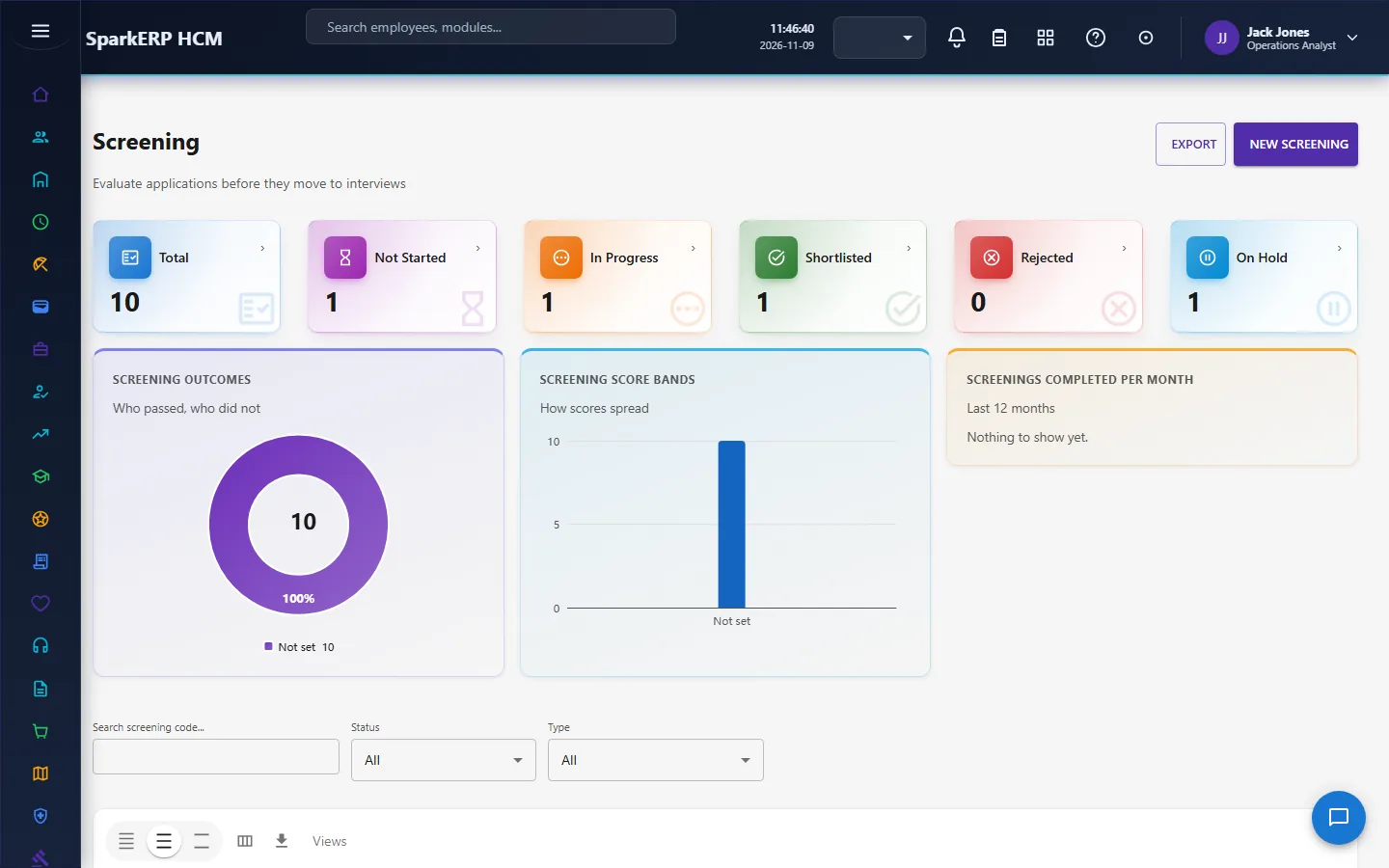
2.4 Screening
Screening records the first review of an application and its decision.
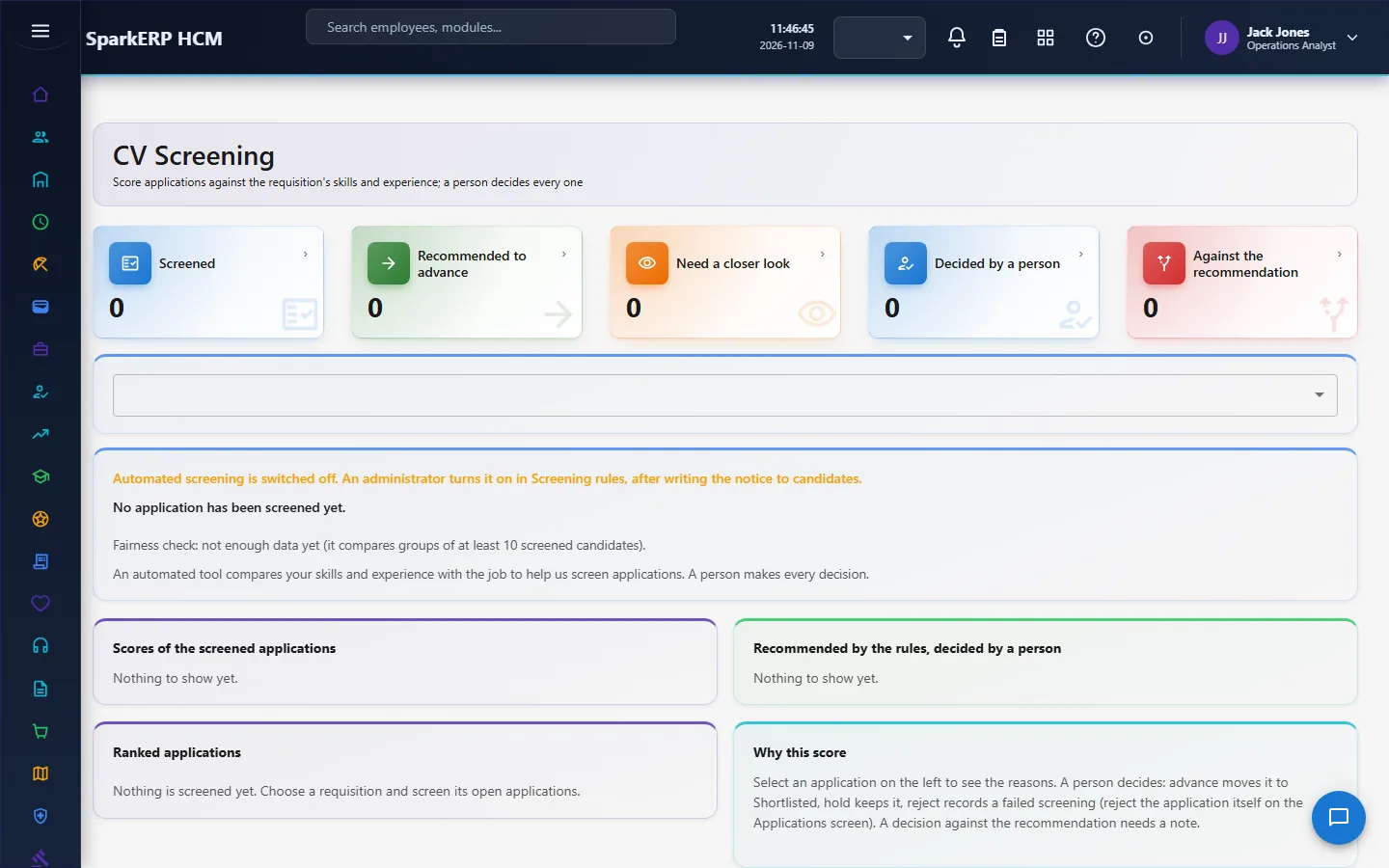
Automated CV screening is switched off until an administrator turns it on. When it is on, it scores each open application of a requisition with a transparent set of rules, not a model:
- It reads only what the job asks for and what the candidate has: the required and preferred skills of the requisition against the candidate's skills, and the candidate's years of experience against the requisition's minimum.
- It never sees a name, gender, date of birth, nationality, photo, address or marital status, and it does not penalise experience above the maximum.
- It never rejects. It recommends Advance, Review or Low match, with the reason for every criterion.
- A named person decides. Advance moves the application to shortlisted, Hold keeps it, and Reject records a failed screening and leaves the rejection itself (reason code and candidate message) to the Applications screen. A decision that differs from the recommendation needs a note.
- Every run and decision is recorded, and a fairness panel compares how often each gender group is recommended (the four-fifths rule, for groups of at least ten). The gender is read only for that panel, never for a score.
This design follows the rules for hiring tools: screening is a high-risk use of automation under the EU AI Act, and New York's Local Law 144 covers automated employment decision tools, so the rules are explainable, the decision is human and the record is kept.
2.5 Interviews, scorecards and assessments
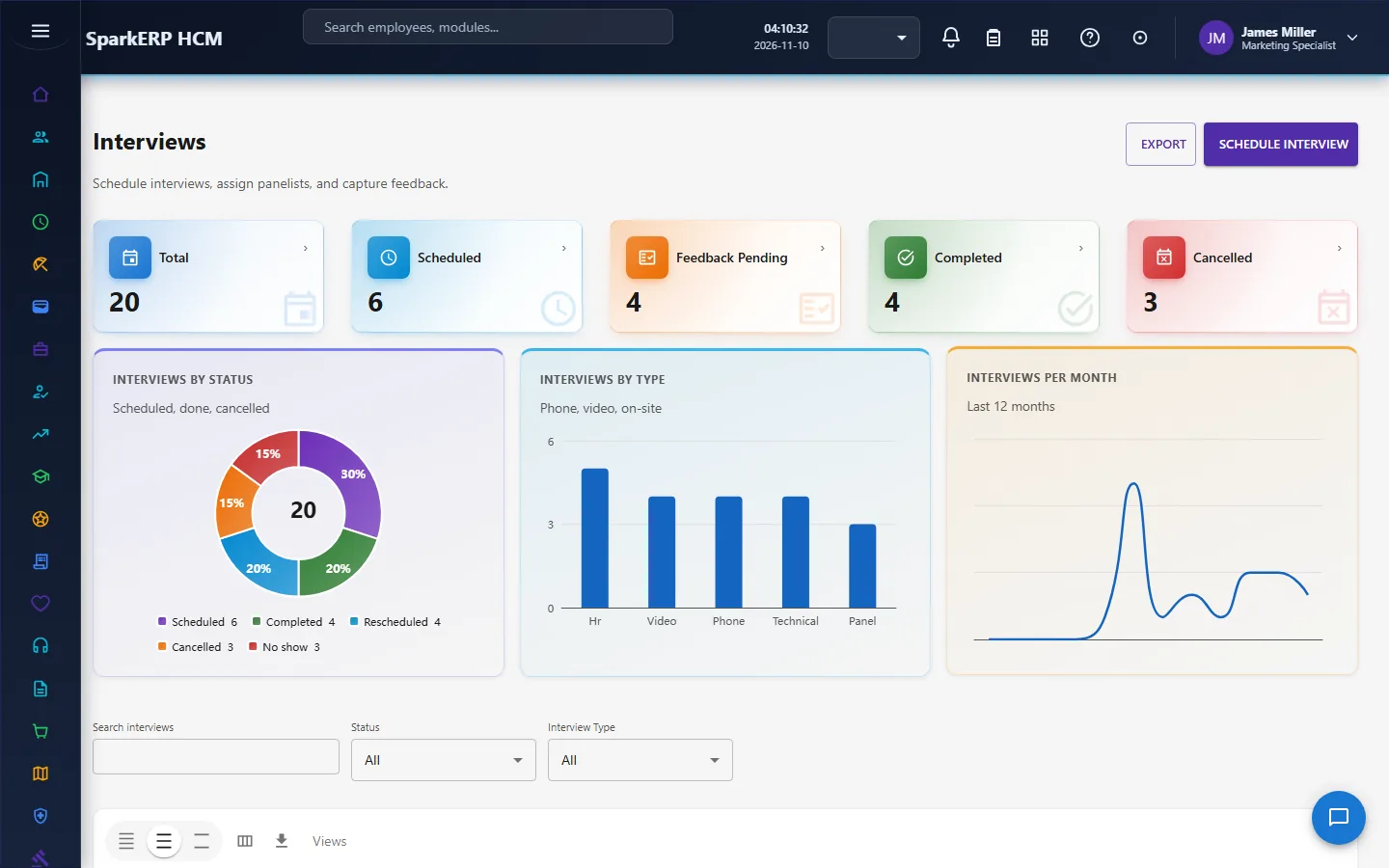
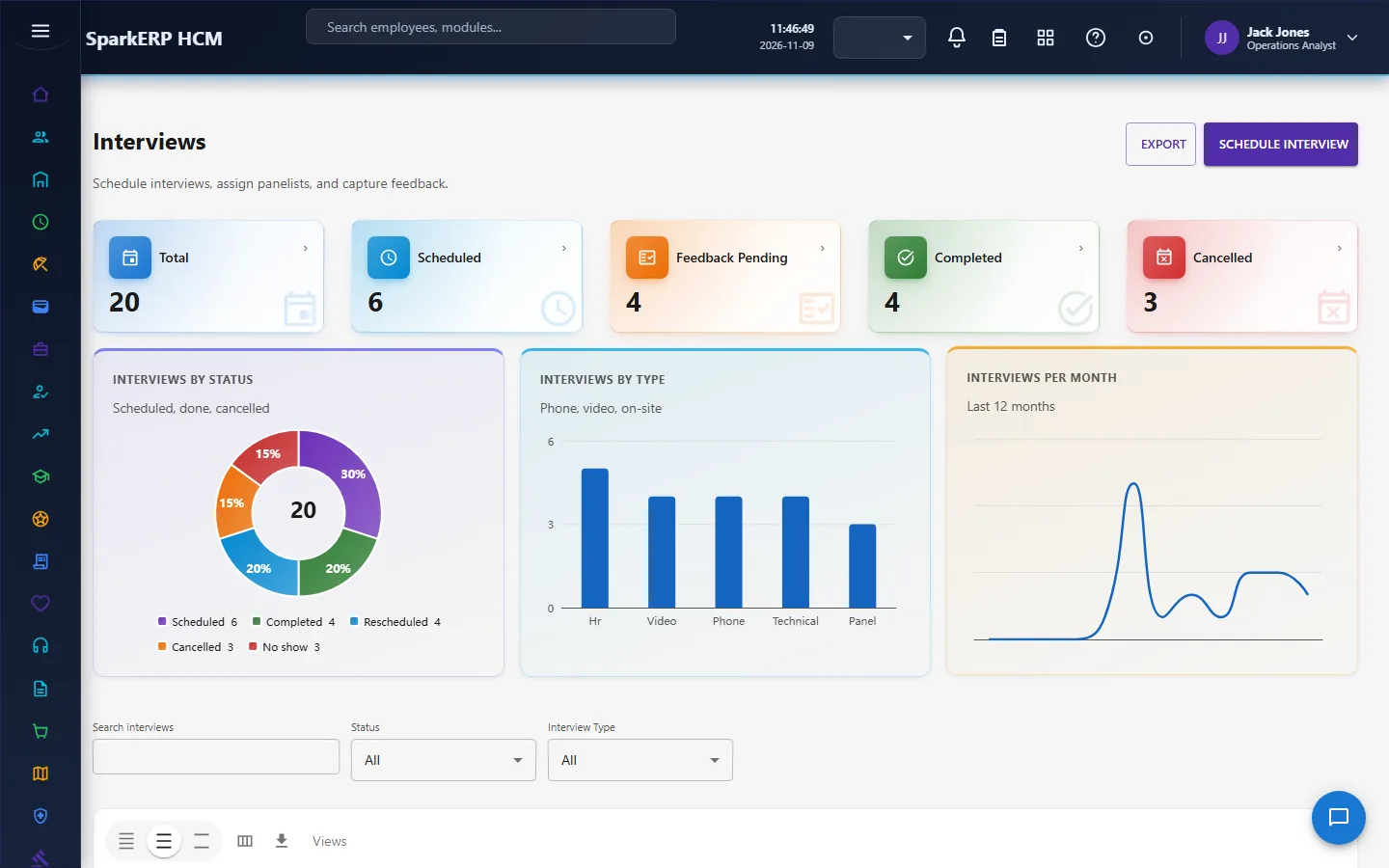
- Interviews. An interview belongs to one application and has panelists (interviewers). It is scheduled, rescheduled, cancelled, completed or marked no-show. Each panelist gives feedback once. When every panelist has given feedback, the overall recommendation is the most conservative of them, and the application moves on: to an assessment, or to rejection.
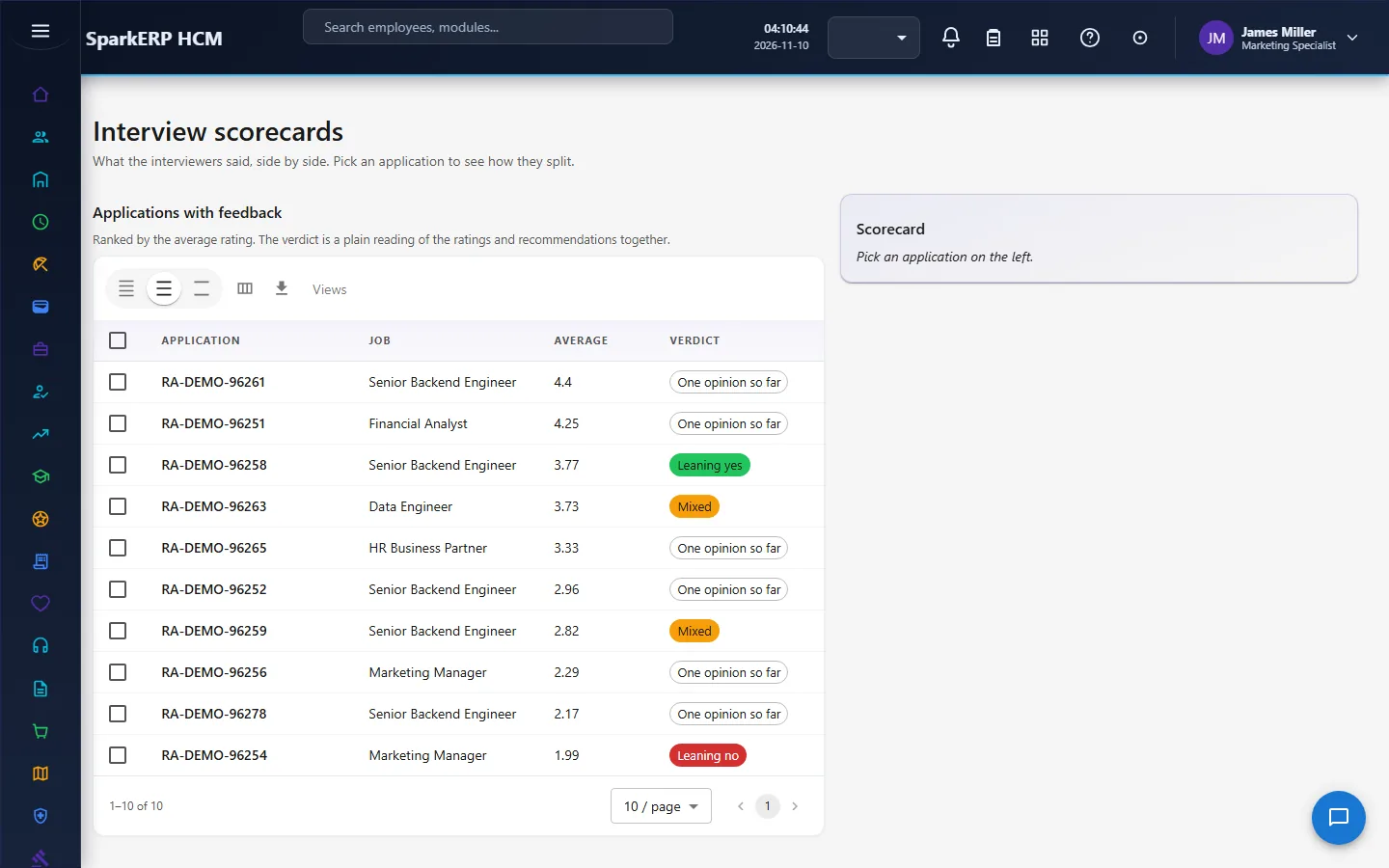
- Interview scorecards roll up every interviewer's rating for an application: the average rating, how many feedbacks, how the recommendations split (strong no hire to strong hire), criterion averages, and a plain verdict.
- Interview panels are reusable named groups of interviewers.
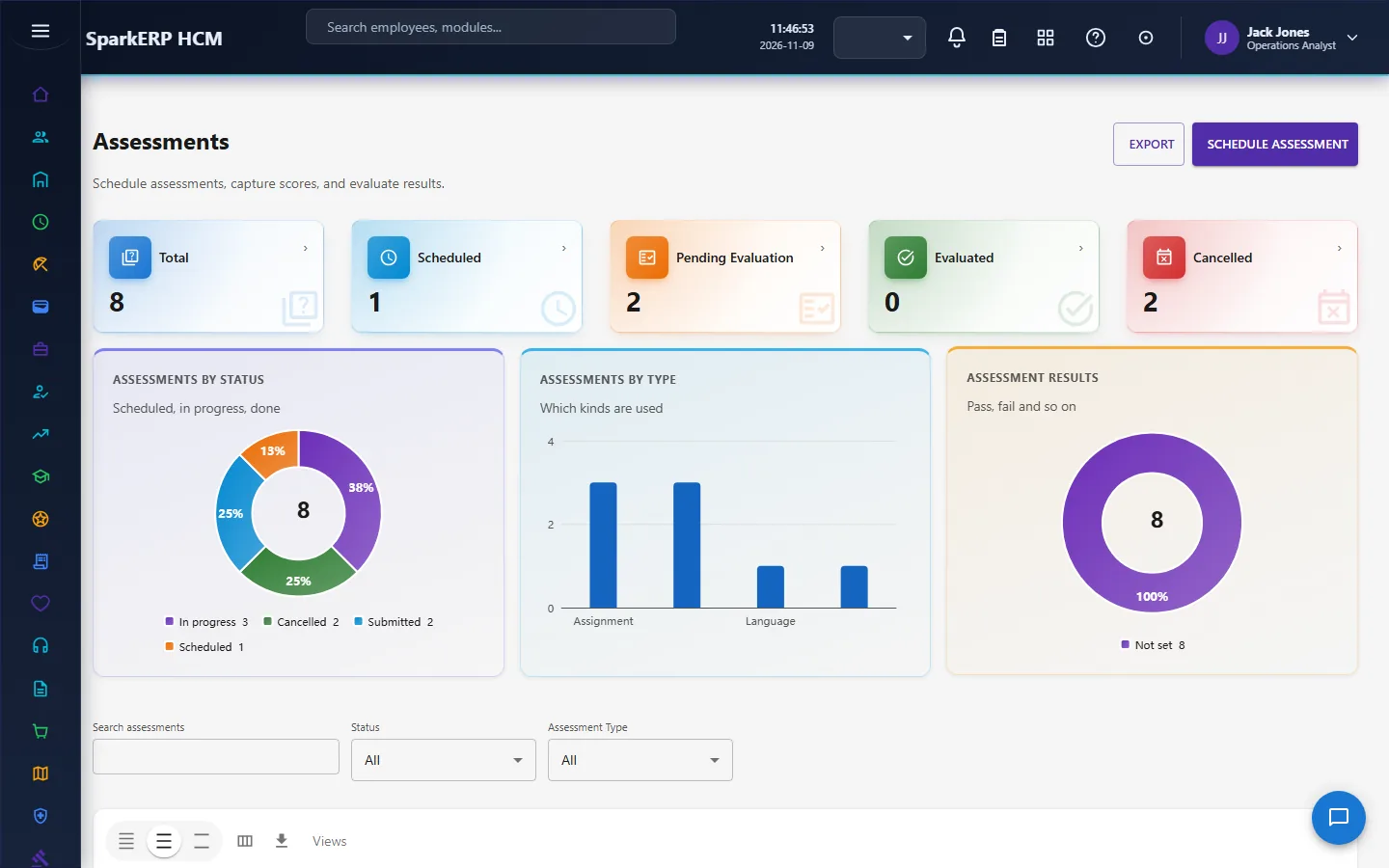
- Assessments record a test that was taken elsewhere: the score is entered, compared with the passing score (no passing score means fail, on purpose), and the result moves the application to an offer or to rejection. Recruitment never grades anything itself.
Two settings make feedback compulsory: interview feedback mandatory (every completed interview needs its feedback before an offer can be created) and interview scorecard required (an overall rating is needed to submit feedback).
2.6 Offers
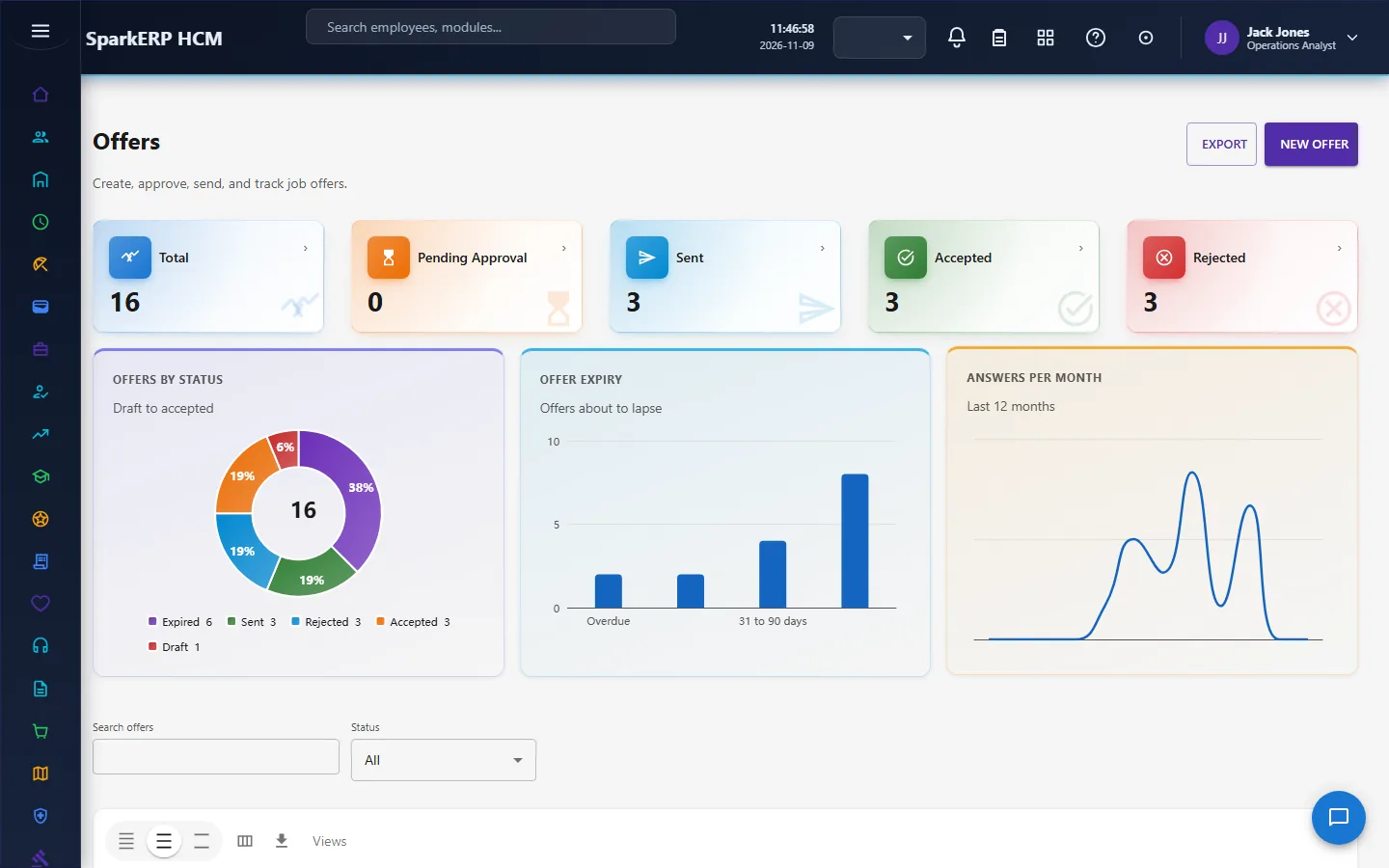
An offer is created once an application reaches the offer stage. It has a lifecycle: Draft, Pending approval, Approved, Sent, Accepted, Rejected (declined), Withdrawn, Cancelled, Expired.
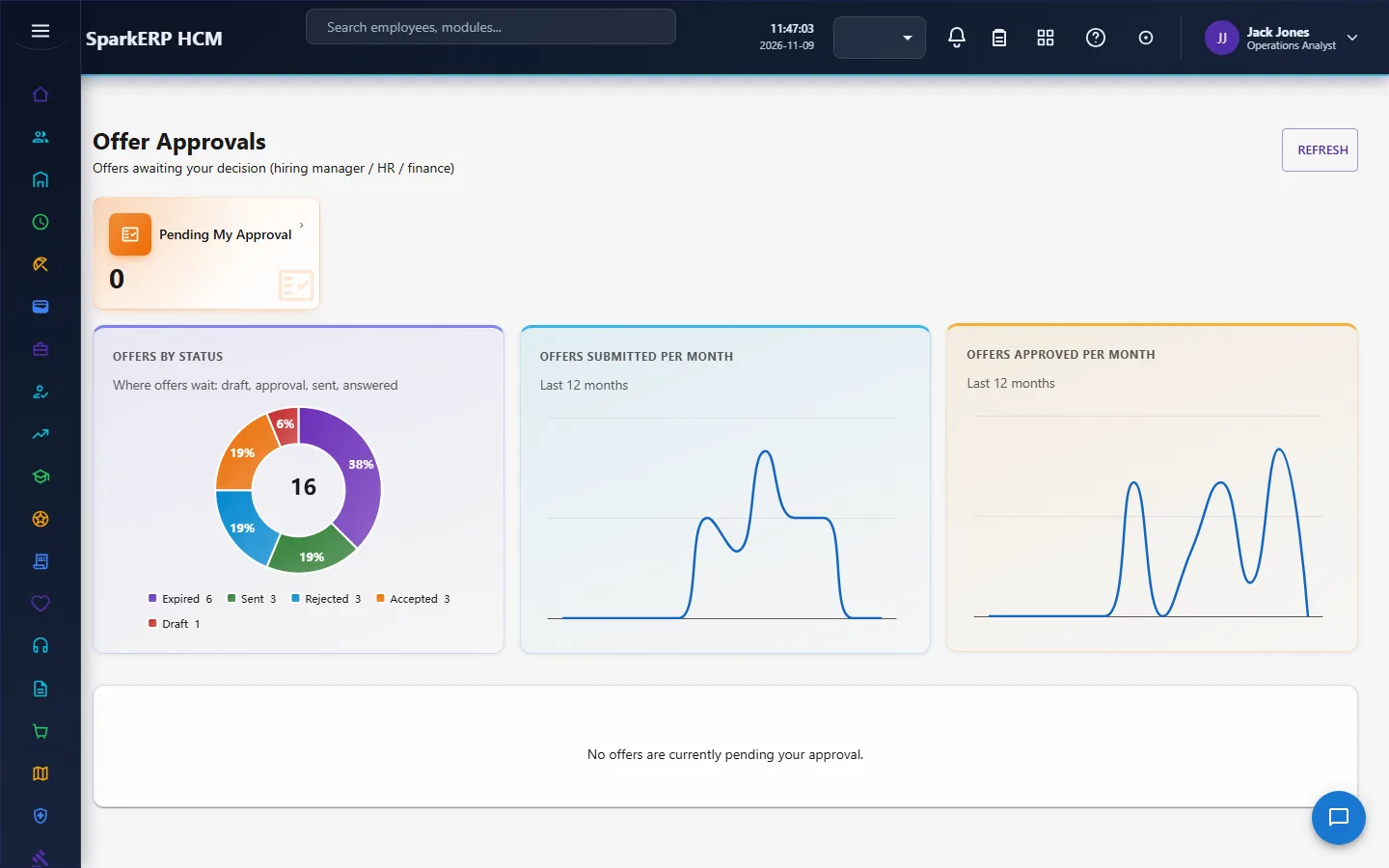
- Approval. The offer goes to the hiring manager step (Hiring Manager or Recruitment Manager), then the HR step (Recruitment Manager or HR Administrator), then, when total compensation is above 200,000, the finance step (HR Administrator). Each step is due in two days. If the setting offer approval required is off, an offer is approved as it is submitted and the history says so.
- Expiry. The setting offer expiry days gives every new offer an expiry date that many days ahead, unless one is entered.
- Response. The candidate's acceptance or rejection is recorded; a rejection needs a reason.
- Acceptance moves the application to pre-joining and then to hired. This is a side effect of accepting, and it never makes the acceptance itself fail.
2.7 Background verification
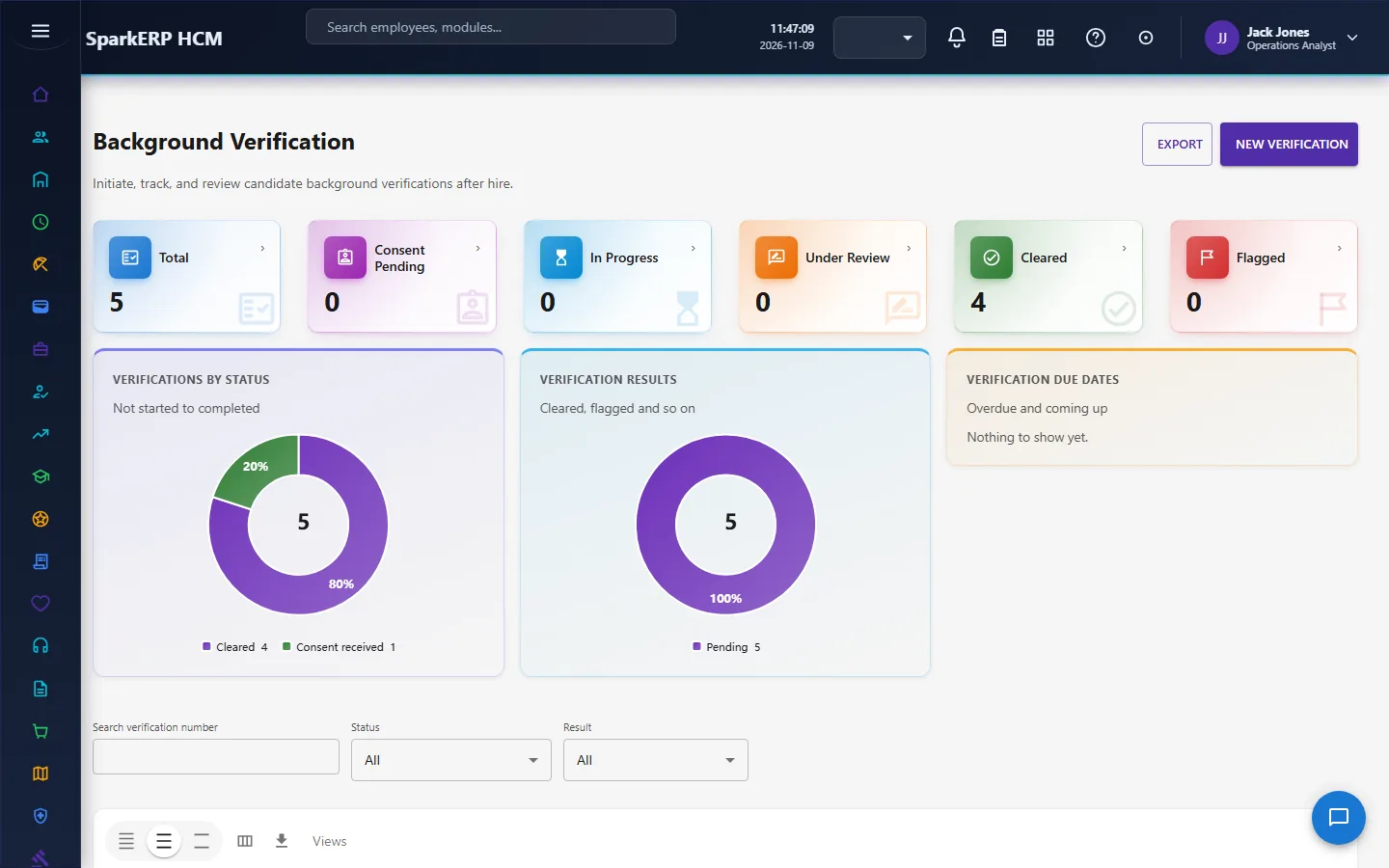
After an offer is accepted, a background verification can be tracked for the hired application: identity, address, employment, education and reference checks, each with a status (in progress, result received, under review, flagged, inconclusive, unable to verify, partially verified, cleared). It is a tracking screen: clearing or flagging a check does not change the application.
2.8 Sources, agencies, pools and the careers page
- Recruitment sources and agencies say where candidates come from, so hires and costs can be traced to a source.
- Candidate pools group talent for later openings.
- Careers manages the internal side of the careers page. The platform has no public candidate portal of its own, so the page you manage here is the content and the settings, not a full public career site with candidate login and job alerts.
- Resumes keeps the resume files of candidates.
2.9 Duplicates, data retention and fairness
- Duplicate check. Creating a candidate scans for an existing one by email, mobile, name with date of birth, and name alone, and warns with a confidence level (high, medium, low). It warns; it does not block. It can be switched off.
- Resume required. A setting can make a resume mandatory.
- Blind screening and candidate data retention (in months) are settings for fairness and privacy.
3. Who does what
| Role | What they do |
|---|---|
| Hiring Manager | Raises requisitions, reviews candidates, gives interview feedback, can decide the department step of a requisition and the first step of an offer. |
| Recruiter | Publishes openings, manages candidates and applications, screens, schedules interviews, prepares offers. |
| Recruitment Manager | Approves requisitions and offers; oversees the pipeline. |
| Recruitment Administrator | Sets up sources, agencies, settings and rules. |
| HR Administrator | Can decide every step of a requisition and the HR and finance steps of an offer; reads reports. |
| Interviewer | Gives feedback and completes the scorecard. |
| Candidate | Applies; accepts or declines an offer. |
| Employee | Has no access to the Recruitment screens. |
Recruitment screens are open only to the roles that run them, plus HR and the auditor. An employee who types a Recruitment address gets no page.
3a. What each role sees, screen by screen
The employee
An employee has no Recruitment screens.

The hiring manager
A hiring manager works from Job Requisitions (their own requests and the approvals waiting), Interviews (the interviews they sit on) and Interview Scorecards (the feedback of the panel).
The recruiter
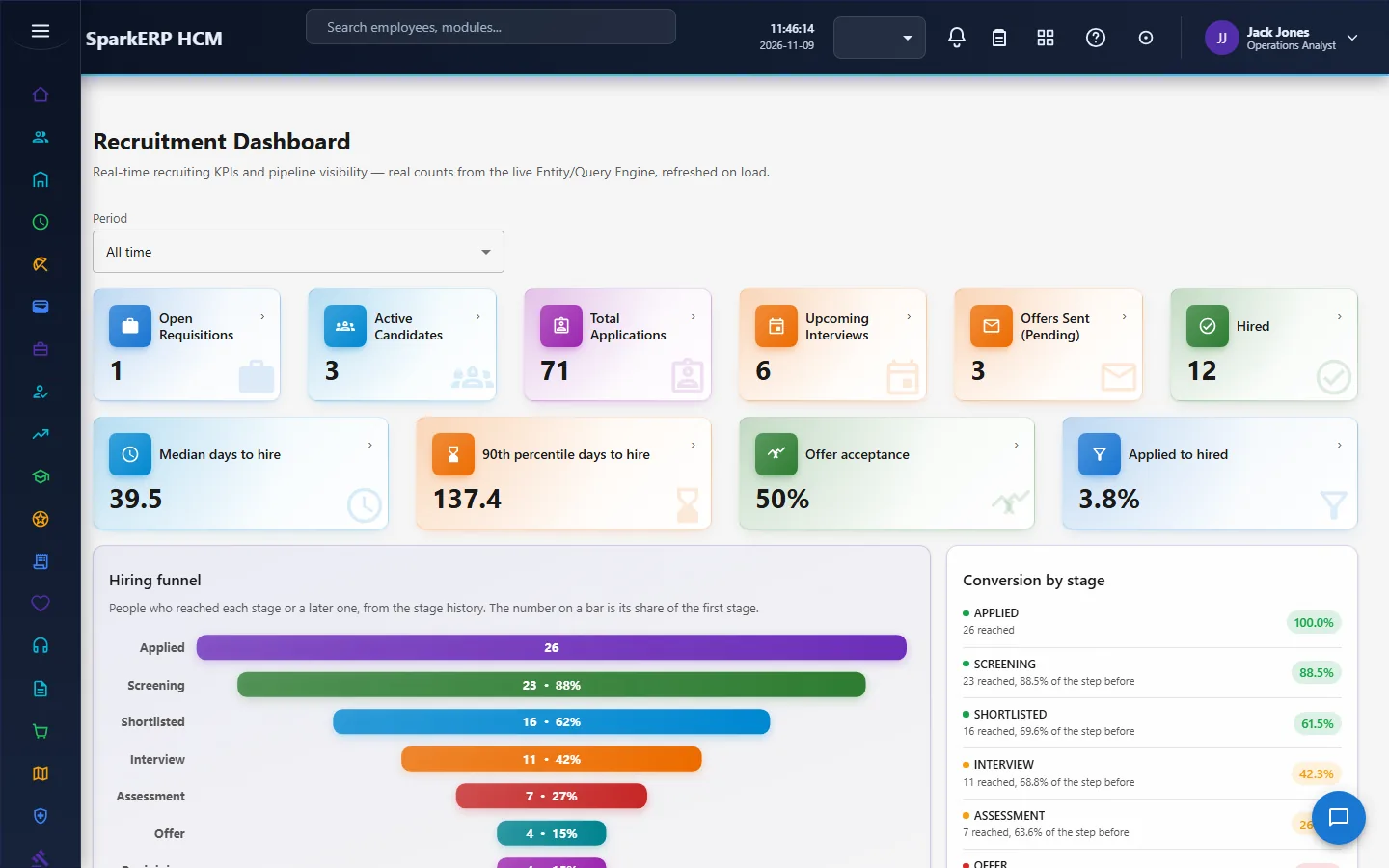
The Recruitment Dashboard shows the pipeline and what needs action. Job Requisitions and Job Openings hold the need and the vacancy.
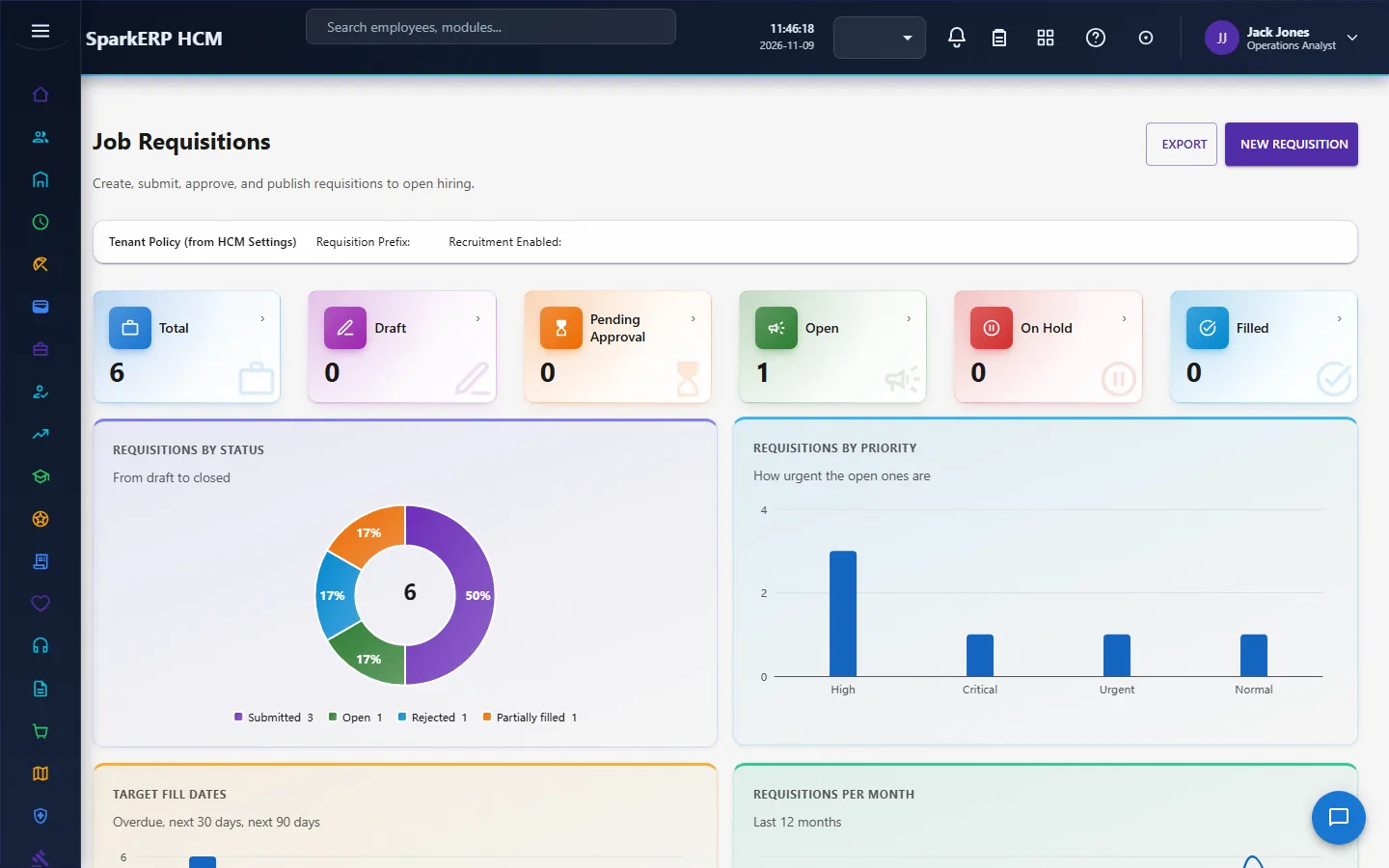
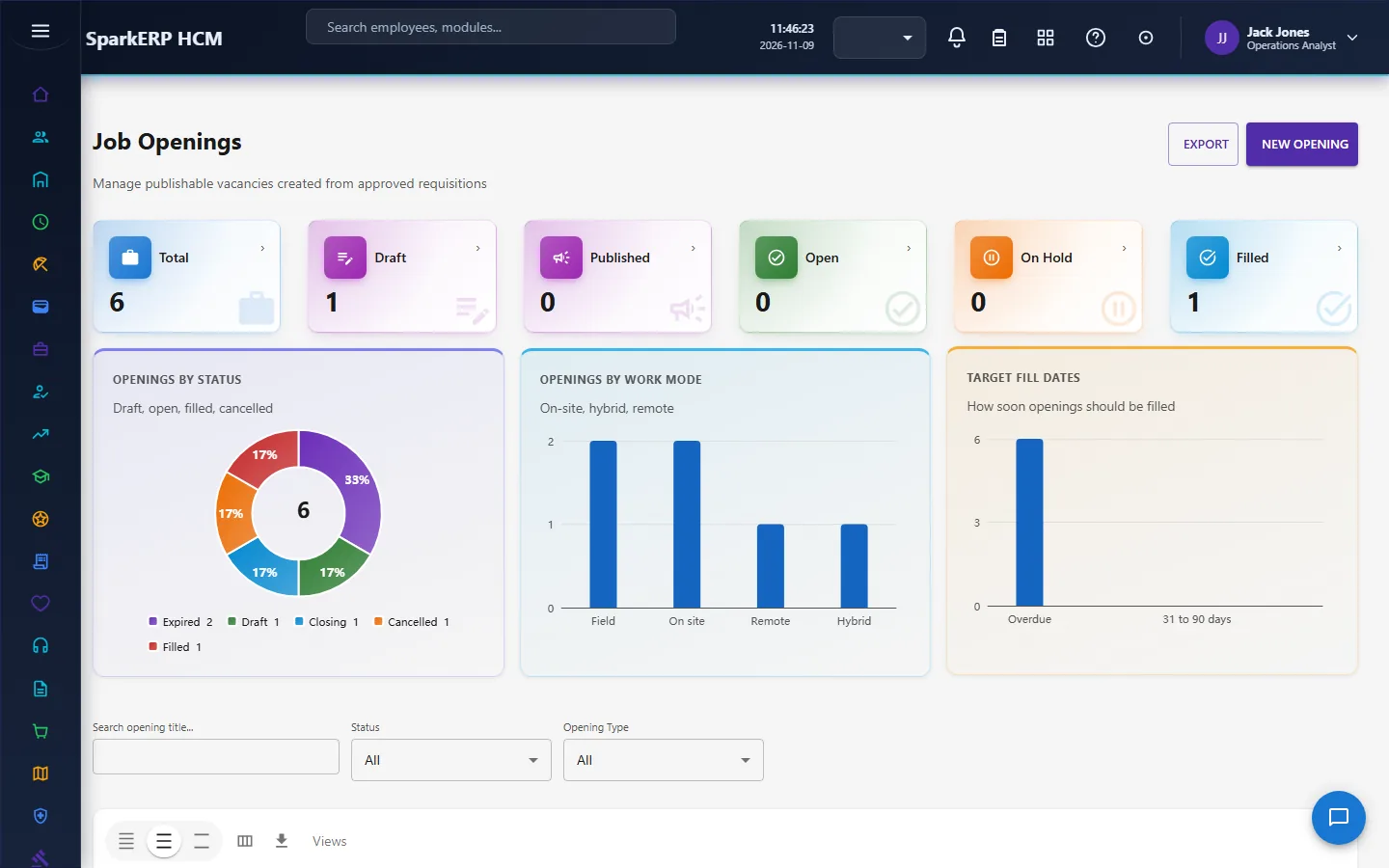
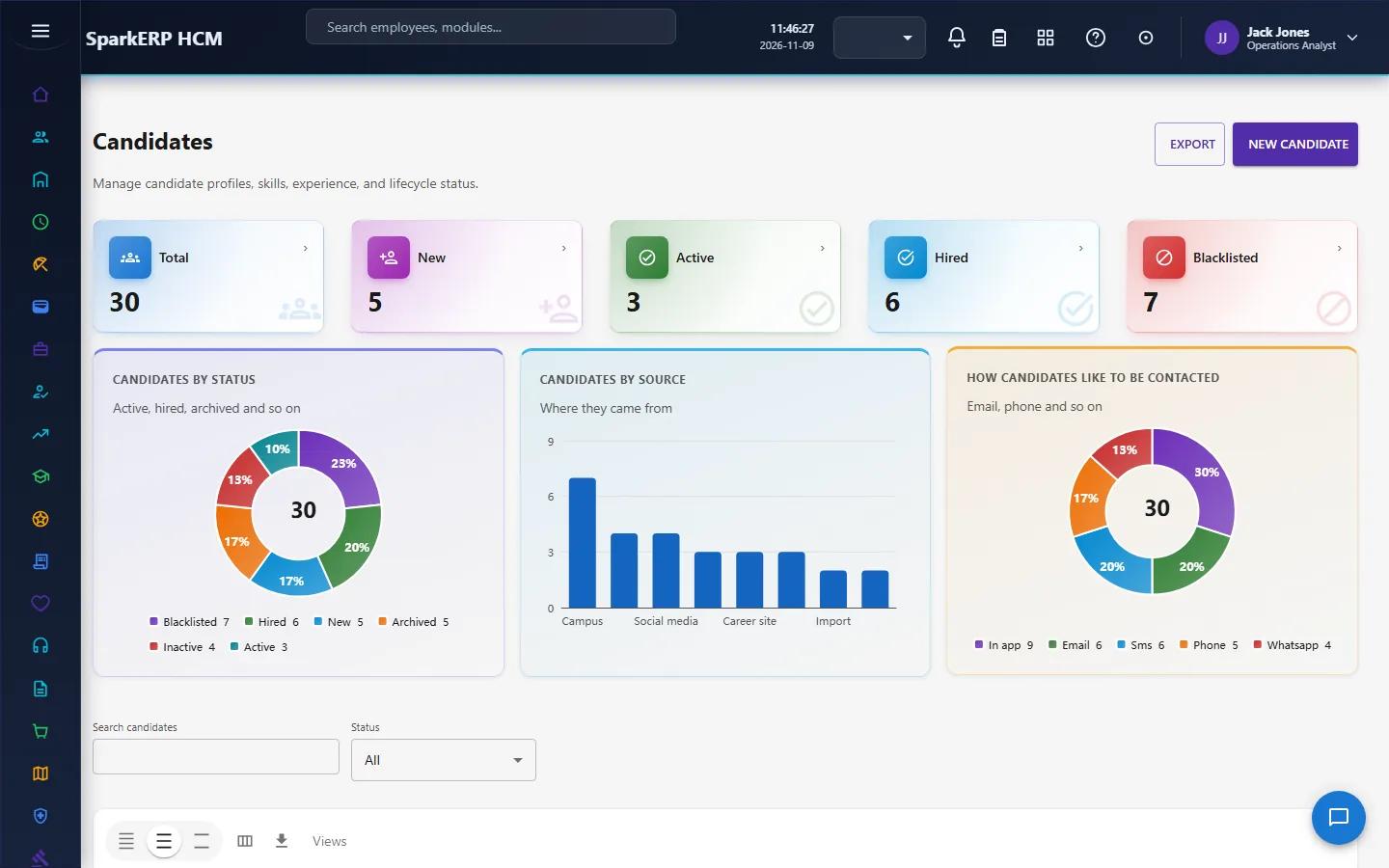
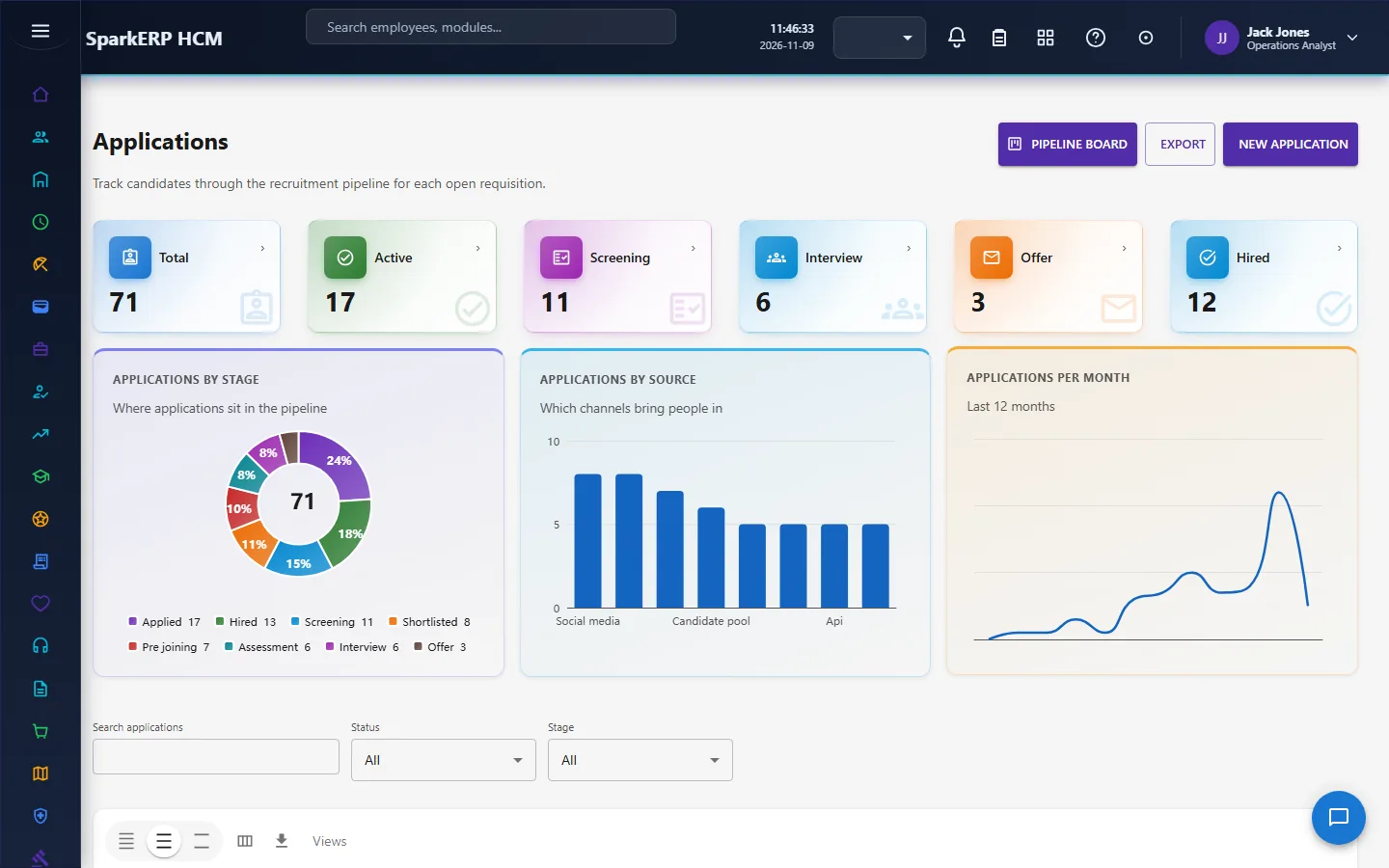
Candidates and Applications hold the people and their applications; Application Pipeline is the board.
Screening and CV Screening are the first review.
Interviews, Assessments, Offers, Offer Approvals and Background Verification follow.
The HR administrator
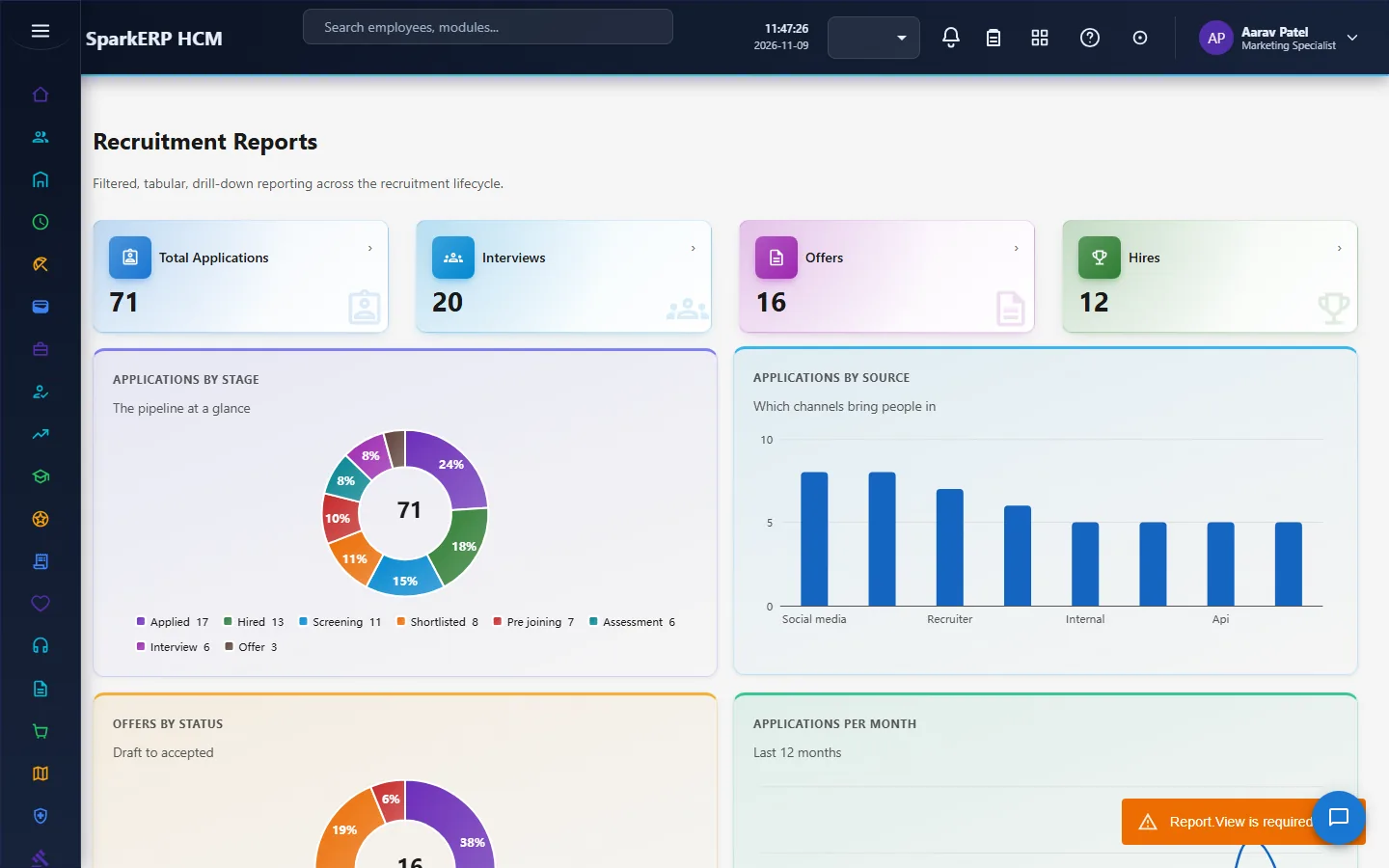
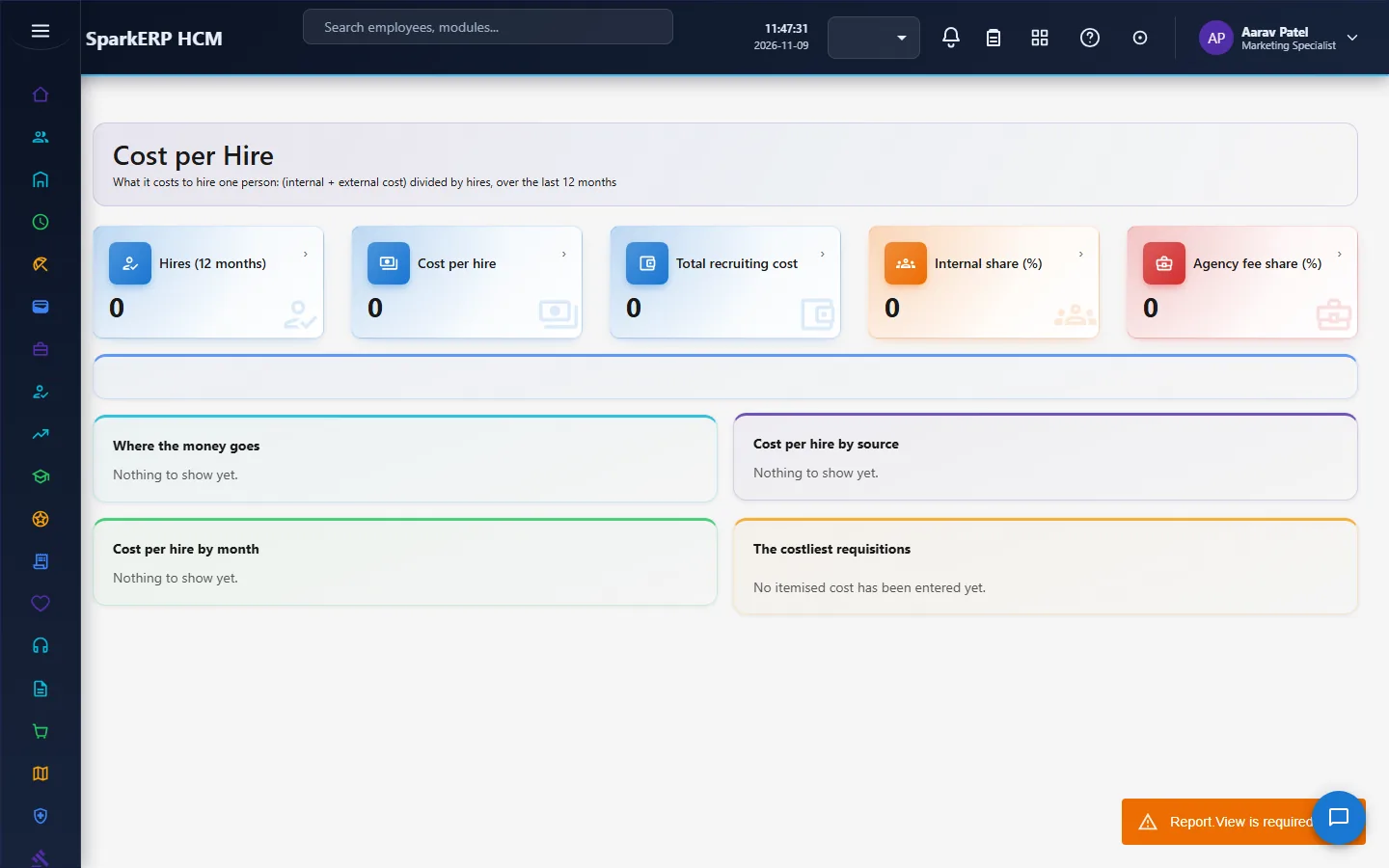
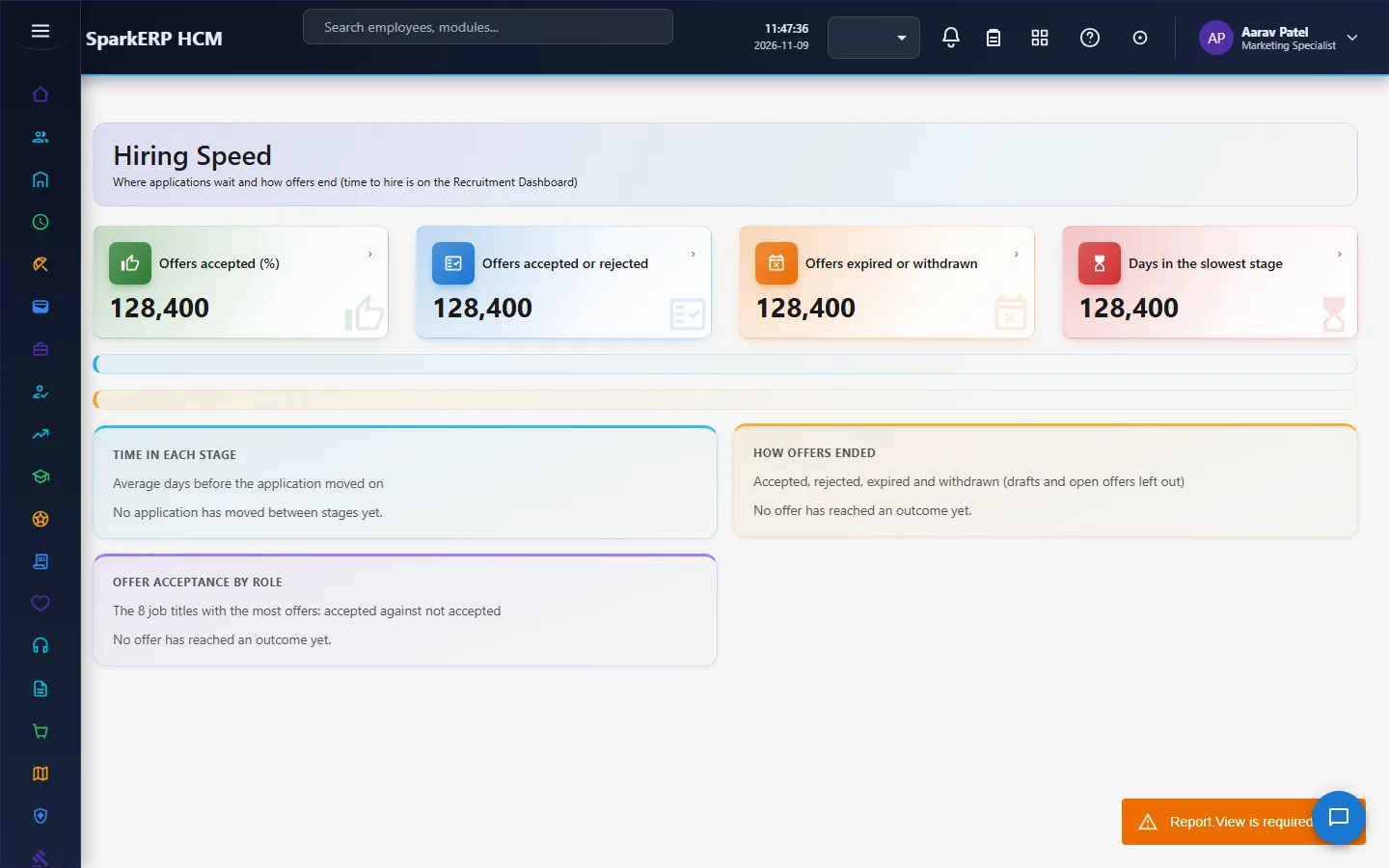
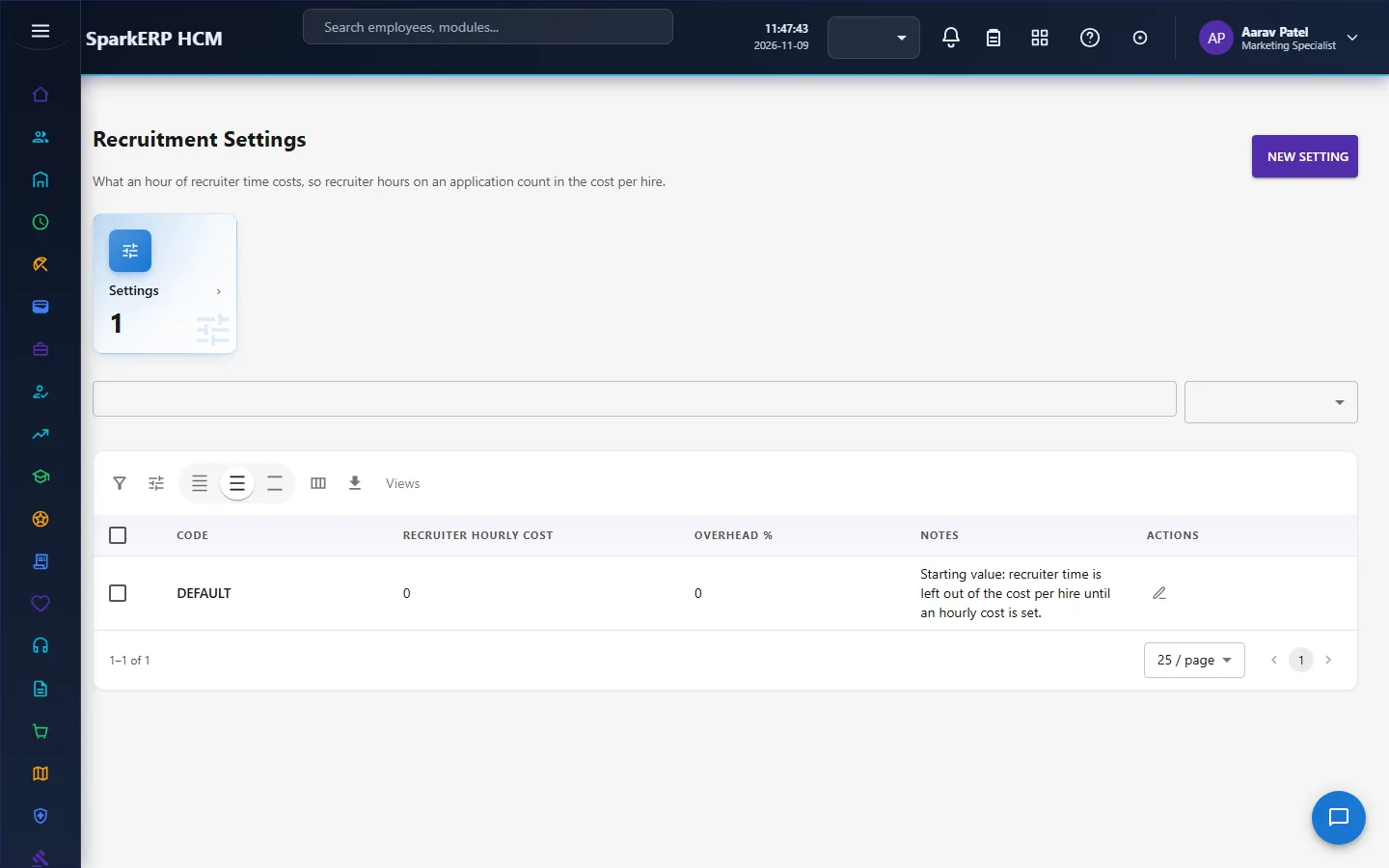
HR reads the measures and sets the rules: Recruitment Reports, Cost per Hire, Hiring Speed and Recruitment Settings.
4. Decide before you set up
| Decision | What to think about |
|---|---|
| Who approves a requisition | Department always; the HR step from a budget of 50,000; the finance step from 200,000 (held by HR Administrator). |
| Who approves an offer | Hiring manager step and HR step; a finance step above 200,000 total compensation. Or switch approval off. |
| Numbering | The prefixes and starting number of requisitions, candidates and applications. |
| Resume mandatory | Whether a candidate without a resume can be saved. |
| Duplicate detection | Keep on unless you load candidates from another system. |
| Interview rules | Whether feedback and a scorecard rating are compulsory. |
| Offer expiry | How many days an offer stays valid. |
| Automated screening | Off by default. Turn it on only when you have agreed the skills and experience criteria for each job. |
| Fairness and privacy | Blind screening; how long to keep candidate data. |
| Careers page | Whether the candidate portal and external registration are enabled. |
5. Set up step by step
- Recruitment settings. In HCM Settings, Recruitment: switch recruitment on, set the prefixes and starting number, resume mandatory, duplicate detection, offer approval, interview feedback and scorecard rules, offer expiry days, blind screening and data retention.
- Organisation. Make sure departments and positions exist in Core HR: a requisition names them.
- Roles. Give the Hiring Manager, Recruitment Manager, Recruiter and Recruitment Administrator roles. Approvals go to the Hiring Manager, Recruitment Manager and HR Administrator roles.
- Sources and agencies. Register where candidates come from and the agencies you work with.
- Interview panels. Create the reusable panels.
- Screening rules. If you want automated screening, switch it on and write the criteria on the requisition (required and preferred skills, minimum years).
- Careers page. Set the careers content and settings.
- Trial run. In a trial tenant generate the Recruitment demo pack, then follow one application from applied to hired.
6. Daily use
6.1 A hiring manager asks for a hire
- Open Job Requisitions and choose New Requisition.
- Fill in the department, position, openings, dates and salary range; for a replacement, name the person being replaced.
- Submit. Follow the approval: department, then HR, then finance for a large budget.
6.2 A recruiter runs the pipeline
- Publish the approved requisition to open the vacancy.
- Add candidates (or let them apply); watch the duplicate warning.
- Open Applications or the Application Pipeline: screen, then shortlist or reject (with a reason).
- Start interviews; the panel gives feedback; read the scorecard.
- Start an assessment if you use one; enter the score.
- Create the offer.
6.3 An offer goes out
- Prepare the offer (compensation, start date, expiry) and submit it.
- Wait for the hiring manager, HR and, when needed, finance.
- Send the approved offer.
- Record the candidate's answer. On acceptance the application moves to hired and the requisition records the hire; start background verification and hand over to Core HR.
6.4 HR reads the numbers
Open Recruitment Reports, Cost per Hire and Hiring Speed to see sources, agencies, cost and time to hire.
7. A calendar of recurring work
| When | What |
|---|---|
| Daily | Move applications; give interview feedback; answer the offers waiting. |
| Weekly | Review the pipeline for stuck applications; review offers about to expire. |
| Monthly | Cost per hire and hiring speed; source effectiveness. |
| Each quarter | Review the fairness panel of automated screening, if used. |
| Yearly | Review how long candidate data is kept. |
8. Reports and figures
The Recruitment Dashboard shows the pipeline. Recruitment Reports shows sources, stages and outcomes. Cost per Hire and Recruitment Costs show what a hire costs. Hiring Speed shows how long each stage takes. Lists can be exported.
9. Limits you should know about
- No online testing. Assessments record a score entered by a person.
- No calendar or video integration for interviews.
- No public careers portal. The Careers screen manages the internal side.
- Automated screening only recommends. It never rejects, and its rules are only as good as the criteria on the requisition.
- The overall interview recommendation is the most conservative one, not an average.
- Recruitment does not create the employee. Core HR's pre-joining and onboarding do.
- Background verification is tracking only; it does not block the hire.
10. Troubleshooting
| Symptom | Cause and fix |
|---|---|
| A requisition cannot be published | It is not approved yet. |
| "Recruitment is switched off for this organisation" | Turn it on in HCM Settings, Recruitment. |
| Cannot create an offer | The application is not in the interview or assessment stage, or interview feedback is still missing and the setting makes it compulsory. |
| A candidate cannot be saved | A resume is required by the setting, or the recruiter reference is wrong. |
| A candidate warning about duplicates | The email, mobile or name matches another candidate. Check it is a different person. |
| An offer was approved without anyone | Offer approval required is off. |
| A person cannot approve | They do not hold the role of that approval step. |
| An application cannot be shortlisted | The screening decision failed; reject it instead. |
| A screen shows no page | The role does not run that screen. |