
Appearance
Onboarding: how it works and how to set it up
Onboarding answers the questions a company asks between a signed offer and a confirmed employee: who is joining and when, are they ready on day one, what is still missing and who owes it, are their documents and background checks done, do they have their laptop and their accounts, did they attend orientation, and should they be confirmed at the end of probation. This guide explains how the module works from start to finish, then how to set it up, then what each person sees. Every screen has its own page in the Onboarding section; this guide is the one to read first.
1. What Onboarding does for your business
- Follows each new joiner through time. A joiner has a status that follows the joining date: onboarding, ready, joining today, joined, delayed, postponed or cancelled.
- Measures readiness, not just activity. Eight areas (employee data, documents, verification, compliance, tasks, IT, assets, manager preparation) each have required items; the joiner is ready only when every required area is complete.
- Builds the work from templates. A template turns the facts about the person (country, department, job, employment type) into a checklist of items with owners, approvers and due dates.
- Collects documents and runs verification with consent, evidence, reviewers and, where needed, outside providers.
- Issues equipment and accounts. Equipment is filled from the Assets module; accounts are provisioned through connectors with approvals and retries.
- Runs orientation and probation, up to the confirmation, extension or end of employment.
- Warns early. Reminders go out before the joining date and after a miss, and risky joiners are escalated.
What it does not do: it does not hold your inventory (the asset stays in the Assets master), it does not store any password or secret (a platform password is generated and discarded, and the person sets their own through the platform's reset), and it does not duplicate the employee record (activation, confirmation, extension and separation are done by the employee module's own workflows).
2. How onboarding works, end to end
2.1 The path of one joiner
- A joiner is created from a source: recruitment, an accepted offer, pre-joining, a manual entry, a referral, an internal transfer or internal mobility.
- Onboarding starts. The right plan and template are chosen by the person's facts, and the checklist, document requests, verification case, equipment requests, account plan and orientation are generated.
- The joiner is tracked against the joining date. Readiness and risk are recalculated every day.
- The joiner is marked ready, and then joined on the day. The employee module activates the person through its own joining steps.
- Orientation is attended; the probation policy sets the milestones and the end date.
- Probation ends with a decision: confirm, extend or end employment, through the employee record's own workflow.
2.2 The status of a joiner
| Status | Meaning |
|---|---|
| Draft | Created, not started. |
| Pending pre-joining | Waiting for the pre-joining step. |
| Onboarding | Work is under way. |
| Ready for joining | Every required area is complete. It goes back to onboarding if that stops being true. |
| Joining today | The joining date is today. |
| Joined | The person has joined. An end state. |
| Delayed | The date has passed (beyond the grace days) and the person has not joined. It resumes when the date moves forward. |
| Postponed | Held on purpose; reschedule to continue. |
| Cancelled / Withdrawn | End states. |
The status follows the date by itself. Draft, postponed and the end states never change automatically. Each action starts only from the statuses where it makes sense (you cannot mark a cancelled joiner joined).
2.3 Readiness and progress
Readiness is measured over eight areas, with these default weights: employee data 10, documents 20, verification 10, compliance 15, tasks 15, IT 15, assets 10, manager preparation 5. The progress figure is the weighted average of the areas that apply to the person, so an area that does not apply never drags it down.
A joiner is ready when every required area is complete. By default the required areas are employee data, documents, compliance and tasks; your tenant can change that. An area that is not required never blocks readiness, but is still reported. An area with an authorised exception counts as complete and makes the result ready with exceptions. The screen lists each blocker in plain words ("Mandatory documents are not all verified").
2.4 Risk, reminders and escalation
The risk of a joiner is normal, at risk, high risk or critical:
- Critical: a verification has failed, the joining date has passed, or the joiner is not ready with 1 day or less to go.
- High risk: not ready with 3 days or less to go, or 3 or more items overdue.
- At risk: not ready with 7 days or less to go, or any item overdue or failed.
- Normal: otherwise.
The 7, 3 and 1 days are the defaults and your tenant can change them.
A daily sweep recalculates every open joiner and sends the reminders that fall today, once each: by default 7, 3, 1 and 0 days before joining, and 1 and 3 days after a missed date. Joiners at high risk or critical are escalated to their HR owner and manager, once per level. Both sweeps are safe to run again: nothing is repeated. When the tenant allows it, the status sweep also activates ready joiners whose day it is.
2.5 Choosing the plan and the template
- The plan is chosen from the joiner's country, legal entity, organisation, employment type, job position and location. A plan fixed to a position, location or employment type wins over one for a legal entity or organisation, which wins over a country plan, which wins over the global default. Within a level, the plan that names more things wins, then the lower priority number, then the lower id.
- The template is chosen the same way every time. Only an active template whose dates cover the day is considered; it must match everything its scope names and its condition groups. Among those that fit, the order is the scope it names (legal entity, organisation, department, employment type, country, none), then its priority, then how many things it names, then the latest effective date, version and the lowest id. A template can inherit from another: the child's entry of the same code replaces the parent's, and an entry marked "leaves out" removes it.
2.6 Checklists
A checklist is the list of items for one person, made from a template. Items that apply only to some people are left out when their conditions fail. The owner and the approver of an item are named from the person's own people: the manager, the HR owner, the recruiter, a buddy, or the employee. Due dates are worked out by the template's rule: days from the start of the checklist, from the joining date, from the start of onboarding, from the finish of the item before, or a fixed date, in calendar or business days. The requirements of the person's country pack are added as items; Onboarding holds no country rule of its own.
An item cannot be completed while a task it depends on is open, or while required evidence is missing or not yet reviewed. After each change, the checklist's progress counts the required items (the optional ones only if the tenant counts them), a final approval is asked for when the checklist needs one, due dates that follow another item move, and the change rolls up to the onboarding record with a history line and a notice. Checklist, checklist item and template approvals go through approval tasks due within two days.
2.7 Documents
The documents a person is asked for come from the country pack's required documents, the tenant's own requirements (with scope and conditions), the template's document tasks and the plan's list. Each request is made once (a request key prevents duplicates). An upload must satisfy the rules before it reaches a reviewer. A document moves from requested to uploaded and under review to verified (or waived, rejected, resubmission required or expired), keeps versions, and records who looked at a file and why. A document counts as done for onboarding when it is verified or waived.
2.8 Verification
A verification plan is versioned and immutable once published; a new version is a new plan. For a new joiner the plan is resolved from the facts about them, and the case keeps a copy of the plan it was made from, so a later version never changes a running case. A case holds checks; a check may need consent, evidence, other checks first, an outside provider, and a reviewer's decision (or a chain of approvals). The case's progress and result move by the plan's own rules, and the result is verified, failed or partially verified. Country packs add checks without being copied.
2.9 Equipment and assets
What a joiner needs comes from requirements and bundles chosen by country, location, job and work arrangement. A request is made once, approved, and filled from the asset master of the Assets module, delivered and acknowledged by the person (by a checkbox, a signature, an OTP or an electronic signature), and can be replaced, transferred or returned when they leave. The asset stays in the master; Onboarding holds only the asset id and the assignment. Delivery can be office pickup, internal delivery, courier, ship to home or branch, or vendor delivery.
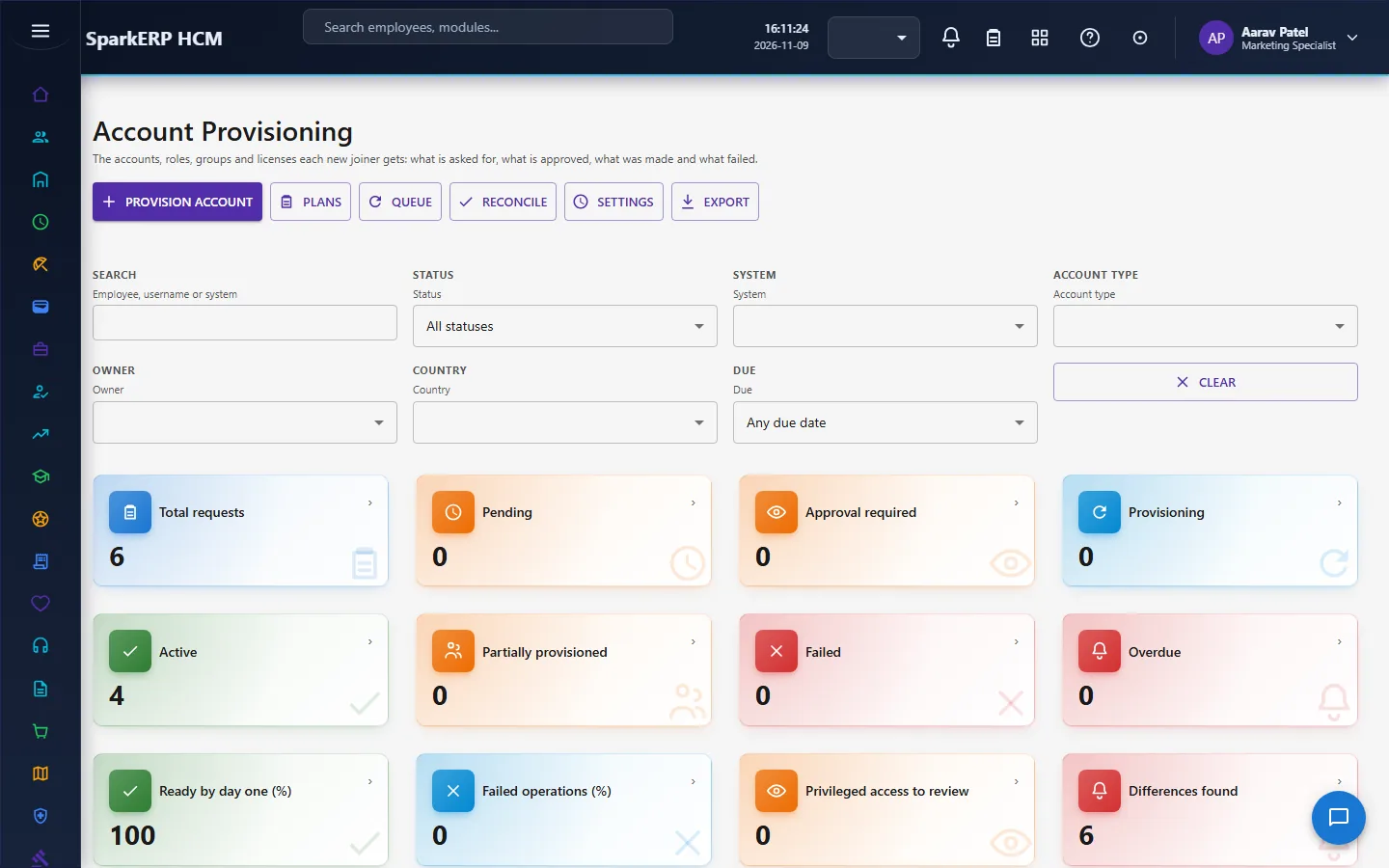
2.10 Account provisioning
A plan chosen by the person's facts, bundles and the country pack lists the accounts, roles, groups and licenses a joiner gets (identity, email, single sign-on, applications, roles, groups, licenses, VPN, collaboration tools, security, and ERP, HCM and CRM access). Each is made once, approved (with a stricter chain and an expiry for privileged access), queued as a job and run by a worker against a connector: the platform's own users and roles, a provider set up in the platform's provider connectors, or a person doing it by hand (which waits for a confirmation). A failure is put in one of nine categories; a retryable one waits for a back-off and is tried again until the attempts are used, then goes to the dead-letter list, and the others fail at once for a person to resolve. The external system stays the owner of its account. Accounts are updated when the person moves and removed when they leave.
2.11 Orientation
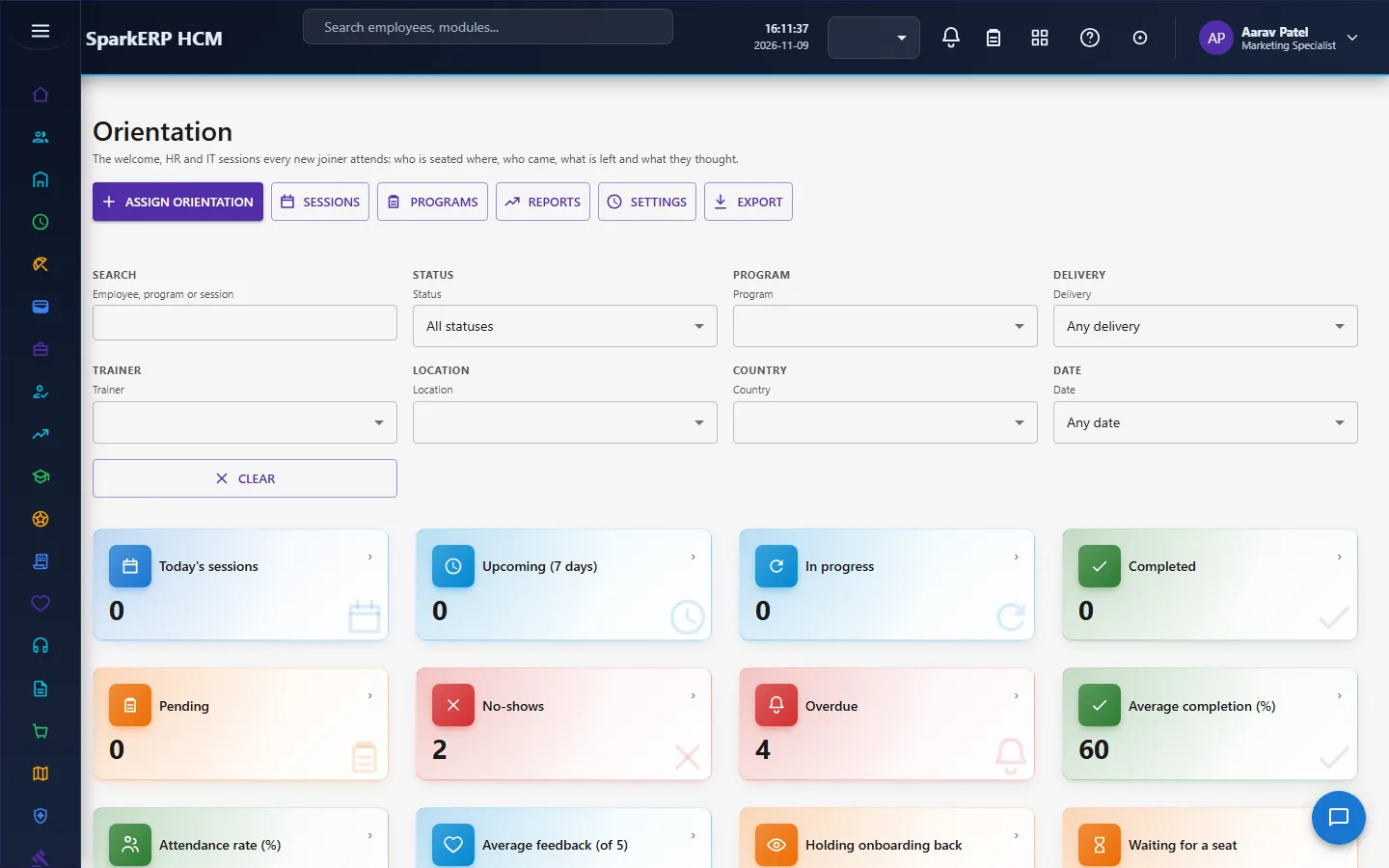
An orientation is a reusable program (sessions, agenda, content, tasks, an assessment) chosen for a joiner by their facts and the country pack. It becomes one assignment with its tasks, content and acknowledgements, and a seat on a dated cohort session with a capacity and a waiting list. Sessions are in person, virtual, hybrid or self-paced. Attendance is recorded by hand, by self check-in with a code, or from a meeting provider (invited, registered, present, partial, late, absent, no-show, excused). Feedback is collected and the orientation is complete when everything mandatory is done. Meeting links and calendar events come from the platform's provider connectors.
2.12 Probation
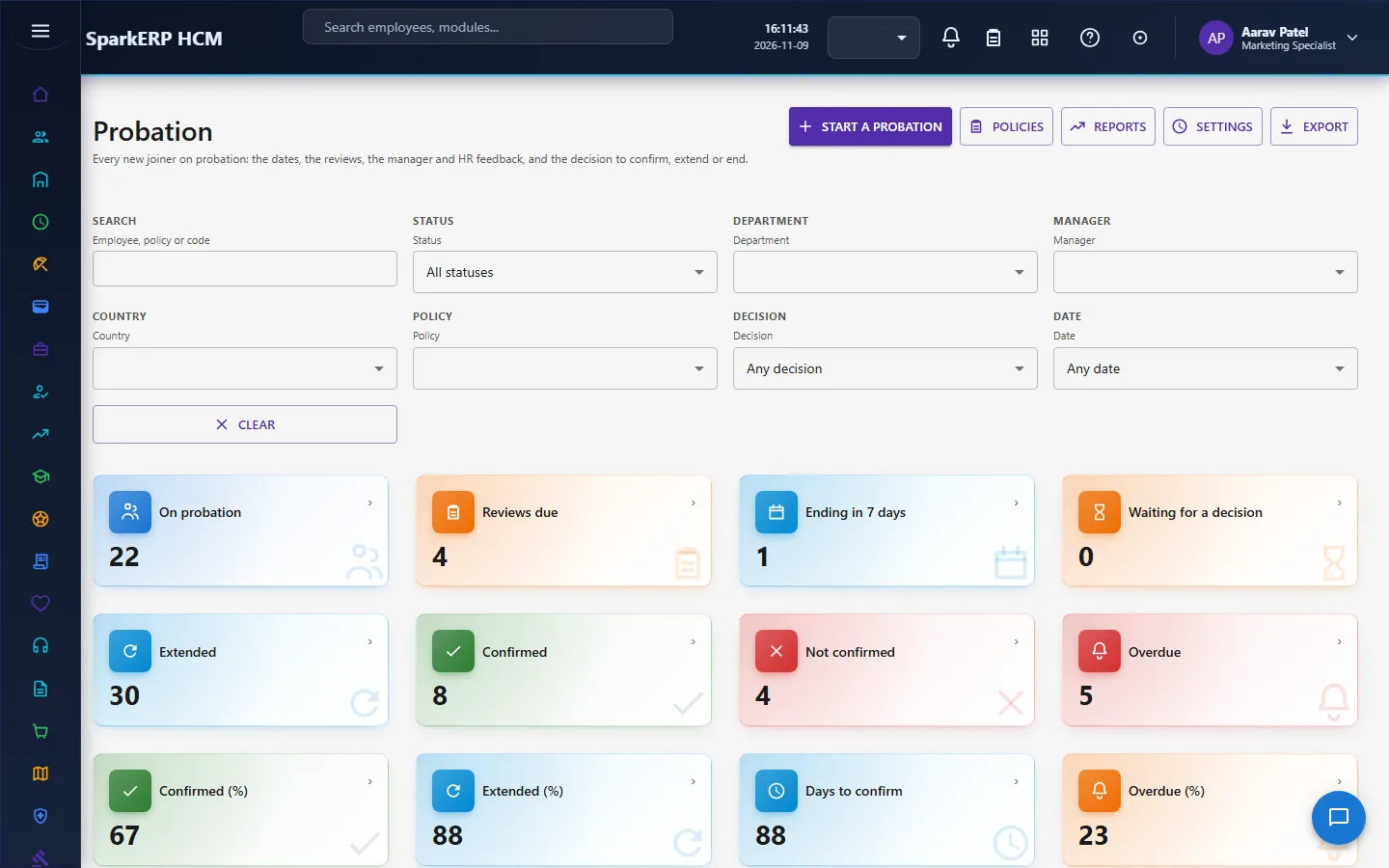
A probation policy is chosen for a joiner (employee, position, grade, employment type, department, legal entity, country pack, then the global default; the rule that decided is kept). The end date is worked out in the person's time zone. Milestones (check-in, review, feedback, document, training, assessment, decision) and reviews are made from it, with a self review. The decision is to confirm, extend or end employment, or defer it.
A decision is proposed with its reason and checked against the policy (an extension against its limits, an early confirmation against its rules), goes through the approval chain of the policy (manager, HR, department head or dotted line), and is then handed to the employee record's own workflow (confirmation, extension or separation), which applies it. The result is read back and the probation is closed, extended or ended. Confirmation, extension and failure letters are made from a document template and kept in the document store. Everything is audited.
2.13 Changing the joining date
Moving the joining date records the history, shifts every open due date, and notifies the people involved. When the tenant's setting date change needs approval is on, the change goes through an approval task due within three days.
3. Who does what
Onboarding has a role for each area, so the work can be shared:
| Area | Roles |
|---|---|
| The joiner and checklist | Onboarding Coordinator, Onboarding Administrator, Onboarding Checklist Owner, Approver, Viewer and Designer |
| Templates | Onboarding Template Viewer, Designer and Publisher |
| Documents | Onboarding Document Requester, Reviewer, Uploader, Waiver, Viewer and Administrator |
| Verification | Onboarding Verification Coordinator, Reviewer, Waiver, Employee, Viewer and Administrator |
| Equipment | Onboarding Equipment Requester, Approver, Manager, Employee, Viewer and Administrator; IT Support and Facilities |
| Accounts | Onboarding Accounts Requester, Approver, Security Approver, Operator, Viewer and Administrator |
| Orientation | Onboarding Orientation Coordinator, Trainer, Content Manager, Analyst, Viewer and Administrator |
| Probation | Onboarding Probation Coordinator, Approver, Policy Manager, Analyst, Viewer and Administrator |
| Reports | Onboarding Report Viewer, Analyst, Author, Compliance and Administrator |
| Hiring manager | Onboarding Hiring Manager |
Template, checklist and joining-date approvals are decided by the HR Administrator or HCM Administrator role. Onboarding screens are open to the onboarding roles, HR and the auditor. Probation shows a line manager the people in their own reporting line, so it stays open to managers. An employee has no onboarding administration screens.
3a. What each role sees, screen by screen
The employee
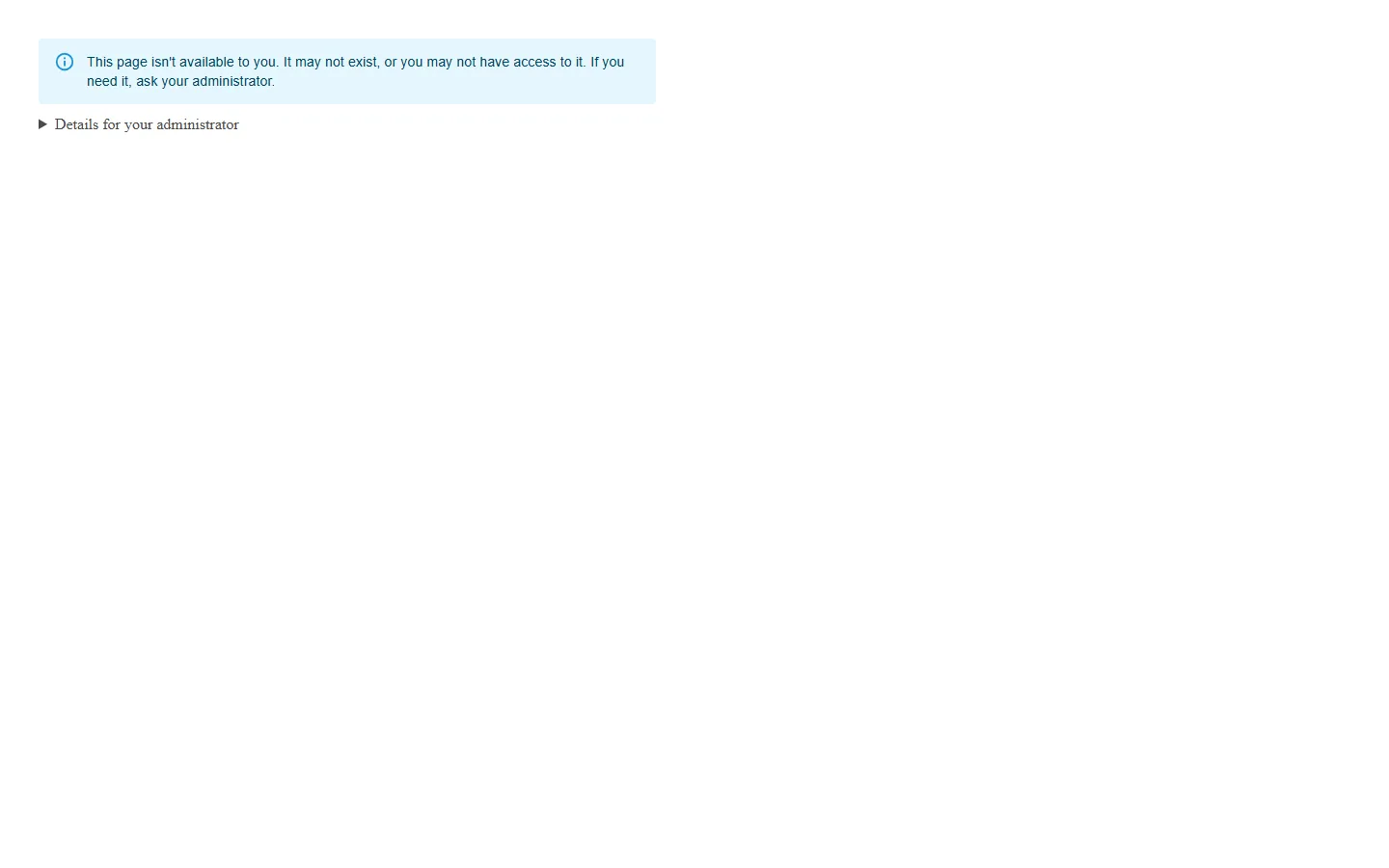
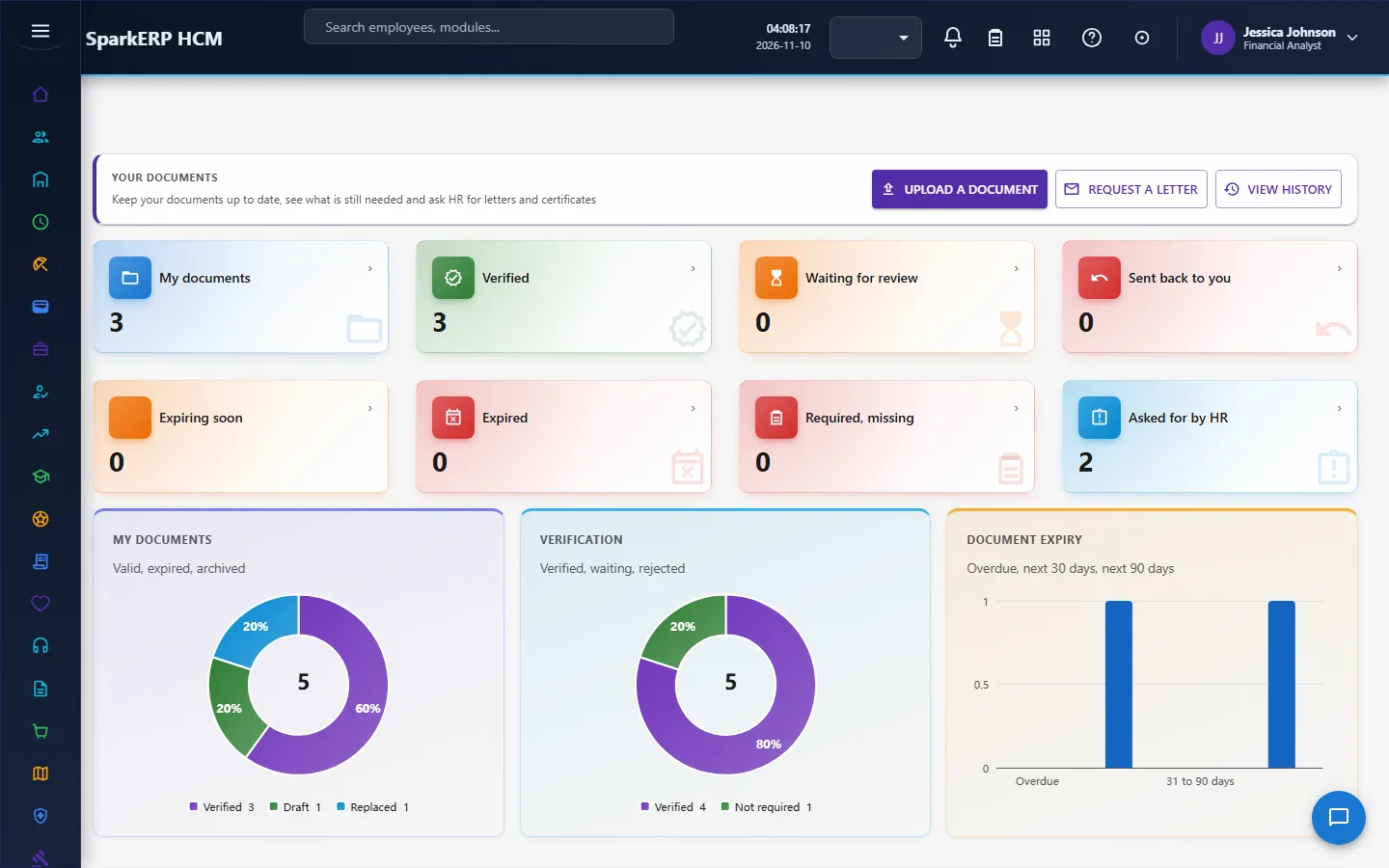
An employee does not see the onboarding screens. What a new joiner sees of their own onboarding is their documents and their profile.
The manager
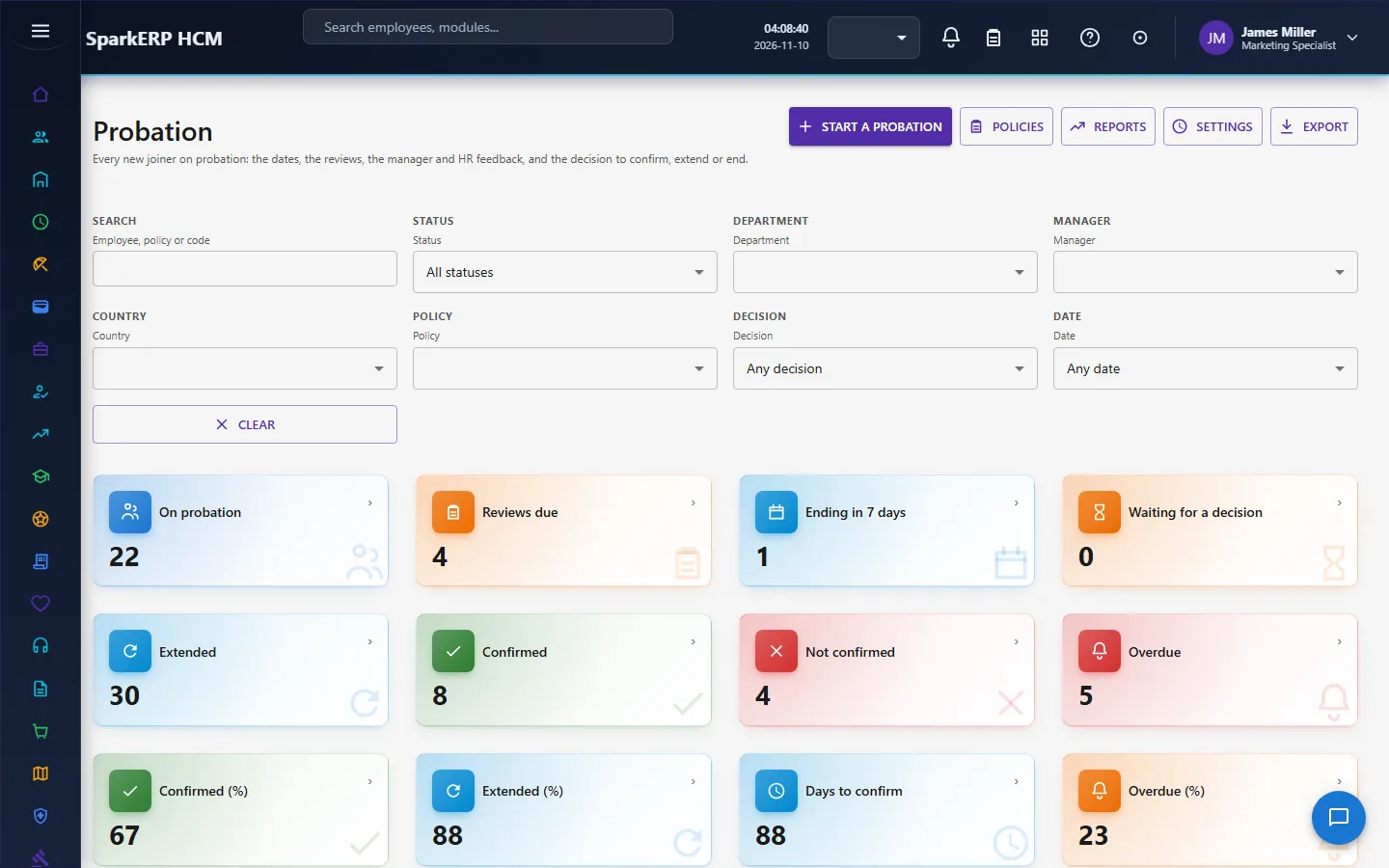
A line manager sees Probation for the people who report to them: milestones, reviews and the decision to confirm, extend or end.
The planner screens, such as New Joiners, are not open to a manager who holds no onboarding role.
The HR administrator
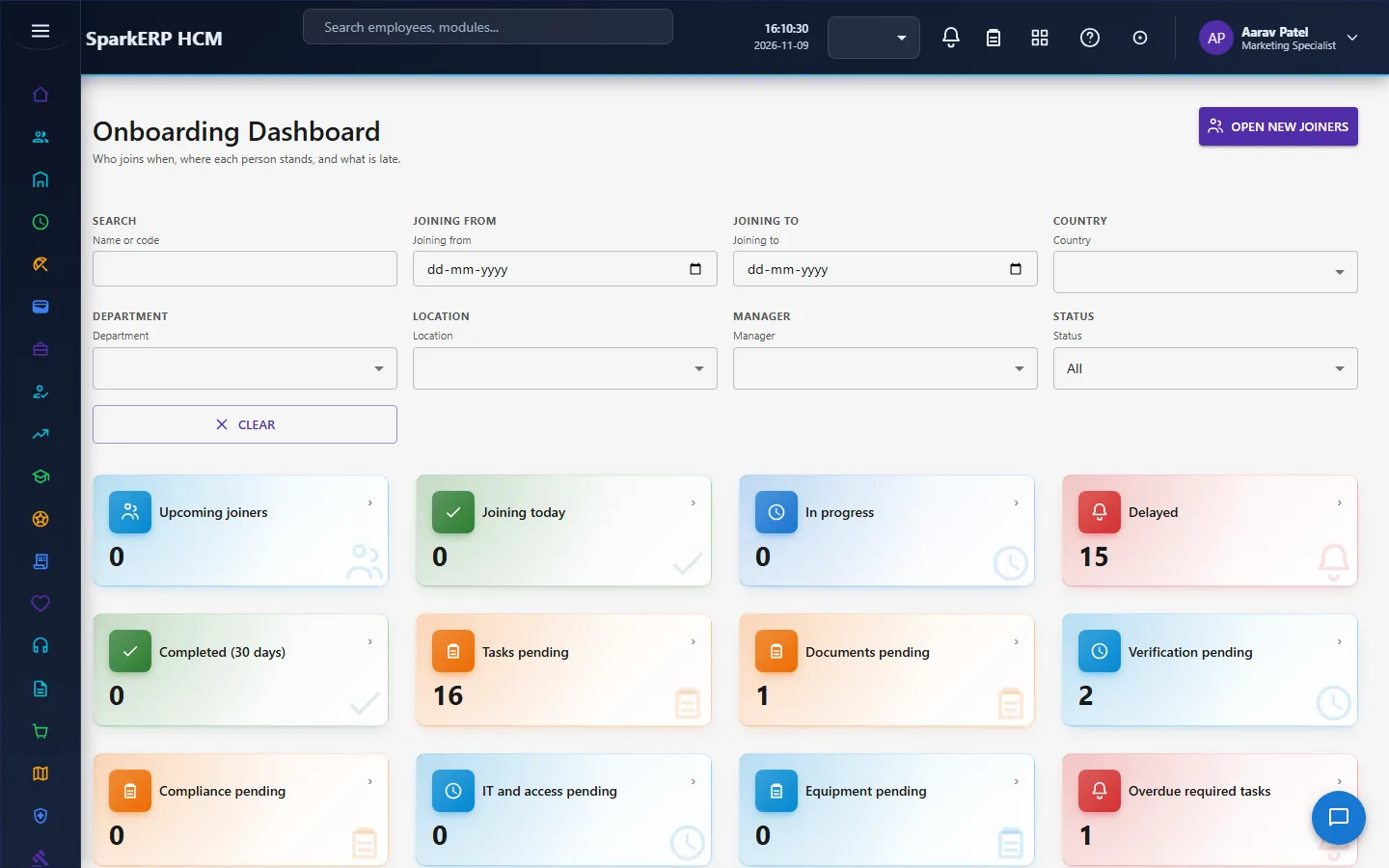
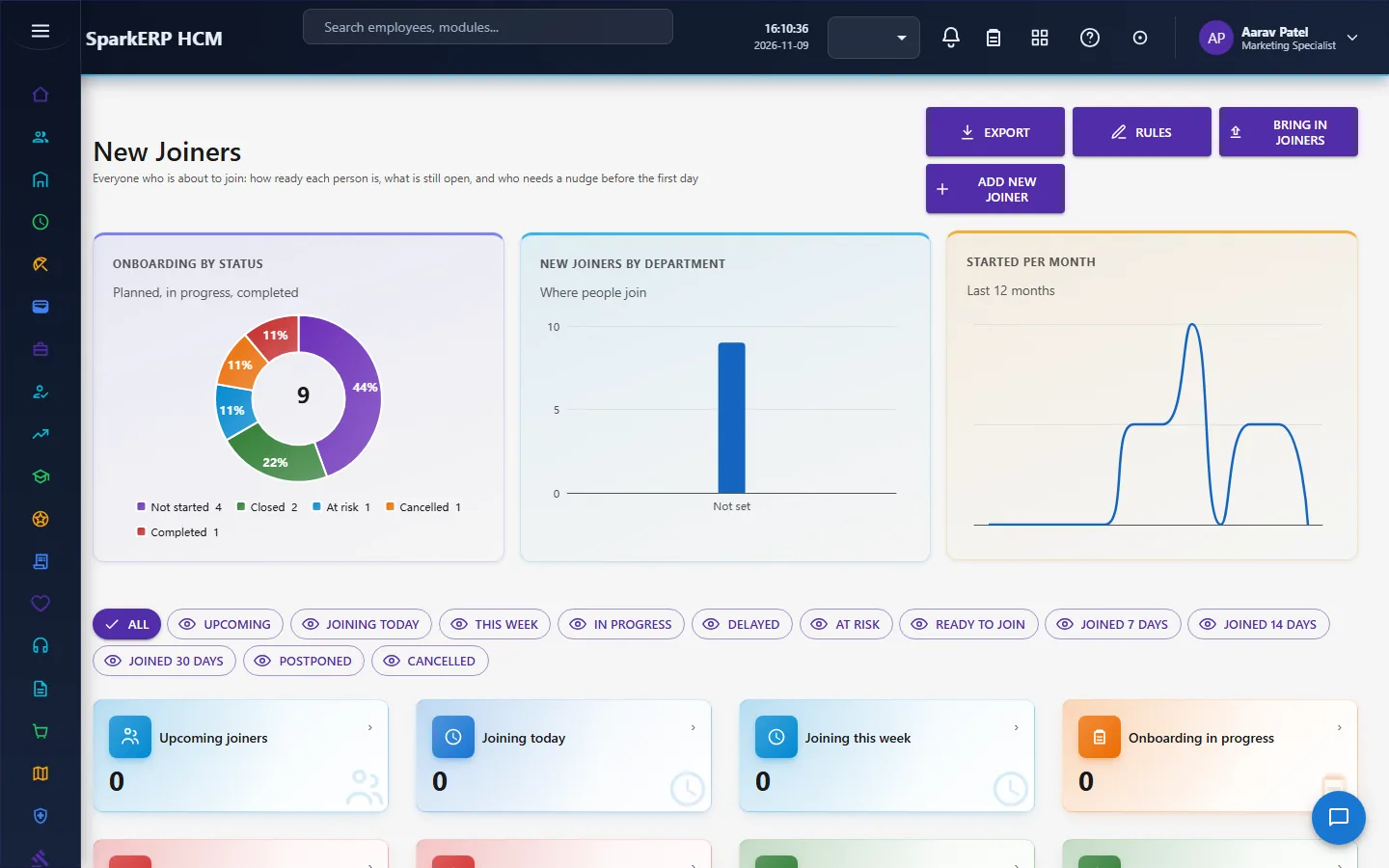
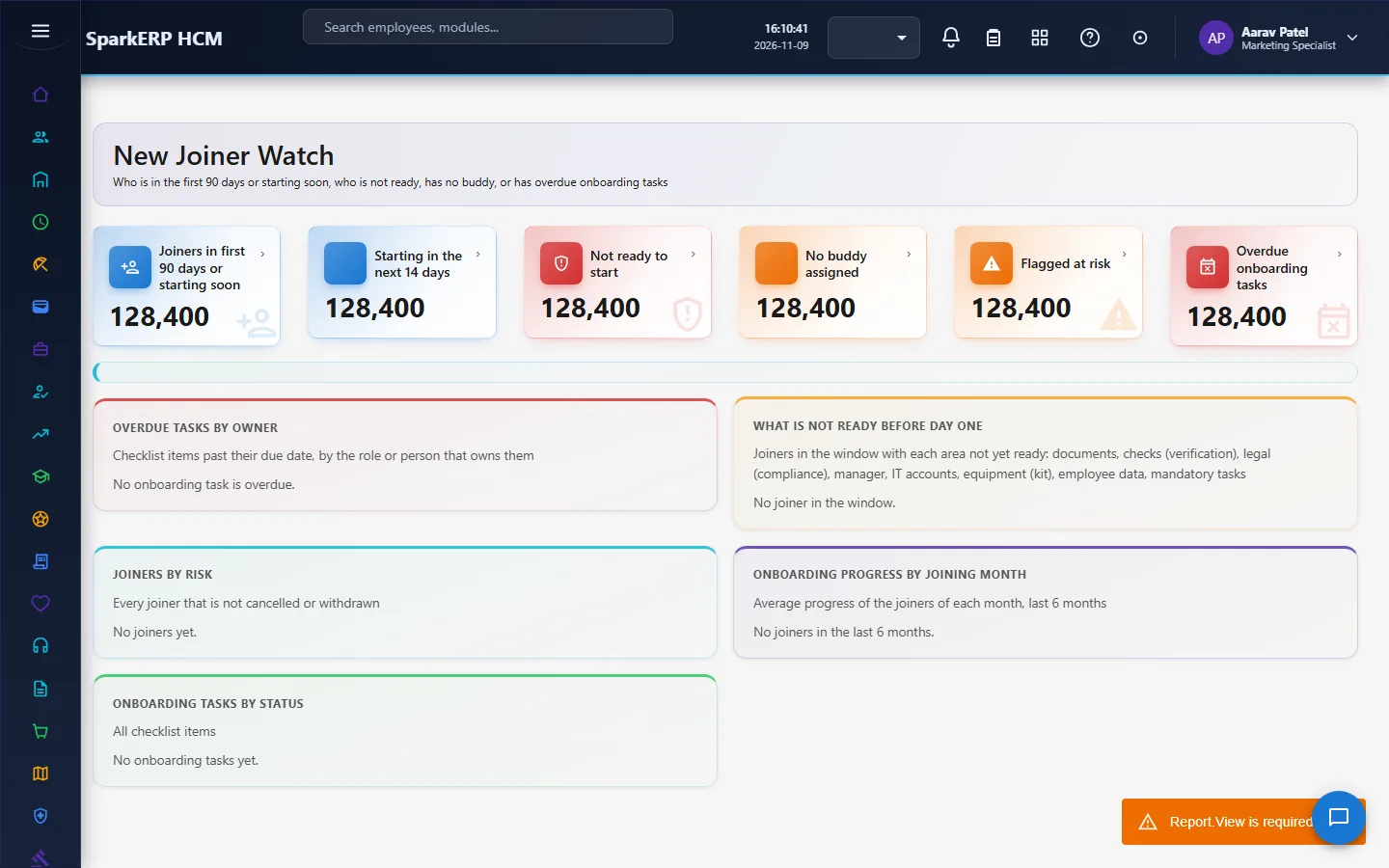
The Onboarding Dashboard shows who is joining, who is ready and what is late. New Joiners is the working list, with the status, readiness, risk and the blockers of each person. New Joiner Watch lists the joiners that need attention.
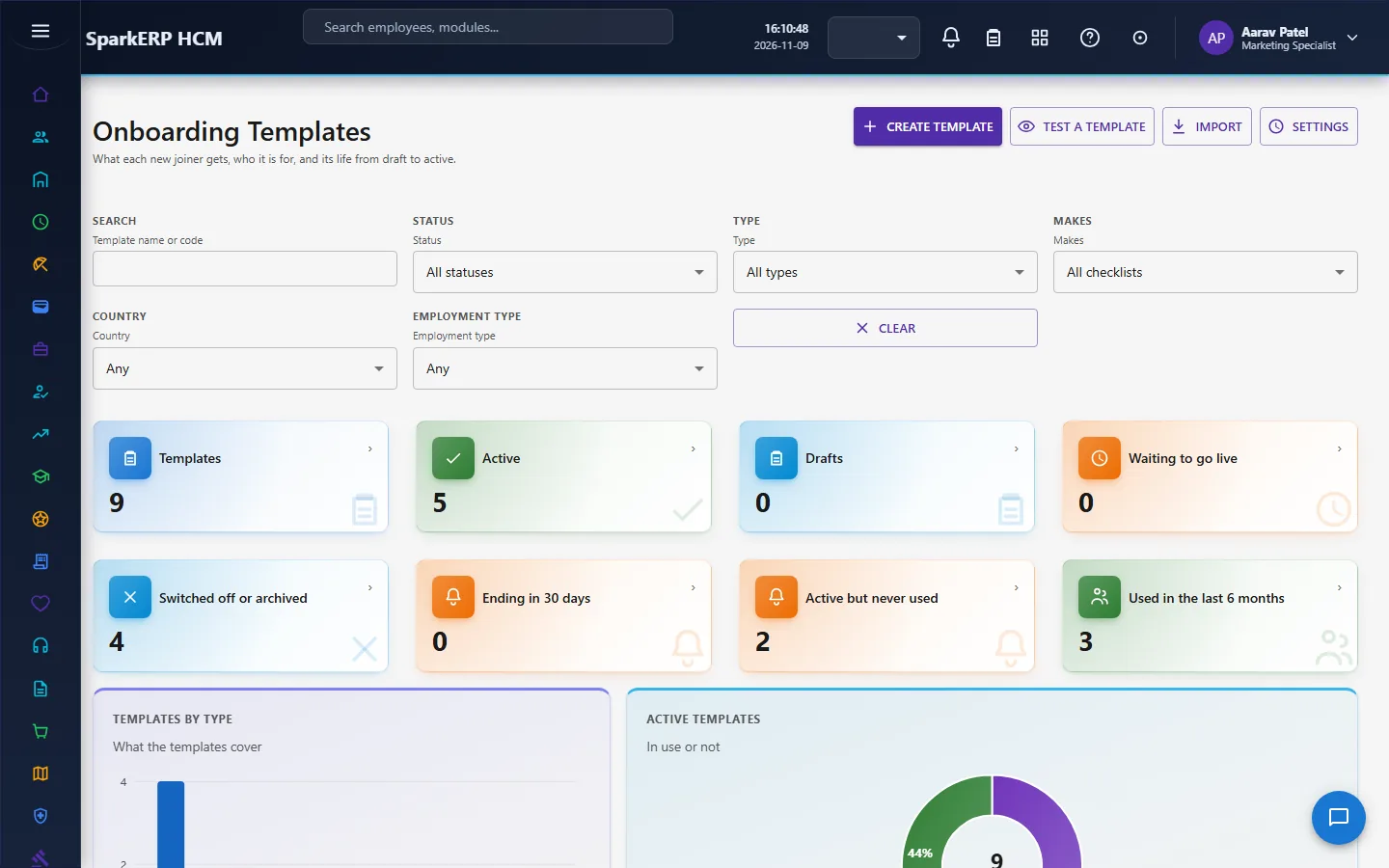
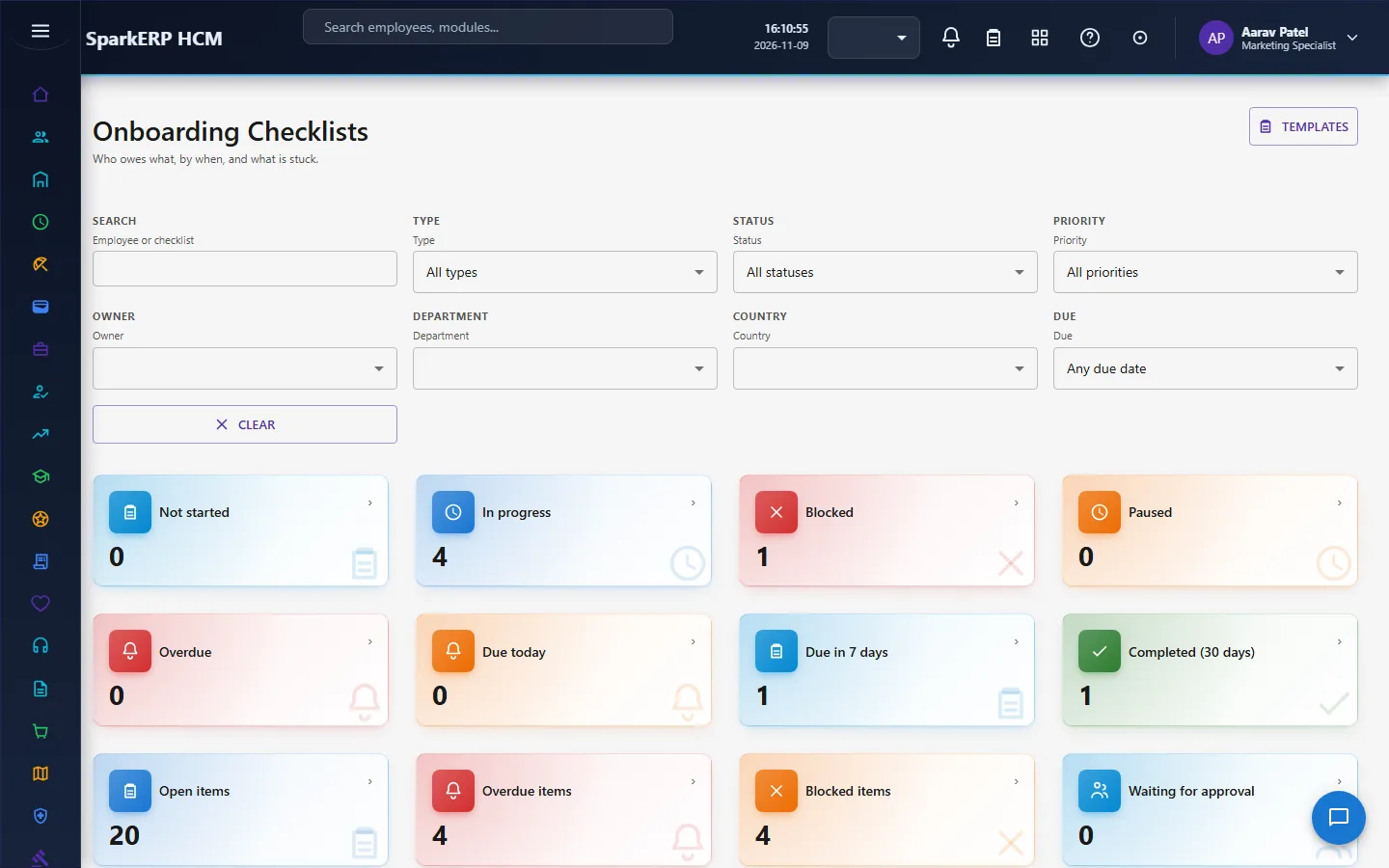
Templates and Checklists build and follow the work.
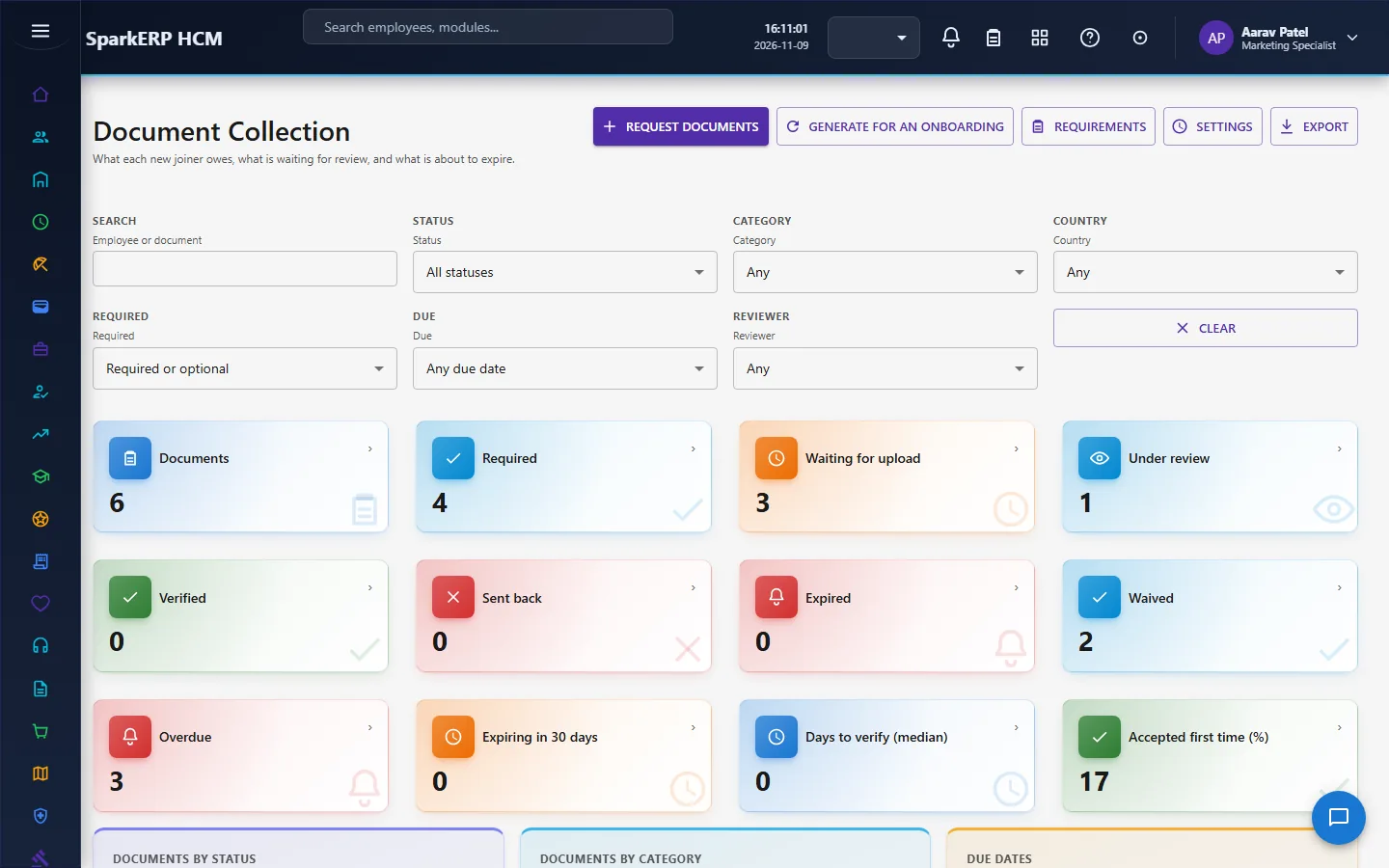
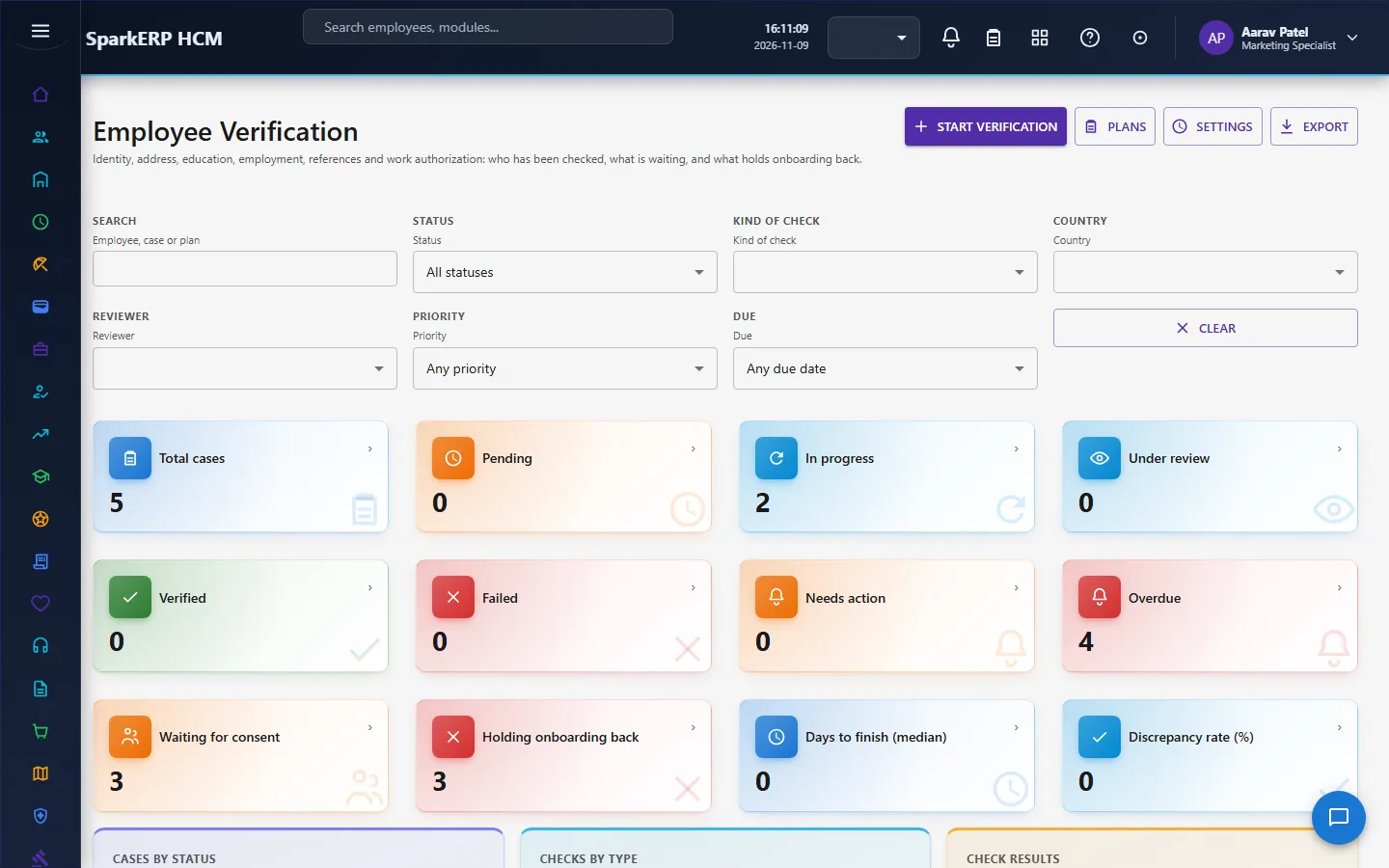
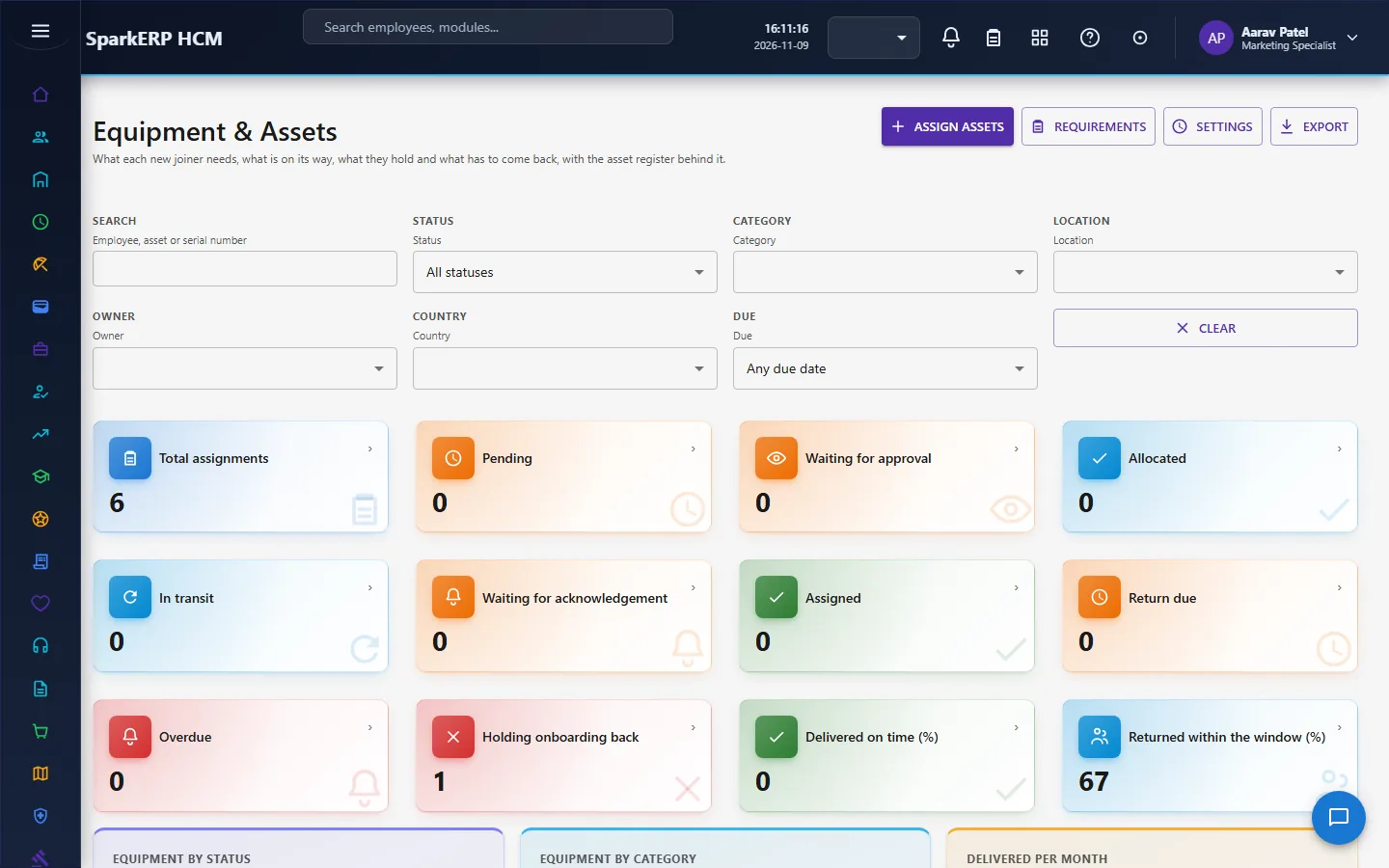
Document Collection, Employee Verification, Equipment & Assets and Account Provisioning are the four areas of readiness.
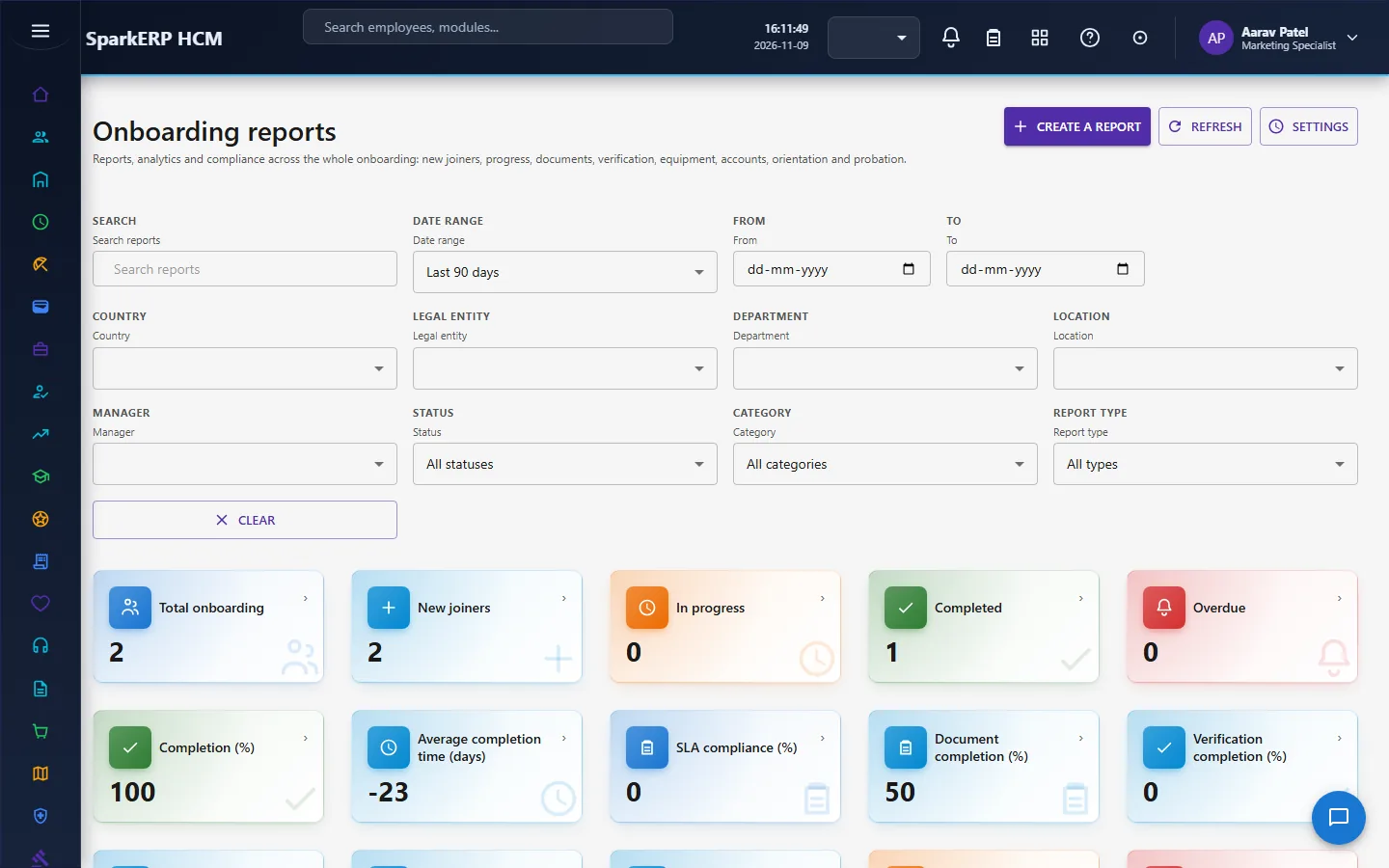
Orientation, Probation and Reports complete the picture.
4. Decide before you set up
| Decision | What to think about |
|---|---|
| Which areas must be complete before day one | The defaults are employee data, documents, compliance and tasks. Add IT, assets, verification or manager preparation if you need them ready on day one. |
| Weights and thresholds | Area weights, the at-risk, high-risk and critical days, the delayed grace days. |
| Reminders | The days before joining and after a miss; when to escalate. |
| Automatic joining | Whether ready joiners are activated on their day by themselves (off by default). |
| Date changes | Whether moving a joining date needs approval. |
| Templates | One global template, then specific ones by country, department or job. |
| Documents | The tenant's own required documents, besides the country pack's. |
| Verification plans | Which checks, which need consent or a provider, who reviews. |
| Equipment bundles and delivery | By job and location. |
| Account plans | Which accounts, and which are privileged. |
| Orientation and probation | The program, the probation length, milestones, extension limits, who approves. |
5. Set up step by step
- Settings. Set the area weights, required areas, risk days, reminder days, escalation, automatic joining and the date-change approval.
- Roles. Give the onboarding roles to the people who run each area. Template, checklist and date-change approvals go to HR Administrator or HCM Administrator.
- Country pack. Install the country pack, because its documents, compliance rules and checks are read as they are.
- Templates. Build a global template first. Add specific ones with conditions, and use inheritance for the small differences. Publish; the publication goes through an approval.
- Documents. Add your own document requirements.
- Verification plans. Build and publish the plans (a published plan never changes; a new version replaces it).
- Equipment. Create the requirements and bundles, and make sure the Assets module holds the stock.
- Accounts. Create the account plans and bundles, set up the provider connectors, and name who approves privileged access.
- Orientation. Build the programs and the dated cohort sessions.
- Probation. Create the probation policies with milestones, limits and the approval chain; set the letter templates.
- Reports. Decide who sees which report.
- Trial. In a trial tenant generate the Onboarding demo pack and follow one joiner from onboarding to joined.
6. Daily use
6.1 A joiner is added and onboarding starts
- Open New Joiners and add the joiner (or let recruitment, an offer or pre-joining create it).
- Start onboarding. Check the plan and the template that were chosen.
- Review the generated checklist, document requests, equipment and accounts.
6.2 The work gets done
- Owners complete their checklist items; approvers decide the items that need approval.
- The joiner uploads documents; reviewers verify or reject them.
- Verification checks are consented, evidenced and reviewed.
- Equipment is requested, approved, issued and acknowledged. Accounts are approved and provisioned.
- New Joiner Watch shows who is at risk or late. Use remind to nudge an owner.
6.3 Day one
- When every required area is complete the joiner becomes ready. If something is missing and cannot be fixed, record an authorised exception.
- On the day, mark joined (the employee module activates the person through its own steps), unless automatic joining is on.
- Move the joining date with a reason if the person cannot start; open dues move with it.
6.4 Orientation and probation
- The joiner attends orientation; check in with the code or record attendance by hand.
- The manager and HR complete the milestones and reviews of probation.
- Before the end date, propose the decision: confirm, extend or end. It goes through the approval chain, and the employee record applies it. The letter is made and stored.
7. A calendar of recurring work
| When | What |
|---|---|
| Every day | The status and reminder sweeps run; review New Joiner Watch. |
| Weekly | Review joiners at risk; chase overdue documents, equipment and accounts. |
| Before each start date | Check readiness 7, 3 and 1 days ahead. |
| Day one | Mark joined; confirm accounts and equipment. |
| During probation | Milestones and reviews. |
| Before probation ends | Propose the decision. |
| Monthly | Onboarding reports; template and plan review. |
8. Reports and figures
The Onboarding Dashboard shows who is joining and how ready they are. Onboarding Reports has standard reports and lets analysts author their own, with a compliance view. Orientation and Probation have their own analysis. Lists can be exported.
9. Limits you should know about
- Onboarding does not hold your inventory or any secret. Assets stay in the Assets module; passwords are never stored.
- The country rules come from the country pack. Onboarding adds none of its own.
- Probation decisions are applied by the employee record's own workflow, not by Onboarding.
- A published verification plan never changes. Running cases keep the version they were made from.
- Meeting links and calendar events need a provider connector.
- A joiner you mark joined needs the employee module's own joining steps to complete.
10. Troubleshooting
| Symptom | Cause and fix |
|---|---|
| A joiner will not become ready | Open the blockers list on New Joiners: it names the area that is not complete. An area that is not required never blocks. |
| The wrong template was used | The scope, priority and effective dates decide. Check which templates fit and their order. |
| A document request appears twice | It should not: each request has a key. Check whether it comes from a different requirement. |
| An account is stuck | Look at the account job: a retryable failure waits for its back-off; after the attempts it is in the dead-letter list for a person to resolve. |
| An item cannot be completed | A task it depends on is open, or evidence is missing or not reviewed. |
| A reminder was not sent | Each reminder is sent once on its day; check the reminder days setting. |
| The joining date change is waiting | The tenant requires approval; the HR Administrator decides within three days. |
| A manager cannot open New Joiners | It is a planner screen; managers use Probation for their own people. |
| An employee cannot see a screen | The role does not run that screen. |