
Appearance
Learning & Development (HCM): from setup to daily use
Learning & Development (L&D) is where HR publishes courses, assigns and tracks learning, runs assessments, manages certifications and sees where skills fall short. The module keeps one record per person per learning item, so the same data feeds the dashboard, the lists and the charts.
1. Who uses it
| Role | What they do |
|---|---|
| Learning administrator (HR) | Builds the course catalog, programs and paths, registers providers and instructors, assigns learning, marks assessments, reviews the reports. |
| Manager | Requests training for the team and follows team progress. |
| Employee | Sees assigned learning, completes it, takes assessments, holds certifications, asks for training. |
2. Before you start
- Installed plugins.
hcm-learning(pages and data), which needs HCM Foundation and Employee. It is the free tier, so no licence feature has to be granted. - Access. A tenant administrator can open every screen. Other people need an HCM role that includes Learning.
- Employees. Learning is assigned to employee records, so people must exist in Core HR first.
- Trial data. In a trial tenant, generate the Learning pack in Demo Data. It creates courses, programs, providers, enrolments over a year, assessments with attempts, certifications and skills, so every chart has something to show.
3. Set up
Do these in order, once.
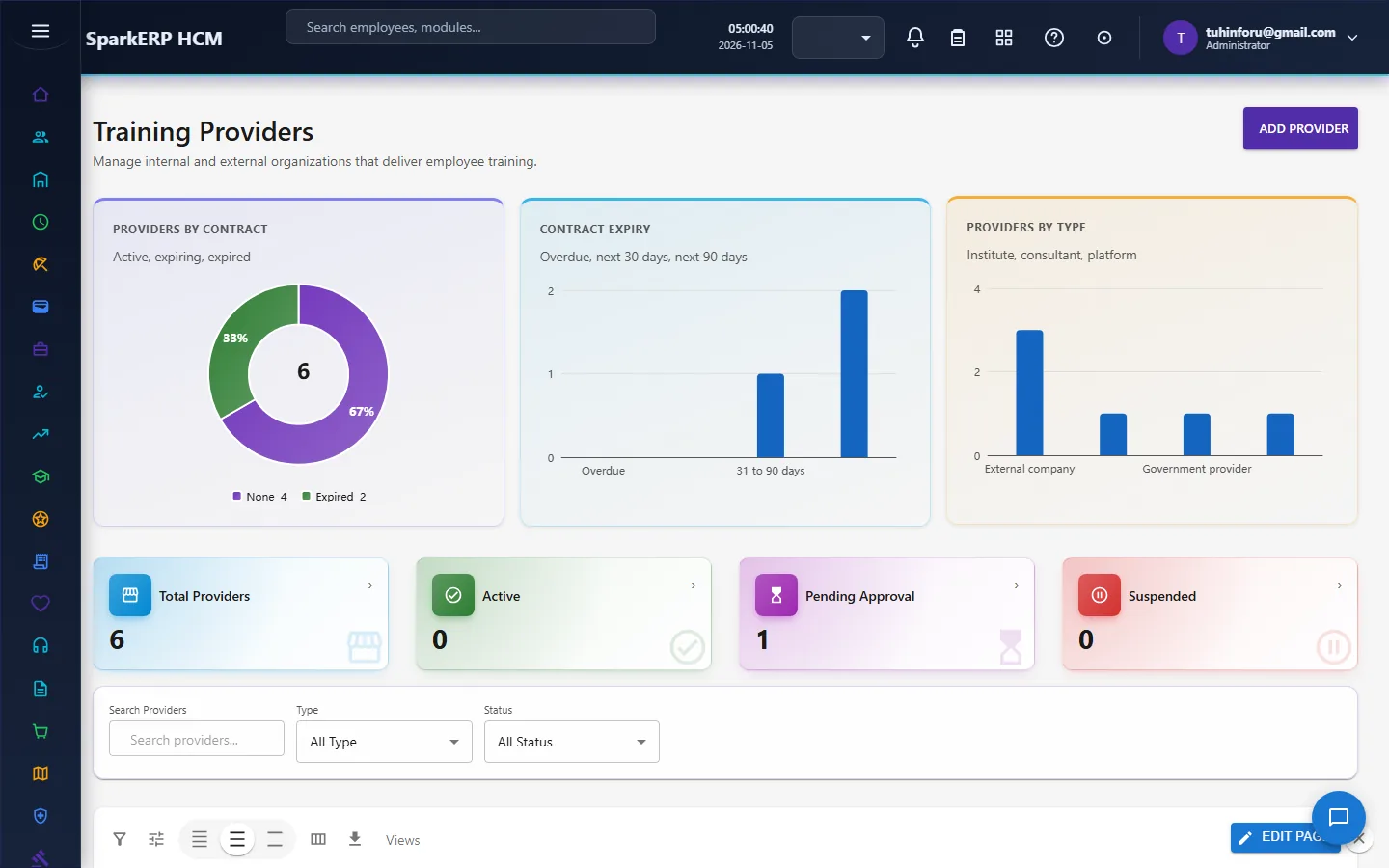
Training providers and instructors. Register who delivers training (Training Providers, Instructors), with contract dates so expiries are tracked.
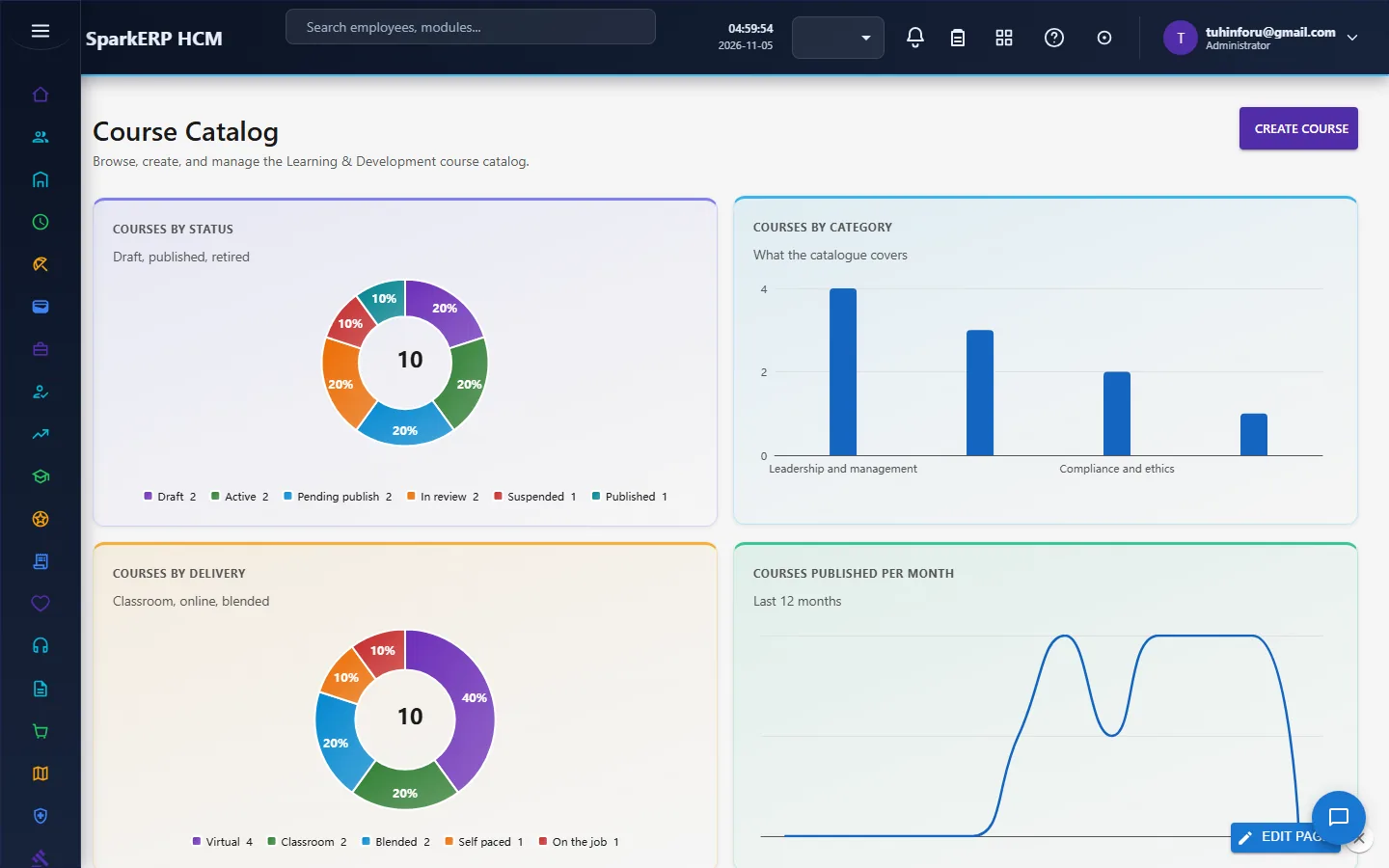
Course catalog. Create each course (title, category, delivery mode, duration, status). A course is usable once it is published.
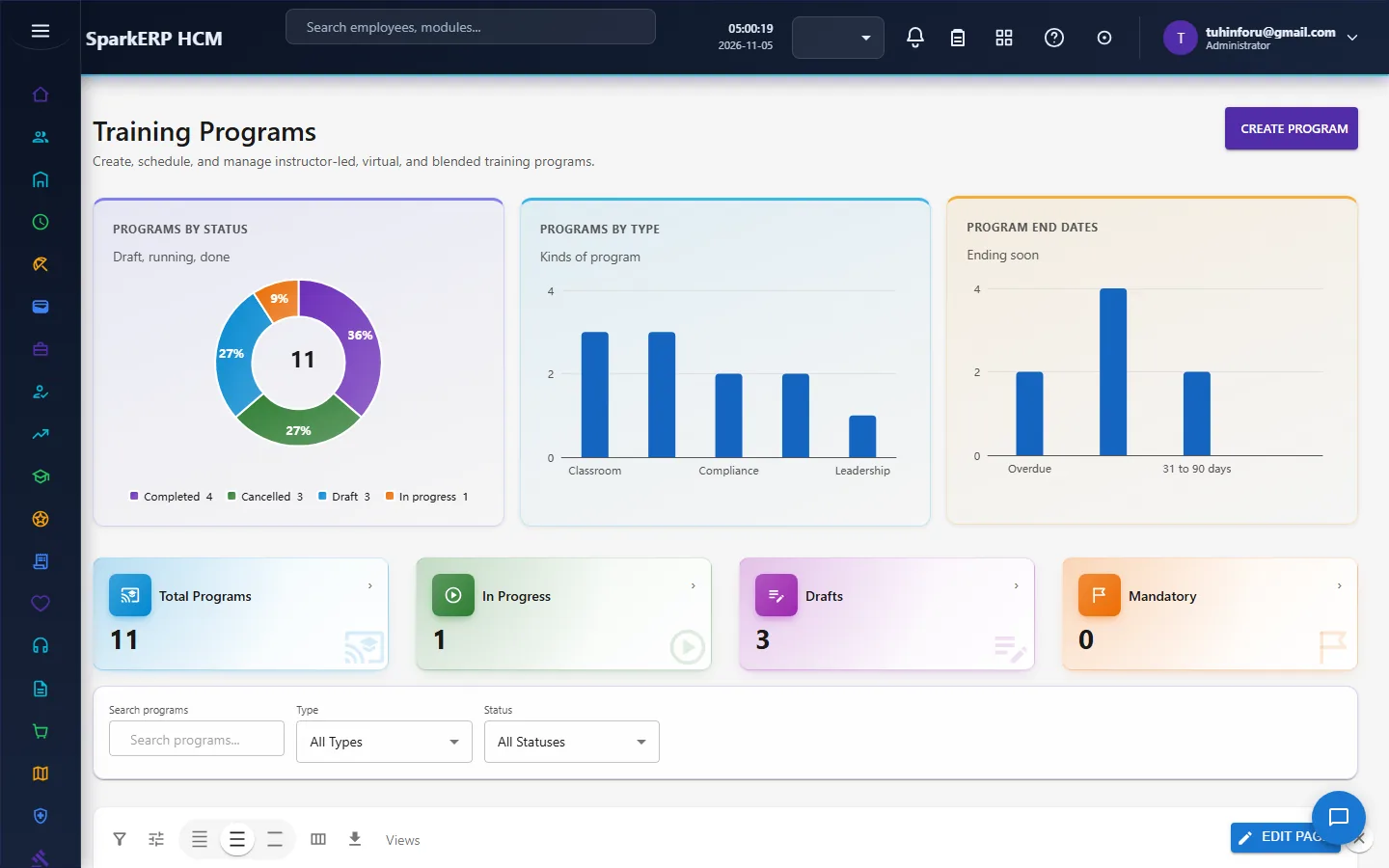
Training programs and learning paths. Group courses into a program or an ordered path for a role or a milestone such as onboarding.
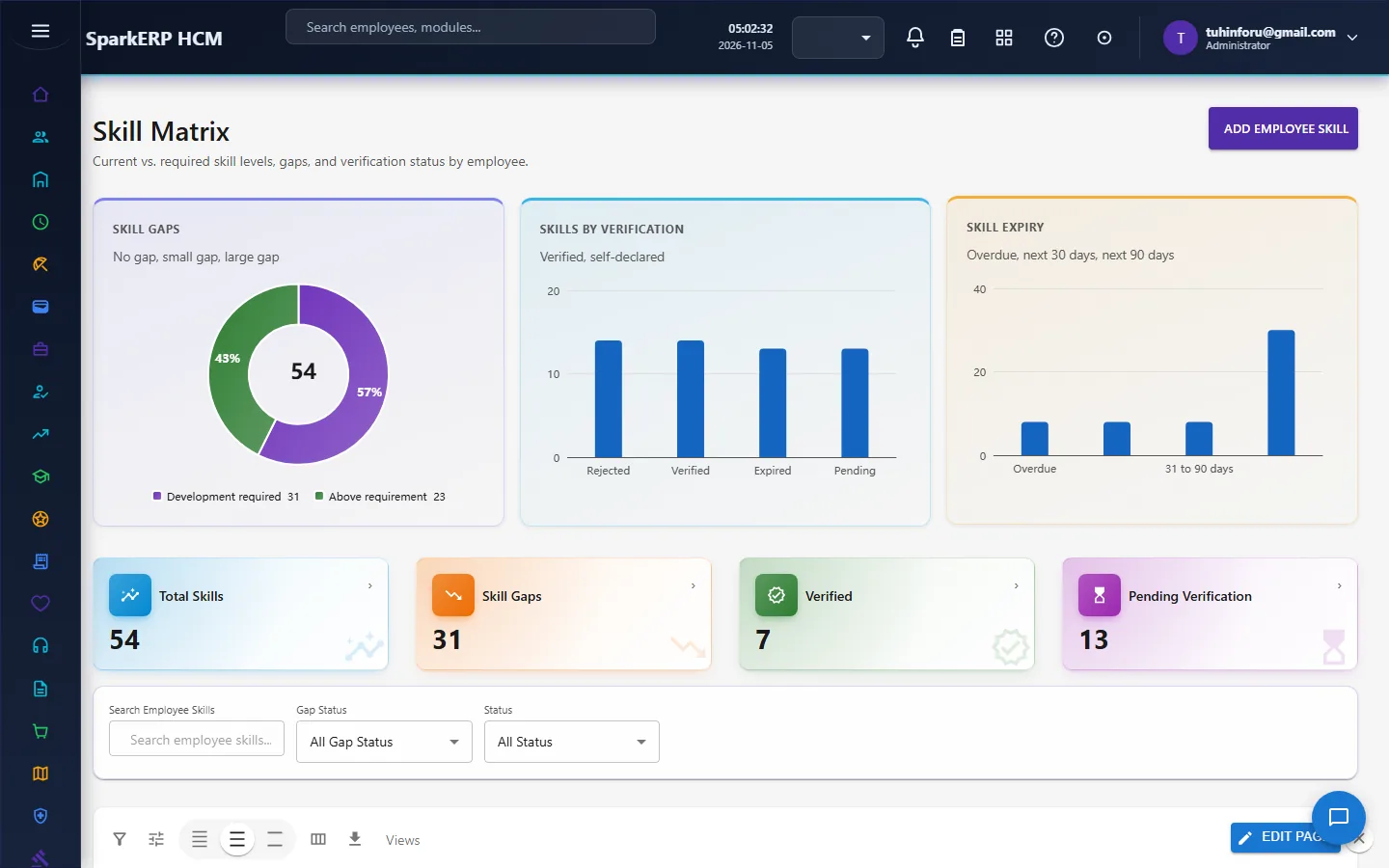
Competencies and the skill matrix. Define the skills the business needs and the level each role should reach; the Skill Matrix compares people with that level.
Training policy settings. Set the tenant defaults (whether training management is on, the default training mode) in HCM Settings.
4. Daily use
4.1 Assign learning and follow it
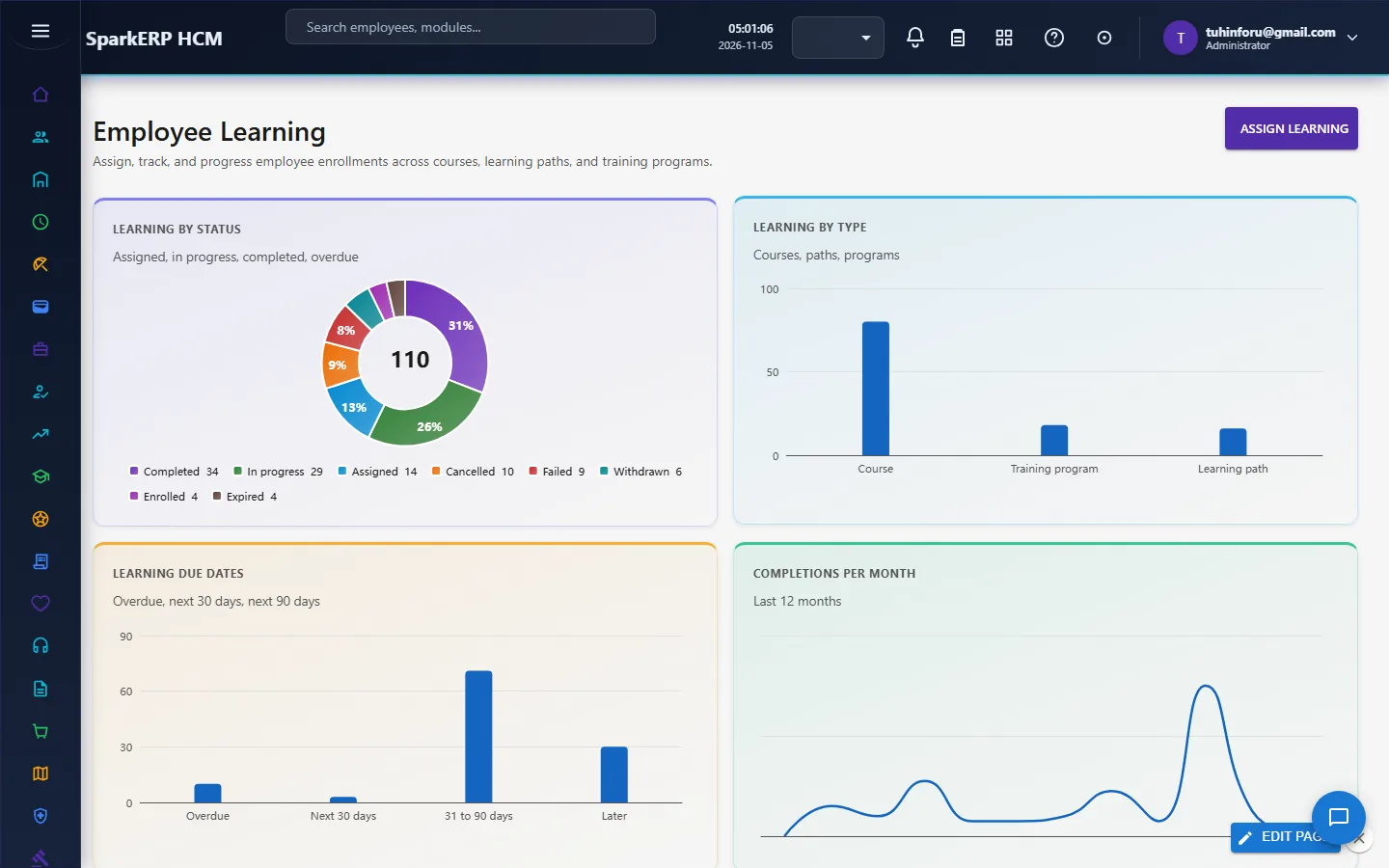
Open Employee Learning and choose Assign learning: pick the person, then a course, program or path, and a due date. The page then shows each record's status (assigned, in progress, completed, overdue, failed, expired) and the charts above the list show the same picture by status, type, due date and completions per month.
4.2 Training requests
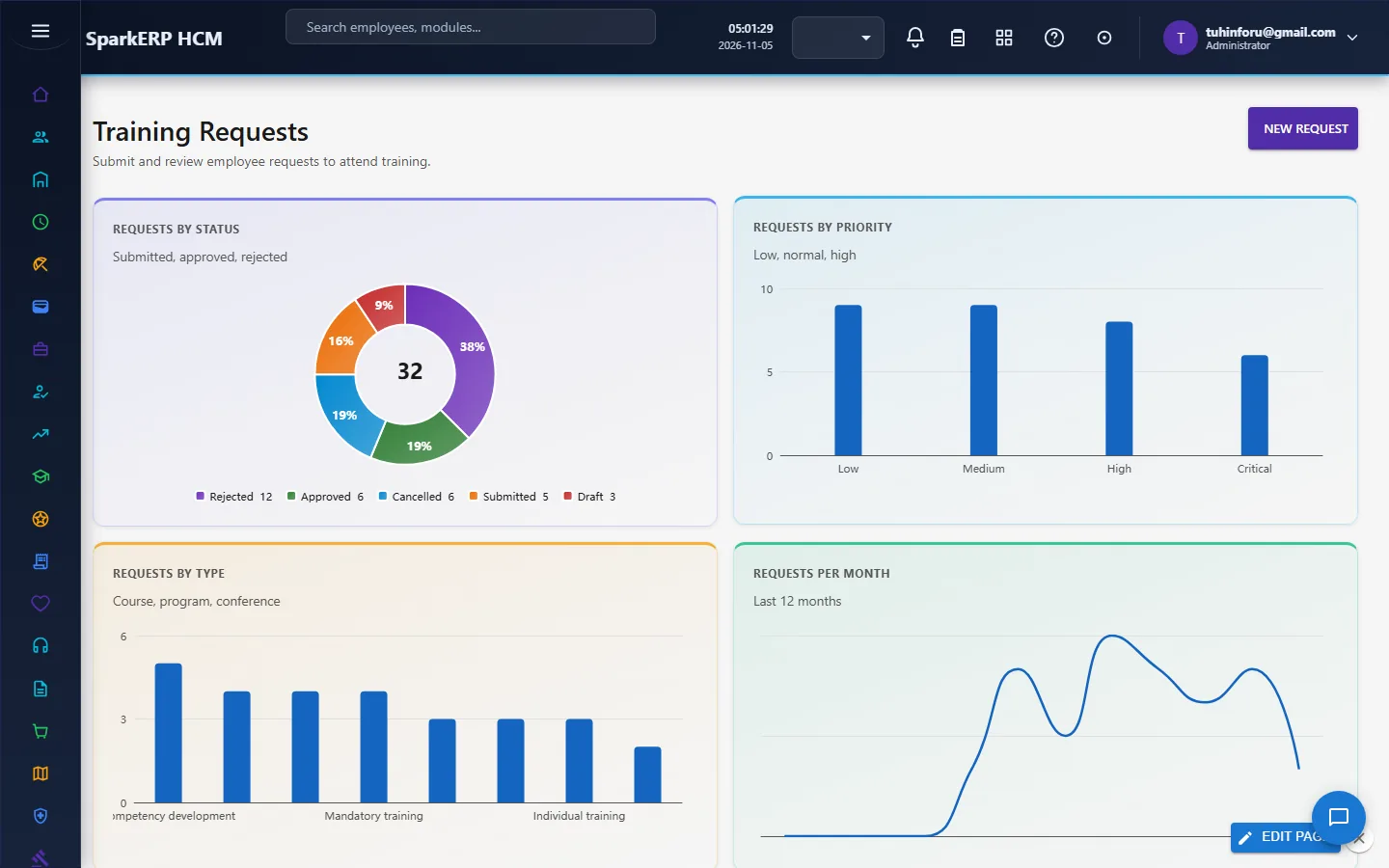
Employees and managers ask for training on Training Requests. HR approves or declines; an approved request becomes an assignment.
4.3 Assessments
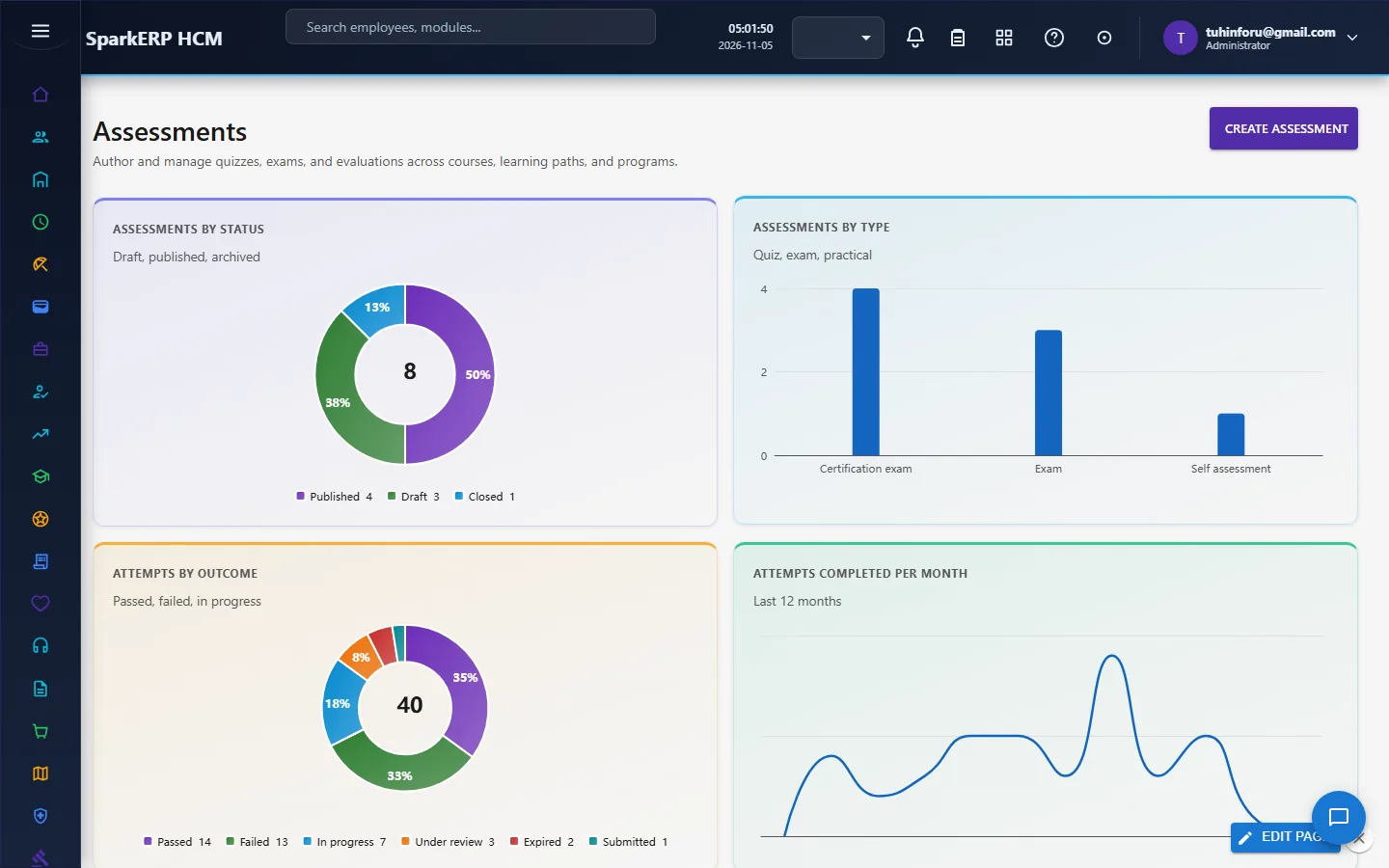
Assessments holds the tests tied to courses, with attempts, scores and outcomes; Assessment Marking is where answers needing a person are marked, and Quiz is the learner's view.
4.4 Certifications
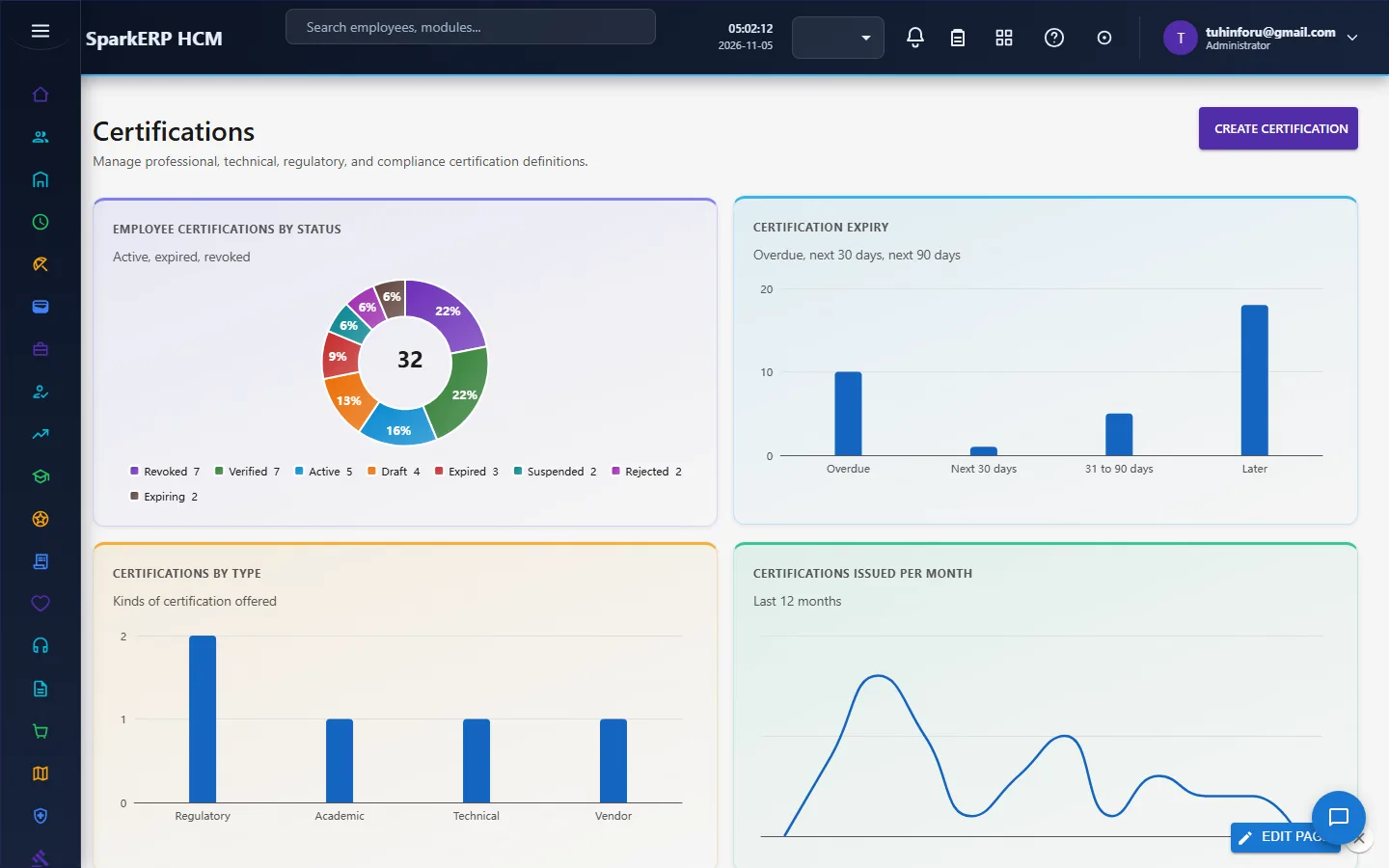
Certifications tracks who holds which certificate, its issue and expiry dates and its verification state. The expiry horizon chart shows what is overdue, due in 30 days and due in 90 days, so renewals can be assigned in time.
4.5 Calendar
Training Calendar lists scheduled sessions with dates and places; the dashboard shows the next ones.
4.6 Training budget and spend
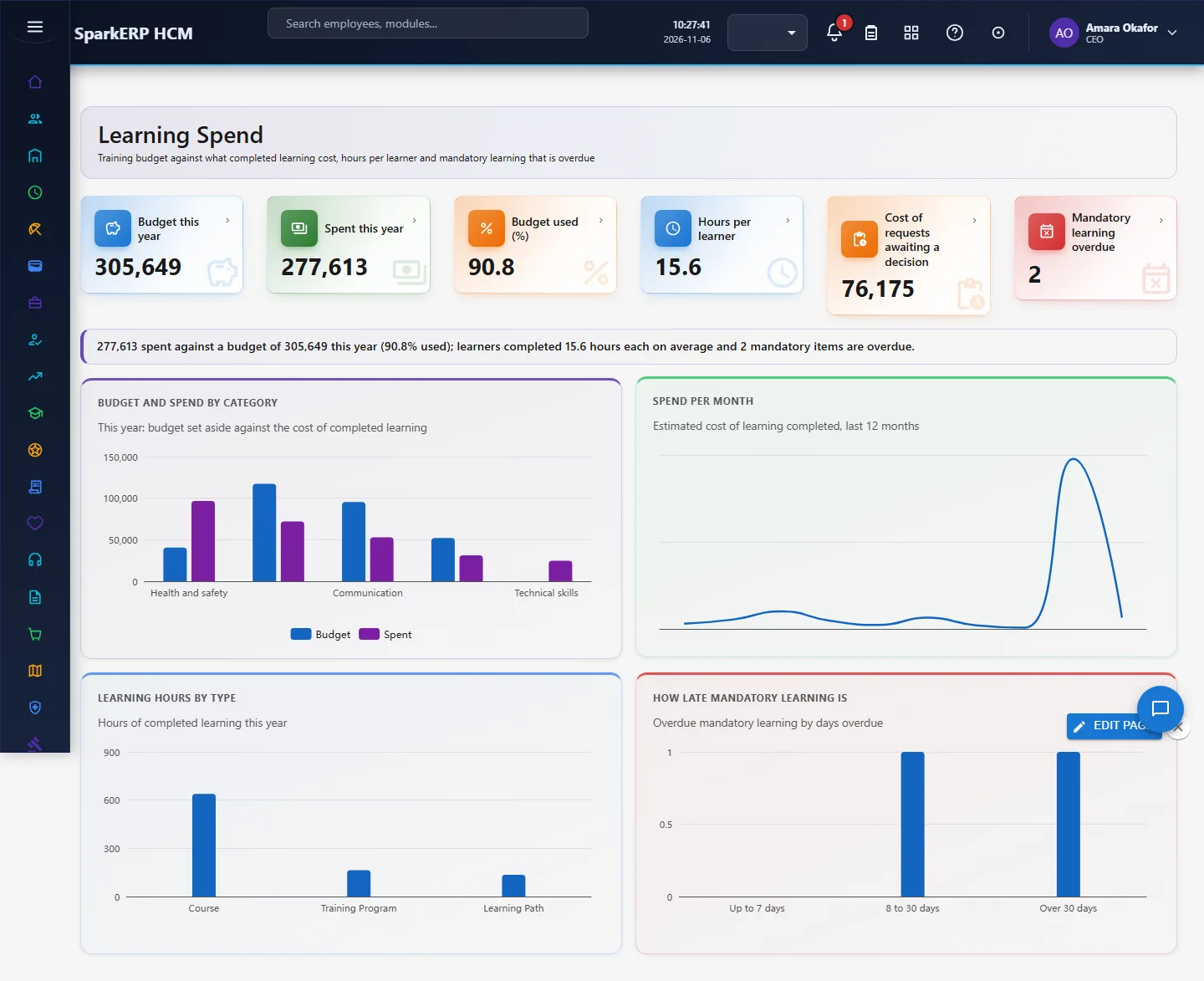
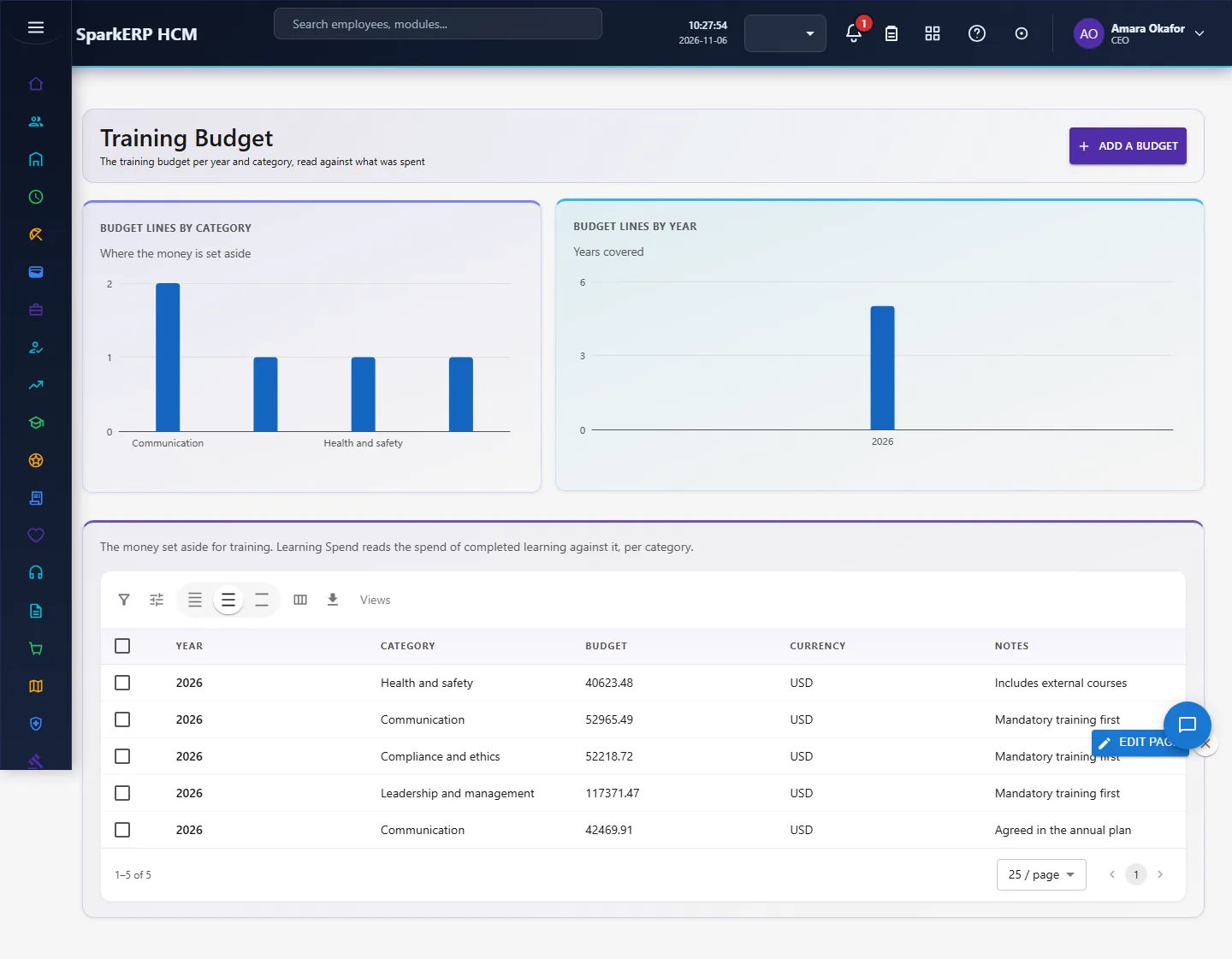
Set the money aside under Training Budget: one row per year and course category (leave the category empty for a budget that covers all learning). Learning Spend then reads it against what completed learning cost this year (the estimated cost entered on each course), shows spend per month, learning hours per learner, the cost of training requests still awaiting a decision, and how late mandatory learning is.
4.7 Reminders about expiring certifications and overdue learning
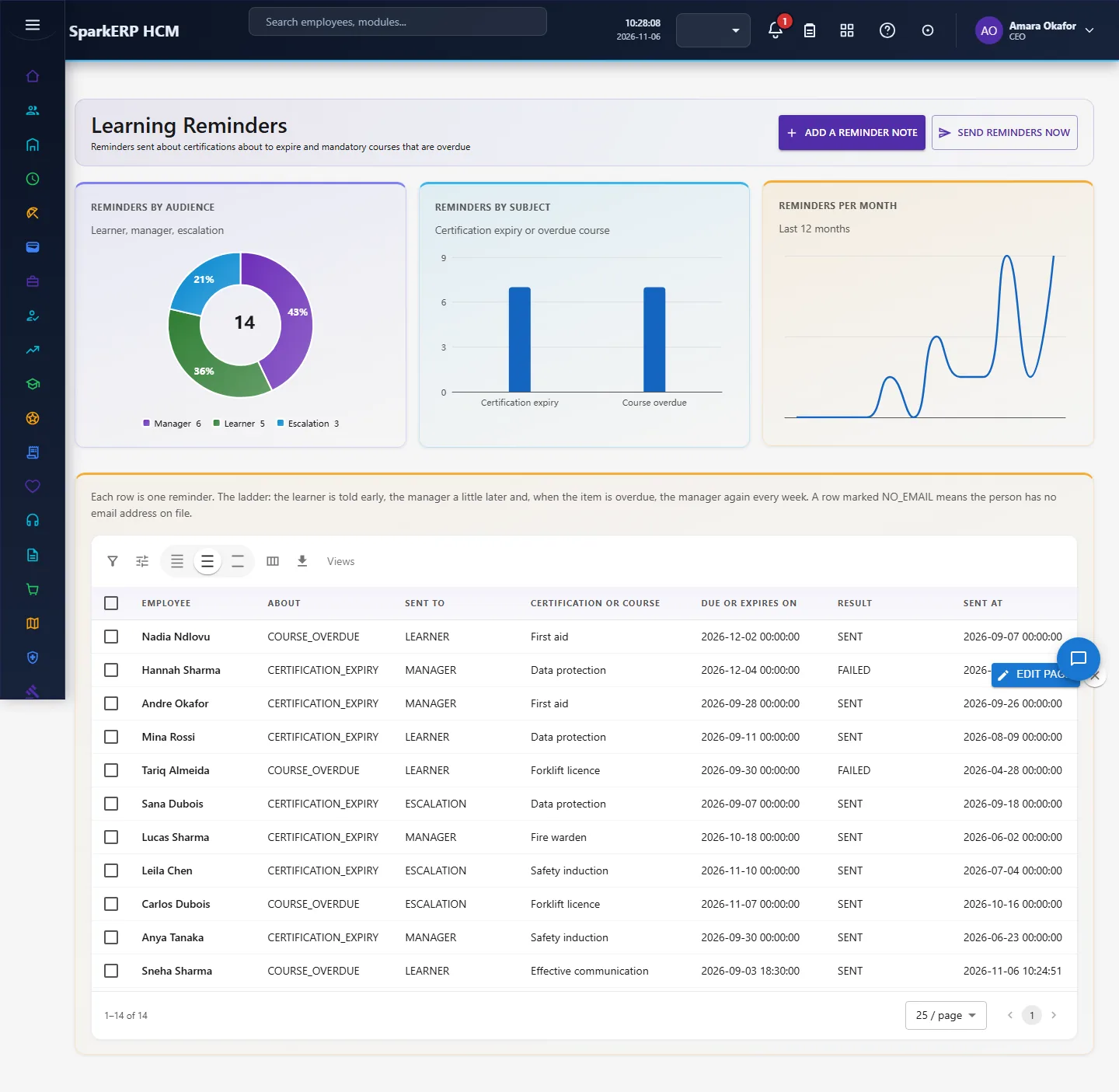
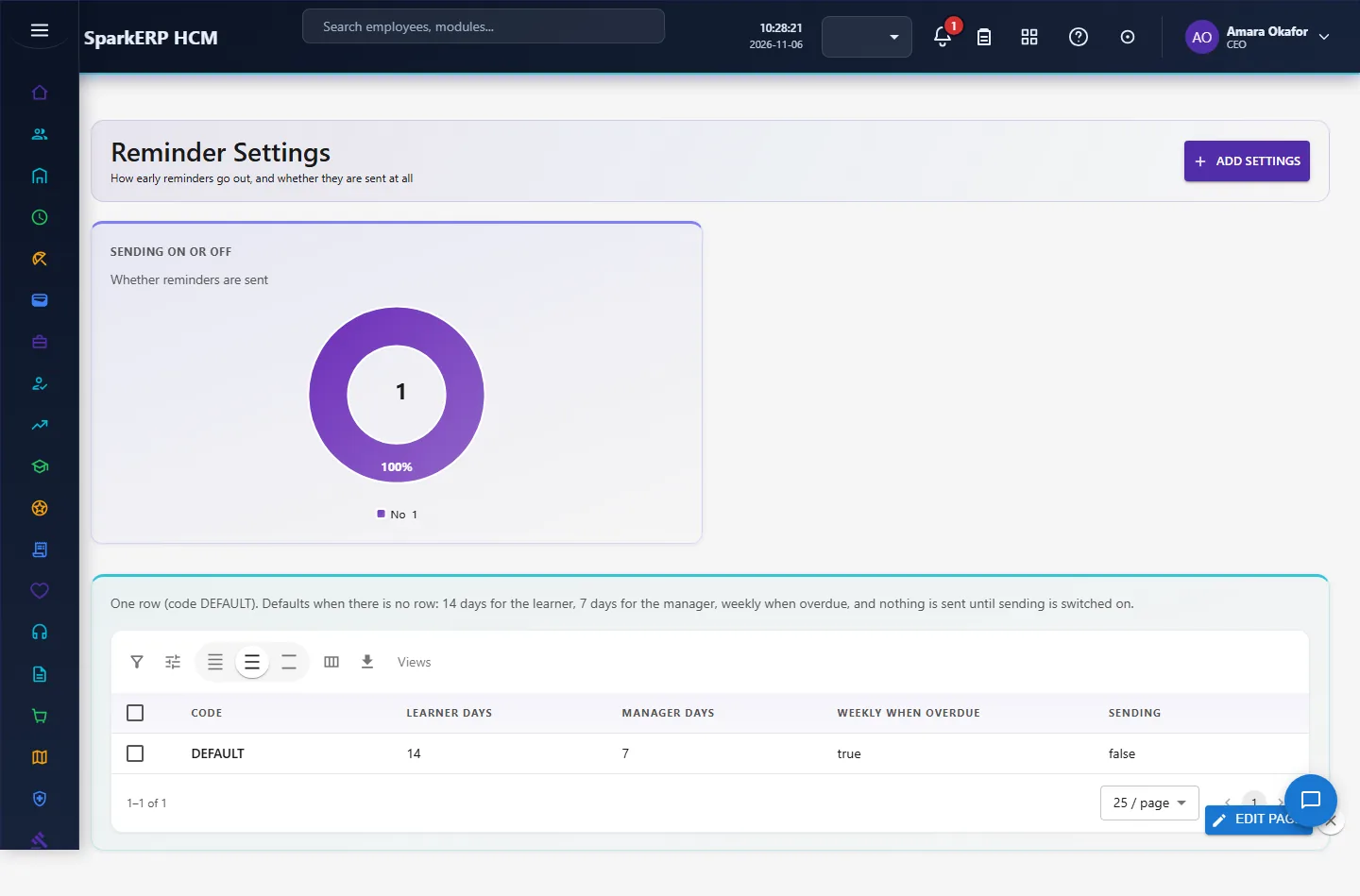
Reminders follow a ladder: the learner is told 14 days before a certification expires or mandatory learning is due, the manager 7 days before, and when the item is overdue the manager is told again every week (for up to 90 days; older items are an HR matter). Open Reminder Settings to change the days, to stop the weekly chase, and to switch sending on (it is off until you do). Send them now with Send reminders now on Learning Reminders, or switch on the daily job "Daily learning reminders" under Jobs (it runs at 07:00).
Each reminder is written to the log on Learning Reminders, with who it went to and the result (SENT, NO_EMAIL when the person has no email address, FAILED). The log also stops the same reminder being sent twice. Email goes through the tenant's own provider set up in the Integration Designer; the module sends nothing itself.
5. Charts and reports
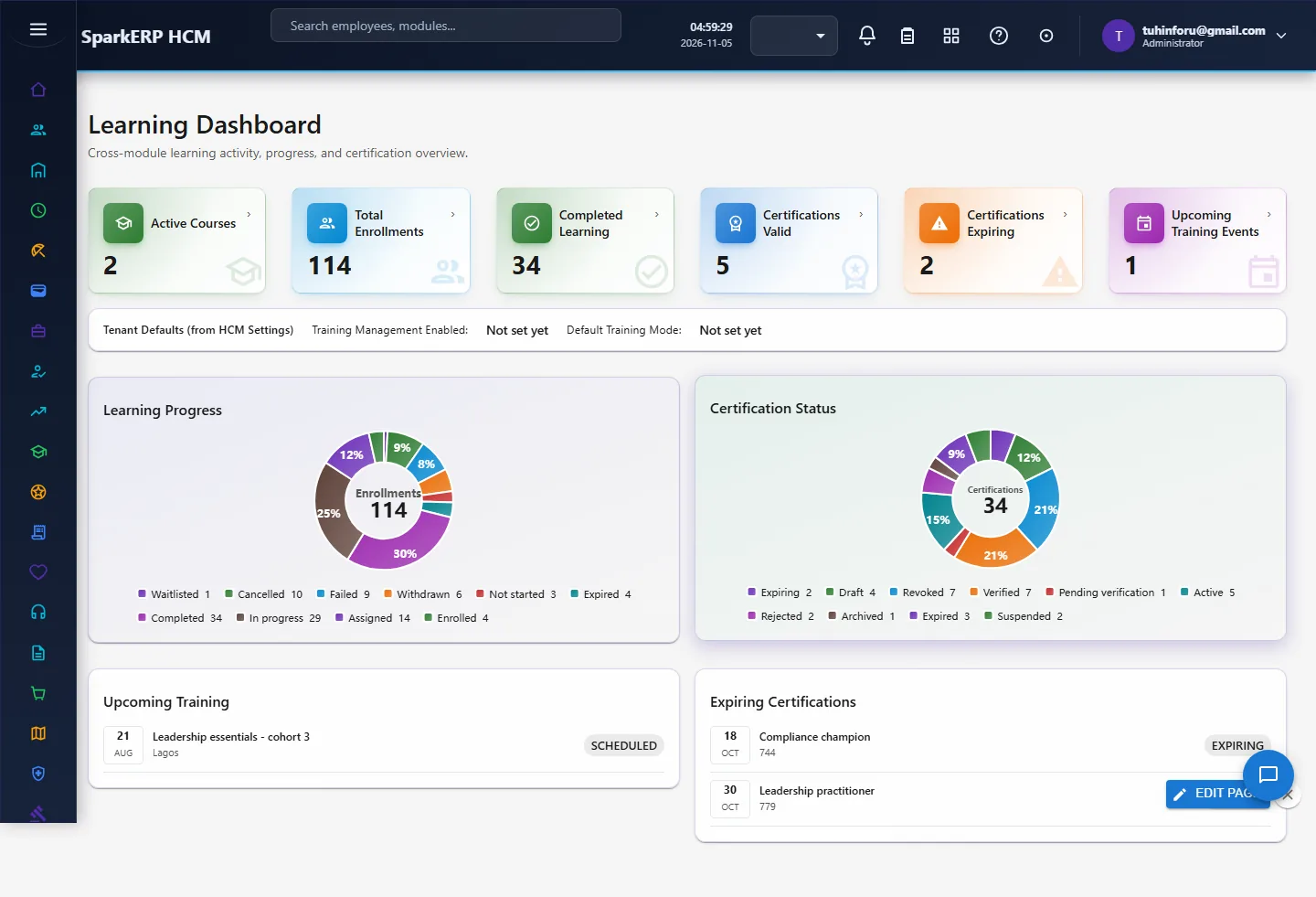
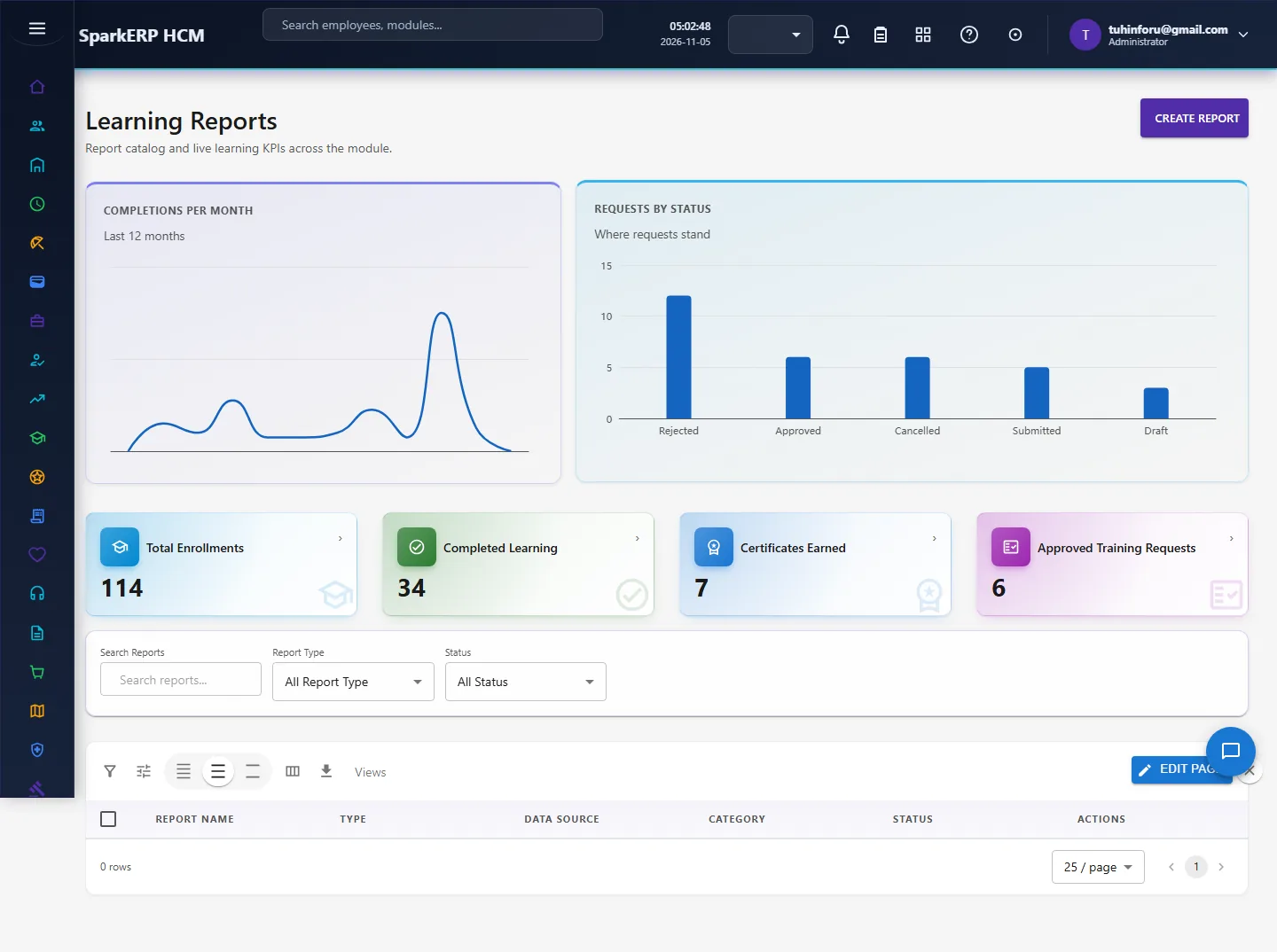
The Learning Dashboard shows active courses, enrolments, completed learning, valid and expiring certifications and upcoming events, with progress and certification donuts. Every list page opens with two to four chart cards for what it lists (see Learning Charts). Learning Reports gathers the analysis in one place.
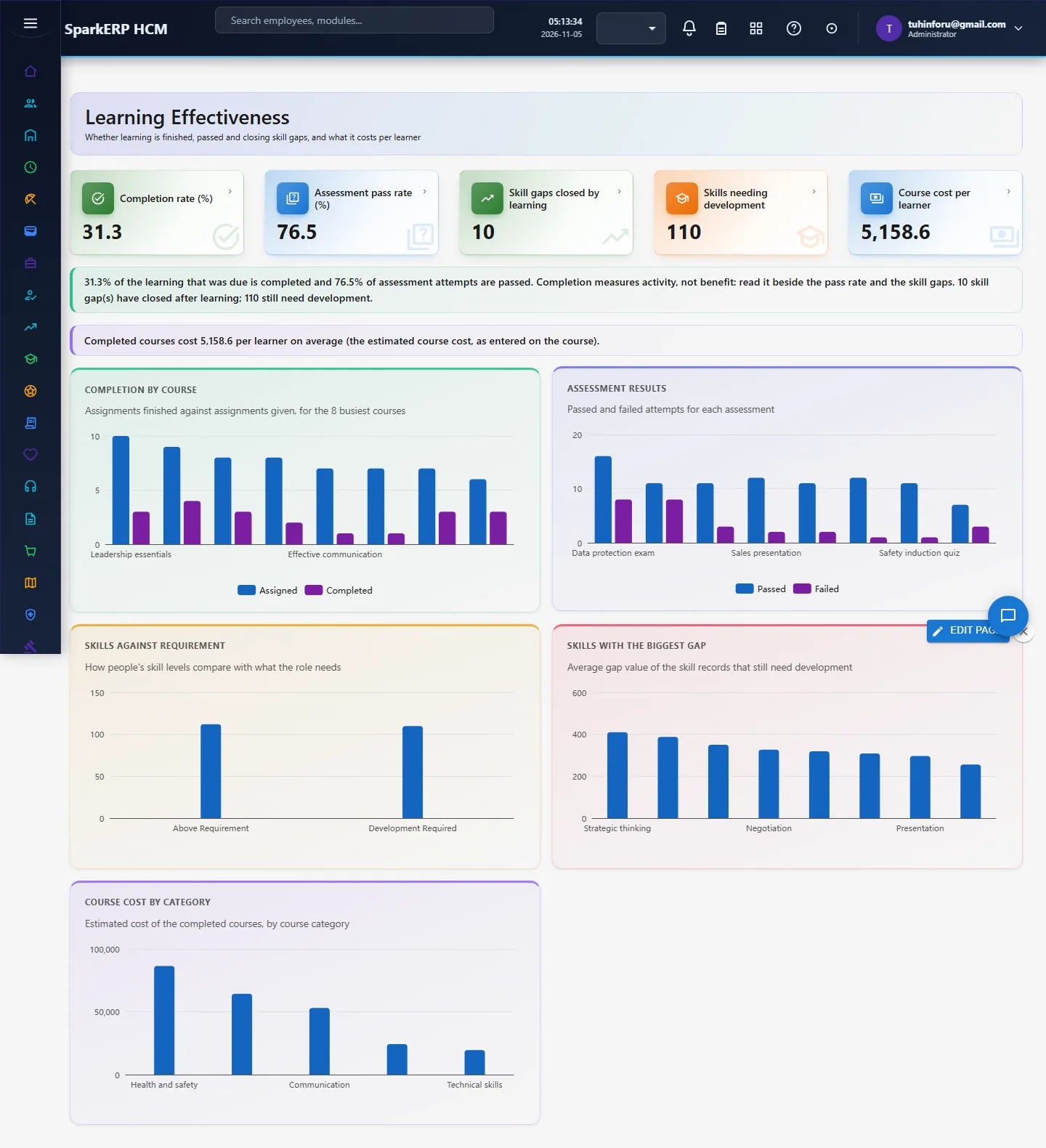
Learning Effectiveness answers whether learning is working. Two definitions from L&D practice: completion rate is completions divided by enrolments, and it measures activity, not benefit, so it sits beside the assessment pass rate, the skill gaps closed by learning (a skill that was below the level the role needs before learning and reaches it after) and the skills still needing development. The course cost per learner is the estimated cost entered on each completed course divided by the learners. Charts show completion by course, assessment results, skills against requirement, the skills with the biggest gap and course cost by category.
6. On a phone or tablet
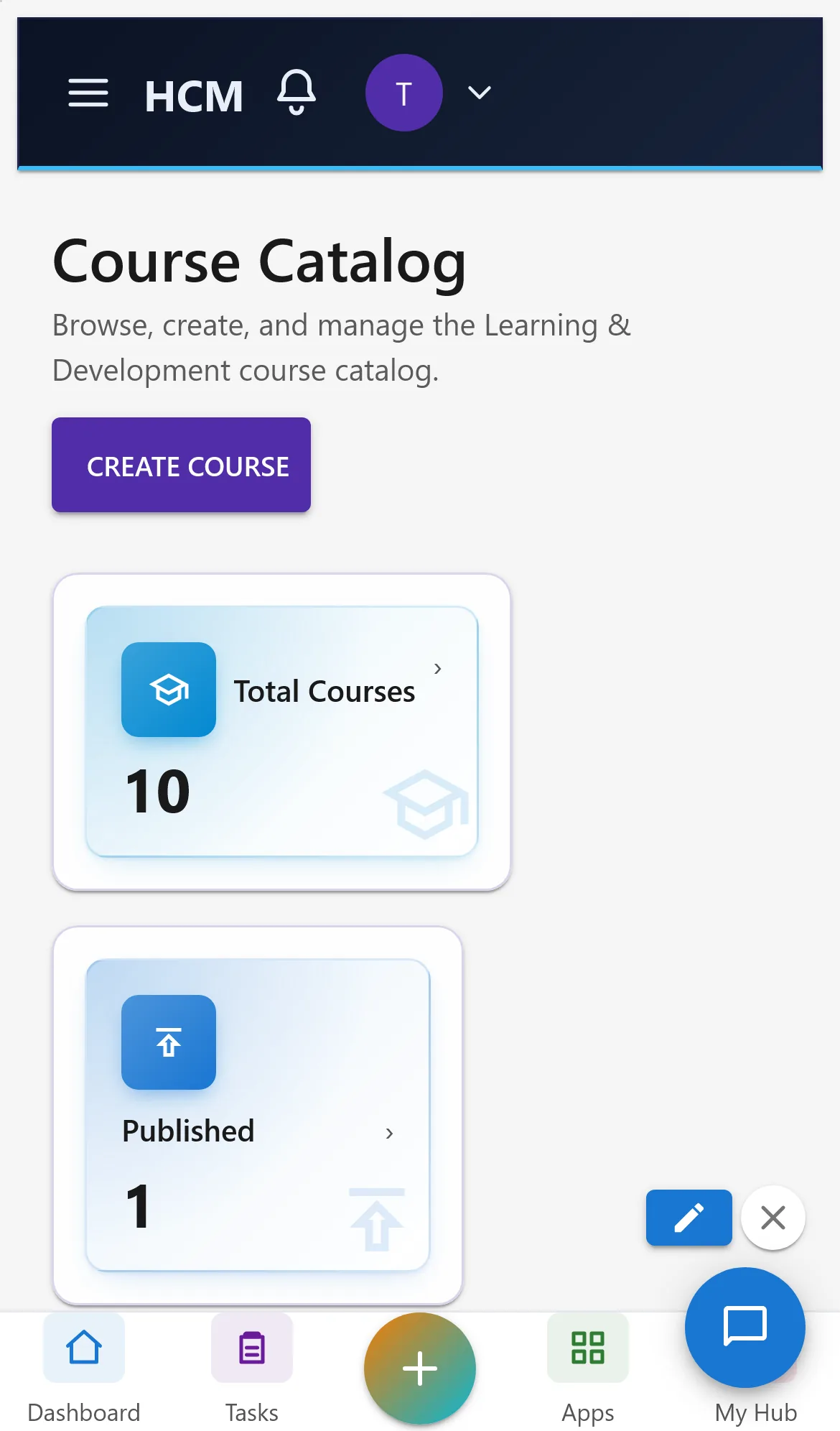
Every Learning screen opens on a phone: tiles and charts stack one per row, lists scroll sideways inside their card and dialogs fit the screen.

7. Rules and limits
Learning is tied to employee records; a person without one cannot be assigned anything.
The charts read all records, so a list filter does not change them. The current month is partial, so a trend can dip at its right end.
Not built yet: content hosting for standard e-learning packages, and a measure of behaviour change or business results (the higher levels of the Kirkpatrick model need data from outside this module).
The "Tenant Defaults" strip on the dashboard reads "Not set yet" until training settings exist. On a phone the first dashboard tiles are narrower than the screen.
Spend is the estimated cost entered on each course for learning completed this year; actual invoices are not read. Spend is shown by course category and learning type because departments belong to the Organization module.
Reminders use the email address on the employee record; budgets are compared in one currency as entered.
8. Troubleshooting
| Symptom | Cause and fix |
|---|---|
| A chart reads "Nothing to show yet" | No records of that kind exist. Generate the Learning demo pack in a trial tenant, or enter data. |
A donut shows a raw text like hcm-learning.... in its centre | Seen on version 1.0.65 and earlier; fixed in 1.0.66. Update the plugin. |
| A person cannot be chosen when assigning | They have no employee record, or are not active. Check Core HR. |
| "Published" shows 0 while courses exist | The courses are still drafts. Publish them in the Course Catalog. |
| Learning Effectiveness says "Report.View is required" | The login lacks the Report view permission; ask an administrator. |
| A course shows as "Not set" in the completion chart | Seen on 1.0.69 and earlier for assignments without a stored name; fixed in 1.0.70, which names the course from the course record. |
| Reminders show NO_EMAIL | The person (or their manager) has no email address on the employee record. Add one; this reminder is not retried because it was logged. |
| The button says sending is off | The button sends anyway; the daily job only sends when Send reminders is Yes in Reminder Settings. |
| Learning Spend says no budget | Add a budget for the current year under Training Budget. |