
Appearance
Expenses: how it works and how to set it up
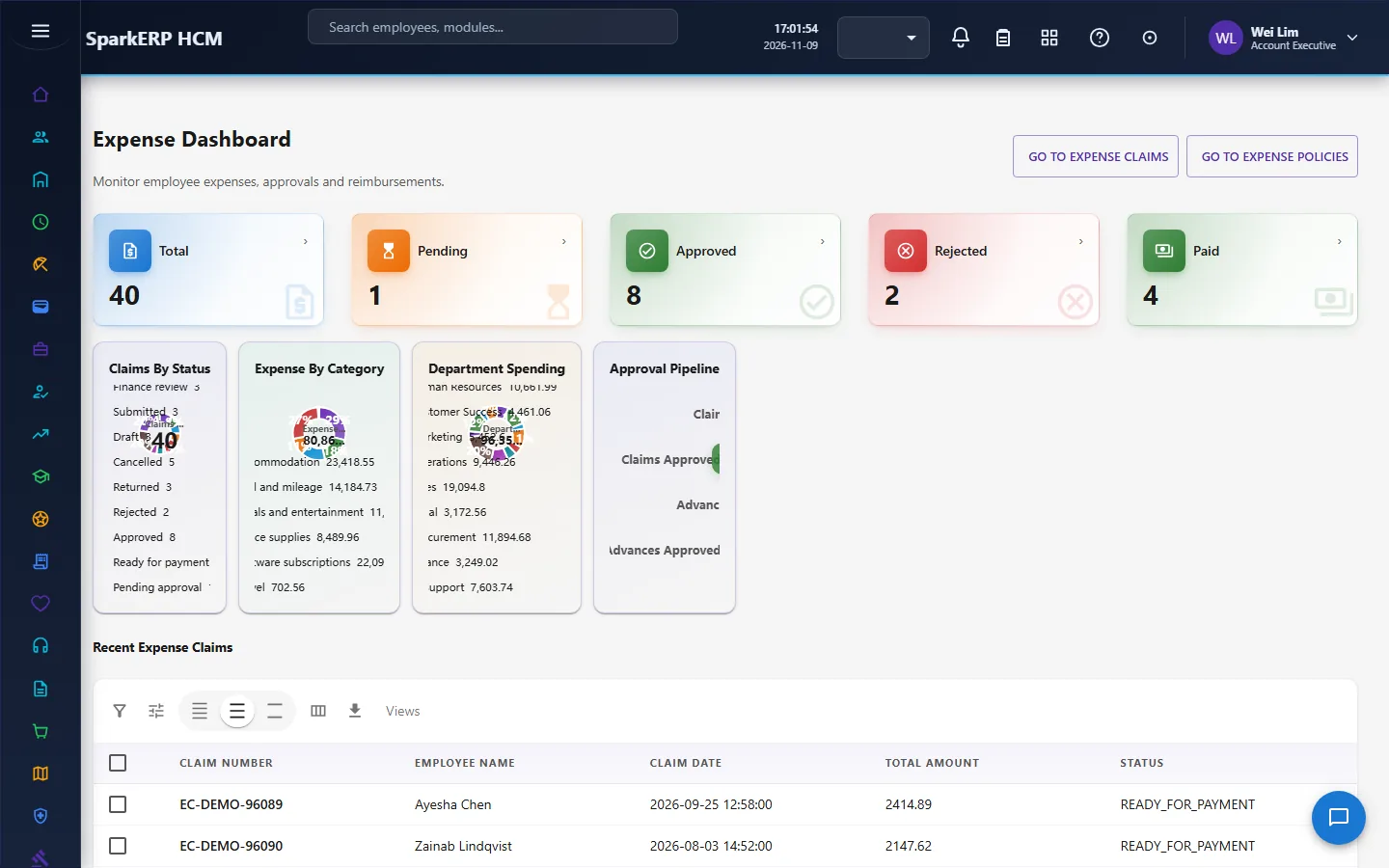
Expenses answers the questions a company asks about money its people spend on its behalf: what did they spend and on what, did it follow the policy, is there a receipt, who agreed to pay it back, how fast is it paid, what was paid on a company card, and which advances are still outstanding. This guide explains how the module works from start to finish, then how to set it up, then what each person sees. Every screen has its own page in the Expenses section; this guide is the one to read first.
1. What Expenses does for your business
- Captures claims properly. A claim is a header with lines; each line has a category, an amount, a date and a receipt, and the claim total is always the sum of its lines.
- Checks the policy as the claim is written. Every line is tested against the expense policy before anyone approves it.
- Routes approval. A manager, then finance, decide each claim.
- Reads receipts. A receipt can be read by the platform's document intelligence into a suggestion the employee confirms.
- Converts foreign currency at the rate on the expense date, and keeps the rate and its source for audit.
- Matches card transactions to claim lines.
- Pays people back through Payroll, as a reimbursement on top of net pay.
- Handles cash advances, with settlement against the claims that follow.
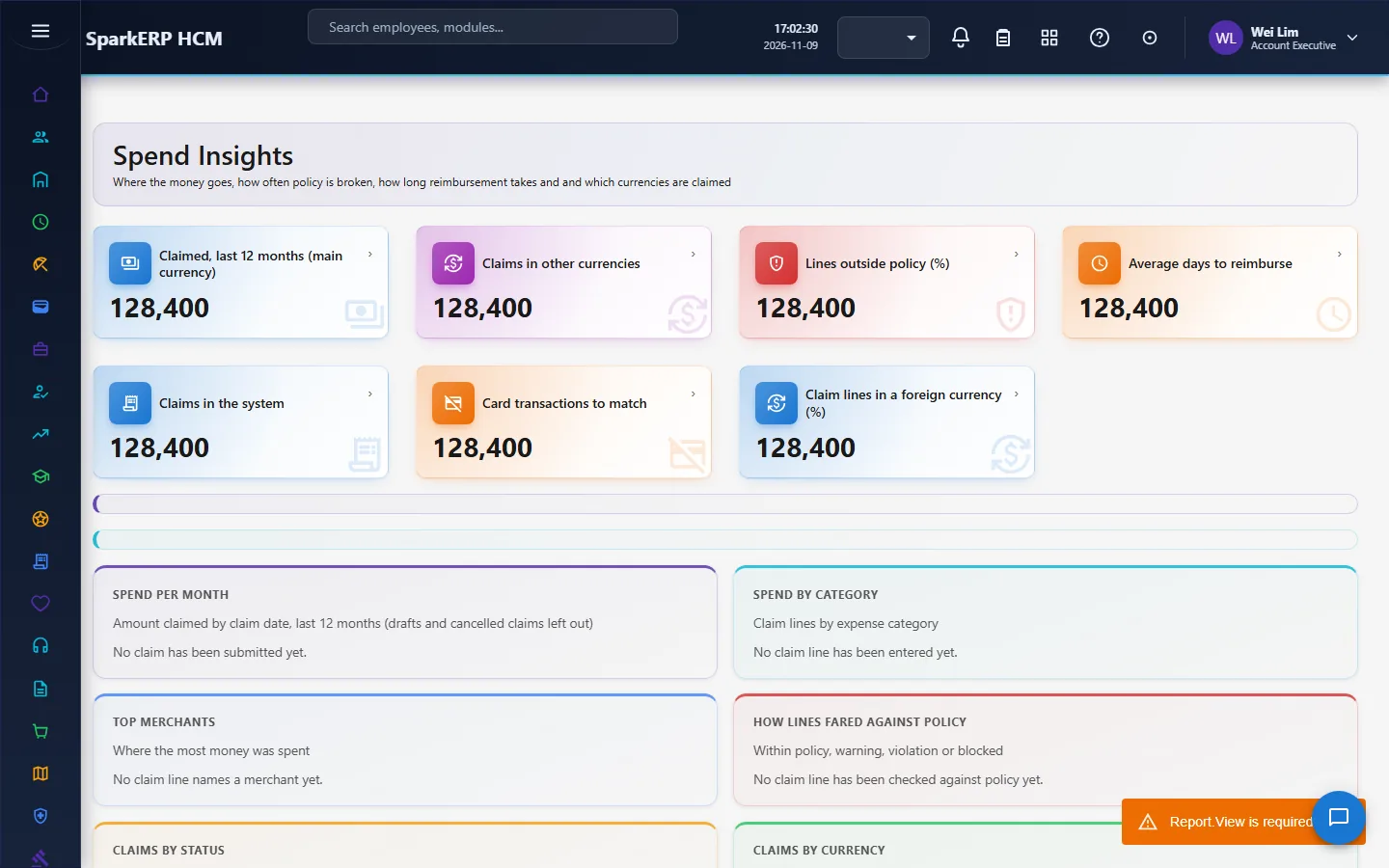
- Shows spend by month and category, top merchants, policy results and time to reimburse.
What it does not do: it does not pay anyone itself. A claim is marked ready for payment and then paid; the payment reference is recorded, and no payment processor or general-ledger posting is built in. The reimbursement goes through Payroll.
2. How expenses work, end to end
2.1 The path of one claim
- A claim is created for an employee. The manager is resolved from the employee record, and a claim number is generated.
- Lines are added. Each line has a category, an amount, a currency, a date and a receipt. Adding, changing or deleting a line recomputes the claim total and runs the policy check on that line.
- Receipts are attached. An uploaded receipt becomes a document in the Expenses cabinet of the document store.
- The claim is submitted. It must have at least one line. The worst policy result of its lines is rolled up onto the claim, and a claim with a blocked line cannot be submitted.
- The manager decides, then finance decides.
- An approved claim is marked ready for payment, and then paid with a payment reference.
- Payroll pays it back as a reimbursement in the next regular run, and the claim is marked paid when that run is done.
2.2 The life of a claim
| Status | Meaning |
|---|---|
| Draft | Being written. |
| Withdrawn | The employee took it back. |
| Pending approval | In the manager step or the finance step. |
| Returned | Sent back for a correction. |
| Approved | Agreed. |
| Rejected | Refused. |
| Ready for payment | Finance has released it. Only an approved claim can be marked ready. |
| Paid | Paid, with a payment reference. |
The actions are: submit, withdraw, review, approve, reject, return, ready for payment and mark paid. The approval is two steps, manager and then finance, each a task due within three days. Expense Manager, Expense Finance User and Expense Administrator can decide it. The decision on the task is made first, and then the claim moves through its guarded transition; the platform refuses any other way of changing the status.
2.3 Policies and the policy check
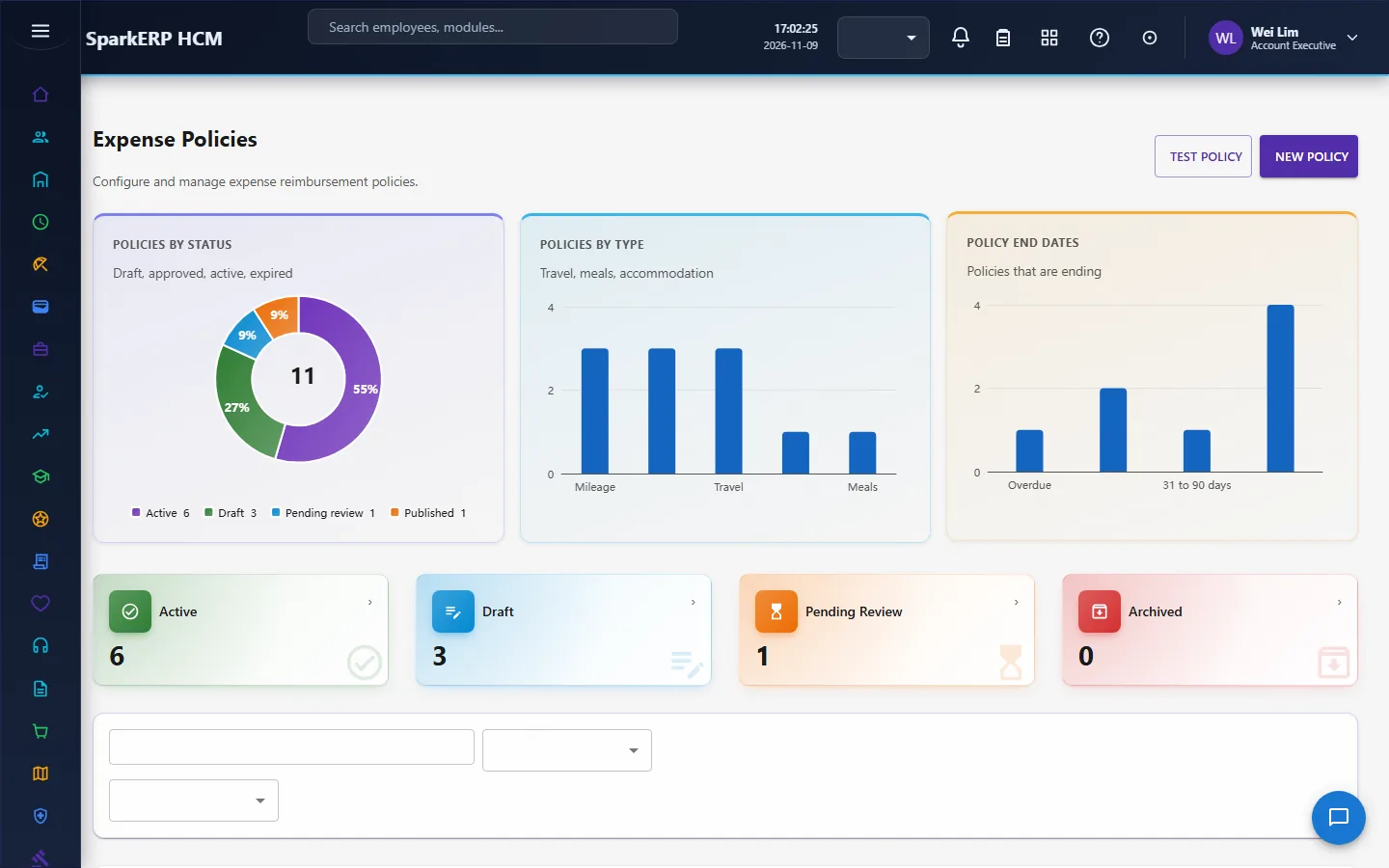
An expense policy holds a rule for each category: a limit and the action when it is broken. The policy with the highest priority that is active and has a rule for the category is used. The check evaluates:
- Per transaction: the line's amount against the limit.
- Per day and per month: the employee's other claim lines in the same category on the same day or in the same month (leaving out withdrawn or rejected claims), plus this line, against the limit.
- Per trip and per year are stored but not aggregated.
The result is within policy, warning, violation or blocked. A blocked line stops the claim being submitted; a violation can require an exception. A category with no applicable rule is within policy. The same check powers the Test Policy tool on the Expense Policies screen, so you can try a case before you rely on it.
2.4 Categories and receipts
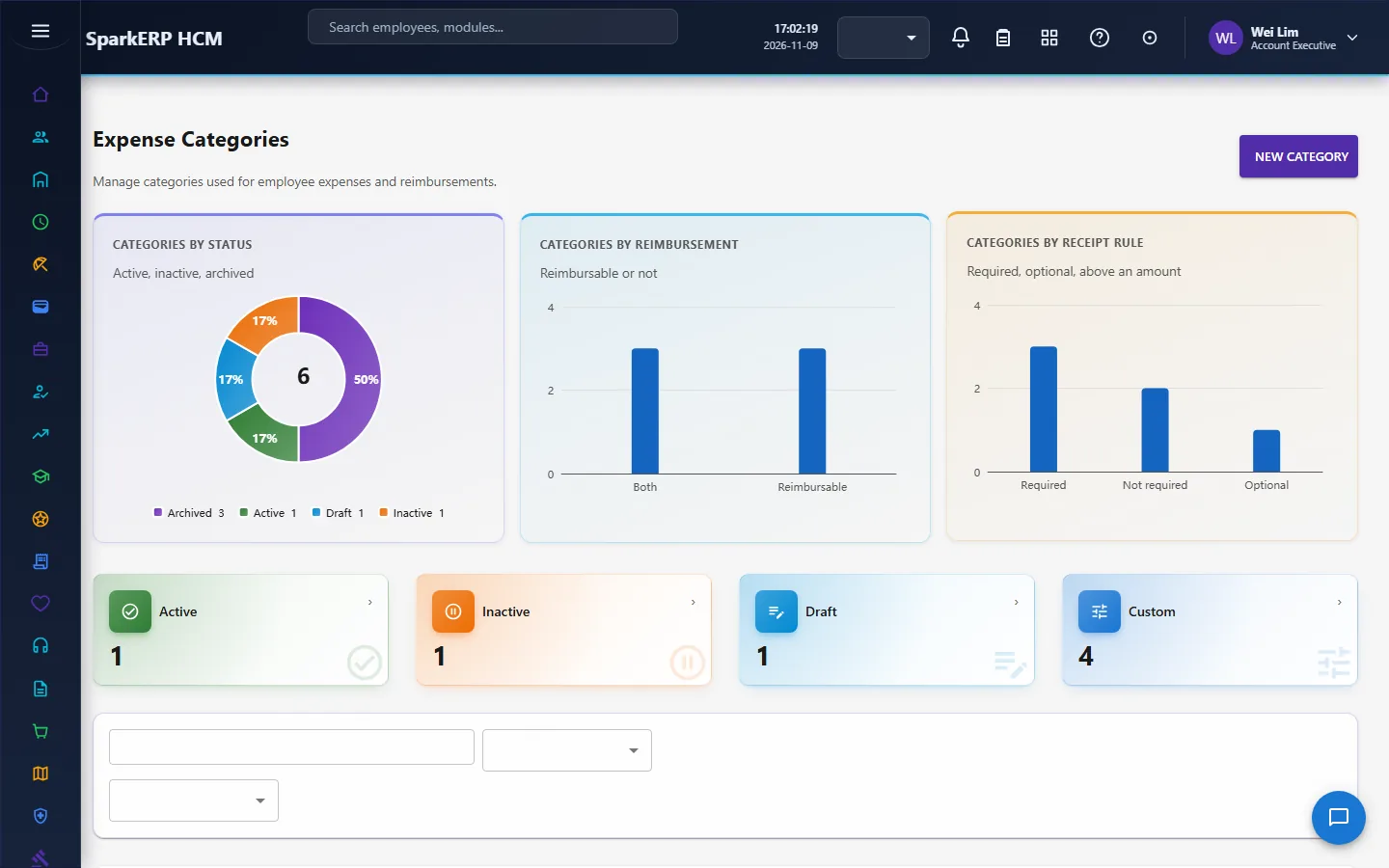
Expense categories form a hierarchy (a circular hierarchy is refused). A category can be deactivated or archived, and a category used by claim lines cannot be deleted. Whether a receipt is required is a property of the category and is copied onto each line, so a claim shows which lines still need a receipt.
2.5 Reading receipts
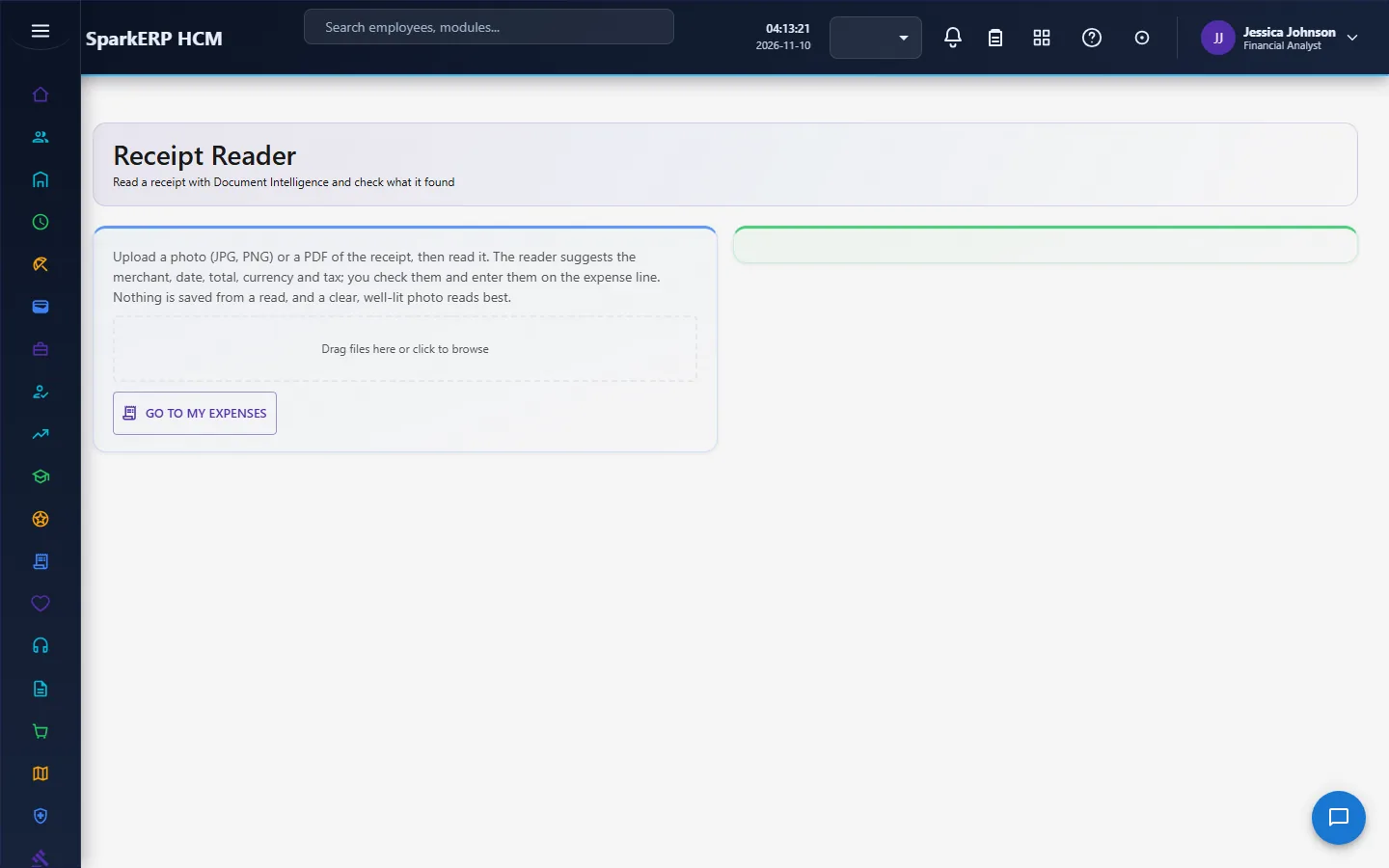
The Receipt Reader sends an uploaded receipt to the platform's document intelligence (the organisation's AI provider and budget apply). The answer is a suggestion the employee must confirm: merchant, date, total, currency, tax, a confidence for each field and a flag when it needs review (a low confidence or a failed check). Nothing is saved from a read. A login that may not read documents is refused with a plain sentence.
2.6 Foreign currency
A line keeps its own amount and currency exactly as on the receipt. It is converted to the claim's currency at the rate valid on the expense date, not the submission date, and the line records the rate, its date and its source so the figure can be audited. The rate comes from the shared exchange rates kept by the platform. An employee may type a rate only to use the rate on a card statement (the source is then marked manual). With no rate and none typed, the line is refused with a message that says who can add one.
2.7 Card transactions
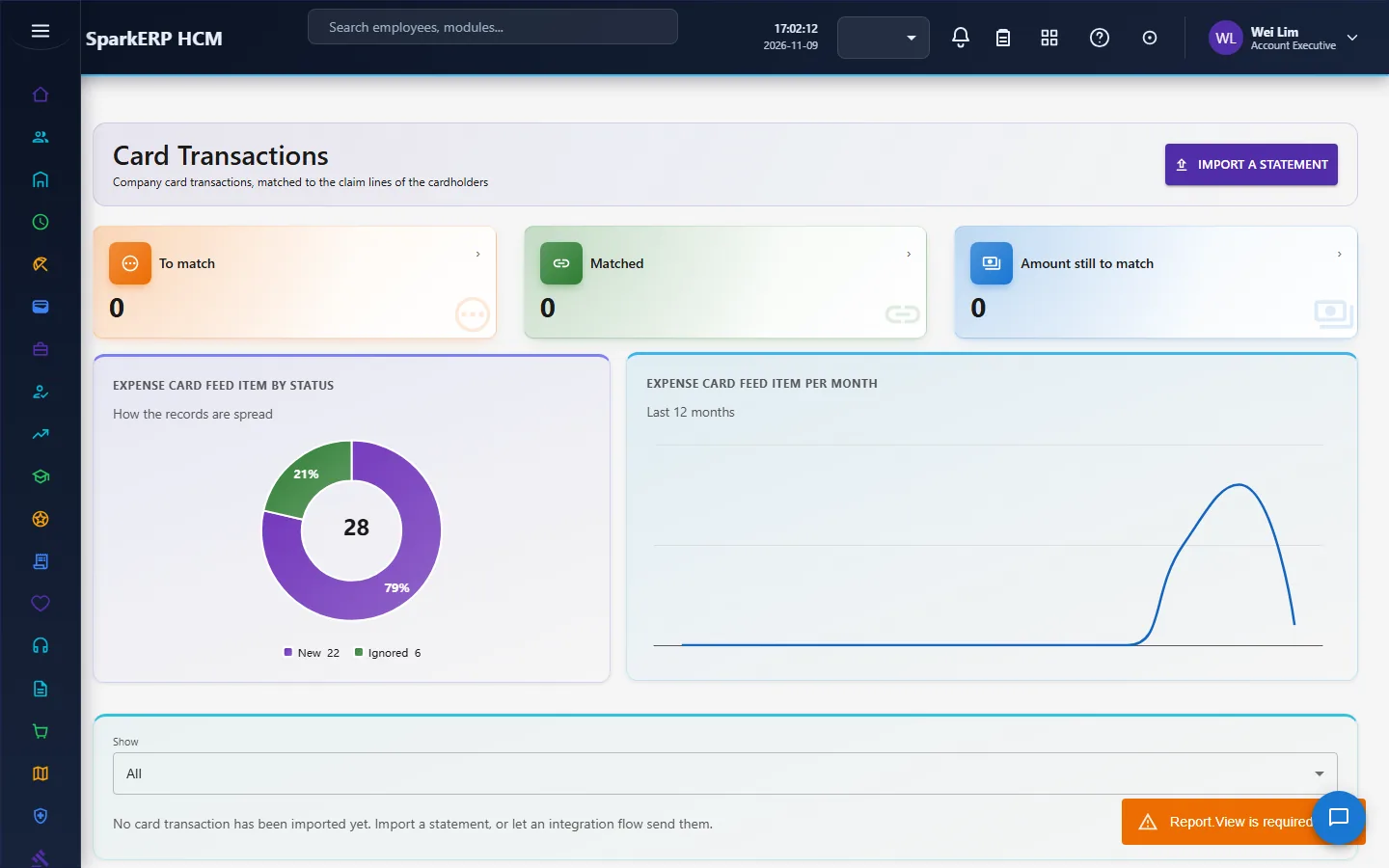
Card transactions come in through one feed, whatever the source: a pasted statement from the Card Transactions screen, or an Integration Designer flow that calls the import with the provider's rows (the provider is data, never named in code). An import never creates a duplicate, because the external reference is unique. A cardholder is found by employee code. A transaction is matched to a claim line of the same employee only on the exact amount and currency, a date within three days, and a card payment method, and only when one line is clearly the best (merchant similarity breaks a tie). Otherwise it stays New for a person to decide. The last import can be undone while none of its rows is matched. Importing, matching, ignoring and undoing are for tenant administrators.
2.8 Advances
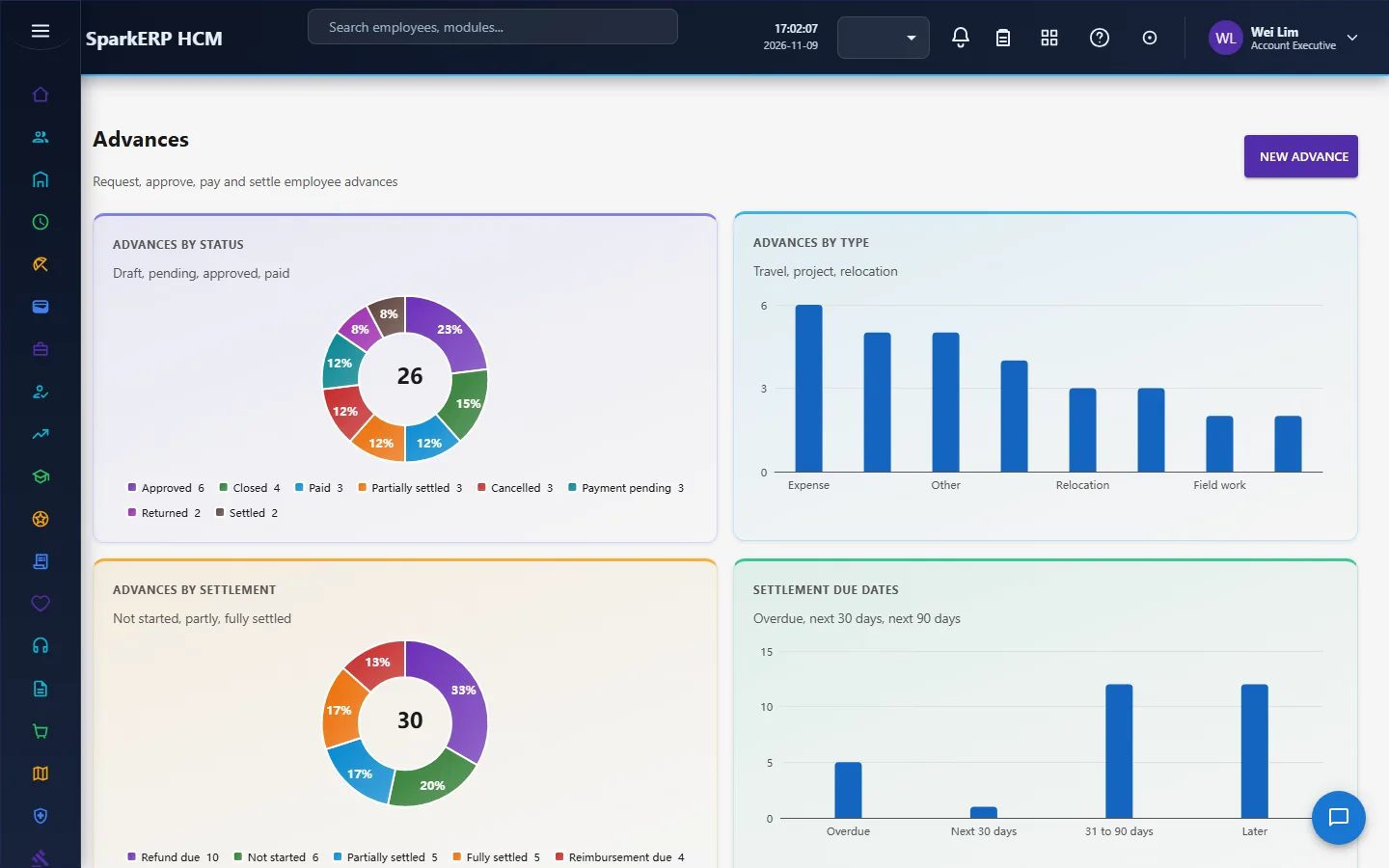
An advance is money given before a trip or a purchase. Its approval is two steps, manager then finance, and then it is approved, paid and settled. Settlement compares what was paid with what the person's claims used: the outstanding amount is paid minus settled, and the result is a refund due from the person or an additional reimbursement due to them. Payment, payroll recovery and ledger posting are not built in; the payment is recorded as an activity on the advance.
2.9 How Expenses meets Payroll
An expense claim that is approved and marked ready for payment, and that no payroll has taken yet, becomes a reimbursement adjustment for the next open regular run. It is paid on top of net pay: it is not income, so no tax and no contribution is taken on it. The claim keeps the pay period and the adjustment in its payroll reference, and when that run is done the claim is marked paid. A claim in a different currency than the run's is not pulled: it is listed so a person can look at it.
3. Who does what
| Role | What they do |
|---|---|
| Expense Claimant / Employee | Writes claims, attaches receipts, reads receipts, requests advances, follows status. |
| Expense Manager | Decides the manager step of claims and advances for their team, sees team expenses. |
| Expense Finance User | Decides the finance step, marks claims ready for payment and paid, handles advances and card matching. |
| Expense Administrator | Sets up categories and policies, imports cards, reads every report. |
| HR and the analytics viewer | Read the dashboard and reports. |
Expense administration screens (the dashboard, claims list, advances, cards, categories, policies, insights and reports) are open to the expense administrators, the finance roles, HR and the analytics viewer. My Expenses, the receipt reader and the manager screens (team expenses, approvals, claim review) stay open to the people who use them.
3a. What each role sees, screen by screen
The employee
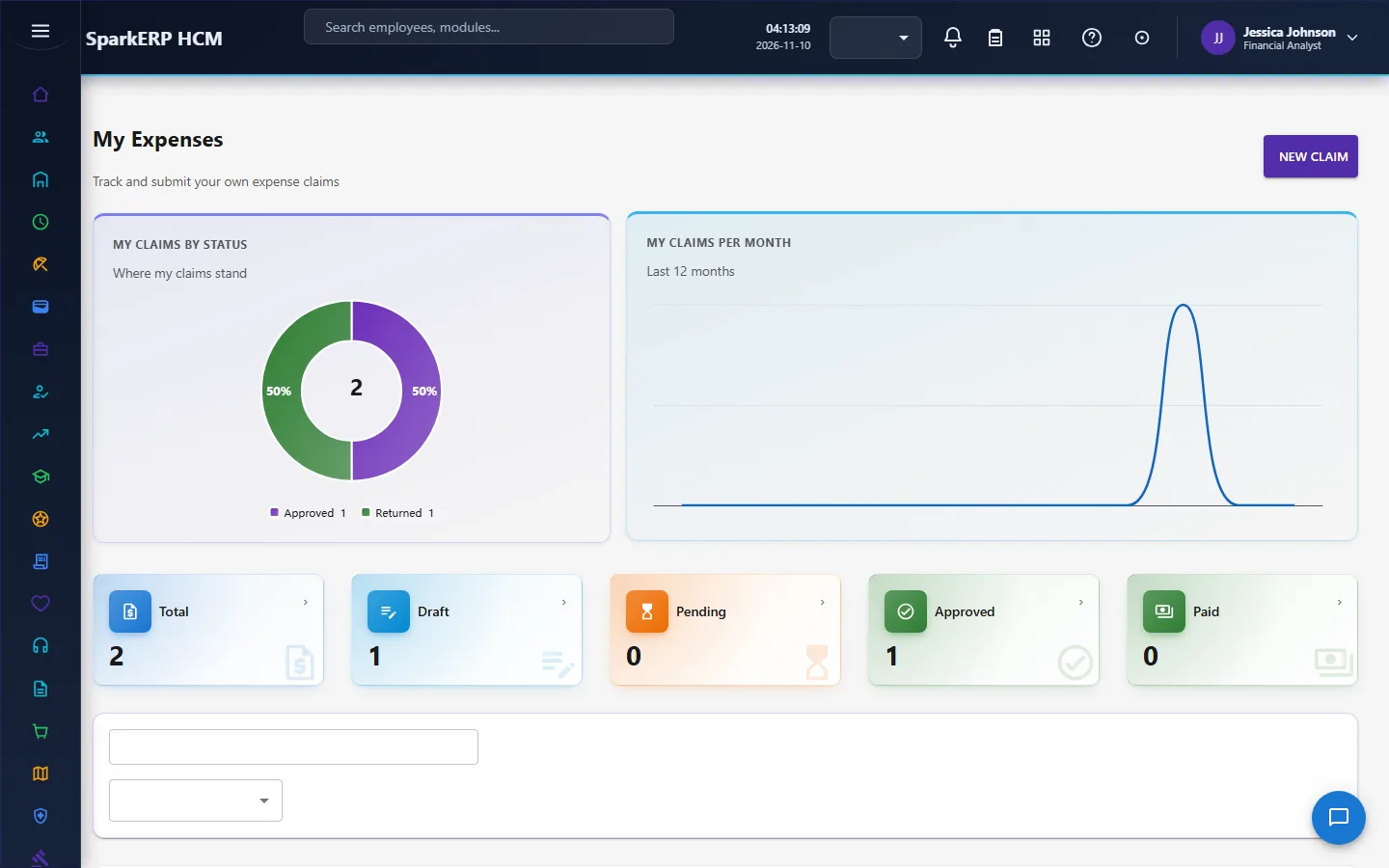
An employee works from My Expenses and the Receipt Reader.
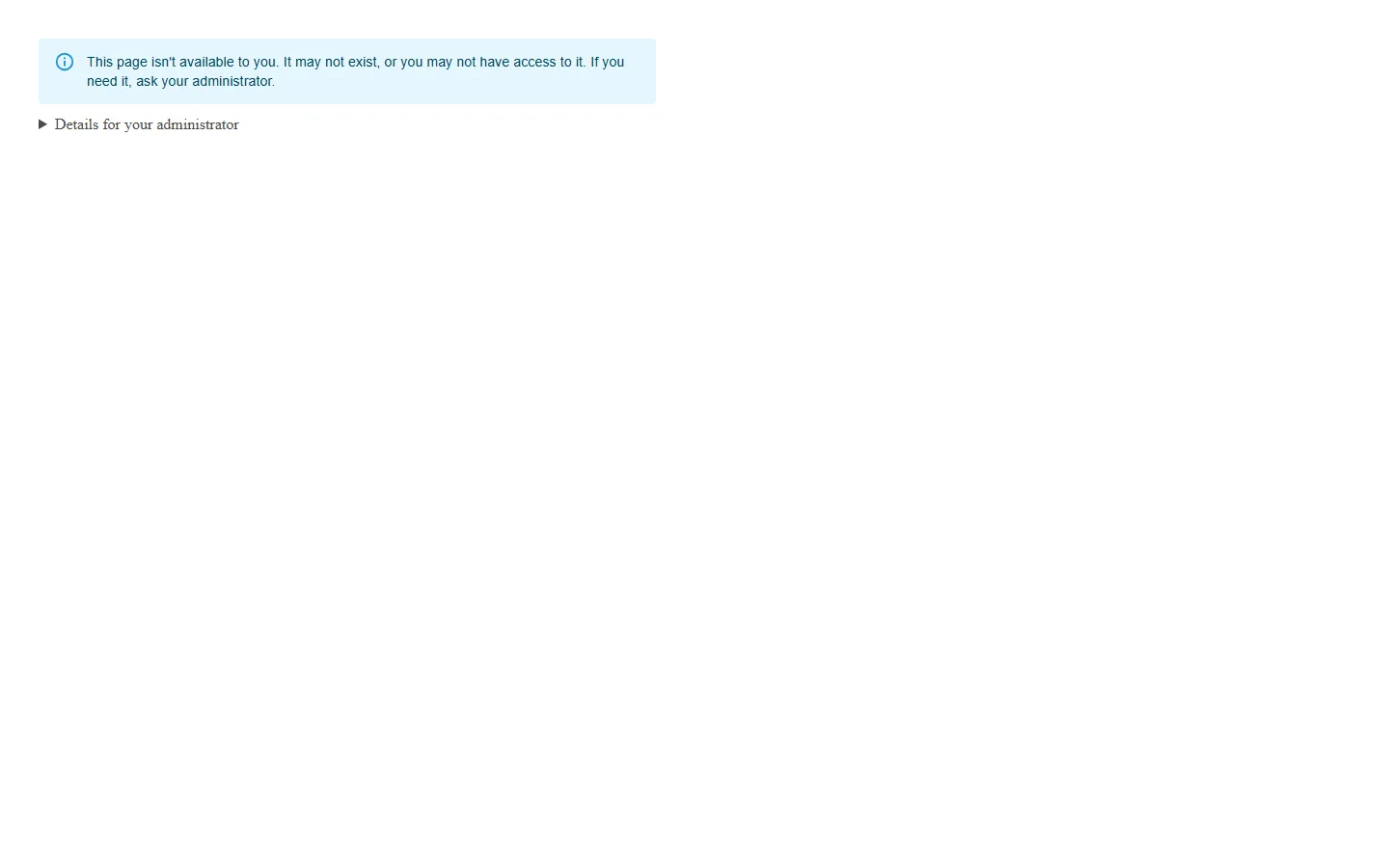
The expense administration screens are not open to them.
The manager
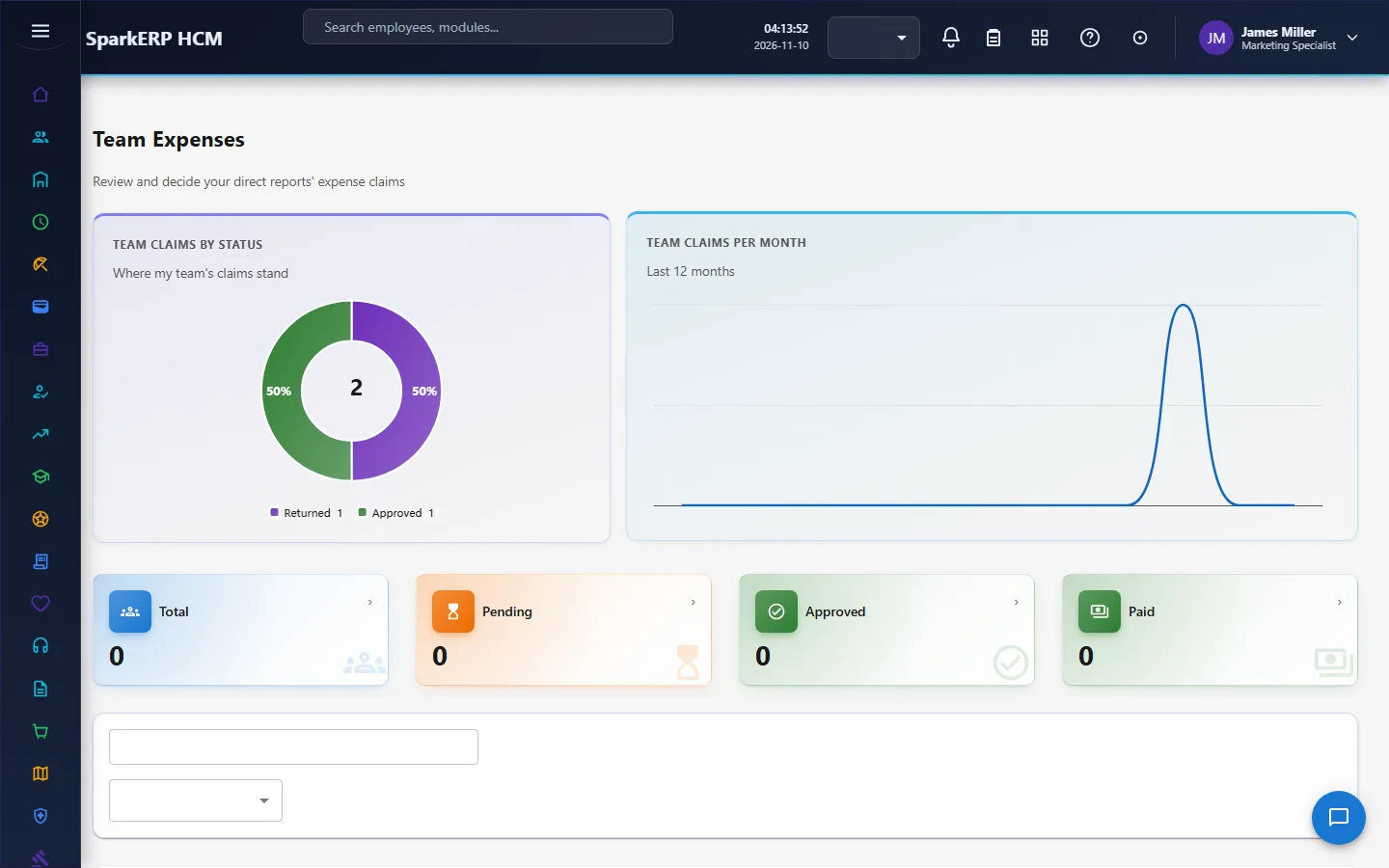
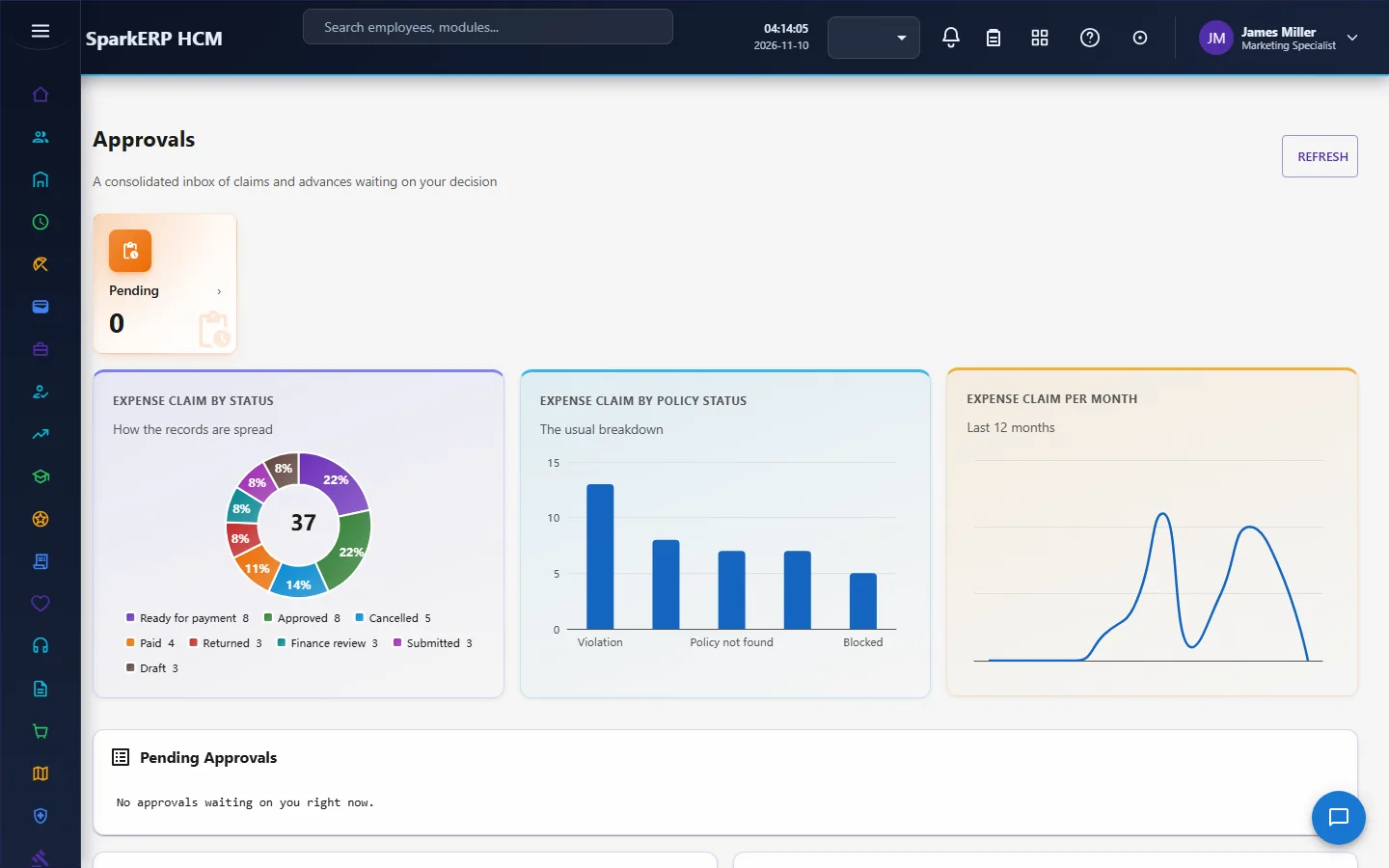
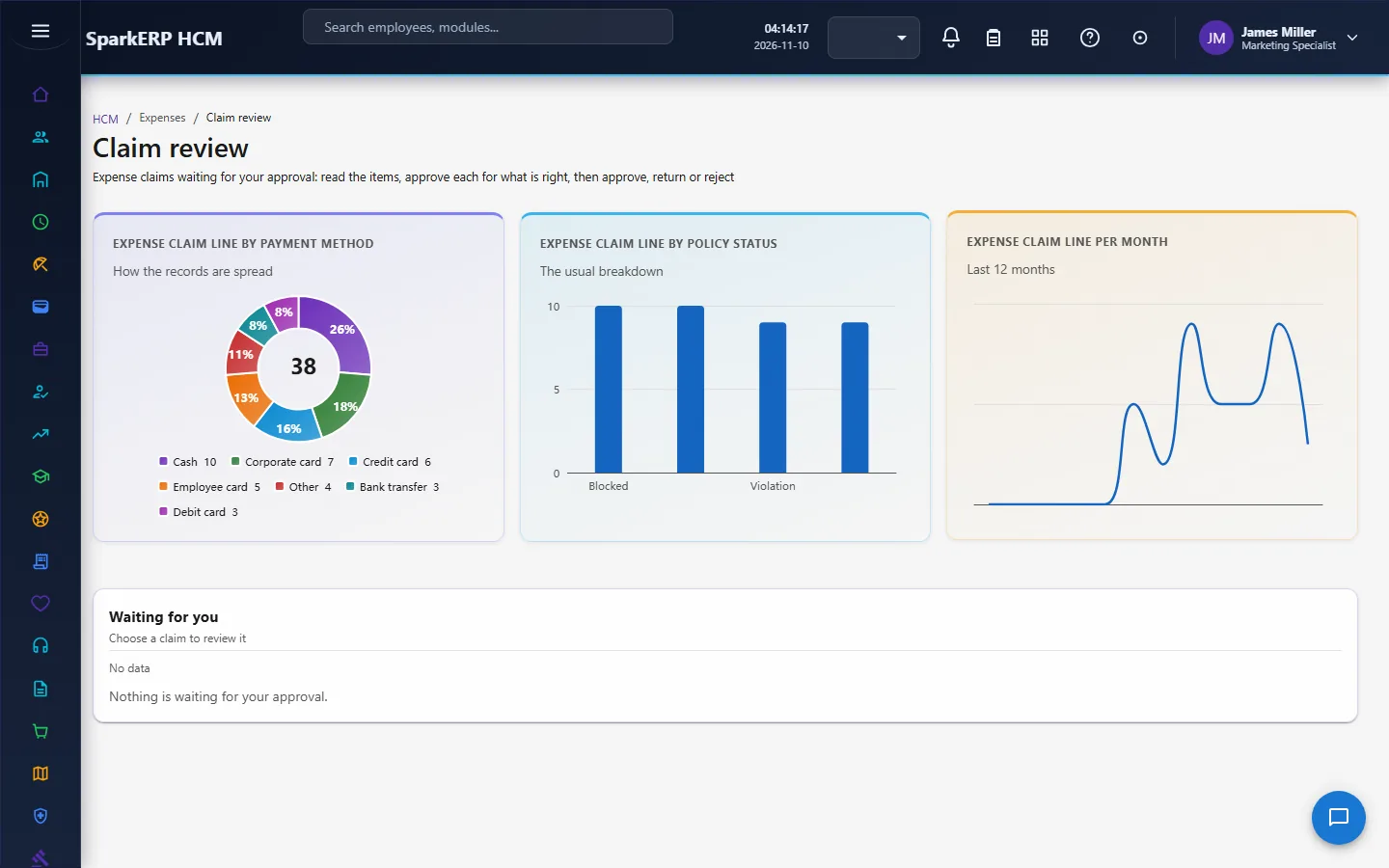
A manager sees Team Expenses for the people in their reporting line, the Approvals waiting for them (claims and advances in one list), and Claim Review.
The finance user
The Expense Dashboard shows the whole picture. Expense Claims and Advances are the working lists.
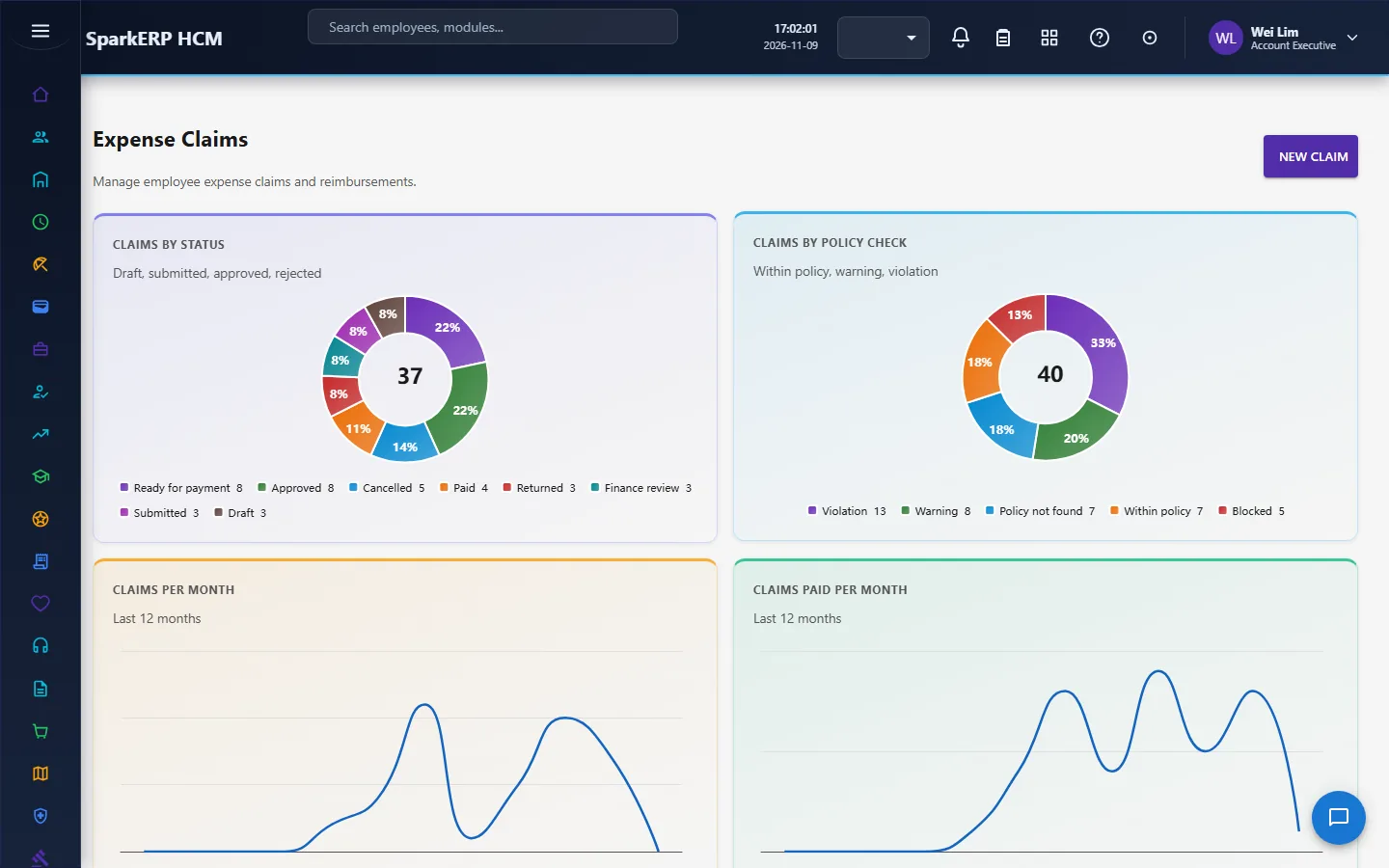
Card Transactions are matched to claim lines; Expense Categories and Expense Policies set the rules.
Spend Insights and Expense Reports are the measures.
4. Decide before you set up
| Decision | What to think about |
|---|---|
| Categories | The hierarchy you report on; which need a receipt. |
| Limits | Per transaction, per day, per month, by category; which break as a warning, a violation or a block. |
| Approvers | Who holds the manager and finance roles. |
| Receipts | Whether to let people use the receipt reader. |
| Currencies | Which exchange rates the platform keeps, and who adds a missing one. |
| Cards | Where the statements come from and who matches them. |
| Advances | Whether you give them, and who approves. |
| Payment | Reimbursement through Payroll, or paid outside and marked paid. |
5. Set up step by step
- Roles. Give the Expense Manager, Expense Finance User and Expense Administrator roles.
- Categories. Build the category tree and say which need a receipt.
- Policies. Create a policy with a rule for each category; use Test Policy to try cases; activate it.
- Exchange rates. Make sure the platform keeps the rates for your currencies.
- Cards. Set up the Integration Designer flow, or plan to paste statements.
- Payroll. Check that payroll runs in the currency of the claims, or that those claims are looked at by hand.
- Trial. In a trial tenant generate the Expenses demo pack and follow one claim to paid.
6. Daily use
6.1 An employee claims
- Open My Expenses and create a claim.
- Add each expense as a line; attach the receipt, or let the receipt reader suggest the fields and confirm them.
- Read the policy result of each line. Fix a blocked line; explain a violation.
- Submit. Follow it until it is paid.
6.2 A manager approves
- Open Approvals (or Team Expenses).
- Read the claim, the lines, the receipts and the policy results.
- Approve, reject, or return it for a correction.
6.3 Finance pays
- Decide the finance step.
- Mark the approved claim ready for payment; payroll takes it in the next run, or pay it and mark it paid with a reference.
- Match card transactions to lines; settle advances against claims.
7. A calendar of recurring work
| When | What |
|---|---|
| Daily | Approvals waiting; card matching. |
| Before each payroll | Mark approved claims ready for payment. |
| Monthly | Spend insights; time to reimburse; open advances. |
| Yearly | Review categories and limits. |
8. Reports and figures
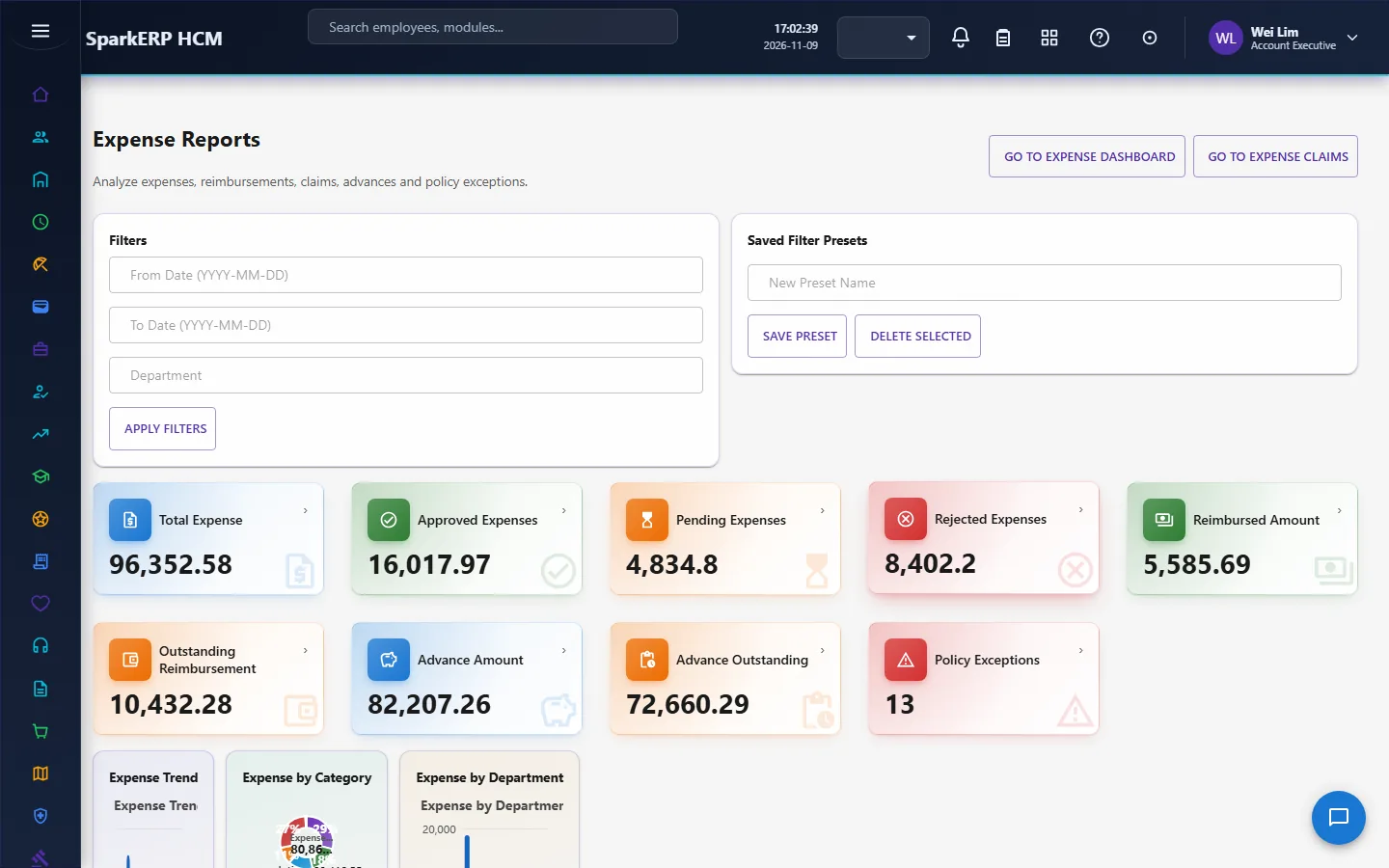
Spend Insights shows spend by month and category, top merchants, policy results, claims by status, currencies and time to reimburse. Expense Reports has the standard reports. The Expense Dashboard is the overview. Lists can be exported.
9. Limits you should know about
- No payment processor or ledger posting. Payment is recorded, and the reimbursement goes through Payroll.
- Per trip and per year limits are stored but not checked.
- A claim in a different currency than the payroll run is not pulled into payroll.
- A read of a receipt is a suggestion. The employee confirms it.
- A card transaction matches only when one line is clearly the best. Otherwise it waits for a person.
10. Troubleshooting
| Symptom | Cause and fix |
|---|---|
| A claim cannot be submitted | It has no lines, or a line is blocked by the policy. |
| A line is refused for its currency | There is no exchange rate for that date, and none was typed. |
| A category cannot be deleted | Claim lines use it. Deactivate or archive it. |
| A card transaction is not matched | The amount, currency, date or payment method does not match, or two lines fit equally well. |
| A claim is not in payroll | It is not marked ready for payment, or it is in another currency than the run. |
| A status change is refused | The platform allows only the guarded transitions. |
| An employee cannot open a screen | It is an administration screen. Use My Expenses. |