
Appearance
Employee Information: how it works and how to set it up
Employee Information answers the questions HR asks about a person beyond their job: who are they, how do we reach them and their family in an emergency, where do we pay them, which identity, passport, visa and licence documents do they hold and when do those expire, what have they studied, where have they worked, what qualifications and skills do they have, and who are their dependants and beneficiaries. This guide explains how the module works, then how to set it up, then what each person sees. Every record type has its own page in the Employee Information section; this guide is the one to read first.
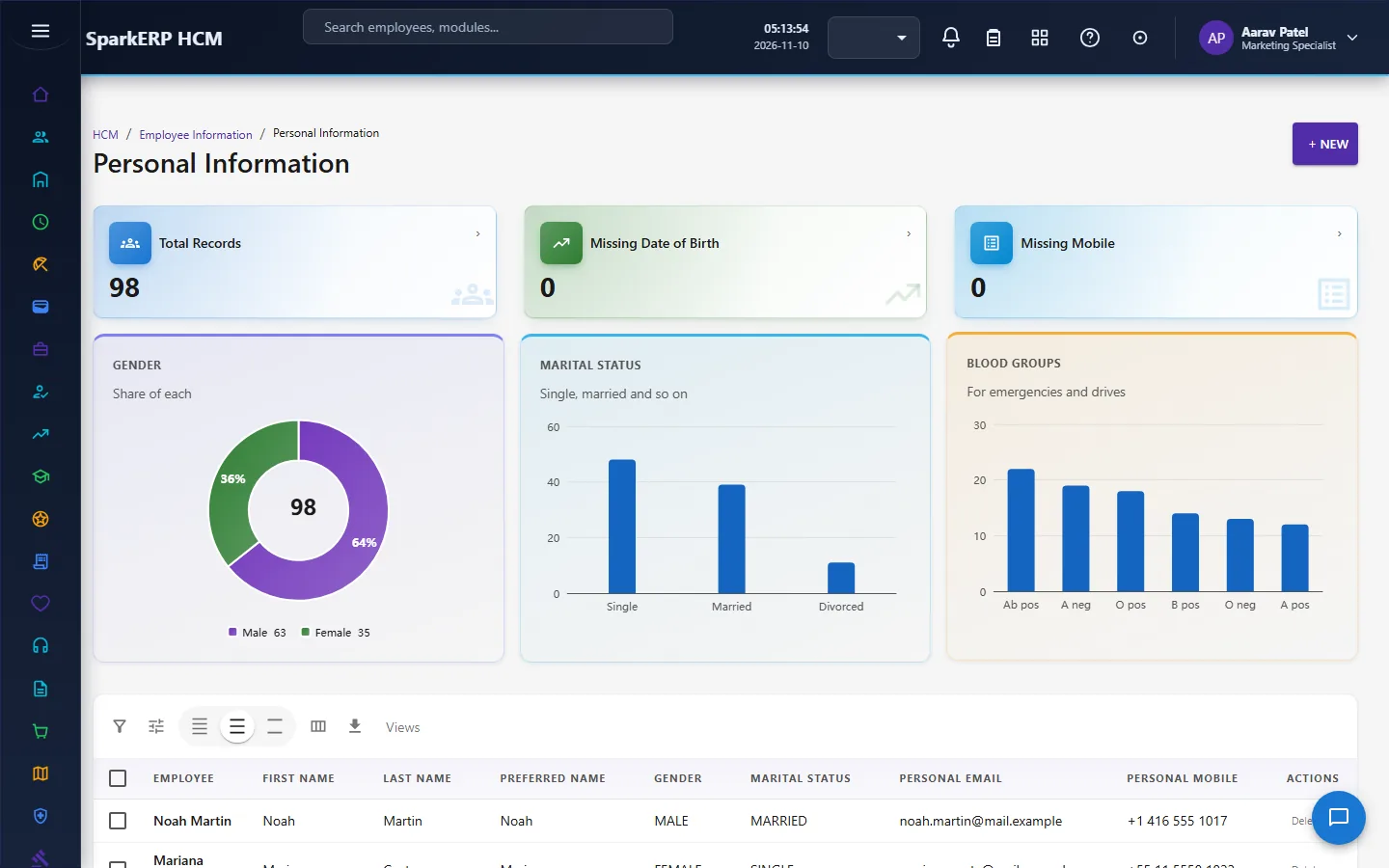
1. What Employee Information does for your business
- Keeps the personal record of every employee in one place, separate from their job record in Core HR.
- Holds many rows where a person has many: several bank accounts, several documents, several qualifications, several emergency contacts.
- Tracks validity. Documents carry issue and expiry dates; the count tiles show how many are active, expiring or missing.
- Records verification. Each record has a verification status, so HR can say which details have been checked.
- Is read by other modules. Payroll's controls read bank details from here; the other modules keep their own records of what they need.
What it does not do (yet): it does not run an approval for a change, it does not date a change to come into effect later, it does not mask or encrypt a field in the database, and it does not remind anyone that a document is about to expire. It is the record, kept carefully. The limits are listed again in section 9.
2. How employee information works
2.1 The record types
Each page is a grid of one record type with create, edit and delete, and each row belongs to one employee. Some types hold one row for each person and the others hold many.
| Page | One or many per person | What it holds |
|---|---|---|
| Personal Information | One | Names (first, middle, last, preferred), date of birth, gender, marital status, nationality and citizenship, country and place of birth, blood group, personal email and contact and address details. |
| Employment Details | One active | Employment number, status, type and category, the hire date, original hire date and service date, probation start and end and status, the confirmation date, the department and location. |
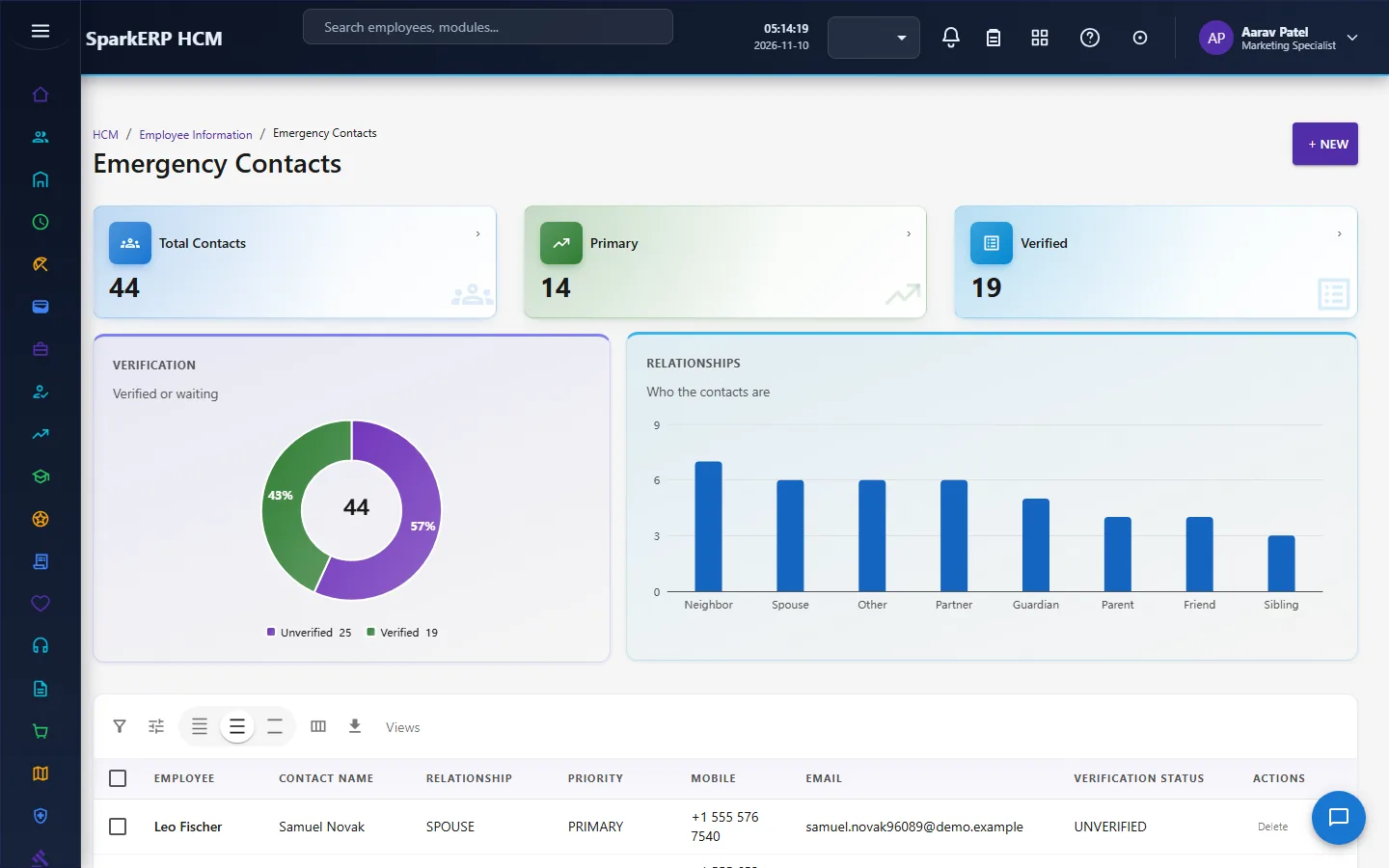
| Emergency Contacts | Many | Name, relationship, priority, mobile, alternate phone, email, preferred contact method, notes. |
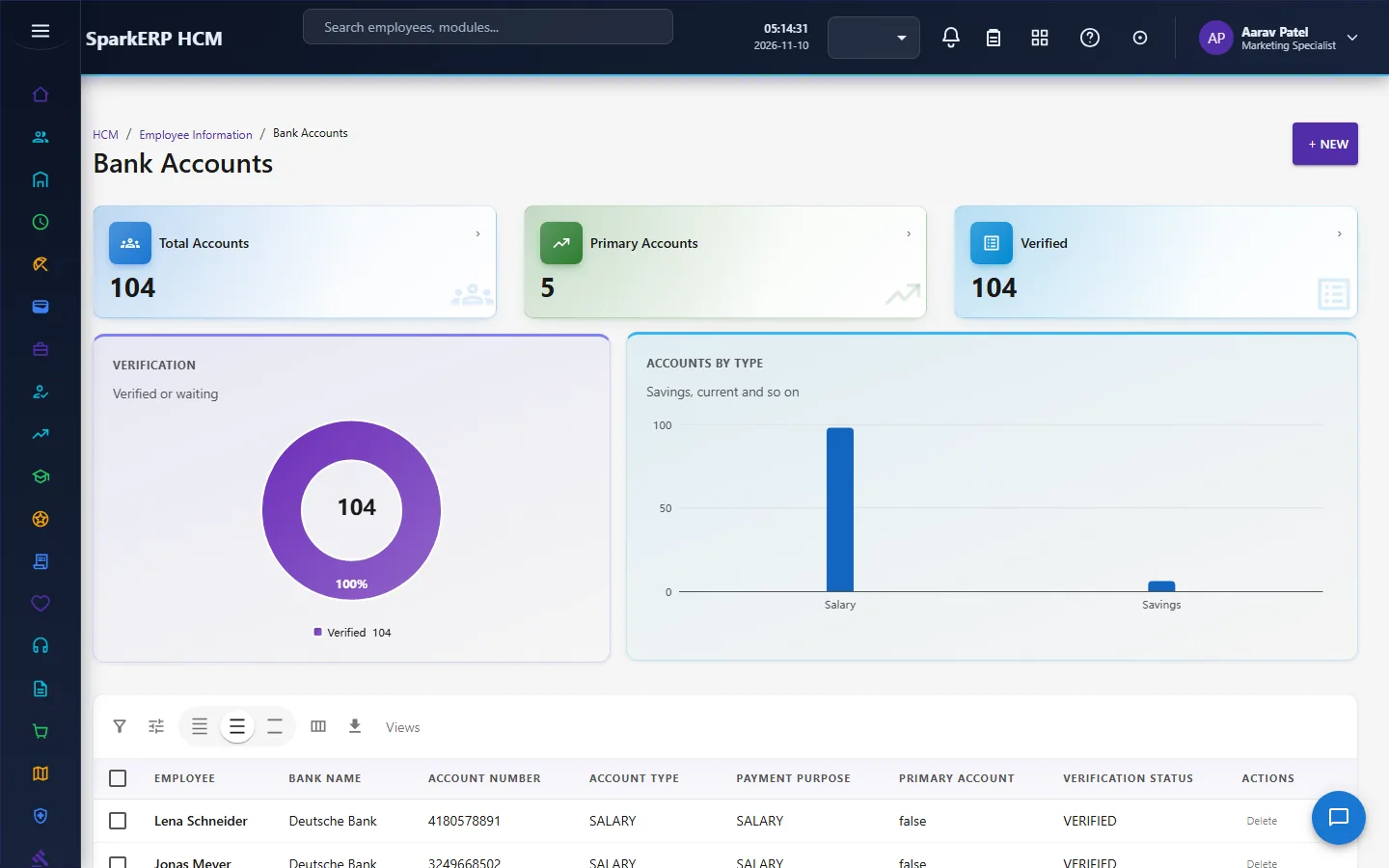
| Bank Accounts | Many | Bank and branch, account number, holder name, account type, the routing code (IFSC or SWIFT), the payment purpose, and a primary flag. |
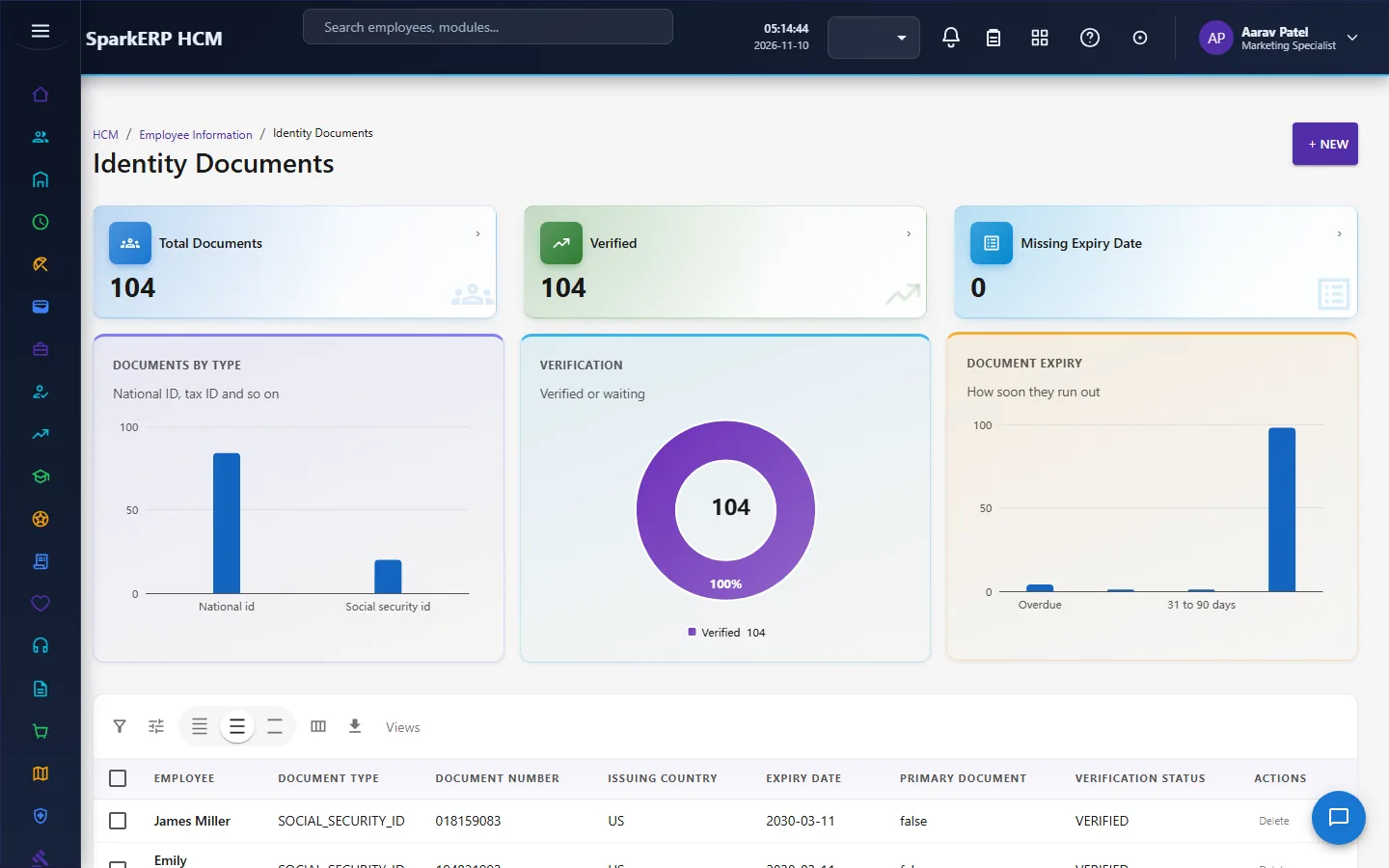
| Identity Documents | Many | Document type, number, issuing country and authority, issue and expiry dates, and a primary flag. |
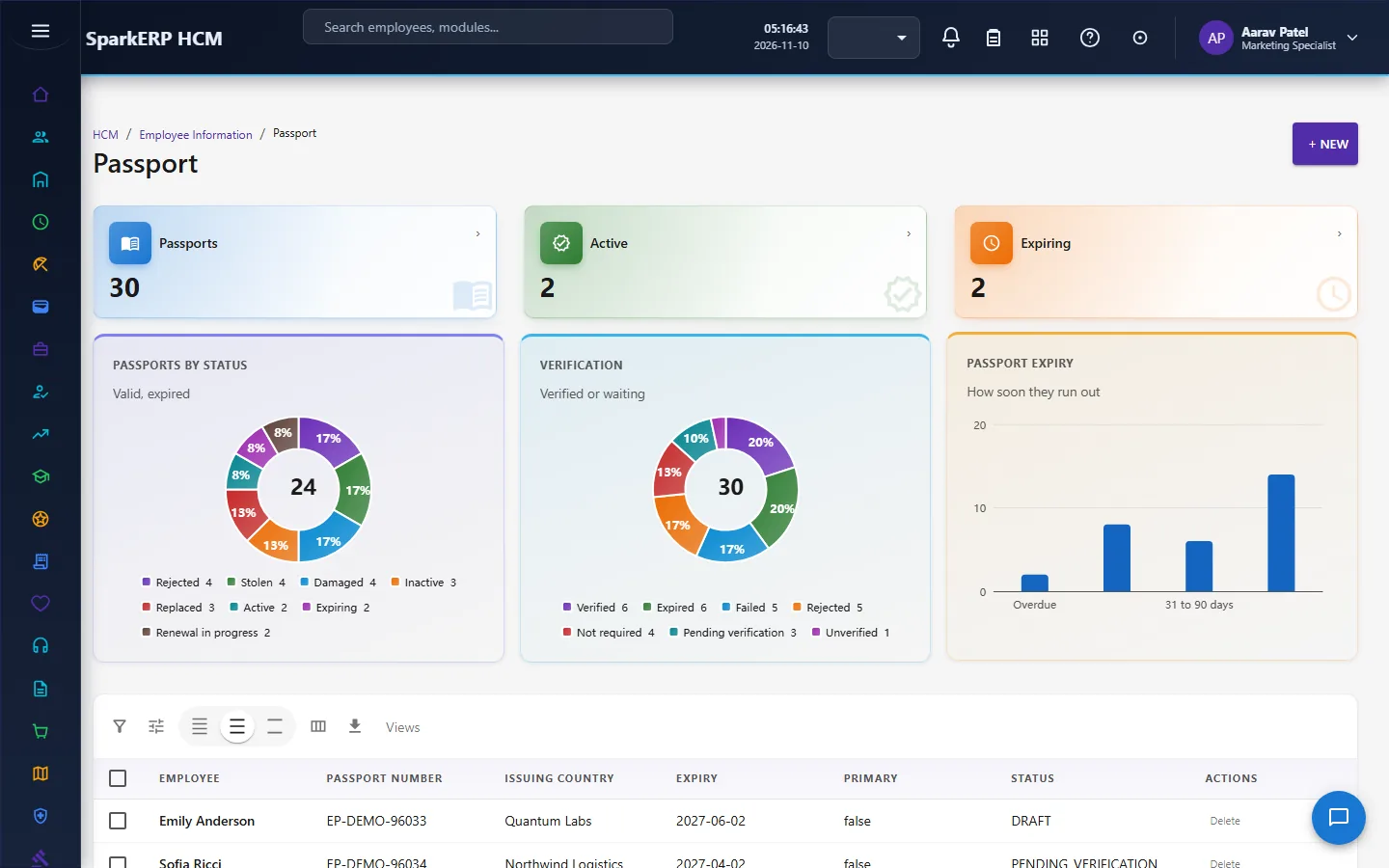
| Passport | Many | Passport type, number (masked), surname and given names, date of birth, nationality, issuing country and authority, issue and expiry dates, and a primary flag. |
| Visa | Many | Visa type and purpose, number (masked), destination and issuing country, issuing authority, issue, valid-from and expiry dates, entry type and allowed stay in days. |
| Driving License | Many | Number (masked), type, vehicle classes, issuing country, region and authority, issue and expiry dates. |
| Tax Information | Many | Country, tax residency status, tax status, identifier type and (masked) identifier, jurisdiction, tax year and effective dates. |
| Education | Many | Qualification, institution, level, field of study, specialization, start and completion dates, status, result type and value, and a highest qualification flag. |
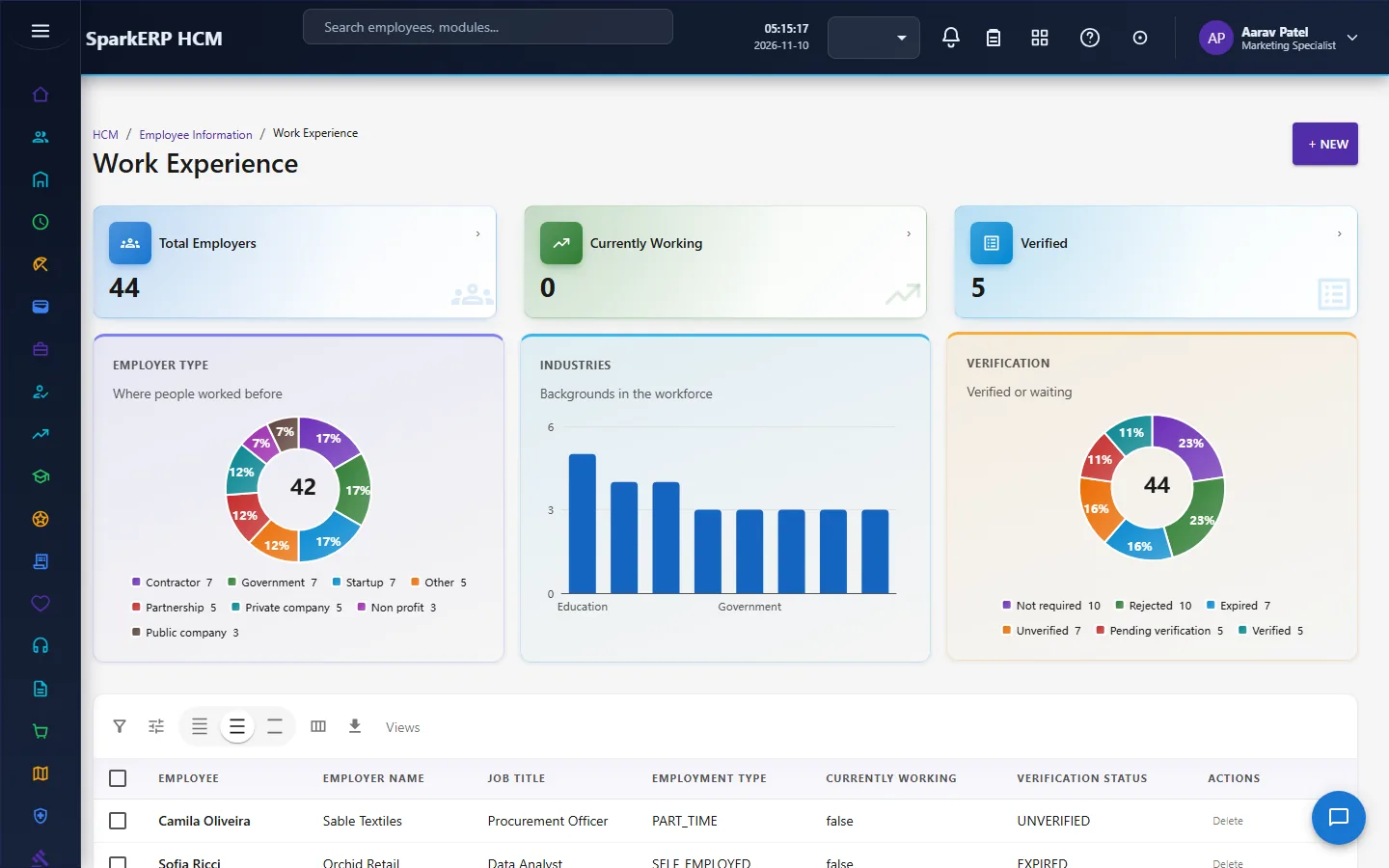
| Work Experience | Many | Employer and type, job title, employment type, industry, start and end dates, currently working, and responsibilities. |
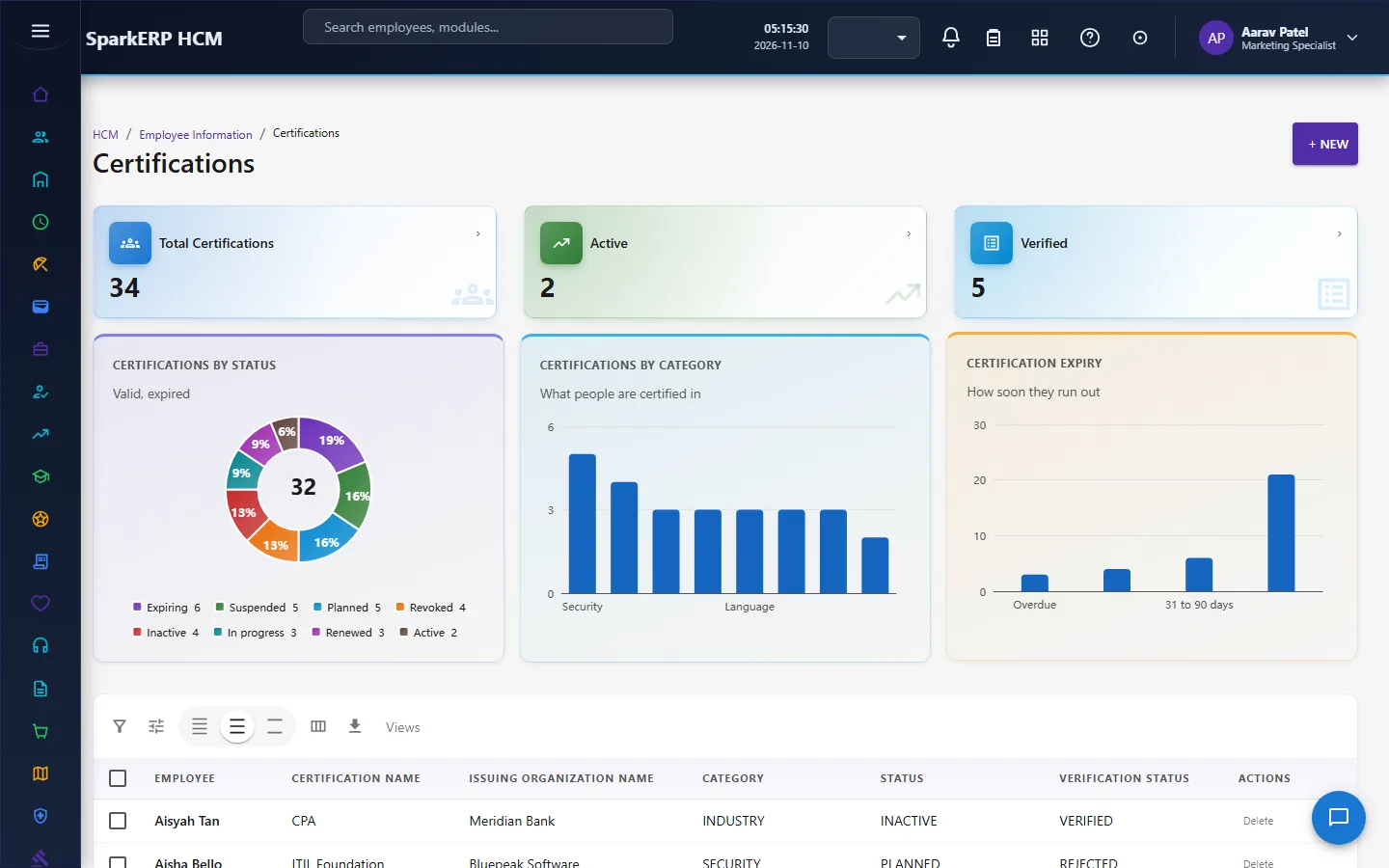
| Certifications | Many | Certification name and category, issuing organization, credential number and link, issue and expiry dates, and does not expire. |
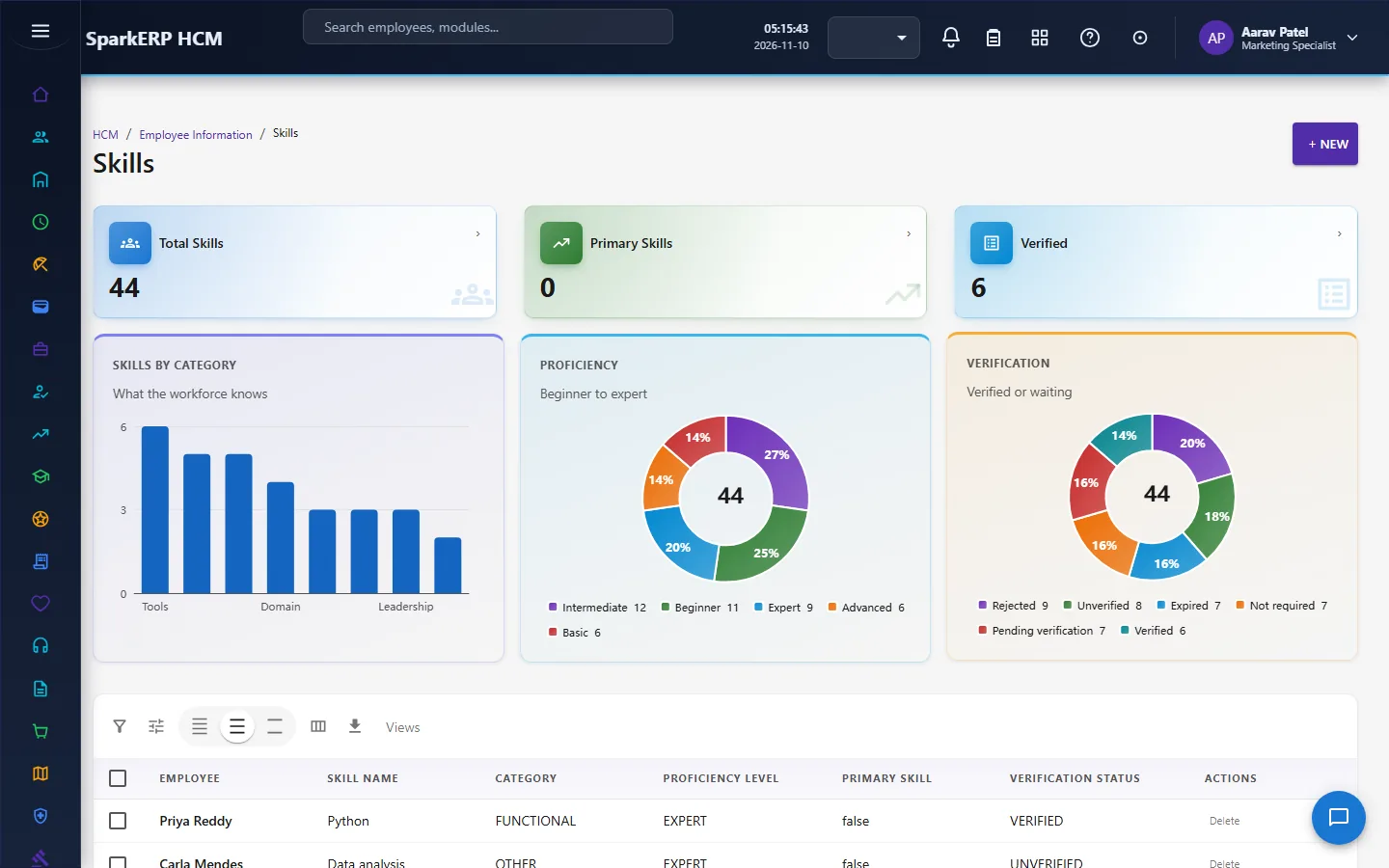
| Skills | Many | Skill, category, proficiency level, years of experience, last used, and a primary flag. |
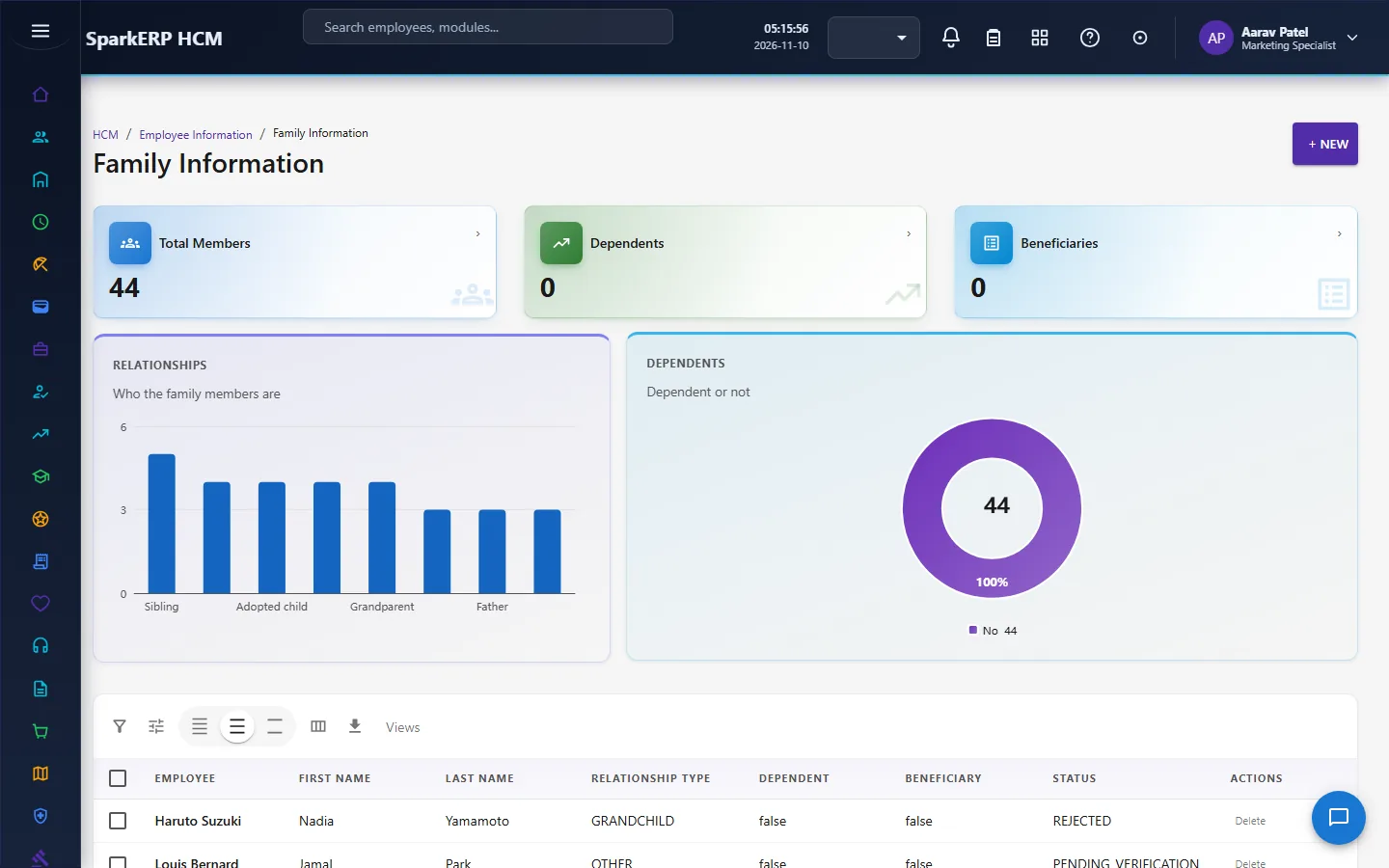
| Family Information | Many | Name, relationship, date of birth, gender, and whether the person is a dependant, a benefits dependant and a beneficiary, with the beneficiary percentage. |
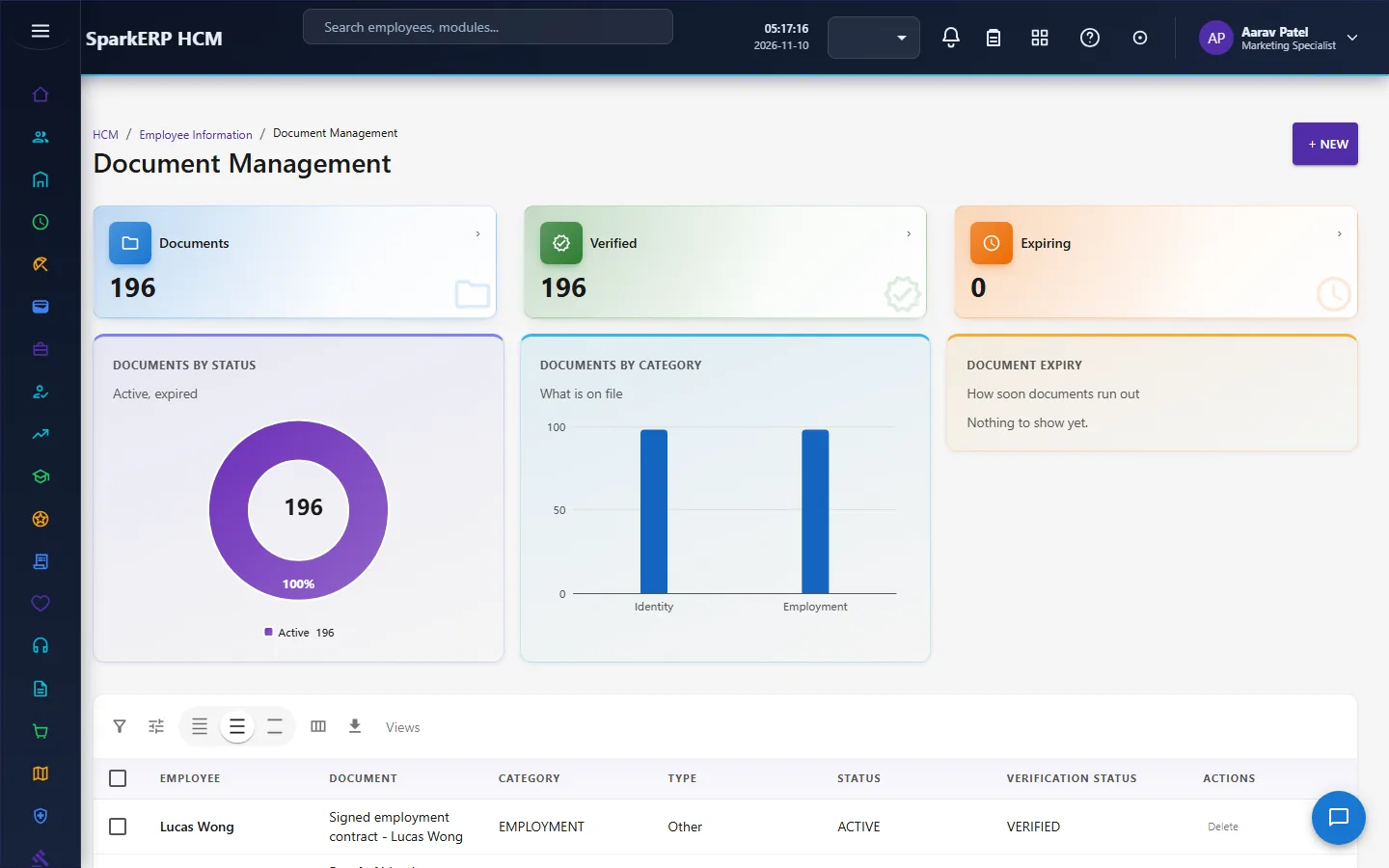
| Document Management | Many | A document category and type, name, a masked number, issuing country, issue and expiry dates, a confidentiality level, verification, and a reference to the file. |
2.2 Verification
Most records carry a verification status: unverified (the default), verified or rejected. HR sets it after checking the original. It tells the next reader whether a detail has been checked, and it is what other modules and the dashboards count.
2.3 Primary rows
Where a person can have several, a primary flag says which one counts: the primary bank account for pay, the primary identity document, the primary passport, the primary skill.
2.4 The count tiles
Each page shows tiles that count its records: the total, how many are verified, how many are primary, and, for documents with an expiry date, how many are active, expiring and missing an expiry. For example, the identity documents page counts the total, the verified and those with no expiry date; the passport, visa and driving licence pages count the total, the active and the expiring. Personal information counts people with a missing date of birth or mobile number, which is a data-quality check.
2.5 Who may read and change
A record type has its own permission to view, so a role that may read education may not read bank accounts. The Employee Information Administrator can create, change and delete; the Employee Information Viewer can only read. The HR roles read the set they need. These pages show every employee's records, so they are for the people-data roles and not for employees. An employee sees and asks to change their own details through Self-Service (My Profile).
3. Who does what
| Role | What they do |
|---|---|
| Employee Information Administrator | Creates, changes and deletes records; sets verification. |
| Employee Information Viewer | Reads the records. |
| HR Administrator | Holds the same keys through the HR role. |
| Employee | Sees and requests changes to their own details on My Profile (Self-Service). |
| Payroll | Its controls read the bank details. |
3a. What each role sees, screen by screen
The employee
An employee does not open these pages: they show every employee's records.
The HR administrator
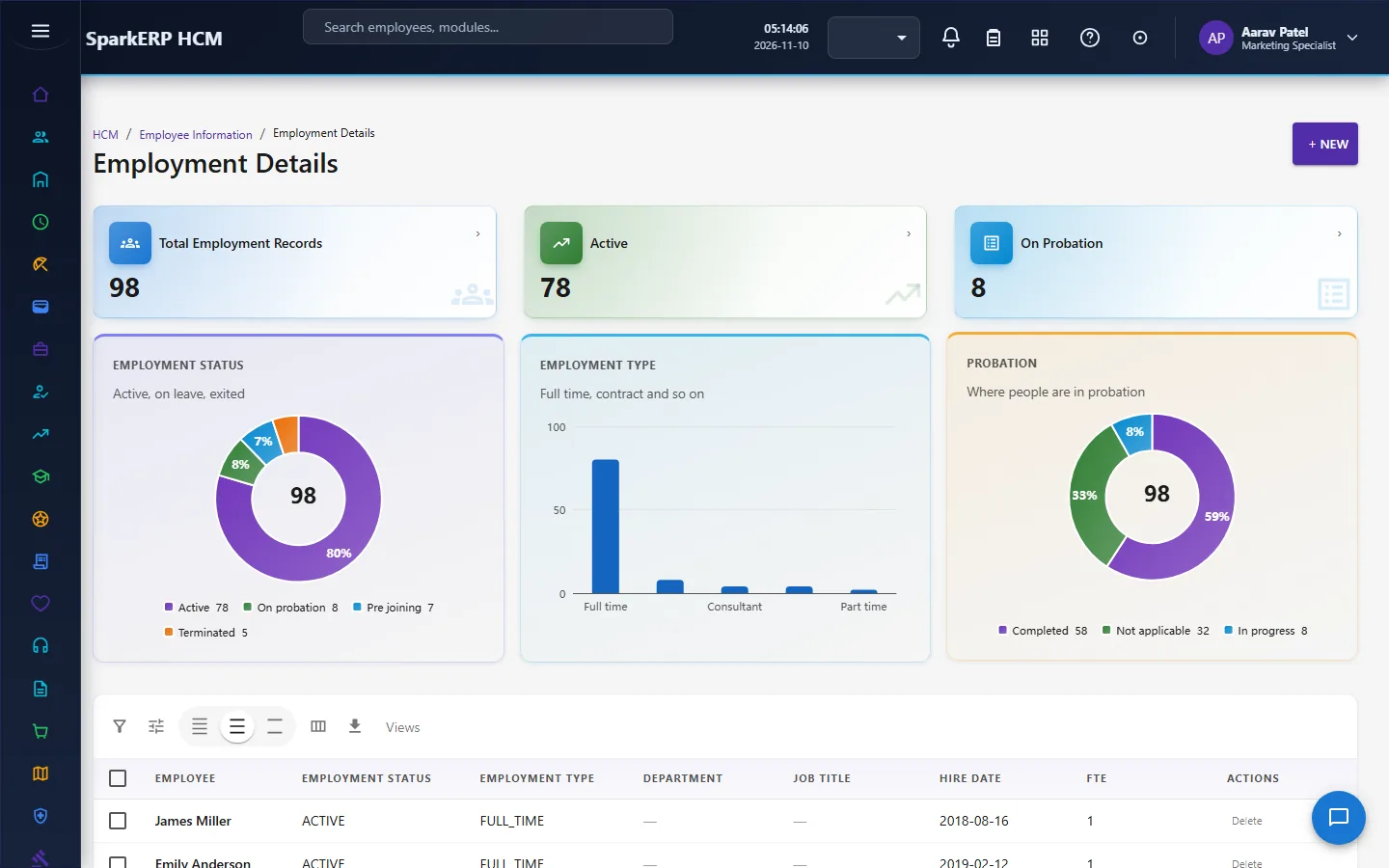
Personal Information and Employment Details are the core.
Emergency Contacts and Bank Accounts are the details people need most.
Identity Documents, Passport, Visa, Driving License and Tax Information are the official documents.
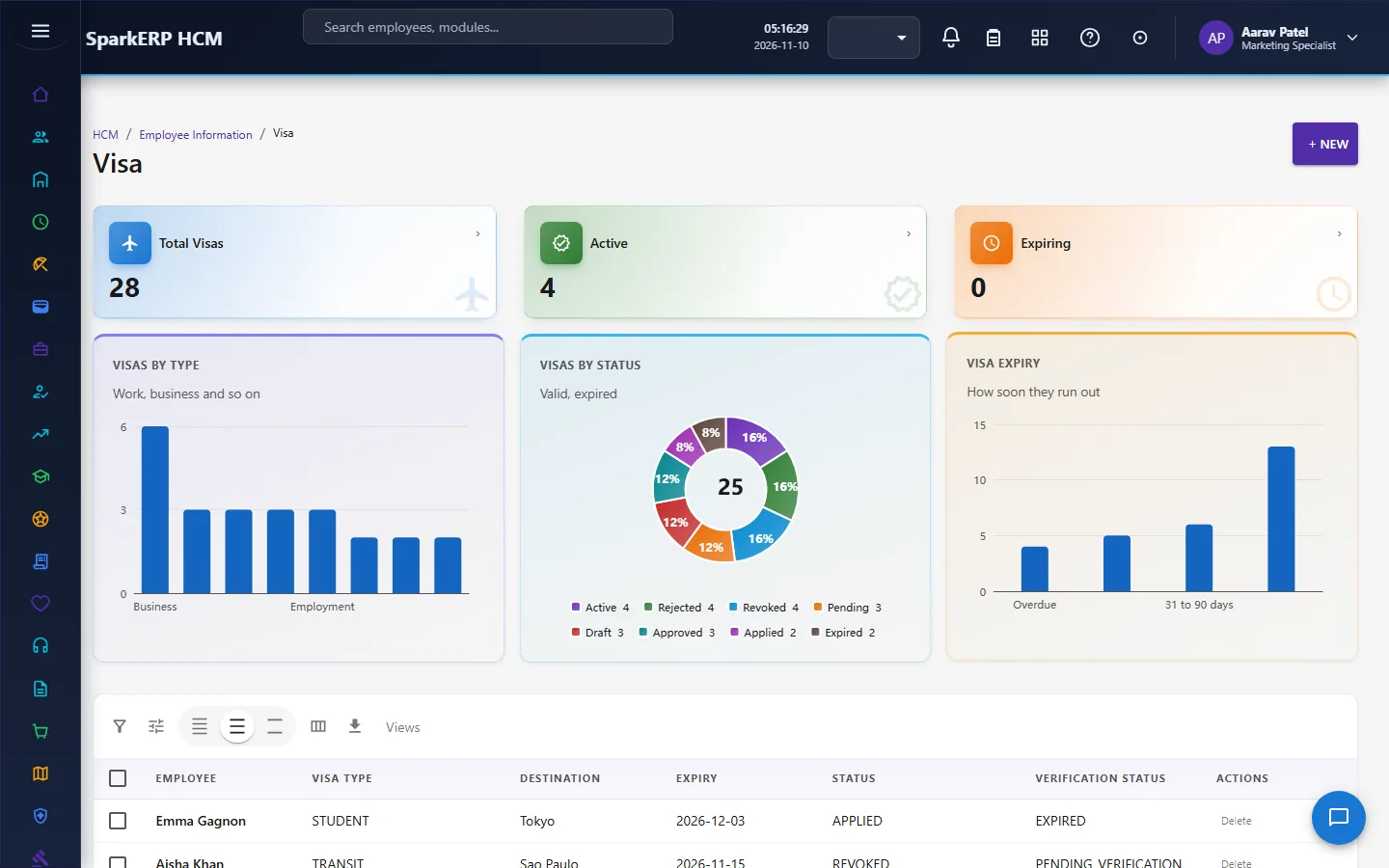
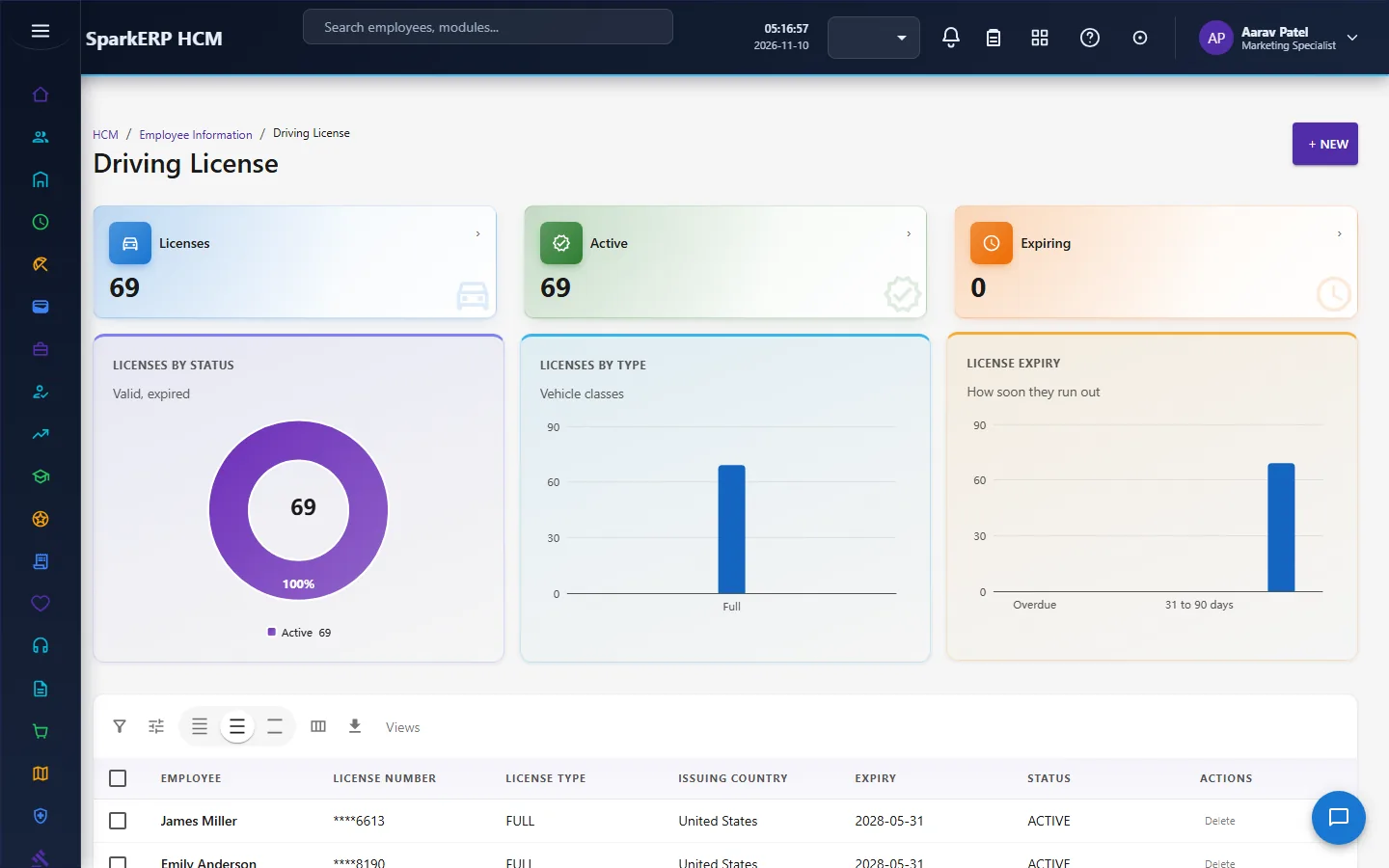
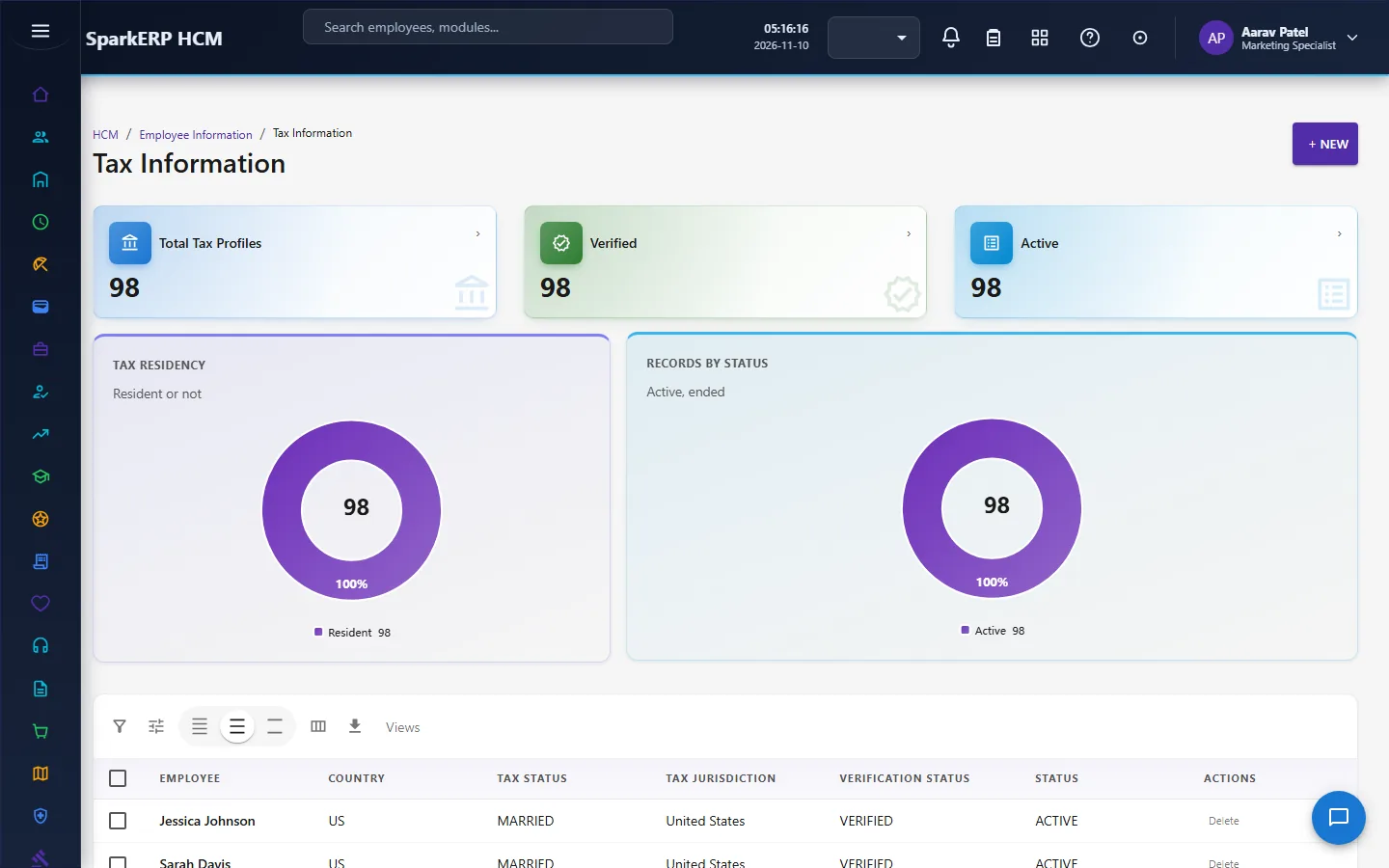
Education, Work Experience, Certifications and Skills are the person's background.
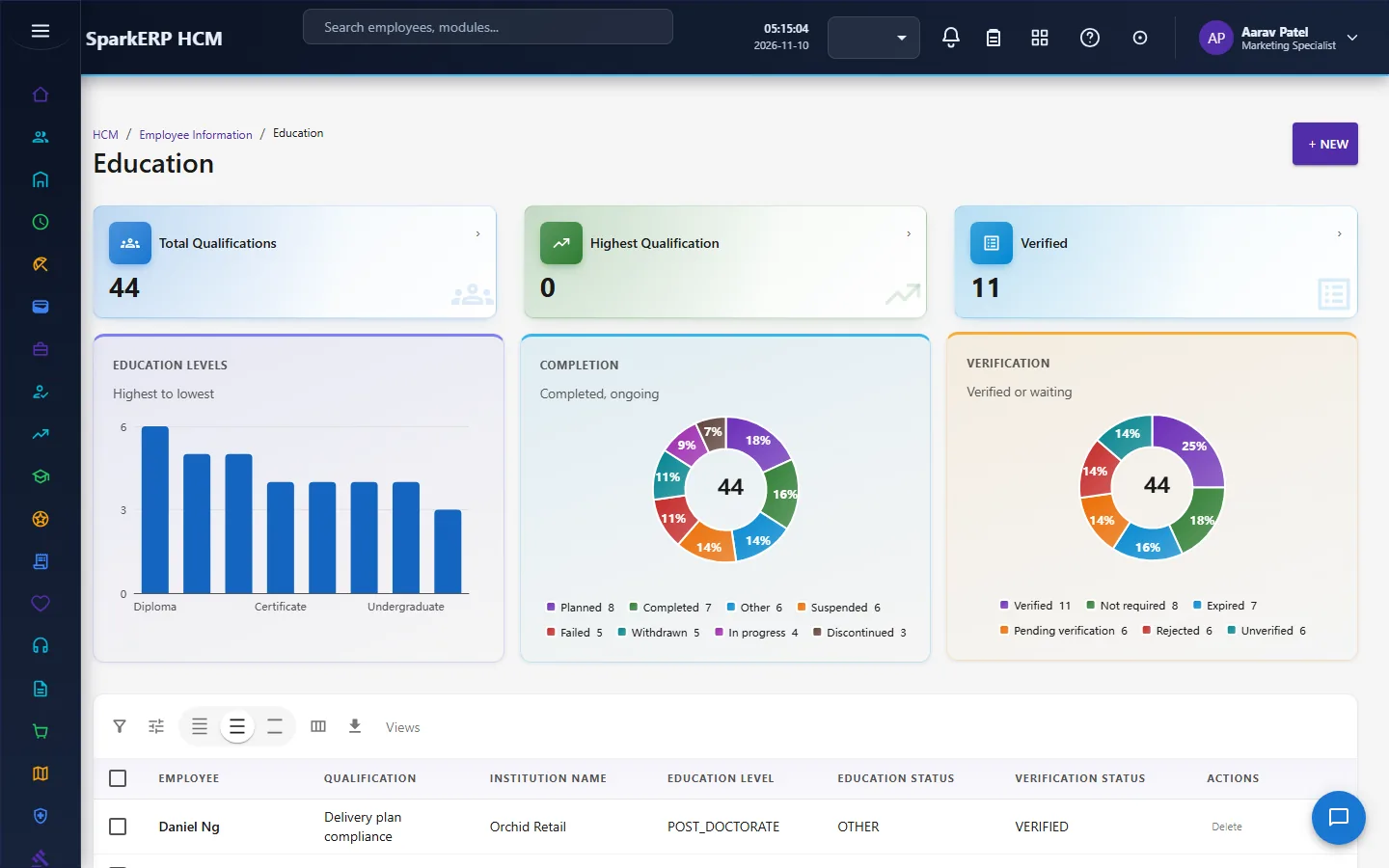
Family Information and Document Management complete it.
4. Decide before you set up
| Decision | What to think about |
|---|---|
| What you keep | Which record types you will maintain, and which you will leave out. |
| Who may read each one | Bank accounts, identity documents and tax details are sensitive; give each role only what it needs. |
| Who verifies | Who checks the originals, and what counts as proof. |
| Primary rows | Make sure each person has one primary bank account. |
| Confidential documents | The confidentiality levels you will use on Document Management. |
| How people correct their own details | Through My Profile in Self-Service, where changes follow the profile-change approval. |
5. Set up step by step
- Roles. Give the Employee Information Administrator role to the people who maintain the records, and the Viewer role to those who only read.
- Employees first. Create the employees in Core HR: every record here belongs to one.
- Load the core records. Personal Information and Employment Details, then bank accounts and emergency contacts.
- Documents. Enter identity documents, passports, visas and licences with their expiry dates.
- Background. Enter education, work experience, certifications and skills.
- Family. Enter dependants and beneficiaries; the beneficiary percentages should add up as your policy requires.
- Verify. Mark each record verified once the original has been checked.
- Trial. In a trial tenant generate the Employee Information demo data and read the count tiles on each page.
6. Daily use
6.1 A new employee's details
- Open Personal Information and Employment Details; add the person's record.
- Add the emergency contacts and the bank account (set it primary).
- Add the identity documents with their expiry dates.
6.2 A change
- Find the row; edit it; save.
- Reset the verification status if the detail changed, and verify it again after checking.
6.3 Watching expiry
- Read the expiring tile on Passport, Visa and Driving License.
- Contact the person; replace the record with the new document and mark it verified.
7. A calendar of recurring work
| When | What |
|---|---|
| Every month | Check the expiring tiles on documents, passports, visas and licences. |
| Before payroll | Check that every employee has a primary, verified bank account. |
| Yearly | Ask people to confirm their emergency contacts and dependants. |
8. Reports and figures
Each page shows count tiles and a list that can be searched, filtered and exported. Data quality counts (for example people with no date of birth or mobile number) are on Personal Information.
9. Limits you should know about
- There is no approval for a change on these pages. A person with the Administrator role changes the record directly. Self-service changes go through My Profile, which has its own approval.
- No change can be dated to take effect later, and there is no employment history timeline: Employment Details is one record that is overwritten.
- Some numbers are not masked or encrypted in the database (the page descriptions record that field-level masking is deferred), so give access carefully. Passport, visa, driving licence, tax and document numbers use masked fields, but bank account and identity document numbers are stored as entered.
- No automatic reminder is sent when a document is about to expire; read the expiring tiles.
- No duplicate-document detection, and the document file attachment is a reference.
- Verification is a status HR sets; it does not start a workflow.
10. Troubleshooting
| Symptom | Cause and fix |
|---|---|
| A page shows no rows | No records have been entered for it yet, or the role may not read that record type. |
| A person is not on the page | The employee does not exist in Core HR yet. |
| A tile counts fewer than expected | Rows have no expiry date, or are not verified. |
| A payroll run cannot find a bank account | The person has no primary bank account. |
| An employee cannot open a page | They show every employee's records; use My Profile. |