
Appearance
Core HR (Employee): how it works and how to set it up
Core HR is the record every other module stands on. It answers the questions a company asks about its people from the day an offer is accepted to the day they leave: who works here, in which position and under whom, when did they join and are they ready, did they pass probation, who moved, was promoted or transferred and who agreed, who is leaving and has everything been handed over and cleared. This guide explains how the employee side works from start to finish, then how to set it up, then what each person sees. The organization side (legal entities, departments, grades) has its own guide; this guide is the one to read first for the people themselves.
1. What Core HR does for your business
- Holds one record per person that Payroll, Leave, Attendance, Performance and every other module read.
- Walks a person through their life with the company: prejoining, joining, probation, confirmation, movement, and separation by resignation, termination or retirement.
- Puts a person between a change and the record. A change that matters (a manager, a position, a status, a compensation, a transfer, a promotion, a resignation) is a request that is approved before the record changes.
- Keeps the history. Every move writes a history line with who did it, and dated changes are applied on their effective date.
- Shows the organization. An org chart, positions with their headcount, and workforce insights.
What it does not do: it does not run payroll or calculate leave. It holds the facts those modules use. Several hand-offs depend on other modules, which are named where they happen.
2. How the employee record works, end to end
2.1 The life of a person
- Prejoining. At offer acceptance the person gets an employee record with the status prejoining, so other systems can refer to them before they join.
- Joining. On the joining day the person goes through the joining checklist. Activation is the one place the status becomes active.
- Active. The person works. Their profile, documents, skills and positions are maintained.
- Probation and confirmation. A confirmation either confirms the person or extends probation.
- Movement. Transfers, promotions and internal movements change where, what and under whom.
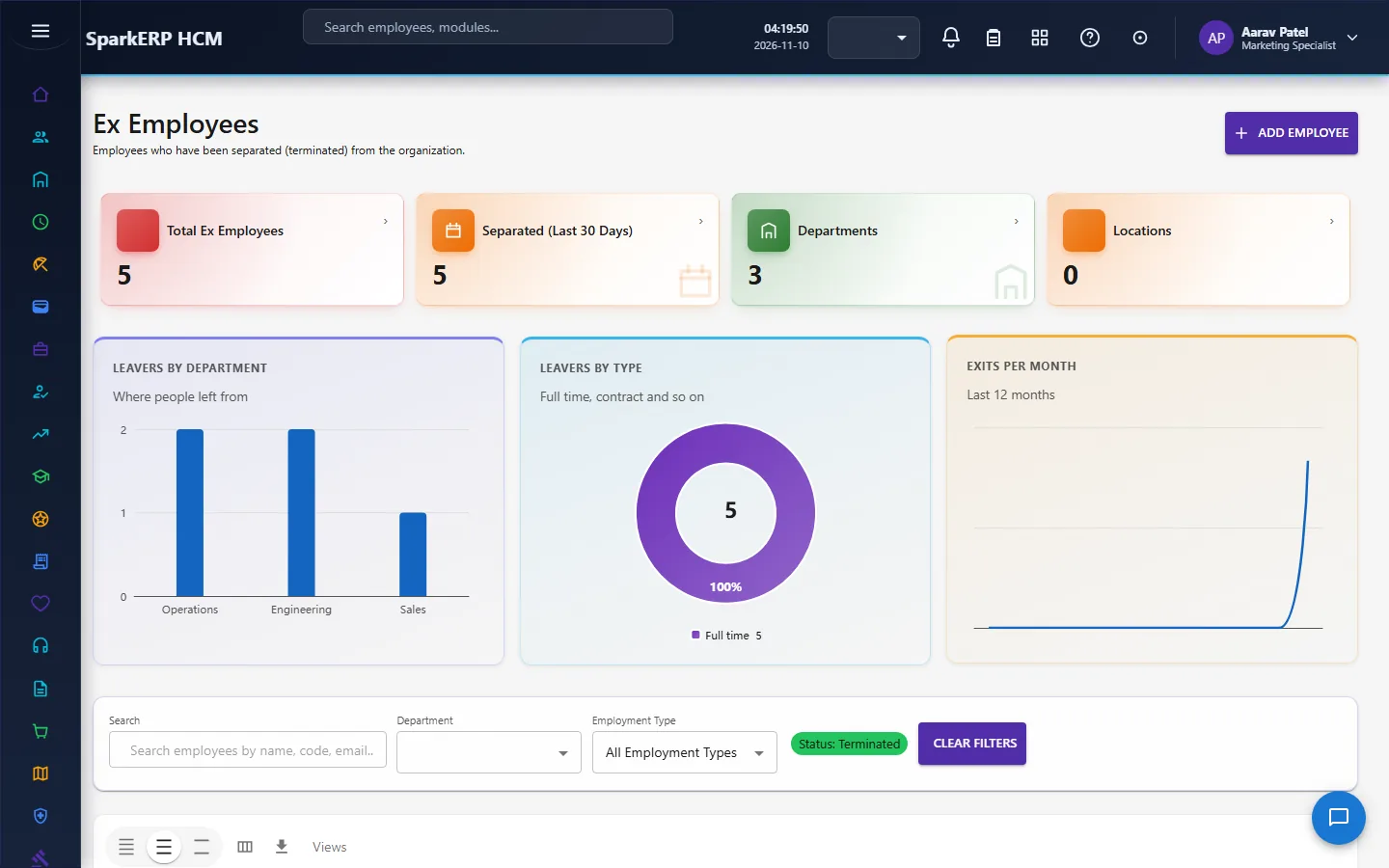
- Separation. The person resigns, is terminated or retires, with a notice, handover and clearance, and becomes an ex-employee. A person can be rehired.
2.2 How changes are approved
A change that needs an approver is not written straight to the record. It becomes a change request and the record changes only when the request is approved. The approval steps and the roles that can decide them:
| Change | Steps |
|---|---|
| Status change, manager change, position change, onboarding, rehire, document verification, confirmation | One step, decided by the HR Administrator. |
| Compensation change | HR, then finance (HR Administrator or Finance Approver). |
| Transfer | Manager, HR, finance and IT. |
| Promotion | Manager, HR, compensation and finance. |
| Internal movement | Manager, HR, finance and executive. |
| Resignation and resignation withdrawal | Manager, then HR. |
| Termination (full) and retirement | Manager, HR, then finance. |
| Separation | One step, decided by the HR Administrator. |
| Acknowledgements (promotion, movement, resignation) | One step, decided by the employee. |
Every step is a task due within three days. HR Administrator and HR Manager decide the multi-step ones.
Small facts that do not change a person's standing are not gated. A phone number, date of birth, gender, marital status, nationality, languages and blood group are updated directly, as a data correction.
2.3 Prejoining
At the start of the lifecycle there is nothing to approve a change against, so the person's record is created directly with the status prejoining. The record is built up until it is ready to join. Readiness is a hard gate: reaching 100% never makes a person ready by itself. Every one of these must pass on its own:
- the prejoining checklist has all its mandatory items done;
- all mandatory documents are verified;
- background verification is clear;
- payroll and bank information is verified;
- IT and access requirements are ready;
- and the planned joining date is set (and any tenant setting that adds a blocker is clear).
When all pass, the prejoining can be marked ready. A prejoining can also be cancelled. The person's employee code is assigned at offer acceptance and the joining step only confirms it.
2.4 Joining and activation
The joining day starts from a record that is ready to join. The same kind of hard gate applies before activation. Every condition must pass on its own:
- the joining checklist has all its mandatory items done;
- mandatory documents are verified;
- the joining declarations are accepted;
- identity and joining verification is complete;
- IT and system access is active;
- required assets are issued.
Completing the joining, activating the person, recording a no-show and cancelling each go through their own approval. Activation is the single place where the status becomes active. (The Onboarding module drives the same preparation from the other side; see its guide.)
2.5 Probation and confirmation
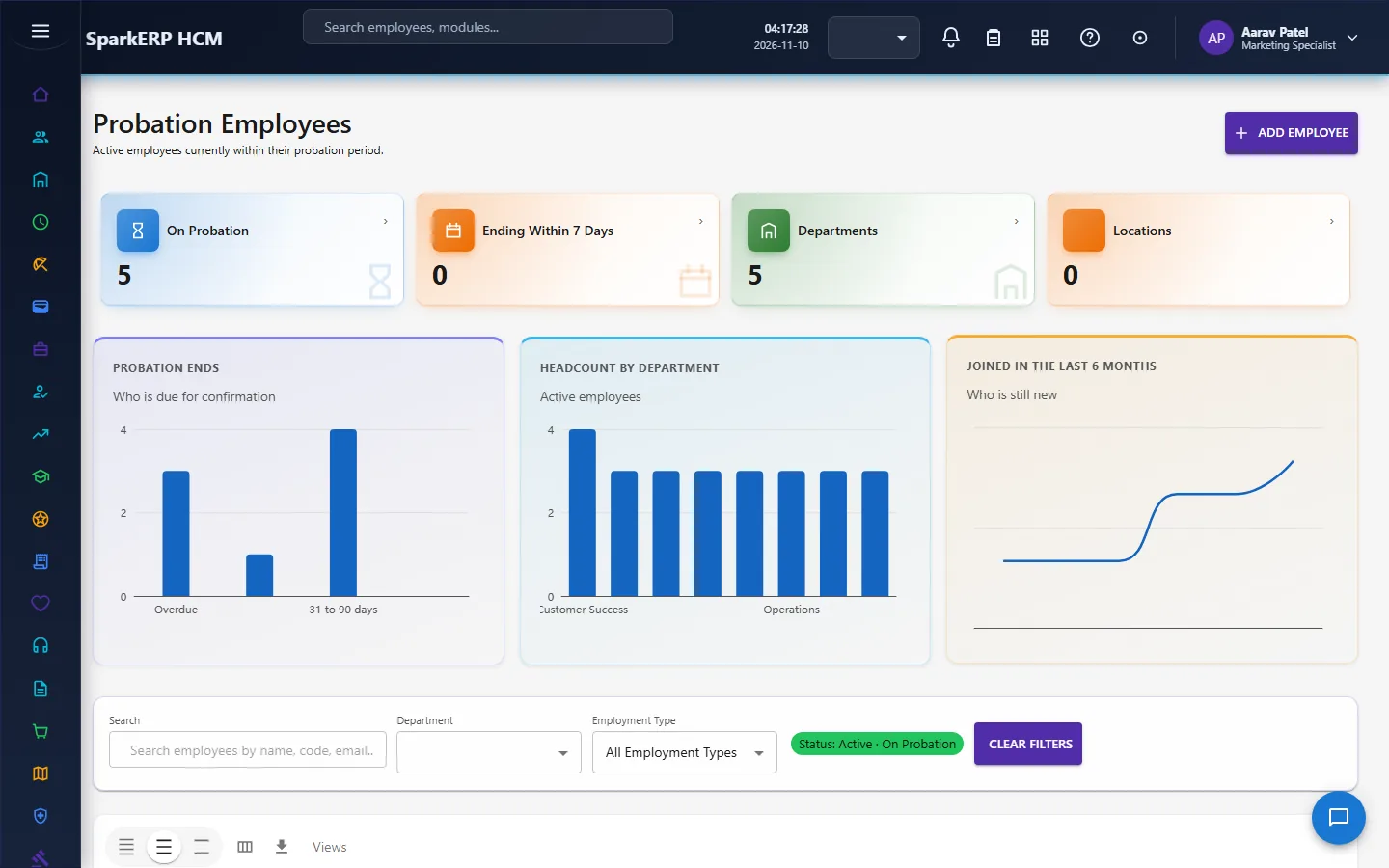
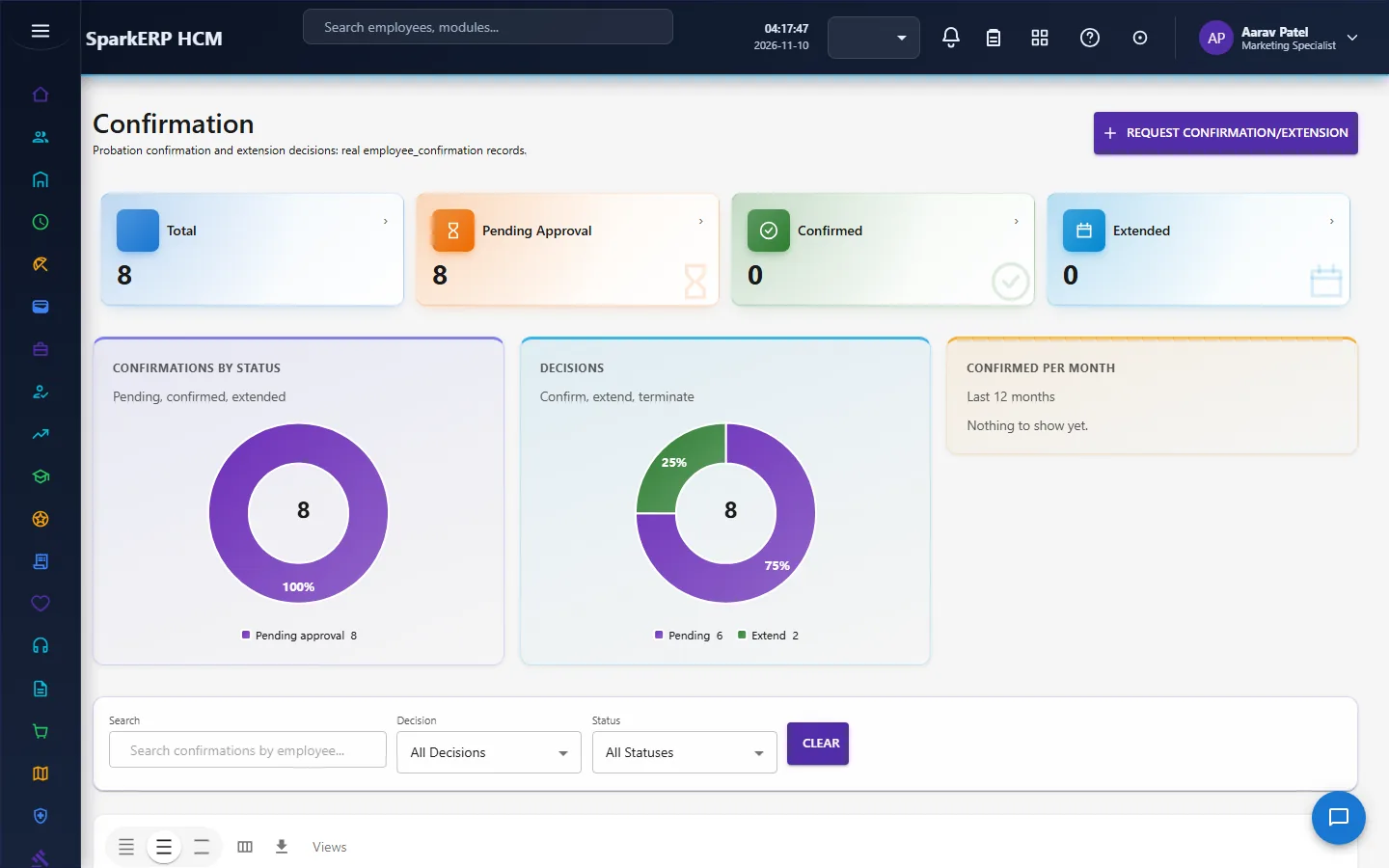
A person on probation has a probation end date. A confirmation records one of two decisions:
- Confirm: the probation end date is cleared and the person is permanent.
- Extend: the probation end date moves to a new date.
A pending confirmation does not change the person's status. They stay active throughout and only the confirmation shows as pending. It is one approval step, decided by the HR Administrator.
2.6 Transfers, promotions and internal movements
All three are dated changes with a checklist, a history of the dates and a document or letter, and each executes on its effective date, with a job doing the execution.
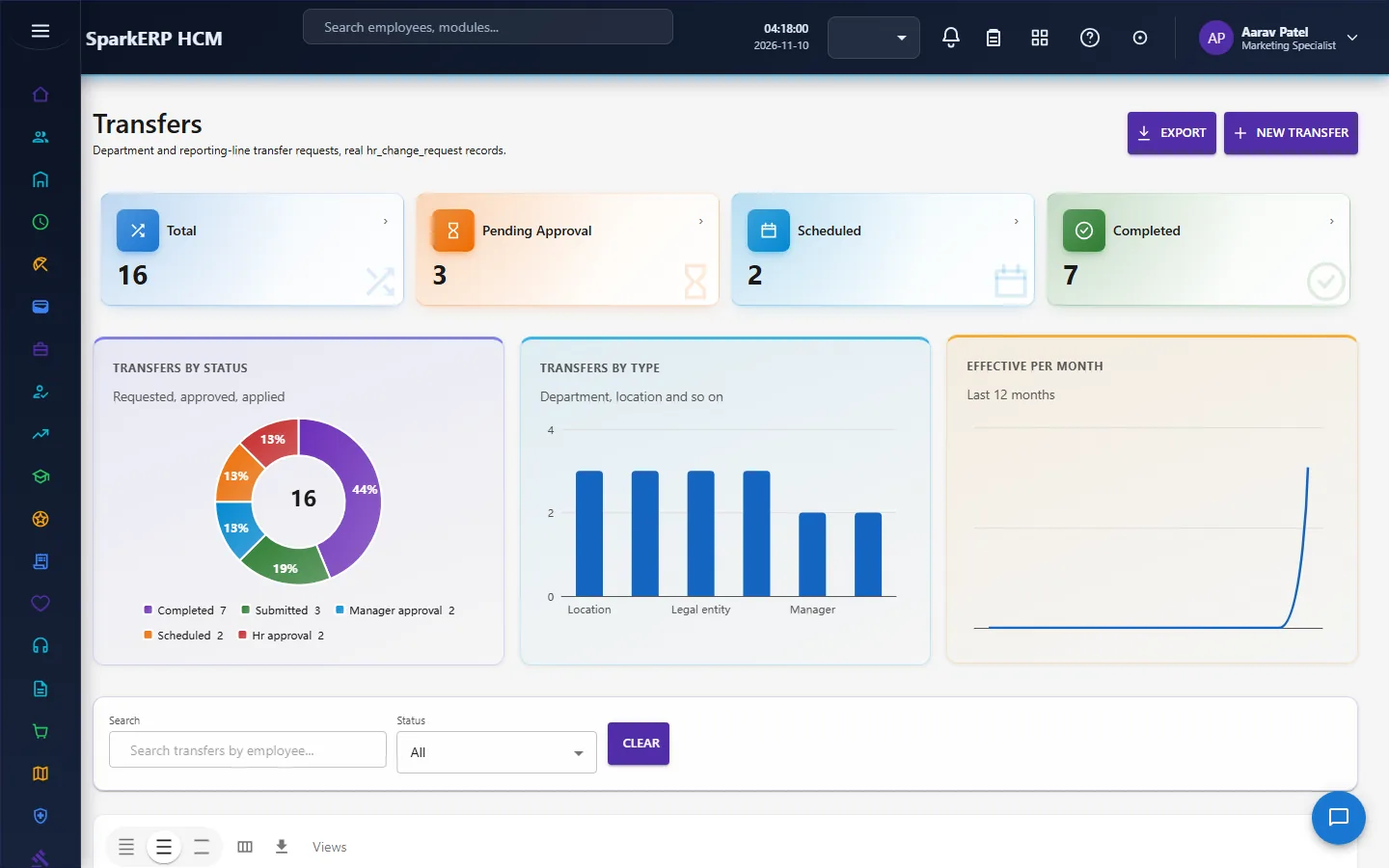
Transfers change where a person works: department, location, business unit, cost centre, legal entity, position and manager. Before it is submitted the transfer is checked: the new values must be active, and there must be no conflicting pending change. The approval has four steps: manager, HR, finance and IT. A transfer can also carry access changes.
Promotions change level and role. An eligibility check runs first, one result per rule, including a minimum service in months that the tenant sets in HR Settings (with a platform default). HR can override a rule, but only with a mandatory reason, and the override is recorded. The approval has four steps: manager, HR, compensation and finance. A promotion always needs the employee's acknowledgement. A promotion letter can be generated.
Internal movements are the general form. A movement holds a list of the attributes it changes (department, team, role, manager, employment category, work arrangement), and applies only the ones present. Location, business unit and cost centre are not applied to the employee record by a movement. A movement can be sent back for changes and reversed after it is applied. It asks for the employee's acknowledgement only when it is flagged to. The approval has four steps: manager, HR, finance and executive.
One conflict check serves all three. A person with a pending or scheduled transfer, promotion or movement cannot have another one started: the check reads the open items of all three before allowing it. A backdated change needs its own permission.
2.7 Resignation
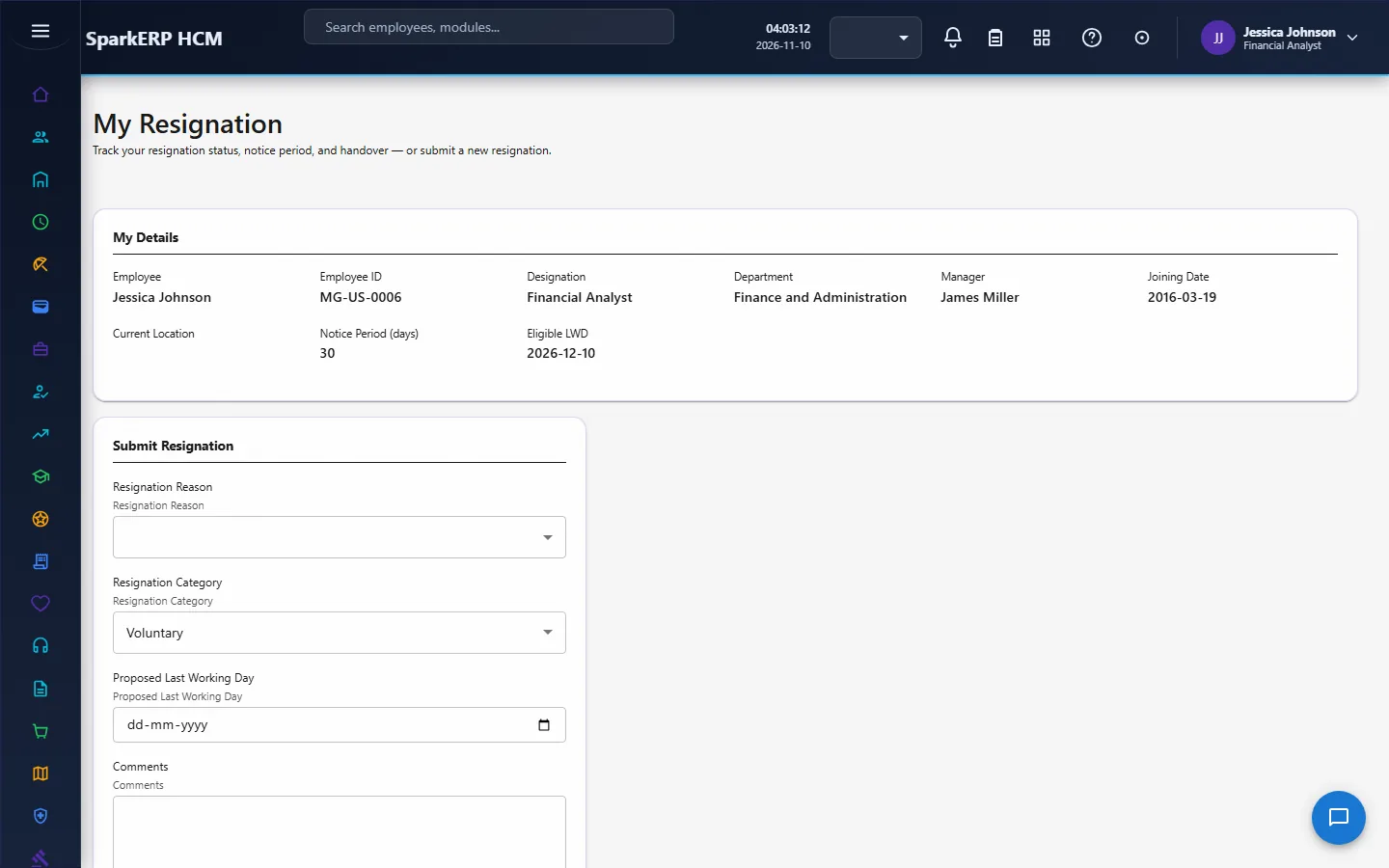
A resignation records the date and the reason. The last working day is calculated as the resignation date plus the notice period, which comes from a tenant setting in HR Settings (30 calendar days by default; working days are not supported). A person can have only one active resignation, and a draft does not count as active. A person with a resignation in progress cannot also have a termination filed against them.
The approval has two steps, manager and HR. The employee acknowledges, the notice can be adjusted or waived with permission, a handover with items is kept, and the date can be confirmed. The employee can withdraw a resignation; the withdrawal is approved (manager, HR) too. On the last working day the resignation is executed by a daily job and the separation begins. The employee uses My Resignation to see theirs.
2.8 Termination and retirement
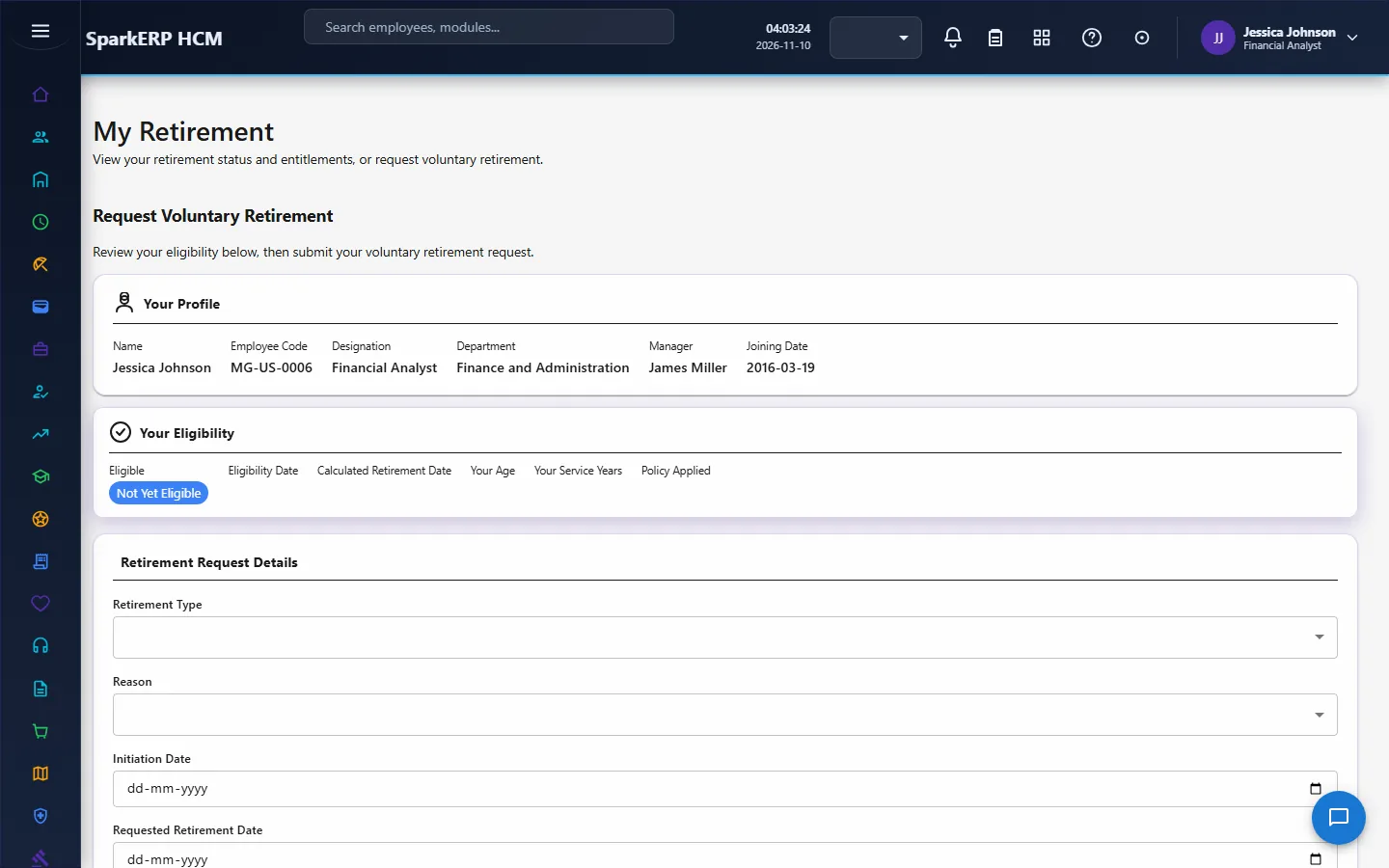
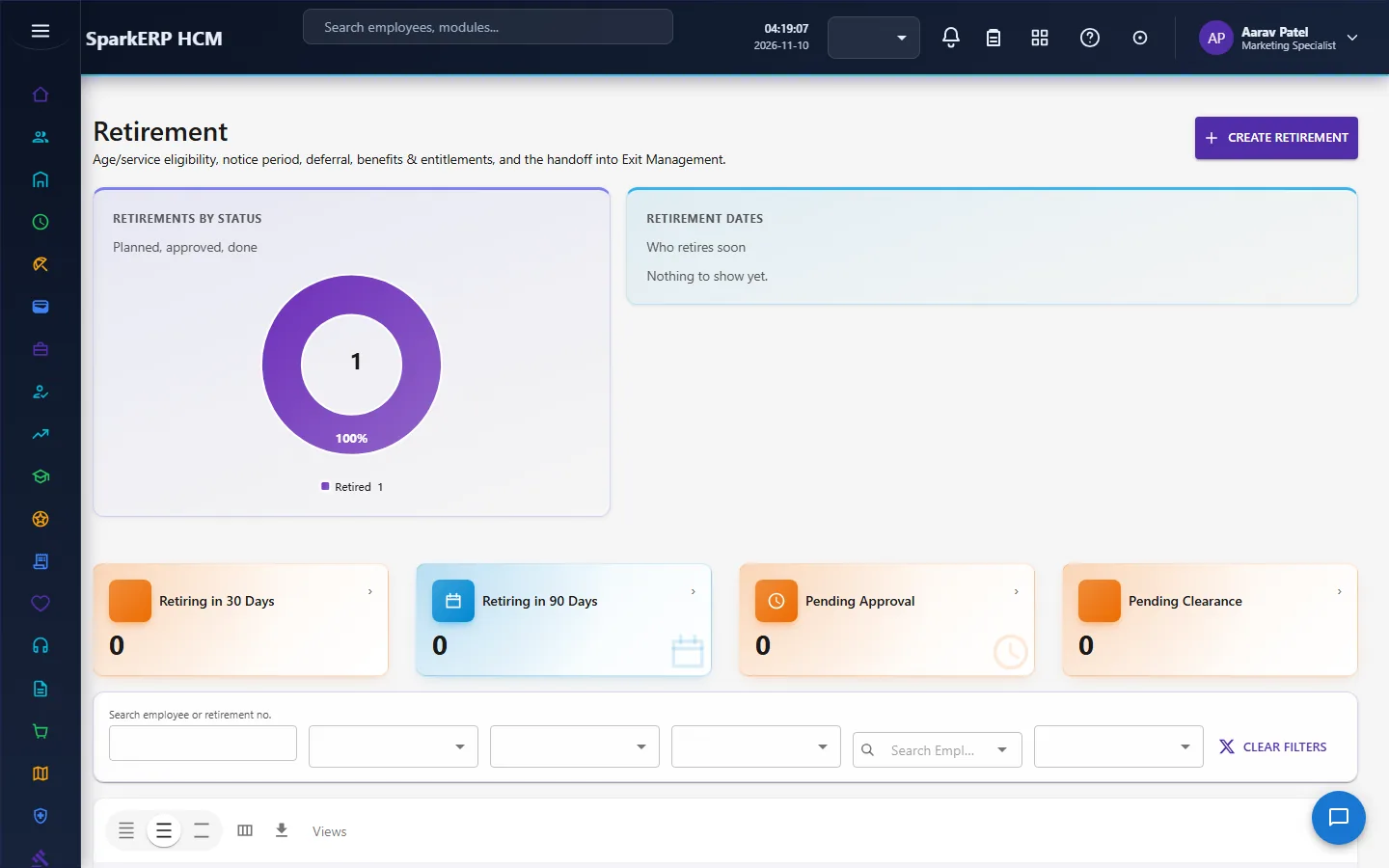
Termination is the employer's decision. It has its own checklist, knowledge-transfer items and documents, a notice policy, and a three-step approval: manager, HR and finance. The older plain termination, which is only a bare status change with no notice or reason, still exists beside it. Retirement has a policy that decides eligibility two ways, and whichever gives the earlier date is the retirement date: an age rule (date of birth plus the retirement age) and a service rule (hire date plus the years of service). A person is eligible once that date has arrived. A daily scan finds eligible people. Retirement has benefits, a checklist, knowledge transfer and documents, and a three-step approval: manager, HR and finance.
2.9 Separation and exit clearance
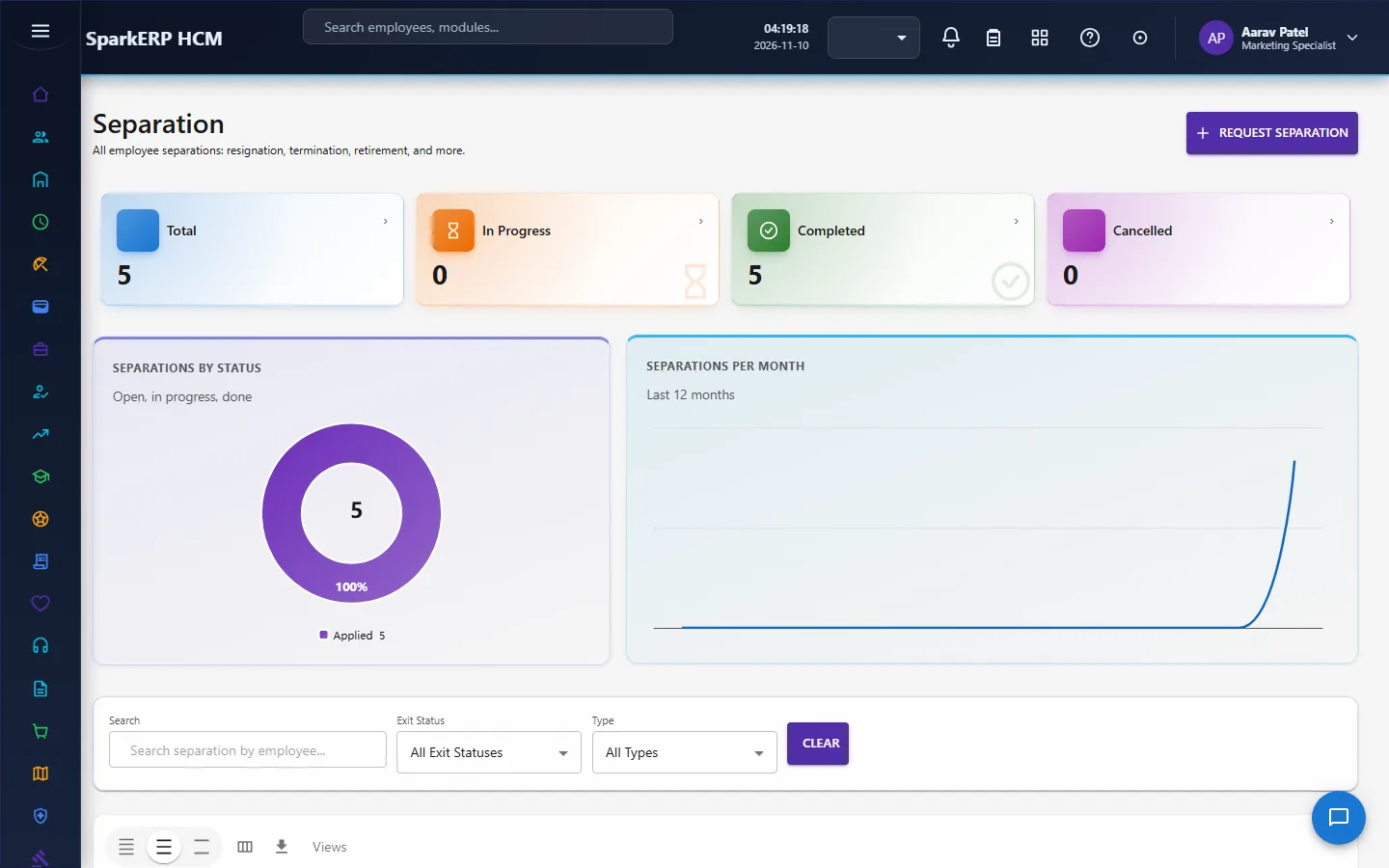
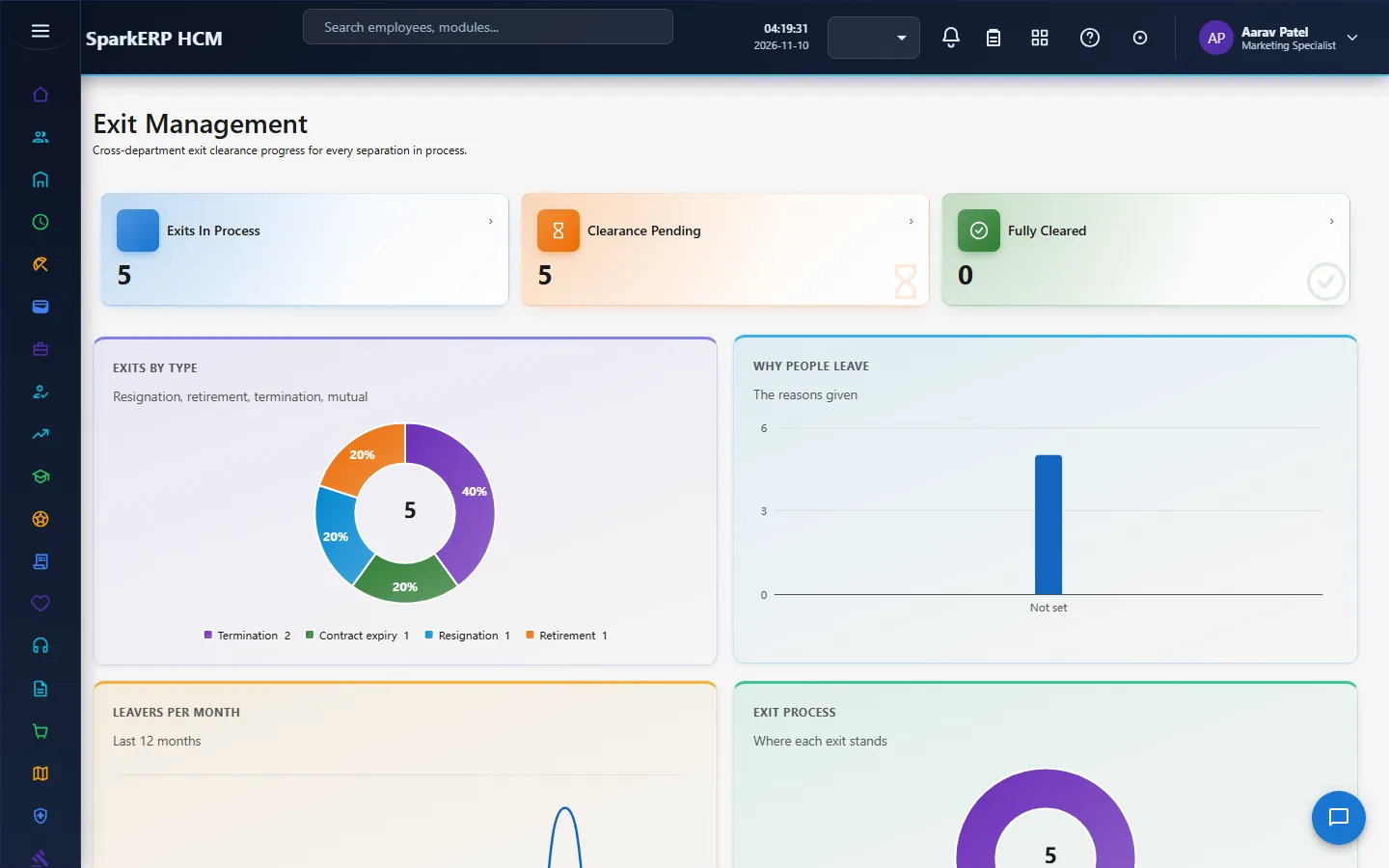
A separation is the structured record of leaving: the type (resignation, termination, retirement and others), the notice and the reason. On approval it creates one exit clearance row for each standard department: HR, Finance, IT, Admin, Manager and Asset Management, so each department signs off in parallel. Exit Management follows the clearances. When separation completes the person becomes an ex-employee. A person can be rehired, which has its own approval.
2.10 Positions
A position is a seat in the organization, with a job classification, a function, a budget and a manager. Its filled headcount is always counted live from the employees in it, never stored, so it cannot drift. Creating, closing, reclassifying, freezing, changing the manager of and transferring a position each go through an approval, and a budget approval goes HR then finance. Housekeeping runs as a daily job.
2.11 Categories, types, skills and documents
- Employee categories form a hierarchy. A category can never be its own parent and a cycle is refused. A category still used by an active employee cannot be deactivated.
- Employment types (permanent, contract, intern, consultant and others) classify the contract.
- Skills and competencies are kept by category, assigned to employees and assessed.
- Employee documents are uploaded, and verification goes through an approval.
- Addresses, emergency contacts and dependants are kept on the profile. The people who may see another person's profile details are HR roles and the Employee Information roles.
2.12 Own-record access
An employee sees their own profile, resignation, retirement and notice. HR roles read other people. A manager sees the people in their reporting line. Self-service screens that take an employee id answer only for the caller's own id unless the caller holds the HR profile permission.
3. Who does what
| Role | What they do |
|---|---|
| HR Administrator | Decides most single-step changes and every multi-step one; runs the whole lifecycle; verifies documents; activates people. |
| HR Manager | Decides the HR step of transfers, promotions, movements, resignations and terminations; marks prejoining ready; completes joining. |
| HR Executive | Day-to-day record keeping and data entry. |
| Finance Approver | Decides the finance step of compensation changes and position budgets. |
| Auditor | Reads the lifecycle records and exports. |
| Employee | Sees their own profile; acknowledges promotions, movements and resignations; resigns and withdraws. |
| Line manager | Decides the manager step of changes for the people in their reporting line, from their approvals. A manager holds no platform role: the reporting line makes them one. |
3a. What each role sees, screen by screen
The employee
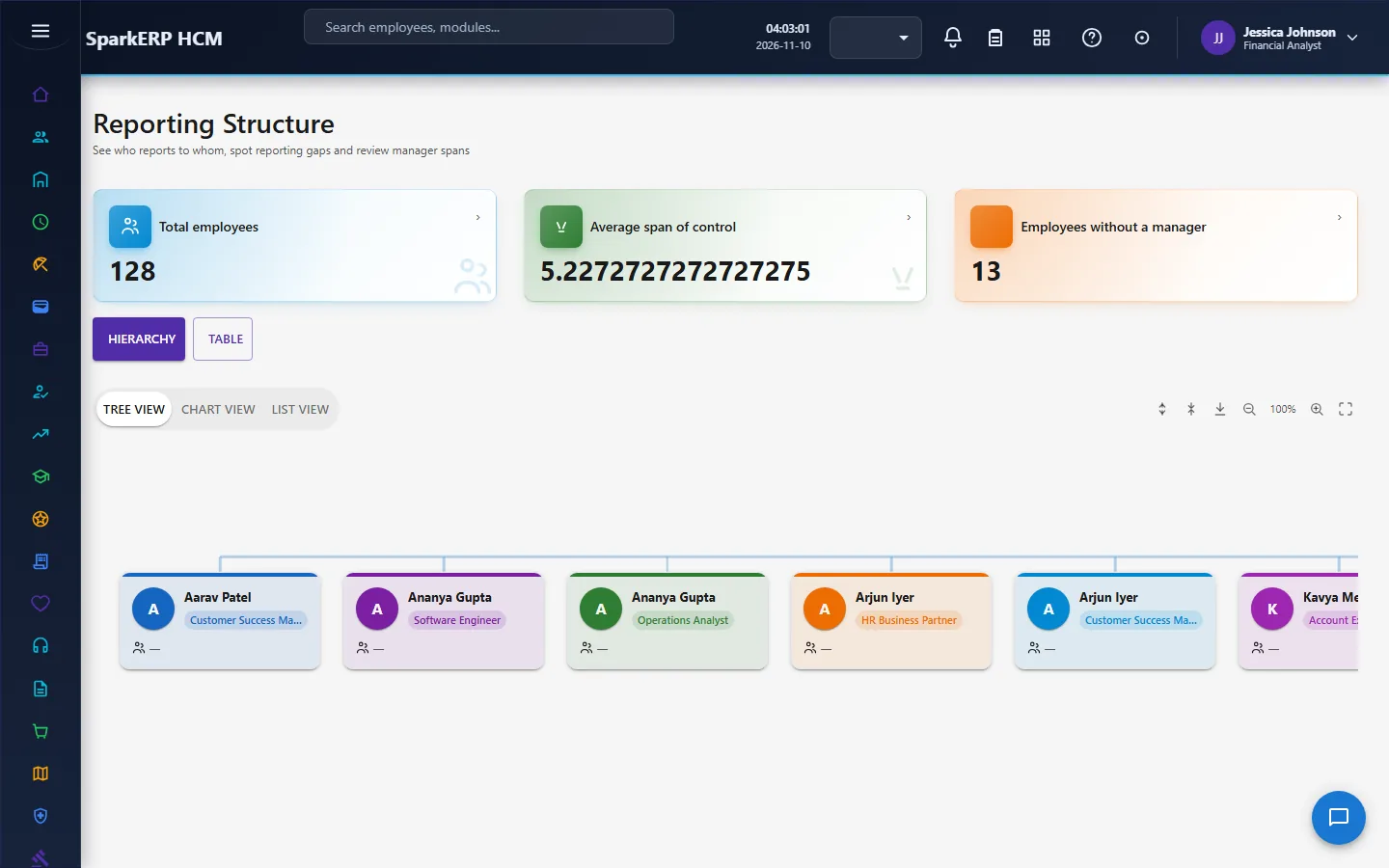
An employee sees the Org Chart, and their own My Resignation, My Retirement and notice screens. The employee list is an administration screen.

The manager
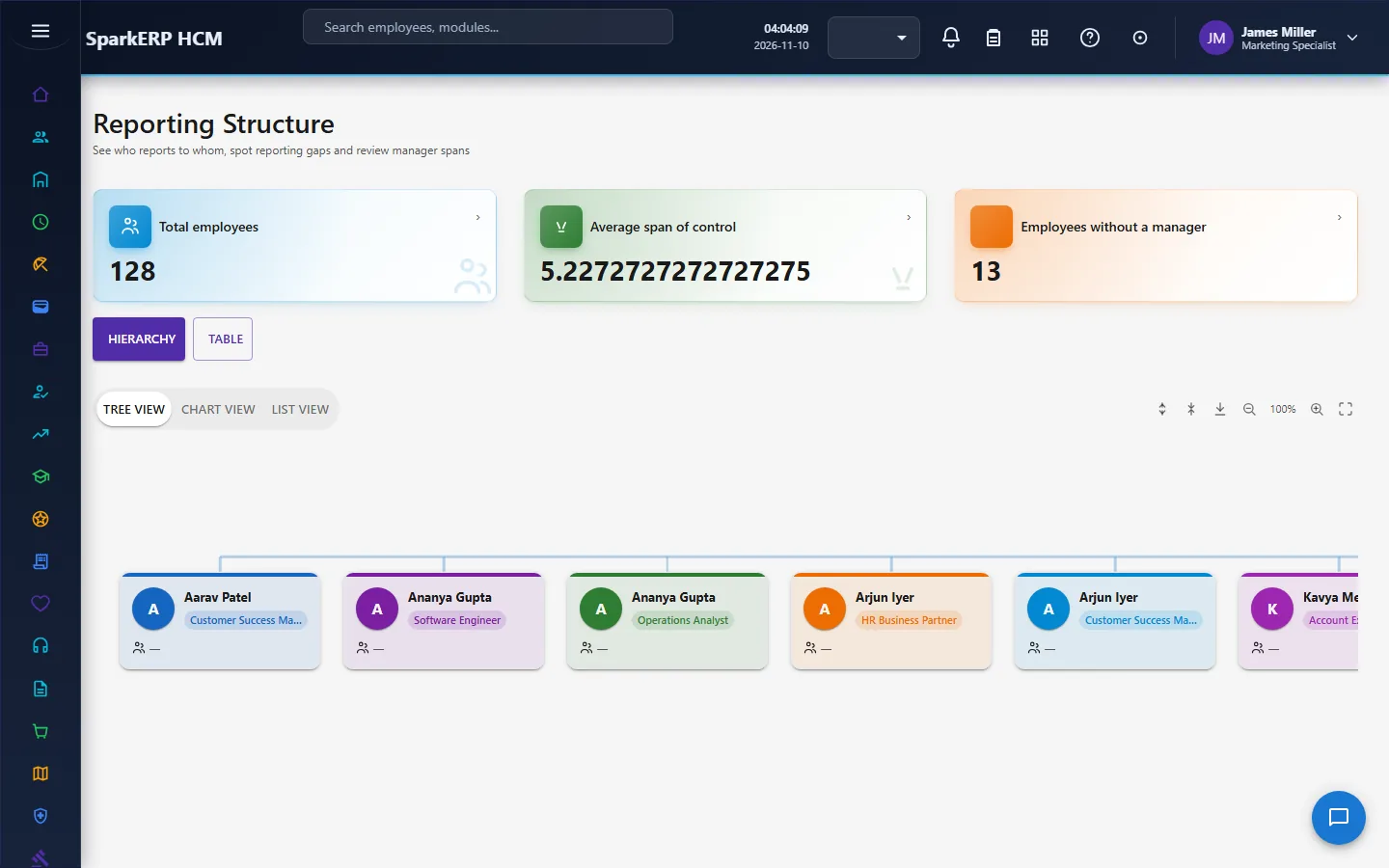
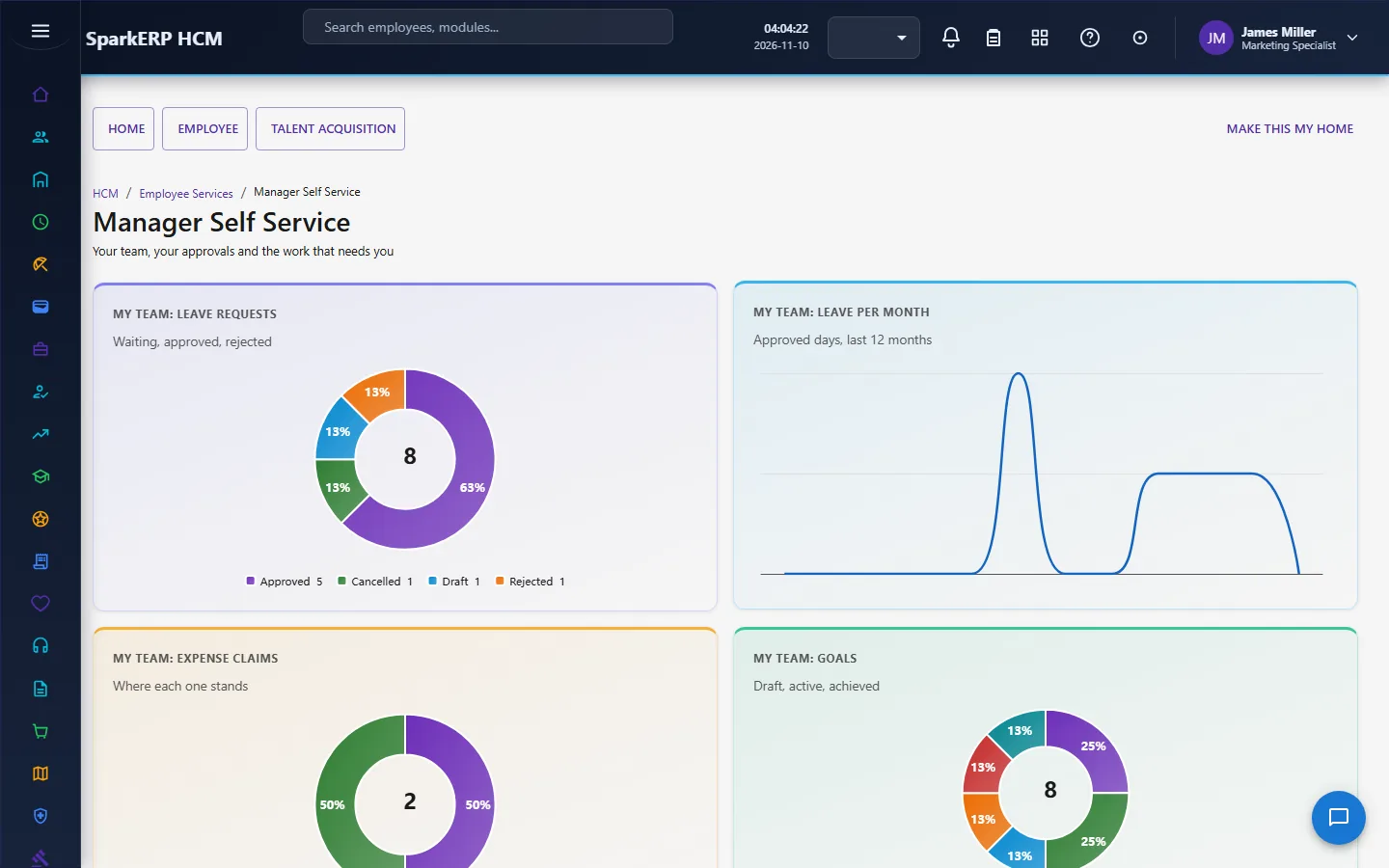
A manager sees the Org Chart and, for the changes of their team, Manager Self-Service, where the approvals waiting for their step (transfers, promotions, resignations and the rest) arrive. The HR screens, such as the employee directory, probation, confirmation and transfers, show the whole organization, so they are not open to a line manager.

The HR administrator
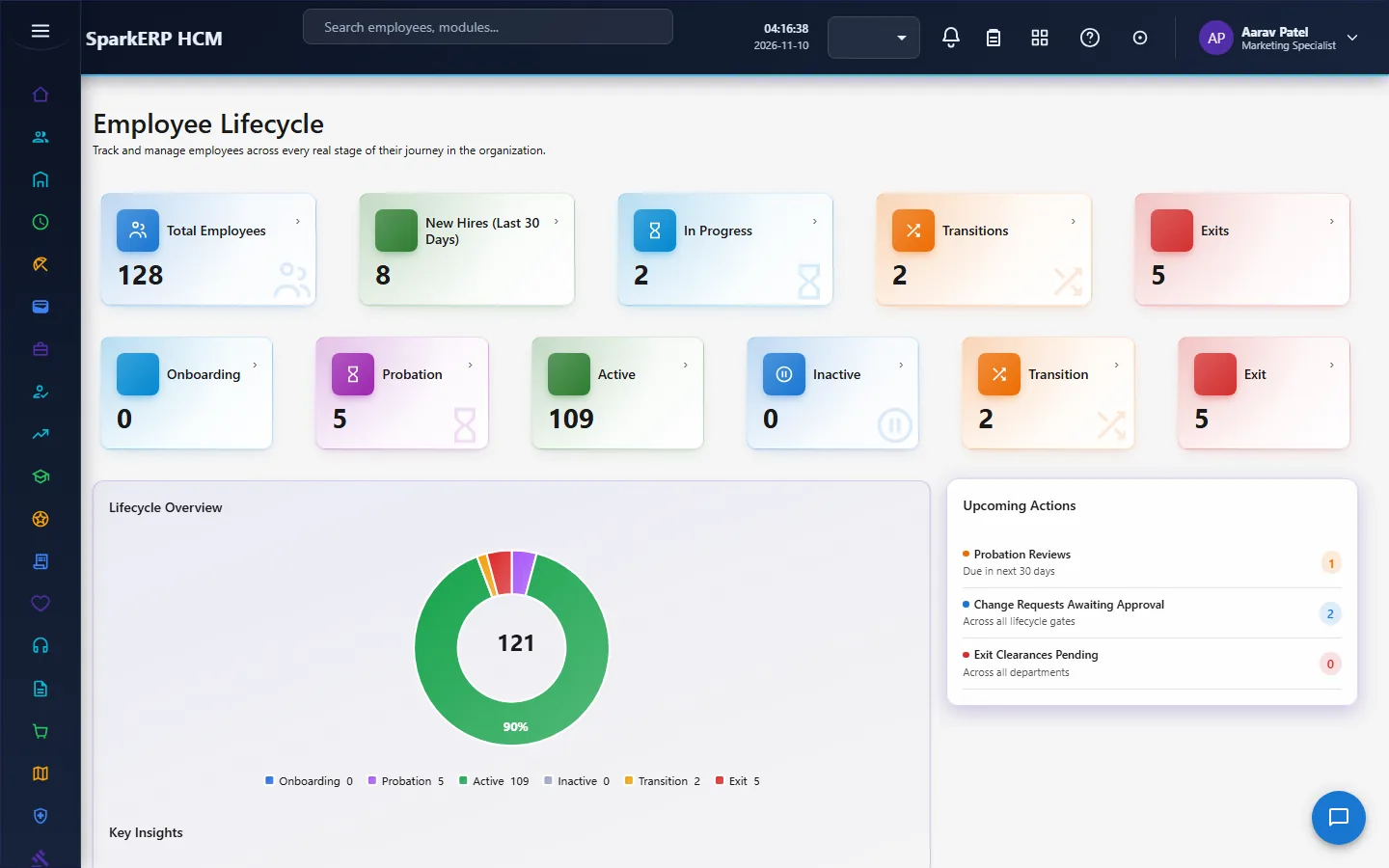
The Employee Lifecycle shows the people in each stage and the actions coming up. Employees is the directory.
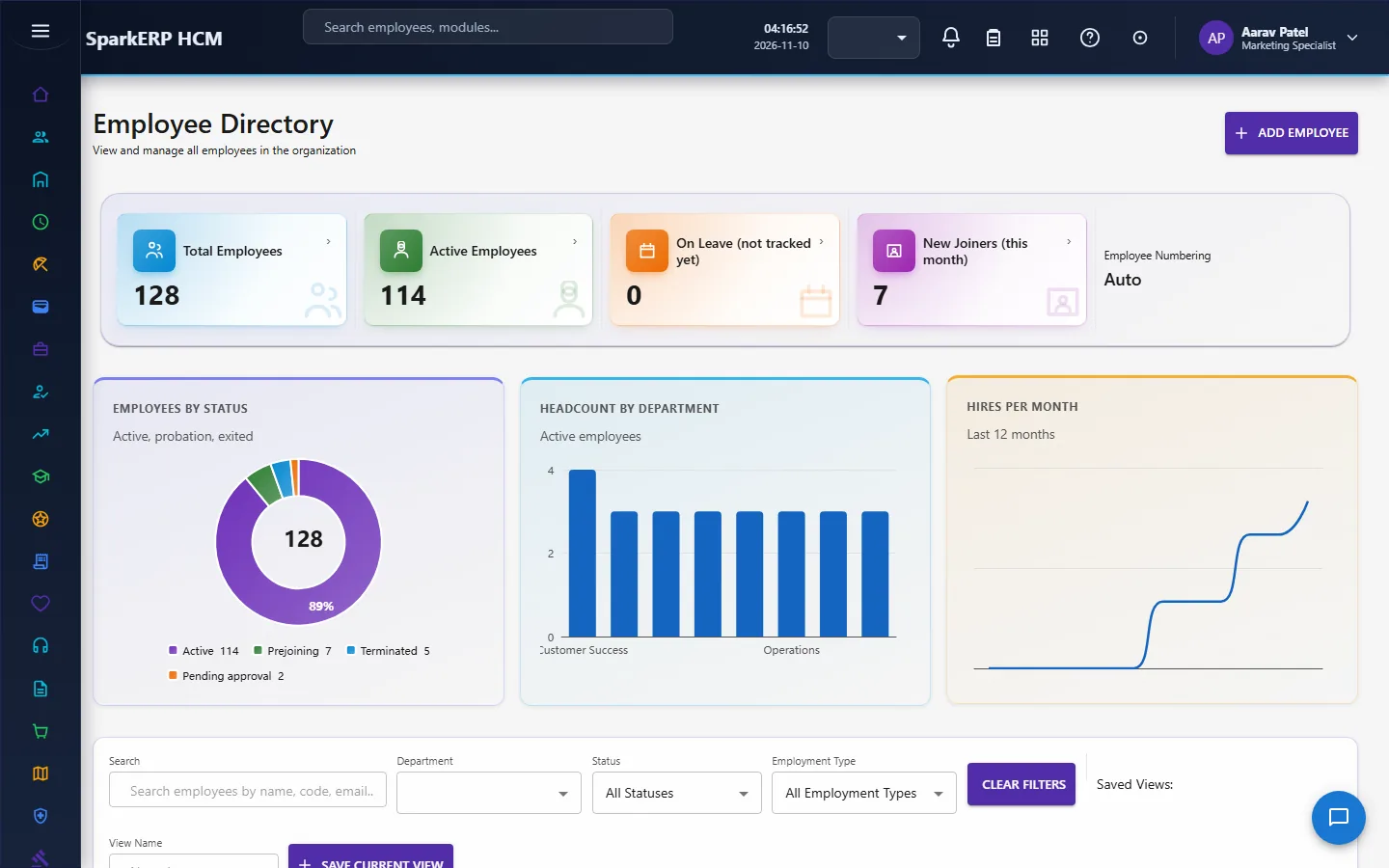
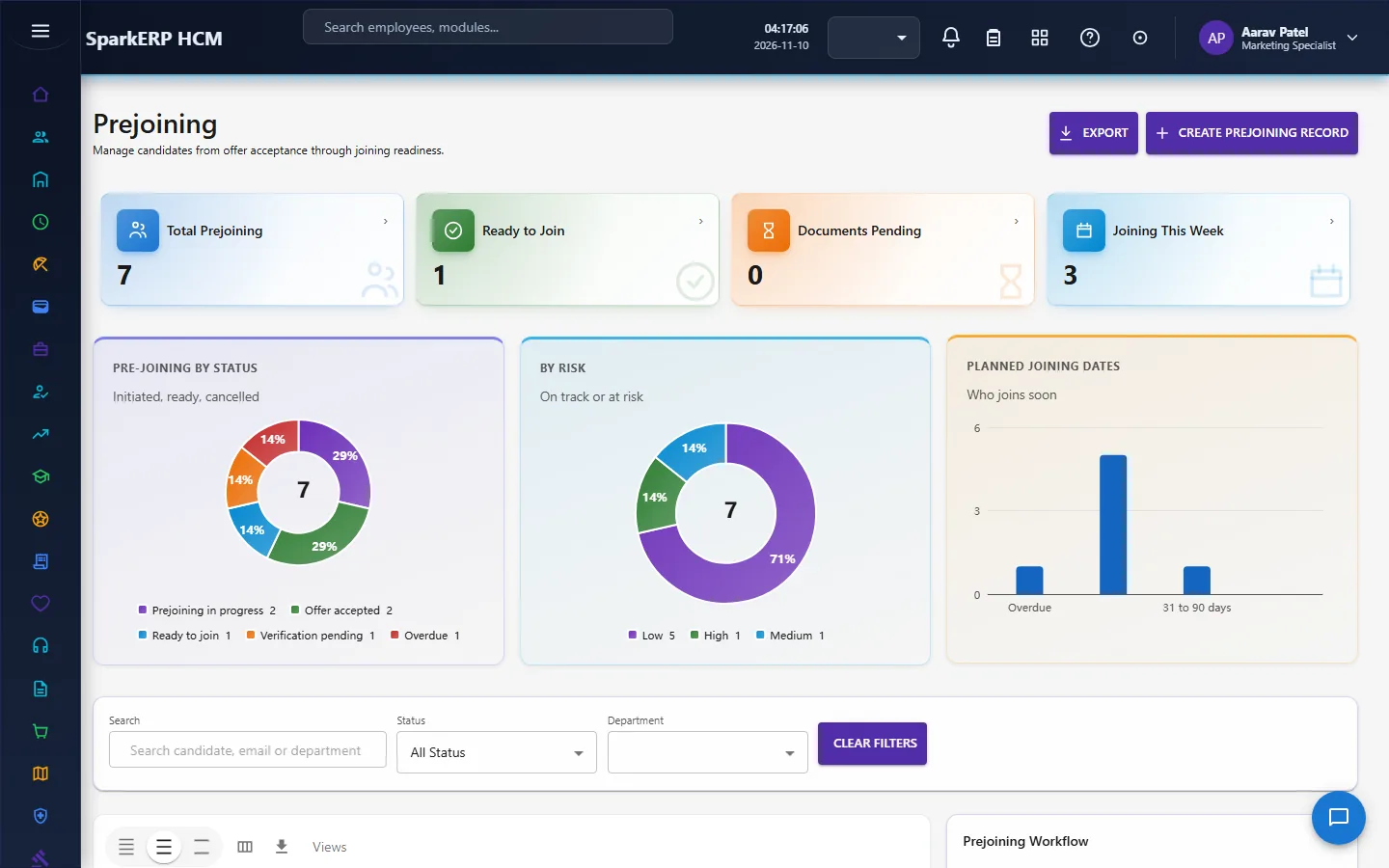
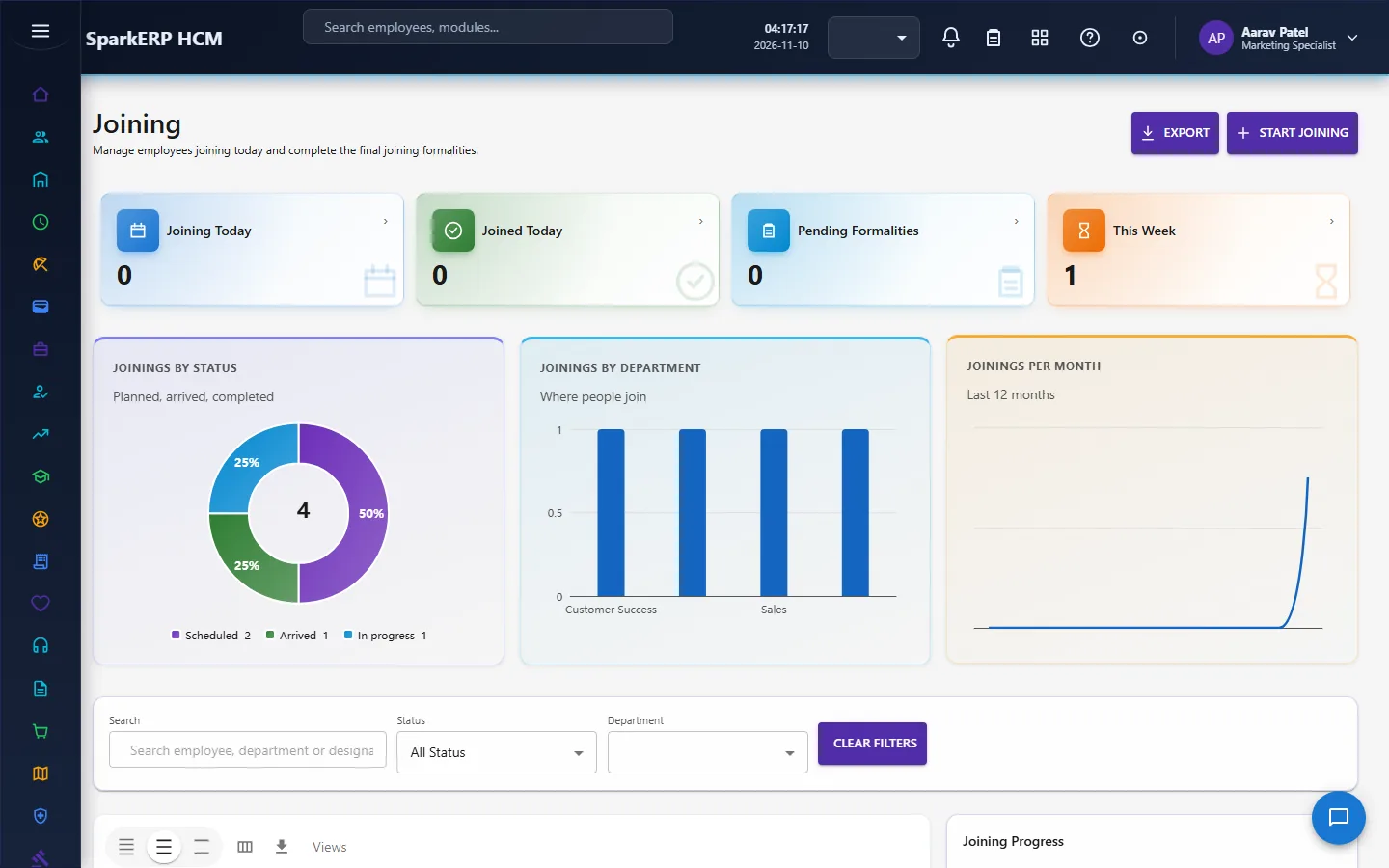
Prejoining and Joining prepare the start.
Probation and Confirmation follow it.
Transfers, Promotions and Internal Movement change where and what.
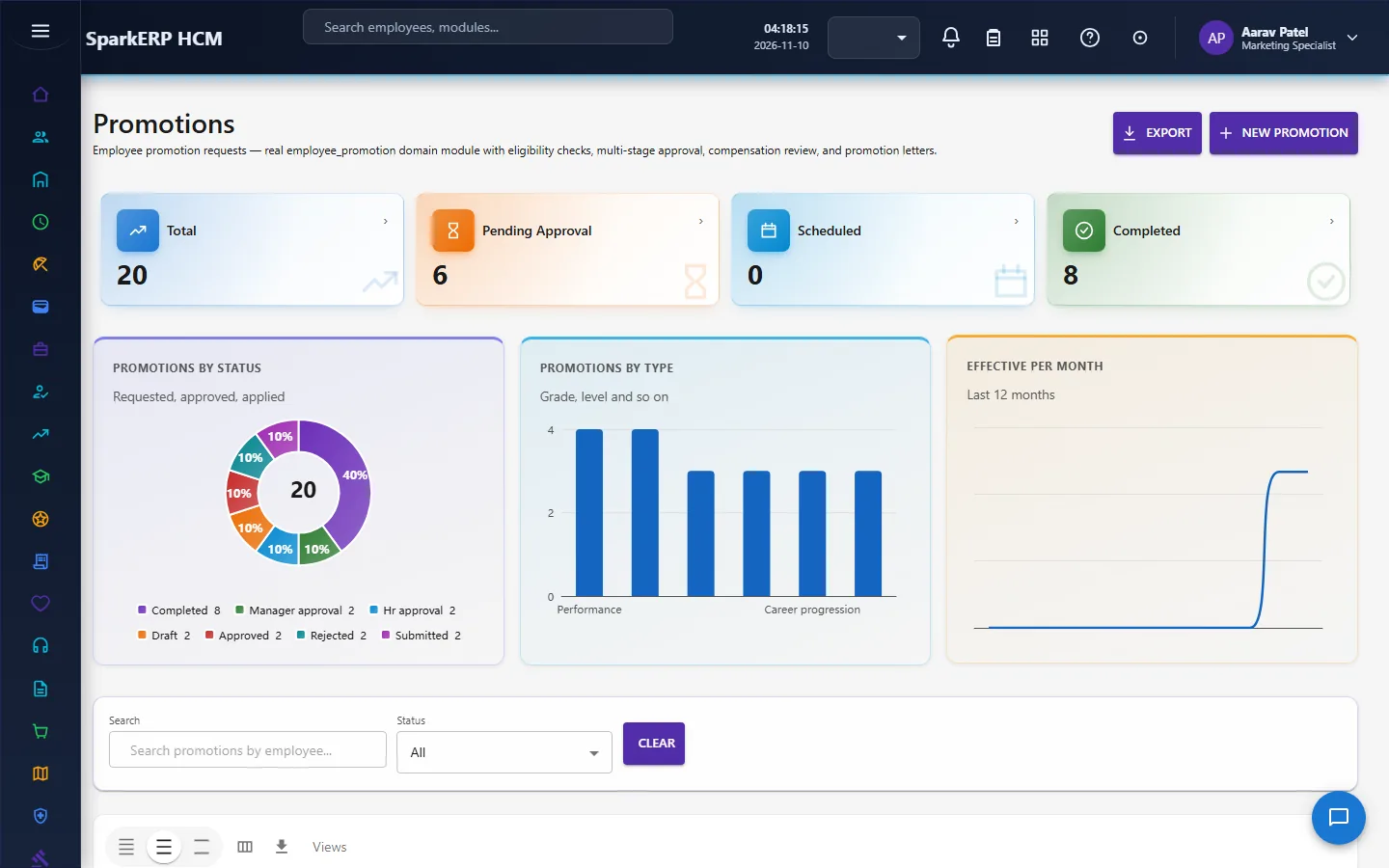
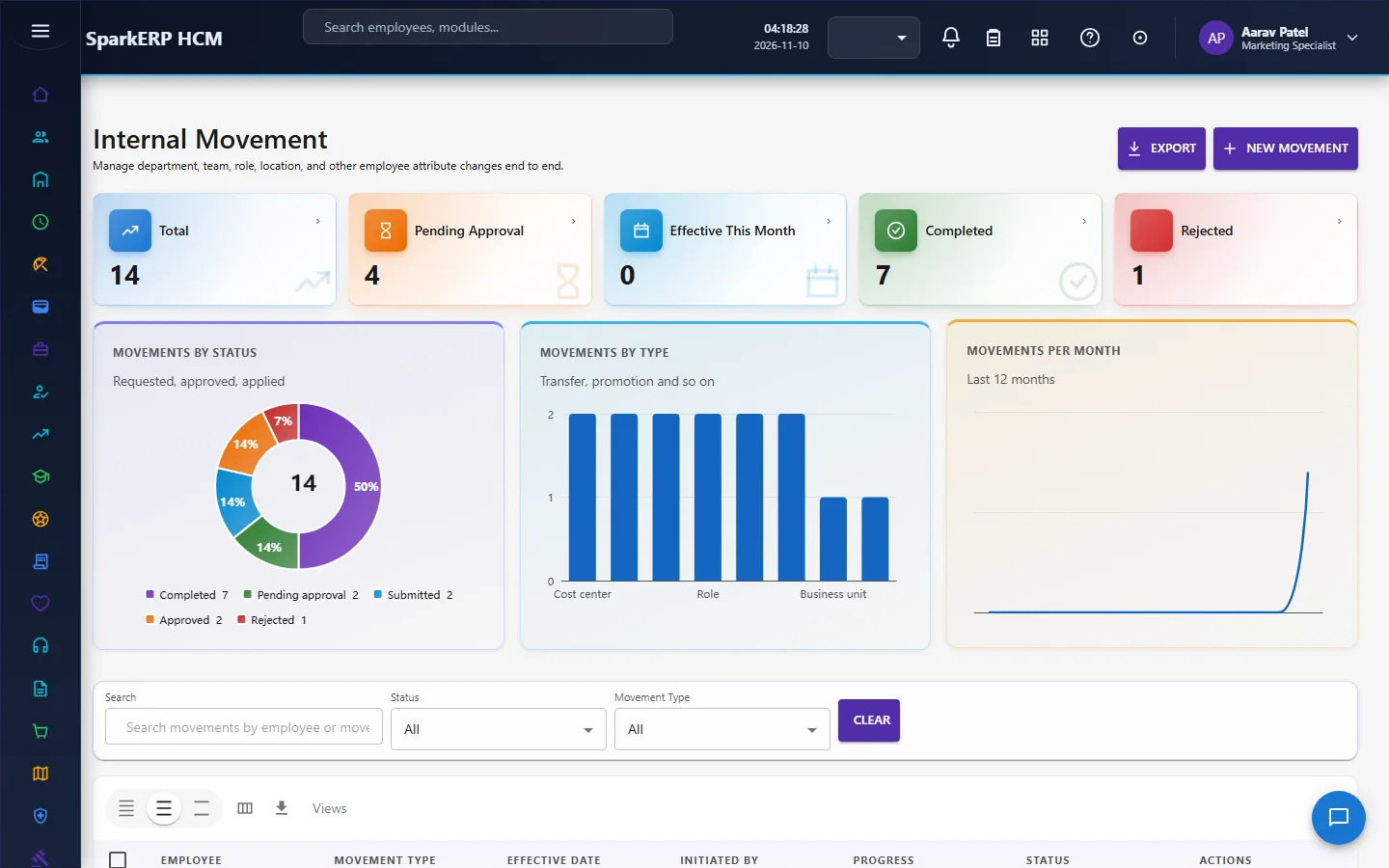
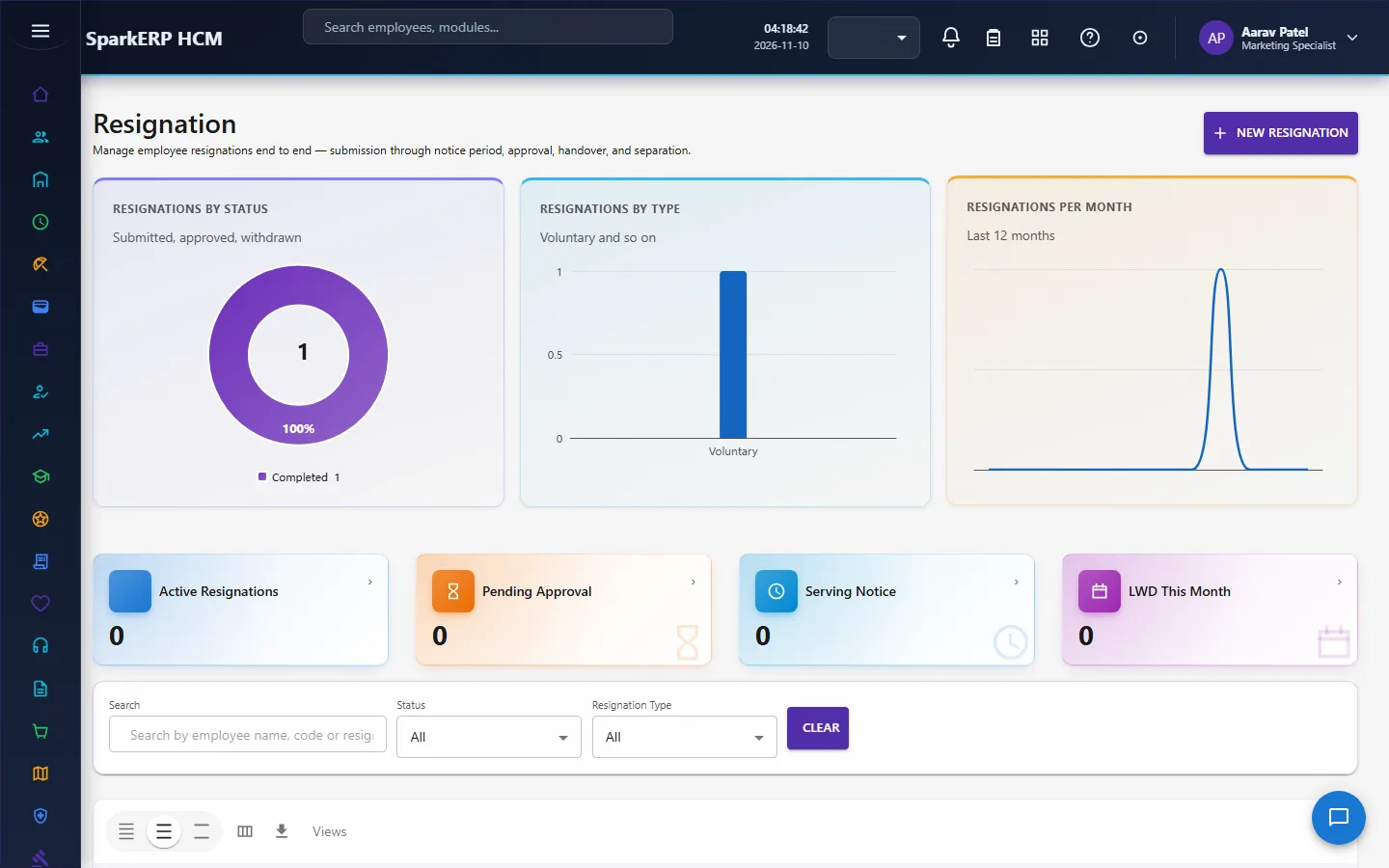
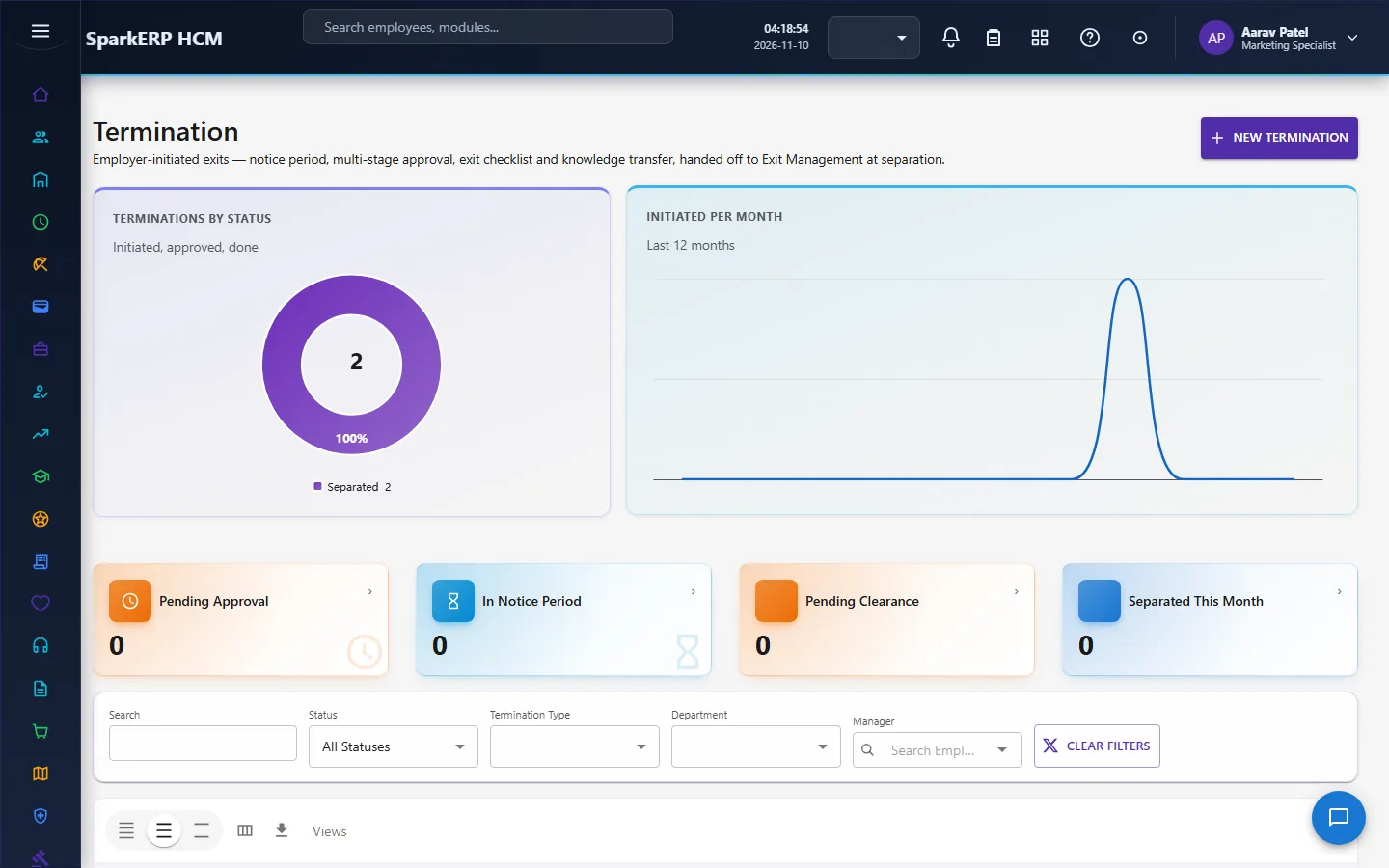
Resignation, Termination, Retirement, Separation, Exit Management and Ex-employees handle leaving.
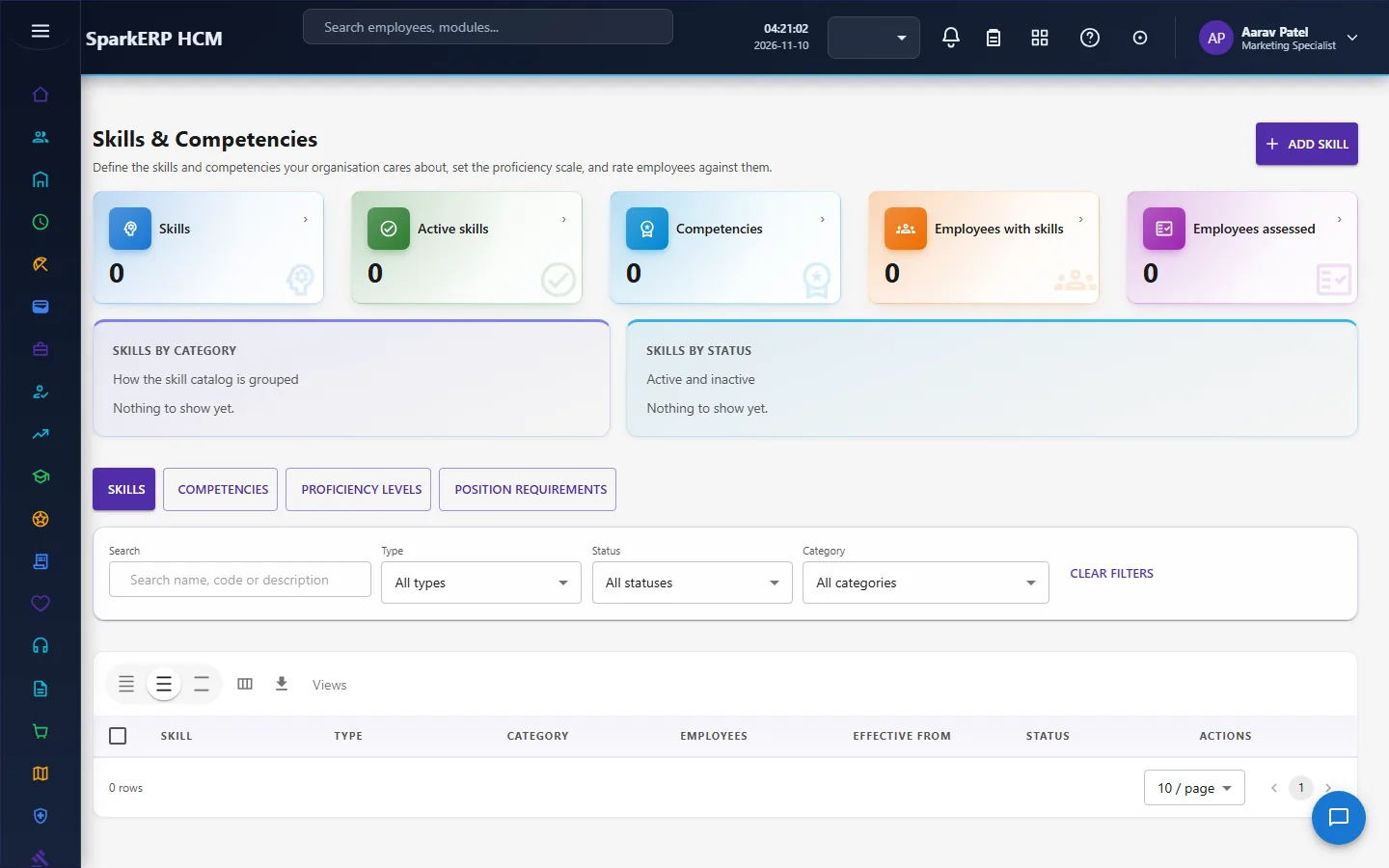
Job Positions, Positions, Employee Categories, Employment Types and Skills & Competencies hold the reference data.
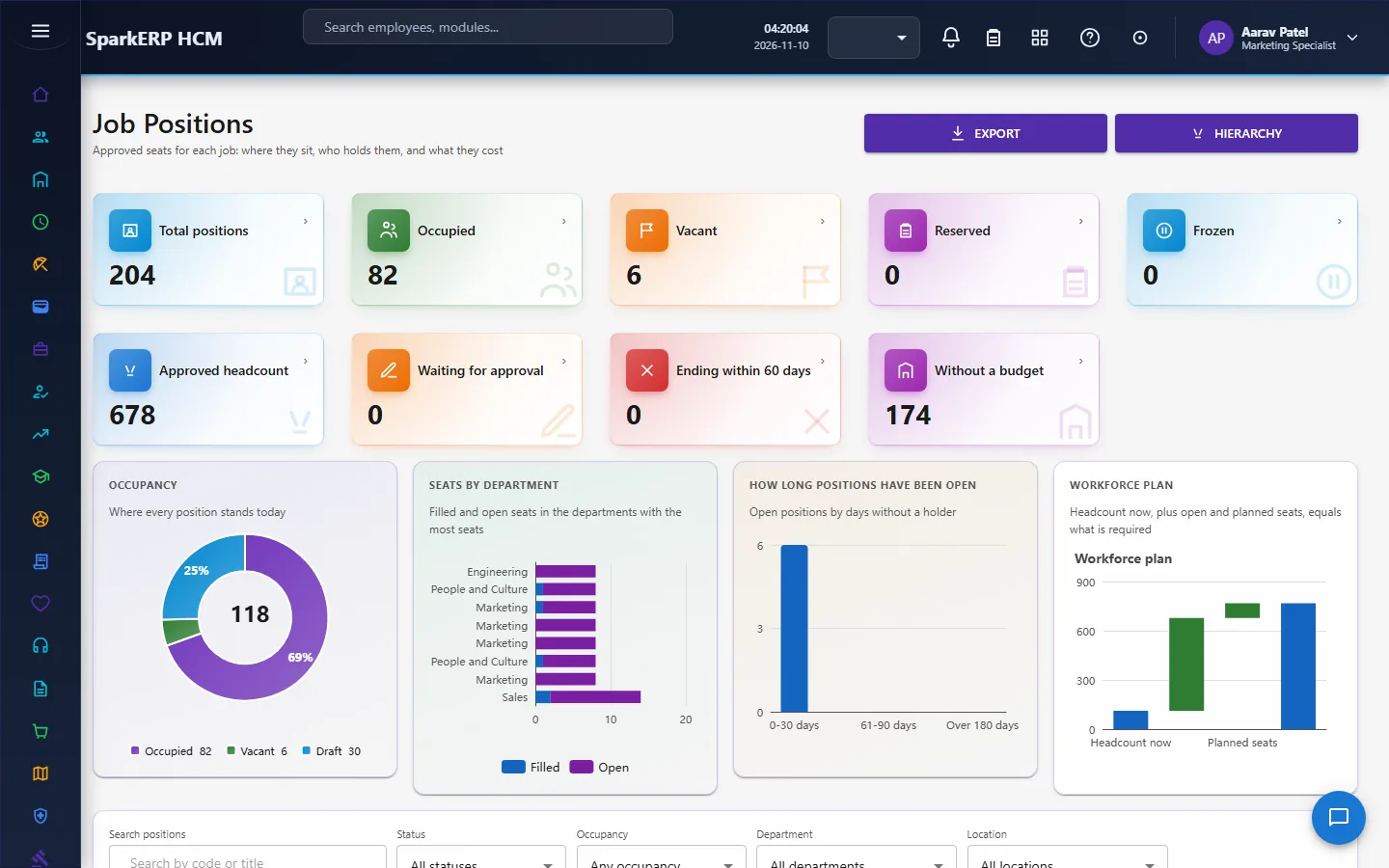
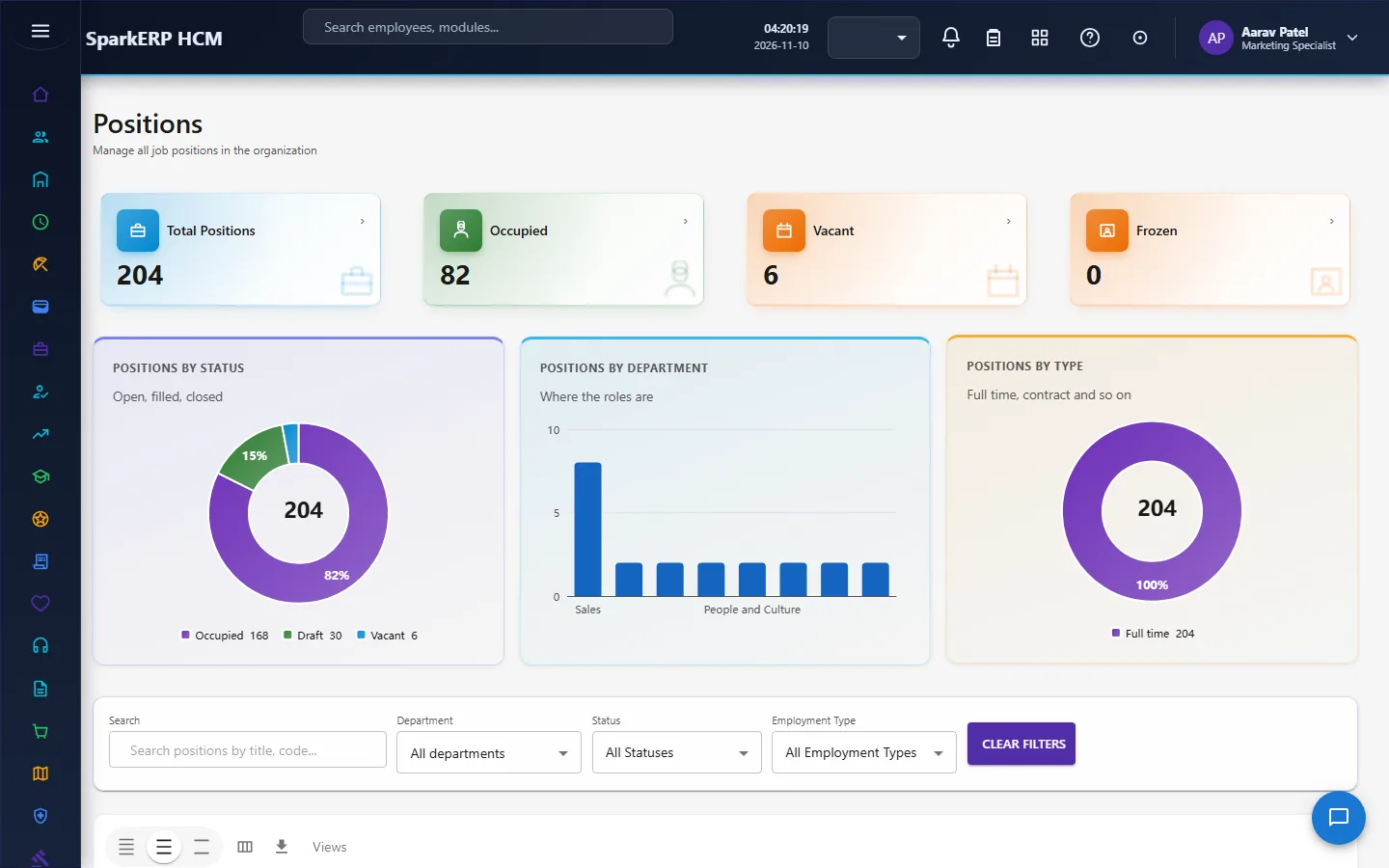
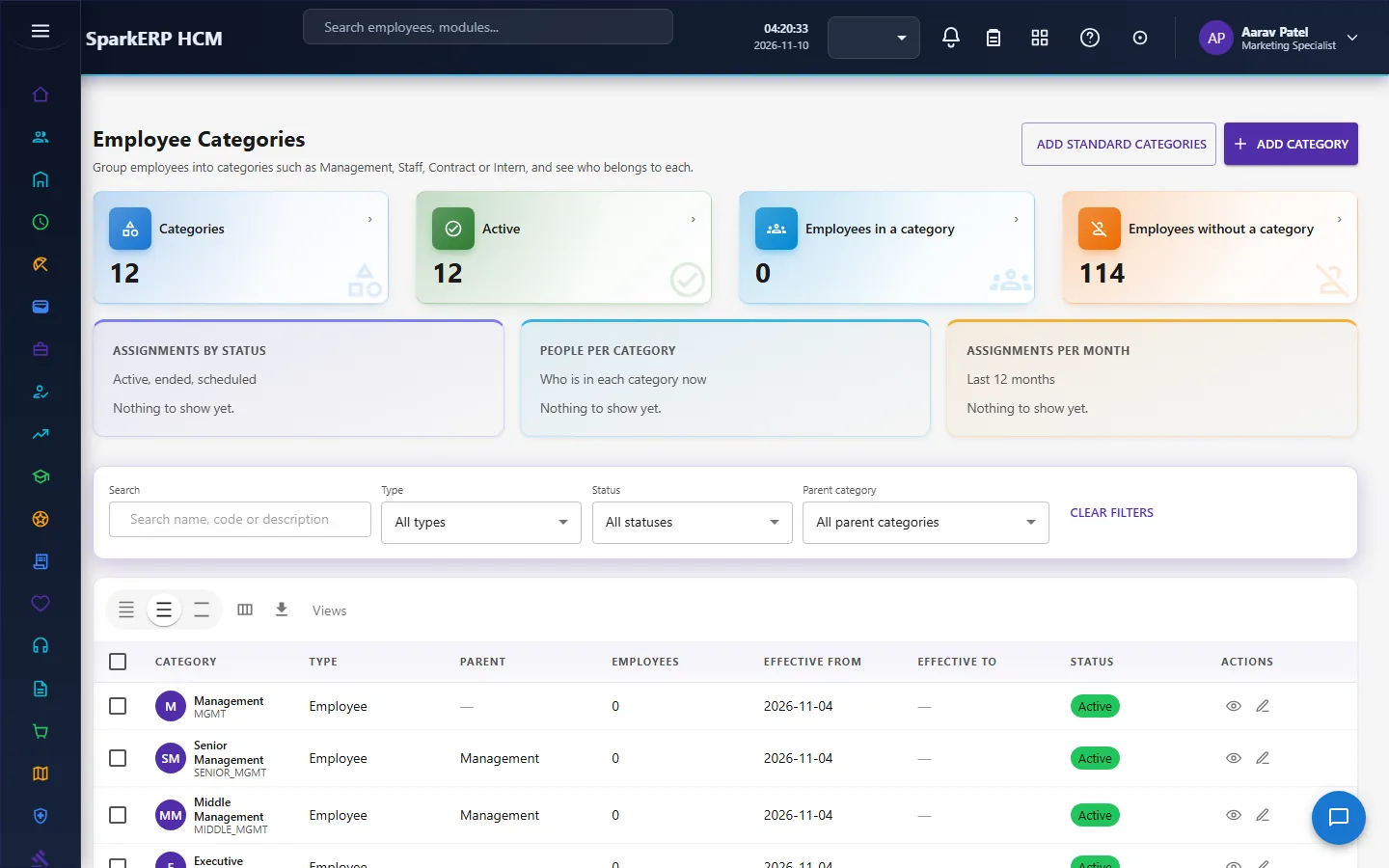
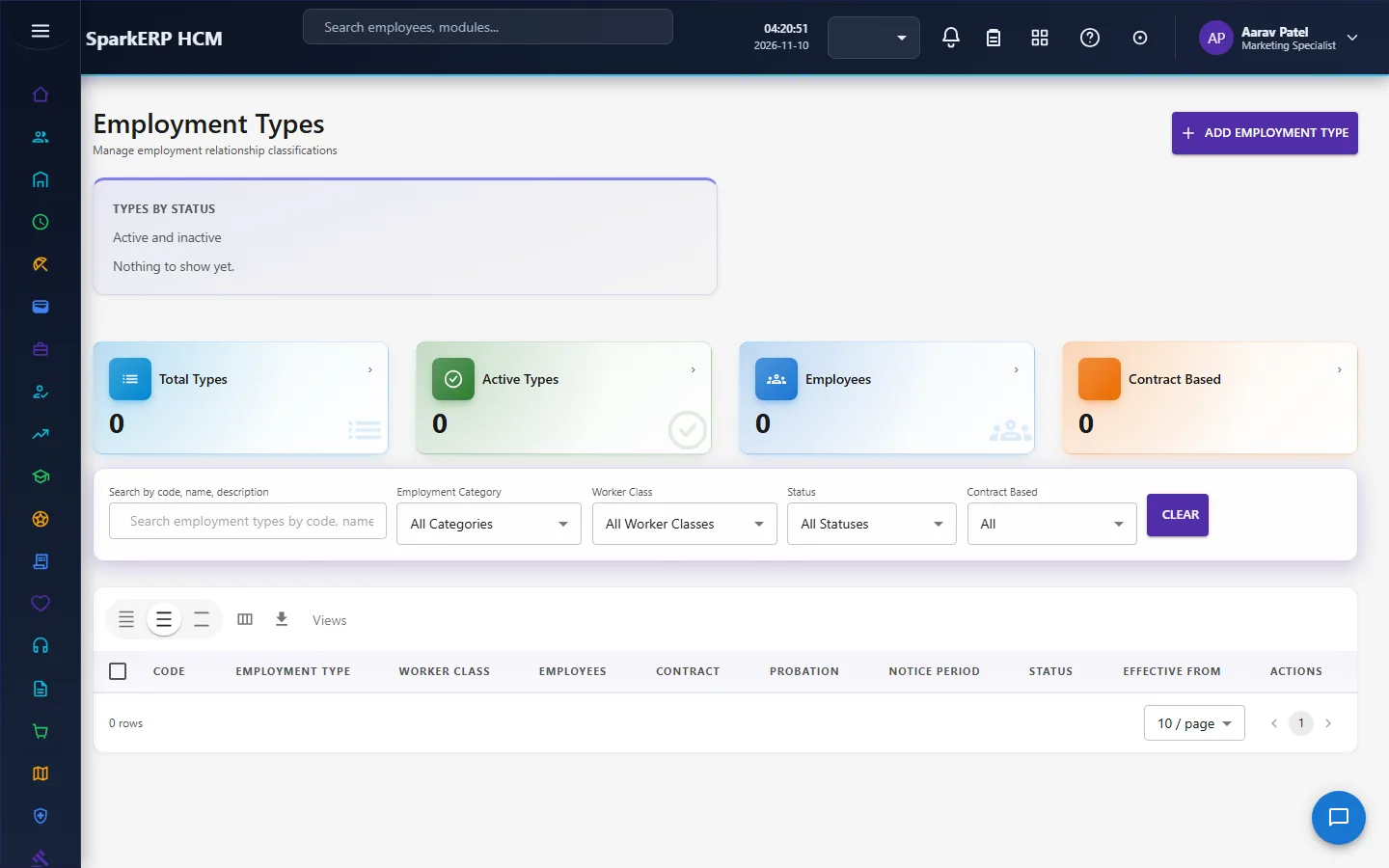
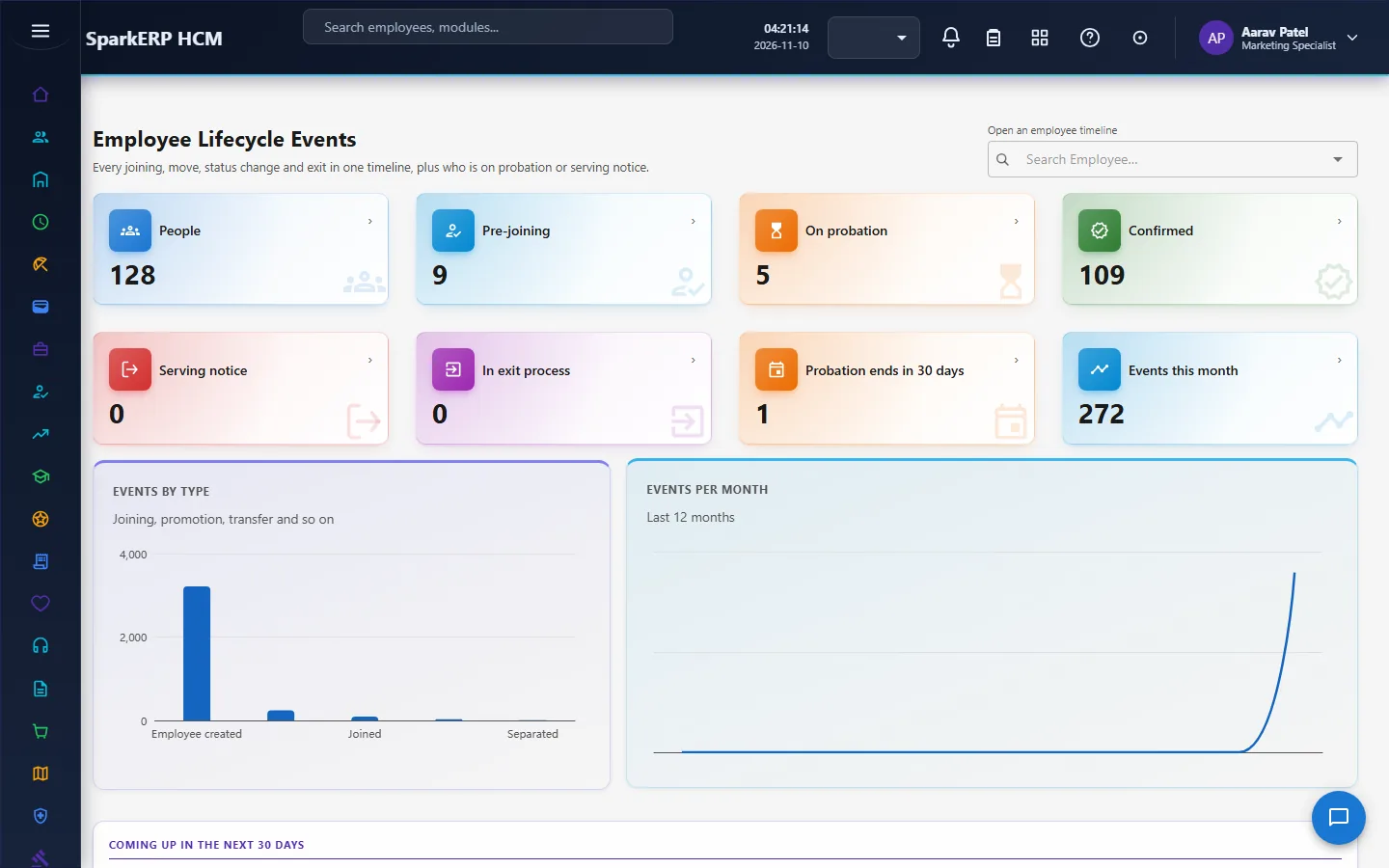
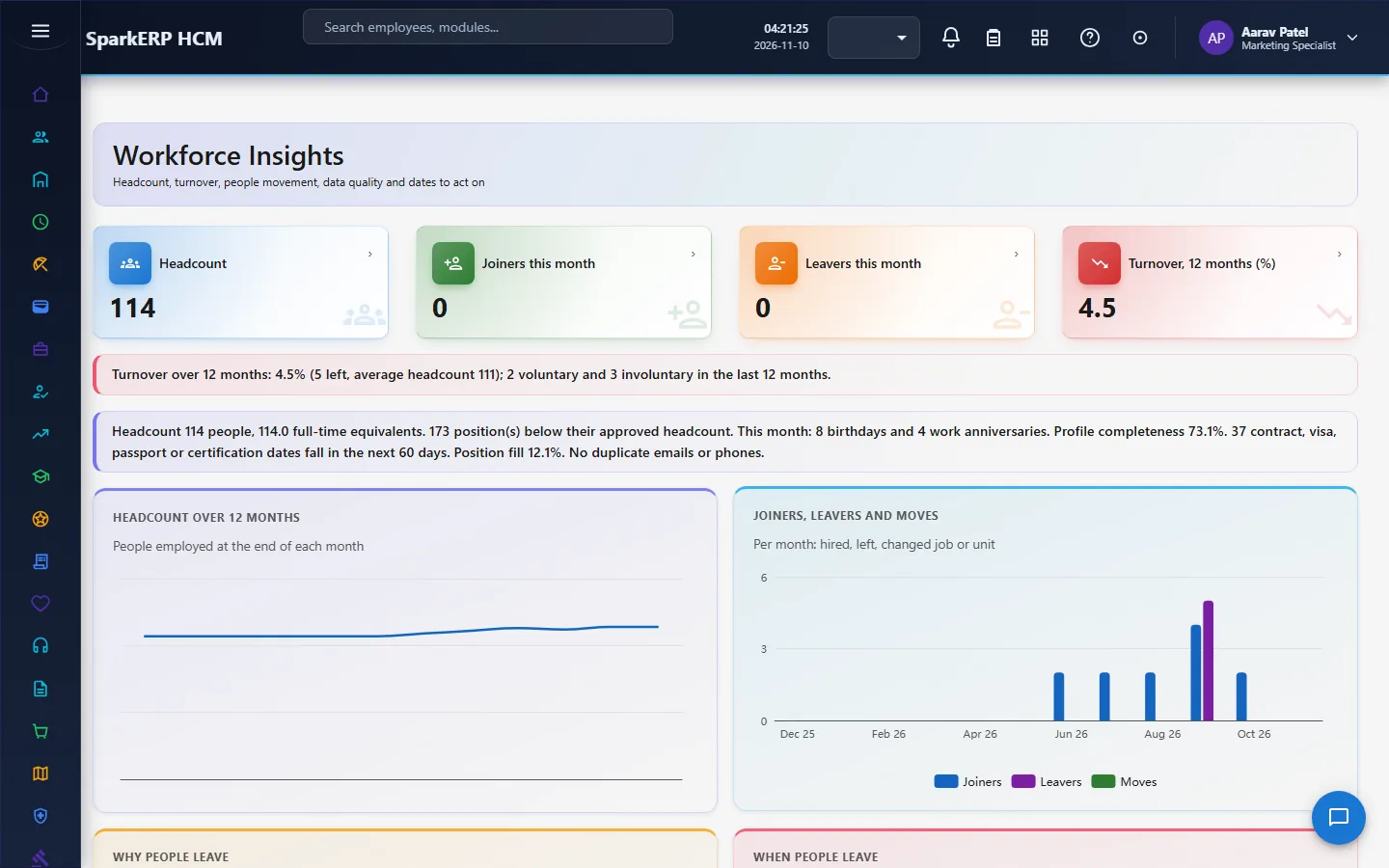
Lifecycle Events and Workforce Insights show what happened and how the workforce looks.
4. Decide before you set up
| Decision | What to think about |
|---|---|
| Employee code format | Assigned at offer acceptance; it does not change at joining. |
| Employment types and categories | The contracts you use, and the category tree you report on. |
| Who approves what | HR Administrator and HR Manager decide most steps; decide who holds finance, compensation, IT and executive steps. |
| Notice period | The default (30 calendar days) and when to adjust it. |
| Promotion eligibility | The minimum service in months, and who may override a rule. |
| Retirement policy | The retirement age and the years of service, by group. |
| Positions and budgets | Whether you manage positions and budgets, and who approves a budget. |
| Probation length | How long new people stay on probation, and who confirms. |
| Settings that add blockers | Tenant settings can add blockers to prejoining and joining. |
5. Set up step by step
- Organization first. Legal entities, departments, locations, grades and designations must exist (see the Organization guide).
- Employment types and employee categories.
- Positions with their classification, budget and manager.
- Skill categories and skills.
- HR Settings. Notice period, minimum service for promotion, and the lifecycle settings.
- Retirement policy and reasons, termination and resignation reasons and types.
- Checklist templates for prejoining, joining, transfer, promotion, resignation, termination and retirement.
- Roles. HR Administrator, HR Manager, HR Executive, Finance Approver and Auditor, plus the line managers' reporting lines.
- Trial. In a trial tenant generate the Core HR demo pack and follow one person from prejoining to joined, then one promotion and one resignation.
6. Daily use
6.1 A new person
- Create the prejoining at offer acceptance; work the checklist, documents, verification, bank details and IT readiness until ready to join.
- On the joining day complete the joining checklist, declarations and assets, then activate.
6.2 A confirmation
- Before the probation end date, open Confirmation.
- Choose confirm or extend and give the new date.
- HR approves.
6.3 A promotion or transfer
- Start it for the person; read the eligibility or validation result.
- Complete the checklist and submit.
- The approvers decide in order. It executes on the effective date, after the employee's acknowledgement where it is required.
6.4 Someone leaves
- The employee submits a resignation, or HR starts a termination or retirement.
- Approvers decide; the notice and handover run.
- On the last working day the separation begins; each department signs its clearance; the person becomes an ex-employee.
7. A calendar of recurring work
| When | What |
|---|---|
| Daily | Jobs run: effective dates execute (transfers, promotions, resignations, terminations, retirements); retirement eligibility scan; position housekeeping. |
| Weekly | Prejoining and joining readiness; approvals waiting. |
| Before each probation end | Confirm or extend. |
| Monthly | Workforce insights; exits and clearances open. |
8. Reports and figures
Employee Lifecycle counts the people in each stage and the actions coming up. Workforce Insights shows the shape of the workforce. Lifecycle Events is the history. Lists can be exported.
9. Limits you should know about
- A change request is approved before the record changes. A plain edit of a gated field is refused.
- Resignation notice is in calendar days only.
- A movement does not apply location, business unit or cost centre to the employee record.
- Readiness is a gate, not a percentage. Every listed condition must pass.
- Only one active resignation per person, and a termination cannot be filed during a resignation.
- Tenant settings can add blockers that this guide cannot list.
10. Troubleshooting
| Symptom | Cause and fix |
|---|---|
| A person cannot be marked ready to join | One of the conditions fails: the checklist, documents, background verification, payroll information, IT readiness or the planned joining date. The screen lists which. |
| A person cannot be activated | A joining condition fails: checklist, documents, declarations, identity verification, system access or assets. |
| A transfer or promotion is refused | A new value is inactive, or the person already has a pending transfer, promotion or movement. |
| A promotion is not eligible | A rule failed; HR may override with a reason. |
| A resignation is refused | The person already has an active resignation or a termination in progress. |
| A change looks stuck | Check the approval step it is on and who holds that role. |
| A category cannot be deactivated | An active employee still uses it. |
| An employee cannot open a screen | It is an administration screen. |