
Appearance
Communications (HCM): from setup to daily use
Communications sends what the company says to its people: announcements, notifications, emails, texts and pushes, built from templates, sent to an audience, and recorded in a history. This guide covers the whole module in the order an administrator meets it, with the newest parts in detail: the visual email editor, split tests, the promotional send window, opt-out words and the Consent Log. The older screens have their own pages (see Related guides).
1. Who uses it
| Role | What they do |
|---|---|
| Communications administrator | Builds templates, designs emails, schedules mailings and split tests, sets the send rules, reads history and the Consent Log. |
| HR | Posts announcements and sends notifications to groups. |
| Employee | Reads announcements and notifications, chooses which kinds of message to receive, and can text STOP to stop texts. |
2. Before you start
- Installed plugins.
hcm-communications(needs HCM Foundation and Employee) andhcm-settings-extended(the Notification Settings screen the send rules share). Both are the free tier. - A provider for each channel. Email, SMS, push and WhatsApp go out through the provider accounts set up in the Integration Designer and the communication engine; nothing is hard-coded. Without an email relay, mail is accepted and shown in the history but not delivered. Locally the
dummy-servicesmodule stands in. - Access. Tenant administrators can use every screen. The Consent Log needs a tenant administrator (or an explicit grant), because it names people and what they opted out of.
- Trial data. In a trial tenant, generate the Announcements and messages pack in Demo Data.
3. Set up
Notification Settings (Settings, Notifications). Switch channels on or off, set quiet hours (a window in which ordinary push and text messages wait) and the hourly limit per person.
Marketing Messages. Open Marketing Messages.
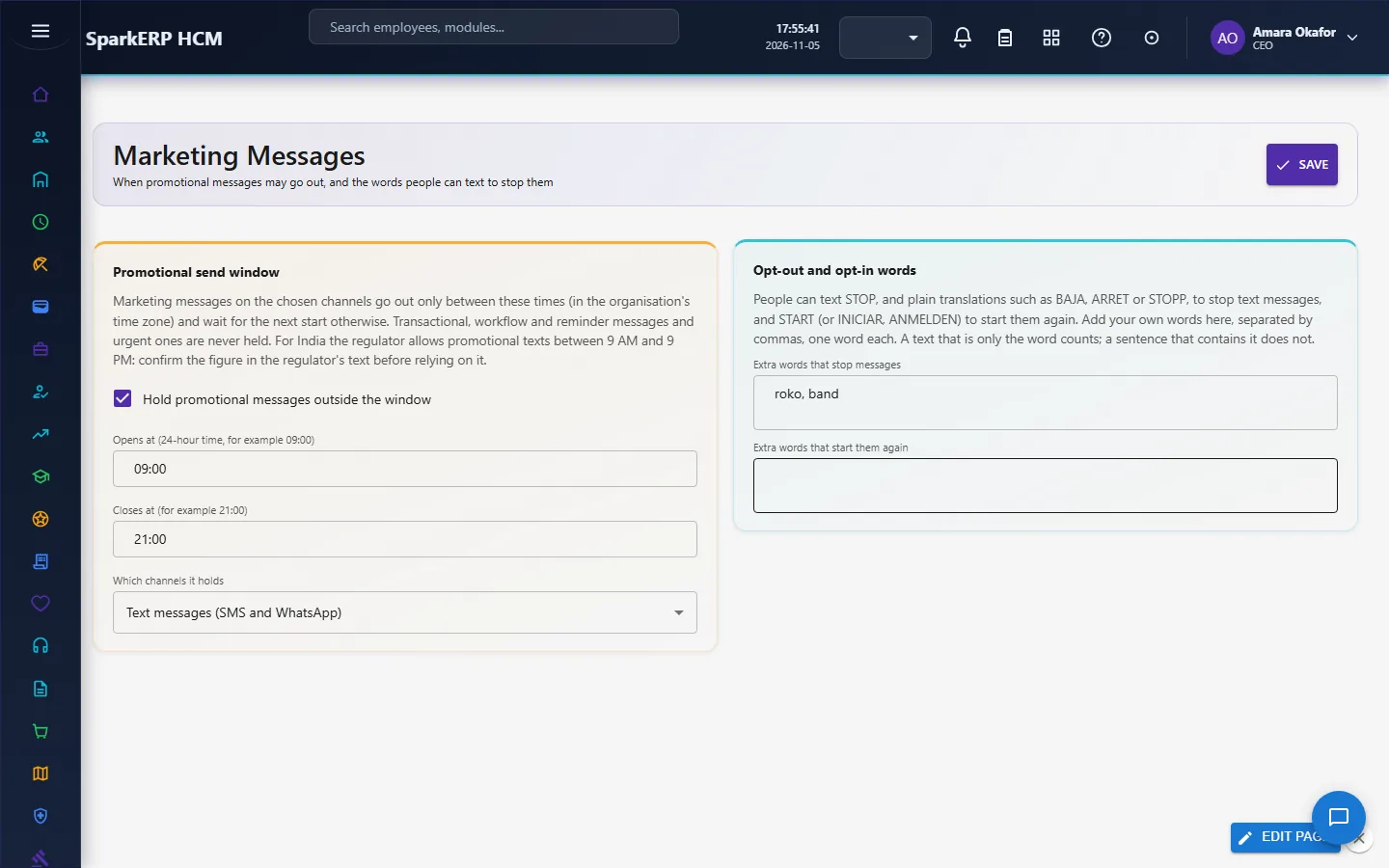
- Promotional send window. Turn on Hold promotional messages outside the window, set when it opens and closes (in the organisation's time zone) and which channels it holds (text messages by default). A marketing message outside the window waits for the next opening. Transactional, workflow, reminder and urgent messages are never held, which is the difference from quiet hours, which hold every ordinary text. Mailings use the recipient's own time zone (the time zone of the device they last used; people with no registered device get the organisation's time zone), so the window opens at 9 AM where the person is. Messages that other modules send without a time use the organisation's time zone. For India, sources disagree: 9 AM to 9 PM is a common reading and 10 AM to 9 PM is reported for the operators' registration platform; the regulator's own text could not be confirmed. Set the hours your telecom provider confirms. For the United States, an opt-out must be honoured within 10 business days at most; the engine applies it the moment the word arrives.
- Opt-out and opt-in words. People can text STOP, and plain translations such as BAJA, CANCELAR, ARRET, STOPP, SAIR, to switch texts off, and START (or INICIAR, ANMELDEN) to switch them back on. Accents and case do not matter. Add your own words, comma separated, one word each. Only a text that is just the word counts: a sentence that contains it does not.
The first save creates the settings if none exist yet. The messaging engine picks the change up within five minutes.
Templates. Create email, SMS and push templates on Email Templates, SMS Templates and Push Notifications (see the template guide). A template is a draft until it is published.
4. Daily use
4.1 Design an email visually
Open a draft email template and choose Design visually.
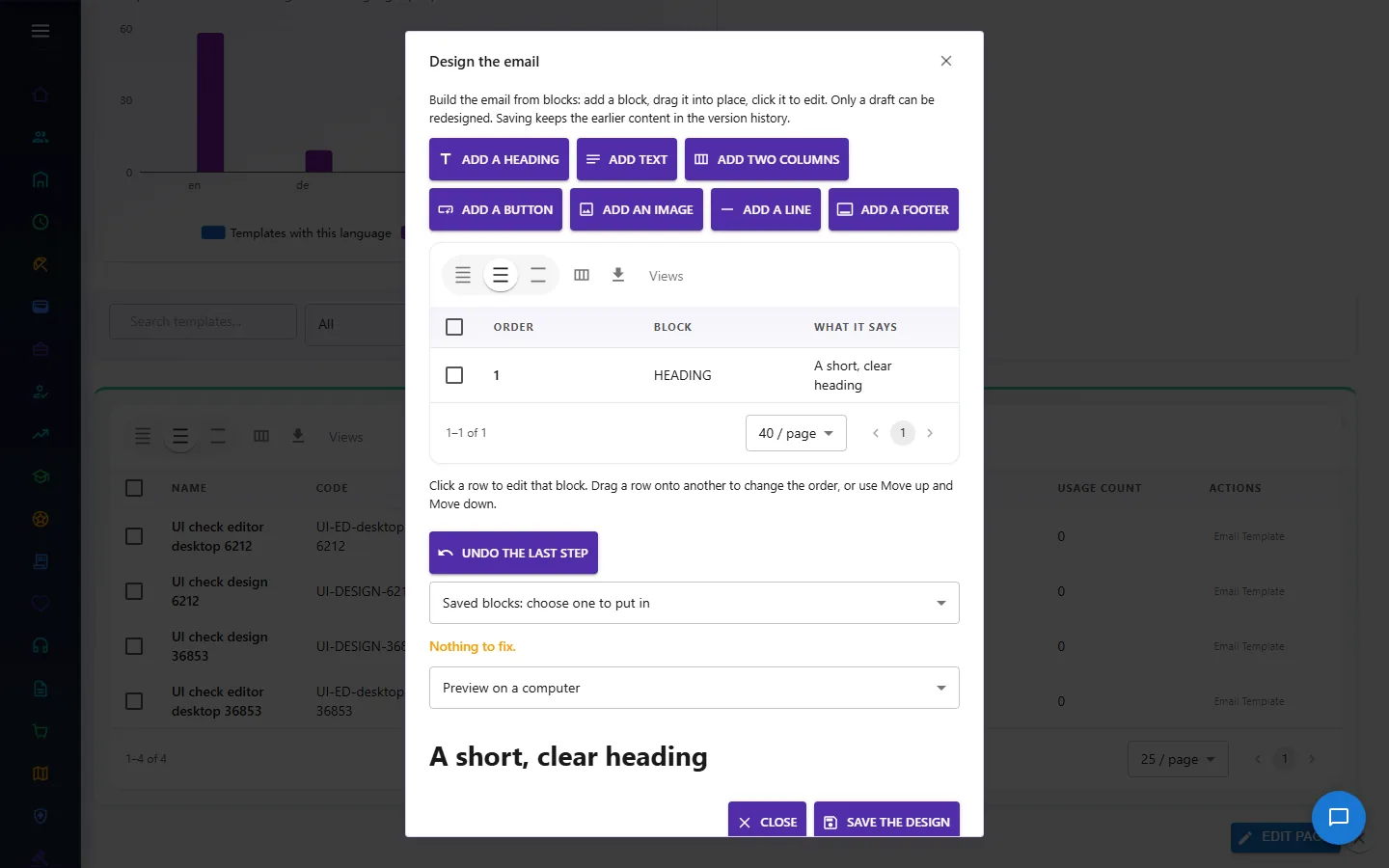
Choose a block to add (heading, text, two columns, button, image, line, footer): it goes after the selected row. A two-column block shows its two texts side by side on a computer and one under the other on a phone. The grid lists the blocks in order; drag a row onto another to change the order, or select a row and use Move up and Move down. Click a row to edit its text, address or image description, then Apply to the block. The preview below shows the email on a computer or on a phone, and a line says what to fix: a button needs a web address (https, http or mailto), an image needs a secure address and a description for people who cannot see it. Undo the last step takes back the last change (the last 30 steps are kept while the editor is open). To reuse a block, select it, give it a name and choose Save this block for reuse (a company footer, a signature, a promotion box); later, choose it in the list and Put in the saved block to add a copy after the selected row, or Remove the saved block. Save the design is refused while anything needs fixing; saving keeps the earlier content in the version history. Only a draft can be redesigned: start a new version of a published template first. Text is always escaped, so a template cannot carry script, and the email is a 600 px table that shrinks on a phone.
4.2 Send a mailing, and test two subjects
On a published template choose Schedule a mailing: name it, choose the audience and the time. To compare two subjects, set Test two subjects (A and B), write the second subject and choose how much of the audience takes part in the test.
- Half of the test group gets each subject (the same person always lands in the same half). The rest of the audience is held back.
- A test too small to show a difference is refused: each version needs at least 30 delivered mails.
- When the test round is done the mailing waits as tested. Open the mailing and choose Split test results: it shows, for each version, how many were delivered and opened and the open rate, and a plain verdict. A winner is named only when the difference is both statistically clear (95% confidence) and at least 2 percentage points; otherwise it says no clear winner or too early to tell, because opens keep arriving for a day or two. Choose Send version A (or B) to the rest: the rest gets that subject, once.
Opens are counted when the mail program loads the tracking image; some programs load it for everyone, so treat open rates as a guide, not a fact.
4.3 Read the Consent Log
Consent Log records every change of who agreed to receive what, and never edits or deletes it.
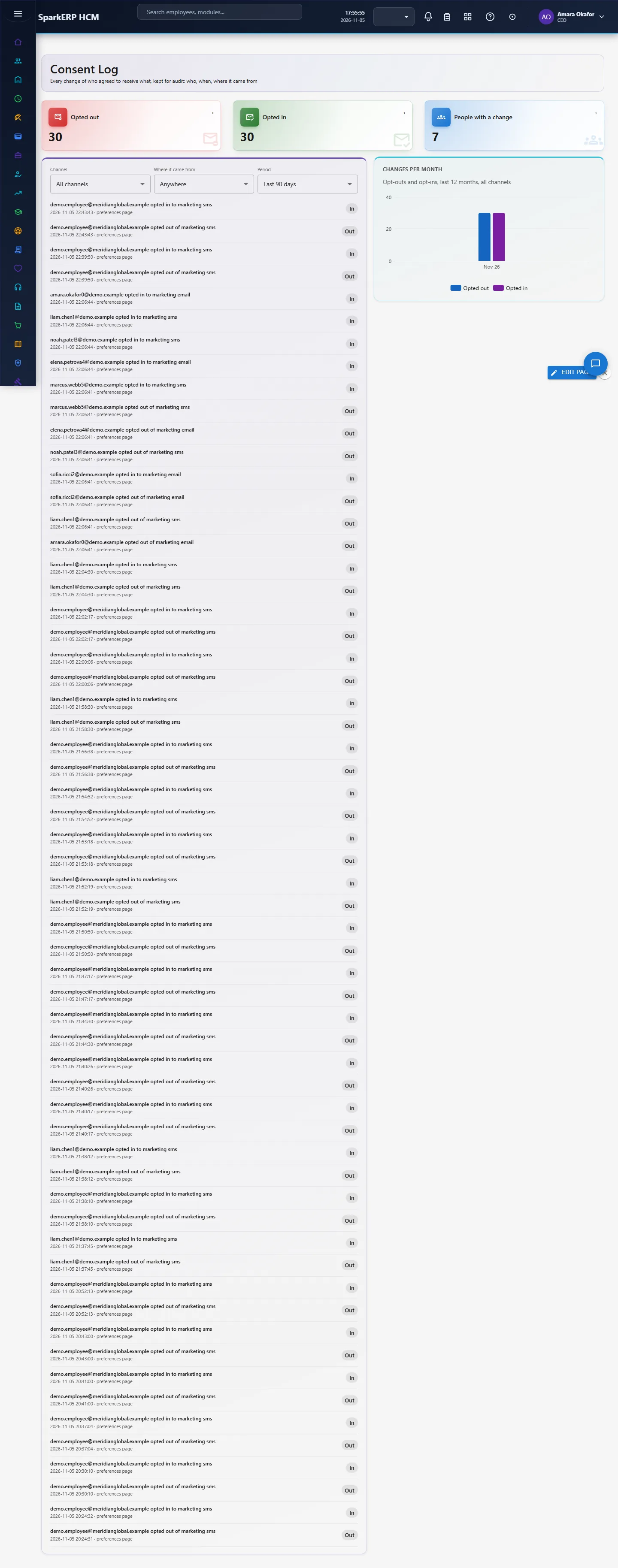
Each row says who, which kind of message and channel, whether they opted in or out, when, and where it came from: their own preferences page, a text back (SMS or WhatsApp, with the word they sent), or an administrator. Saving a preference without changing it writes nothing, so the log is the history of changes, not of clicks. Filter by channel, source and period; the tiles and the monthly chart show opt-outs and opt-ins. Use it to answer "when did this person stop receiving texts, and how?".
5. Charts and reports
Communication History shows delivery by day, provider and failure reason (see its guide). Consent Log adds the monthly opt-outs and opt-ins. Split test results compare two subjects in a dialog. Opens appear only for email, and only when the mail program loads the tracking image.
6. On a phone or tablet
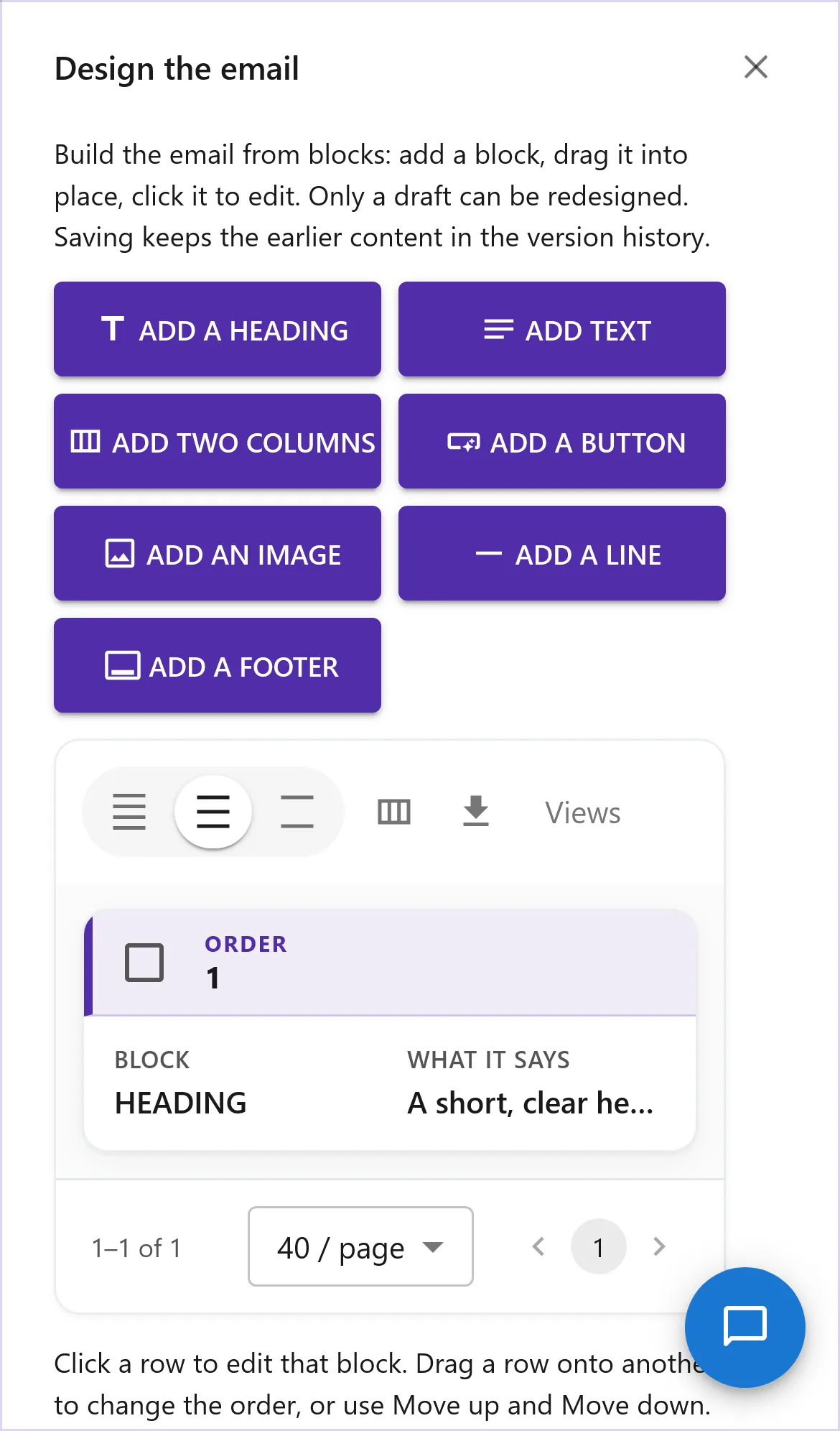
Every Communications screen works on a phone: cards stack one per row, dialogs fit the screen, and the visual editor's palette wraps into two columns above the block list.
7. Rules and limits
- Not built: free-form layouts (the editor has seven block types, one or two columns, no nesting); redo (only undo); a split test on push or SMS, because the engine counts opens only for email, so no winner could be measured there; choosing the winner automatically; a confirmed regulator text for India's window (set the hours your provider confirms).
- Recipient time zone applies to mailings. A message another module sends through the engine without a time still follows the organisation's time zone.
- Opt-out words are limited to plain translations of stop and start; a tenant adds its own. Words that include a space are ignored.
- The Consent Log starts at the day this version was installed: earlier changes were not recorded. In a trial tenant, the Demo Data pack Announcements and messages makes some real preference changes so the log is not empty; clearing the pack puts those people's choices back to on, and the log keeps both rows because it is never edited.
- Transactional messages are not blocked by a person's marketing choice, and are never held by the promotional window.
8. Troubleshooting
| Symptom | Cause and fix |
|---|---|
| "A test on N% of M people is too small" | Each version needs 30 delivered mails. Use a larger share or audience, or send without a test. |
| The mailing stays "tested" | It is waiting for you: open Split test results and send the winner to the rest, or cancel it. |
| "Only a draft can be redesigned" | The template is published. Start a new version, then design. |
| "Fix this first: An image needs a description" | Select the image block, write what the picture shows, apply, then save. |
| The Consent Log says forbidden | Your login is not a tenant administrator. Ask one, or for an explicit grant. |
| A text of STOP did nothing | The word was inside a sentence, or the number is not one the engine has sent to. Only a message that is just the word counts. |
| Undo says there is nothing to undo | Undo covers the steps since the editor was opened; closing and reopening the editor starts a new history. |
| Marketing messages go out at night | The promotional window is off, or the channel is not in its list. Open Marketing Messages. |