
Appearance
Benefits: how it works and how to set it up
Benefits answers the questions a company asks about what it gives its people beyond salary: which plans and policies do we offer, who is eligible, who enrolled and when, who are their beneficiaries, what do the employee and the employer each pay, what has been claimed and paid back, and which plans are not being used. This guide explains how the module works from start to finish, then how to set it up, then what each person sees. Every screen has its own page in the Benefits section; this guide is the one to read first.
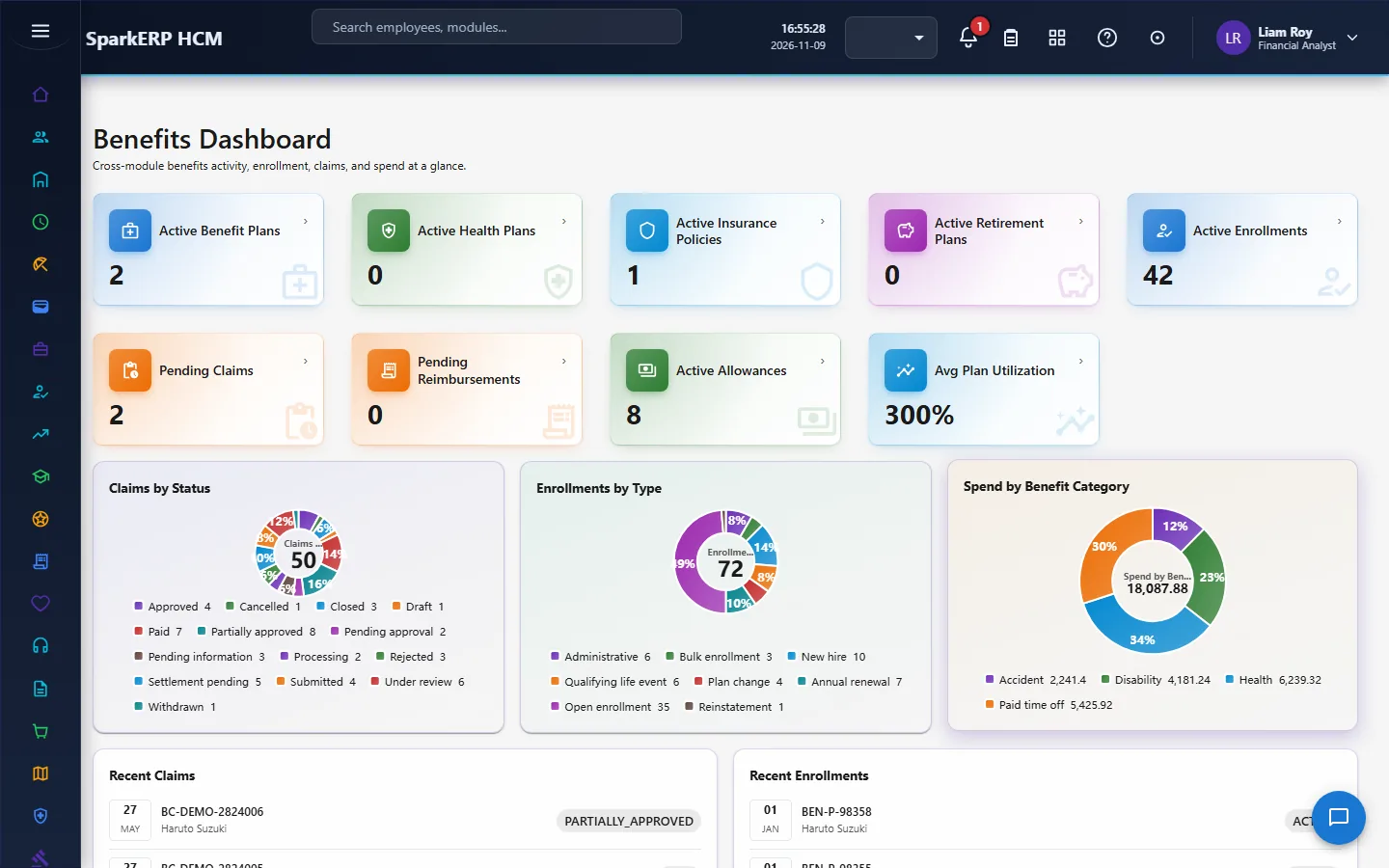
1. What Benefits does for your business
- Holds the offer. Benefit plans (with health, insurance and retirement plans as their own kinds) and allowances, each with a lifecycle and its own approvals.
- Enrolls people. An enrolment ties one person to one plan, with the coverage, the dependants and the contributions. Enrolment windows open and close the period in which people can enrol.
- Names beneficiaries. Each person's beneficiaries, with shares that must add up correctly.
- Handles claims and reimbursements, with a reviewer, an approver and finance.
- Feeds payroll. The contribution of an active enrolment comes off pay in each run.
- Shows what is working. Enrolment rate, cost per enrolled person, and plans that fewer than half of the eligible people joined.
What it does not do: it does not buy or administer insurance with an insurer, and it does not pay claims itself. Settlement and payment are steps in the workflow, and the money moves through Payroll or your finance process.
2. How benefits work, end to end
2.1 The path of one benefit
- A plan is defined and approved. The plan names the category, the provider, the coverage type, how the cost is split between employer and employee, the dates and the eligibility rule.
- The plan is activated. Activation is a workflow step, so a plan cannot jump to active by a plain edit.
- An enrolment window is open. People enrol (or are enrolled) within it, or at other moments such as joining.
- The enrolment is approved and activated.
- Beneficiaries are named.
- Contributions are deducted in each payroll run while the enrolment is active.
- Claims and reimbursements are made, reviewed, approved, settled and paid.
- The plan is renewed, suspended or archived when its time comes.
2.2 The life of a plan, a policy and an allowance
Benefit plans, health benefit plans, insurance policies, retirement plans and allowances each have a status. Active, suspended and archived are reachable only through their own approval or activation step in a workflow, never by a plain edit. That is enforced by the platform. Expired and cancelled are driven by dates and background jobs, not by a person's decision.
| Kind | Steps you will meet |
|---|---|
| Benefit plan | Activation (manager, then administrator), suspension, archival. |
| Health benefit plan | Approval (manager, then administrator), activation, suspension, termination. |
| Insurance policy | Approval (manager, then administrator), activation, suspension, termination. |
| Retirement plan | Approval (manager, then administrator), activation, suspension, closure. |
| Allowance | Approval (HR, then finance), activation, suspension, termination. |
| Allowance assignment to a person | Approval (manager, then benefits), activation, termination. |
Each of these steps is an approval task. The steps are named after who they stand for (manager, HR, finance, administrator), but the roles that can decide them are the Benefits Manager, the Benefits Administrator and the Tenant Owner. No separate HR or finance role is defined in the module.
A plan keeps counts of eligible and enrolled employees and works out the enrolment rate and the cost per enrolled person. It is flagged low enrolment when fewer than half of the eligible people enrolled. It can show a renewal date and is reminded before it renews.
2.3 Enrolment
An enrolment has an enrolment number, the employee, the plan, an enrolment type, the coverage type, dates, the employee's and the employer's contribution with a frequency (monthly by default), the dependants and beneficiaries counted, a coverage amount, a member id, the source of the enrolment and the window it belongs to. It can also be a waiver with a reason.
Its life: draft, submitted, pending approval, approved, active, terminated, and declined, waived, expired or cancelled. Approved, active and terminated are reachable only through their workflow: an HR-named step (decided by the Benefits Manager), then an administrator step for approval, then an activation step, and a termination step. Submitting for approval and the self-service moves are not gated.
An enrolment is complete when it has everything it needs, and the page shows it as such.
2.4 Enrolment windows
An enrolment window has a code, a name, a type, a start and end date, and a status. It counts how many people are eligible and how many completed, shows the completion percent and the days left. It is the main control for annual enrolment.
2.5 Beneficiaries
A beneficiary is a named person with a relationship, a type, a share percent and a date of birth, attached to an enrolment. The shares of one type must not exceed 100. The page shows the others' total and the share left.
2.6 Claims
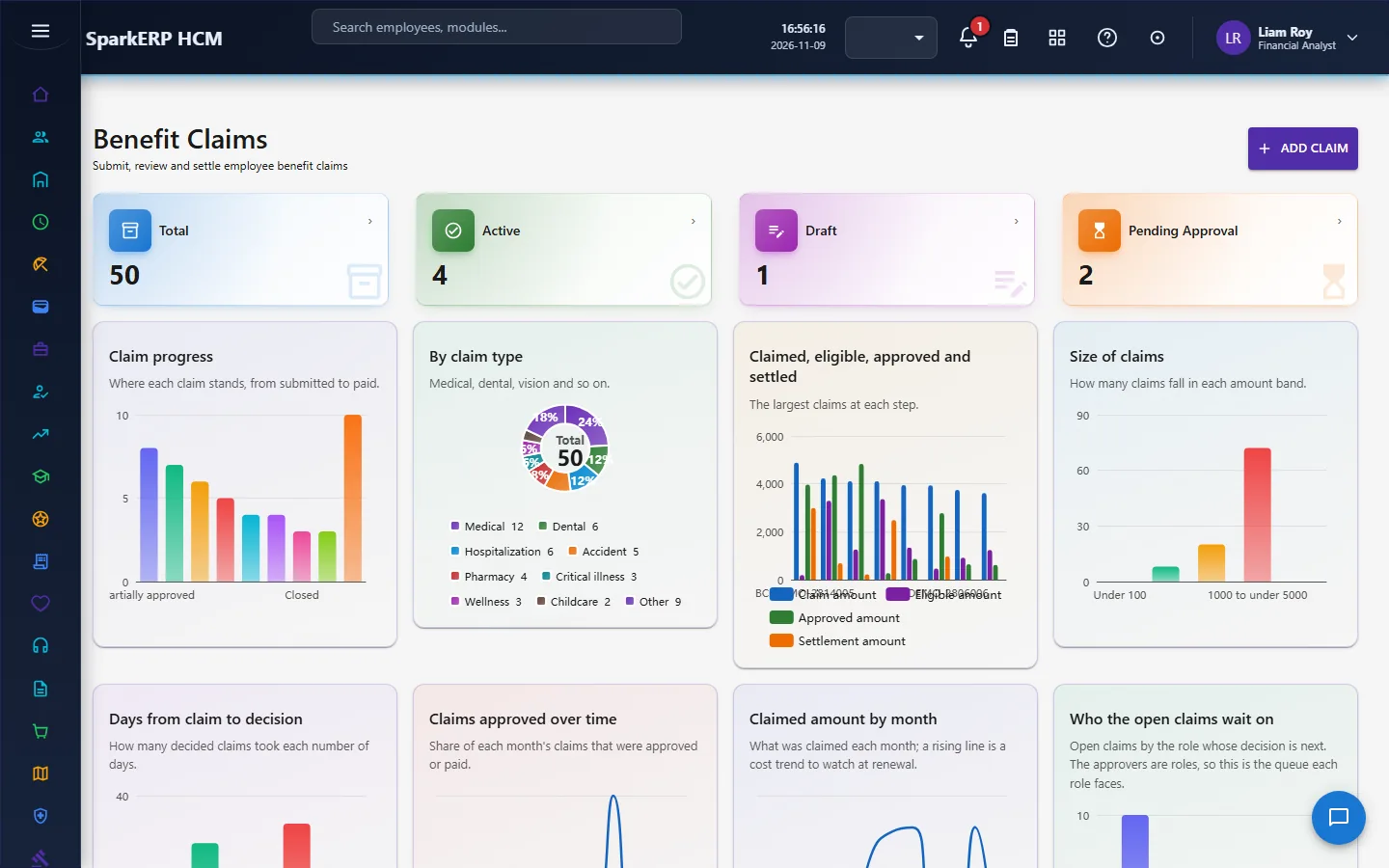
A benefit claim ties a person, a plan and an enrolment to a service date, a provider reference and an amount. It records the claim amount, the eligible amount, the approved amount, the employee share, the employer share and the settlement amount. The page works out the approved percent, flags a claim whose approved amount is above the eligible amount, and the days from the claim to the decision (the turnaround), who it is waiting for and for how many days.
The approval has two steps: a reviewer (Benefits Manager), then an approver (Benefits Administrator). Then a settlement step, named finance, which the Benefits Administrator decides. Approved and processing are reachable only through the workflow. Submitted and under review are queueing states, and paid, closed and expired are driven by the payment system and background jobs.
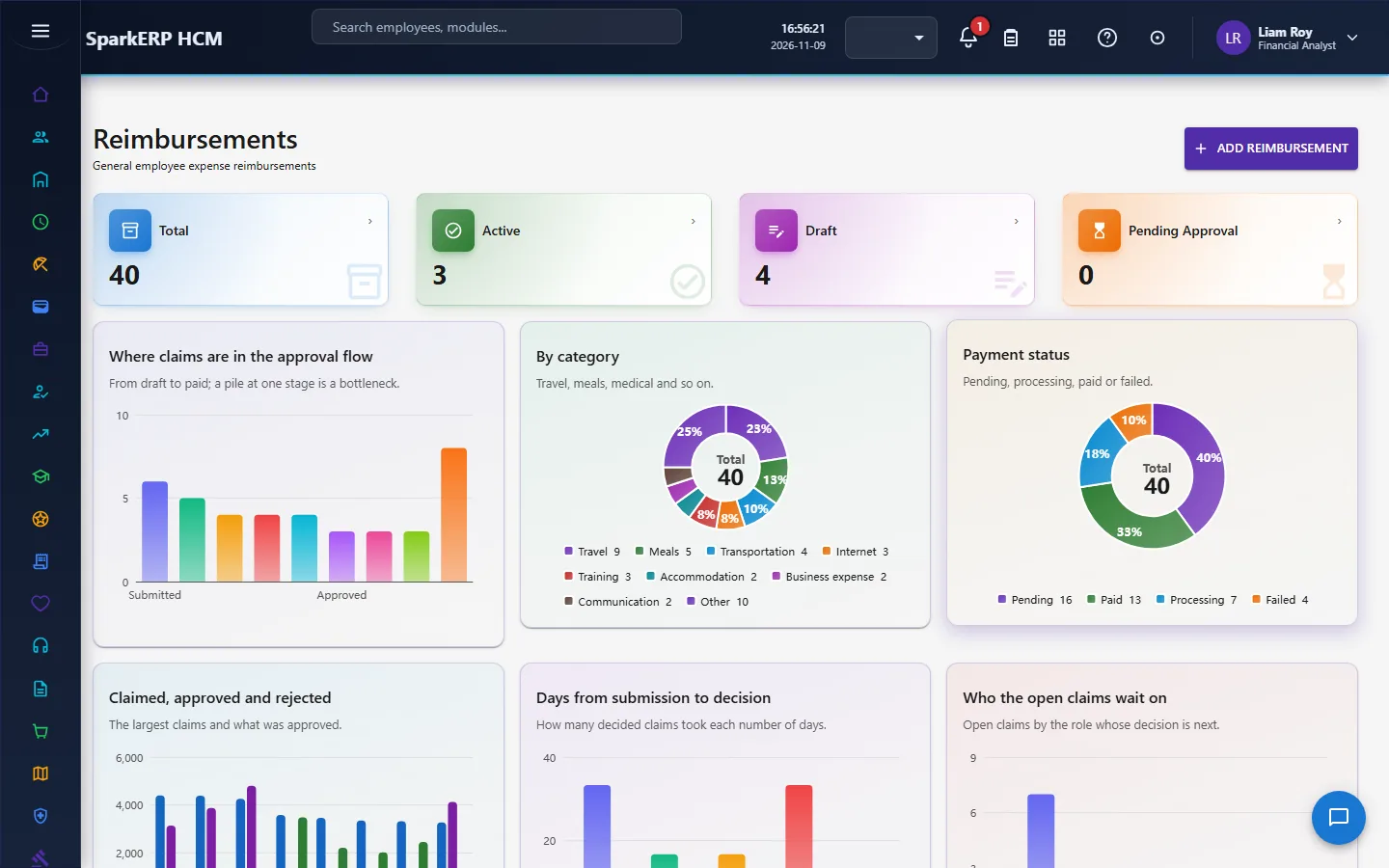
2.7 Reimbursements
A reimbursement is a claim for money a person spent: a category, the currency, the total claimed, the total approved and the total rejected, a business purpose and a payment status. Its approval has three steps: manager, then HR, then finance, followed by a payment step. The manager and HR steps are decided by the Benefits Manager or Administrator, and the finance step and the payment by the Benefits Administrator. Approved and paid are reachable only through the workflow; submitted, under review and returned (for the person to correct) are not gated. The page works out the approved percent and the days the cycle took.
Expense claims from the Expenses module are a separate flow: an approved expense claim marked ready for payment becomes a reimbursement adjustment in the next payroll run, paid on top of net pay with no tax or contribution (see the Payroll guide).
2.5a Allowances
An allowance is a recurring payment such as a housing or phone allowance: an amount or a percentage, a frequency, whether it is prorated, whether reimbursement is enabled, and its tax treatment, with effective and expiry dates. An allowance is approved and activated, and then assigned to a person, which goes through its own approval.
2.8 How Benefits meets Payroll
In each payroll run, the active enrolments of a person that overlap the run's period are read. The employee's contribution is a deduction and the employer's contribution an employer cost. A contribution is held with its own frequency and converted to the run's period. If the enrolment is in another currency than the run and there is no exchange rate for the pair, the contribution is not deducted and the run shows a warning.
2.9 What the dashboard and reports show
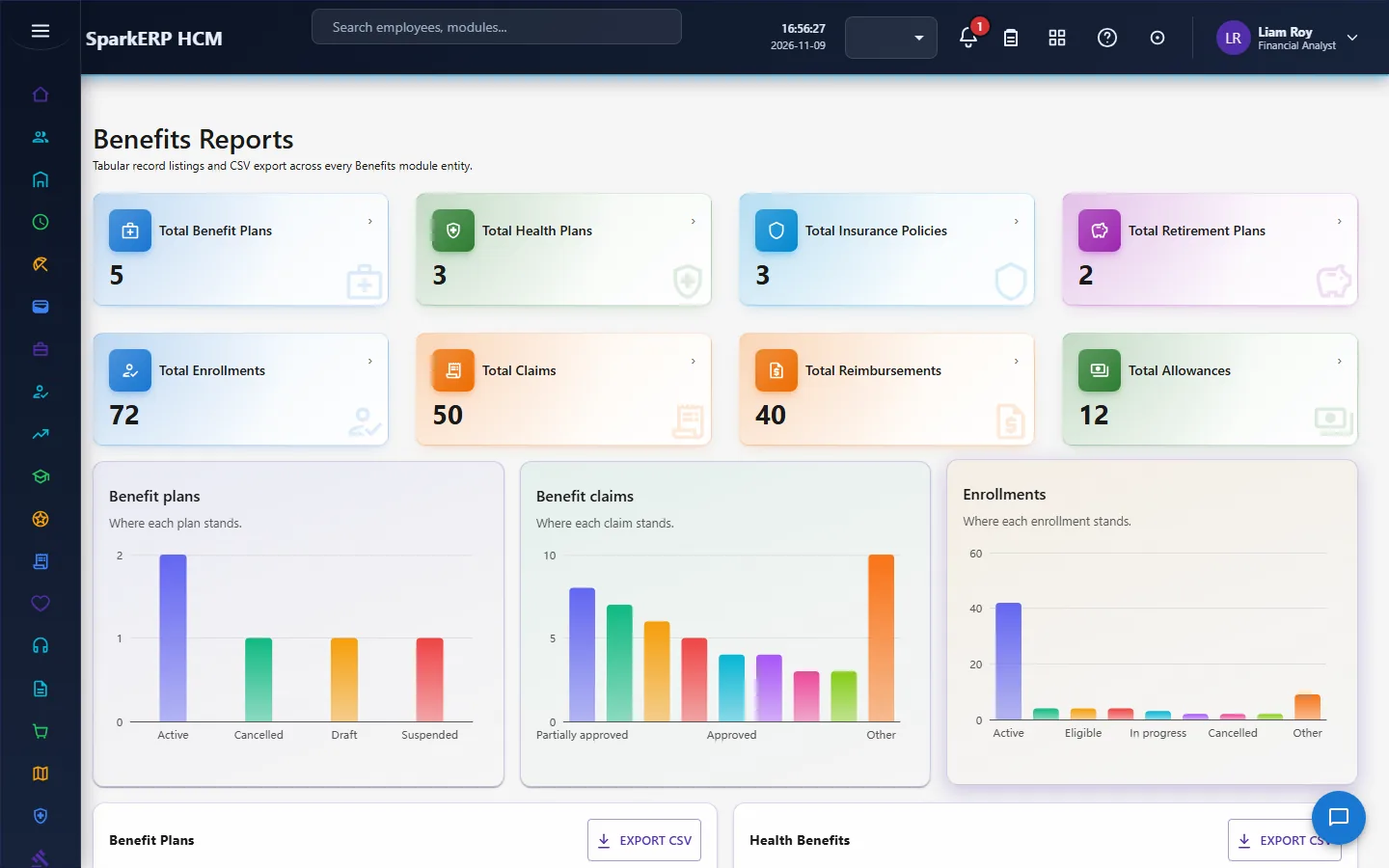
The Benefits Dashboard shows the plans, enrolments, claims and spend, and the plans where fewer than half of the eligible people enrolled. Benefits Reports has the standard reports.
3. Who does what
| Role | What they do |
|---|---|
| Benefits Administrator | Defines plans, policies and allowances; decides the administrator, activation, finance and payment steps; settles claims. |
| Benefits Manager | Decides the manager and reviewer steps; reviews claims and reimbursements. |
| Compensation roles and HR | Read the dashboard and reports. They do not decide the approval steps unless they also hold a benefits role. |
| Employee | Sees their own benefits on My Benefits, enrols, names beneficiaries and submits claims and reimbursements. |
Benefits administration screens are open to the benefits and compensation roles, HR and the analytics viewer. An employee uses My Benefits under Employee Services.
3a. What each role sees, screen by screen
The employee
An employee works from My Benefits: what they are enrolled in, their contributions, their beneficiaries, and their claims.
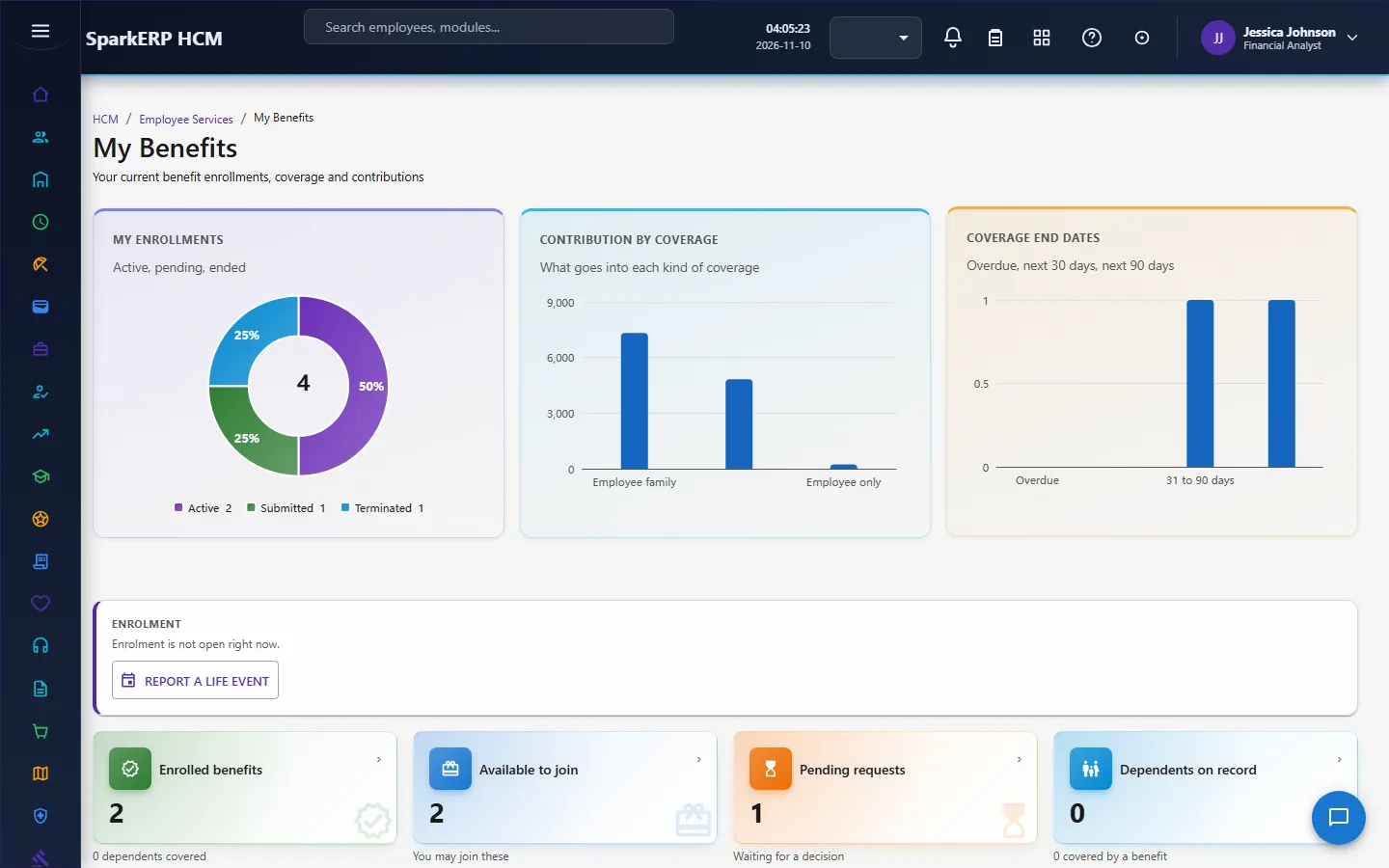
The Benefits administration screens are not open to them.

The manager
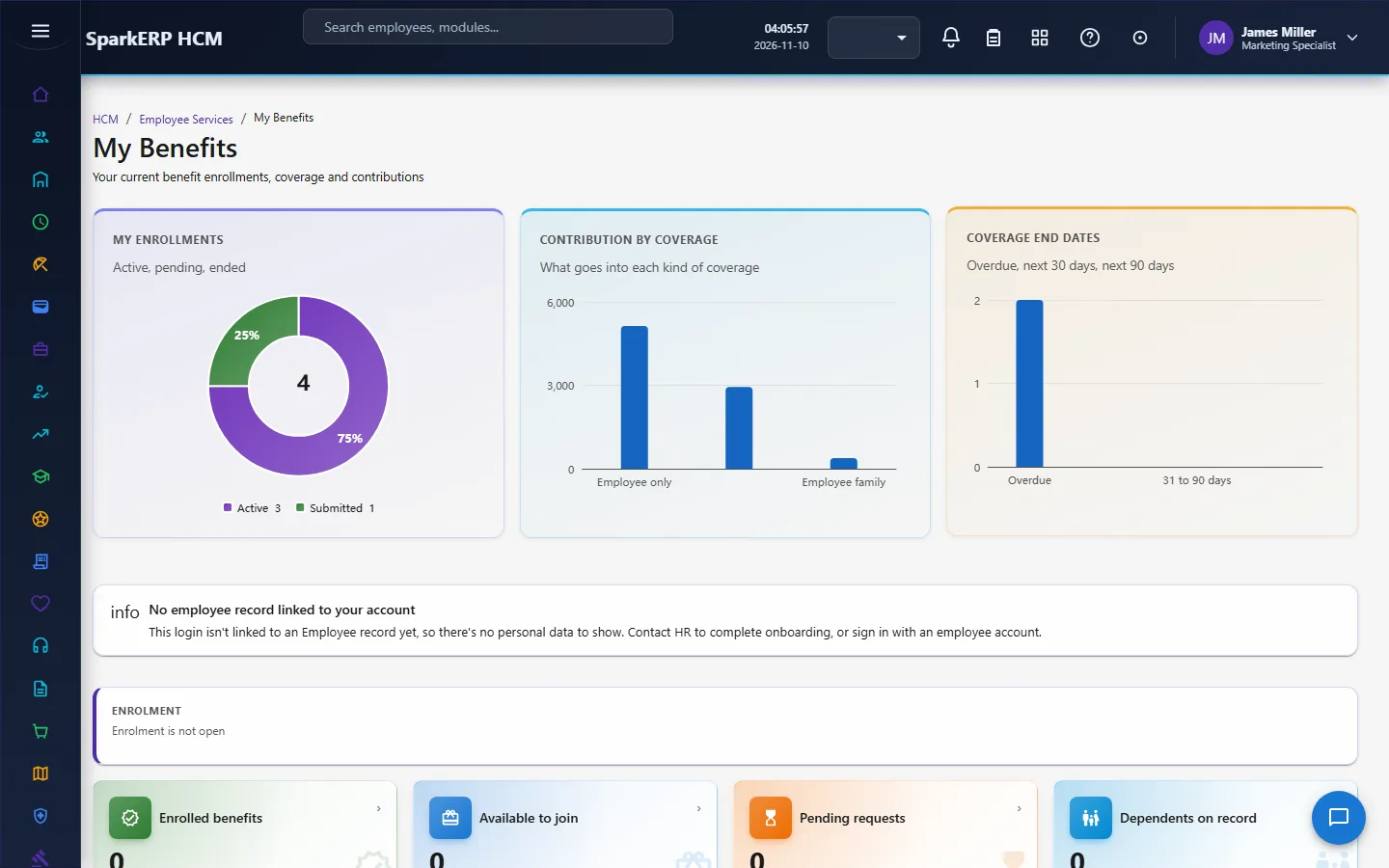
A manager sees My Benefits for themselves. The administration screens are not open to a line manager who holds no benefits role.

The benefits administrator
The Benefits Dashboard shows the whole picture. Benefit Plans, Health Benefits, Insurance, Retirement Benefits and Allowances hold the offer.
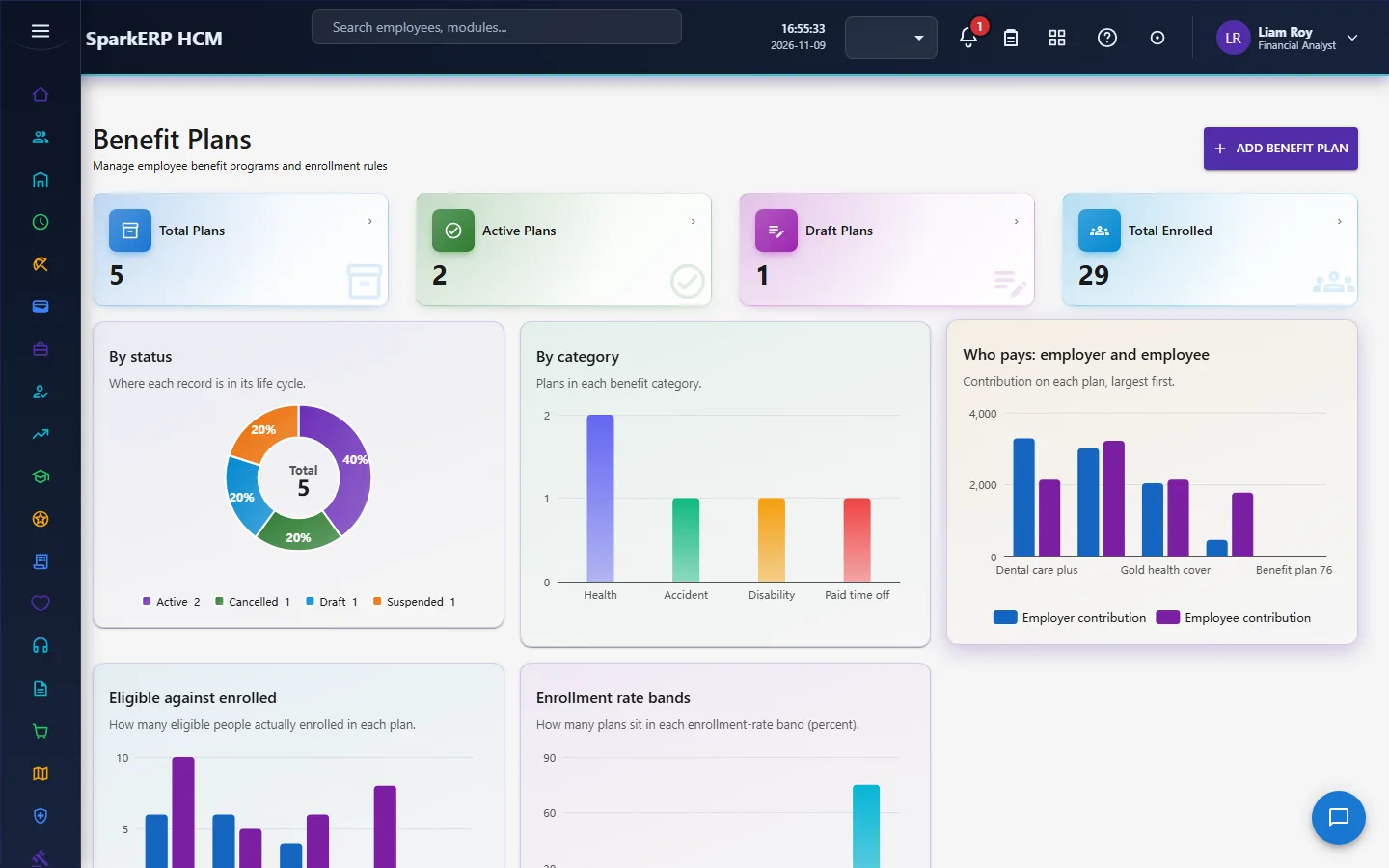
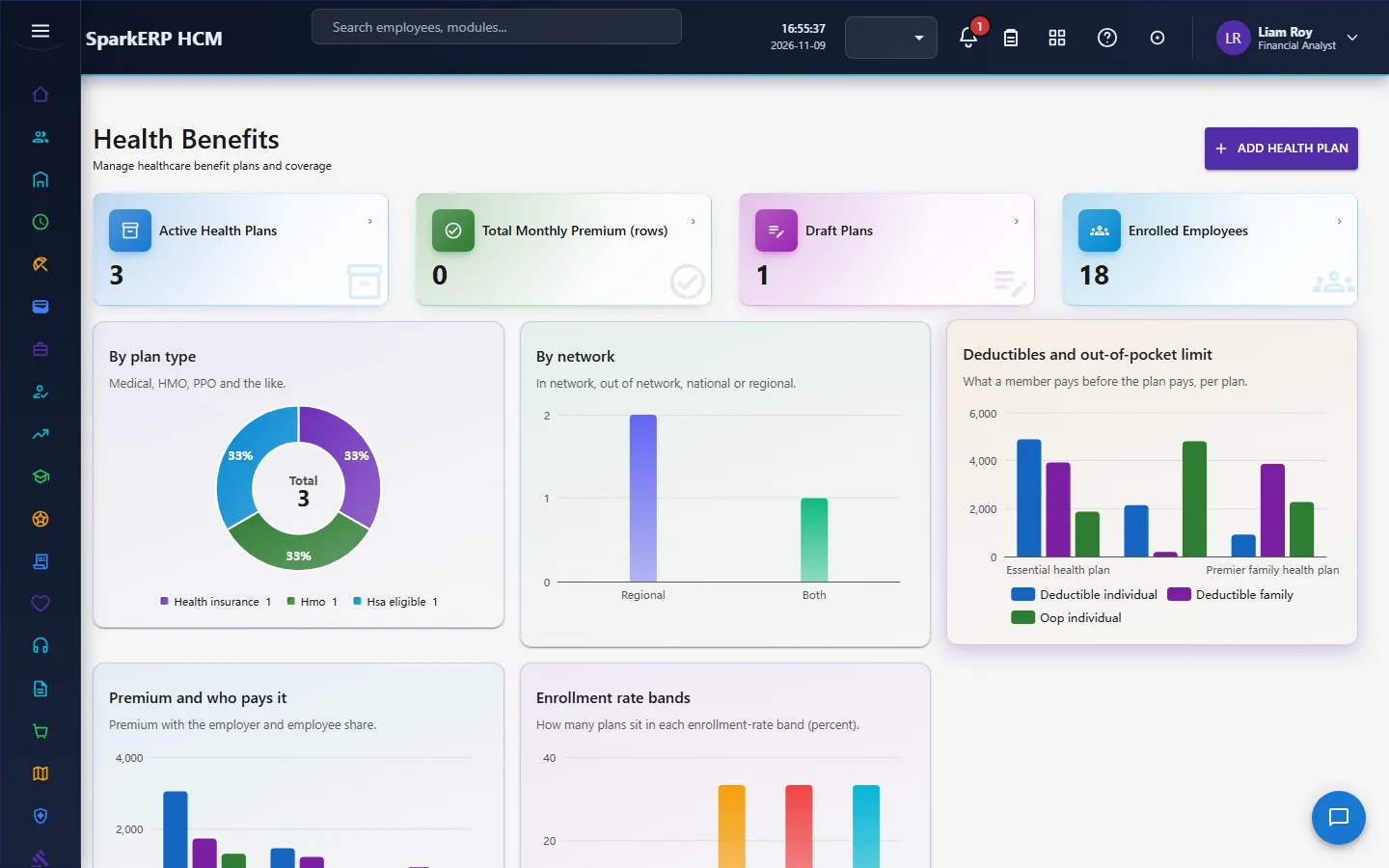
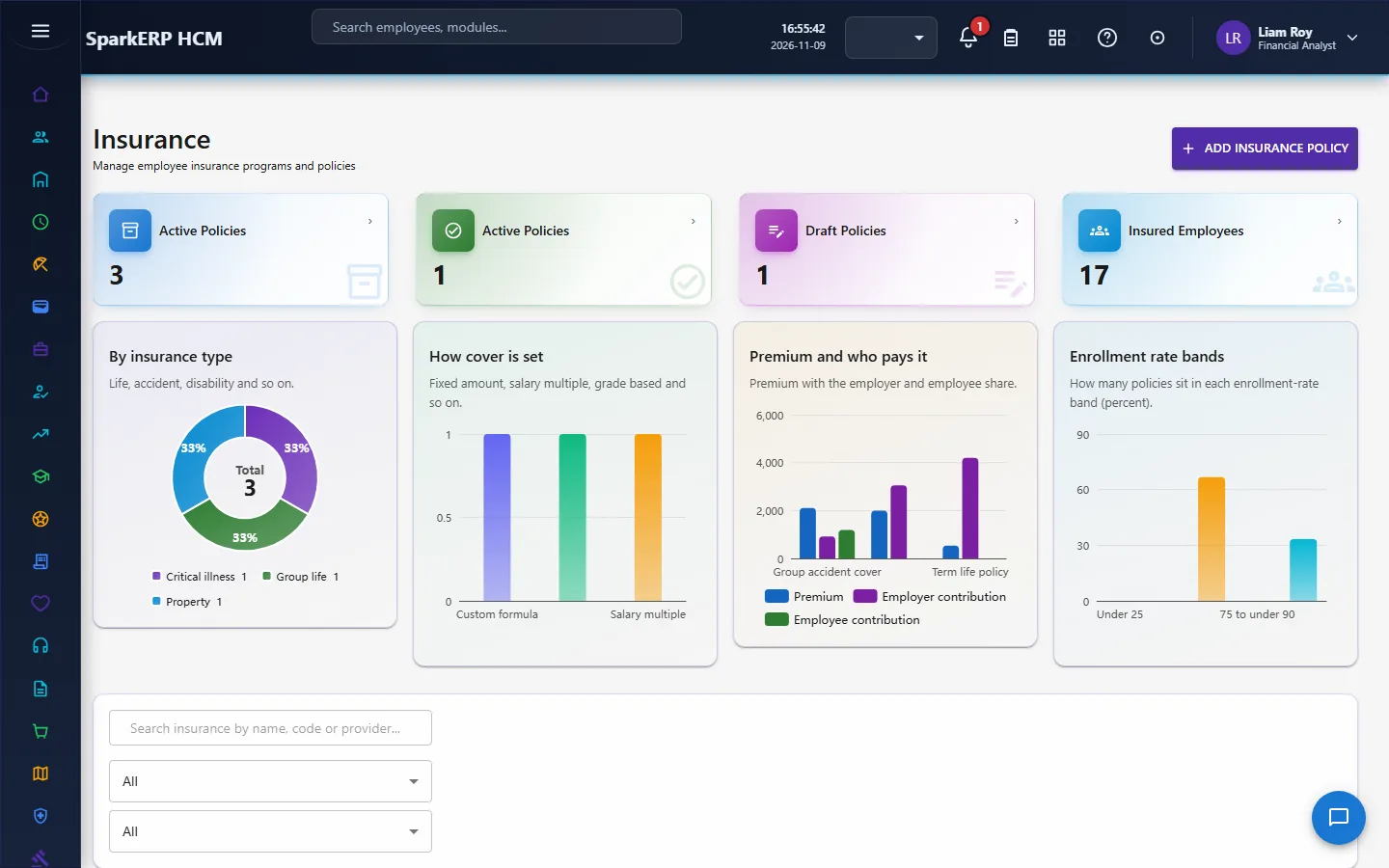
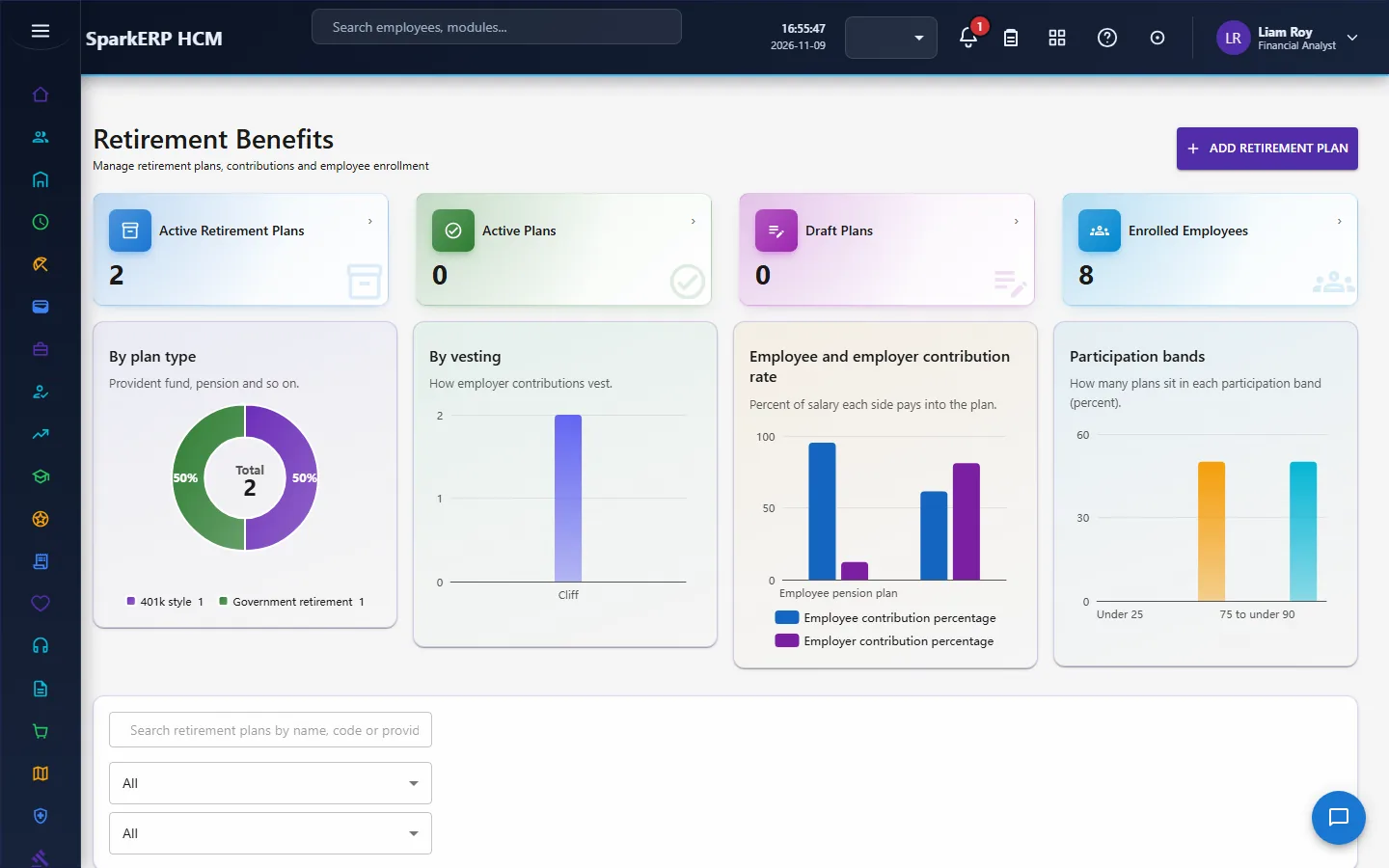
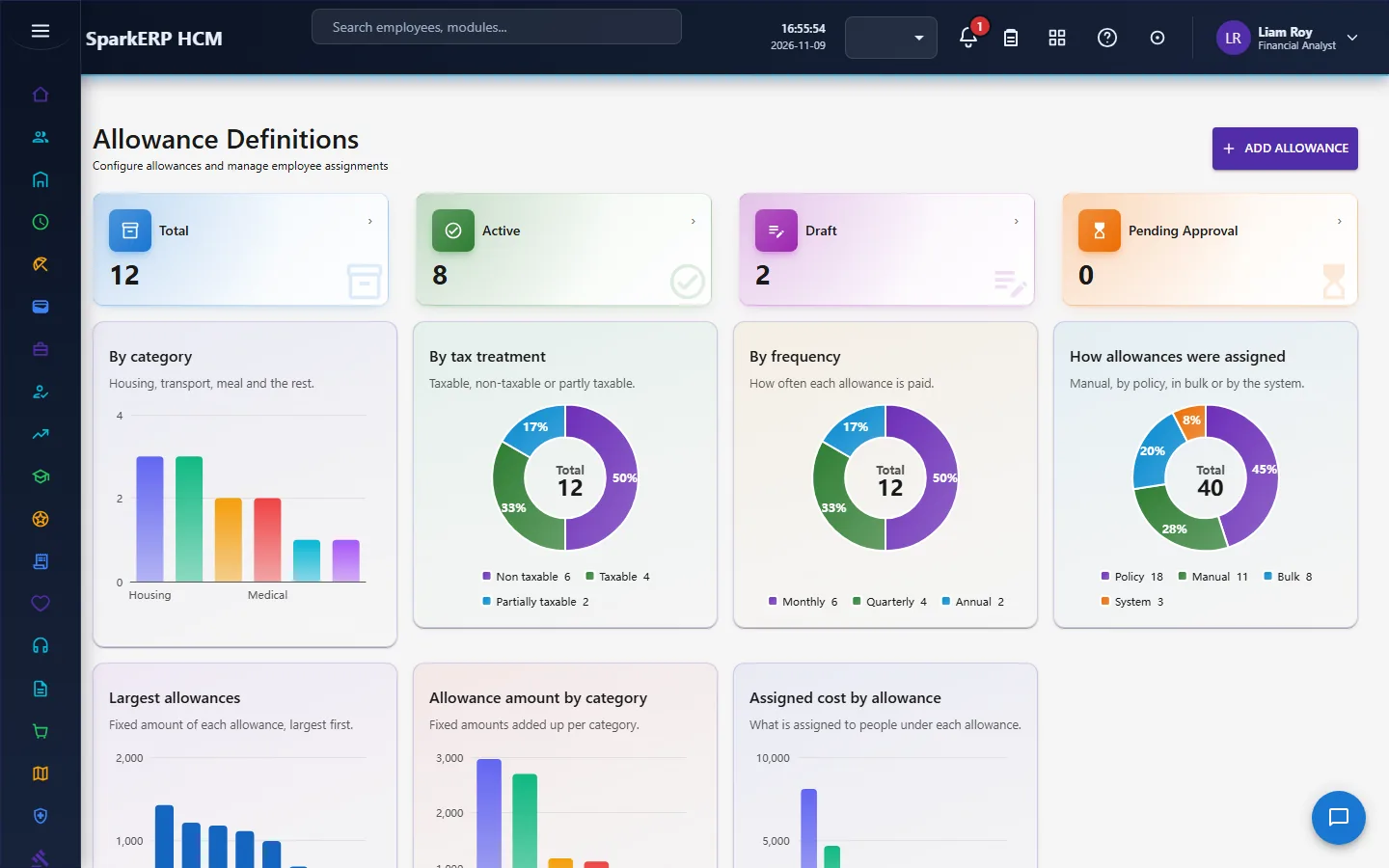
Enrollment Windows, Employee Enrollment and Beneficiaries hold the people.
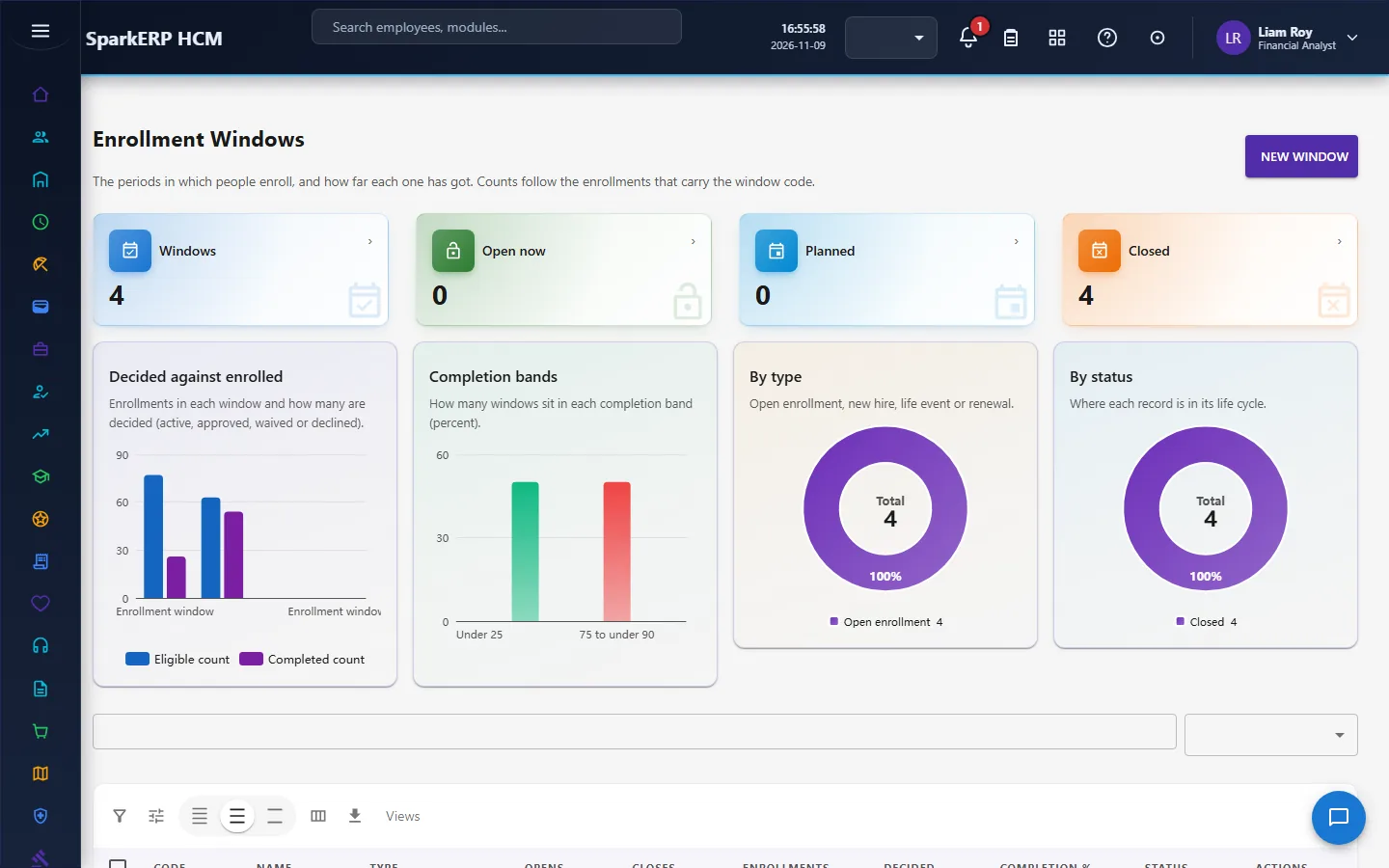
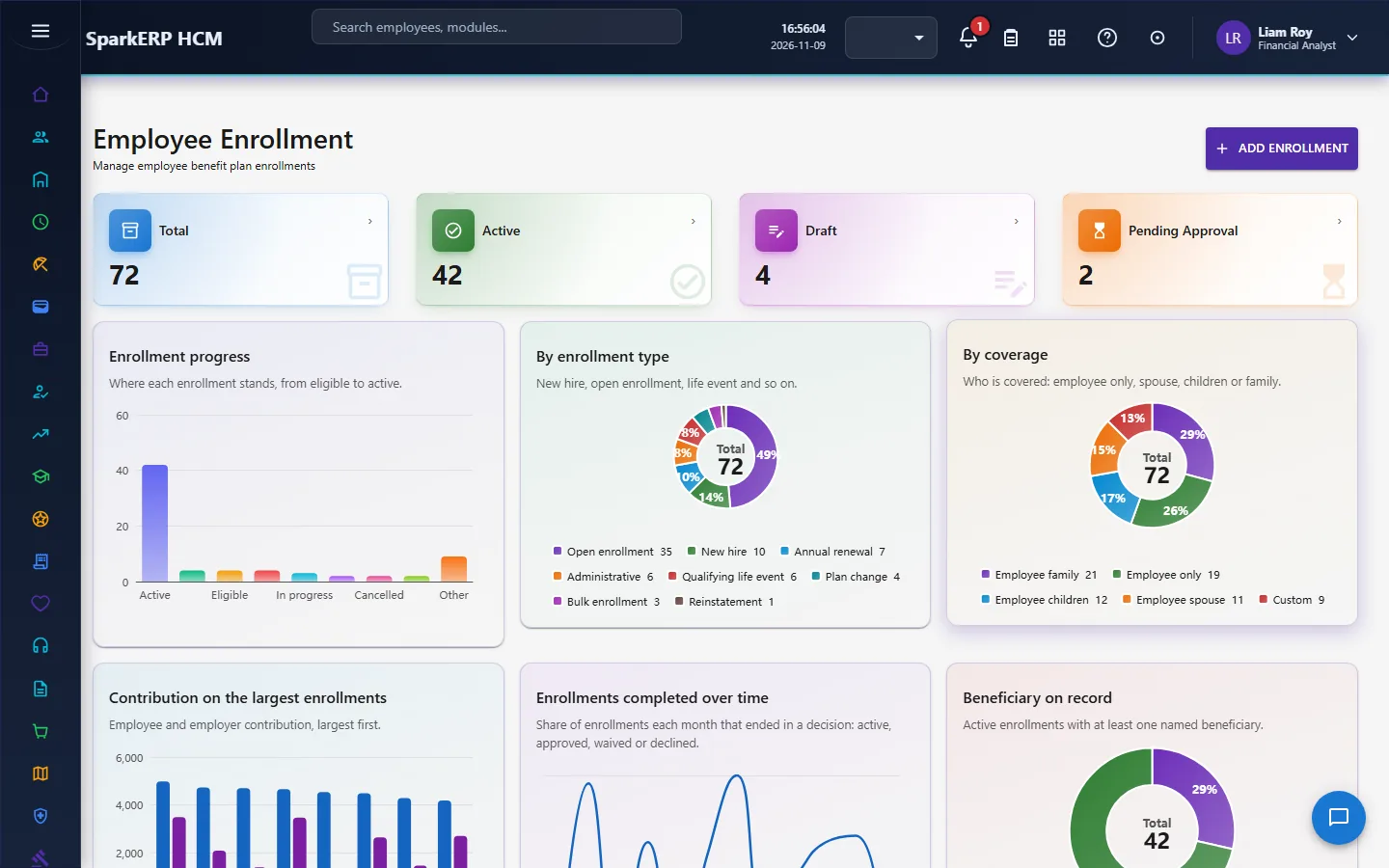
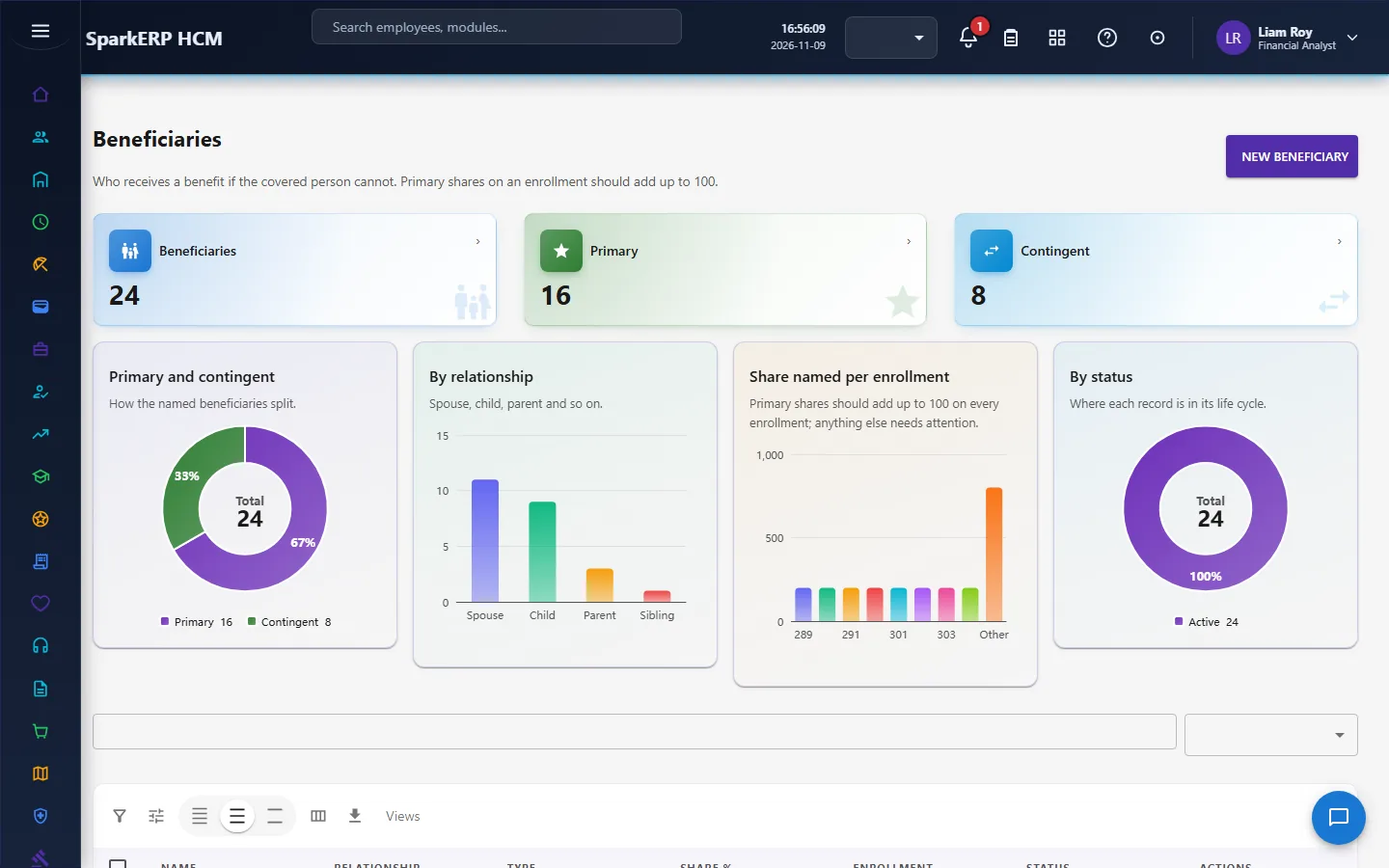
Benefit Claims, Reimbursements and Benefits Reports close the loop.
4. Decide before you set up
| Decision | What to think about |
|---|---|
| What you offer | Health, insurance, retirement, allowances, and any other plans. |
| Who is eligible | The eligibility rule of each plan. |
| Who pays what | The employer and employee contribution, and the frequency. |
| When people can enrol | Annual windows, and when a person joins. |
| Who approves | The manager, HR, administrator and finance steps, and who holds each role. |
| Claim rules | The eligible amount, who reviews, who settles. |
| Renewal | The renewal date and when to be reminded. |
5. Set up step by step
- Roles. Give the Benefits Administrator and Benefits Manager roles to the people who decide the approval steps (the "HR" and "finance" steps are decided by these roles).
- Plans. Create the plans, the health, insurance and retirement plans, and the allowances; send each through its approval and activation.
- Eligibility. Set the eligibility rule of each plan.
- Payroll. Make sure payroll runs in the same currency, or that an exchange rate exists, so contributions are deducted.
- Windows. Create the annual enrolment window.
- Employees. Enrol people, or let them enrol from My Benefits within the window.
- Trial. In a trial tenant generate the Benefits demo pack and follow one enrolment and one claim.
6. Daily use
6.1 An employee enrols
- Open My Benefits within an enrolment window and choose a plan.
- Name beneficiaries; the shares of one type must not exceed 100.
- Submit. The enrolment goes to HR, then an administrator, then is activated.
6.2 A claim is made and paid
- The employee submits a claim against their enrolment with the amount and the service date.
- The reviewer decides; then the approver; then finance settles it.
- Watch the days waiting; a claim whose approved amount is above the eligible amount is flagged.
6.3 An administrator keeps the offer
- Watch the plans flagged low enrolment.
- Renew, suspend or archive a plan when it is due, through its approval step.
- Check the enrolment windows' completion and the days left.
7. A calendar of recurring work
| When | What |
|---|---|
| Before a window | Check the plans, the eligibility and the contributions. |
| During a window | Follow completion; remind people. |
| Each payroll | Contributions come off pay from active enrolments. |
| Monthly | Claims waiting; low-enrolment plans. |
| Before a renewal date | Review the plan and its cost. |
8. Reports and figures
The Benefits Dashboard and Benefits Reports show plans, enrolments, claims, reimbursements and spend, and the enrolment rate and cost per enrolled person of each plan. Lists can be exported.
9. Limits you should know about
- Benefits does not administer insurance with an insurer. It records the plan and the enrolment.
- Payment is a workflow step. The money moves through Payroll or finance.
- A contribution in a different currency needs an exchange rate, or it is not deducted.
- Status changes to active, suspended, archived, approved and paid go through workflows. A plain edit is refused.
- The low-enrolment flag compares with eligible people. Check that the eligible count is right.
10. Troubleshooting
| Symptom | Cause and fix |
|---|---|
| A plan cannot be made active | Activation is a workflow step; start it and have the manager and administrator approve. |
| An enrolment cannot be approved by editing it | Approved, active and terminated are reachable only through the workflow. |
| Beneficiaries are refused | The shares of that type would go above 100. |
| A contribution was not deducted in payroll | The enrolment is not active, or the currency differs and no exchange rate exists. |
| A claim is flagged | The approved amount is above the eligible amount. |
| A claim is stuck | Check who it is waiting for and for how many days. |
| An employee cannot open a screen | It is an administration screen. Use My Benefits. |