
Appearance
Overtime Cap Watch
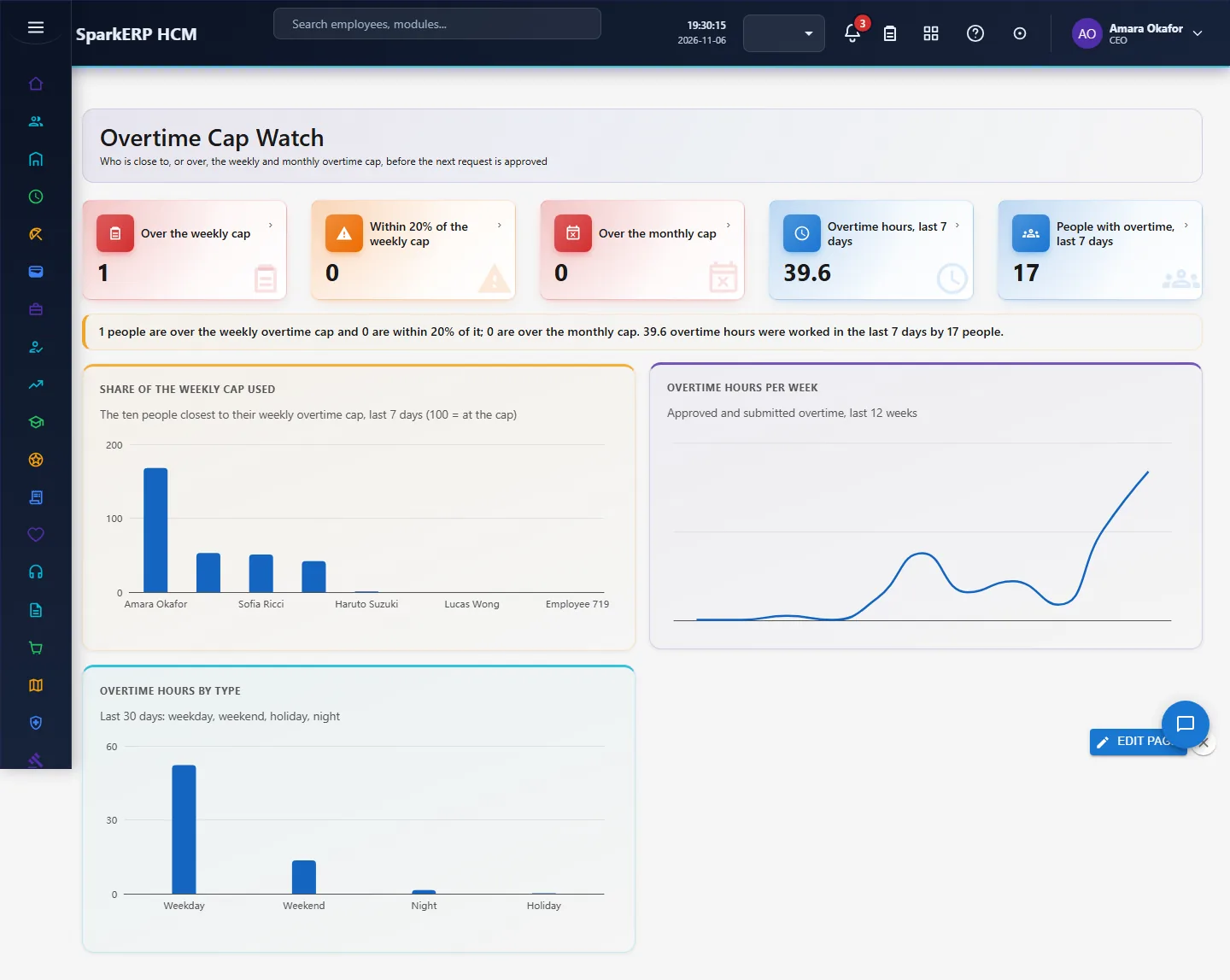
Time and attendance tools warn a manager before an employee reaches an overtime limit, not after the payroll run. Overtime Cap Watch does that from the overtime already recorded: it reads the approved and submitted overtime of the last 7 days against the weekly cap, and of the last 30 days against the monthly cap, of the overtime policy each record belongs to.
1. Who uses it
| Role | What they do |
|---|---|
| Manager | Looks before approving more overtime for the same people. |
| HR / payroll administrator | Reads who is over the cap and why, before the period is closed. |
| Operations lead | Reads overtime hours per week and by type to see if the load is growing. |
2. Before you start
- Plugin:
hcm-attendance(HCM Time and Attendance). No extra licence feature. - Access: a tenant administrator, or a login with Report.View.
- Policies: the caps are the Weekly maximum and Monthly maximum minutes of each overtime policy (Attendance Policies, overtime policy). A policy with no cap is not watched.
- Trial data: generate the Attendance pack in Demo Data; it includes overtime concentrated on a few people so the cards show people near or over the cap.
3. Set up
- Open Attendance Policies and edit each overtime policy: set the weekly and monthly maximum in minutes (for example 720 and 3600).
- Make sure overtime records carry their policy (records created from the Overtime page do).
There is nothing to switch on: the page reads the records as they are.
4. Daily use
- Open Overtime Cap Watch in the sidebar under Time and Attendance.
- Read the tiles: people over the weekly cap, people within 20% of it, people over the monthly cap, overtime hours and people with overtime in the last 7 days.
- The Share of the weekly cap used chart lists the ten people closest to the cap (100 means exactly at the cap, above is over).
- Before approving another overtime request for one of those people, open Overtime, find the request and decide, or ask the manager to move the work.
5. Charts, reports and exports
| Figure | What it counts |
|---|---|
| Over the weekly cap | People whose approved and submitted overtime in the last 7 days is more than the weekly maximum of their policy |
| Within 20% of the weekly cap | Same, at 80% to 100% of the cap |
| Over the monthly cap | People over the monthly maximum, last 30 days |
| Overtime hours per week | Approved and submitted overtime, last 12 weeks |
| Overtime hours by type | Weekday, weekend, holiday, night, last 30 days |
6. On a phone or tablet
Tiles and charts stack one per row. The same page works for a manager on the shop floor.

7. Rules and limits
- It reads overtime records only. Hours worked without an overtime record are not counted.
- Draft, rejected and cancelled overtime is left out.
- It does not stop an approval: it shows the risk. Working-time law differs by country (for example weekly hour limits and rest periods); set the caps in the policy from your own rules, the page applies none by itself.
- The windows are the last 7 and 30 days, not calendar weeks or months, so the figure moves every day.
8. Troubleshooting
| Symptom | Cause and fix |
|---|---|
| Everything is zero | No overtime in the last 7 days, or the policy has no weekly maximum. |
| A person is missing | Their overtime has no policy, or is still a draft. |
| "Report.View is required" | The login is not an administrator and lacks the Report view permission. |