
Appearance
Reports and Print Templates
Concepts
A report is a printable or exportable table of data (a list of overdue loans). A print template is a designed document (a loan receipt, an invoice). Both are laid out in bands: header, group header, detail (one per record), group footer, footer. Elements sit in bands: text, merge fields ({{borrower}}), tables, images, barcodes, formulas.
They are different from a dashboard (interactive, on screen) and a page (general layout). Data comes from the same three sources as everywhere: static, binding, expression. Groups and formula fields are evaluated at export time.
Export formats: PDF, Word (DOCX), Excel (XLSX), and thermal printers (ESC/POS, ZPL) through the Printers registry.
Problem statement
When an item leaves the desk, staff want a printed receipt for the borrower to sign, and every Monday facilities wants the overdue list as Excel.
All features
- Report designer
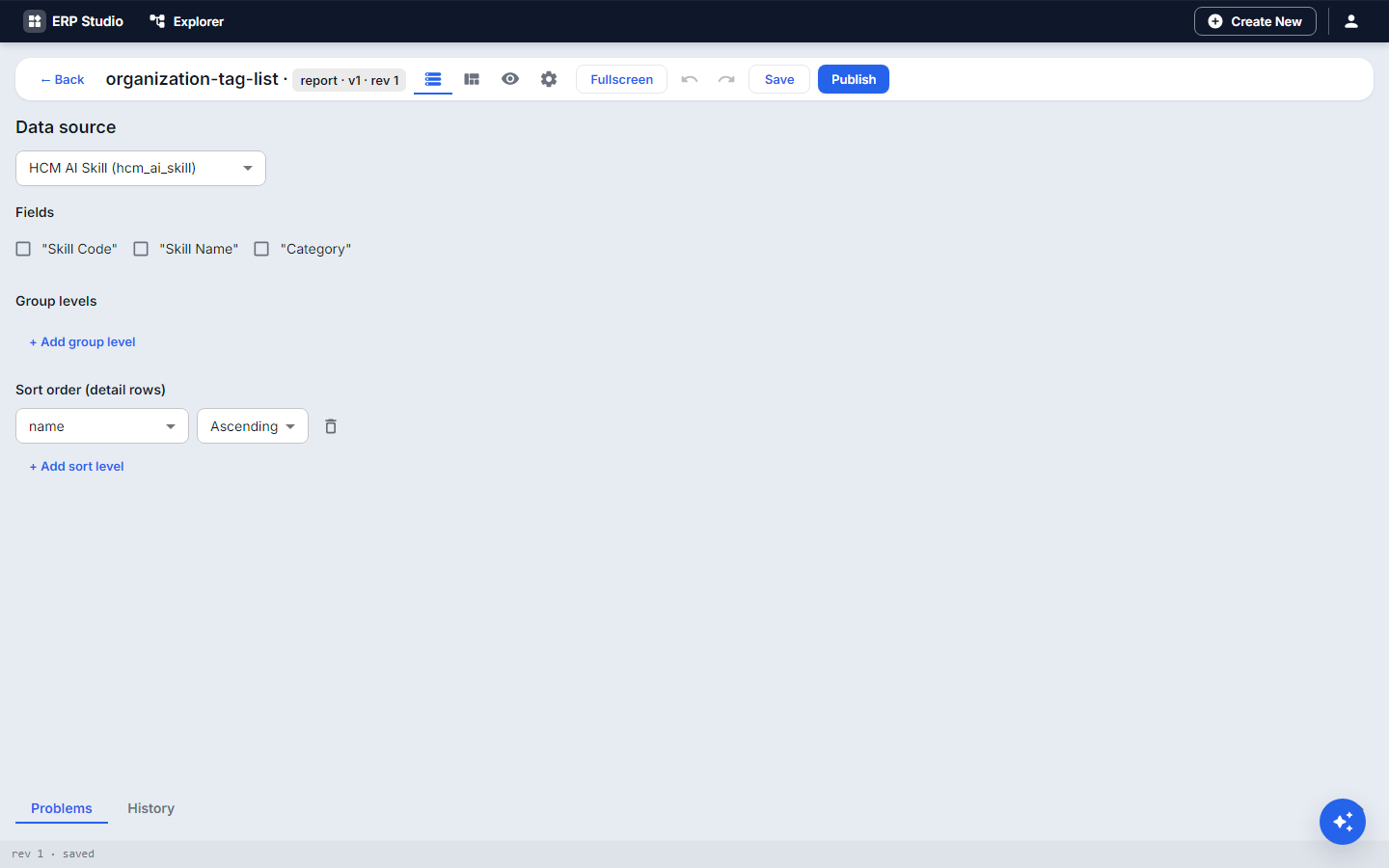 : data source panel, band canvas, columns, grouping and totals, formula fields, page size and orientation, header / footer, preview with real data.
 - Print template designer
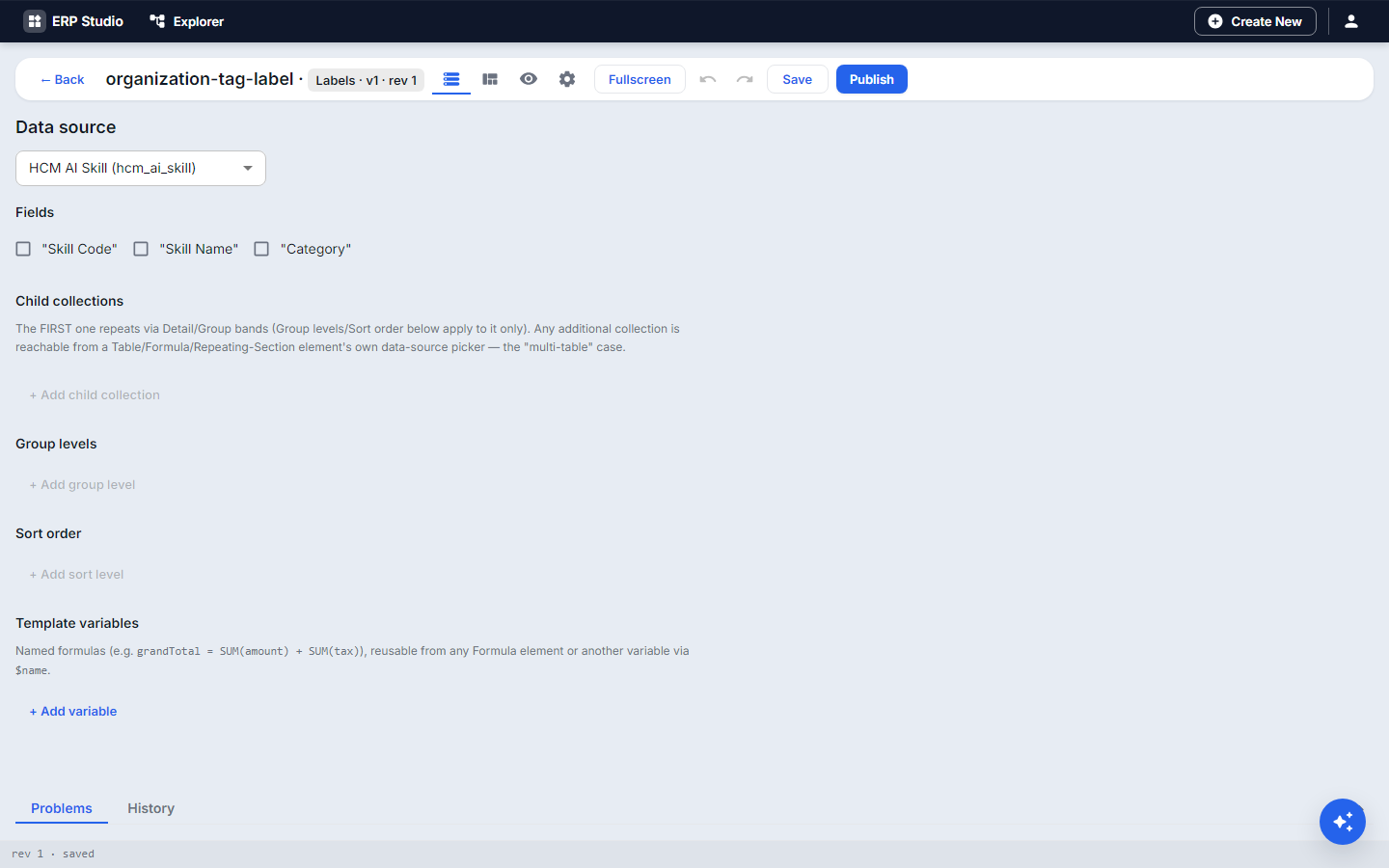 : page canvas, text (plain, rich, HTML, merge text), table columns editor, formula editor, style panel, visibility rules per element, live Preview with measurement.
 - Export: choose PDF, DOCX, XLSX or thermal from the export page.
- Permissions: Report and Print permissions are separate role settings.
- Printers: register a network thermal printer once, then send to it.
Step by step
The receipt
- Print templates, New
loan-receipt; page A5. - Data source: the
equipment_loanprovider, one record. - Add a title, then merge text "Item: , borrower: , due ".
- Add a signature line and a barcode with the loan id.
- Preview with a real loan; fix any overflow.
- Publish.
The overdue report
- Reports, New
overdue-loans; data source the overdue view. - Columns: Item, Borrower, Due, Days late (a formula: today minus due).
- Group by borrower with a count in the group footer.
- Preview, then Publish. Add an Export to Excel button on the Loans page.
Check it worked
The receipt prints on one page with the values filled in; the Excel file opens with the grouped rows.
Common mistakes
- Merge field names that differ from the data field names.
- Designing on screen sizes: set the real paper size first.
- Forgetting Print / Report permissions for the roles that print.