
Appearance
Form Designer: data entry screens
Concepts
A form is how people enter and edit data. It is made of fields, arranged in a layout, with rules (show / hide / require), validations, and events (what happens on submit or cancel). A form is not tied to one entity: its fields bind to whatever data the page gives it, most often an entity like equipment_loan.
Every field value comes from one of three sources, the same everywhere in Studio:
| Source | Meaning | Example |
|---|---|---|
| static | a fixed value you type | "on_loan" |
| binding | read from data or state | the logged-in user's id |
| expression | calculated | due_on = loaned_on + 14 days |
A form is published as a version, so users never see a half-edited form.
Problem statement
At the front desk, staff lend items using an email thread. They forget the due date, lose the borrower's name and cannot see who is late. You want a single Lend an item form: pick the item, pick the borrower, the due date defaults to two weeks, a deposit field appears only for expensive items, and a clear error shows if the dates are wrong.
What you will build
The Lend an item form for equipment_loan.
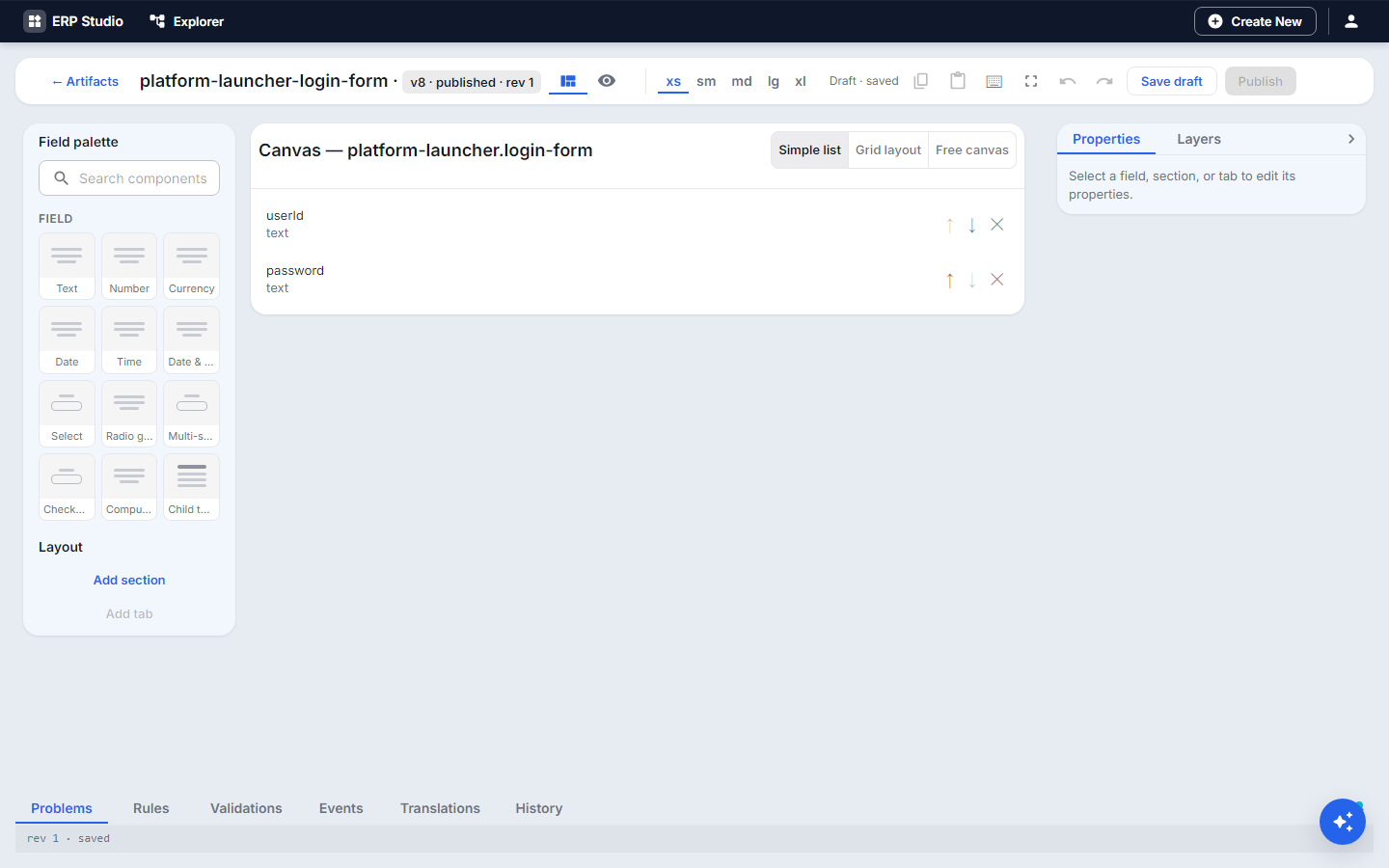
The screen
- Left: the field palette and the Explorer-style Form fields outline.
- Middle: the canvas in Simple list, Grid layout or Free canvas mode, with a breakpoint switch (phone, tablet, desktop) and a Preview with a Preview locale.
- Right: Properties (the selected field) and Layers.
- Bottom tabs: Problems, Rules, Validations, Events, Translations, History.
Field kinds
text, number, date, time, datetime, select, radio, multi-select, checkbox, currency, computed (derived, read-only), and child-table (a repeatable set of rows, such as loan items on one loan form).
All features
- Field properties: name, label (a translation key), help text, icon, placeholder, default value, Required, Read-only, Hidden, column span in a grid.
- Constraints: Min / Max, Min / Max length, Pattern, options for select / radio / multi-select, currency code for currency, Secret (obscured as typed, for passwords) with an optional reveal toggle.
- Use from Validation Library: reuse a tenant-wide validation (for example "valid email") instead of retyping it.
- Sections to group fields; tabs and accordions by wrapping field groups.
- Responsive layouts: design the phone arrangement first; larger breakpoints add to it or arrange fields differently ("Style & positioning").
- Rules tab: conditions that show, hide, require or lock fields; can depend on a Role ("Salary is read-only for role EMPLOYEE").
- Validations tab: cross-field checks with a message, using the expression editor.
- Events tab: run action chains on load, submit, cancel or field changes.
- Translations tab: label text per language, with a locale preview.
- Copy / Paste / Insert, undo and redo, a Keyboard shortcuts list (open it from the toolbar) and autosave with recovery of unsaved work.
- Field permissions: every field can be visible, enabled or masked per role (see Security).
- History tab: every version; compare and restore.
Step by step
- Open Forms, New form. Name it
lend-equipment, set the title. - Drag text
itemfrom the palette to the canvas; set the label "Item" and tick Required. - Add a select
borrower, options from the employee lookup, Required. - Add date
loaned_onwith default "today" (expression), Read-only. - Add date
due_on. Set its default with an expressionloaned_on + 14 days. - Add currency
deposit, currency code USD, Hidden. - Open Rules: When
itemis one of the "high value" list, then showdepositand make it Required. - Open Validations:
due_onmust be afterloaned_on, message "Due date must be after the loan date". - Open Events: on Submitted, run show a success message then navigate to the loans list.
- Switch the breakpoint to phone, check the order of fields, and press Preview.
- Fill it wrongly on purpose, then correctly. Look at Problems; it should be empty.
- Publish.
Check it worked
The preview shows the deposit only for high-value items and refuses a bad date. The History tab lists the new version.
Common mistakes
- Relying on the form alone for a rule that must always hold. Add it to the entity too, so imports and APIs obey it.
- Hidden field marked required: users cannot submit and cannot see why. Put the required flag inside the rule.
- Typing label text directly instead of a translation key: it cannot be translated later.
Next
Put the form on a page.